


Step-by-Step Instructions for Using Three Monitors (2025)
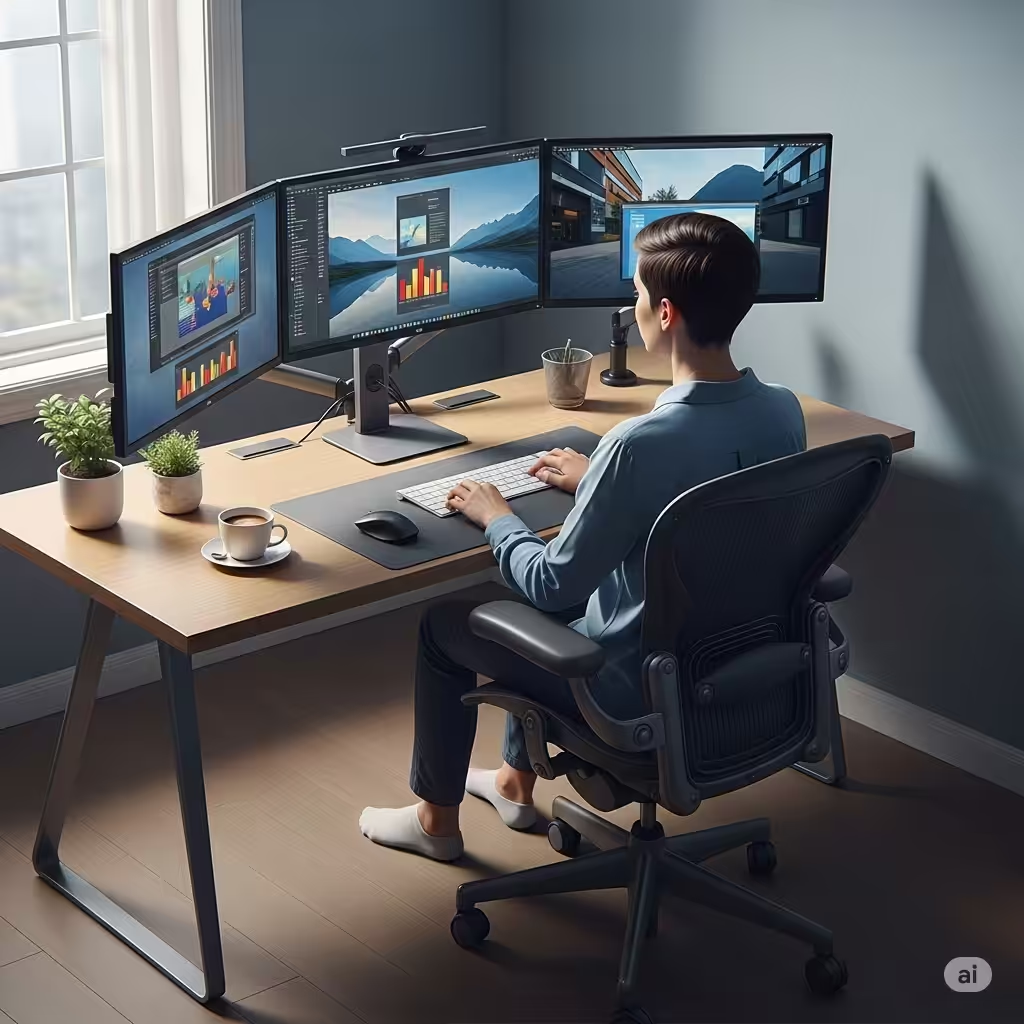
Multi-monitor setups are increasingly popular for productivity, gaming, and content creation. Adding extra screens can dramatically improve workflow, allowing users to multitask efficiently or enjoy immersive gaming experiences. Setting up three monitors may seem complicated at first, but with proper planning and the right hardware, the process is straightforward. In this guide, we will walk you through everything you need to know to set up three monitors in 2025.
Check Your Hardware Requirements
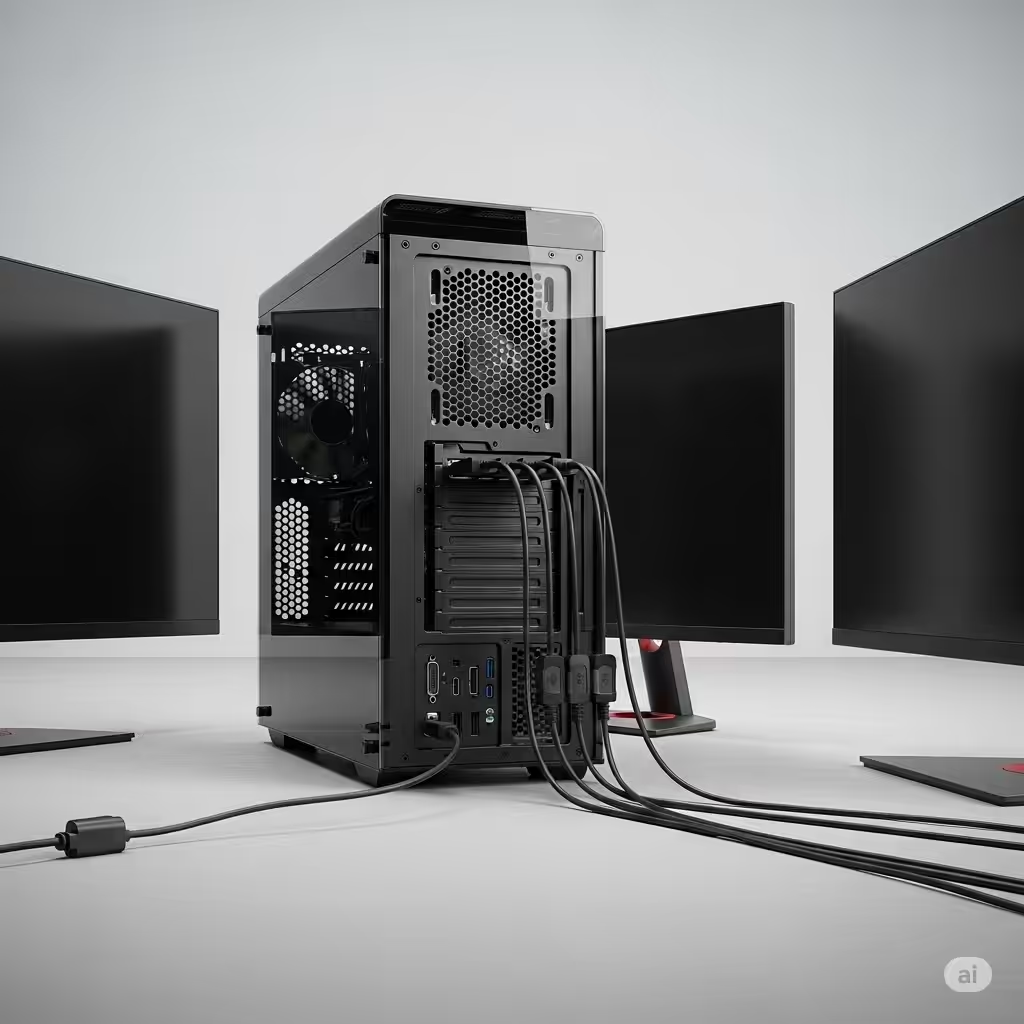
Before purchasing or connecting additional monitors, ensure your computer meets the requirements for a triple-monitor setup.
Graphics Card Capabilities
Most modern graphics cards can support multiple monitors, but the number of outputs varies:
-
Entry-level cards may support only two monitors.
-
Mid-range and high-end cards often support three or more displays.
-
Professional GPUs designed for workstations can handle four or more monitors simultaneously.
Check your graphics card specifications for the maximum number of supported displays and the types of connections available (HDMI, DisplayPort, DVI, or USB-C).
Monitor Compatibility
For optimal performance:
-
Ensure all monitors have compatible ports with your graphics card.
-
Matching screen resolution and refresh rate across monitors provides a more seamless experience, although mixed setups can also work.
-
Consider monitor size and bezel thickness if you want a continuous display across screens.
Power and Desk Space
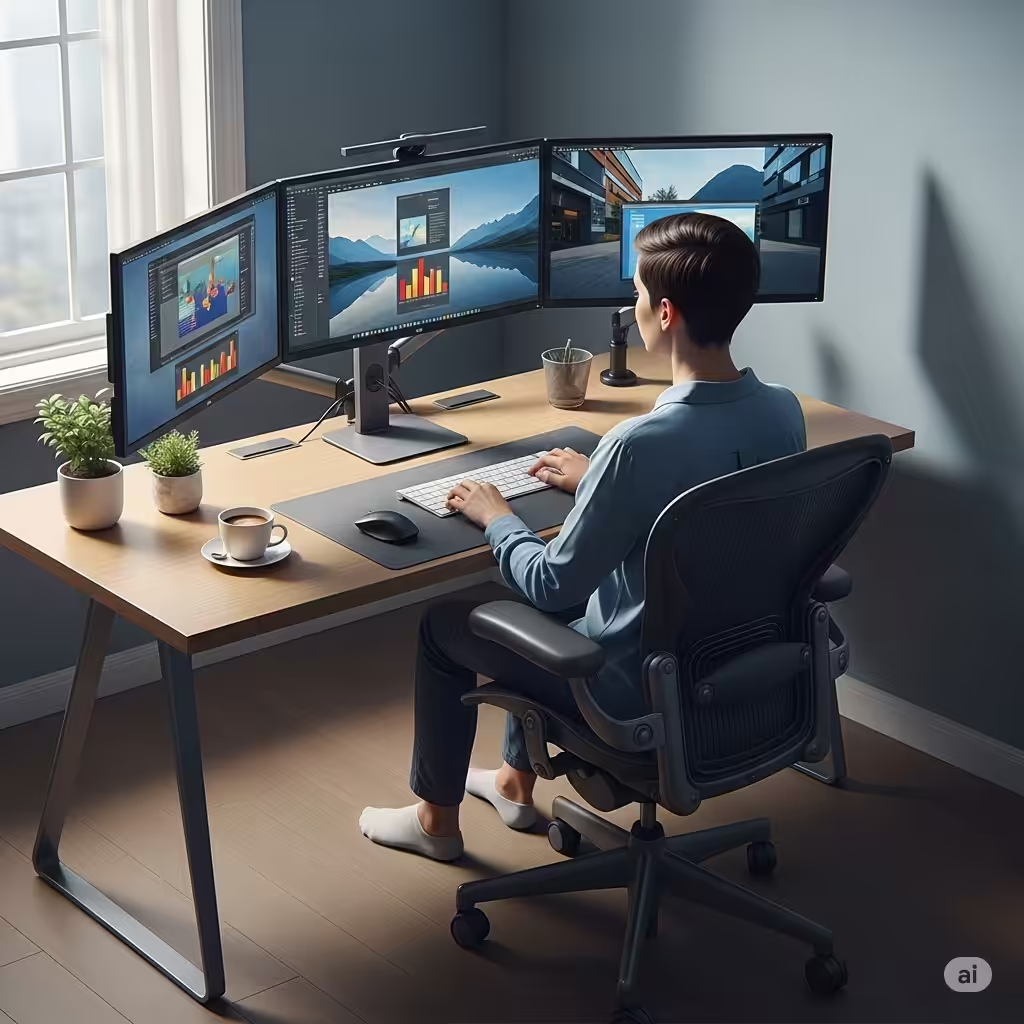
A three-monitor setup requires sufficient desk space and power outlets. Ensure you have a stable surface and adequate room for monitor stands or a triple-monitor mount.
Choose the Right Connection Method
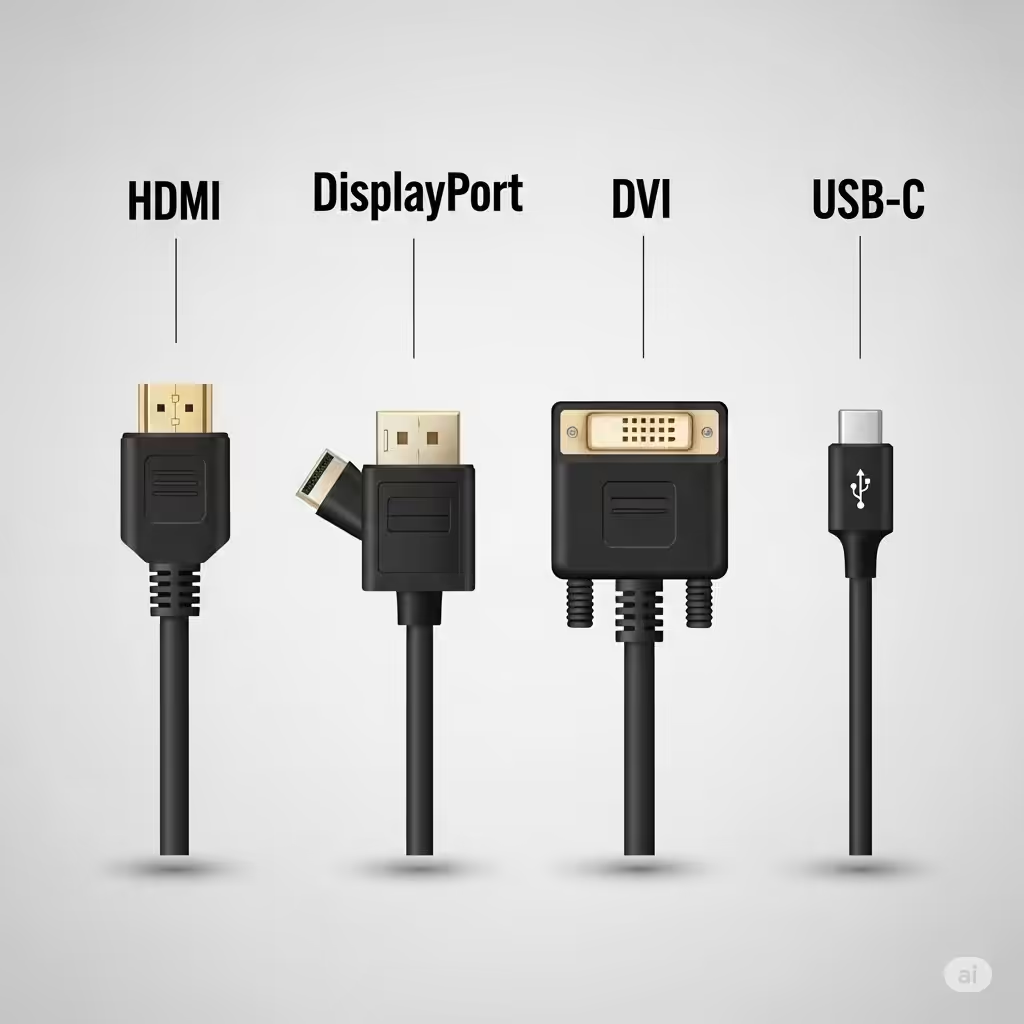
Modern monitors offer multiple connection options. Choosing the right one depends on your GPU and the desired performance:
-
HDMI: Common and supports high-definition video and audio.
-
DisplayPort: Ideal for high refresh rates and multiple monitor daisy-chaining.
-
DVI: Older technology, suitable for standard HD displays.
-
USB-C/Thunderbolt: Can deliver video, audio, and power over a single cable.
For three monitors, using a combination of these ports may be necessary. Make sure your graphics card has enough compatible ports or consider using adapters if required.
Connect Your Monitors
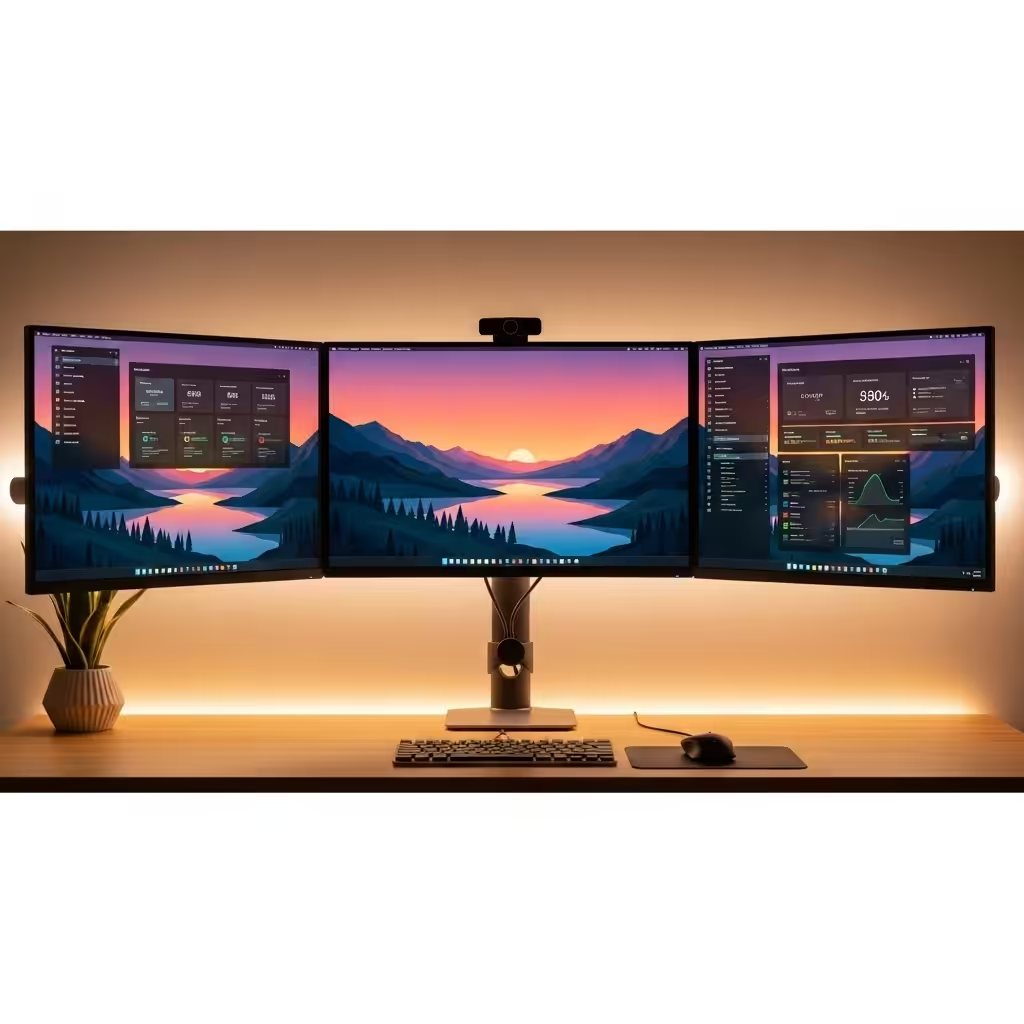
Once you have verified compatibility, it’s time to connect your monitors:
-
Turn off your PC before connecting new monitors to prevent hardware issues.
-
Connect each monitor to the corresponding port on your graphics card using the appropriate cables.
-
Power on the monitors and then your computer.
Windows or macOS should automatically detect the connected monitors. If a monitor is not detected, double-check the cable connections and ensure the correct input source is selected on the monitor.
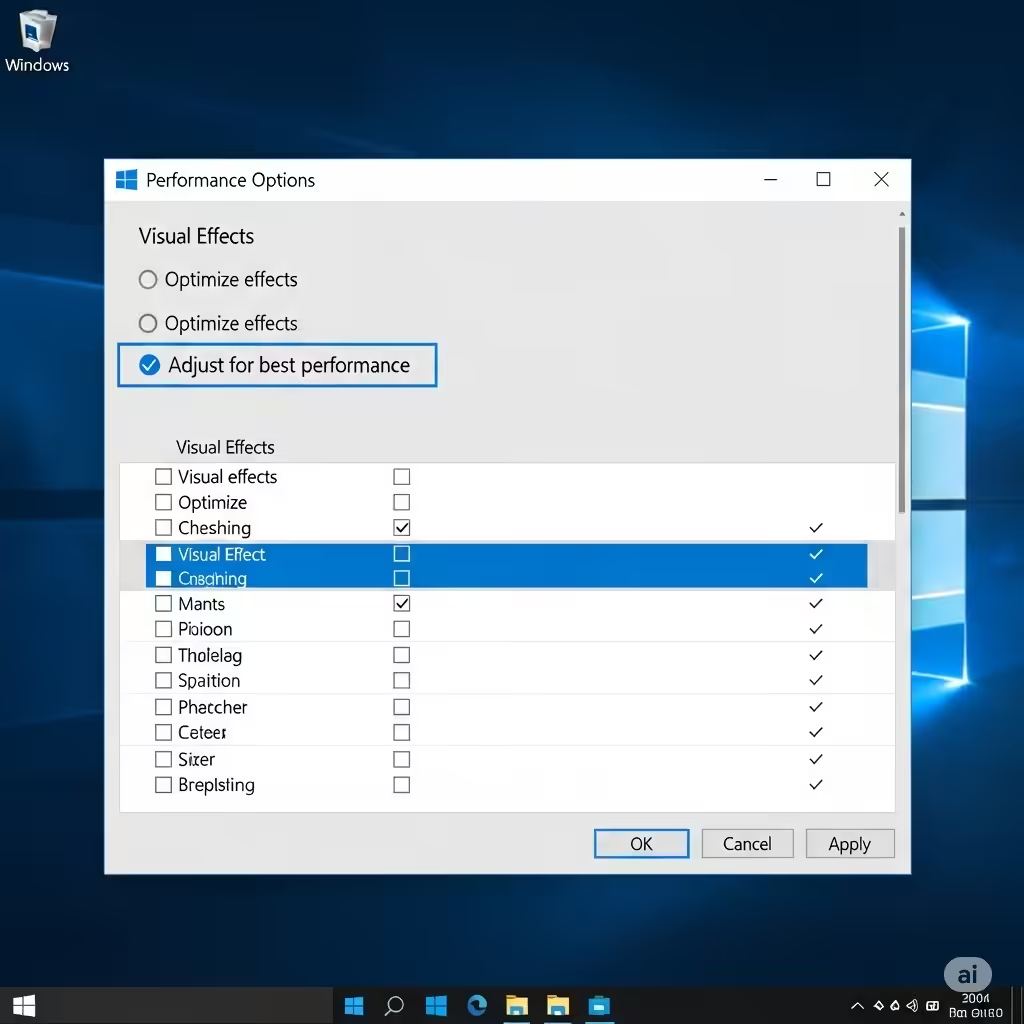
Configure Display Settings in Windows 10/11

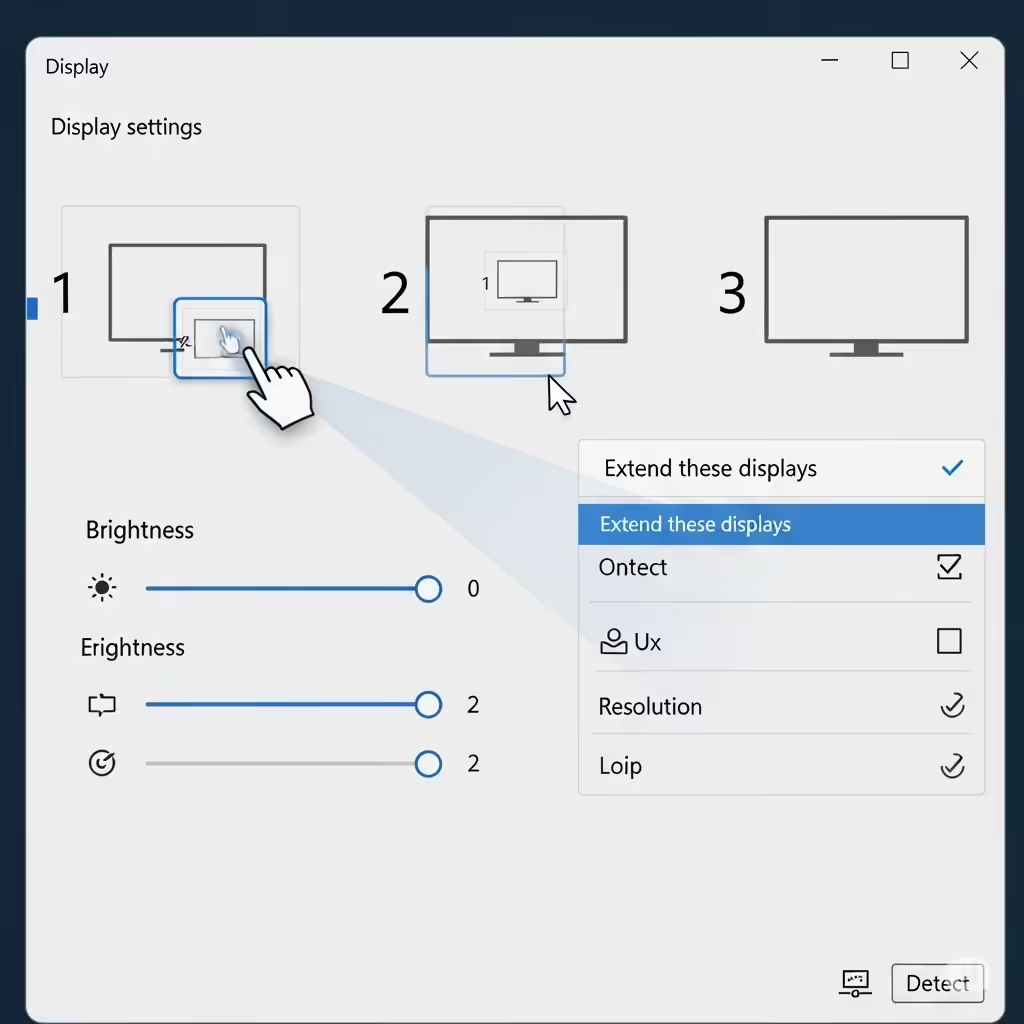
After connecting your monitors, the next step is to configure their arrangement and resolution in Windows:
-
Right-click on the desktop and select Display settings.
-
You will see numbered boxes representing each monitor. Drag them to match their physical arrangement on your desk.
-
Choose a Primary display (where taskbars and icons appear).
-
Adjust resolution and scaling for each monitor to ensure clarity and uniformity.
-
Under Multiple displays, select Extend these displays to use all screens as a single workspace.
This allows you to drag applications across monitors seamlessly and take full advantage of your triple-screen setup.
Optimize Performance for Gaming or Productivity

Triple monitors can enhance gaming immersion or productivity, but proper optimization is key:
Gaming Optimization
-
Graphics settings: Games may need lower settings to maintain smooth performance across three monitors.
-
Field of View (FOV): Widen the FOV in supported games to take advantage of additional screen space.
-
V-Sync or Frame Rate Limit: Reduce screen tearing and maintain smooth visuals across multiple monitors.
Productivity Optimization
-
Task Organization: Use virtual desktops or window management tools to organize applications across monitors efficiently.
-
Shortcuts: Keyboard shortcuts can help quickly move windows between screens.
-
Software Tools: Programs like DisplayFusion or PowerToys enhance window snapping and multi-monitor control.
Consider Monitor Placement and Ergonomics
Proper placement is essential for comfort and usability:
-
Position the main monitor directly in front of your chair.
-
Place secondary monitors at an angle to create a curved or semi-circular setup.
-
Ensure the top of all screens is roughly at eye level to reduce neck strain.
-
Adjust brightness and color settings to prevent eye fatigue during extended use.
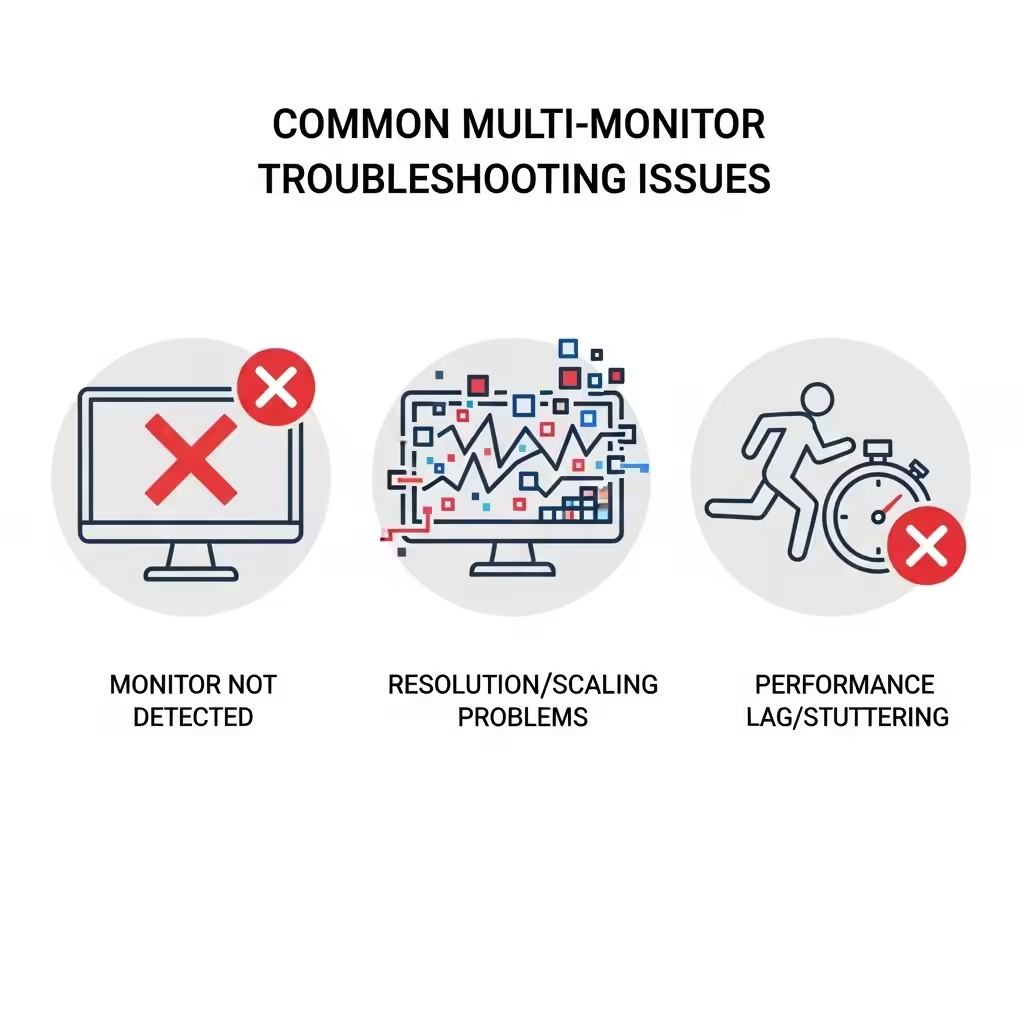
Troubleshooting Common Issues
Even experienced users may encounter challenges with a three-monitor setup. Here are solutions to common problems:
Monitor Not Detected
-
Check cable connections and ensure the correct input is selected.
-
Update graphics drivers to the latest version.
-
Restart your computer after connecting all monitors.
Resolution or Scaling Problems
-
Adjust resolution and scaling in display settings.
-
Ensure all monitors support the resolution you are trying to use.
-
Mixed resolution setups may require custom scaling for uniformity.
Performance Lag or Stuttering
-
Ensure your GPU can handle rendering across three screens.
-
Lower graphics settings in demanding games.
-
Close unnecessary background applications to free up system resources.
Conclusion
Setting up three monitors in 2025 is a straightforward process when you understand hardware requirements, connectivity options, and software configuration. By choosing compatible monitors, connecting them correctly, and optimizing display settings, you can create a powerful workspace or immersive gaming environment.
A well-planned triple-monitor setup enhances productivity, improves workflow, and provides a more enjoyable gaming experience. With attention to ergonomics and performance optimization, you can fully leverage the benefits of three monitors for years to come.