


How to Enhance Windows 10 for Gaming and Speed
Windows 10 is one of the most popular operating systems for gamers and PC users worldwide. While it comes with many built-in features and settings, default configurations are not always optimized for high-performance gaming. With a few adjustments, you can significantly improve your system’s speed, reduce lag, and create a smoother gaming experience. In this guide, we will explore practical ways to optimize Windows 10 for gaming and overall performance.
Adjust Visual Effects for Maximum Performance
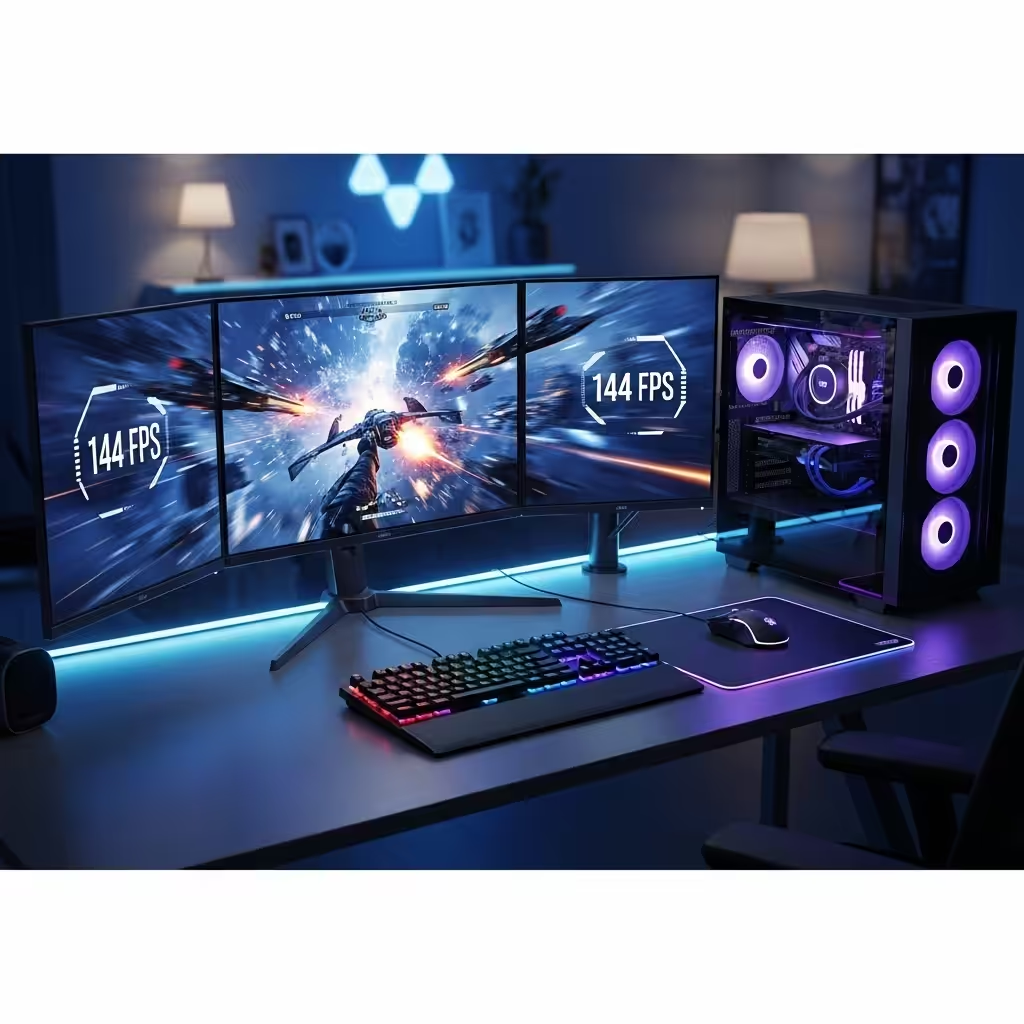
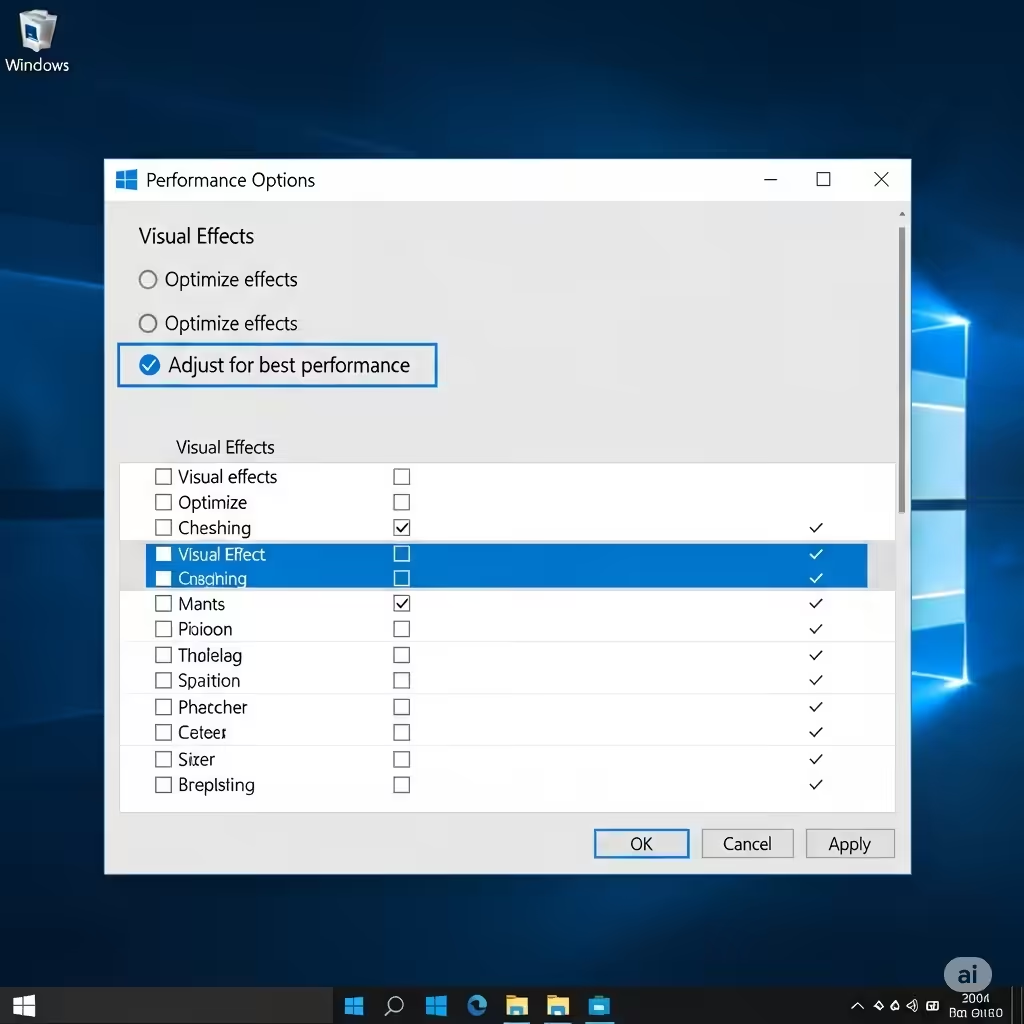
Windows 10 includes many visual effects like animations, shadows, and transparency, which make the interface look appealing but can consume system resources. Adjusting these settings can improve performance:
-
Press Windows + R, type sysdm.cpl, and press Enter.
-
Go to the Advanced tab and click Settings under the Performance section.
-
Select Adjust for best performance to disable all visual effects, or choose Custom to keep only the effects you like.
Reducing visual effects frees up memory and CPU resources, allowing games to run more smoothly.
Enable Game Mode
Windows 10 has a built-in Game Mode designed to prioritize system resources for gaming:
-
Press Windows + I to open Settings.
-
Navigate to Gaming > Game Mode.
-
Toggle Game Mode to On.
When enabled, Game Mode limits background tasks and optimizes CPU and GPU allocation for your active game, resulting in better frame rates.
Update Graphics Drivers
Outdated or incorrect drivers can cause performance issues and crashes in games. Keeping your graphics drivers up to date is crucial:
-
Identify your GPU: press Windows + X and select Device Manager, then expand Display adapters.
-
Visit the manufacturer’s website (NVIDIA, AMD, or Intel) to download the latest driver for your GPU model.
-
Install the driver and restart your computer.
Updated drivers often include game-specific optimizations that improve performance and stability.
Disable Background Apps
Many applications run in the background, consuming CPU, memory, and network bandwidth. Disabling unnecessary apps can free resources for gaming:
-
Press Windows + I to open Settings.
-
Go to Privacy > Background apps.
-
Turn off apps you don’t need running in the background.
Additionally, check the Task Manager (Ctrl + Shift + Esc) to identify and close programs consuming excessive resources.
Adjust Power Settings
Windows 10 power settings can limit performance to save energy. For gaming, it’s better to use a high-performance power plan:
-
Press Windows + X and select Power Options.
-
Choose High performance from the list of power plans.
This ensures that your CPU and GPU run at their full potential, improving game performance.
Optimize Storage and Hard Drives
Slow storage can affect game loading times and in-game performance. Here’s how to optimize your drives:
-
Use an SSD: Installing games on a solid-state drive (SSD) significantly reduces load times compared to a traditional hard drive.
-
Defragment HDDs: For mechanical drives, use the built-in Defragment and Optimize Drives tool to improve data access speed.
-
Free Up Space: Remove unnecessary files and uninstall unused applications to keep your system lean.
A clean and optimized storage setup improves both gaming and overall system responsiveness.
Disable Windows 10 Notifications and Background Services
Notifications and background services can interrupt your gaming session and consume resources:
-
Open Settings > System > Notifications & actions.
-
Turn off unnecessary notifications.
-
Open Services by pressing Windows + R, type services.msc, and disable non-essential services that run in the background.
This reduces interruptions and ensures more system resources are available for your games.
Adjust In-Game Settings
Optimizing Windows is only part of the equation. Adjusting game settings can also improve performance:
-
Lower graphics quality, shadows, and resolution for smoother gameplay on older hardware.
-
Enable V-Sync or FPS cap to reduce screen tearing.
-
Check for game-specific optimization guides, as each title may benefit from unique tweaks.
Balancing visual quality and performance ensures the best gaming experience without sacrificing too much graphics fidelity.
Keep Windows 10 Updated
Regular updates can improve system stability and security, which indirectly affects gaming performance:
-
Press Windows + I to open Settings.
-
Go to Update & Security > Windows Update.
-
Click Check for updates and install any pending updates.
Keeping your system updated ensures compatibility with new games and the latest hardware drivers.
Clean Your PC Physically and Monitor Temperature
High temperatures can cause throttling, reducing performance in demanding games. Make sure your PC is well-ventilated:
-
Clean dust from fans and heatsinks regularly.
-
Ensure airflow in your case is not obstructed.
-
Monitor CPU and GPU temperatures using tools like HWMonitor or MSI Afterburner.
Proper cooling prevents overheating and maintains stable performance during long gaming sessions.
Conclusion
Optimizing Windows 10 for gaming and performance involves a combination of system tweaks, software updates, and hardware management. By adjusting visual effects, enabling Game Mode, updating drivers, disabling background apps, optimizing storage, and monitoring temperatures, you can significantly improve your gaming experience.
With these steps, your PC will run faster, games will load quicker, and you’ll enjoy smoother gameplay. Consistently applying these practices ensures your system remains ready for the latest games, providing both performance and stability.