



Fixing the Issue of Windows Update Standalone Installer Not Progressing
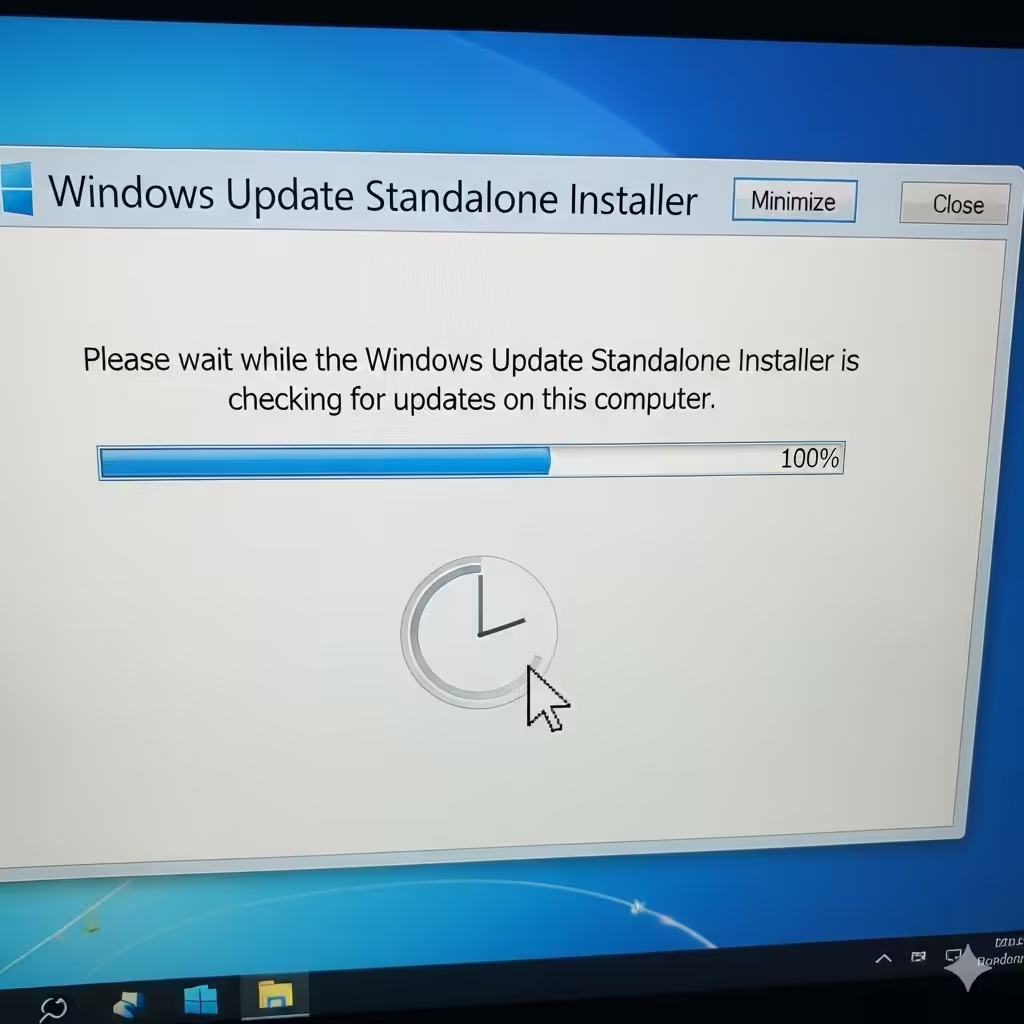
Windows updates are crucial for keeping your system secure, stable, and optimized. They deliver patches for vulnerabilities, driver updates, and feature improvements. However, sometimes the Windows Update Standalone Installer (WUSA) may get stuck at the “Searching for updates” stage. This issue can be frustrating, especially if you need to install an important update quickly.
In this guide, we’ll cover the common causes of this problem and provide multiple solutions to fix it on Windows 10 and Windows 11.
Why Does Windows Update Standalone Installer Get Stuck?
Several factors can cause WUSA to freeze or take an unusually long time when checking for updates:
-
Corrupted Windows Update components.
-
Outdated Windows Update Agent.
-
Conflicts with background services or security software.
-
Missing or corrupted system files.
-
A very large number of pending updates.
-
Network-related issues slowing down communication with Microsoft servers.
Understanding the causes will make it easier to apply the right fix.
Restart Your Computer
Sometimes the simplest solution works. A temporary glitch in Windows services can cause the installer to hang. Restart your computer and try running the standalone installer again.
Run Windows Update Troubleshooter
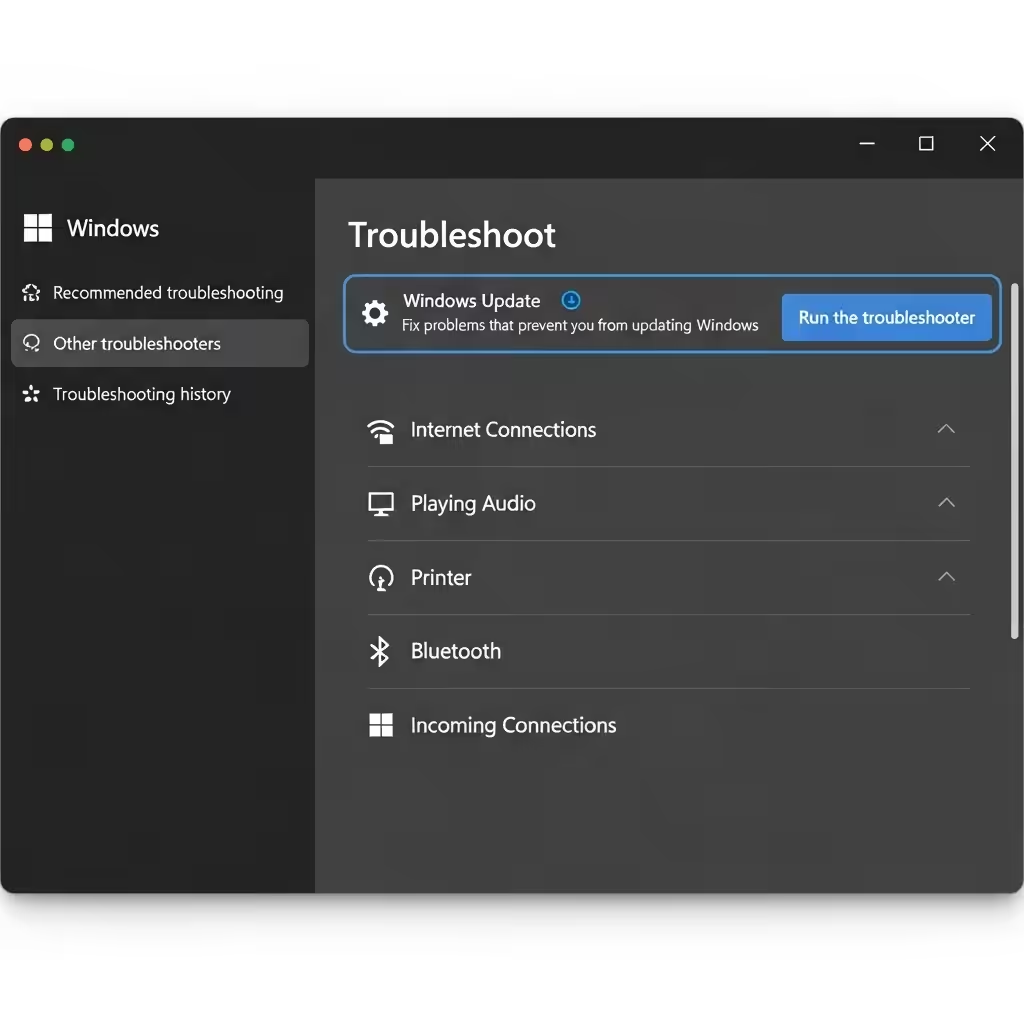
Windows includes a built-in troubleshooter designed to identify and resolve update-related problems.
Steps to Use the Troubleshooter:
-
Press Windows + I to open Settings.
-
Go to Update & Security > Troubleshoot.
-
Select Additional troubleshooters.
-
Click Windows Update > Run the troubleshooter.
-
Follow the on-screen instructions and apply any recommended fixes.
After the troubleshooter finishes, restart your computer and check if the installer works.
Stop and Restart Windows Update Services
If the update services are stuck in the background, the installer may not function correctly. Restarting these services often fixes the issue.
Steps to Restart Services:
-
Press Windows + R, type
services.msc, and press Enter. -
Locate the following services:
-
Windows Update (wuauserv)
-
Background Intelligent Transfer Service (BITS)
-
Cryptographic Services
-
-
Right-click each service and select Stop.
-
Once stopped, right-click them again and select Start.
Now try running the Windows Update Standalone Installer again.
Clear the SoftwareDistribution Folder
The SoftwareDistribution folder stores temporary update files. If these files are corrupted, the installer may hang indefinitely.
How to Clear the Folder:
-
Press Windows + R, type
services.msc, and stop the Windows Update service. -
Navigate to:
C:\Windows\SoftwareDistribution -
Delete all files and folders inside.
-
Restart the Windows Update service.
This forces Windows to recreate the update cache, often resolving stuck update issues.

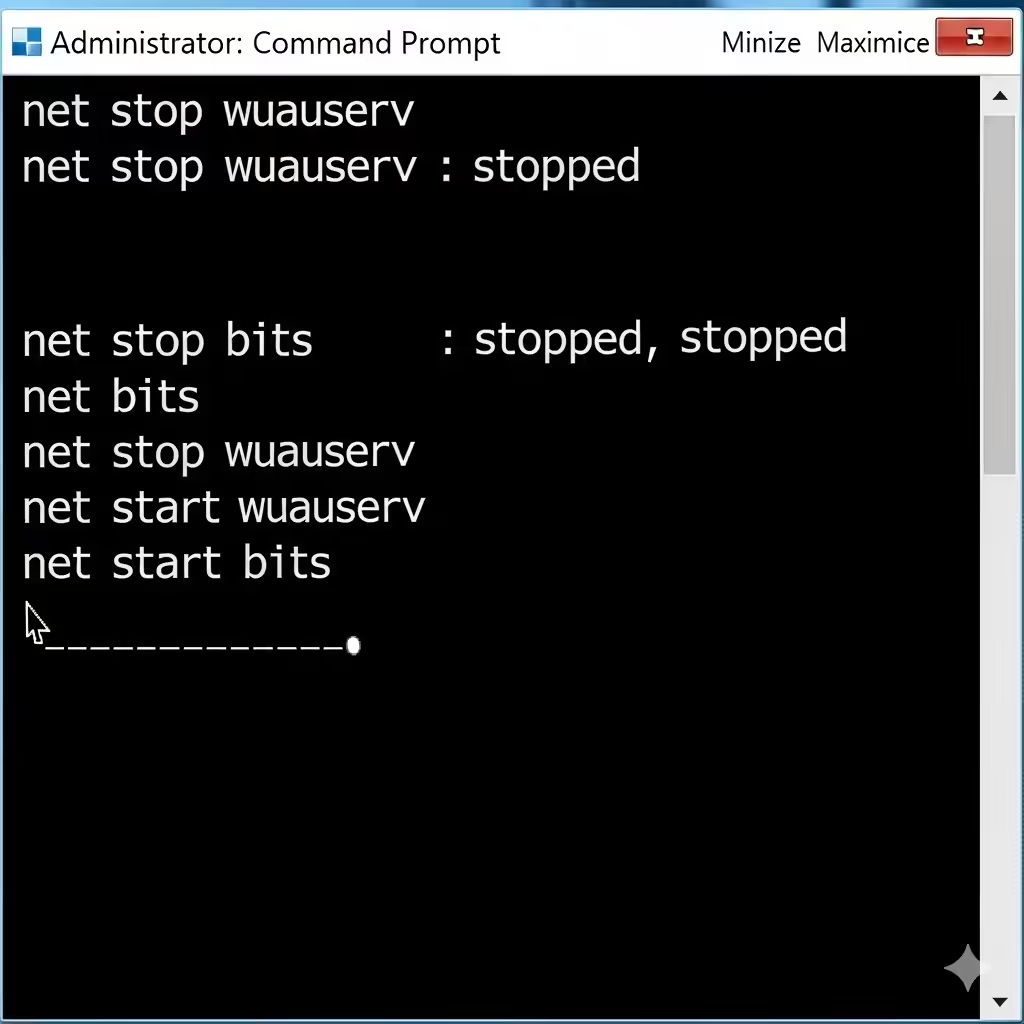
Reset Windows Update Components Manually
If clearing the folder doesn’t help, resetting all Windows Update components is a more thorough fix.
Steps:
-
Open Command Prompt as Administrator.
-
Type the following commands one by one, pressing Enter after each:
-
Close the Command Prompt and restart your computer.
This resets the update database and services, giving the installer a clean start.

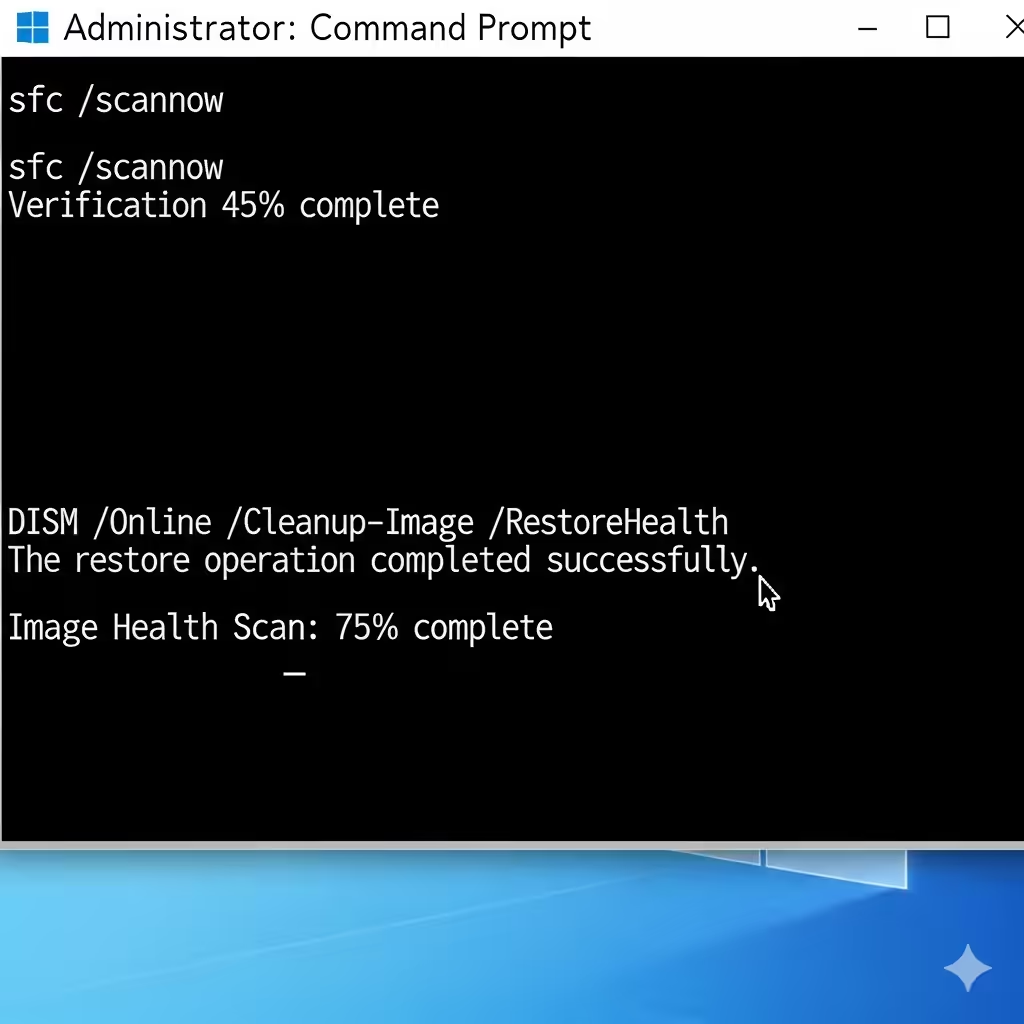
Use DISM and SFC to Repair System Files
Corrupted system files can also interfere with updates. Windows includes built-in tools to repair them.
Run SFC (System File Checker):
-
Open Command Prompt as Administrator.
-
Type:
-
Wait for the scan to complete and follow any repair instructions.
Run DISM (Deployment Imaging Service and Management Tool):
-
In Command Prompt, type:
-
Press Enter and wait for the repair process to finish.
After running these tools, restart your PC and try running the installer again.
Manually Download and Install the Update
If the standalone installer still won’t work, you can download the update directly from the Microsoft Update Catalog.
Steps:
-
Visit the Microsoft Update Catalog website.
-
Search for the update by its KB number (e.g., KB5005565).
-
Download the correct version for your Windows (x64, ARM64, etc.).
-
Double-click the downloaded file to install it manually.
This bypasses the stuck installer problem.
Disable Antivirus or Firewall Temporarily
Sometimes third-party antivirus programs or firewalls interfere with the update process. Temporarily disabling them can resolve the issue.
Important:
-
Only disable security software temporarily.
-
Re-enable it immediately after installing updates.
Perform a Clean Boot
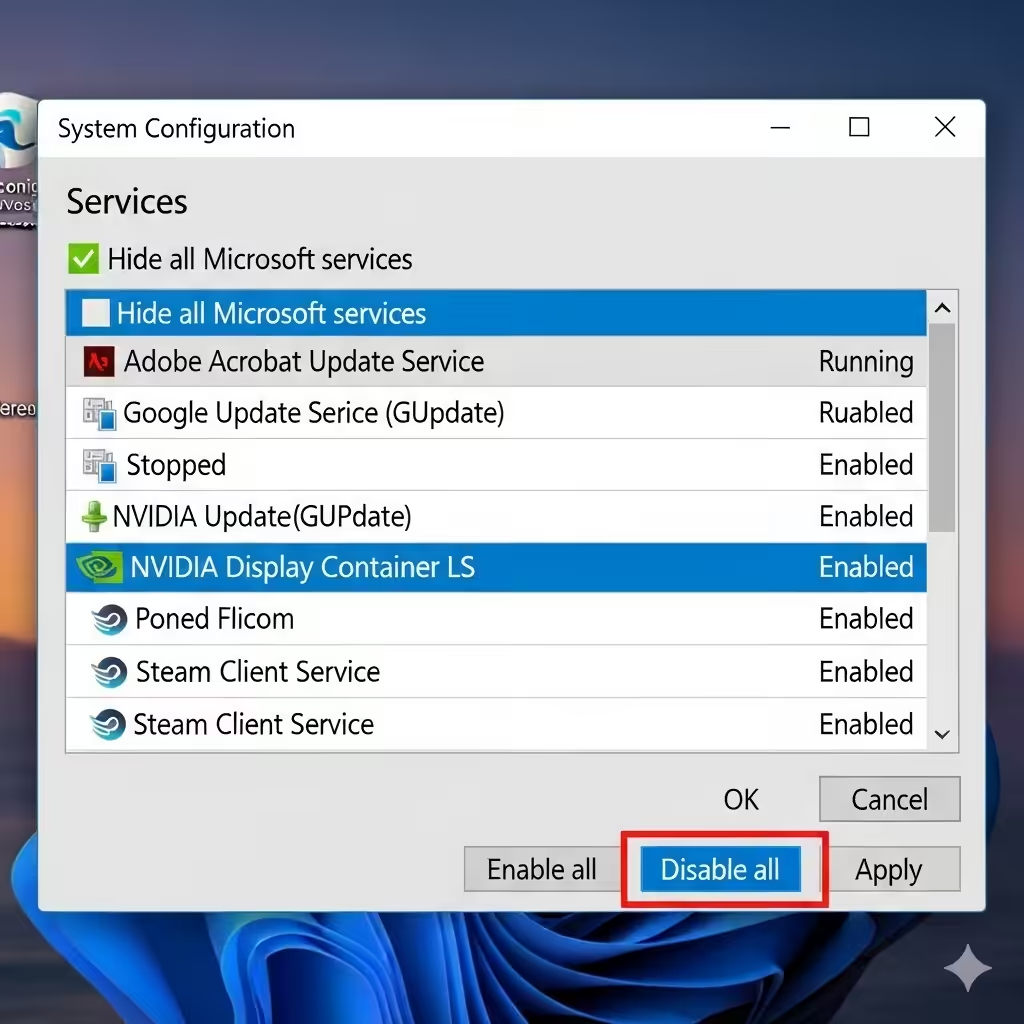
A clean boot starts Windows with only essential services and drivers. This helps rule out conflicts with third-party programs.
Steps to Perform a Clean Boot:
-
Press Windows + R, type
msconfig, and press Enter. -
In the System Configuration window, go to the Services tab.
-
Check Hide all Microsoft services, then click Disable all.
-
Go to the Startup tab and click Open Task Manager.
-
Disable all startup items.
-
Restart your PC and run the standalone installer again.
If it works, re-enable services one at a time to find the conflicting program.

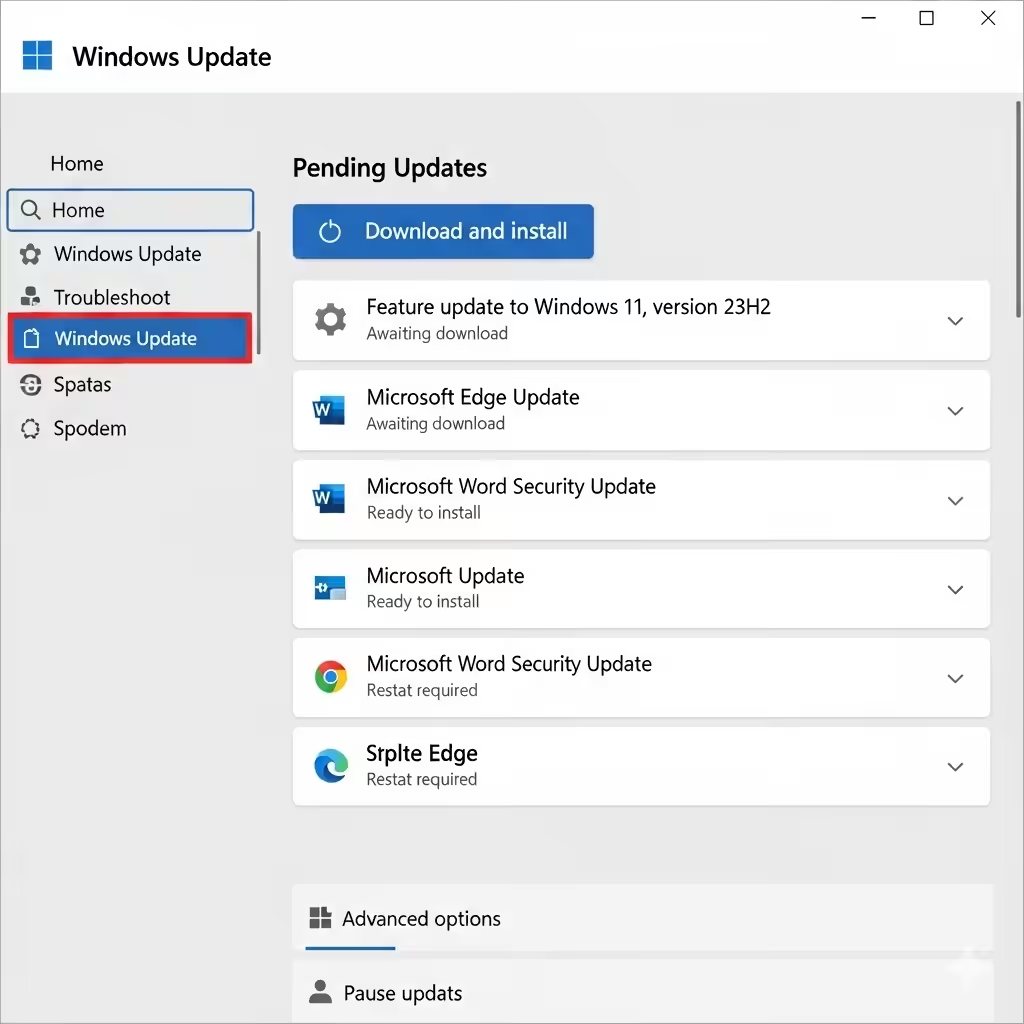
Check for Pending Windows Updates
If your system already has multiple updates pending, the standalone installer may stall.
-
Go to Settings > Update & Security > Windows Update.
-
Install all available updates.
-
Restart your computer before trying the standalone installer again.
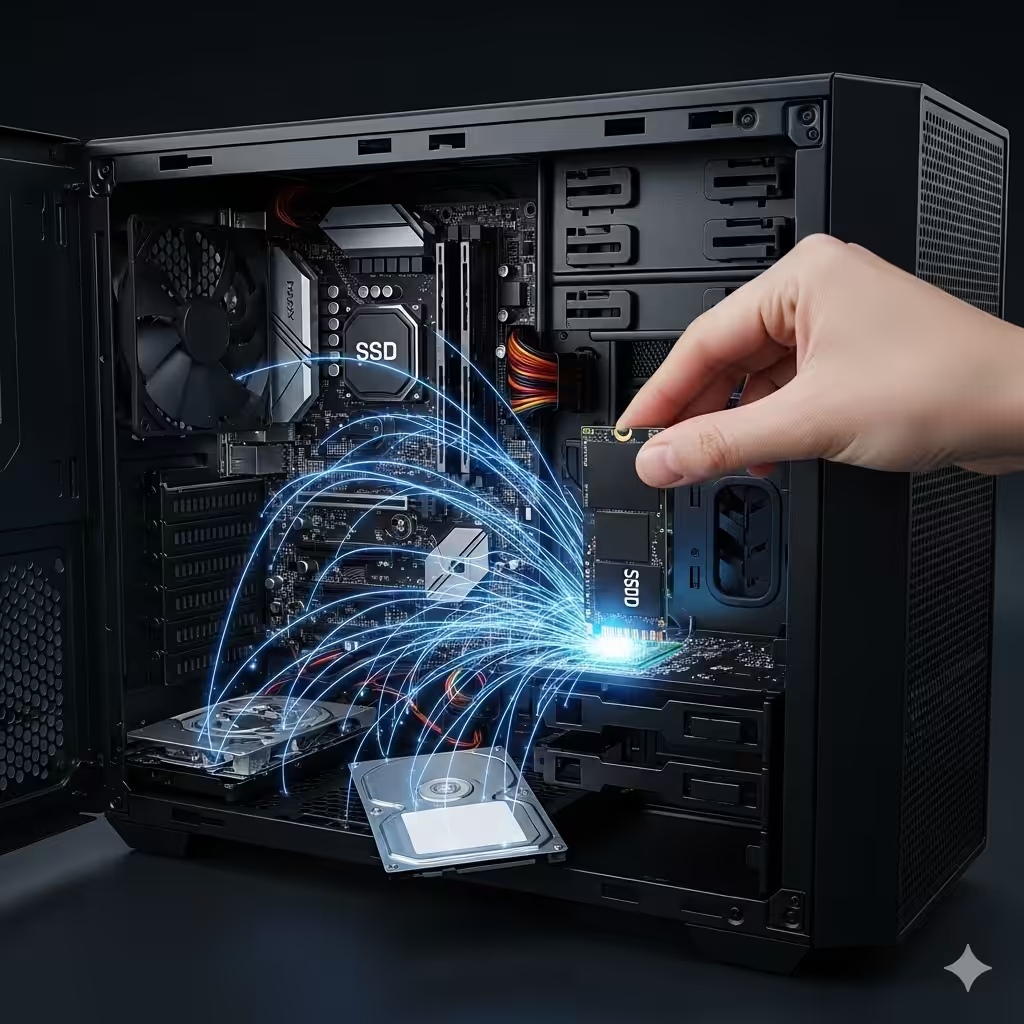
Consider Upgrading Hardware or Switching to SSD
In rare cases, if your PC uses an older hard disk drive (HDD), the update process may take significantly longer. Switching to a solid-state drive (SSD) can drastically reduce update and boot times.
Conclusion
The Windows Update Standalone Installer getting stuck at “Searching for updates” is a common but fixable issue. By restarting services, clearing update caches, resetting components, or manually downloading updates, you can resolve the problem and ensure your PC stays secure and up to date.
If none of the software fixes work, running system repair tools or even performing a clean installation of Windows may be the last resort. With these methods, you should be able to restore smooth update functionality on your Windows 10 or Windows 11 device.