


Fixing Windows 10/11 Computers That Start Slowly
A slow startup can be one of the most frustrating problems for Windows users. When you press the power button, you expect your PC to load quickly and be ready for use. However, many Windows 10 and Windows 11 users experience delays, with their computers taking several minutes to fully boot.
This issue can be caused by too many startup programs, outdated drivers, malware, or even system misconfigurations. The good news is that there are several effective ways to speed up your PC’s boot time. In this guide, we will walk through practical solutions to fix slow startup on Windows 10 and 11.
Common Causes of Slow Startup
Before jumping into the solutions, it’s useful to understand the main reasons why your PC may start slowly:
-
Too many startup programs launching at boot.
-
Outdated or corrupted system drivers.
-
Hard disk drive (HDD) fragmentation or poor performance.
-
Windows updates not installed.
-
Malware or unnecessary background processes.
-
Fast Startup feature disabled.
-
Low available memory or insufficient hardware resources.
Knowing the cause helps you pick the right fix.

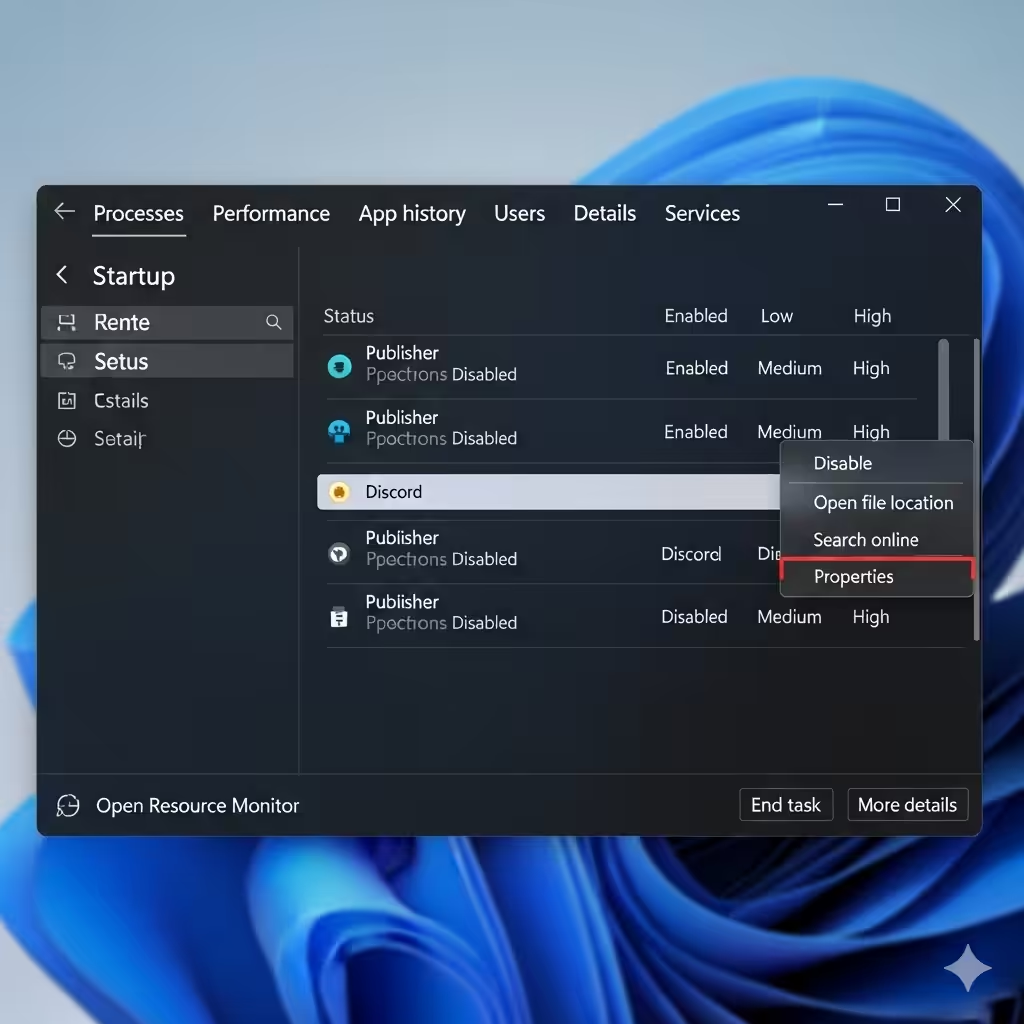
Disable Unnecessary Startup Programs
One of the most common reasons for slow boot is that too many programs are set to start automatically when Windows loads.
How to Disable Startup Apps:
-
Press Ctrl + Shift + Esc to open Task Manager.
-
Go to the Startup tab.
-
Review the list of programs enabled at startup.
-
Right-click unnecessary apps (like chat tools, game launchers, or background utilities) and select Disable.
Disabling these programs won’t uninstall them—it only prevents them from launching every time you boot your PC.
Enable Fast Startup
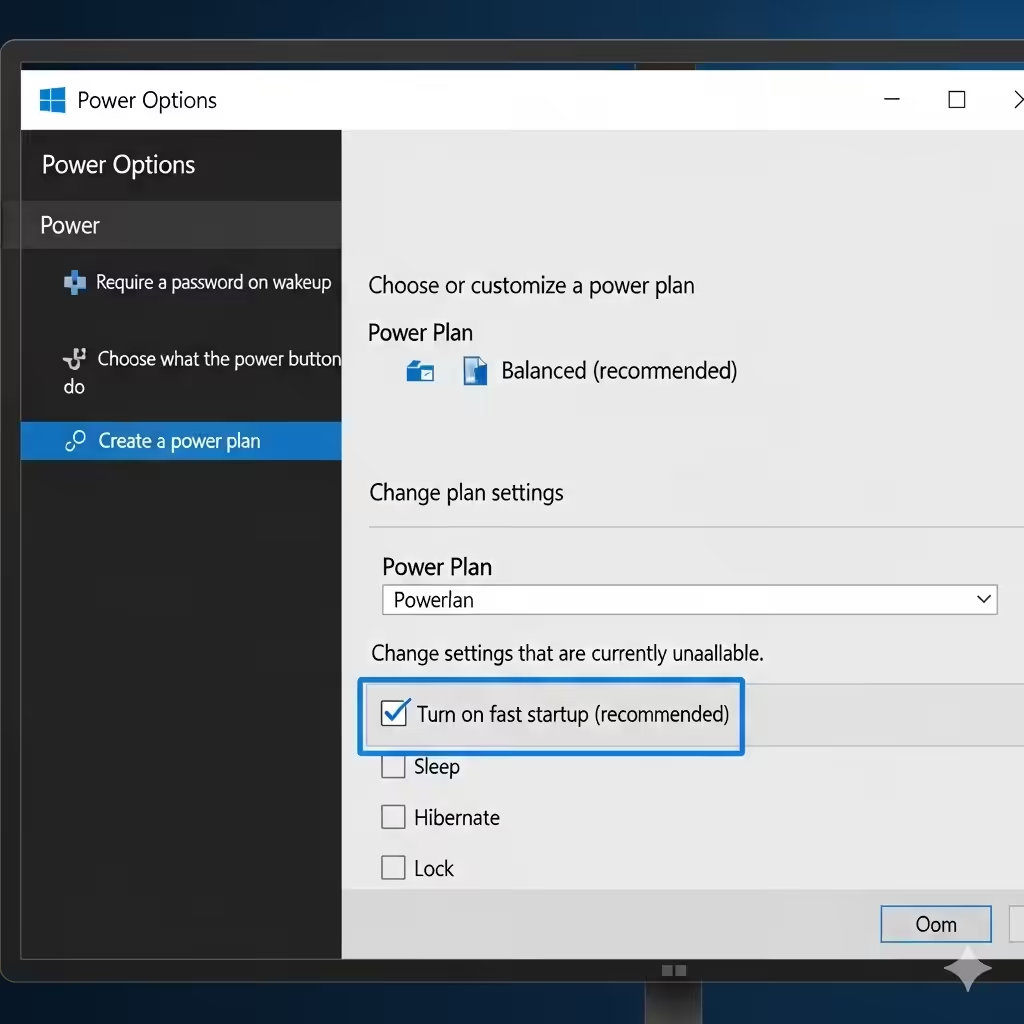
Windows includes a feature called Fast Startup that combines hibernation and shutdown to make booting faster. If it’s turned off, your system might load more slowly.
Enable Fast Startup:
-
Press Windows + S and search for Control Panel.
-
Go to Power Options > Choose what the power buttons do.
-
Click Change settings that are currently unavailable.
-
Under Shutdown settings, check Turn on fast startup.
-
Click Save changes.
After enabling this option, you should notice faster boot times.
Keep Windows Updated
Outdated versions of Windows may cause performance issues, including slow startup. Microsoft frequently releases patches that improve speed and fix bugs.

Update Windows:
-
Press Windows + I to open Settings.
-
Navigate to Update & Security > Windows Update.
-
Click Check for updates.
-
Install any available updates and restart your PC.
Update Device Drivers
Outdated or faulty drivers, especially for graphics cards, storage devices, or the BIOS, can slow down your system.
Update Drivers Manually:
-
Press Windows + X and select Device Manager.
-
Right-click on a device (e.g., Display adapters or Disk drives) and choose Update driver.
-
Select Search automatically for drivers.
For best results, download drivers directly from the manufacturer’s website (Intel, AMD, NVIDIA, or your PC brand).

Clean Up Your Hard Drive
If your hard drive is nearly full, your computer will boot and run more slowly. Freeing up space can make a big difference.
Use Disk Cleanup:
-
Press Windows + S, type Disk Cleanup, and open it.
-
Select the drive (usually C:) and click OK.
-
Check unnecessary files like Temporary files and Recycle Bin.
-
Click OK to remove them.
Alternatively, use Storage Sense in Windows Settings to automate cleanup.

Defragment or Optimize Your Drive
If you use a traditional HDD, fragmentation can increase boot time. SSDs don’t need defragmentation, but optimizing them still helps.
Optimize Drives:
-
Press Windows + S and search for Defragment and Optimize Drives.
-
Select your system drive.
-
Click Optimize.
This can improve system responsiveness and startup speed.

Scan for Malware
Malware or unnecessary background processes can slow down startup. Running a security scan can remove harmful programs.
Run a Security Scan:
-
Open Windows Security from the Start menu.
-
Select Virus & threat protection.
-
Click Quick scan or run a Full scan for deeper checking.
For better protection, consider using a reputable third-party antivirus tool.

Disable Unnecessary Services
Some background services automatically start with Windows even if you don’t need them. Disabling these can improve boot performance.
Disable Services:
-
Press Windows + R, type msconfig, and press Enter.
-
Go to the Services tab.
-
Check Hide all Microsoft services.
-
Disable unnecessary third-party services.
Be careful not to disable critical services that Windows needs.

Adjust Virtual Memory Settings
If your PC has low RAM, Windows uses a page file (virtual memory) on your hard drive, which may slow startup. Adjusting it manually can help.
Change Virtual Memory:
-
Press Windows + S and search for Performance.
-
Click Adjust the appearance and performance of Windows.
-
Go to the Advanced tab and select Change under Virtual Memory.
-
Set a custom size based on your RAM (e.g., 1.5x to 2x your installed RAM).

Perform a Clean Boot
A clean boot loads Windows with minimal drivers and services. This helps identify whether a third-party app is causing startup delays.
Do a Clean Boot:
-
Press Windows + R, type msconfig, and press Enter.
-
Under the Services tab, check Hide all Microsoft services.
-
Click Disable all.
-
Go to the Startup tab and open Task Manager.
-
Disable all startup items.
-
Restart your PC.
If the startup improves, you can re-enable services one by one to find the culprit.

Consider Hardware Upgrades
If you’ve tried all the above solutions but your PC still starts slowly, hardware limitations may be the reason.
-
Upgrade to an SSD – Replacing a traditional HDD with an SSD dramatically improves boot time.
-
Add more RAM – More memory helps Windows load faster and run multiple programs smoothly.
-
Update your BIOS – Manufacturers release updates that optimize performance.

Conclusion

A slow startup in Windows 10 or 11 is often caused by too many startup programs, outdated drivers, or unnecessary background services. By disabling startup apps, enabling Fast Startup, updating Windows, and optimizing your system, you can significantly reduce boot time.
If performance remains poor, upgrading your hardware—such as switching to an SSD—can provide the biggest boost. With these steps, you can enjoy a much faster and smoother Windows experience.