


Essential Excel Shortcuts Every User Should Learn
Microsoft Excel is one of the most powerful and widely used spreadsheet applications in the world. Whether you are managing budgets, analyzing data, creating reports, tracking inventory, or performing financial calculations, Excel provides the tools needed to handle large amounts of information efficiently.
While many users rely heavily on the mouse, learning keyboard shortcuts can significantly improve productivity. Keyboard shortcuts reduce the time spent navigating menus, performing repetitive tasks, and switching between different functions. Even a few commonly used shortcuts can save hours of work over time.
In this guide, you’ll discover the most essential Excel keyboard shortcuts, organized by category, along with practical tips for using them effectively in Excel 2016, Excel 2019, Excel 2021, Microsoft 365, Windows 10, and Windows 11.
Why Learn Excel Keyboard Shortcuts?
Using keyboard shortcuts offers several advantages:
- Faster workflow
- Improved productivity
- Reduced mouse dependency
- Better navigation through large spreadsheets
- Increased accuracy during data entry
- Less repetitive strain from excessive mouse usage
Professional Excel users often rely on shortcuts to complete tasks much more efficiently than users who work primarily with menus and toolbars.
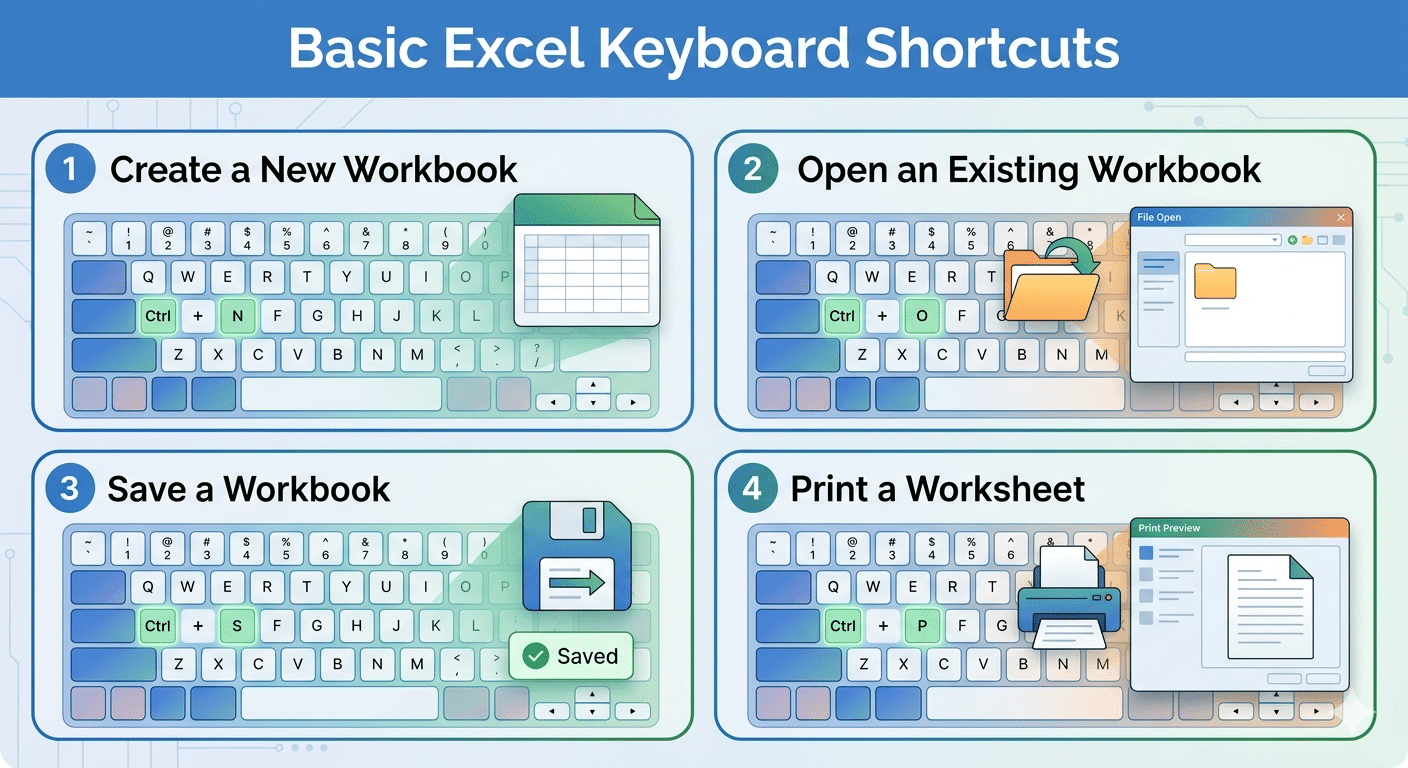
Basic Excel Keyboard Shortcuts
These are some of the most frequently used shortcuts in Excel.
Create a New Workbook
Ctrl + NCreates a new workbook instantly.
Open an Existing Workbook
Ctrl + OOpens the file selection window.
Save a Workbook
Ctrl + SSaves current changes.
Print a Worksheet
Ctrl + POpens the Print menu.
Close the Current Workbook
Ctrl + WCloses the active workbook.
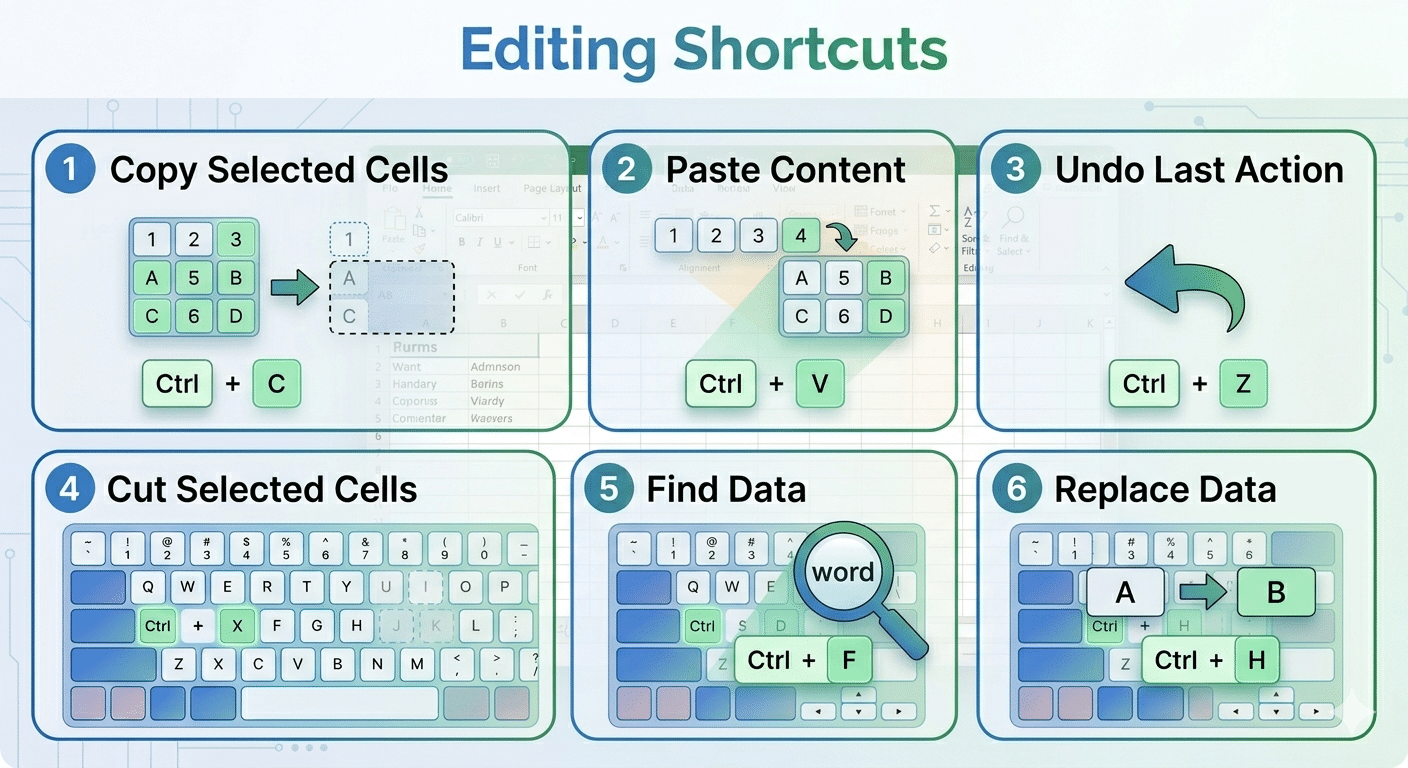
Editing Shortcuts
Editing data quickly is one of Excel’s greatest strengths.
Copy Selected Cells
Ctrl + CCopies selected content.
Cut Selected Cells
Ctrl + XMoves selected data.
Paste Content
Ctrl + VPastes copied or cut data.
Undo Last Action
Ctrl + ZReverses the previous operation.
Redo an Action
Ctrl + YRestores an action that was undone.
Find Data
Ctrl + FSearches within the worksheet.
Replace Data
Ctrl + HOpens the Find and Replace dialog.
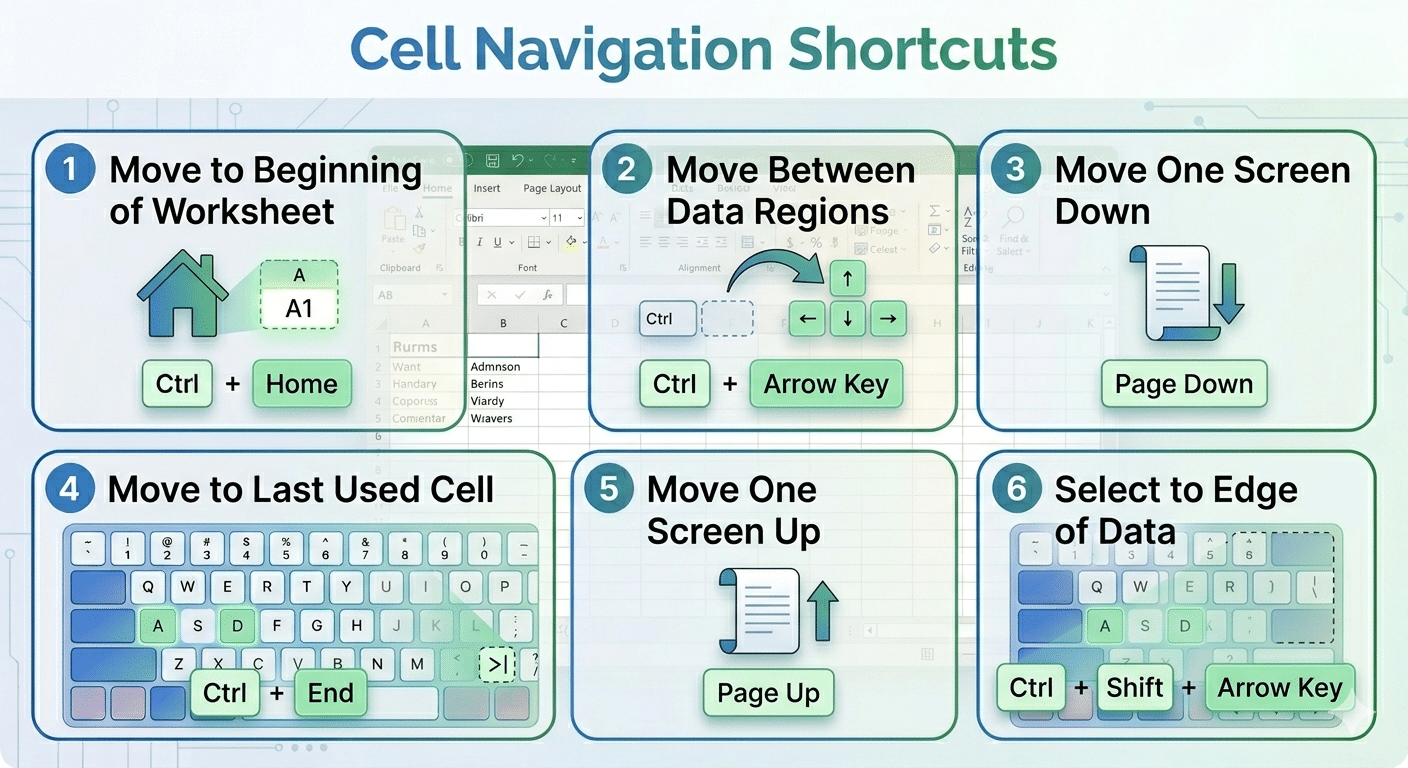
Cell Navigation Shortcuts
Navigating large spreadsheets efficiently is essential.
Move to Beginning of Worksheet
Ctrl + HomeMoves directly to cell A1.
Move to Last Used Cell
Ctrl + EndJumps to the last populated cell.
Move Between Data Regions
Ctrl + Arrow KeyMoves quickly to the edge of a data range.
Move One Screen Down
Page DownScrolls one screen downward.
Move One Screen Up
Page UpScrolls one screen upward.
Selection Shortcuts
Selecting large ranges manually can be time-consuming.
Select Entire Worksheet
Ctrl + ASelects all cells in the worksheet.
Select Current Data Region
Ctrl + Shift + *Selects all connected data around the active cell.
Extend Selection
Shift + Arrow KeysExpands the current selection.
Select to Edge of Data
Ctrl + Shift + Arrow KeySelects cells up to the edge of the data range.
Formatting Shortcuts
Proper formatting improves spreadsheet readability.
Open Format Cells Dialog
Ctrl + 1Access advanced formatting options.
Apply Bold Formatting
Ctrl + BMakes text bold.
Apply Italics
Ctrl + IItalicizes selected content.
Apply Underline
Ctrl + UAdds underlining.
Insert Current Date
Ctrl + ;Inserts today’s date.
Insert Current Time
Ctrl + Shift + ;Inserts the current time.
Row and Column Shortcuts
Managing rows and columns efficiently is important when working with large datasets.
Insert New Row or Column
Ctrl + Shift + +Inserts cells, rows, or columns.
Delete Row or Column
Ctrl + -Deletes selected cells, rows, or columns.
Hide Selected Rows
Ctrl + 9Hides the selected rows.
Unhide Rows
Ctrl + Shift + 9Displays hidden rows.
Hide Selected Columns
Ctrl + 0Hides selected columns.
Unhide Columns
Ctrl + Shift + 0Shows hidden columns (may require Windows configuration changes).
Formula Shortcuts
Excel formulas are at the heart of spreadsheet analysis.
Start a Formula
=Begins formula entry.
Insert AutoSum
Alt + =Automatically inserts the SUM function.
Edit Active Cell
F2Allows direct editing of cell contents.
Display Formulas
Ctrl + `Toggles between formulas and calculated results.
Calculate Worksheets
F9Forces recalculation of formulas.
Workbook Management Shortcuts
Working with multiple workbooks becomes easier with these shortcuts.
Switch Between Open Workbooks
Ctrl + TabMoves to the next open workbook.
Create New Worksheet
Shift + F11Adds a new worksheet.
Rename Active Worksheet
Press:
Alt + H + O + RAllows quick sheet renaming.
Data Entry Shortcuts
Speed up repetitive data entry tasks.
Fill Down
Ctrl + DCopies data from the cell above.
Fill Right
Ctrl + RCopies data from the cell to the left.
Repeat Last Action
F4Repeats the previous action.
Excel Table Shortcuts
Tables provide powerful data management features.
Create a Table
Ctrl + TConverts selected data into an Excel table.
Filter Data
Ctrl + Shift + LTurns filtering on or off.
Chart and Visualization Shortcuts
Excel includes quick ways to generate charts.
Create Default Chart
Alt + F1Creates a chart on the current worksheet.
Create Chart on New Sheet
F11Creates a chart in a separate chart sheet.
Useful Function Key Shortcuts
Function keys provide several productivity benefits.
F1
Opens Excel Help.
F2
Edits the selected cell.
F4
Repeats the last action.
F7
Opens Spell Check.
F11
Creates a chart instantly.
Tips for Remembering Excel Shortcuts
Learning dozens of shortcuts at once can be overwhelming.
Start With Common Shortcuts
Focus first on:
- Ctrl + C
- Ctrl + V
- Ctrl + Z
- Ctrl + S
- Ctrl + F
Practice Daily
Use shortcuts repeatedly during regular work.
Learn by Category
Master one group at a time:
- Navigation
- Formatting
- Formulas
- Data entry
Keep a Shortcut Reference Sheet
A printed list can help reinforce memory.
Shortcuts Most Frequently Used by Excel Professionals
Advanced users commonly rely on:
Ctrl + Arrow KeysCtrl + Shift + Arrow KeysAlt + =F2Ctrl + TCtrl + Shift + LThese shortcuts can dramatically increase spreadsheet efficiency.
Common Mistakes When Using Excel Shortcuts
Forgetting Cell Selection
Many shortcuts require cells to be selected first.
Accidentally Overwriting Data
Always verify selected ranges before using fill or delete commands.
Using Shortcuts in Protected Worksheets
Certain shortcuts may be unavailable when worksheet protection is enabled.
Final Thoughts
Mastering Excel keyboard shortcuts is one of the easiest ways to improve productivity and work more efficiently. Whether you’re entering data, building formulas, managing worksheets, or analyzing large datasets, shortcuts help reduce repetitive actions and speed up everyday tasks.
You don’t need to memorize every shortcut immediately. Start with the most commonly used commands, practice them regularly, and gradually expand your knowledge. Over time, these shortcuts will become second nature, allowing you to navigate Excel faster, perform calculations more efficiently, and focus more on data analysis rather than menu navigation.