


How to Fix the “Last Line No Longer Available” Error on iPhone
Many iPhone users encounter a strange error message that appears when trying to make a phone call:
Last Line No Longer AvailableThis message can be confusing because it often appears unexpectedly, especially on iPhones with dual SIM or eSIM functionality. When the error occurs, the device may ask whether you want to call using another line, or the call may fail completely.
The issue is commonly reported on iPhone models that support multiple cellular lines, including devices using eSIM technology. Fortunately, the problem is usually related to software glitches, network settings, carrier issues, or recent call history problems rather than serious hardware failure.
In this guide, you’ll learn what causes the “Last Line No Longer Available” error and how to fix it on your iPhone.
What Does “Last Line No Longer Available” Mean?
This error usually occurs when the iPhone attempts to place a call using a recently used cellular line that is no longer available or active.
The problem is most common on:
- Dual SIM iPhones
- iPhones using eSIM
- Devices with multiple carrier profiles
When the preferred line becomes temporarily unavailable, iOS displays the warning message.
Common Symptoms
You may notice:
- Calls failing unexpectedly
- Error appearing during outgoing calls
- iPhone asking to use another number
- Recent contacts not dialing properly
- Cellular switching issues
Common Causes of the Error
Dual SIM or eSIM Glitches
Line switching problems are the most common cause.
Corrupted Call History
Recent call data may become corrupted.
Carrier Network Problems
Temporary carrier outages may interfere with outgoing calls.
iOS Bugs
Software glitches in iOS occasionally trigger the issue.
Network Configuration Errors
Incorrect cellular settings may prevent proper line selection.
How To Fix “Last Line No Longer Available” on iPhone
Try the following methods one by one.
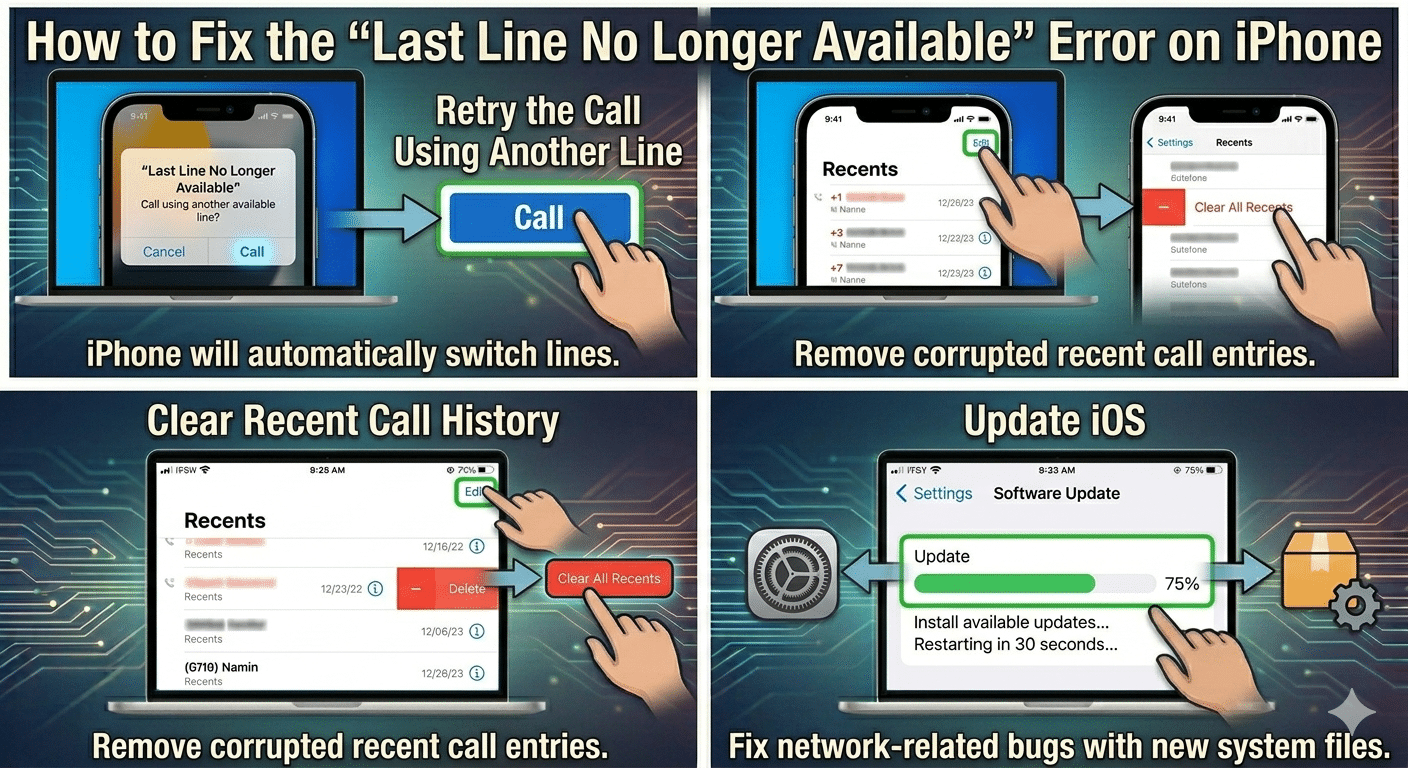
Retry the Call Using Another Line
The error message usually provides an option to call using another available line.
Steps
- Tap:
- Call
- Allow the iPhone to switch lines automatically
This may solve the problem temporarily.
Restart Your iPhone
Temporary cellular glitches often disappear after restarting.
Why It Helps
Restarting refreshes:
- Cellular services
- SIM communication
- Carrier settings
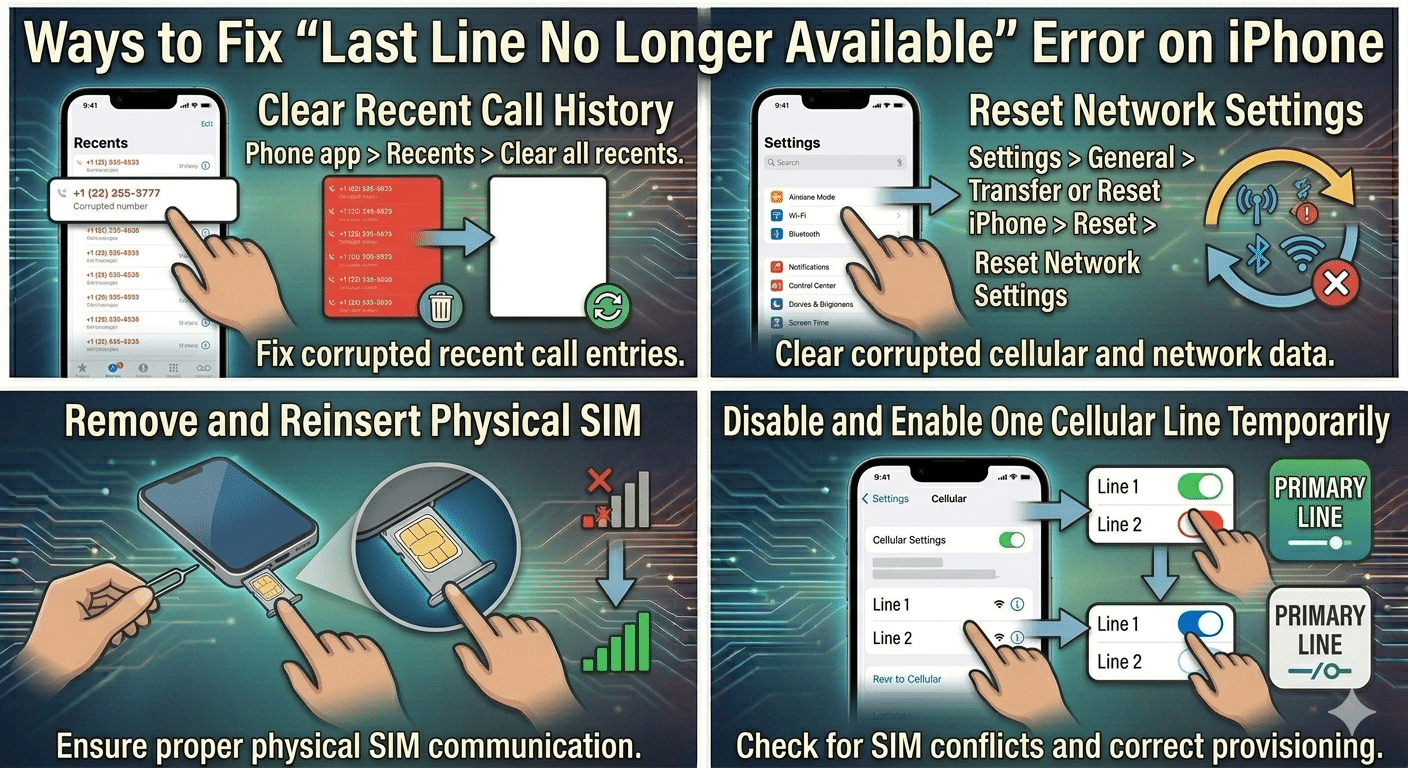
Clear Recent Call History
Corrupted recent call entries commonly trigger the issue.
Steps
- Open:
- Phone app
- Tap:
- Recents
- Select:
- Edit → Clear
- Clear all recent calls
Try placing the call again manually.
Enable and Disable Airplane Mode
Refreshing network connections may restore proper line functionality.
Steps
- Open:
- Control Center
- Enable:
- Airplane Mode
- Wait 20–30 seconds
- Disable Airplane Mode
Update iOS
Apple frequently fixes network-related bugs through software updates.
Steps
- Open:
- Settings → General → Software Update
- Install available updates
- Restart the iPhone
Remove and Reinsert SIM Card
Physical SIM communication problems may cause the error.
Steps
- Power off the iPhone
- Remove the SIM tray
- Reinsert the SIM carefully
- Restart the device
Reset Network Settings
Corrupted network settings are a common cause.
Steps
- Open:
- Settings → General → Transfer or Reset iPhone
- Select:
- Reset
- Tap:
- Reset Network Settings
Important
This removes:
- Saved Wi-Fi passwords
- Cellular settings
- VPN settings
Check Cellular Line Settings
The preferred line configuration may be incorrect.
Steps
- Open:
- Settings → Cellular
- Verify:
- Default Voice Line
- Cellular plans
- Active SIM settings
Disable Automatic Line Switching
Automatic switching may create conflicts.
Steps
- Go to:
- Settings → Cellular
- Select:
- Cellular Data
- Disable:
- Allow Cellular Data Switching
Turn Off Wi-Fi Calling Temporarily
Wi-Fi Calling may interfere with carrier switching.
Steps
- Open:
- Settings → Phone → Wi-Fi Calling
- Disable it temporarily
- Test outgoing calls again
Check Carrier Settings Update
Carrier updates improve network compatibility.
Steps
- Open:
- Settings → General → About
- Wait a few seconds
- Install carrier updates if prompted
Try Dialing the Number Manually
Calling directly from recent call history may trigger the issue.
Try
- Typing the number manually
- Calling from Contacts instead of Recents
Disable One Cellular Line Temporarily
Dual SIM conflicts may cause the error.
Steps
- Open:
- Settings → Cellular
- Select one line
- Disable it temporarily
- Test calls using the primary line
Check Carrier Service Status
Carrier outages can interrupt line availability.
Possible Signs
- Weak signal
- No service
- Failed outgoing calls
- Cellular instability
Contact your carrier if network issues continue.
Reset All Settings
If the issue persists, resetting all settings may help.
Steps
- Open:
- Settings → General → Transfer or Reset iPhone
- Tap:
- Reset All Settings
This Does Not Delete
- Photos
- Apps
- Personal files
Use eSIM Reconfiguration
If using eSIM:
Try
- Removing the eSIM profile
- Re-adding the cellular plan
- Contacting the carrier for activation support
Check for Physical SIM Damage
Damaged SIM cards may cause intermittent line failures.
Signs of SIM Problems
- Frequent disconnections
- No signal issues
- Random carrier switching
Replacing the SIM card may help.
When the Error Happens Frequently
Persistent errors may indicate:
- Carrier instability
- iOS software bugs
- eSIM provisioning issues
- SIM hardware problems
Further carrier troubleshooting may be required.
When to Contact Apple Support
Seek professional help if:
- Calls fail continuously
- SIM cards are not detected
- Multiple resets fail
- Cellular features stop working entirely
Tips to Prevent the Error
To reduce future issues:
- Keep iOS updated
- Install carrier updates regularly
- Avoid unstable beta software
- Restart the device occasionally
- Maintain stable carrier connectivity
Does the Error Affect Emergency Calls?
In most cases, emergency calls still function normally because iPhones automatically attempt to use any available cellular line.
Can This Error Occur on Single SIM iPhones?
Yes, although it is far more common on dual SIM and eSIM-enabled devices.
Single SIM users may still encounter it because of:
- Carrier glitches
- Software bugs
- Corrupted call history
Final Thoughts
The “Last Line No Longer Available” error on iPhone is usually caused by dual SIM conflicts, eSIM issues, corrupted call history, or temporary carrier communication problems. Although the warning can interrupt outgoing calls, it is often easy to fix using basic network troubleshooting steps.
By clearing recent calls, updating iOS, resetting network settings, checking cellular configurations, and refreshing SIM connections, most users can eliminate the problem successfully.