


How to Fix Airplane Mode Stuck in Windows 10
Airplane Mode in Windows 10 is designed to disable all wireless communications quickly, including Wi-Fi, Bluetooth, and cellular connections. However, some users face an issue where Airplane Mode gets stuck and cannot be turned off. This problem prevents users from connecting to the internet or accessing wireless devices, making it more than just a minor inconvenience.
In this guide, you’ll find practical solutions to fix the “Airplane Mode stuck” issue in Windows 10, updated for 2025 with the latest methods and system options.
Why Is Airplane Mode Stuck on Windows 10?
Before jumping into the fixes, it helps to understand what causes this issue. Common reasons include:
-
Corrupt or outdated network drivers
-
Misconfigured system settings
-
Physical switch interference (especially on laptops)
-
Conflicts from recent Windows updates
-
System glitches caused by Fast Startup or power-saving features
Let’s go through the working solutions step by step.
Step 1: Restart Your Computer
Sometimes, a simple reboot can solve temporary glitches with system services.
-
Click on the Start menu.
-
Select Power > Restart.
-
Wait for the system to reboot completely and check if Airplane Mode can now be disabled.
If it remains stuck, continue with the next steps.
Step 2: Use the Physical Wireless Switch (If Available)
Many laptops include a physical switch or keyboard function key to toggle wireless connections. These controls can sometimes override software settings.
-
Look for a wireless icon key (usually F2, F12, or a key with a radio signal symbol).
-
Press Fn + [that key] to toggle Airplane Mode or Wi-Fi.
-
Wait a few seconds and check if Airplane Mode turns off.
If your laptop has a dedicated wireless hardware switch, try toggling it off and on again.
Step 3: Turn Off Airplane Mode from Settings
Sometimes the Action Center toggle doesn’t work. Use the main Settings app instead.
-
Press Windows + I to open Settings.
-
Click on Network & Internet.
-
Select Airplane Mode from the sidebar.
-
Use the toggle to turn off Airplane Mode.
If the toggle is greyed out or unresponsive, try the methods below.
Step 4: Disable Airplane Mode via System Tray or Action Center
Try toggling Airplane Mode using alternative system controls.
-
Click on the network icon in the taskbar’s system tray.
-
If Airplane Mode is active, click it once to disable it.
-
Alternatively, press Windows + A to open the Action Center, then click the Airplane Mode tile.
If these options don’t work, continue with more technical solutions.
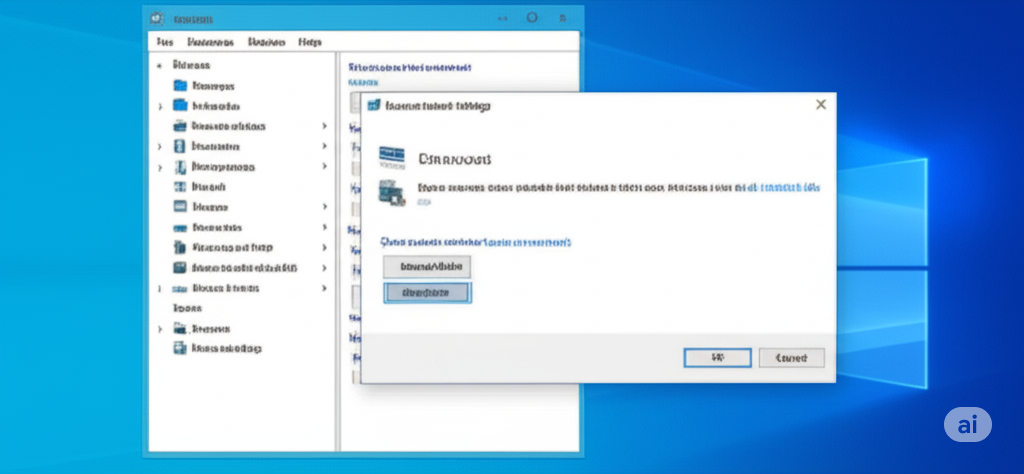
Step 5: Disable Power Saving Mode for Network Adapter
Power saving settings can cause the network adapter to behave unpredictably, especially after waking from sleep mode.
-
Press Windows + X, then choose Device Manager.
-
Expand the Network adapters section.
-
Right-click your Wi-Fi adapter and select Properties.
-
Go to the Power Management tab.
-
Uncheck “Allow the computer to turn off this device to save power”.
-
Click OK and restart your PC.
Now check if you can turn off Airplane Mode.
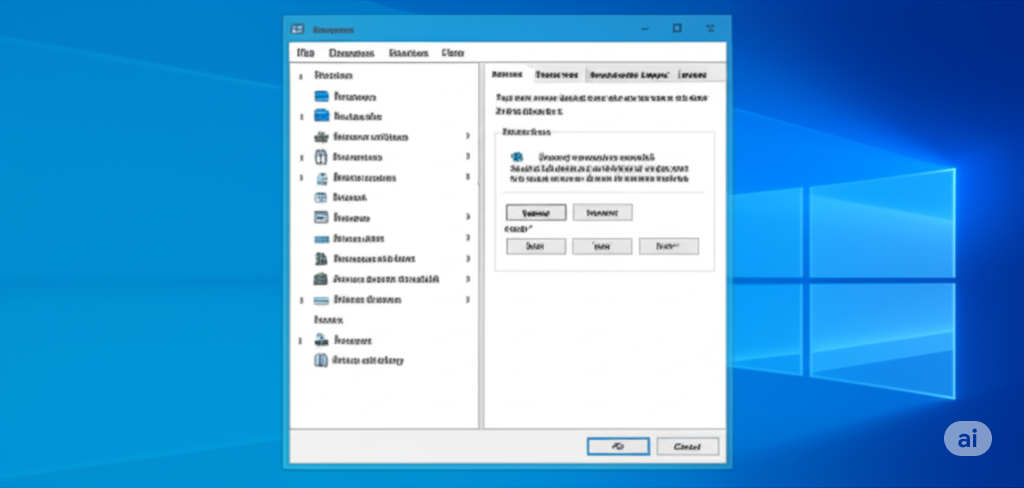
Step 6: Update or Reinstall Network Drivers
Outdated or corrupt drivers are a common cause of Airplane Mode issues.
-
Press Windows + X and open Device Manager.
-
Expand Network adapters.
-
Right-click your Wi-Fi adapter and select Update driver.
-
Choose Search automatically for updated driver software.
If updating doesn’t work:
-
Right-click the adapter again and choose Uninstall device.
-
Reboot your computer.
-
Windows will automatically reinstall the network adapter.
You can also download the latest drivers from your laptop manufacturer’s website.
Step 7: Use Command Prompt to Reset Network Settings
A system-level reset of the network stack can fix deeper issues.
-
Search for cmd, then right-click Command Prompt and choose Run as administrator.
-
Enter the following commands one by one:
-
Restart your computer.
Once your PC restarts, try toggling Airplane Mode again.
Step 8: Disable Airplane Mode from the Registry (Advanced)
If you’re comfortable making changes in the Windows Registry, try this fix.
-
Press Windows + R, type
regedit, and press Enter. -
Navigate to the following path:
-
Look for RadioEnable in the right pane.
-
Double-click it and set its value to 1.
-
Restart your system.
Note: Editing the registry can be risky. Only use this method if you’re confident in your ability to reverse the changes if necessary.
Step 9: Turn Off Fast Startup
Fast Startup sometimes causes connectivity and hardware detection issues.
-
Go to Control Panel > Power Options.
-
Click Choose what the power buttons do.
-
Click Change settings that are currently unavailable.
-
Uncheck Turn on fast startup (recommended).
-
Click Save changes and restart your PC.
After rebooting, check if Airplane Mode is now responsive.
Step 10: Perform a Clean Boot
Software conflicts can also cause Airplane Mode to stay stuck. A clean boot helps isolate the problem.
-
Press Windows + R, type
msconfig, and hit Enter. -
Under the Services tab, check Hide all Microsoft services, then click Disable all.
-
Go to the Startup tab and open Task Manager.
-
Disable all startup items.
-
Restart your computer.
Try turning off Airplane Mode in the clean boot environment.
Conclusion
A stuck Airplane Mode switch in Windows 10 can be frustrating, but with a combination of basic and advanced solutions, most users can resolve the issue. Start with simple steps like restarting the computer or updating drivers. If the problem persists, deeper fixes such as registry edits or resetting network settings may be necessary.
By following the instructions above, you should be able to regain control over your system’s connectivity and get back online without needing a full system reset or reinstall.