


How to Fix Microsoft Store Error Code 0x800B010FI in Windows 10/11
The Microsoft Store is a central hub for downloading apps, games, and updates on Windows 10 and Windows 11. However, users occasionally encounter an error when trying to download or update apps. One such issue is the error code 0x800B010FI, which can stop downloads and prevent users from accessing essential applications.
This article provides a comprehensive guide to fixing Microsoft Store Error 0x800B010FI using multiple tested solutions that apply to both Windows 10 and Windows 11.
What Does Error Code 0x800B010FI Mean?
Error code 0x800B010FI generally indicates a trust failure, meaning that Windows is unable to verify the certificate of the application or content you’re trying to download. This may happen due to:
-
Outdated root certificates
-
Incorrect system date and time
-
Corrupt Microsoft Store cache
-
Network issues blocking store connectivity
-
Damaged or missing system files
-
Misconfigured Windows Update services
Let’s walk through the most effective solutions step-by-step.
Step 1: Restart Your Computer
Before diving into more complex troubleshooting, try a simple restart.
-
Click the Start menu.
-
Select Power > Restart.
-
After rebooting, try downloading from the Microsoft Store again.
Temporary glitches or background services may sometimes cause the error.
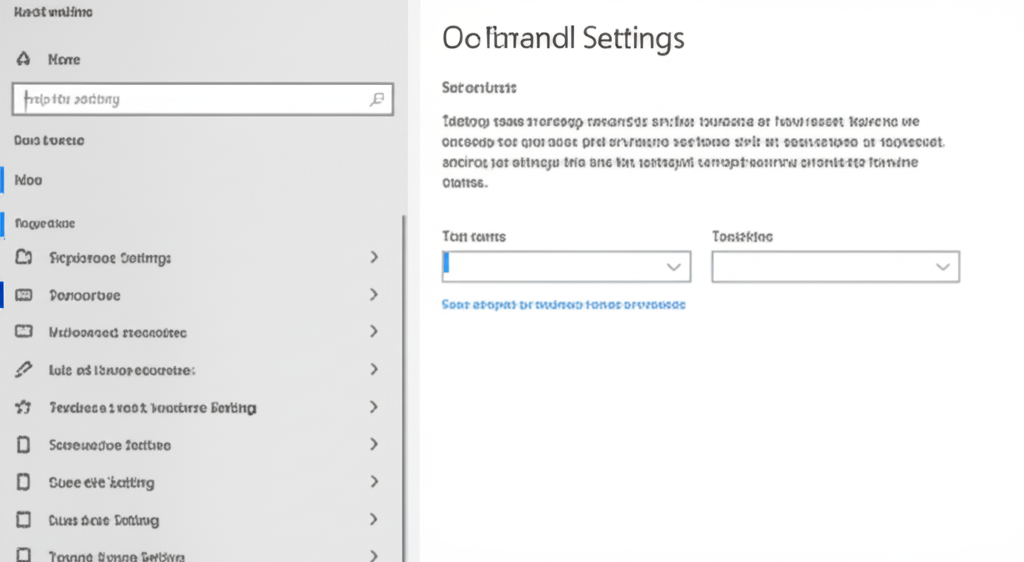
Step 2: Check Date and Time Settings
Incorrect date or time settings can interfere with security certificates used by the Microsoft Store.
-
Press Windows + I to open Settings.
-
Navigate to Time & Language > Date & Time.
-
Toggle Set time automatically and Set time zone automatically to On.
-
If it’s already on, toggle it off and on again.
Then relaunch the Microsoft Store and check if the issue persists.
Step 3: Run the Windows Store Apps Troubleshooter
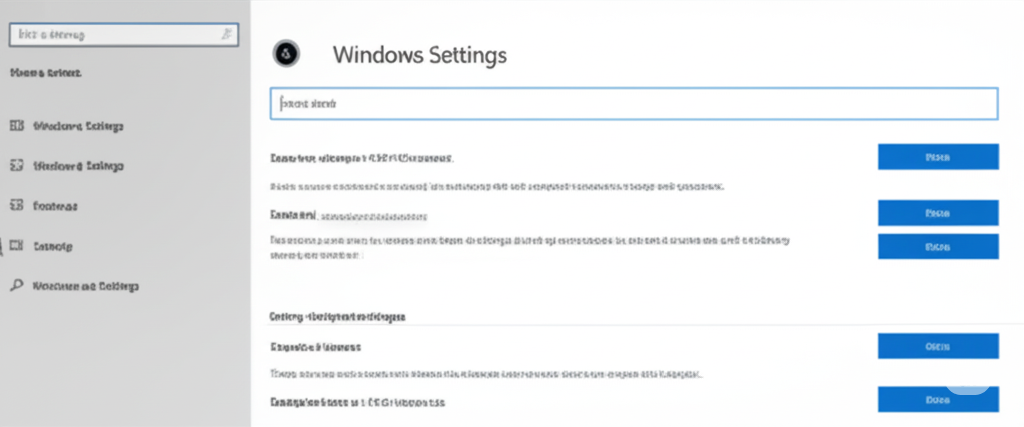
Windows includes a built-in troubleshooter for Microsoft Store issues.
-
Open Settings > System > Troubleshoot > Other troubleshooters.
-
Scroll down to Windows Store Apps and click Run.
-
Let the tool detect and fix issues automatically.
If the troubleshooter suggests changes, apply them and restart your system.
Step 4: Clear Microsoft Store Cache
A corrupted Store cache is one of the most common causes of store-related errors.
-
Press Windows + R to open the Run dialog.
-
Type
wsreset.exeand press Enter. -
A blank Command Prompt window will appear briefly, then the Microsoft Store will open.
Now try downloading or updating the app again.
Step 5: Check Internet Connection and Proxy Settings
The error may also result from a poor or restricted internet connection.
-
Restart your router and try connecting to a different network.
-
Disable VPN or proxy settings if they are active.
To disable proxy:
-
Go to Settings > Network & Internet > Proxy.
-
Under Manual proxy setup, ensure Use a proxy server is turned off.
Then reopen the Microsoft Store and test again.
Step 6: Update Root Certificates
Error 0x800B010FI may be due to outdated or missing root certificates that validate the authenticity of Microsoft Store apps.
-
Press Windows + X and open Windows Terminal (Admin) or Command Prompt (Admin).
-
Enter the following command to update Windows root certificates:
This command downloads the latest root certificates. If this doesn’t work, make sure Windows Update is working properly (see Step 8).
Step 7: Re-wp-signup.php Microsoft Store
Sometimes, the store needs to be re-wp-signup.phped with Windows.
-
Open PowerShell as Administrator (search in Start, right-click, choose “Run as Administrator”).
-
Paste the following command:
-
Press Enter, wait for it to complete, then restart your system.
Try using the Microsoft Store again after the reboot.
Step 8: Reset Windows Update Components
Since the store and update services are interlinked, a reset can help fix corrupted components.
-
Open Command Prompt as Administrator.
-
Run the following commands one by one:
-
After completing, reboot the PC and try again.
This will clear out broken update files that may be interfering with store operations.
Step 9: Perform a System File Check (SFC)
Corrupted system files can cause the Microsoft Store to malfunction.
-
Open Command Prompt as Administrator.
-
Type:
-
Press Enter and wait for the scan to finish.
If problems are detected, Windows will attempt to repair them automatically.
Step 10: Create a New User Account
Sometimes, the issue is specific to your user profile.
-
Go to Settings > Accounts > Family & other users.
-
Click Add someone else to this PC.
-
Create a local account or sign in with a Microsoft account.
-
Log in with the new account and test the Microsoft Store.
If it works, your original profile may be corrupt.
Step 11: Perform a Repair Install (Optional)
As a last resort, if nothing else works, consider performing a repair install using the Windows Media Creation Tool. This process keeps your files but replaces system components, fixing store-related corruption.
-
Download the Media Creation Tool from Microsoft’s website.
-
Choose Upgrade this PC now and follow the instructions.
-
Select Keep personal files and apps when prompted.
After the repair install, your Microsoft Store should be working again.
Conclusion
Microsoft Store Error Code 0x800B010FI on Windows 10 and 11 is typically related to certificate trust issues, connectivity problems, or system corruption. With this step-by-step guide, you should be able to identify the cause and apply the appropriate fix.
From resetting the cache and re-wp-signup.phping the Store to updating root certificates and repairing system files, each method targets a possible source of the error. Try the solutions in order for the best results, and your Microsoft Store should be running smoothly again.