


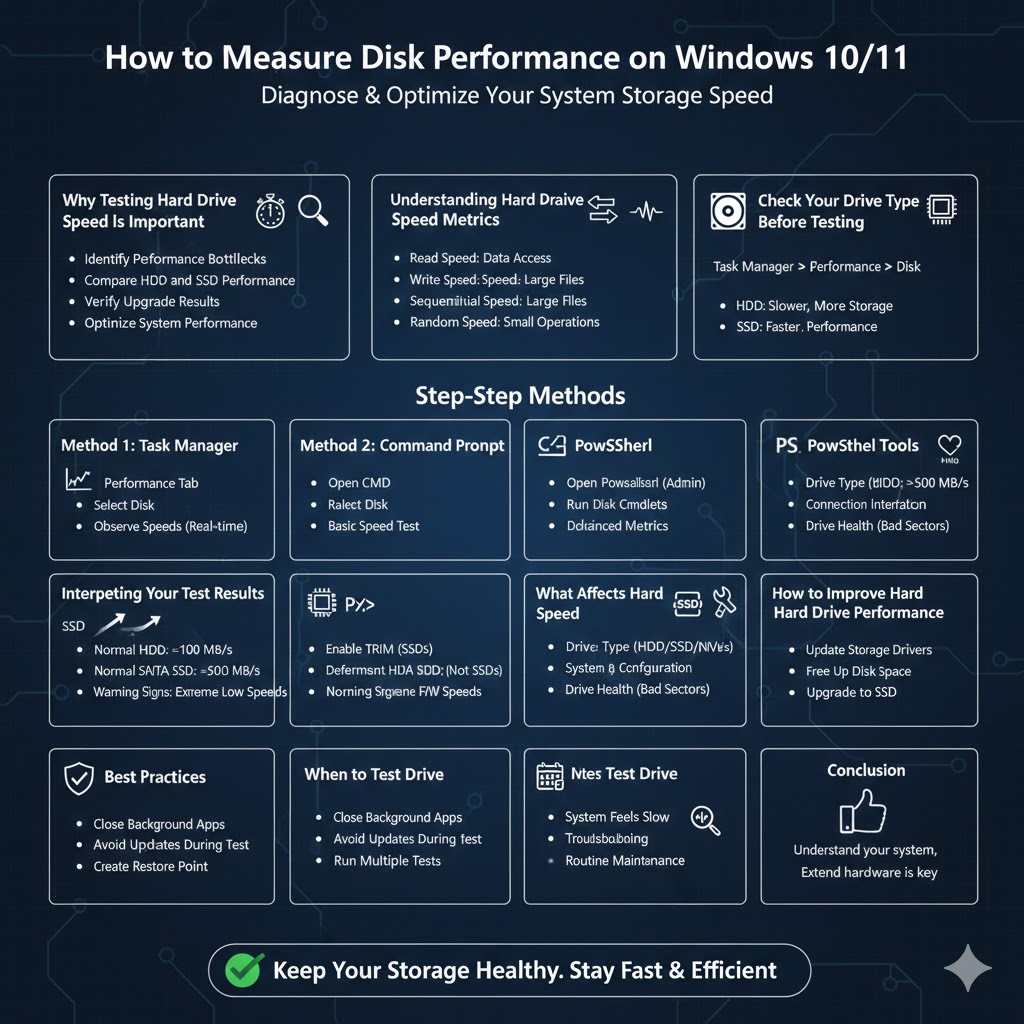
How to Measure Disk Performance on Windows 10/11
Hard drive speed plays a major role in how fast your computer boots, loads applications, transfers files, and responds to everyday tasks. If your PC feels slow or unresponsive, testing your hard drive speed can help you determine whether your storage device is the bottleneck. This applies to both traditional hard disk drives (HDDs) and modern solid-state drives (SSDs).
Windows 11 and Windows 10 offer several built-in and third-party tools that allow you to measure hard drive performance accurately. This guide explains why disk speed matters, how to test it using different methods, and how to interpret the results.
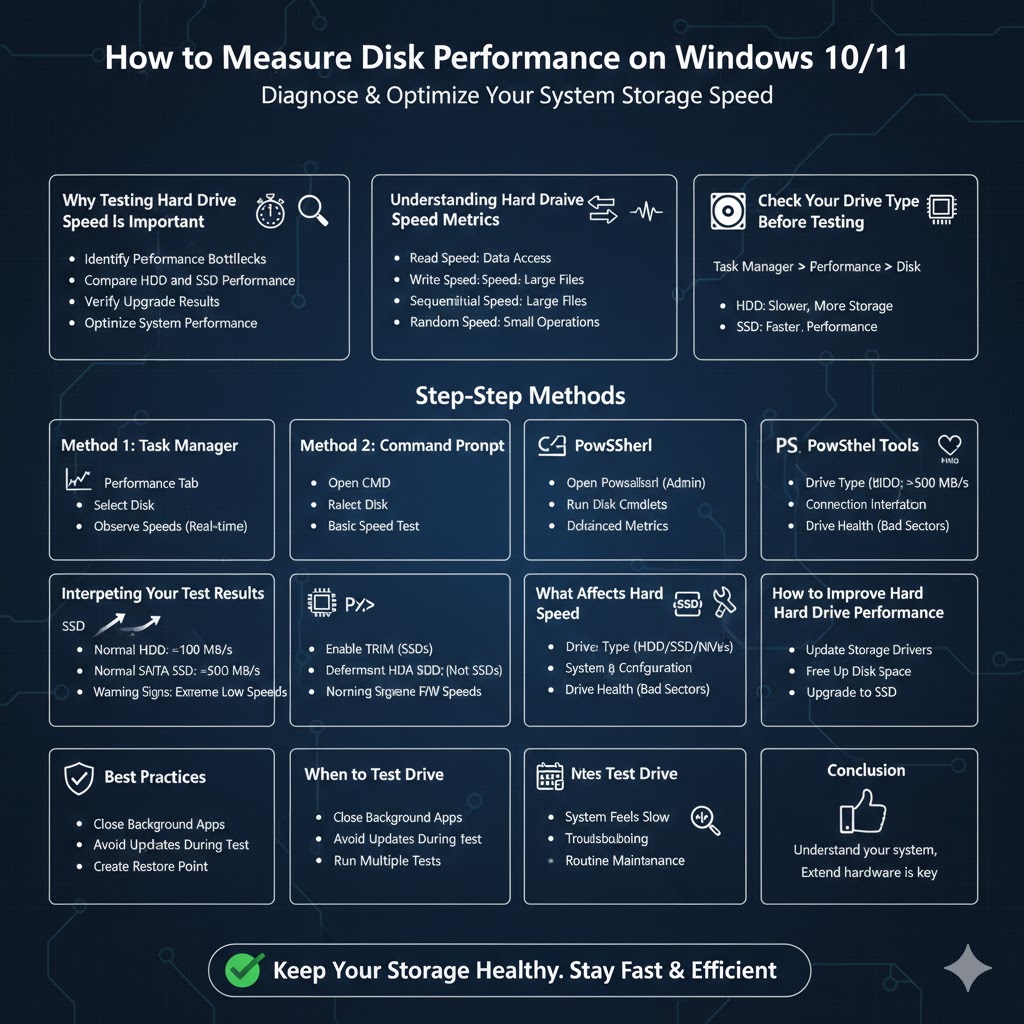
Why Testing Hard Drive Speed Is Important
Knowing your hard drive speed helps you understand your system’s overall performance.
Identify Performance Bottlenecks
Slow read or write speeds can explain long boot times and sluggish applications.
Compare HDD and SSD Performance
Testing highlights the difference between traditional hard drives and SSDs..
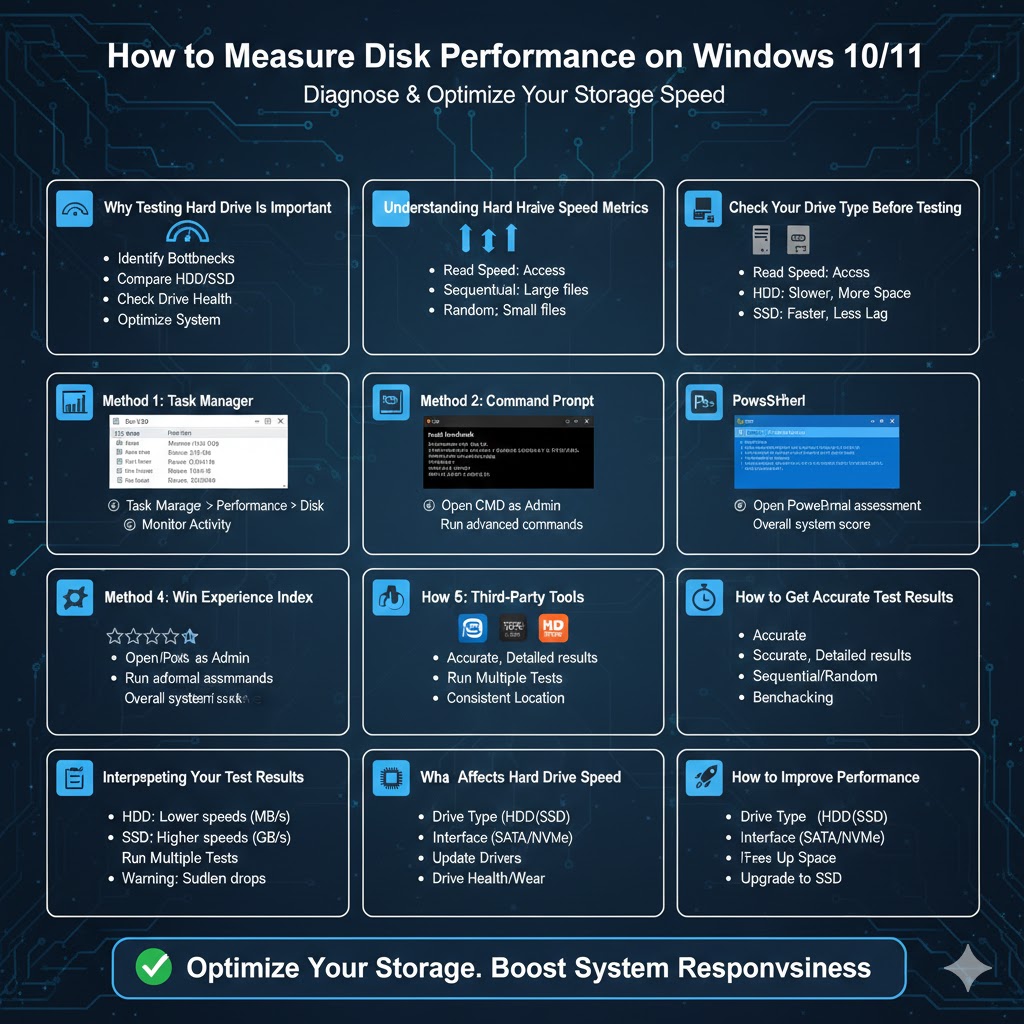
Check Drive Health
Sudden drops in speed may indicate drive degradation or failure.
Verify Upgrade Results
After installing a new SSD, speed tests confirm that it is working correctly.
Optimize System Performance
Speed results can help you decide whether to upgrade hardware or adjust settings.
Understanding Hard Drive Speed Metrics
Before running a test, it’s important to understand what the results mean.
Read Speed
Measures how fast data is accessed from the drive. This affects boot time and app loading.
Write Speed
Measures how fast data is saved to the drive. This impacts file transfers and installations.
Sequential Speed
Represents large, continuous data transfers such as copying videos.
Random Speed
Represents small data operations common in everyday system use.
Check Your Drive Type Before Testing
Different drives have different performance expectations.
How to Check Drive Type
Open Task Manager, go to the Performance tab, select Disk, and check whether it is listed as HDD or SSD.
Typical Speed Ranges
HDDs are slower but offer more storage at lower cost. SSDs are much faster and provide smoother system performance.
Method 1: Test Hard Drive Speed Using Task Manager
Why Use Task Manager
Task Manager provides a quick overview without installing extra software.
Steps
Open Task Manager, go to the Performance tab, select Disk, and observe read and write speeds during file transfers or system activity.
Limitations
This method shows real-time activity but does not provide precise benchmark results.
Method 2: Test Hard Drive Speed Using Windows Command Prompt
Why This Method Is Useful
The Command Prompt allows basic speed testing without third-party tools.
How It Works
Using simple commands, Windows measures disk performance based on file operations.
What to Expect
Results are useful for rough estimates but not detailed benchmarking.
Method 3: Test Hard Drive Speed Using PowerShell
Advantages of PowerShell
PowerShell offers more advanced disk performance measurements than Command Prompt.
Steps
Open PowerShell as administrator and run disk performance commands to measure read and write speeds.
Best Use Case
Advanced users who prefer built-in tools without installing additional software.
Method 4: Use Built-In Windows Experience Index Commands
What Is Windows Experience Index
Although no longer visible in the interface, Windows still supports disk performance scoring.
How to Run It
Use Command Prompt or PowerShell to generate a disk score that reflects overall storage performance.
Limitations
This method provides a score rather than detailed speed metrics.
Method 5: Test Hard Drive Speed Using Third-Party Tools
Why Use Third-Party Software
Dedicated tools provide accurate, repeatable, and detailed results.
Popular Disk Speed Testing Tools
Well-known tools measure sequential and random read/write speeds with high accuracy.
How They Work
These tools create test files and measure how fast data is written and read from your drive.
Best Use Case
Users who want precise benchmarks and comparisons.
How to Get Accurate Test Results
Close Background Applications
Running programs can affect disk performance during testing.
Avoid Testing During Updates
Windows updates or background scans can skew results.
Run Multiple Tests
Average multiple test runs for more reliable results.
Test on the Same Drive Location
Drive performance can vary depending on where data is stored.
Interpreting Your Test Results
Normal HDD Performance
HDDs generally show lower read and write speeds, especially for random operations.
Normal SSD Performance
SSDs show significantly higher speeds and better random access performance.
Warning Signs
Extremely low speeds may indicate driver issues, incorrect configuration, or failing hardware.
What Affects Hard Drive Speed
Drive Type
SSDs are faster than HDDs, and NVMe SSDs are faster than SATA SSDs.
Connection Interface
SATA, NVMe, and USB connections affect maximum speed.
System Configuration
Outdated drivers or incorrect BIOS settings can limit performance.
Drive Health
Bad sectors or wear can reduce speed over time.
How to Improve Hard Drive Performance
Enable TRIM for SSDs
TRIM helps maintain SSD performance over time.
Defragment HDDs
Defragmentation improves HDD performance but should not be used on SSDs.
Update Storage Drivers
New drivers can fix performance and compatibility issues.
Free Up Disk Space
Low free space can slow down drive performance.
Upgrade to an SSD
Replacing an HDD with an SSD offers the most noticeable performance improvement.
When You Should Test Your Hard Drive Speed
Testing is recommended if your system feels slow, after installing a new drive, when troubleshooting performance issues, or during routine system maintenance.
Conclusion
Testing your hard drive speed on Windows 11 or Windows 10 is a simple yet powerful way to understand your computer’s performance. Whether you use built-in tools like Task Manager and PowerShell or dedicated third-party software, disk speed tests provide valuable insights into how well your storage device is performing.
By interpreting the results correctly and taking steps to optimize or upgrade your storage, you can significantly improve system responsiveness, reduce load times, and extend the life of your hardware. Regular testing ensures your system continues to perform at its best as your storage needs grow.