


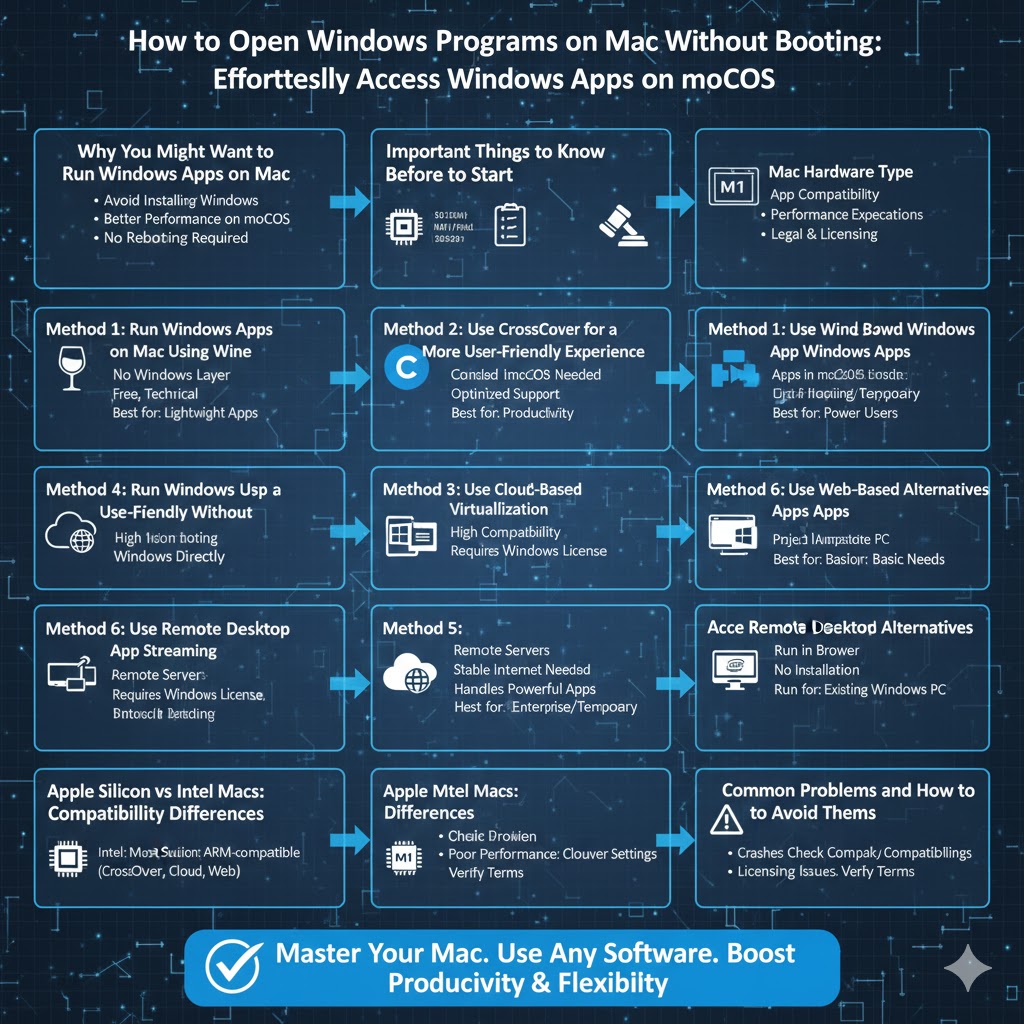
How to Open Windows Programs on Mac Without Dual Booting
Many Mac users eventually face a common challenge: needing to run a Windows-only application without installing Windows itself. Whether it’s a work-related tool, a legacy program, or a specific piece of software unavailable on macOS, switching operating systems or rebooting into Windows is not always convenient.
Fortunately, modern technology offers several ways to run Windows applications on a Mac without installing or running a full Windows operating system. These methods range from compatibility layers to cloud-based solutions, each with its own strengths and limitations. This guide explores all practical options to help you choose the best approach for your needs.
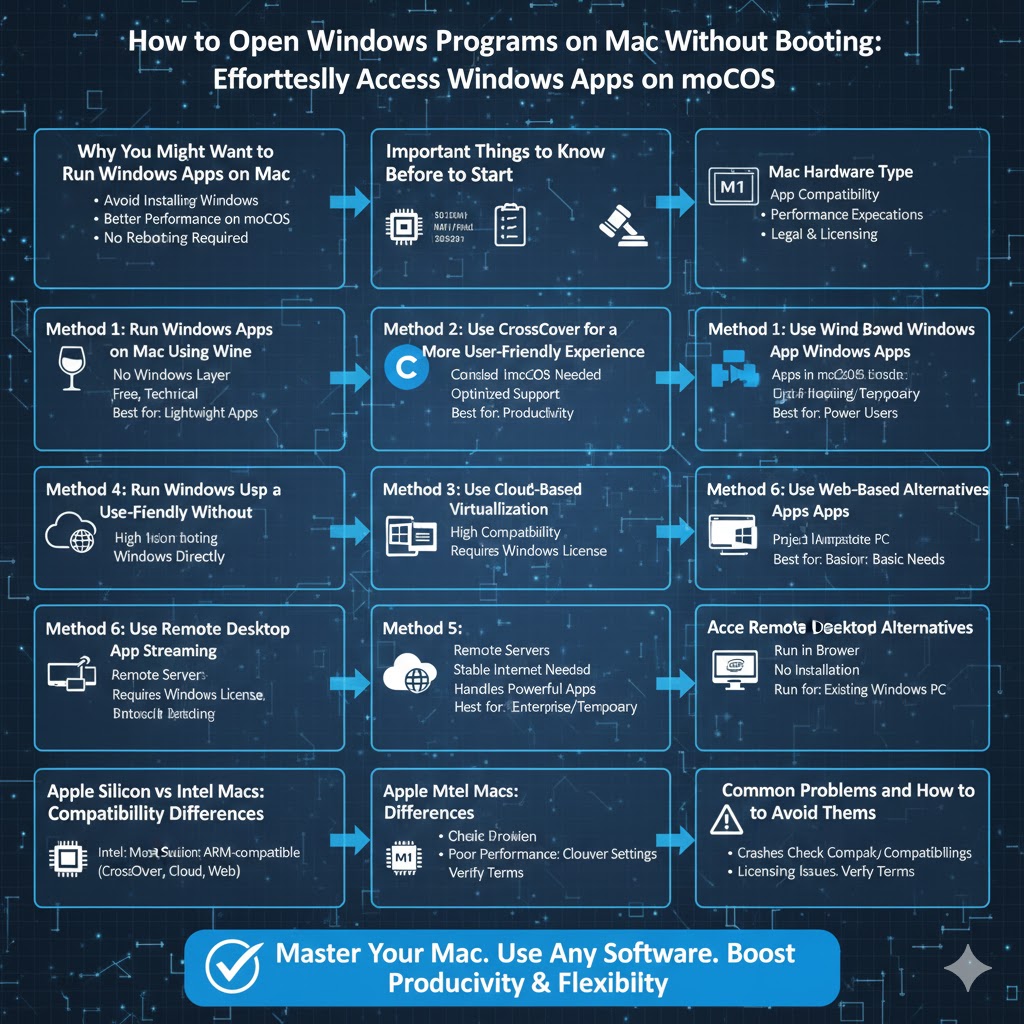
Why You Might Want to Run Windows Apps on Mac
Understanding your motivation helps determine the right solution.
Access to Windows-Only Software
Some professional tools, games, or business applications are only available for Windows.
Avoid Installing Windows
Installing Windows requires storage space, system resources, and maintenance.
Better Performance on macOS
Some users prefer macOS for stability and workflow but still need occasional access to Windows apps.
No Rebooting Required
Running apps directly on macOS avoids restarting your computer.
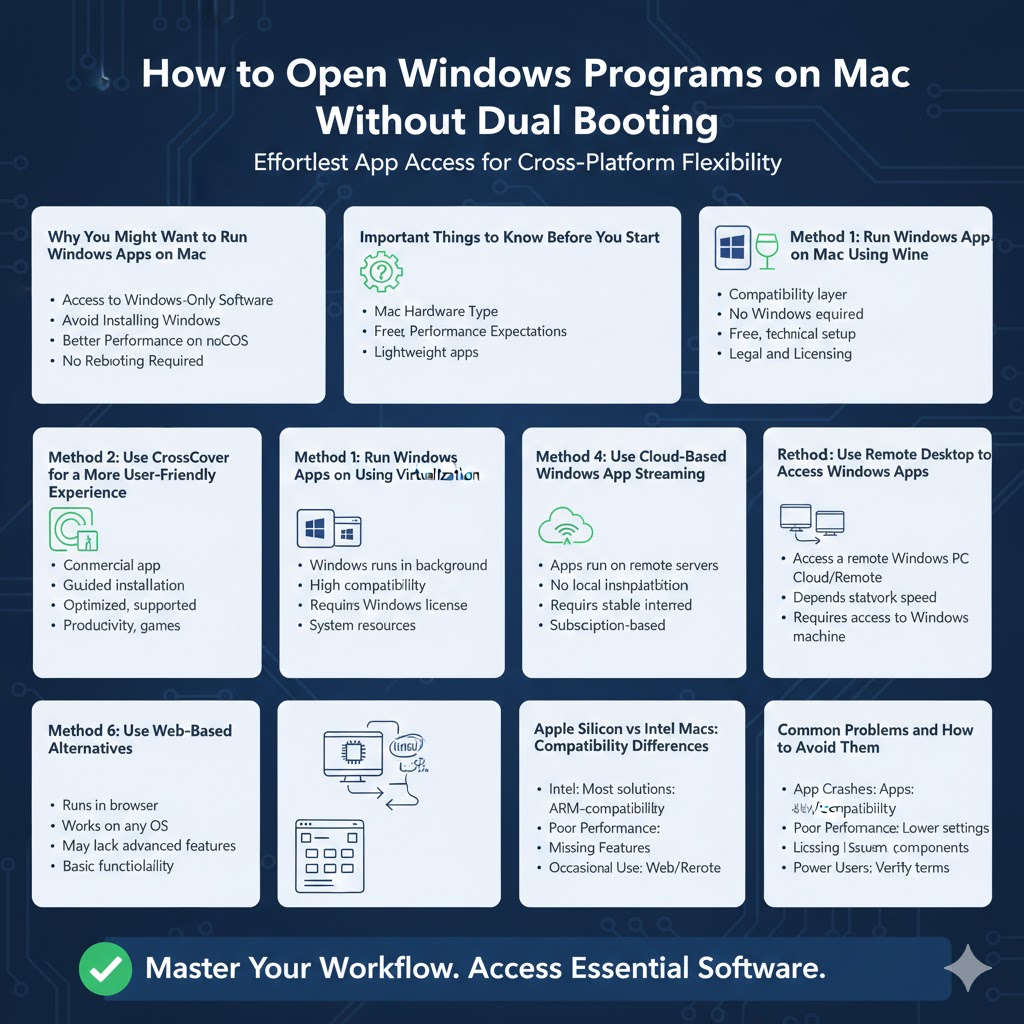
Important Things to Know Before You Start
Before choosing a method, consider these factors.
Mac Hardware Type
Apple Silicon Macs (M1, M2, M3) and Intel-based Macs support different solutions.
App Compatibility
Not all Windows apps work with every method, especially complex or graphics-intensive software.
Performance Expectations
Some solutions are better for lightweight apps, while others handle demanding software.
Legal and Licensing Considerations
Always ensure you are using software according to its license terms.
Method 1: Run Windows Apps on Mac Using Wine
What Is Wine
Wine is a compatibility layer that allows Windows applications to run directly on macOS without Windows.
How Wine Works
Wine translates Windows system calls into macOS-compatible calls in real time.
Advantages
No Windows installation required, lightweight, and free to use.
Limitations
Not all Windows apps are supported, and setup can be technical for beginners.
Best Use Case
Older or lightweight Windows applications with simple requirements.
Method 2: Use CrossOver for a More User-Friendly Experience
What Is CrossOver
CrossOver is a commercial application built on Wine that simplifies running Windows apps on Mac.
Why Choose CrossOver
It offers guided installation, official support, and optimized configurations.
Performance
CrossOver performs well for productivity software, business tools, and some games.
Compatibility
The app provides a compatibility database to check supported programs.
Best Use Case
Users who want ease of use without manual configuration.
Method 3: Run Windows Apps Using Virtualization Without Booting Windows Directly
Understanding This Approach
Some virtualization tools allow Windows apps to run in isolated environments without fully interacting with Windows.
Examples
Tools like Parallels Desktop can launch Windows apps in a macOS-like interface.
Key Difference
Windows runs in the background, but users interact with apps as if they were native.
Pros
High compatibility and excellent performance.
Cons
Still requires a Windows license and more system resources.
Method 4: Use Cloud-Based Windows App Streaming
What Is Cloud App Streaming
Windows apps run on remote servers and stream to your Mac over the internet.
Popular Options
Services like Windows 365, Azure Virtual Desktop, or third-party cloud platforms.
Advantages
No local installation, works on any Mac, and handles powerful software easily.
Disadvantages
Requires a stable internet connection and often a subscription.
Best Use Case
Enterprise software, professional tools, or temporary access needs.
Method 5: Use Remote Desktop to Access Windows Apps
How This Works
You access a Windows PC remotely and run apps on that system from your Mac.
Benefits
No local Windows installation and full app compatibility.
Limitations
Requires access to a Windows machine and depends on network speed.
Best Use Case
Users who already have a Windows PC or work computer.
Method 6: Use Web-Based Alternatives to Windows Apps
Why This Is Worth Considering
Many Windows apps now have web-based versions.
Examples
Office suites, design tools, project management software, and accounting apps.
Advantages
Runs directly in your browser and works on any operating system.
Limitations
May lack advanced features found in desktop apps.
Best Use Case
Users who only need basic functionality.
Apple Silicon vs Intel Macs: Compatibility Differences
Intel-Based Macs
Support most compatibility tools and virtualization methods.
Apple Silicon Macs
Require ARM-compatible solutions, which limits some options.
Best Options for Apple Silicon
CrossOver, cloud-based solutions, and web apps are often the most reliable.
Common Problems and How to Avoid Them
App Crashes or Won’t Launch
Check compatibility lists and ensure required dependencies are installed.
Poor Performance
Lower graphics settings or switch to cloud-based solutions.
Missing Features
Some Windows apps rely on system-level components that may not be supported.
Licensing Issues
Always verify software licenses before use.
Which Method Should You Choose
For Lightweight Apps
Wine or CrossOver offers fast performance with minimal setup.
For Business or Professional Software
Cloud streaming or remote desktop solutions provide full compatibility.
For Occasional Use
Web-based alternatives or remote access are often sufficient.
For Power Users
Virtualization tools offer the most complete experience.
Conclusion
Running Windows apps on a Mac without installing or booting into Windows is easier than ever. With tools like Wine, CrossOver, cloud-based streaming, and remote desktop access, you can choose a solution that fits your workflow, hardware, and performance needs.
Each method has trade-offs, but the right choice depends on how often you use Windows apps and how demanding they are. By understanding these options, you can enjoy the flexibility of macOS while still accessing essential Windows software whenever you need it.