


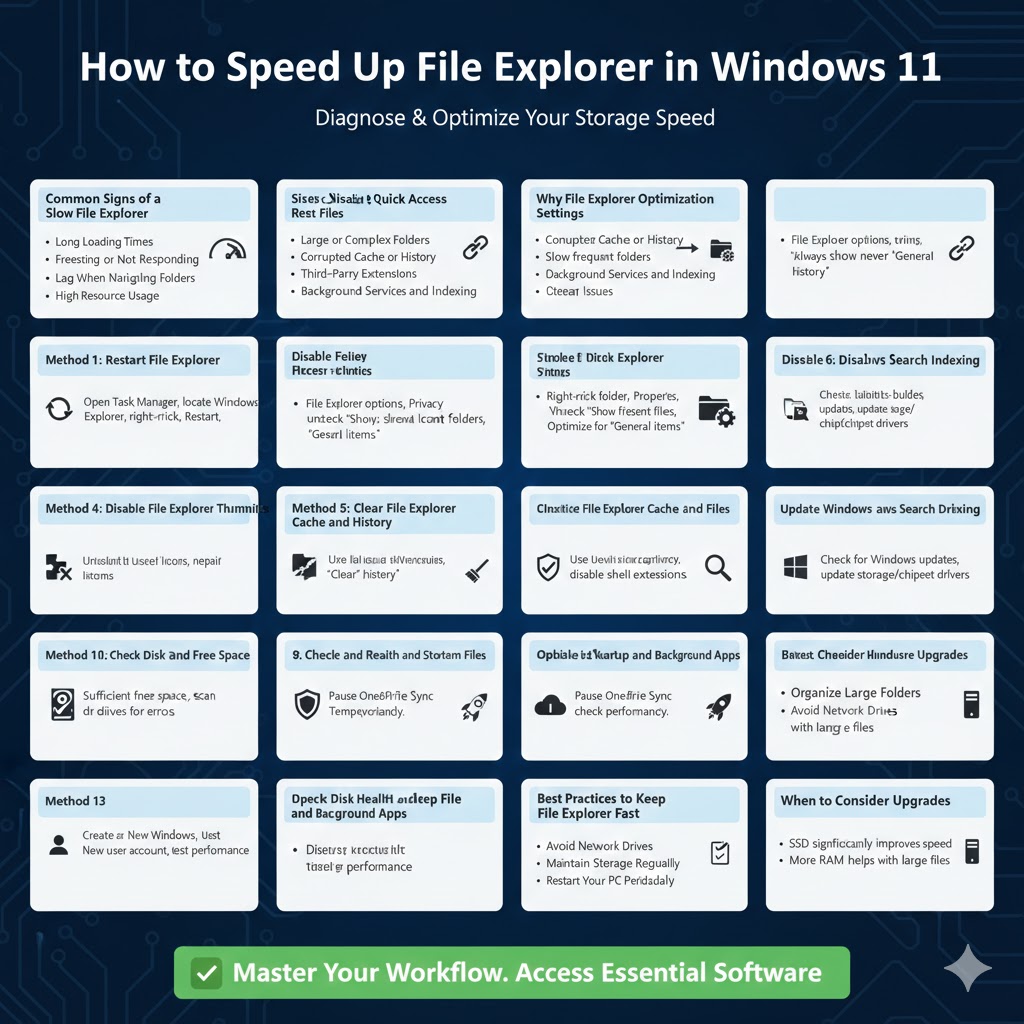
How to Speed Up File Explorer in Windows 11
File Explorer is one of the most frequently used components in Windows 11. It allows users to browse folders, manage files, access external drives, and organize data. When File Explorer becomes slow, freezes, or takes too long to load folders, it can seriously disrupt productivity and make everyday tasks frustrating.
Slow File Explorer performance is a common issue in Windows 11 and can be caused by system settings, corrupted files, background services, or hardware-related factors. This guide explains the most effective ways to fix File Explorer slowness and restore smooth performance.
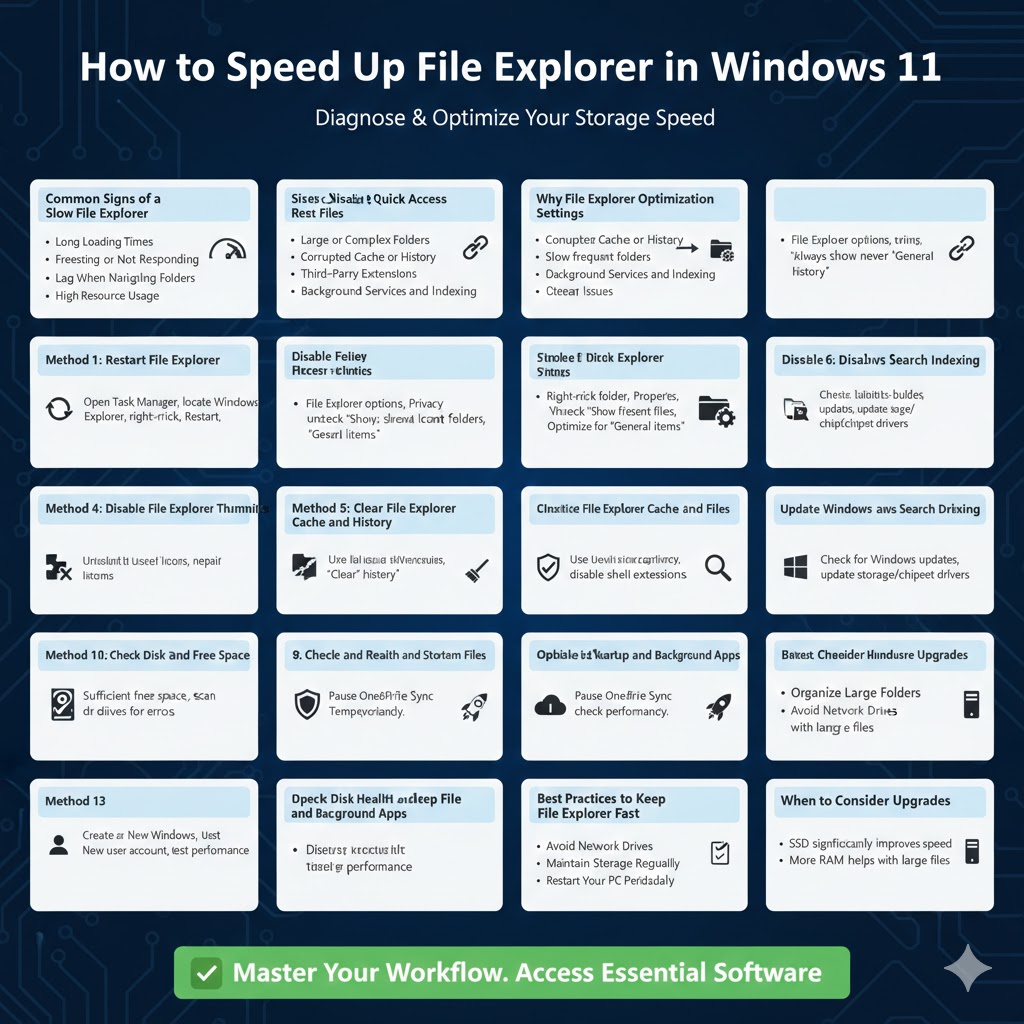
Common Signs of a Slow File Explorer
Understanding the symptoms helps identify the problem more accurately.
Long Loading Times
Folders take several seconds to open, especially those with many files.
Freezing or Not Responding
File Explorer may stop responding when browsing directories.
Slow Right-Click Menu
Context menus take too long to appear.
Lag When Navigating Folders
Switching between folders feels delayed or unresponsive.
High Resource Usage
File Explorer consumes excessive CPU, memory, or disk resources.
Why File Explorer Becomes Slow in Windows 11
Several factors can affect File Explorer performance.
Large or Complex Folders
Folders containing many images, videos, or documents slow down indexing and preview generation.
Corrupted Cache or History
Quick Access history and cache files may become corrupted over time.
Third-Party Extensions
Context menu extensions from third-party apps can cause delays.
Outdated System or Drivers
Old Windows updates or storage drivers can affect file operations.
Background Services and Indexing
Search indexing and background scans can slow file access.
Storage Issues
Slow hard drives, failing SSDs, or insufficient free space impact performance.
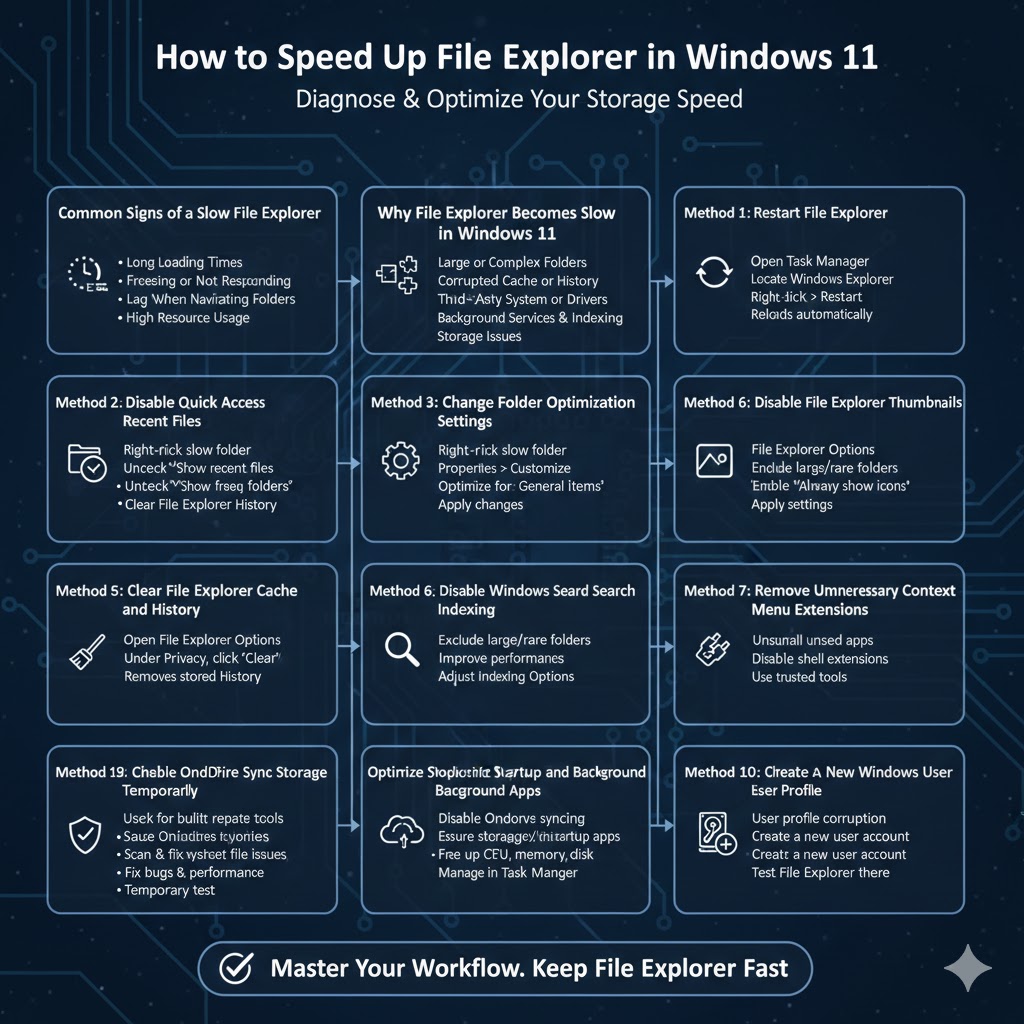
Method 1: Restart File Explorer
Why This Helps
Restarting File Explorer clears temporary glitches and refreshes system processes.
Steps
Open Task Manager, locate Windows Explorer, right-click it, and select Restart. File Explorer will reload automatically.
Method 2: Disable Quick Access Recent Files
Why Quick Access Causes Slowness
Quick Access loads recent files and frequently used folders, which can slow startup.
How to Disable It
Open File Explorer options, under Privacy, uncheck options for showing recently used files and frequently used folders, then clear File Explorer history.
Method 3: Change Folder Optimization Settings
Why Folder Optimization Matters
Windows optimizes folders based on content type, which may slow loading.
Steps
Right-click the slow folder, select Properties, go to Customize, set Optimize this folder for General items, and apply changes.
Method 4: Disable File Explorer Thumbnails
Why Thumbnails Slow Things Down
Generating image and video previews uses system resources.
How to Disable Thumbnails
Open File Explorer options, go to the View tab, enable Always show icons, never thumbnails, and apply the settings.
Method 5: Clear File Explorer Cache and History
Why Clearing Cache Helps
Corrupted cache data can slow file browsing.
Steps
Open File Explorer options and click Clear under Privacy to remove stored history.
Method 6: Disable Windows Search Indexing for Certain Folders
Why Indexing Affects Performance
Indexing large folders can slow File Explorer responsiveness.
How to Adjust Indexing
Exclude large or rarely accessed folders from Windows Search indexing to improve performance.
Method 7: Remove Unnecessary Context Menu Extensions
Why Context Menu Extensions Cause Lag
Third-party extensions load when you right-click files or folders.
How to Fix It
Uninstall unused applications or disable shell extensions using trusted system tools.
Method 8: Check and Repair System Files
Why This Matters
Corrupted system files can cause File Explorer instability.
Steps
Use built-in Windows repair tools to scan and fix system file issues.
Method 9: Update Windows and Storage Drivers
Why Updates Improve Performance
Updates often include bug fixes and performance improvements.
Steps
Check for Windows updates and ensure your storage and chipset drivers are up to date.
Method 10: Check Disk Health and Free Space
Why Storage Health Matters
A slow or failing drive directly affects File Explorer speed.
Steps
Ensure you have sufficient free disk space and scan drives for errors regularly.
Method 11: Disable OneDrive Sync Temporarily
Why OneDrive Can Slow File Explorer
Active synchronization can delay file access.
How to Test
Pause OneDrive syncing and check if File Explorer performance improves.
Method 12: Optimize Startup and Background Apps
Why Background Apps Affect Performance
Too many background apps compete for system resources.
Steps
Disable unnecessary startup apps to free up CPU, memory, and disk usage.
Method 13: Create a New Windows User Profile
Why This Works
User profile corruption can affect File Explorer behavior.
Steps
Create a new user account and test File Explorer performance there.
Best Practices to Keep File Explorer Fast
Organize Large Folders
Split large folders into smaller subfolders.
Avoid Network Drives in Quick Access
Disconnected network locations can slow File Explorer startup.
Maintain Storage Regularly
Keep SSDs healthy and HDDs optimized.
Restart Your PC Periodically
Regular restarts help clear memory and refresh services.
When to Consider Hardware Upgrades
If File Explorer remains slow after software fixes, hardware may be the issue.
Upgrade to an SSD
Switching from an HDD to an SSD significantly improves file access speed.
Increase RAM
More memory helps Windows handle large file operations smoothly.
Conclusion
A slow File Explorer in Windows 11 can be caused by many factors, including system settings, indexing, corrupted cache, third-party extensions, or storage issues. Fortunately, most of these problems can be resolved using simple adjustments and built-in tools.
By following the methods outlined in this guide, you can significantly improve File Explorer performance and restore smooth file navigation. Regular maintenance, proper folder organization, and up-to-date system components will help ensure File Explorer remains fast and responsive over time.