


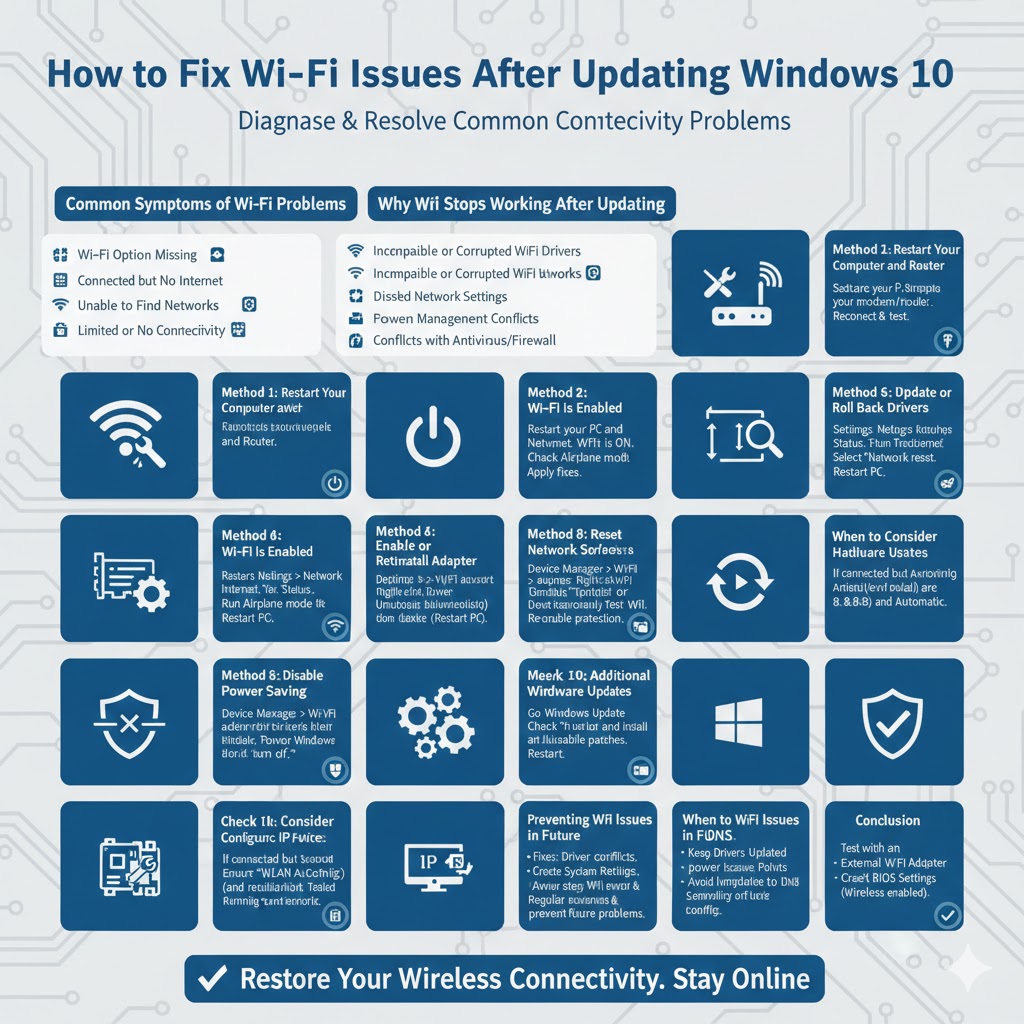
How to Fix Wi-Fi Issues After Updating Windows 10
Windows 10 updates are designed to improve system security, stability, and performance. However, it is not uncommon for users to encounter problems immediately after an update. One of the most frustrating issues is Wi-Fi not working after updating Windows 10. This problem can prevent your computer from connecting to the internet, disrupt work, and limit access to online services.
Wi-Fi issues after a Windows update are usually caused by driver conflicts, incorrect network settings, or compatibility problems introduced during the update process. The good news is that most of these issues can be fixed with a few systematic troubleshooting steps. This guide explains the causes and provides proven solutions to restore Wi-Fi functionality on Windows 10.
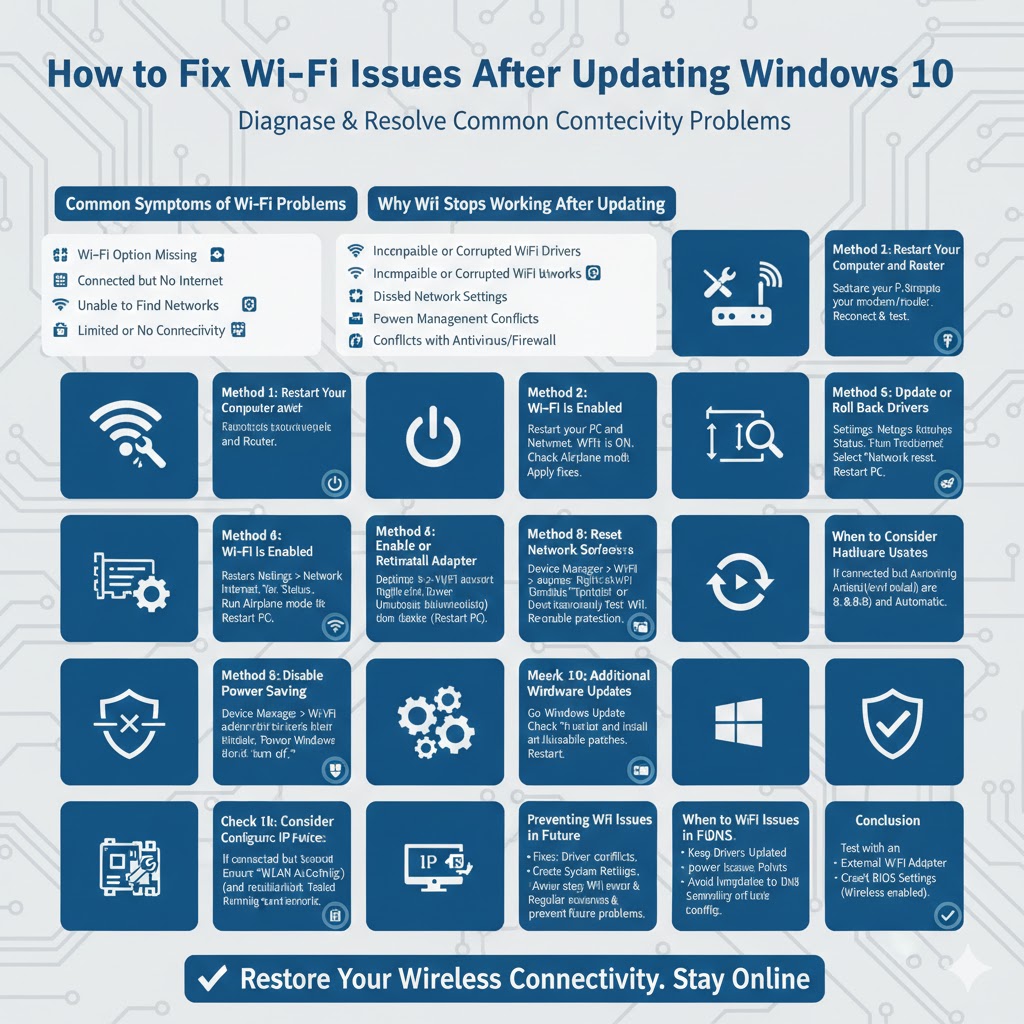
Common Symptoms of Wi-Fi Problems After a Windows 10 Update
Recognizing the symptoms helps identify the underlying cause more quickly.
Wi-Fi Option Missing
The Wi-Fi toggle disappears from network settings.
Connected but No Internet
The system connects to Wi-Fi but cannot access the internet.
Unable to Find Networks
Available Wi-Fi networks do not appear.
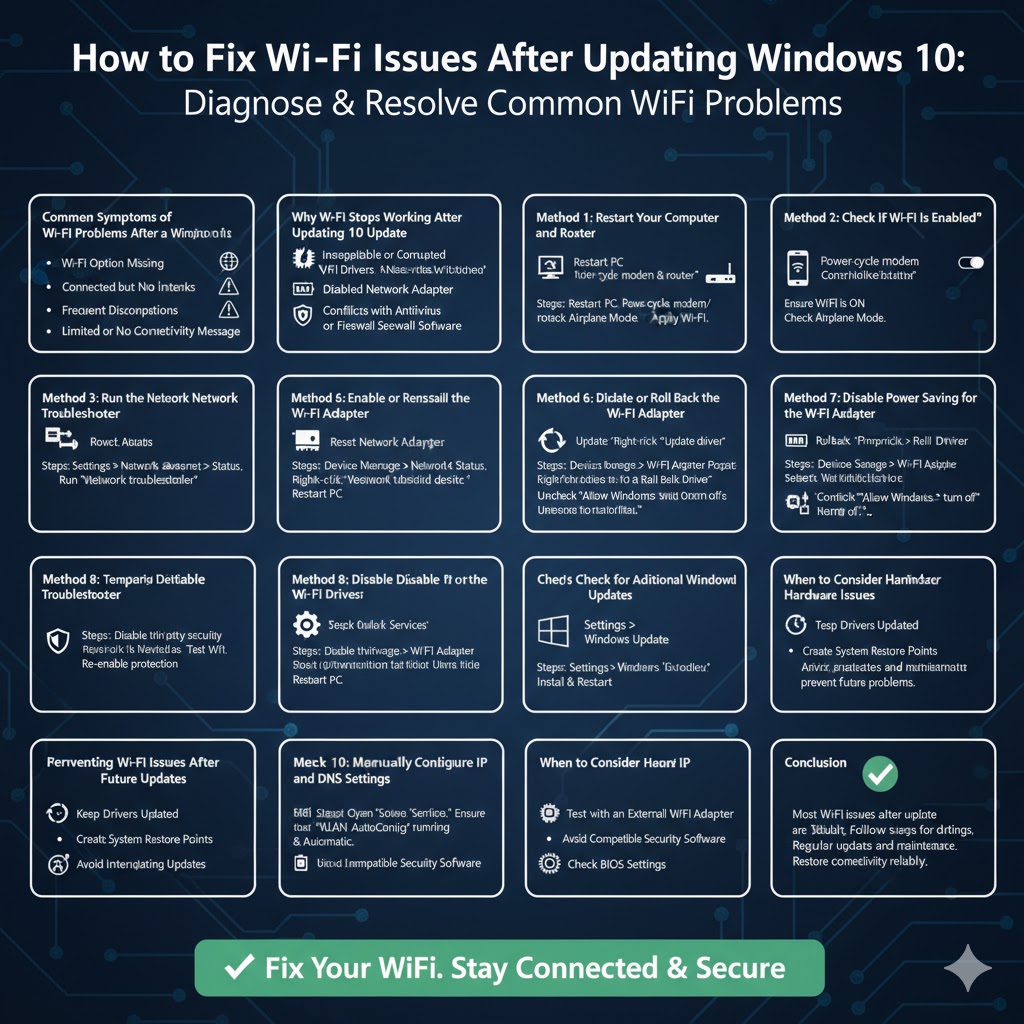
Frequent Disconnections
Wi-Fi connects briefly and then disconnects repeatedly.
Limited or No Connectivity Message
Windows reports restricted network access.
Why Wi-Fi Stops Working After Updating Windows 10
Several factors can cause Wi-Fi to stop functioning after an update.
Incompatible or Corrupted Wi-Fi Drivers
Windows updates may replace working drivers with incompatible versions.
Reset Network Settings
Updates can reset network configurations to default values.
Disabled Network Adapter
The Wi-Fi adapter may be disabled automatically.
Power Management Conflicts
New updates can change power settings that turn off the Wi-Fi adapter.
Conflicts with Antivirus or Firewall Software
Security software may block network access after system changes.
Method 1: Restart Your Computer and Router
Why This Helps
A simple restart clears temporary system glitches and refreshes network connections.
Steps
Restart your PC and power-cycle your modem and router. After everything restarts, reconnect to Wi-Fi and test the connection.
Method 2: Check If Wi-Fi Is Enabled
Why This Matters
Sometimes Wi-Fi is disabled automatically after updates.
Steps
Open Settings, go to Network & Internet, select Wi-Fi, and make sure it is turned on. Also check Airplane mode to ensure it is disabled.
Method 3: Run the Network Troubleshooter
What the Troubleshooter Does
The built-in network troubleshooter detects and fixes common connection problems.
Steps
Open Settings, go to Network & Internet, select Status, and run the Network troubleshooter. Apply any recommended fixes.
Method 4: Enable or Reinstall the Wi-Fi Adapter
Why This Works
Re-enabling or reinstalling the adapter refreshes driver communication.
Steps
Open Device Manager, expand Network adapters, right-click your Wi-Fi adapter, and choose Enable if it is disabled. If already enabled, uninstall the device and restart your PC to allow Windows to reinstall it.
Method 5: Update or Roll Back Wi-Fi Drivers
Why Drivers Are Critical
Wi-Fi relies on compatible drivers to function properly.
How to Update Drivers
In Device Manager, right-click the Wi-Fi adapter and choose Update driver. Select Search automatically for drivers.
How to Roll Back Drivers
If the issue started after an update, open the adapter’s Properties, go to the Driver tab, and select Roll Back Driver.
Method 6: Reset Network Settings
Why Resetting Helps
Resetting clears corrupted configurations and restores default network settings.
Steps
Open Settings, go to Network & Internet, choose Status, select Network reset, and restart your PC.
Method 7: Disable Power Saving for the Wi-Fi Adapter
Why Power Settings Cause Issues
Windows may turn off the adapter to save power, disrupting connectivity.
Steps
Open Device Manager, open the Wi-Fi adapter properties, go to the Power Management tab, and uncheck the option that allows Windows to turn off the device.
Method 8: Temporarily Disable Antivirus or Firewall
Why This Helps
Security software may block network access after a system update.
Steps
Temporarily disable third-party antivirus or firewall software and test the Wi-Fi connection. Re-enable protection after testing.
Method 9: Check Network Services
Important Services
Wi-Fi depends on several Windows services to function correctly.
Steps
Open Services and ensure that WLAN AutoConfig and related networking services are running and set to Automatic.
Method 10: Check for Additional Windows Updates
Why This Matters
Microsoft often releases follow-up patches to fix update-related issues.
Steps
Go to Windows Update and check for additional updates. Install any available fixes and restart your PC.
Method 11: Manually Configure IP and DNS Settings
When to Use This
If Wi-Fi connects but there is no internet access.
How It Helps
Manually setting DNS or IP configuration can bypass network conflicts.
Preventing Wi-Fi Issues After Future Updates
Keep Drivers Updated
Regularly update Wi-Fi drivers from the manufacturer.
Create System Restore Points
Restore points allow you to revert changes if issues occur.
Avoid Interrupting Updates
Interrupted updates increase the risk of network problems.
Use Compatible Security Software
Ensure antivirus software is fully compatible with Windows updates.
When to Consider Hardware Issues
If Wi-Fi still does not work after all software fixes, hardware may be the problem.
Test with an External Wi-Fi Adapter
Using a USB Wi-Fi adapter can help identify internal hardware failure.
Check BIOS Settings
Ensure the wireless adapter is enabled in BIOS or UEFI settings.
Conclusion
Wi-Fi not working after updating Windows 10 is a common but solvable problem. In most cases, the issue is caused by driver conflicts, reset network settings, or power management changes introduced by the update. By following the troubleshooting methods in this guide, you can systematically restore your wireless connection and get back online.
Regular driver updates, proper system maintenance, and cautious update management can help prevent similar issues in the future. With the right approach, Wi-Fi connectivity on Windows 10 can be restored quickly and reliably.