


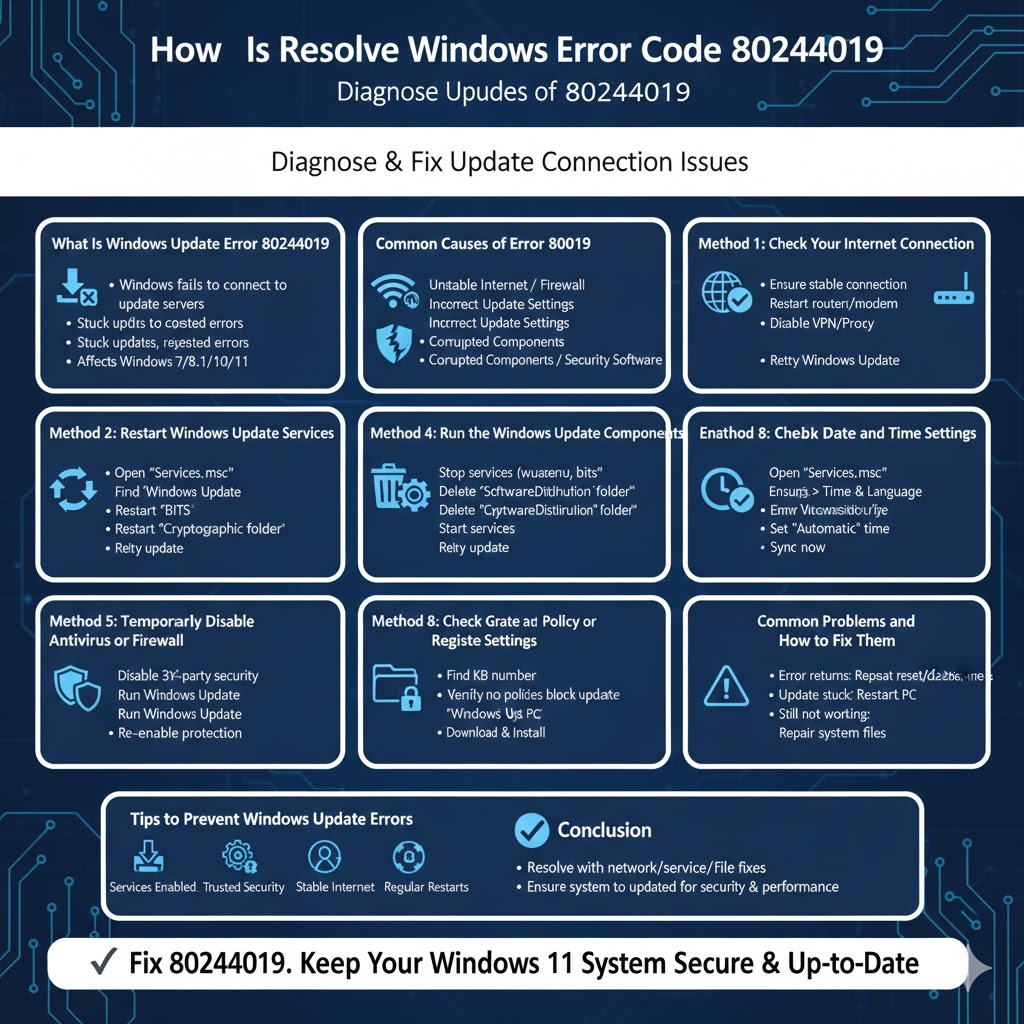
How to Resolve Windows Update Error Code 80244019
Windows Update plays a crucial role in keeping your operating system secure, stable, and up to date. However, update errors can sometimes prevent your system from downloading or installing important updates. One of the more frustrating issues users encounter is Windows Update Error 80244019. This error usually appears when Windows cannot connect properly to Microsoft’s update servers or when system components responsible for updates are misconfigured.
The good news is that this error can be fixed using several proven methods. This guide explains what causes Windows Update Error 80244019 and provides step-by-step solutions to help you resolve it effectively.
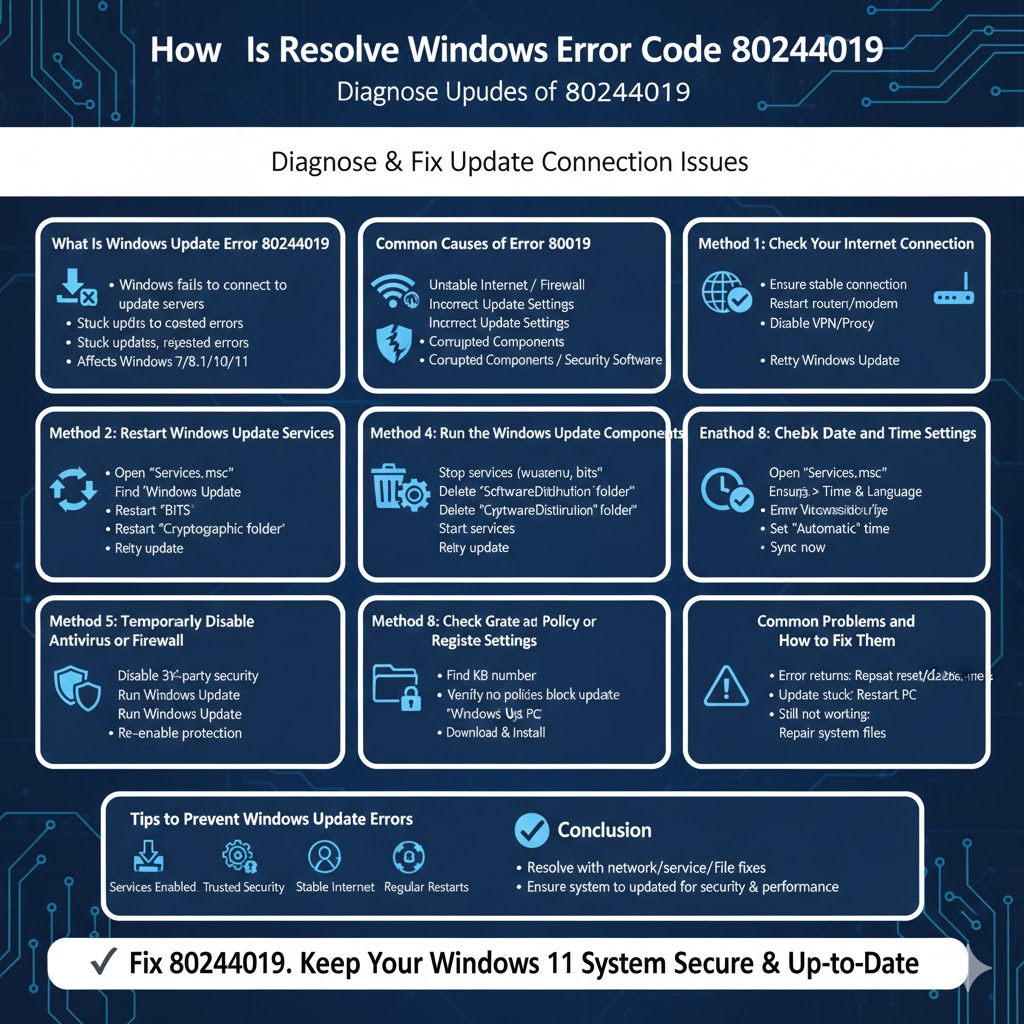
What Is Windows Update Error 80244019
Windows Update Error 80244019 typically occurs when Windows fails to receive update data from Microsoft servers. It may appear with messages indicating that updates could not be checked or downloaded.
Common Symptoms
You may notice updates getting stuck, repeated error messages, or failed update attempts. In some cases, Windows Update may stop working entirely.
Affected Windows Versions
This error has been reported on Windows 7, Windows 8.1, Windows 10, and Windows 11.
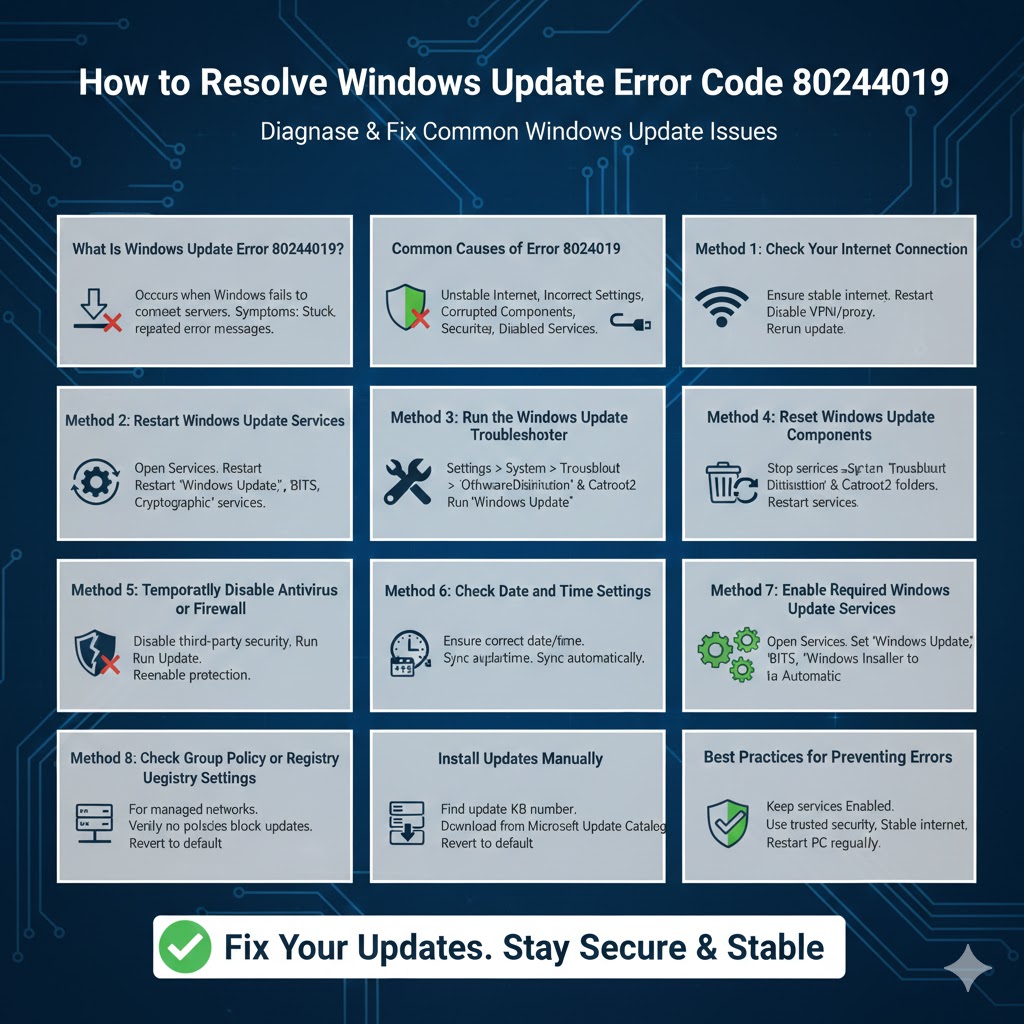
Common Causes of Error 80244019
Understanding the causes helps you apply the right fix.
Unstable or Restricted Internet Connection
Network interruptions or firewall restrictions can block update traffic.
Incorrect Windows Update Settings
Misconfigured update services or policies may prevent proper communication.
Corrupted Update Components
Damaged update files or system components can interrupt the update process.
Third-Party Security Software
Some antivirus or firewall programs interfere with Windows Update.
Windows Update Service Issues
If required services are stopped or disabled, updates cannot proceed.
Method 1: Check Your Internet Connection
Why This Matters
Windows Update requires a stable and unrestricted internet connection.
Steps
Ensure your device is connected to the internet, restart your router if needed, and temporarily disable VPNs or proxy services. Then try running Windows Update again.
Method 2: Restart Windows Update Services
Why Restarting Services Helps
Restarting services refreshes the update process and clears temporary issues.
Steps
Open the Services menu, locate Windows Update, Background Intelligent Transfer Service, and Cryptographic Services. Restart each service and try updating again.
Method 3: Run the Windows Update Troubleshooter
What the Troubleshooter Does
The built-in troubleshooter detects and fixes common update problems automatically.
Steps
Open Settings, go to System, select Troubleshoot, then Other troubleshooters. Run the Windows Update troubleshooter and apply any recommended fixes.
Method 4: Reset Windows Update Components
Why Resetting Helps
Resetting clears corrupted update files and restores default settings.
Steps
Stop Windows Update services, delete the SoftwareDistribution and Catroot2 folders, restart the services, and retry the update. This process forces Windows to create fresh update files.
Method 5: Temporarily Disable Antivirus or Firewall
Why Security Software Can Interfere
Some security tools mistakenly block update traffic.
Steps
Temporarily disable third-party antivirus or firewall software, run Windows Update, then re-enable protection after the update completes.
Method 6: Check Date and Time Settings
Why Date and Time Matter
Incorrect system time can prevent secure connections to update servers.
Steps
Ensure your date, time, and time zone are set correctly and synchronized automatically.
Method 7: Enable Required Windows Update Services
Important Services
Windows Update, Background Intelligent Transfer Service, and Windows Installer must be enabled.
Steps
Open Services, set these services to Automatic, start them if they are stopped, and apply changes.
Method 8: Check Group Policy or Registry Settings
When This Applies
This method is relevant if your device is part of a managed network.
Steps
Ensure no policies are blocking Windows Update. If unsure, revert update-related policies to default settings.
Method 9: Install Updates Manually
Why Manual Installation Works
Manual installation bypasses the automatic update mechanism.
Steps
Identify the update KB number, download it from the Microsoft Update Catalog, and install it manually.
Common Problems and How to Fix Them
Error Keeps Returning
Repeat the reset process and ensure no third-party software interferes.
Update Stuck at a Certain Percentage
Restart your system and try again.
Windows Update Still Not Working
Consider repairing system files using built-in repair tools.
Tips to Prevent Windows Update Errors
Keep Windows Services Enabled
Avoid disabling essential update services.
Use Trusted Security Software
Choose antivirus programs that are compatible with Windows Update.
Maintain Stable Internet
Avoid switching networks during updates.
Restart Your PC Regularly
Regular restarts help maintain system stability.
Conclusion
Windows Update Error 80244019 can be frustrating, but it is usually caused by network issues, misconfigured services, or corrupted update components. By following the methods in this guide, you can systematically identify the cause and restore normal update functionality.
Once resolved, keeping your system updated ensures better security, improved performance, and access to the latest Windows features. With the right approach, Windows Update Error 80244019 can be fixed quickly and effectively.