


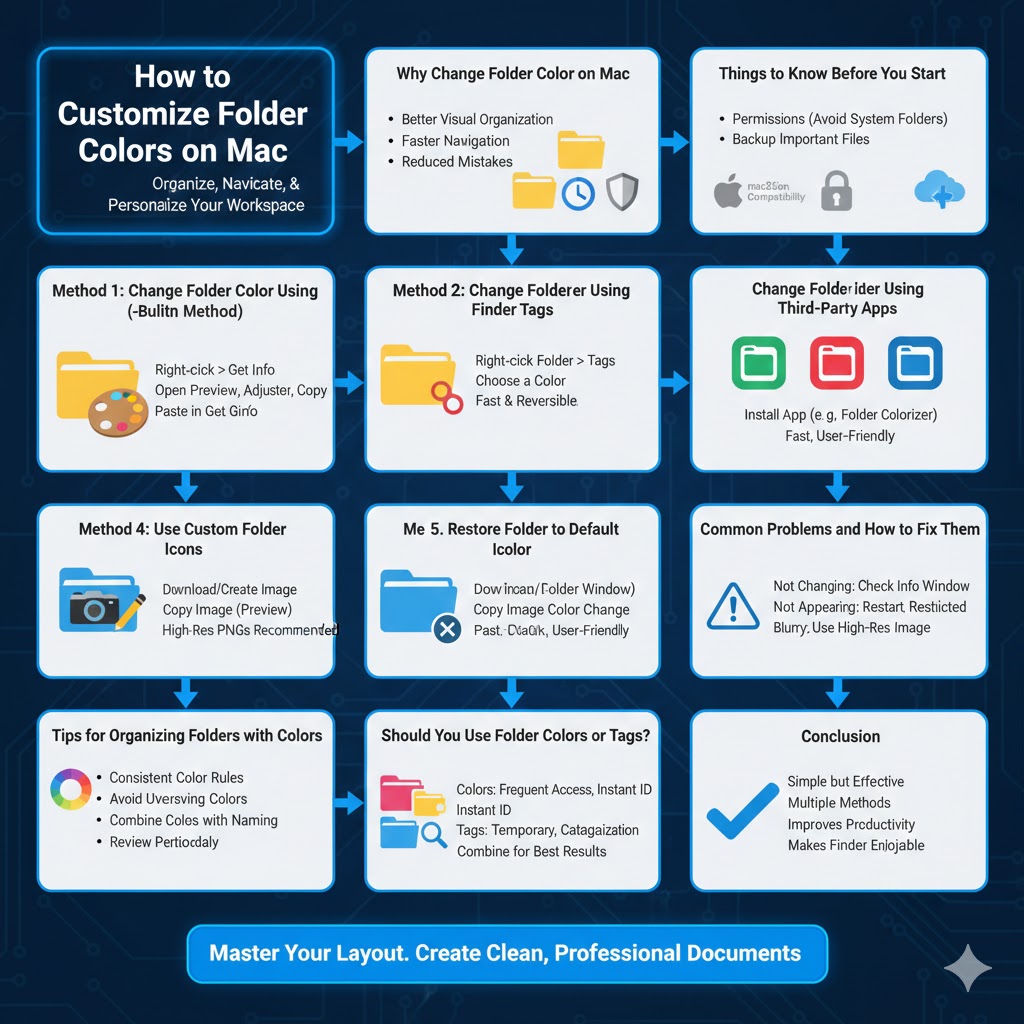
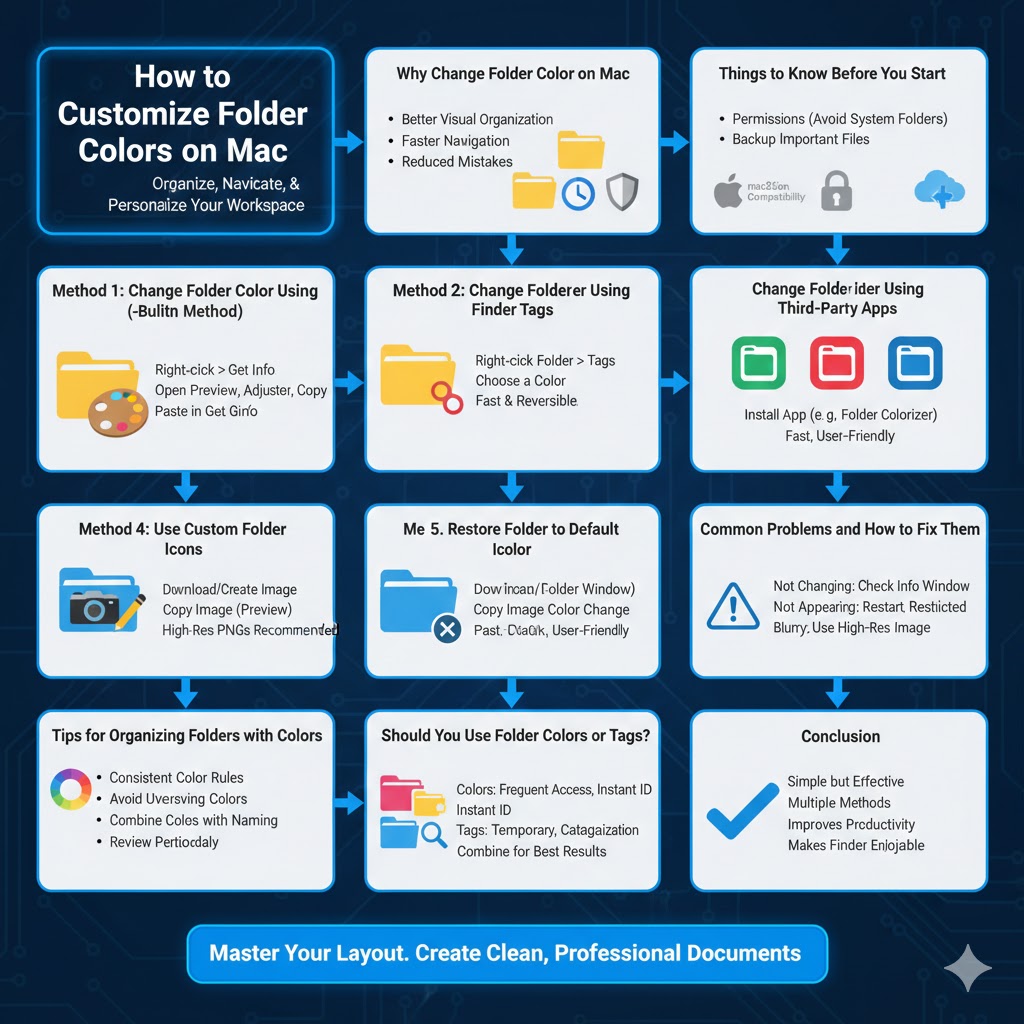
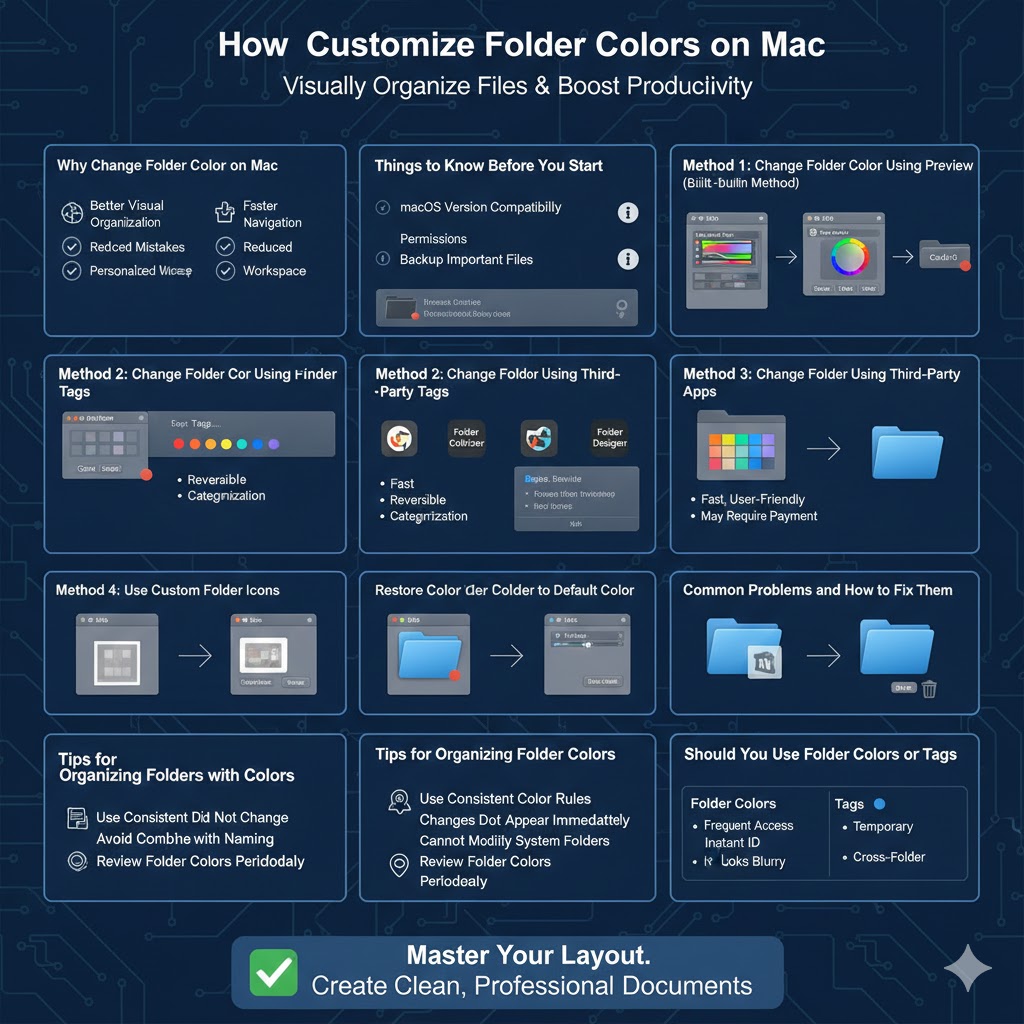
How to Customize Folder Colors on Mac
Organizing files efficiently is essential for staying productive, especially if you work with many documents, projects, or media files. On macOS, folders all look the same by default, which can make it difficult to quickly identify important directories. Changing folder colors is a simple but powerful way to visually organize your files and improve your workflow.
Although macOS does not provide a built-in “Change Folder Color” button, there are several reliable methods you can use to customize folder colors. This guide walks you through all the practical ways to change folder color on a Mac, from using built-in tools to third-party apps.
Why Change Folder Color on Mac
Changing folder colors is not just about appearance. It can significantly improve how you manage files.
Better Visual Organization
Color-coded folders help you distinguish between work, personal files, and projects instantly.
Faster Navigation
Bright or unique colors make important folders stand out in Finder.
Reduced Mistakes
Visual cues help prevent accidentally opening or modifying the wrong folder.
Personalized Workspace
Custom folder colors make your Mac feel more tailored to your preferences.
Things to Know Before You Start
Before changing folder colors, keep these points in mind.
macOS Version Compatibility
The built-in Preview method works on most modern macOS versions, including macOS Monterey, Ventura, and Sonoma.
Permissions
You must have permission to modify the folder. System folders may not allow customization.
Backup Important Files
Changing folder appearance does not affect data, but it’s always good practice to keep backups.
Method 1: Change Folder Color Using Preview (Built-in Method)
Why Use This Method
This method does not require installing any third-party software and works on all Macs.
Step-by-Step Instructions
Select the folder you want to customize, right-click it, and choose Get Info. Click the folder icon in the top-left corner of the Info window to select it, then press Command + C to copy the icon.
Open the Preview app, click File, choose New from Clipboard, and the folder icon will appear. Click Tools, select Adjust Color, and modify hue, saturation, and brightness to create your desired color. Once finished, press Command + C to copy the new icon.
Return to the folder’s Info window, click the folder icon again, and press Command + V to paste the new colored icon.
Advantages
No additional apps required and full control over color tone.
Limitations
The process can be time-consuming if you want to color many folders.
Method 2: Change Folder Color Using Finder Tags
What Are Finder Tags
Finder tags allow you to assign colors to files and folders without changing the actual icon.
How to Use Tags
Right-click a folder, select Tags, and choose a color. The colored dot appears next to the folder name in Finder.
Why Use Tags
Tags are fast, reversible, and useful for categorization.
Limitations
Tags do not change the folder icon itself, only the label color.
Method 3: Change Folder Color Using Third-Party Apps
Why Use Third-Party Tools
If you want to change many folders quickly, third-party apps save time.
Popular Folder Color Apps
Apps like Folder Colorizer, Image2icon, and Folder Designer provide one-click color changes and icon presets.
How It Works
Install the app, select a folder, choose a color or style, and apply changes instantly.
Pros and Cons
These apps are fast and user-friendly but may require payment for advanced features.
Method 4: Use Custom Folder Icons
Why Custom Icons Work Well
Custom icons allow complete creative freedom beyond basic colors.
How to Apply a Custom Icon
Download or create an image, open it in Preview, copy the image, then paste it onto the folder icon using the Get Info window.
Best Practices
Use square images with transparent backgrounds for best results.
Method 5: Restore Folder to Default Color
Why You May Need This
You might want to revert a folder to its original look.
Steps
Open the folder’s Info window, select the custom icon, and press the Delete key. The folder returns to the default blue icon.
Common Problems and How to Fix Them
Folder Color Did Not Change
Ensure the folder icon was selected in the Info window before pasting the new icon.
Changes Do Not Appear Immediately
Restart Finder or log out and back in.
Cannot Modify System Folders
System folders are protected and usually cannot be customized.
Icon Looks Blurry
Use high-resolution images when creating custom icons.
Tips for Organizing Folders with Colors
Use Consistent Color Rules
Assign specific colors to categories such as work, school, or personal files.
Avoid Overusing Colors
Too many colors can reduce clarity instead of improving it.
Combine Colors with Naming
Clear folder names combined with colors improve organization even further.
Review Folder Colors Periodically
Update colors as your projects or priorities change.
Should You Use Folder Colors or Tags
Folder colors are ideal for folders you access frequently and want to identify instantly. Tags are better for temporary organization or cross-folder categorization. Many users find the best results by combining both methods.
Conclusion
Changing folder color on a Mac is a simple yet effective way to organize files, reduce clutter, and improve productivity. Whether you use the built-in Preview method, Finder tags, third-party apps, or custom icons, macOS offers flexible options to match your workflow.
By applying thoughtful color choices and consistent organization rules, you can turn Finder into a visually intuitive workspace that saves time and reduces frustration. Once you get used to color-coded folders, managing files on your Mac becomes faster and more enjoyable.