


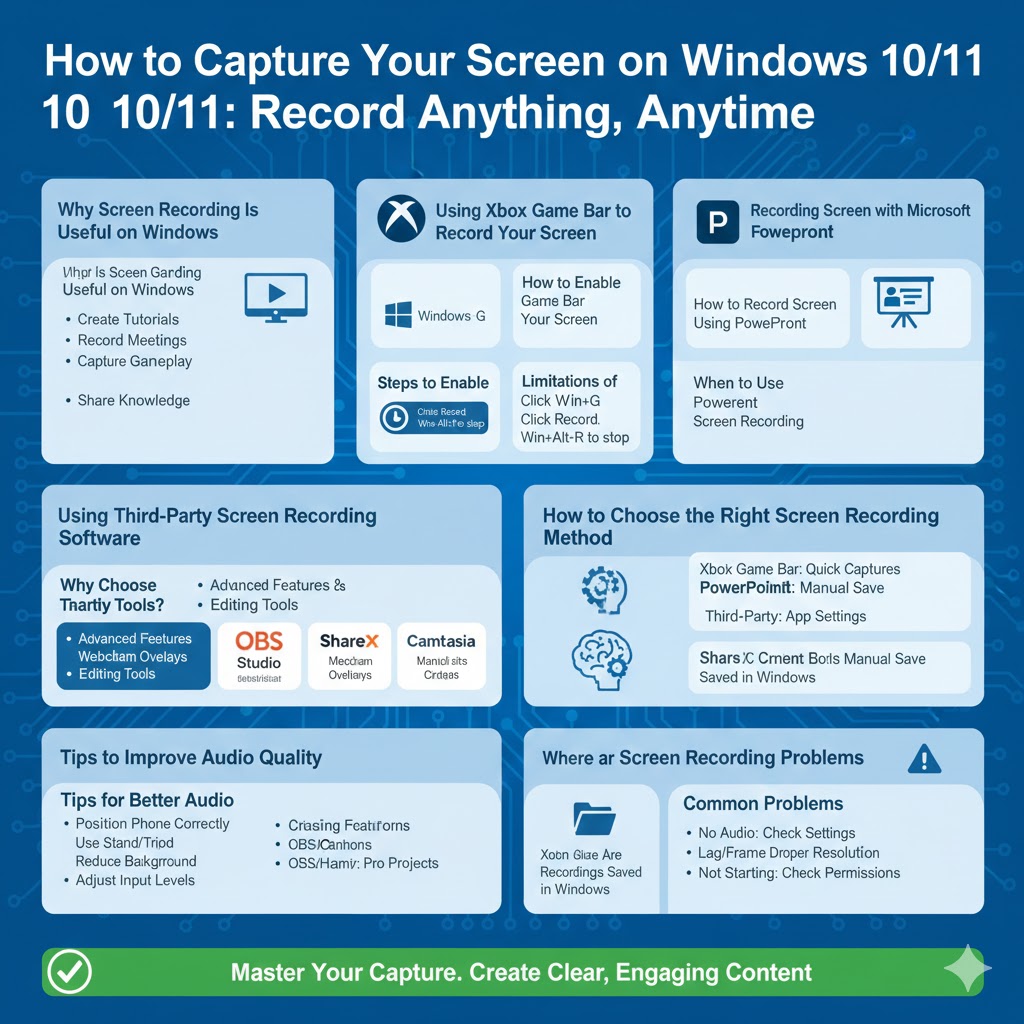
Ways to Capture Your Screen on Windows 10/11
Screen recording has become an essential skill in today’s digital world. Whether you want to create tutorials, record online meetings, capture gameplay, or explain software steps to others, Windows 10 and Windows 11 provide several reliable ways to record your screen. The good news is that you don’t always need expensive software—many built-in and free tools can do the job efficiently.
This guide will walk you through multiple methods to record your screen on Windows 10 and Windows 11, from native features to third-party solutions, helping you choose the best option for your needs.
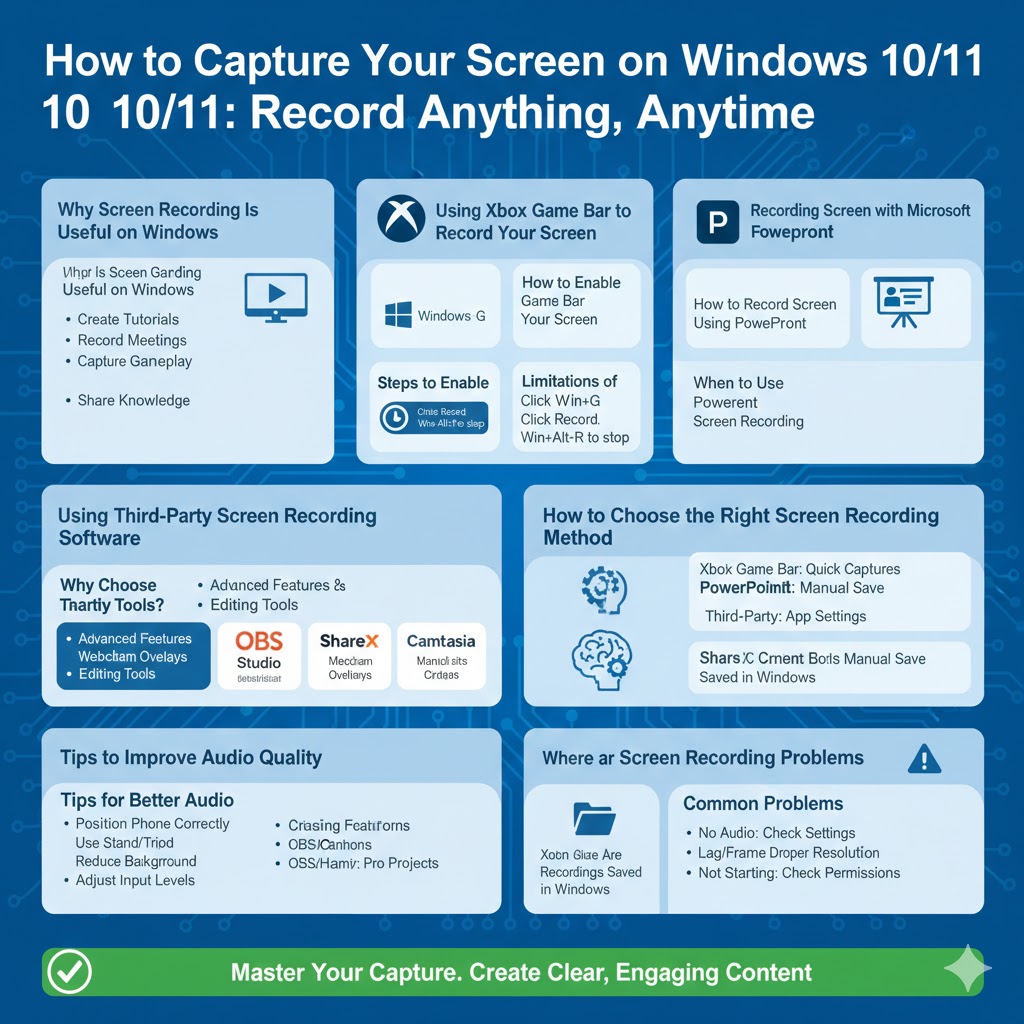
Why Screen Recording Is Useful on Windows
Screen recording is useful in both personal and professional scenarios. Students use it to capture online lectures, teachers create instructional videos, and professionals record presentations or bug reports. Gamers often record gameplay to share highlights, while content creators rely on screen recordings for tutorials and reviews.
Windows 10 and 11 support screen recording through built-in tools, making it accessible even for beginners. Understanding these tools allows you to work faster and communicate ideas more clearly.
Using Xbox Game Bar to Record Your Screen
What Is Xbox Game Bar?
Xbox Game Bar is a built-in Windows feature originally designed for gamers, but it works well for general screen recording too. It is available on both Windows 10 and Windows 11 and requires no additional installation.
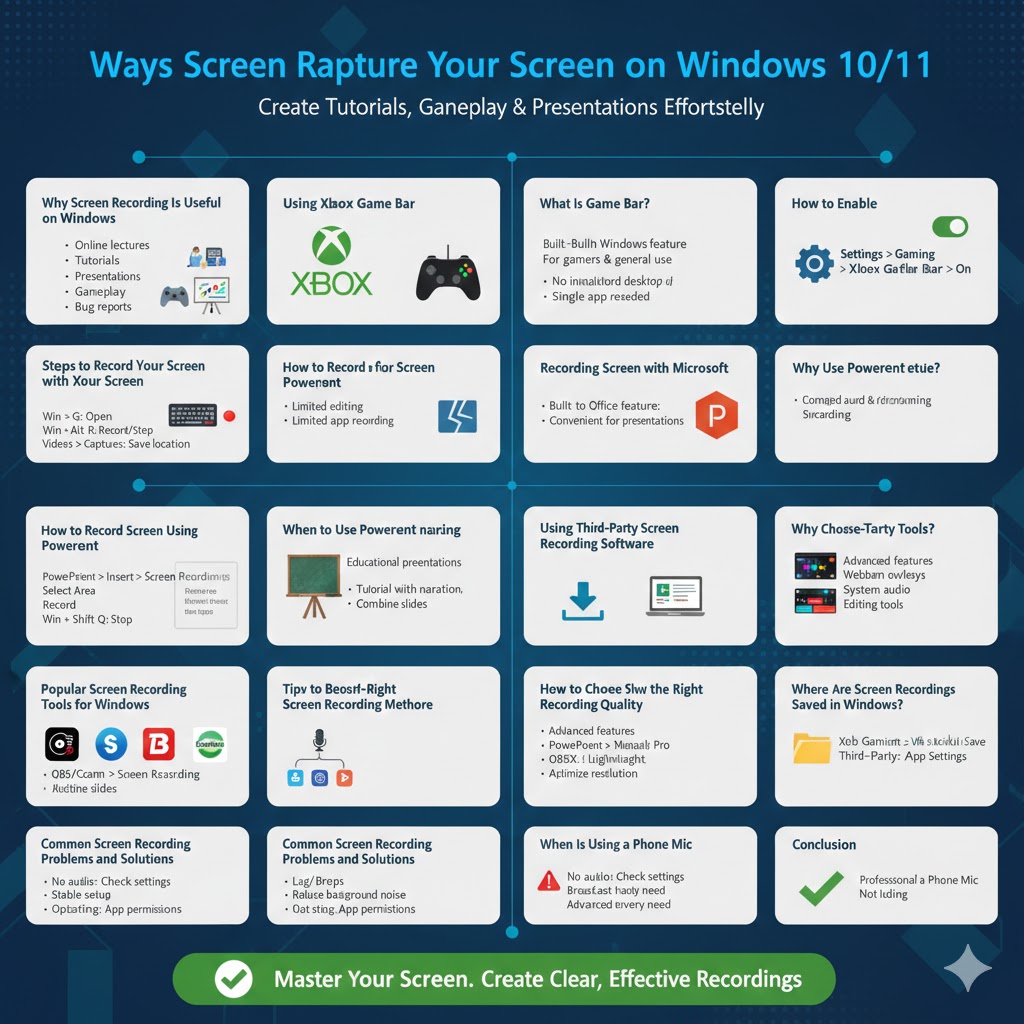
How to Enable Xbox Game Bar
Open Settings, go to Gaming, select Xbox Game Bar, and make sure it is turned On.
Steps to Record Your Screen with Xbox Game Bar
Open the app or window you want to record. Press Windows + G to open Xbox Game Bar. Click the Capture widget, then press the Record button or use Windows + Alt + R. To stop recording, click Stop or press Windows + Alt + R again.
Your recordings are automatically saved in the Videos > Captures folder.
Limitations of Xbox Game Bar
Xbox Game Bar cannot record File Explorer or the desktop directly and offers limited editing features. It is best suited for recording a single app or window, but it remains ideal for quick and simple screen captures.
Recording Screen with Microsoft PowerPoint
Why Use PowerPoint for Screen Recording?
Many users don’t realize that Microsoft PowerPoint includes a built-in screen recording tool. If you already have Microsoft Office installed, this option can be very convenient.
How to Record Screen Using PowerPoint
Open PowerPoint, click Insert, then select Screen Recording. Choose the area of the screen you want to record and click Record. Press Windows + Shift + Q to stop recording.
The recording will appear directly in your slide, and you can save it as a video file.
When to Use PowerPoint Screen Recording
PowerPoint is ideal for creating educational presentations, recording tutorials with narration, and combining slides with screen recordings in one file.
Using Third-Party Screen Recording Software
Why Choose Third-Party Tools?
Third-party screen recorders offer advanced features such as webcam overlays, system audio control, higher frame rates, and professional editing tools.
Popular Screen Recording Tools for Windows
OBS Studio
OBS Studio is free and open-source, supports high-quality recording and live streaming, and is suitable for advanced users who want full control.
ShareX
ShareX is lightweight and free, allowing custom capture areas and quick recordings. It is ideal for simple tasks and fast sharing.
Bandicam
Bandicam offers a user-friendly interface and good performance with minimal lag. The free version includes a watermark.
Camtasia
Camtasia is a professional-grade tool with a built-in video editor, making it perfect for business training and instructional videos.
How to Choose the Right Screen Recording Method
The best screen recording method depends on your purpose. Use Xbox Game Bar for quick recordings, PowerPoint for presentation-based content, OBS or Camtasia for professional projects, and ShareX if you want a lightweight solution.
Choosing the right tool saves time and improves recording quality.
Tips for Better Screen Recording Quality
Close unnecessary background applications before recording. Use an external microphone for clearer audio. Set your screen resolution in advance and record short segments to avoid performance issues. Always test your setup before starting important recordings.
Where Are Screen Recordings Saved in Windows?
Xbox Game Bar saves videos in Videos > Captures. PowerPoint recordings must be saved manually by the user. Third-party software save locations depend on the program’s settings, so it’s best to check them in advance.
Common Screen Recording Problems and Solutions
If there is no audio in your recording, check microphone and system audio settings. If you experience lag or frame drops, lower the recording resolution or close background programs. If recording does not start, verify app permissions and restart the recording software.
Conclusion
Recording your screen on Windows 10 or Windows 11 is straightforward thanks to built-in tools like Xbox Game Bar and PowerPoint, as well as powerful third-party software. From simple tutorials to professional training videos, there is a solution for every need.
By selecting the right method and following best practices, you can create clear, effective screen recordings that improve communication and productivity.