


Guide to Updating Your Home Address on Google Maps
Google Maps is an essential navigation and location-based service used by millions of people every day. One of its most convenient features is the ability to save important places such as your Home and Work addresses. Setting an accurate home address allows Google Maps to provide faster directions, better route suggestions, traffic alerts, and commute estimates.
However, there may be times when you need to update or change your home address. You might move to a new location, notice an incorrect pin placement, or simply want to refine the address for more accurate navigation. This guide explains how to edit your home address on Google Maps across different devices and provides helpful tips to avoid common mistakes.
Why Updating Your Home Address Matters
Keeping your home address accurate in Google Maps improves both convenience and functionality.
Faster Navigation
With a correct home address, Google Maps can instantly calculate routes without requiring manual input.
More Accurate Commute Estimates
Traffic updates and estimated arrival times are based on saved locations like Home and Work.
Personalized Suggestions
Google Maps uses your home location to recommend nearby places, restaurants, and services.
Improved Voice Commands
Voice assistants rely on saved addresses for commands such as “Navigate home.”
Requirements Before Editing Your Home Address
Before making changes, ensure the following:
Google Account Sign-In
You must be signed in to the Google account where your home address is saved.
Updated Google Maps App
Using the latest version of Google Maps helps avoid interface or sync issues.
Stable Internet Connection
Changes require an internet connection to save and sync across devices.
How to Edit Home Address on Google Maps (Desktop)
Step-by-Step Instructions
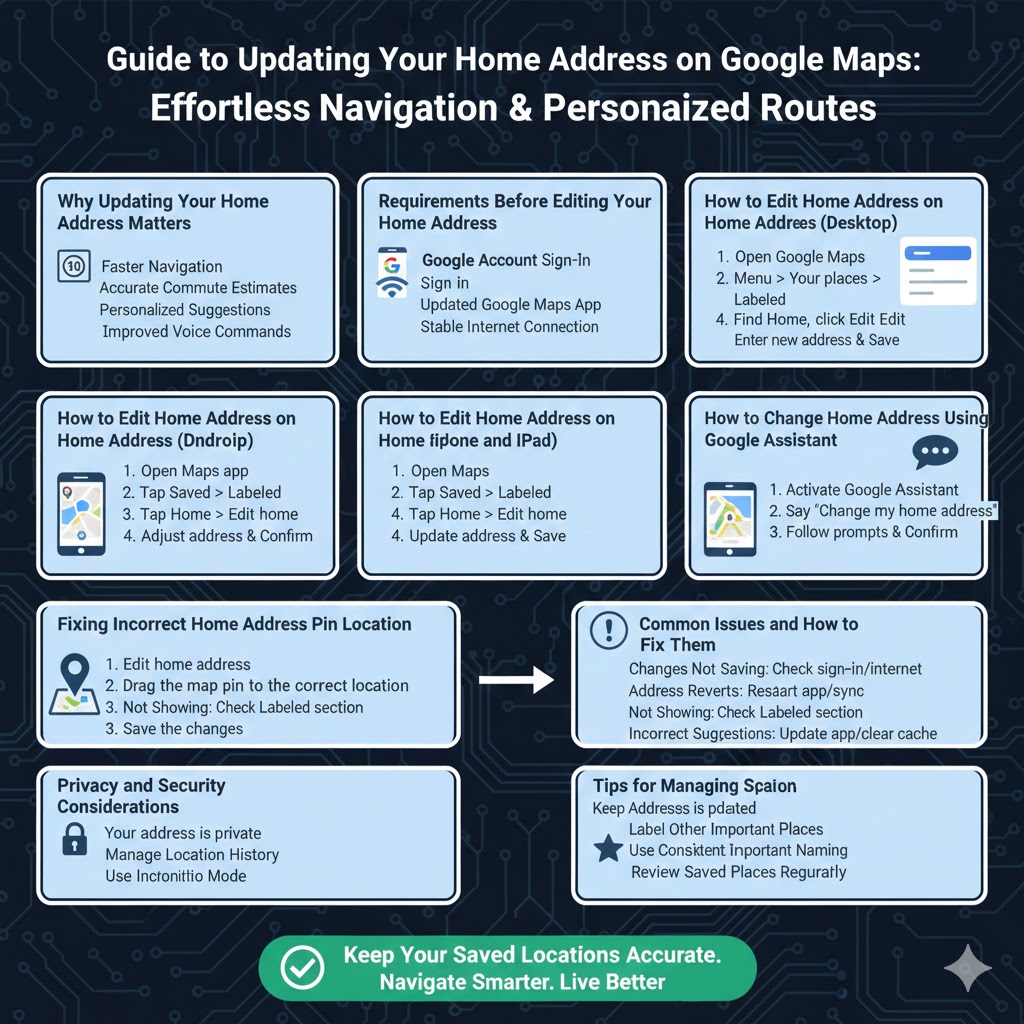
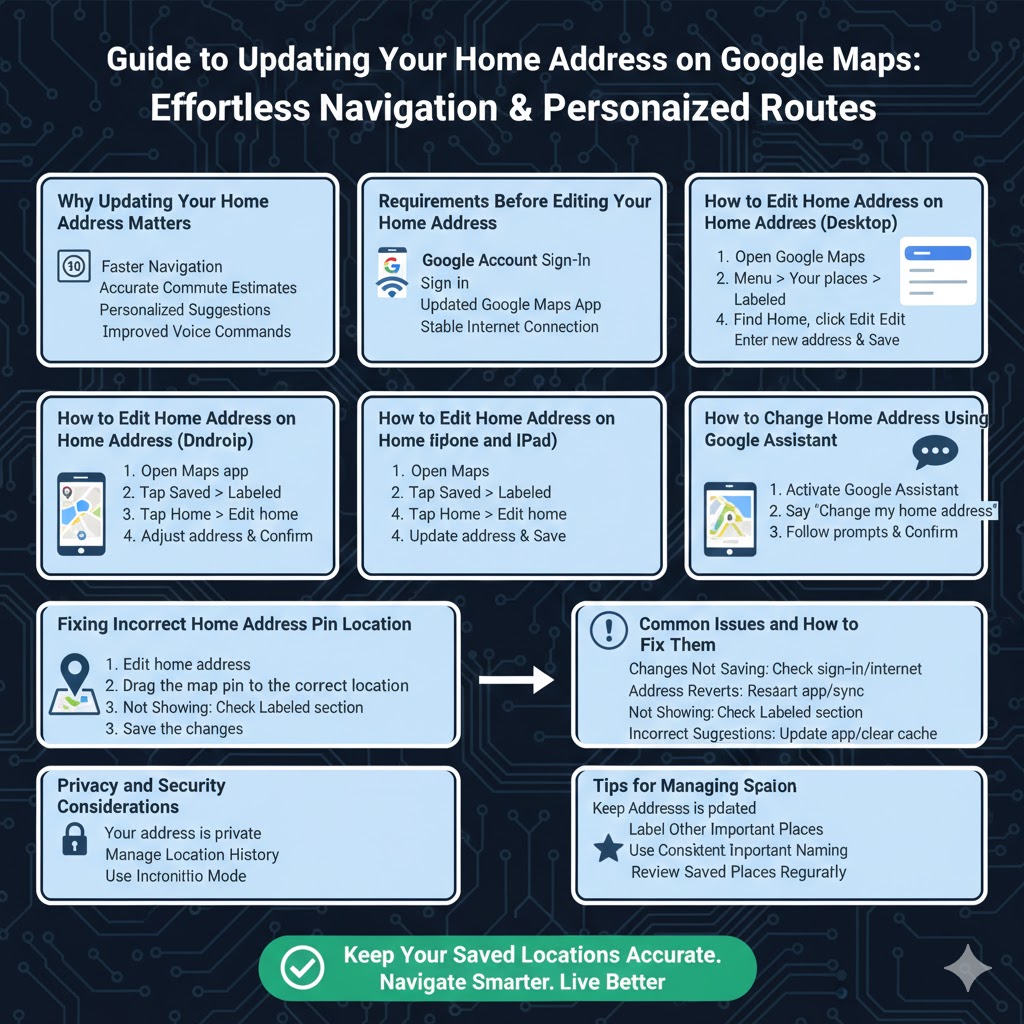
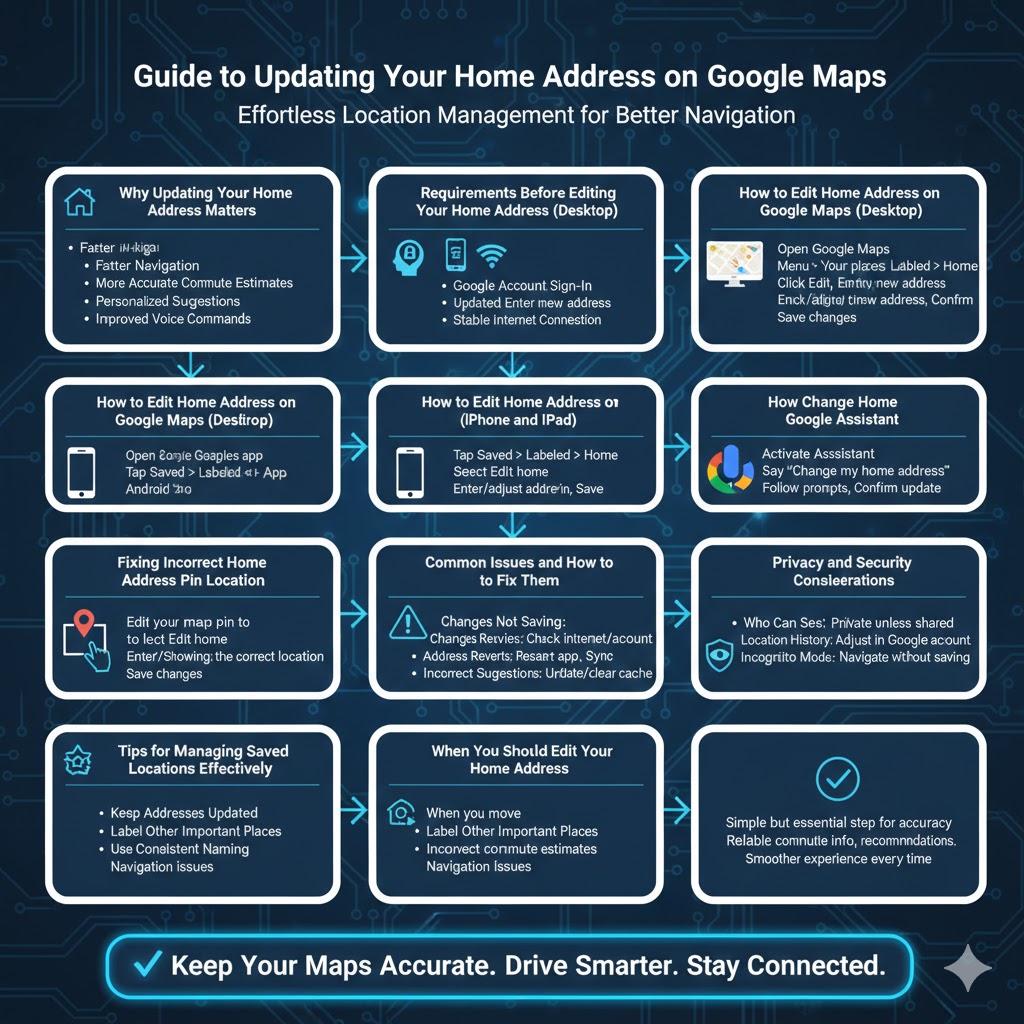
Open Google Maps in a web browser, sign in to your Google account, click the menu icon in the top-left corner, select Your places, go to the Labeled tab, find Home, click Edit, enter the new address or select it on the map, then save your changes.
How to Edit Home Address on Google Maps (Android)
Step-by-Step Instructions
Open the Google Maps app, tap Saved, choose Labeled, tap Home, select Edit home, enter or adjust the address, and confirm the changes.
How to Edit Home Address on Google Maps (iPhone and iPad)
Step-by-Step Instructions
Open Google Maps, tap Saved, go to Labeled, tap Home, select Edit home, update the address or adjust the map pin, and save.
How to Change Home Address Using Google Assistant
Why Use Google Assistant
Voice commands offer a fast, hands-free way to manage saved addresses.
Steps
Activate Google Assistant, say “Change my home address,” follow the prompts, and confirm the update.
Fixing Incorrect Home Address Pin Location
Sometimes the address text is correct, but the pin placement is inaccurate.
How to Adjust the Pin
Edit your home address, drag the map pin to the correct location, and save the changes. Accurate pin placement improves navigation and delivery accuracy.
Common Issues and How to Fix Them
Changes Not Saving
Confirm you are logged into the correct Google account and that your internet connection is stable.
Address Reverts Automatically
Restart Google Maps and allow time for changes to sync across devices.
Home Address Not Showing
Check the Labeled section under Your places to ensure Home is enabled.
Incorrect Suggestions
Update the Google Maps app or clear cached data to refresh location information.
Privacy and Security Considerations
Who Can See Your Home Address
Your home address is private unless you explicitly choose to share it.
Managing Location History
Location history settings can be adjusted in your Google account for greater privacy control.
Using Incognito Mode
Google Maps Incognito Mode allows navigation without saving activity to your account.
Tips for Managing Saved Locations Effectively
Keep Addresses Updated
Update your home address whenever you move to avoid navigation errors.
Label Other Important Places
Save additional locations such as family homes or frequently visited places.
Use Consistent Naming
Clear and consistent labels improve voice command accuracy.
Review Saved Places Regularly
Remove outdated or unused locations to keep Google Maps organized.
When You Should Edit Your Home Address
You should update your home address when you move, notice inaccurate directions, receive incorrect commute estimates, or experience navigation issues starting from the wrong location.
Conclusion
Editing your home address on Google Maps is a simple but essential step to ensure accurate navigation, reliable commute information, and personalized recommendations. Whether you use Google Maps on a desktop browser, mobile device, or through Google Assistant, updating your address only takes a few minutes.
Keeping your saved locations accurate helps Google Maps deliver a smoother, more reliable experience every time you need directions or location-based assistance.