


How to Modify Document Margins in Google Docs
Google Docs is one of the most popular word-processing tools today thanks to its simplicity, cloud-based access, and powerful collaboration features. Whether you are writing an essay, preparing a business report, or formatting an official document, margins play a critical role in how your content looks and reads.
Margins define the space between the text and the edges of the page. Proper margins improve readability, ensure consistency, and help documents meet academic or professional formatting standards. This guide explains in detail how to change margins in Google Docs using different methods and offers practical tips for choosing the right margin settings.
Why Margins Matter in Google Docs
Margins are more than just empty space around your text. They affect how content is perceived and printed.
Improved Readability
Balanced margins prevent text from feeling cramped and make long documents easier to read.
Professional Appearance
Well-adjusted margins help your document look polished and well-organized.
Formatting Requirements
Many schools, publishers, and organizations require specific margin sizes, such as 1-inch margins on all sides.
Printing Compatibility
Correct margins ensure that no text is cut off when printing documents.
Default Margin Settings in Google Docs
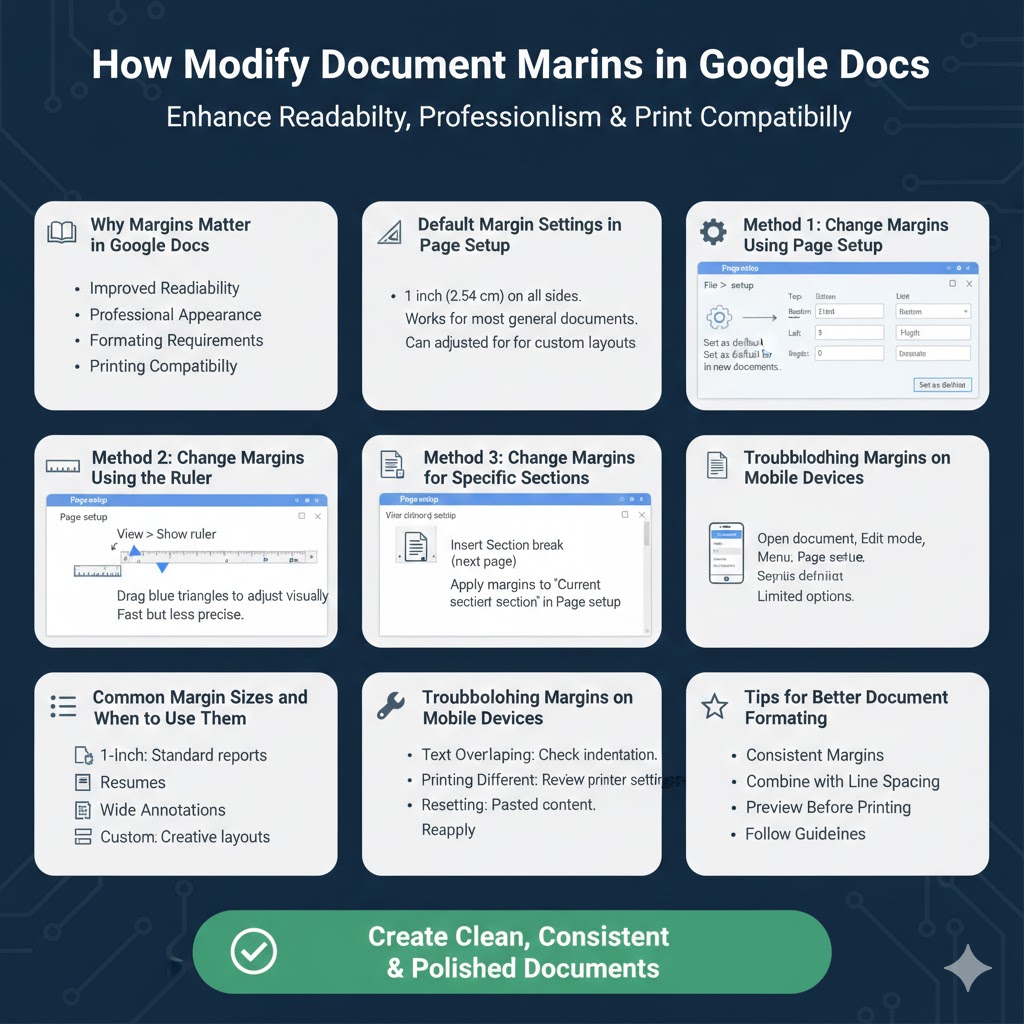
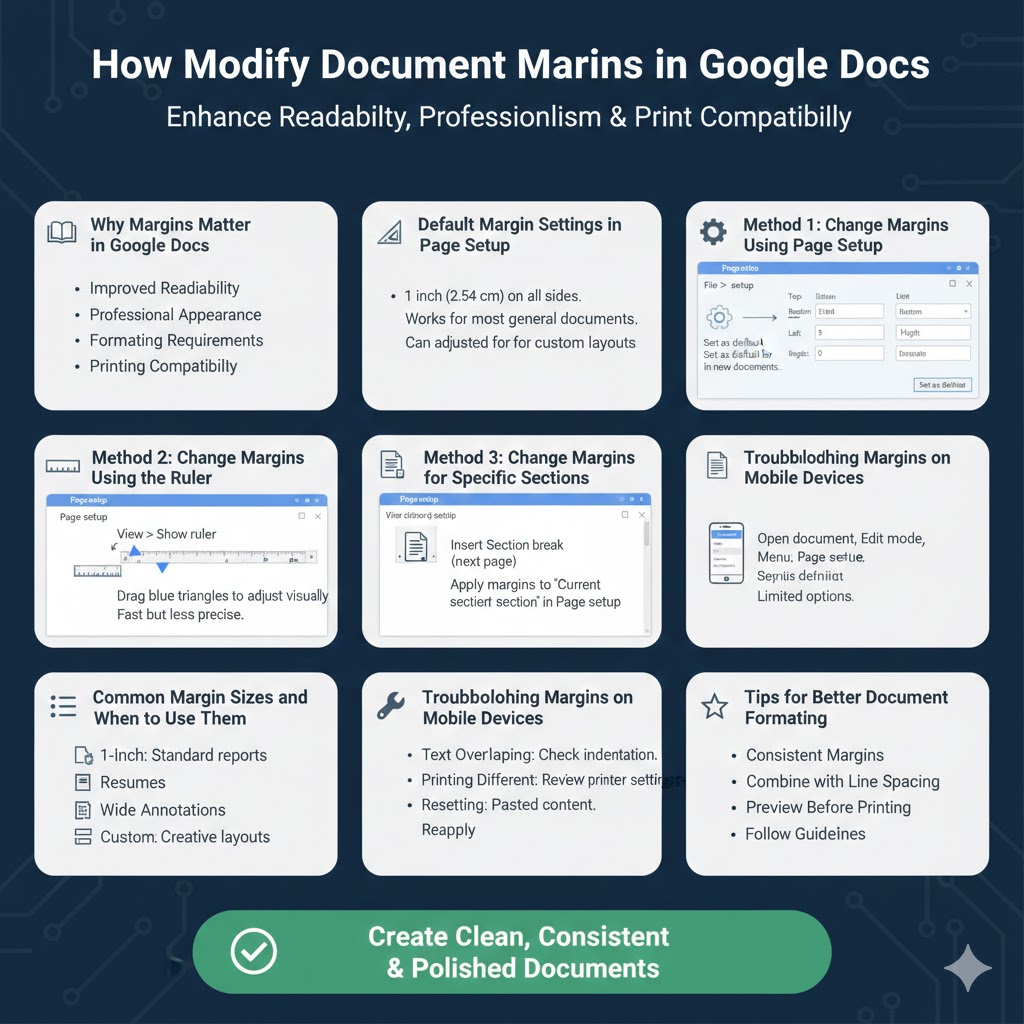
By default, Google Docs sets margins to 1 inch (2.54 cm) on all sides. This default setting works well for most general-purpose documents, including essays and reports.
However, there are many situations where you may need to adjust these margins, such as creating booklets, flyers, or custom layouts.
Method 1: Change Margins Using Page Setup
Why Use Page Setup
Page Setup provides precise control over margin sizes and is ideal when you need exact measurements.
Step-by-Step Instructions
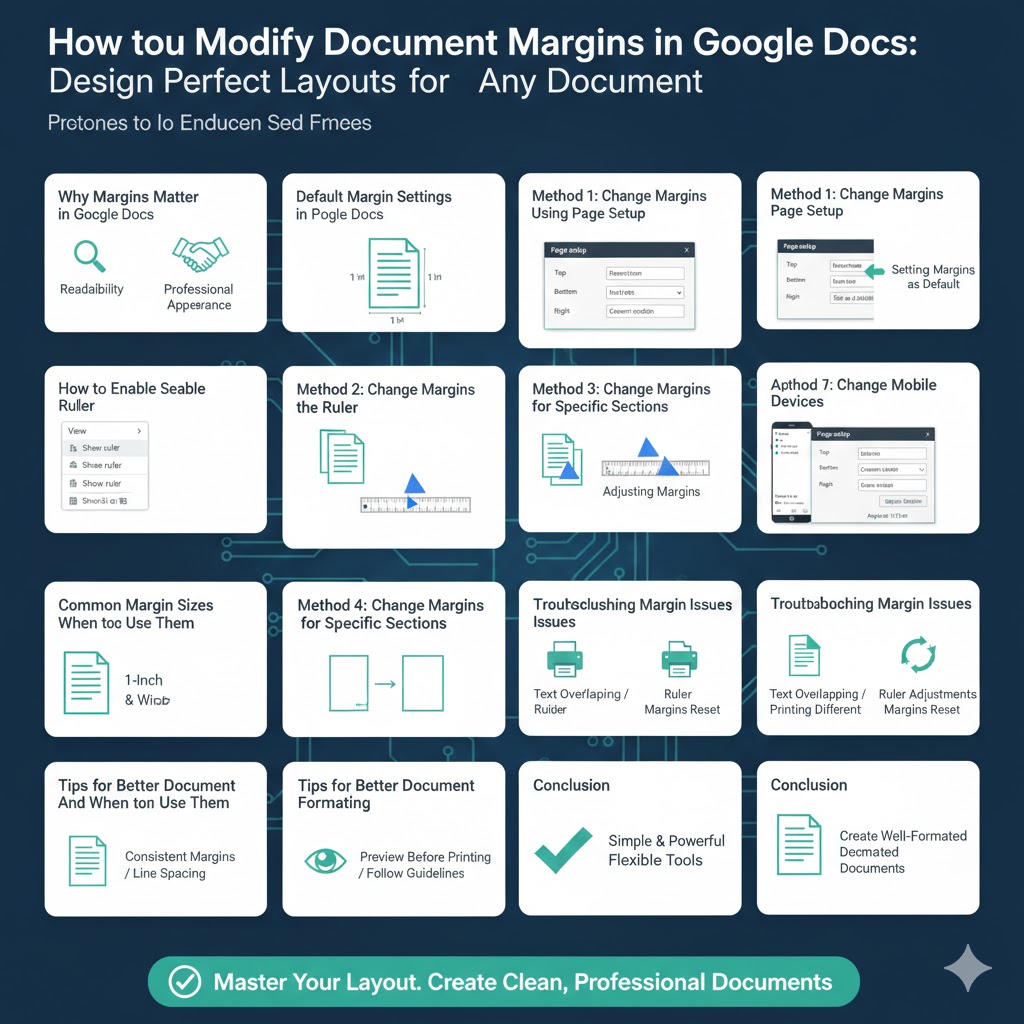
Open your document in Google Docs, click File, select Page setup, enter your desired values for the top, bottom, left, and right margins, choose the unit of measurement, then click OK to apply the changes.
Setting Margins as Default
If you frequently use the same margin settings, click Set as default in the Page Setup window so all new documents use these margins automatically.
Method 2: Change Margins Using the Ruler
Why Use the Ruler
The ruler allows quick and visual margin adjustments without opening menus.
How to Enable the Ruler
Click View in the menu bar and select Show ruler if it is not already enabled.
Adjusting Margins
Drag the blue triangle on the left side of the ruler to change the left margin, and drag the blue triangle on the right side to adjust the right margin. This method is fast but less precise than Page Setup.
Method 3: Change Margins for Specific Sections
Why Section-Based Margins Are Useful
Some documents require different margins for different sections, such as title pages, appendices, or chapters.
How to Do It
Place your cursor at the start of the section, insert a Section break (next page), open Page setup, adjust the margins, apply the changes to the current section, and confirm.
Method 4: Change Margins on Mobile Devices
Changing Margins on Android or iOS
Google Docs mobile apps offer limited formatting options compared to the desktop version.
Steps
Open the document, switch to edit mode, open the menu, select Page setup, and adjust the margins as needed. For advanced customization, using Google Docs on a desktop browser is recommended.
Common Margin Sizes and When to Use Them
1-Inch Margins
Standard for academic papers, business documents, and professional reports.
Narrow Margins
Useful for fitting more content on a page, such as resumes or flyers.
Wide Margins
Ideal for documents that require comments, annotations, or binding space.
Custom Margins
Best for creative layouts, brochures, or specialized print formats.
Troubleshooting Margin Issues
Text Overlapping or Misaligned
Check paragraph indentation settings, as they can affect text placement independently of margins.
Margins Look Different When Printing
Review printer settings and scaling options before printing.
Ruler Adjustments Not Working
Ensure the ruler is enabled and that the correct markers are being adjusted.
Margins Reset Automatically
This can happen when content is pasted from another document. Reapply margin settings after pasting.
Tips for Better Document Formatting
Use Consistent Margins
Avoid unnecessary margin changes unless required by formatting guidelines.
Combine Margins with Line Spacing
Balanced margins paired with proper line spacing improve readability.
Preview Before Printing
Always use Print Preview to confirm margins appear correctly.
Follow Formatting Guidelines
Double-check margin requirements before final submission.
Conclusion
Changing margins in Google Docs is a simple but powerful way to enhance document layout, readability, and professionalism. Whether you use Page Setup for precision, the ruler for quick adjustments, or section breaks for complex documents, Google Docs offers flexible tools to meet your needs.
By mastering margin settings, you can create clean, consistent, and well-formatted documents suitable for academic, business, or creative purposes.