


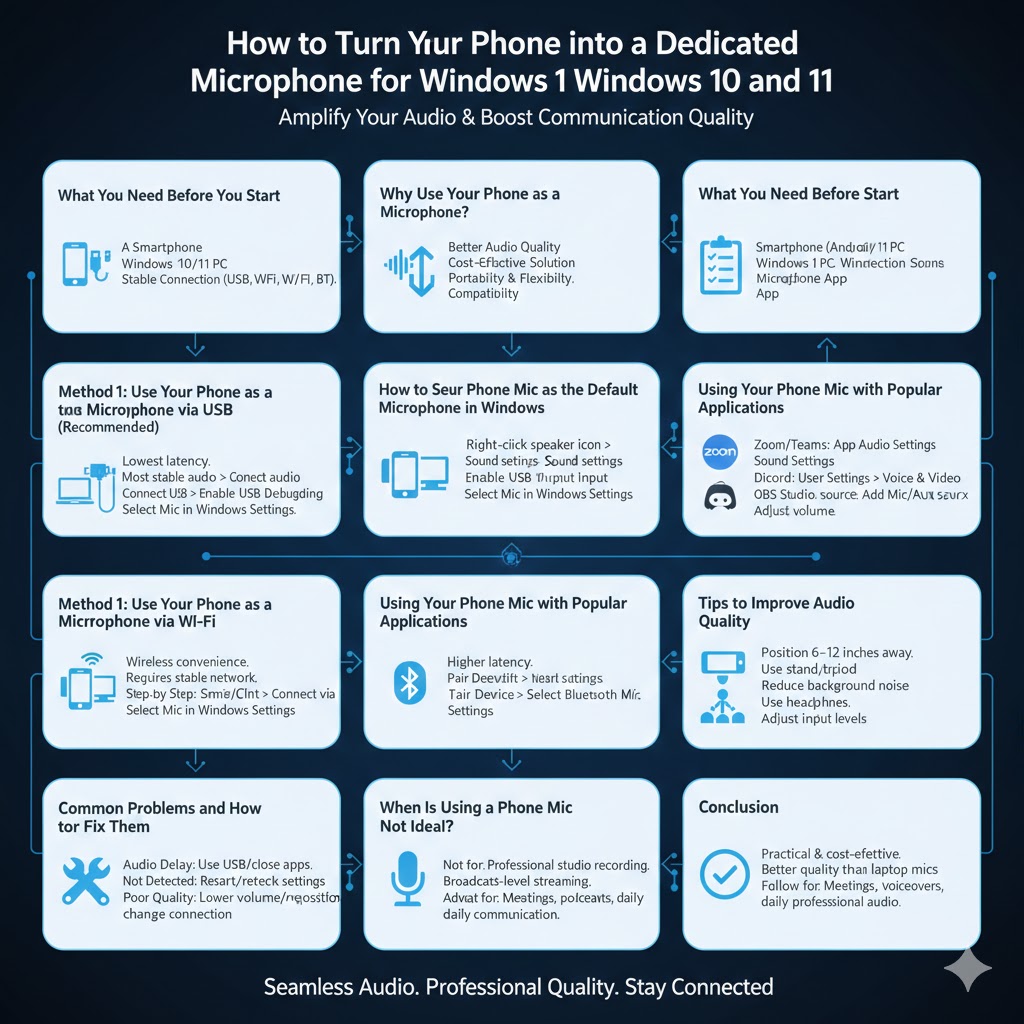
How to Turn Your Phone into a Dedicated Microphone for Windows 10 and 11
A high-quality microphone is essential for online meetings, gaming, podcasting, voice recording, and live streaming. However, not everyone has access to a professional microphone. The good news is that your smartphone can serve as a powerful and dedicated microphone for your Windows 10 or Windows 11 PC.
Modern smartphones are equipped with surprisingly advanced microphones that often outperform built-in laptop mics. With the right apps and setup, you can transform your phone into a reliable external microphone and significantly improve audio quality without spending extra money.
This guide explains everything you need to know, from required tools to step-by-step setup methods, along with tips to achieve the best sound quality.
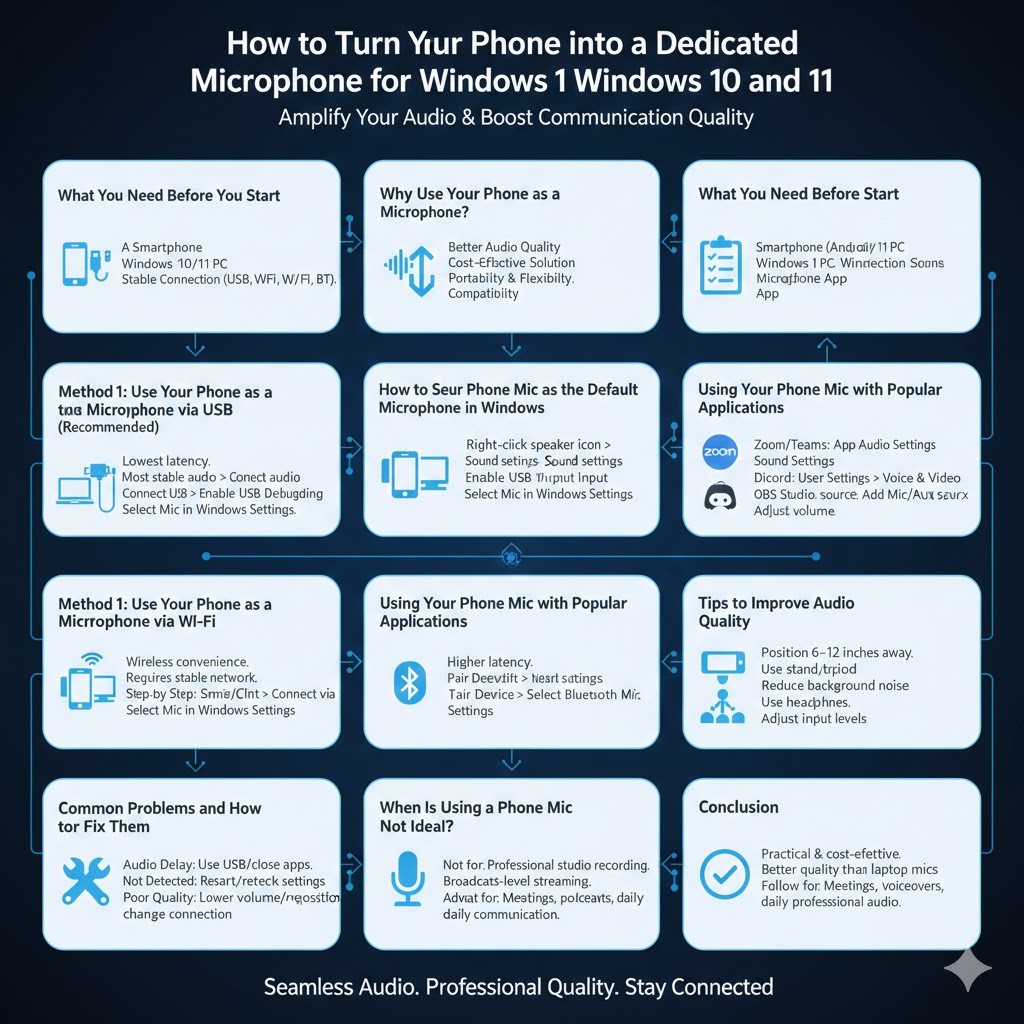
Why Use Your Phone as a Microphone?
Using your phone as a microphone offers several advantages, especially if you work or communicate online frequently.
Better Audio Quality
Most smartphones have noise reduction and audio optimization built into their hardware, resulting in clearer sound compared to many laptop microphones.
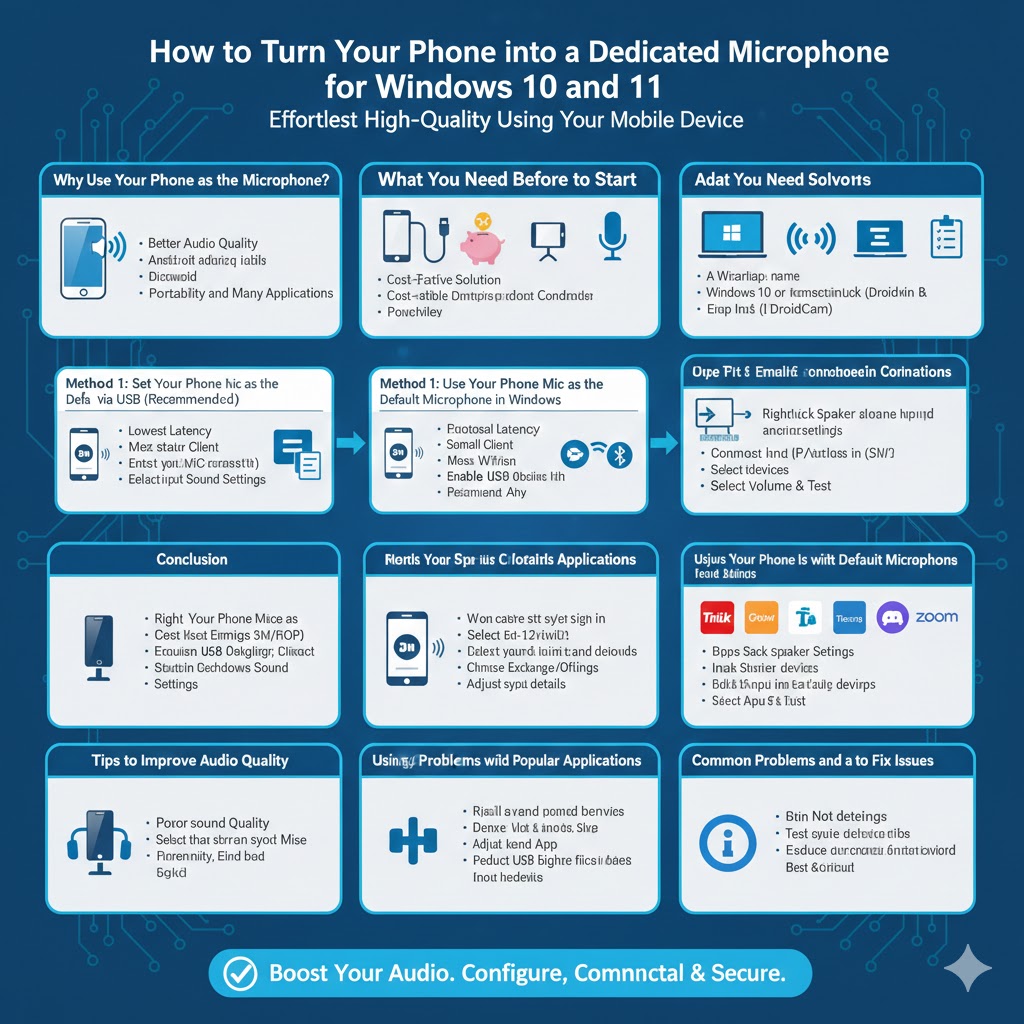
Cost-Effective Solution
Instead of purchasing an external USB microphone, you can use a device you already own.
Portability and Flexibility
Your phone can be placed closer to your mouth or positioned optimally for recording, which improves clarity and reduces background noise.
Compatibility with Many Applications
Phone-based microphones can work with Zoom, Microsoft Teams, Discord, OBS Studio, Skype, and many other Windows applications.
What You Need Before You Start
Before setting up your phone as a microphone, make sure you have the following:
A Smartphone
An Android phone or an iPhone with a working microphone.
A Windows 10 or Windows 11 PC
Ensure your system is updated to avoid compatibility issues.
A Stable Connection
You can connect your phone to your PC using USB, Wi-Fi, or Bluetooth, depending on the app.
A Microphone App
There are several reliable apps that allow phones to function as microphones for Windows.
Method 1: Use Your Phone as a Microphone via USB (Recommended)
Why USB Is the Best Option
USB connections provide the lowest latency, most stable audio transmission, and minimal interference compared to wireless methods.
Step-by-Step Setup
Install a microphone app on your phone and the corresponding desktop client on your Windows PC. Connect your phone to the PC using a USB cable. Enable USB debugging on Android if required. Launch the app on both devices and select the phone microphone as the input device in Windows sound settings.
Once connected, your phone will function as a wired microphone for your PC.
Method 2: Use Your Phone as a Microphone via Wi-Fi
When to Use Wi-Fi
Wi-Fi is convenient when you don’t want cables, but it requires a stable network to avoid audio lag.
Step-by-Step Setup
Ensure both your phone and PC are connected to the same Wi-Fi network. Install a compatible microphone app on both devices. Open the app, connect using the provided IP address or automatic pairing, then select the phone microphone in Windows audio input settings.
This method works well for casual use but may introduce slight latency during real-time communication.
Method 3: Use Your Phone as a Microphone via Bluetooth
Limitations of Bluetooth
Bluetooth audio often has higher latency and lower quality compared to USB or Wi-Fi. It is not ideal for recording or live streaming but can work for basic voice input.
Step-by-Step Setup
Pair your phone with your Windows PC via Bluetooth. Open Windows sound settings, select the Bluetooth audio device as the microphone input, and test the audio quality in your application.
How to Set Your Phone Mic as the Default Microphone in Windows
After connecting your phone, you need to configure Windows to use it properly.
Steps
Right-click the speaker icon in the taskbar, select Sound settings, choose your phone microphone under Input, adjust the volume in Device properties, and test the microphone by speaking into your phone.
Using Your Phone Mic with Popular Applications
Zoom and Microsoft Teams
Open the application’s audio settings and select your phone microphone as the input device.
Discord
Go to User Settings → Voice & Video, then choose your phone microphone.
OBS Studio
Add a new Mic/Auxiliary Audio source and select your phone microphone from the device list.
Tips to Improve Audio Quality
Position Your Phone Correctly
Place your phone about 6–12 inches from your mouth and avoid covering the microphone.
Use a Phone Stand or Tripod
Keeping the phone stable reduces vibration noise and improves sound consistency.
Reduce Background Noise
Choose a quiet room and turn off unnecessary devices like fans or air conditioners.
Use Headphones
Headphones help prevent echo and feedback during recording or calls.
Adjust Input Levels
Set microphone gain to a balanced level to avoid distortion.
Common Problems and How to Fix Them
Audio Delay or Lag
Switch to a USB connection or close background applications that consume network resources.
Microphone Not Detected
Restart both devices, reconnect the app, and recheck Windows sound settings.
Poor Sound Quality
Lower input volume, reposition the phone, or change the connection method.
When Is Using a Phone Mic Not Ideal?
Using a phone as a microphone may not be suitable for professional studio recording, broadcast-level streaming, or advanced audio production. However, it works extremely well for meetings, podcasts, voiceovers, and everyday communication.
Conclusion
Using your phone as a dedicated microphone on Windows 10 or Windows 11 is a practical and cost-effective solution that delivers impressive audio quality. With the right setup, your smartphone can outperform many built-in PC microphones and significantly enhance your communication experience.
By choosing the appropriate connection method and following best practices, you can turn your phone into a reliable microphone and enjoy clear, professional-sounding audio on your Windows computer.