


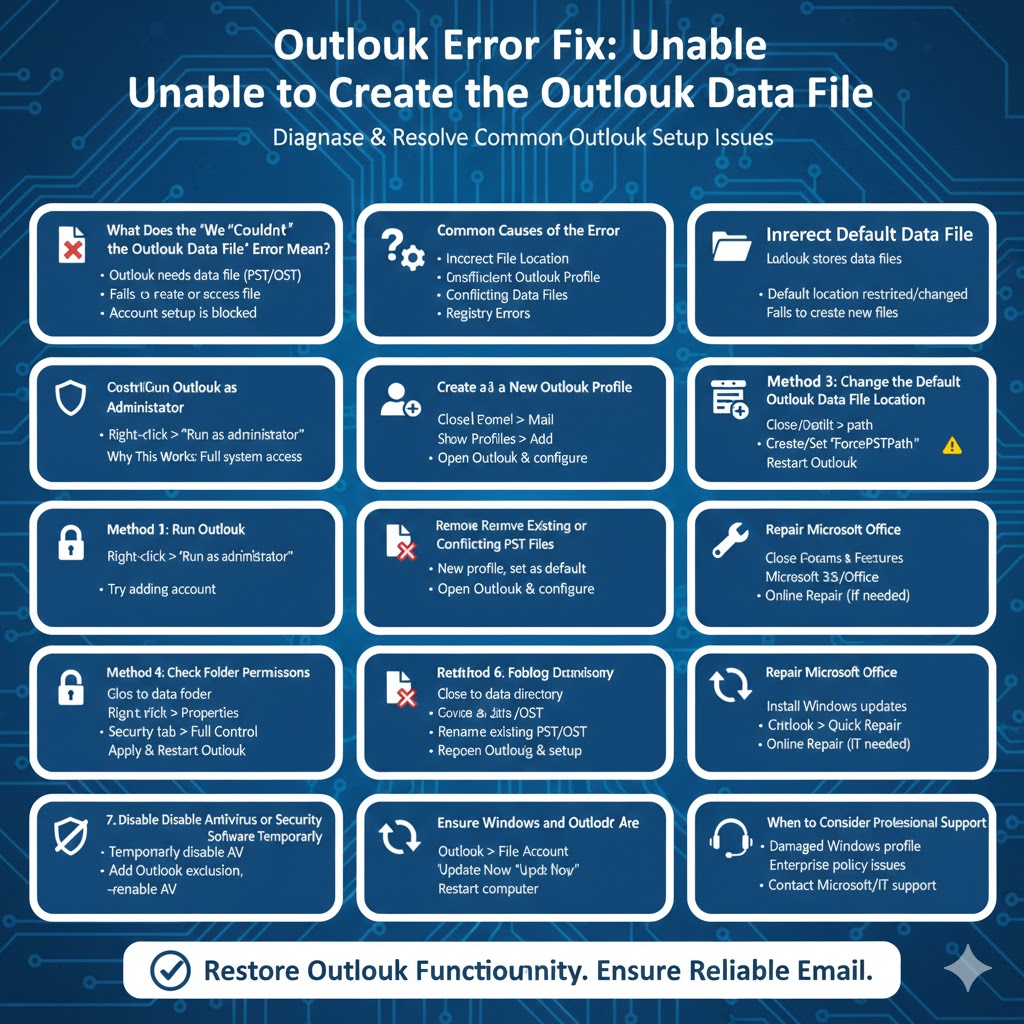
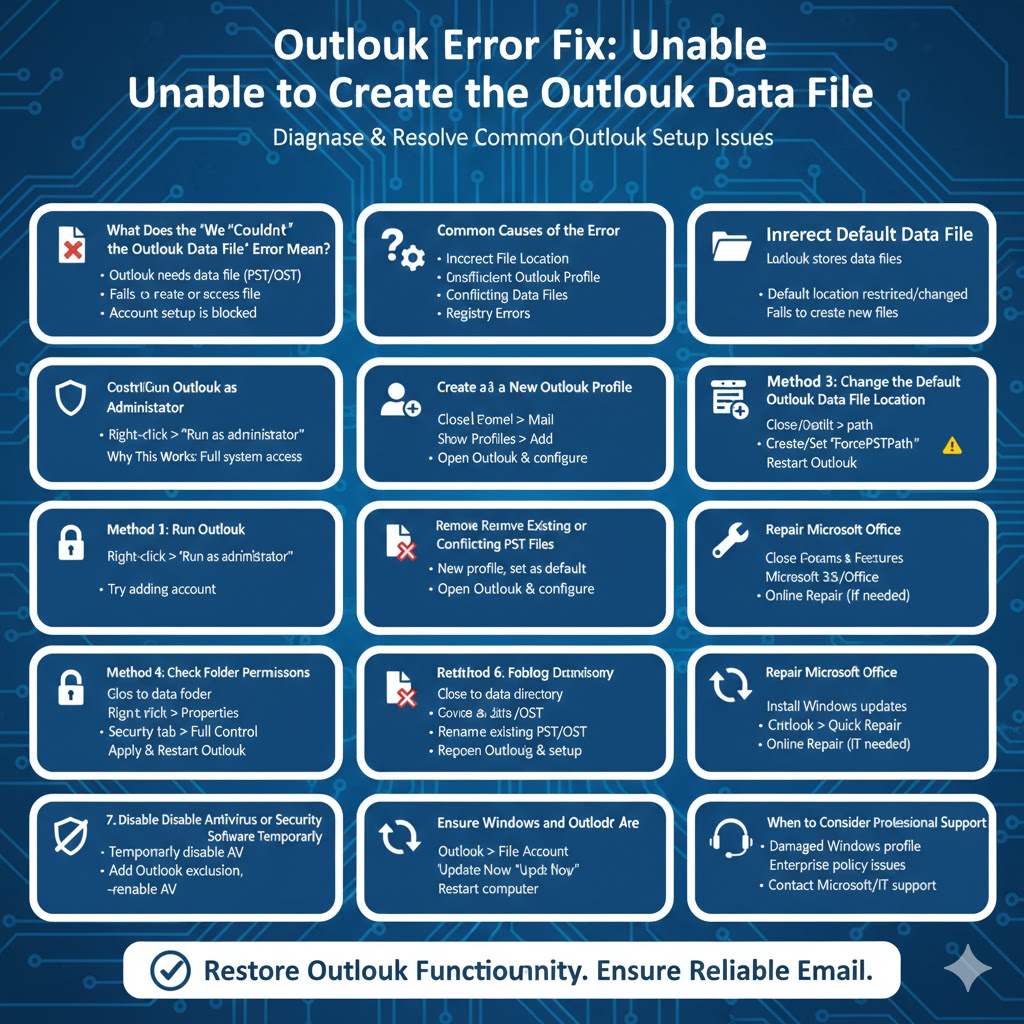
Outlook Error Fix: Unable to Create the Outlook Data File
Microsoft Outlook is one of the most widely used email clients for both personal and business communication. However, like any complex application, it can occasionally encounter errors that prevent it from functioning properly. One common and frustrating issue is the message “We couldn’t create the Outlook data file.” This error usually appears when setting up a new email account or creating a new Outlook profile.
This article provides a complete, step-by-step guide to understanding why this error occurs and how to fix it effectively. Whether you are a home user or an IT administrator, the solutions below will help you resolve the issue and restore Outlook to normal operation.
What Does the “We Couldn’t Create the Outlook Data File” Error Mean?
This error occurs when Outlook is unable to create or access the data file (PST or OST) needed to store emails, calendar entries, contacts, and other mailbox information. Outlook relies on these data files to function, so when the file creation process fails, the account setup cannot continue.
The problem is usually related to incorrect file paths, permission issues, corrupted Outlook profiles, registry misconfigurations, or conflicts with existing data files.
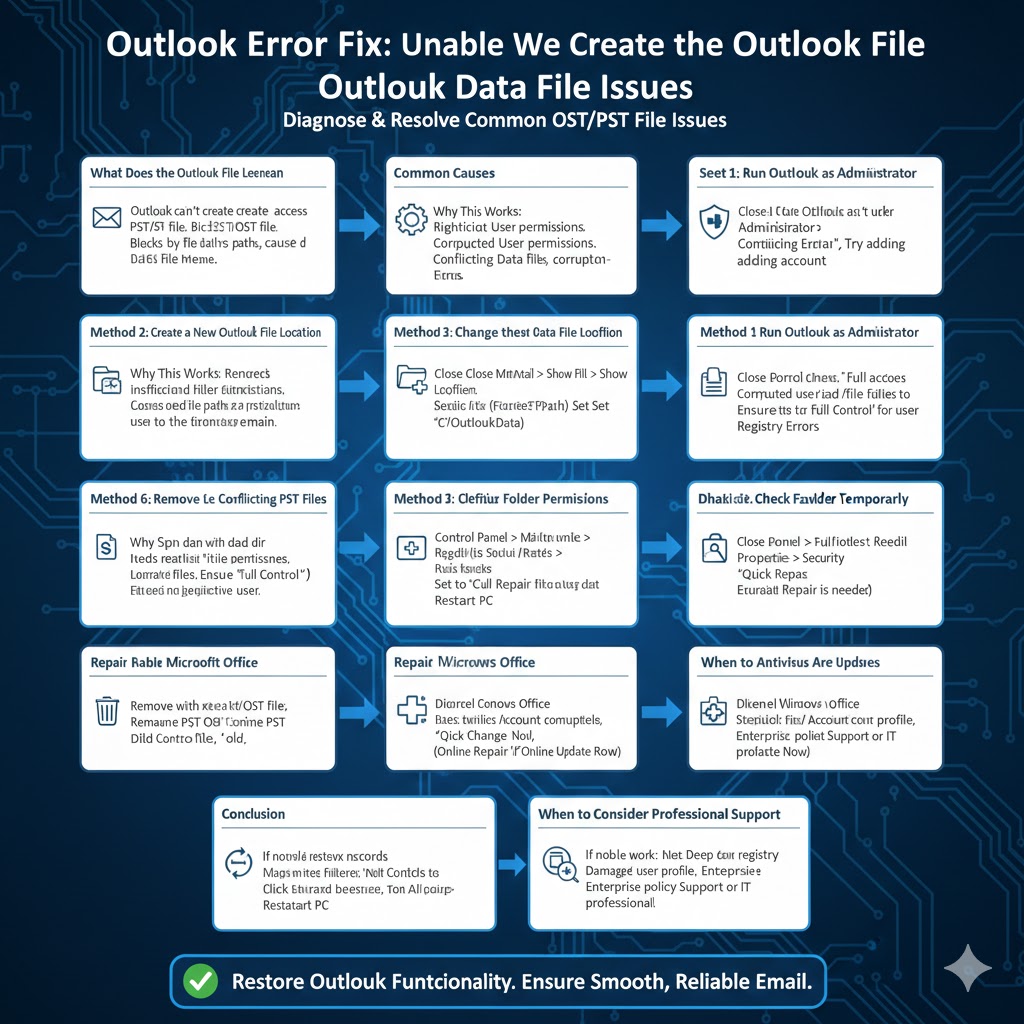
Common Causes of the Error
Incorrect Default Data File Location
Outlook stores data files in a default directory. If this location has been changed, deleted, or restricted, Outlook may fail to create new data files.
Insufficient User Permissions
If Outlook does not have permission to write to the folder where data files are stored, the process will fail.
Corrupted Outlook Profile
A damaged or incomplete Outlook profile can prevent new data files from being created.
Existing or Conflicting Data Files
Old PST or OST files with the same name may cause conflicts during setup.
Registry Errors
Incorrect registry values related to Outlook data file paths can block file creation.
Method 1: Run Outlook as Administrator
Why This Works
Running Outlook with administrative privileges ensures the application has full access to system folders and registry entries.
Steps
Close Outlook completely, right-click the Outlook icon, select Run as administrator, then try adding the email account again. If this resolves the issue, you may need to adjust folder permissions permanently.
Method 2: Create a New Outlook Profile
Why This Works
A new profile removes corrupted settings that may be blocking data file creation.
Steps
Close Outlook, open Control Panel, select Mail (Microsoft Outlook), click Show Profiles, choose Add, create a new profile, set it as the default, then open Outlook and configure your email account.
Method 3: Change the Default Outlook Data File Location
Why This Works
If the default storage folder is damaged or restricted, changing it allows Outlook to create new data files successfully.
Steps
Close Outlook, press Windows + R, type regedit, and press Enter. Navigate to:
Create a new String Value named ForcePSTPath, set its value to a valid folder path such as C:\OutlookData, create the folder if it does not exist, then restart Outlook.
Be careful when editing the registry, as incorrect changes can affect system stability.
Method 4: Check Folder Permissions
Why This Works
Outlook must have read and write access to its data file directory.
Steps
Navigate to the Outlook data file folder, right-click it, select Properties, go to the Security tab, ensure your user account has Full Control, apply the changes, and restart Outlook.
Method 5: Remove Existing or Conflicting PST Files
Why This Works
Duplicate or corrupted PST files can interfere with new file creation.
Steps
Close Outlook, go to the Outlook data file directory, rename existing PST or OST files (for example, add .old to the filename), then reopen Outlook and set up the account again.
Method 6: Repair Microsoft Office
Why This Works
Damaged Office components can prevent Outlook from functioning correctly.
Steps
Open Control Panel, select Programs and Features, choose Microsoft 365 or Microsoft Office, click Change, run Quick Repair, and if needed, follow up with Online Repair.
Method 7: Disable Antivirus or Security Software Temporarily
Why This Works
Some security tools block Outlook from writing data files.
Steps
Temporarily disable antivirus software, attempt to create the Outlook data file again, then add Outlook to the antivirus exclusion list before re-enabling protection.
Method 8: Ensure Windows and Outlook Are Updated
Why This Works
Outdated system files or Outlook versions may contain unresolved bugs.
Steps
Install all available Windows updates, then open Outlook, go to File → Office Account → Update Options, and select Update Now. Restart your computer afterward.
When to Consider Professional Support
If none of the above methods work, the issue may involve deep registry corruption, a damaged Windows user profile, or enterprise-level policy restrictions. In such cases, contacting Microsoft Support or an IT professional is recommended.
Conclusion
The “We couldn’t create the Outlook data file” error can be disruptive, but it is rarely permanent. In most cases, creating a new Outlook profile, correcting file paths, or adjusting permissions will resolve the issue. By following the steps in this guide, you can restore Outlook functionality and ensure smooth, reliable email performance.