


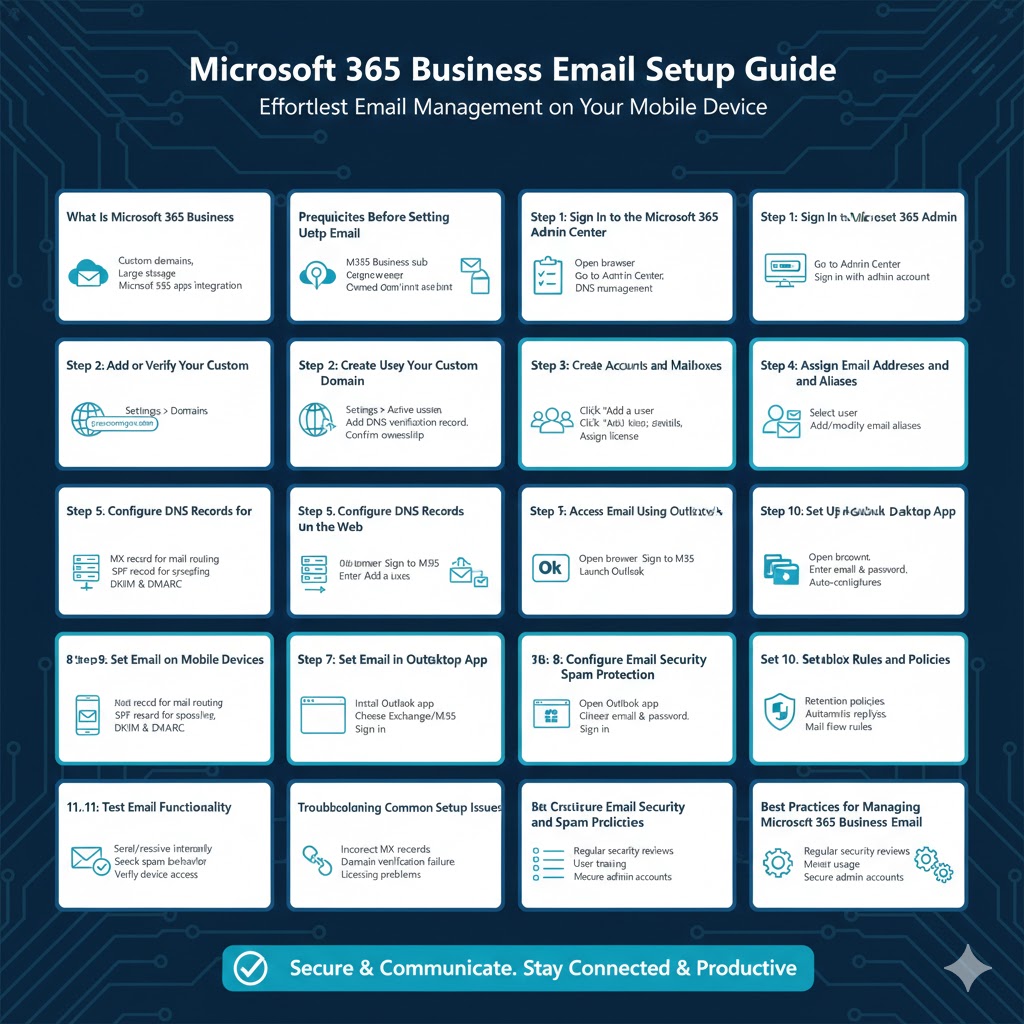
Microsoft 365 Business Email Setup Guide (Step-by-Step Instructions)
Microsoft 365 Business email is a professional email solution designed for organizations of all sizes. It uses Exchange Online to provide secure, reliable, and feature-rich email services that integrate seamlessly with Microsoft apps such as Outlook, Teams, OneDrive, and SharePoint. A properly configured Microsoft 365 Business email system helps improve communication, collaboration, and brand credibility.
This step-by-step guide explains how to set up Microsoft 365 Business email from start to finish. It covers domain preparation, user creation, mailbox configuration, DNS settings, email security, and device access. Whether you are a small business owner, IT administrator, or setting up email for the first time, this guide will walk you through the entire process clearly and effectively.
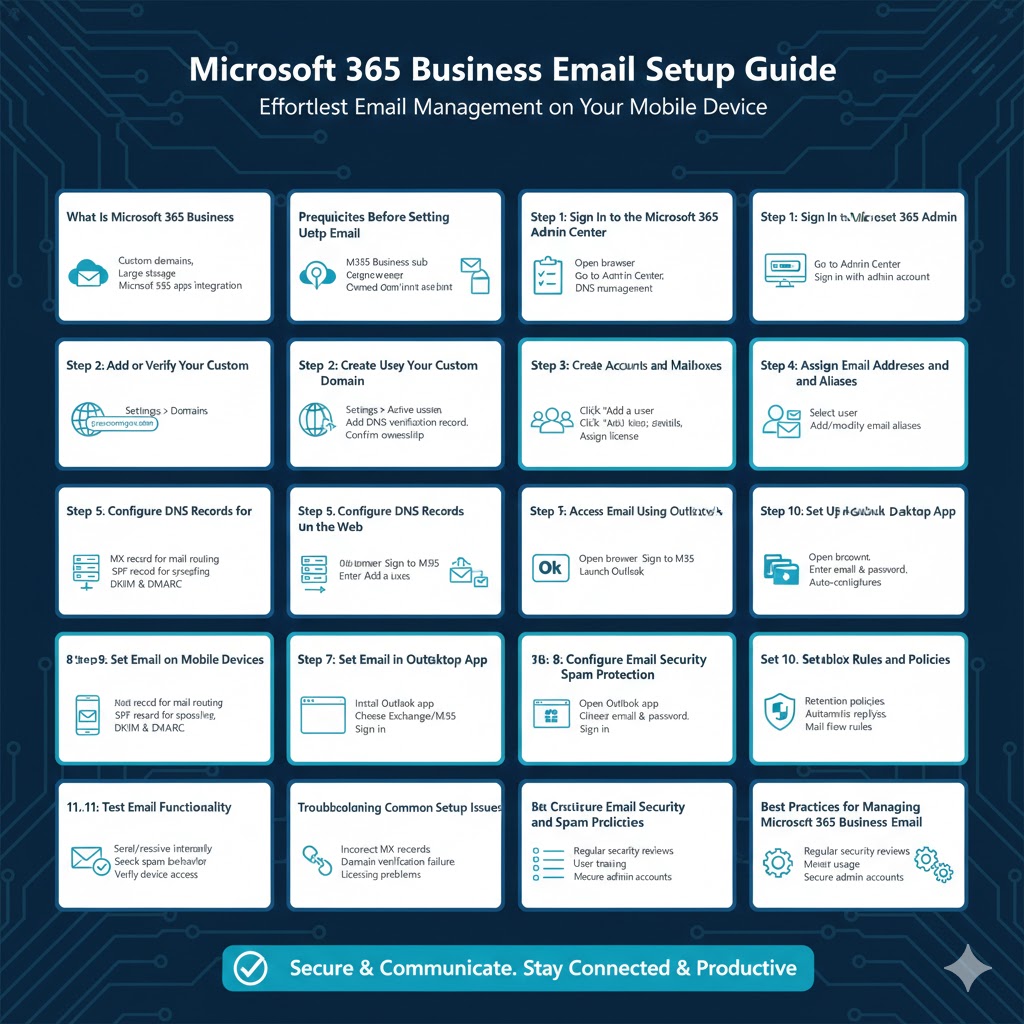
Understanding Microsoft 365 Business Email
Microsoft 365 Business email is powered by Exchange Online. Each user gets a professional mailbox that can be accessed through Outlook, web browsers, and mobile devices. Depending on the subscription plan, businesses also receive additional tools for productivity and collaboration.
Key features include:
- Custom domain email addresses
- Large mailbox storage
- Built-in spam and malware protection
- High availability and reliability
- Integration with Microsoft 365 apps
Understanding these features helps you make better configuration choices during setup.
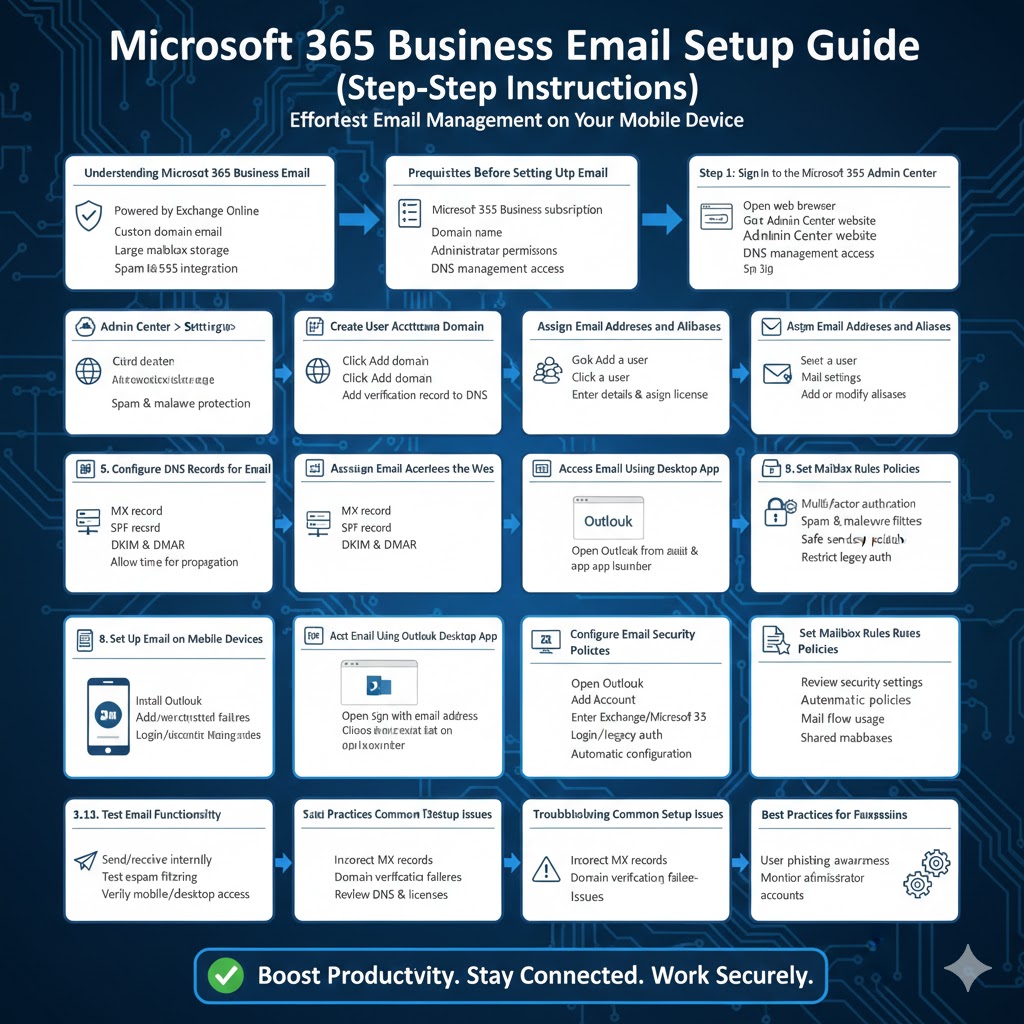
Prerequisites Before Setting Up Email
Before starting the setup process, make sure you have the following:
- A Microsoft 365 Business subscription
- Access to the Microsoft 365 Admin Center
- A domain name you own or plan to purchase
- Administrator permissions
- Basic DNS management access from your domain registrar
Having these prerequisites ready will ensure a smooth setup process.
Step 1: Sign In to the Microsoft 365 Admin Center
The Microsoft 365 Admin Center is where all email and user management tasks are performed.
How to Access the Admin Center
- Open a web browser
- Go to the Microsoft 365 Admin Center website
- Sign in using your administrator account
Once logged in, you can manage users, domains, and email settings from a single dashboard.
Step 2: Add or Verify Your Custom Domain
Using a custom domain makes your business email look professional.
Adding a Domain
- In the Admin Center, go to Settings
- Select Domains
- Click Add domain
- Enter your domain name
Verifying Domain Ownership
Microsoft provides a verification record that must be added to your domain’s DNS settings. This step confirms that you own the domain.
Once verified, the domain becomes available for email use.
Step 3: Create User Accounts and Mailboxes
Each employee or user needs an individual account and mailbox.
Creating New Users
- Go to Users in the Admin Center
- Select Active users
- Click Add a user
- Enter user details such as name and username
- Assign a Microsoft 365 license
After completing this step, the user’s mailbox is created automatically.
Step 4: Assign Email Addresses and Aliases
Users can have one primary email address and multiple aliases.
Managing Email Addresses
- Select a user in Active users
- Open Mail settings
- Add or modify email aliases
Aliases allow users to receive emails sent to multiple addresses in one mailbox.
Step 5: Configure DNS Records for Email
Correct DNS configuration is essential for email delivery and security.
Required DNS Records
You typically need to configure:
- MX record for mail routing
- SPF record to prevent spoofing
- DKIM and DMARC for email authentication
Microsoft provides exact values for each record. After adding them at your domain registrar, allow time for propagation.
Step 6: Access Email Using Outlook on the Web
Users can access email immediately through a web browser.
How to Access Outlook Web
- Open a browser
- Sign in with the Microsoft 365 email address
- Open Outlook from the app launcher
Outlook on the web offers nearly all features available in the desktop version.
Step 7: Set Up Email in Outlook Desktop App
Many businesses prefer using Outlook on a computer.
Outlook Setup Process
- Open Outlook
- Click Add Account
- Enter the Microsoft 365 email address
- Sign in with the account password
Outlook automatically configures the mailbox using Exchange settings.
Step 8: Set Up Email on Mobile Devices
Microsoft 365 email works on smartphones and tablets.
Mobile Setup Overview
- Install Outlook or use the built-in mail app
- Add a new account
- Choose Exchange or Microsoft 365
- Sign in with email credentials
Mobile access ensures email availability anywhere.
Step 9: Configure Email Security and Spam Protection
Security is a critical part of business email setup.
Recommended Security Settings
- Enable multi-factor authentication
- Review spam and malware filters
- Configure safe sender policies
- Restrict legacy authentication
These settings protect users from phishing and unauthorized access.
Step 10: Set Mailbox Rules and Policies
Mailbox policies help manage storage and compliance.
Common configurations include:
- Retention policies
- Automatic replies
- Mail flow rules
- Shared mailboxes
These features help streamline communication and administration.
Step 11: Test Email Functionality
Testing ensures everything works correctly.
What to Test
- Send and receive emails internally
- Send emails to external addresses
- Check spam filtering behavior
- Verify mobile and desktop access
Address any issues before full deployment.
Troubleshooting Common Setup Issues
Some common issues may arise during setup.
Typical Problems
- Emails not arriving due to incorrect MX records
- Domain verification failures
- Login issues caused by licensing problems
Most issues can be resolved by reviewing DNS settings and user licenses.
Best Practices for Managing Microsoft 365 Business Email
Following best practices ensures long-term stability.
Helpful tips include:
- Regularly reviewing security settings
- Training users on phishing awareness
- Monitoring mailbox usage
- Keeping administrator accounts secure
These practices improve reliability and security.
Conclusion
Setting up Microsoft 365 Business email is a structured process that delivers a powerful and professional communication system for your organization. By adding a custom domain, creating users, configuring DNS records, and enabling security features, you can ensure reliable and secure email communication.
By following this step-by-step guide, businesses can confidently deploy Microsoft 365 Business email and take full advantage of Microsoft’s cloud-based productivity platform.