


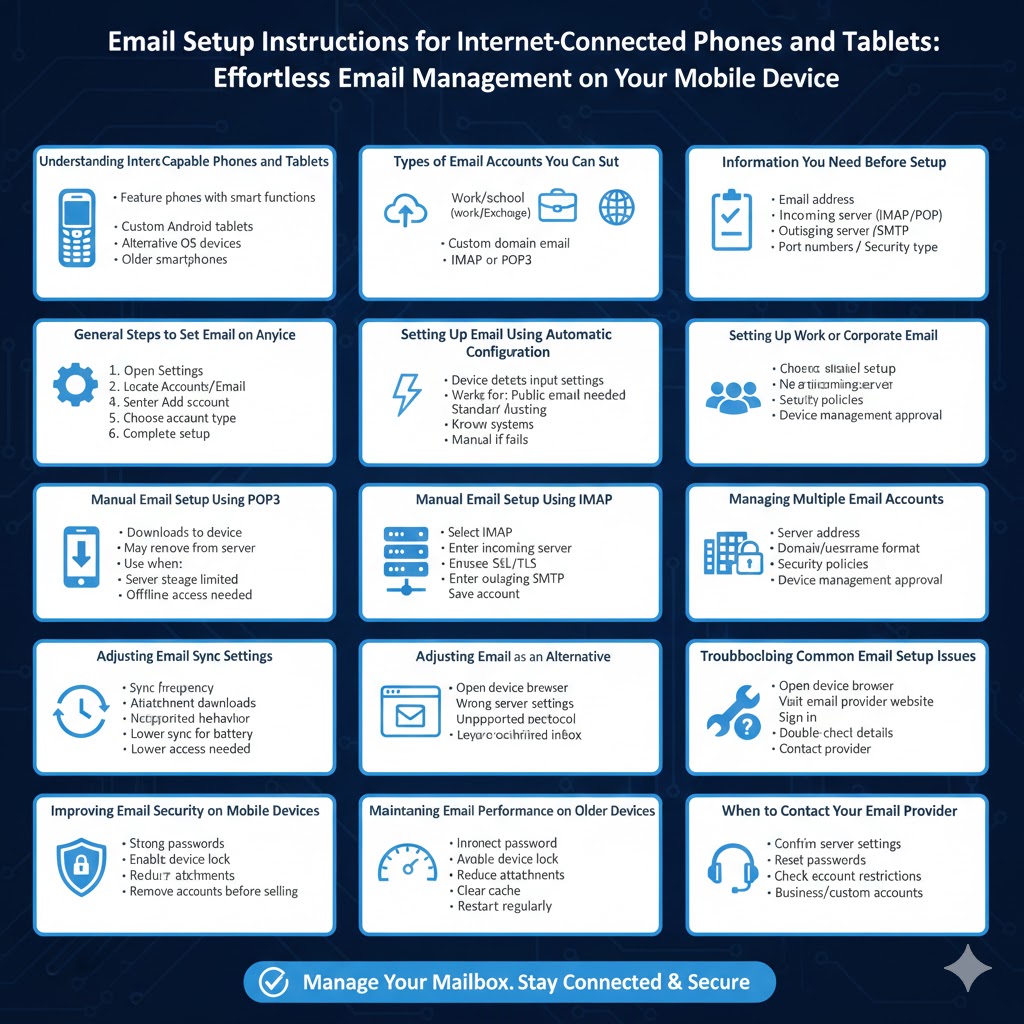
Email Setup Instructions for Internet-Connected Phones and Tablets
Email remains one of the most important communication tools for both personal and professional use. While many people rely on popular platforms such as Android and iOS, there are still many other internet-capable phones and tablets in use today. These devices may run alternative operating systems, customized firmware, or older software versions, but they are still capable of handling email efficiently when configured correctly.
This guide explains how to set up email on other internet-capable phones and tablets step by step. It covers common email account types, manual configuration using IMAP and POP, synchronization options, security considerations, and troubleshooting tips. Whether you are using a basic smart device, a tablet without Google services, or an older mobile platform, this article will help you get email working smoothly.
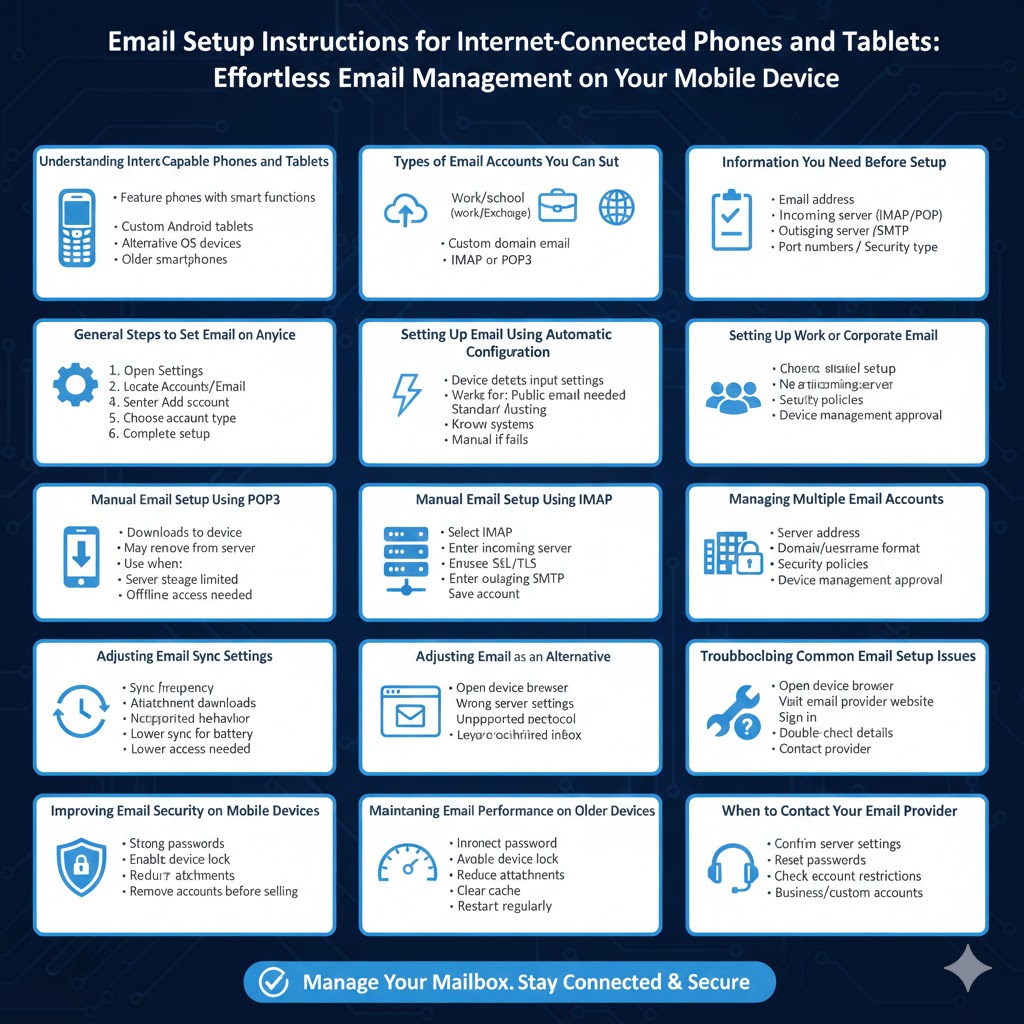
Understanding Internet-Capable Phones and Tablets
Internet-capable phones and tablets include any mobile device that can connect to the internet using Wi-Fi or mobile data and supports email applications. These devices may include:
- Feature phones with smart functions
- Tablets running custom Android versions
- Devices using alternative operating systems
- Older smartphones without app store access
Although the interface may differ, the core email setup principles remain the same.
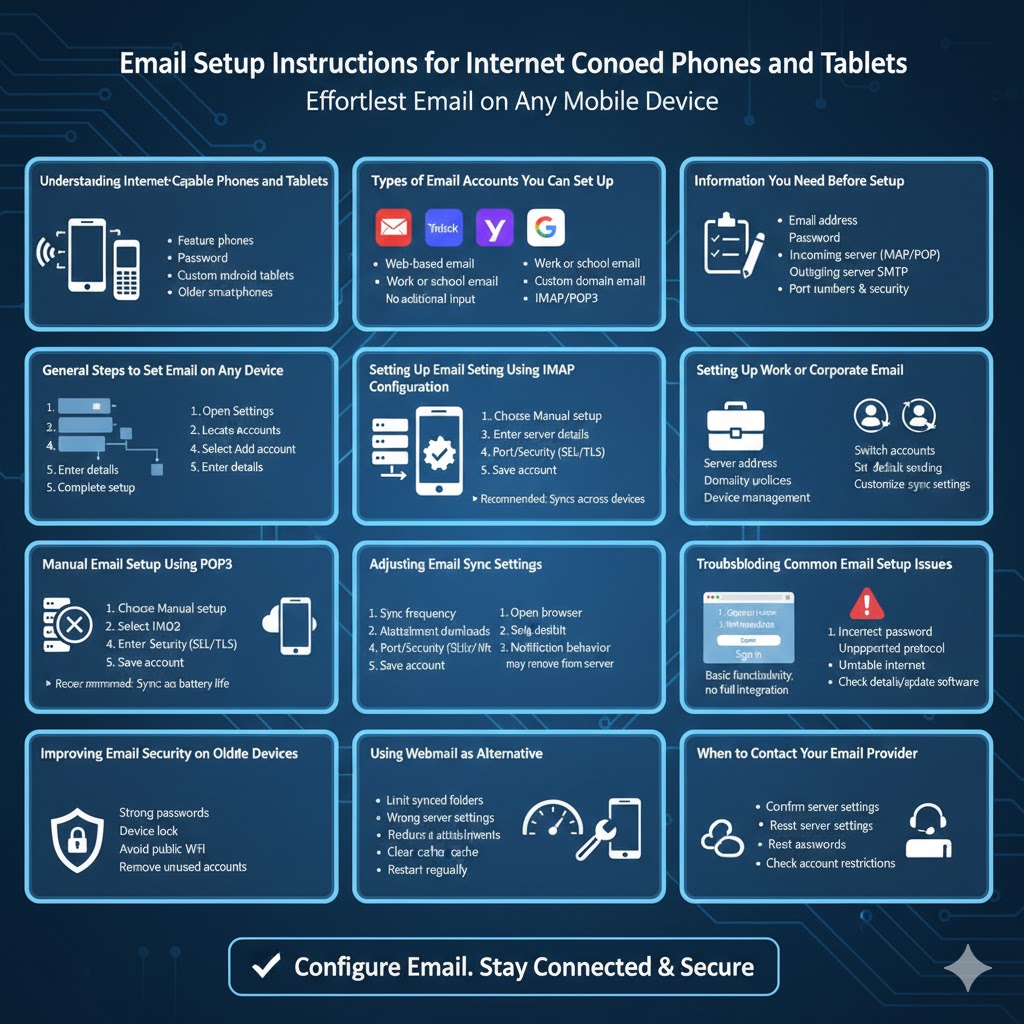
Types of Email Accounts You Can Set Up
Before starting, it is important to understand the type of email account you are adding. Most devices support one or more of the following:
- Web-based email accounts (such as Outlook or Yahoo)
- Work or school email (Exchange or corporate servers)
- Custom domain email
- Internet email using IMAP or POP3
Knowing your account type helps ensure a successful setup.
Information You Need Before Setup
To avoid errors during configuration, prepare the following information:
- Email address
- Account password
- Incoming mail server (IMAP or POP)
- Outgoing mail server (SMTP)
- Port numbers and security type
Your email provider or IT administrator can supply these details if needed.
General Steps to Set Up Email on Any Device
Although menu names vary, the basic setup steps are similar across most internet-capable devices.
Step-by-Step General Process
- Open the device Settings menu
- Locate Accounts, Mail, or Email settings
- Select Add account or Add email
- Enter your email address and password
- Choose the account type if prompted
- Complete the setup process
In many cases, the device will attempt automatic configuration.
Setting Up Email Using Automatic Configuration
Automatic setup is the easiest option and works with most popular email providers.
During automatic setup, the device detects server settings based on your email address domain. If successful, no additional input is required.
Automatic configuration works best for:
- Public email services
- Standard hosting providers
- Well-known corporate systems
If automatic setup fails, manual configuration is required.
Manual Email Setup Using IMAP
IMAP is the recommended option for most users because it keeps emails synchronized across devices.
Steps for IMAP Setup
- Choose Manual setup or Advanced setup
- Select IMAP as the account type
- Enter the incoming server address
- Enter the IMAP port number
- Choose SSL or TLS if supported
- Enter the outgoing SMTP server details
- Save the account
IMAP ensures that emails remain on the server and update in real time.
Manual Email Setup Using POP3
POP3 downloads emails directly to the device and may remove them from the server.
When to Use POP3
POP3 is useful when:
- Server storage is limited
- Only one device is used for email
- Offline access is required
The setup process is similar to IMAP but requires POP3 server details instead.
Setting Up Work or Corporate Email
Some internet-capable devices support corporate email systems.
Common Requirements
- Server address provided by the organization
- Domain or username format
- Security policies such as device lock
During setup, you may be prompted to allow device management or encryption.
Managing Multiple Email Accounts
Most devices allow more than one email account to be added.
You can:
- Switch between accounts
- Set a default sending account
- Customize sync settings per account
Managing accounts properly helps keep personal and work email organized.
Adjusting Email Sync Settings
Email synchronization settings affect performance and battery life.
Common options include:
- Sync frequency
- Attachment download preferences
- Notification behavior
Lower sync frequency can improve battery life on older devices.
Using Webmail as an Alternative
If native email setup is not supported, webmail can be used.
How Webmail Works
- Open the device browser
- Visit the email provider’s website
- Sign in with your credentials
Webmail provides basic functionality without full integration.
Troubleshooting Common Email Setup Issues
Email setup may fail for several reasons.
Common Problems
- Incorrect password
- Wrong server settings
- Unsupported security protocol
- Unstable internet connection
Double-check all details and ensure the device software is up to date.
Improving Email Security on Mobile Devices
Security is essential when using email on internet-capable devices.
Best practices include:
- Using strong passwords
- Enabling device lock
- Avoiding public Wi-Fi networks
- Removing accounts from unused devices
These steps help protect sensitive information.
Maintaining Email Performance on Older Devices
Older devices may struggle with heavy email usage.
Helpful tips include:
- Limiting the number of synced folders
- Reducing attachment downloads
- Clearing cache or temporary data
- Restarting the device regularly
These actions can improve responsiveness.
When to Contact Your Email Provider
If problems persist, contact your email provider or IT support.
They can:
- Confirm server settings
- Reset passwords
- Check account restrictions
This is especially important for business or custom domain accounts.
Conclusion
Setting up email on other internet-capable phones and tablets is entirely possible with the right information and approach. Whether using automatic configuration, manual IMAP or POP setup, or webmail access, most devices can handle email efficiently. Understanding account types, preparing server details, and adjusting sync settings are key to a smooth experience.
By following this step-by-step guide, you can configure email on almost any internet-capable phone or tablet, ensuring reliable communication regardless of device or platform.