


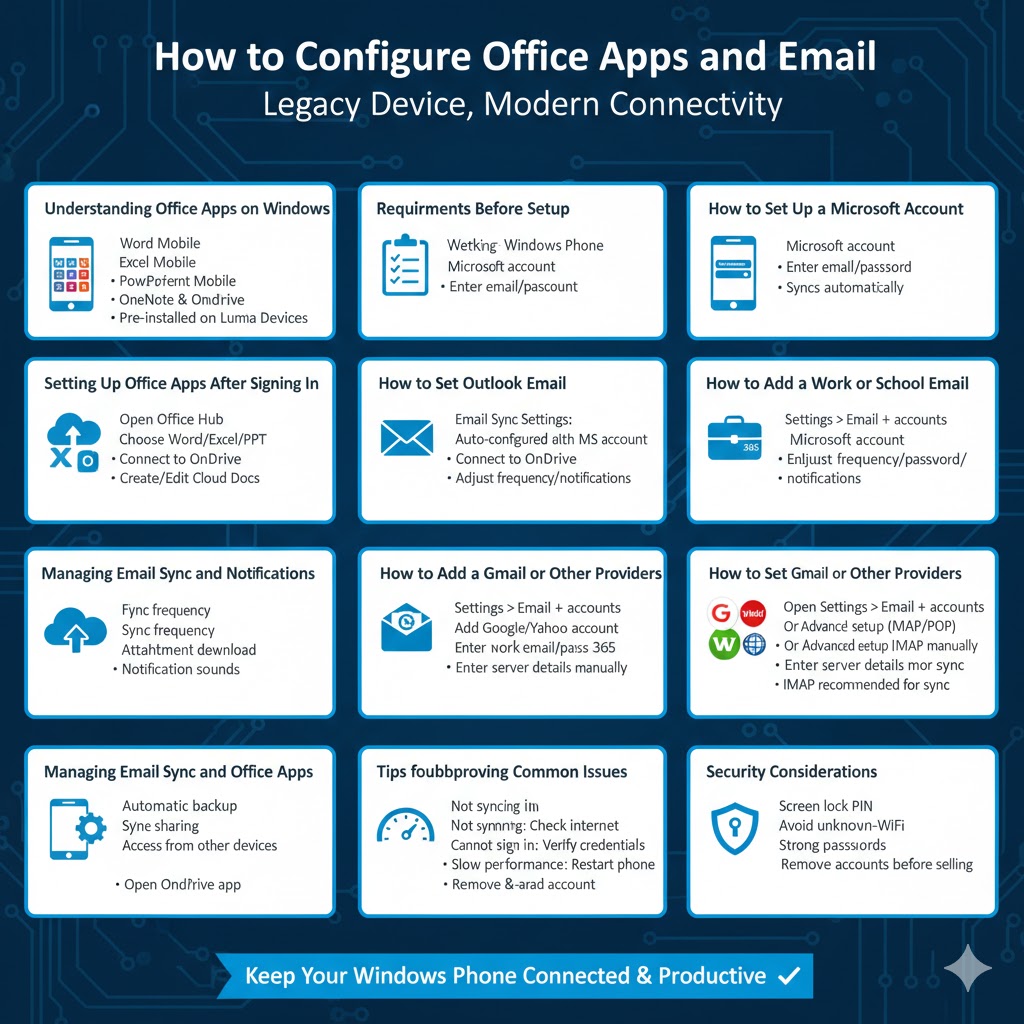
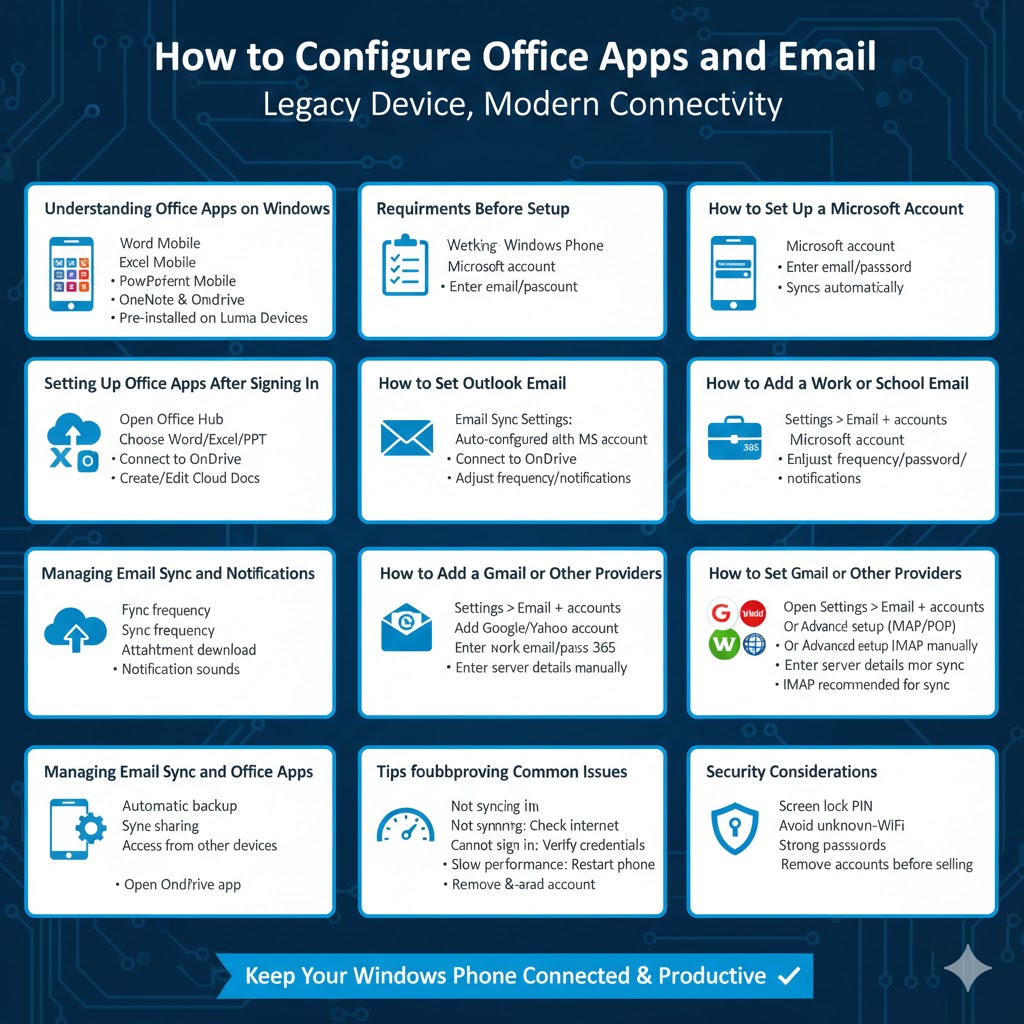
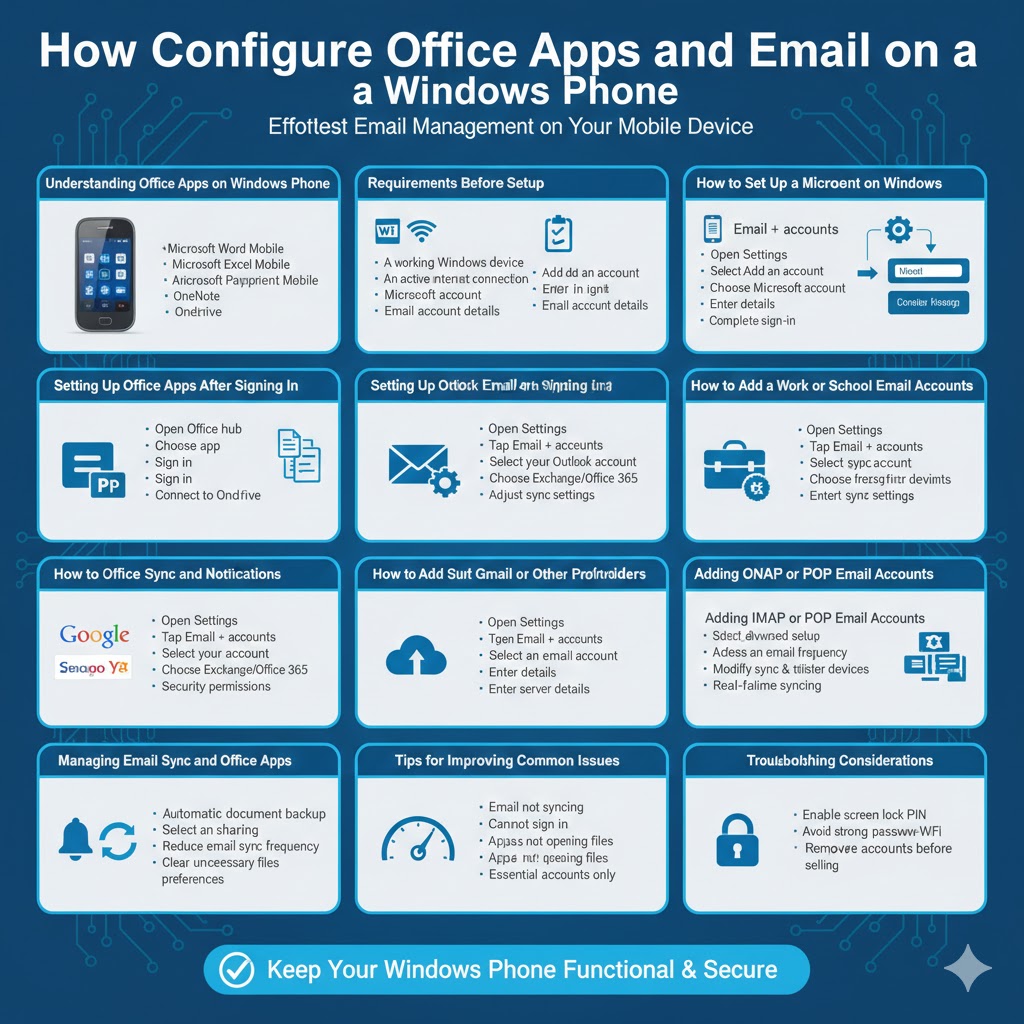
How to Configure Office Apps and Email on a Windows Phone
Windows Phone, although no longer actively supported by Microsoft, is still used by many people for basic tasks such as email communication, document editing, and calendar management. One of the strengths of Windows Phone has always been its tight integration with Microsoft services, especially Office apps and email. With the right setup, users can continue to access Word, Excel, PowerPoint, Outlook email, and OneDrive efficiently.
This guide explains how to set up Office apps and email on a Windows Phone device step by step. It covers Microsoft accounts, work or school email, third-party email providers, synchronization settings, and common troubleshooting tips. Even if you are new to Windows Phone, this article will help you configure everything correctly.
Understanding Office Apps on Windows Phone
Office apps on Windows Phone are designed to provide a lightweight but powerful experience for viewing and editing documents on the go. Depending on your device and Windows Phone version, you may have access to:
- Microsoft Word Mobile
- Microsoft Excel Mobile
- Microsoft PowerPoint Mobile
- OneNote
- OneDrive
These apps are usually pre-installed on most Windows Phone devices, especially Lumia phones. They are linked directly to your Microsoft account for cloud storage and synchronization.
Requirements Before Setup
Before you begin setting up Office apps and email, make sure the following requirements are met:
- A working Windows Phone device
- An active internet connection (Wi-Fi or mobile data)
- A Microsoft account (Outlook.com, Hotmail, or Live account)
- Email account details for non-Microsoft email providers
Having this information ready will help avoid interruptions during setup.
How to Set Up a Microsoft Account on Windows Phone
A Microsoft account is essential for accessing Office apps and syncing emails, contacts, and documents.
Step-by-Step Instructions
- Open Settings on your Windows Phone
- Tap Email + accounts
- Select Add an account
- Choose Microsoft account
- Enter your email address and password
- Follow the on-screen instructions to complete sign-in
Once signed in, your device will automatically sync emails, calendar events, contacts, and OneDrive files.
Setting Up Office Apps After Signing In
After adding your Microsoft account, Office apps become fully functional.
Accessing Office Apps
- Open the Office hub from the app list
- Choose Word, Excel, or PowerPoint
- Sign in if prompted
- Connect to OneDrive to access cloud documents
You can create new documents, edit existing ones, and save changes directly to the cloud.
How to Set Up Outlook Email on Windows Phone
Outlook email is automatically configured when you add a Microsoft account.
Email Sync Settings
- Go to Settings
- Tap Email + accounts
- Select your Outlook account
- Adjust sync frequency, download settings, and notifications
This ensures your emails stay up to date without draining battery life.
How to Add a Work or School Email Account
Many users need to access business email through Exchange or Office 365.
Steps to Add Work Email
- Open Settings
- Tap Email + accounts
- Select Add an account
- Choose Exchange or Office 365
- Enter your work email address and password
- Provide server details if required
Some organizations may require additional security permissions such as device encryption.
How to Set Up Gmail or Other Email Providers
Windows Phone also supports popular third-party email services.
Adding Gmail or Yahoo Mail
- Open Settings
- Tap Email + accounts
- Select Add an account
- Choose Google or Yahoo
- Sign in with your email credentials
Adding IMAP or POP Email Accounts
If your provider is not listed:
- Select Advanced setup
- Choose Internet email
- Enter your email address and password
- Add incoming and outgoing server details
- Complete the setup process
IMAP is recommended for better synchronization across devices.
Managing Email Sync and Notifications
Windows Phone allows flexible email management.
You can choose how often emails sync, whether attachments download automatically, and how notifications appear.
To adjust these settings:
- Go to Settings
- Open Email + accounts
- Select an email account
- Modify sync frequency and notification preferences
Using OneDrive with Office Apps
OneDrive is deeply integrated into Windows Phone and Office apps.
Benefits of OneDrive Integration
- Automatic document backup
- Easy file sharing
- Access documents from other devices
- Real-time syncing
To enable OneDrive:
- Sign in with your Microsoft account
- Open the OneDrive app
- Upload or create documents using Office apps
Tips for Improving Performance on Windows Phone
Because Windows Phone devices are older, performance optimization is important.
Helpful tips include:
- Limit background app refresh
- Reduce email sync frequency
- Clear unnecessary files from OneDrive
- Keep only essential accounts connected
These steps can improve battery life and responsiveness.
Troubleshooting Common Issues
Some users may encounter problems during setup.
Common Problems and Solutions
- Email not syncing: Check internet connection and sync settings
- Cannot sign in: Verify account credentials and time/date settings
- Office apps not opening files: Ensure OneDrive is connected
- Slow performance: Restart the device and close unused apps
If problems persist, removing and re-adding the account often resolves the issue.
Security Considerations
To keep your data safe on Windows Phone:
- Enable a screen lock PIN or password
- Avoid connecting to unknown Wi-Fi networks
- Use strong passwords for email accounts
- Remove accounts before selling or giving away the device
Even on older platforms, basic security practices remain important.
Conclusion
Setting up Office apps and email on Windows Phone allows you to continue using essential productivity tools despite the platform’s discontinued status. With a Microsoft account, you can access Word, Excel, PowerPoint, OneDrive, and Outlook email seamlessly. Windows Phone also supports work email and popular third-party providers, making it a versatile option for basic communication and document management.
By following this step-by-step guide, you can configure Office apps and email correctly, manage synchronization settings, and keep your Windows Phone functional for everyday tasks.