


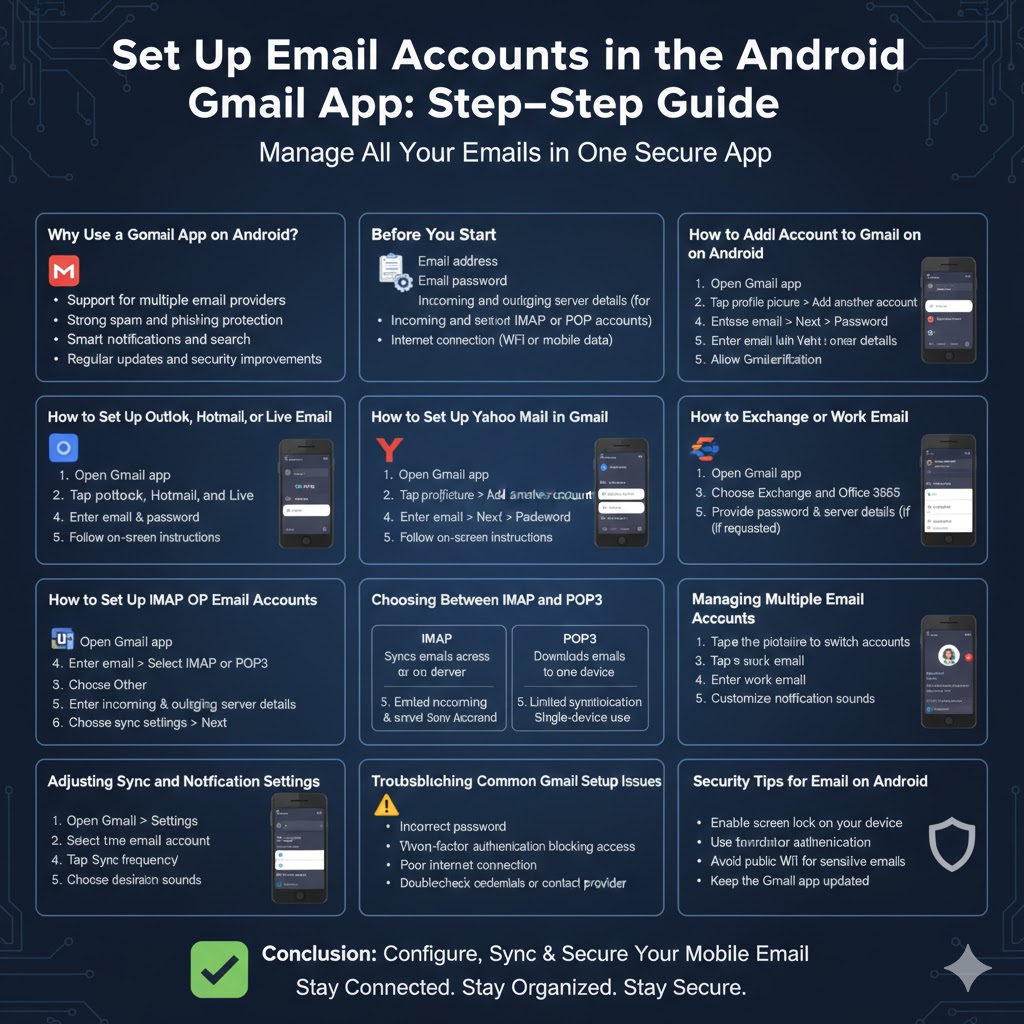
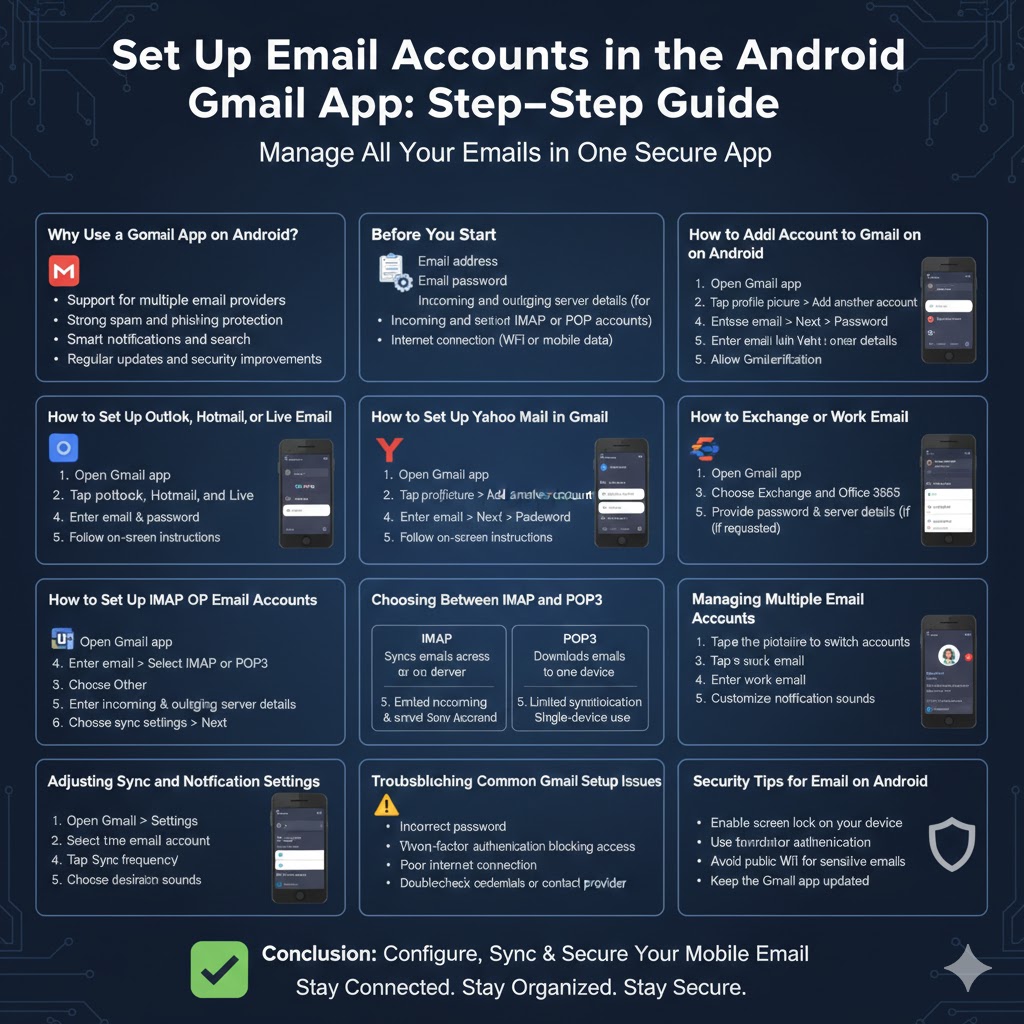
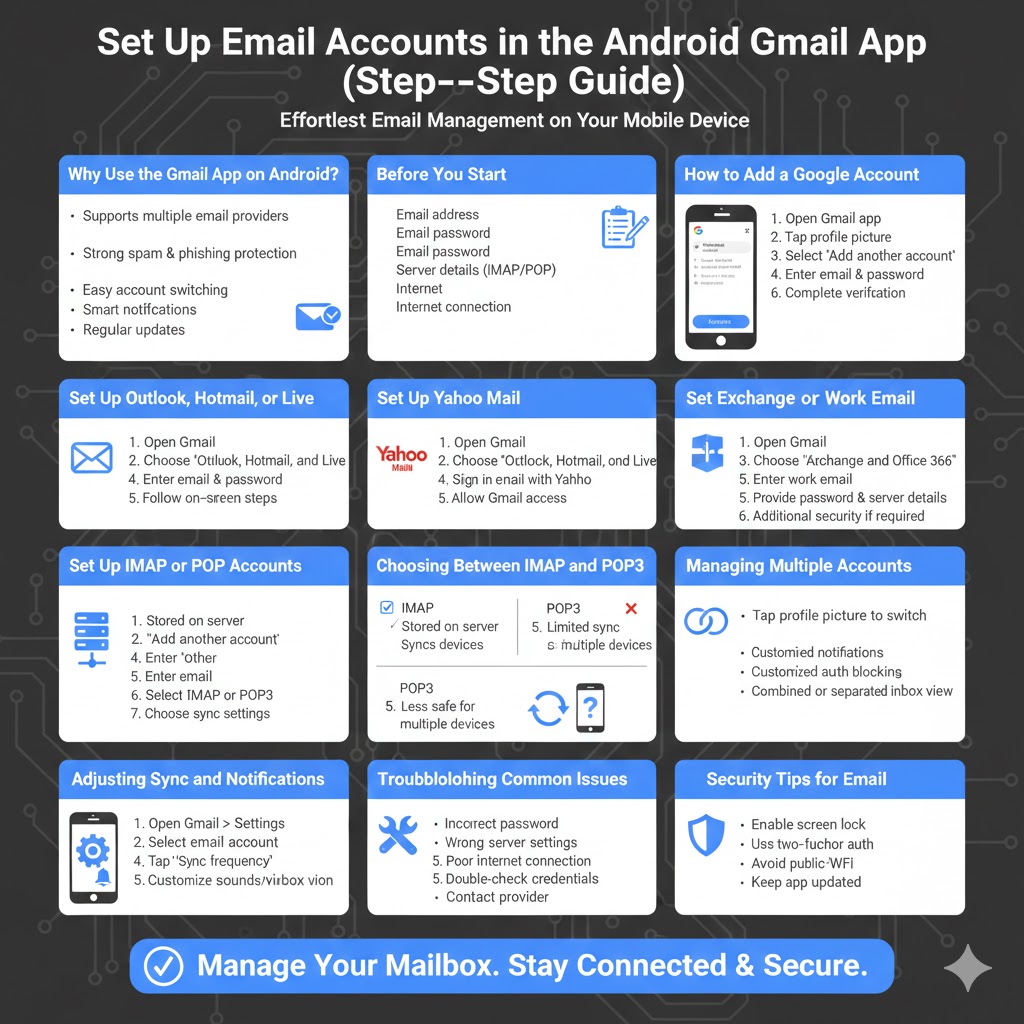
Set Up Email Accounts in the Android Gmail App (Step-by-Step Guide)
The Gmail app on Android is one of the most popular and reliable email applications available today. While it is designed primarily for Google accounts, Gmail also supports many other email services, including Outlook, Yahoo Mail, Exchange, and custom IMAP or POP3 email accounts. This makes it a convenient all-in-one solution for managing personal and professional emails on your Android device.
If you have just purchased a new phone, switched email providers, or want to add a work or school email account, setting up email in the Android Gmail app is a straightforward process. This step-by-step guide explains how to add different types of email accounts, configure advanced settings, troubleshoot common issues, and manage multiple accounts efficiently.
Why Use the Gmail App on Android?
The Gmail app offers more than just email access. It integrates seamlessly with other Google services and provides a clean, fast, and secure email experience.
Key benefits include:
- Support for multiple email providers
- Strong spam and phishing protection
- Easy account switching
- Smart notifications and search
- Regular updates and security improvements
Because of these features, many users prefer Gmail even for non-Google email accounts.
Before You Start
Before setting up email in the Gmail app, make sure you have the following information ready:
- Email address
- Email password
- Incoming and outgoing server details (for IMAP or POP accounts)
- Internet connection (Wi-Fi or mobile data)
Having these details prepared will make the setup process faster and smoother.
How to Add a Google Account to Gmail on Android
Adding a Google account is the easiest setup process.
Step-by-Step Instructions
- Open the Gmail app on your Android phone
- Tap your profile picture in the top-right corner
- Select Add another account
- Choose Google
- Enter your Google email address
- Tap Next and enter your password
- Complete any verification steps if prompted
Once added, your emails will begin syncing automatically.
How to Set Up Outlook, Hotmail, or Live Email
Microsoft email accounts are fully supported by the Gmail app.
Steps to Add an Outlook Account
- Open the Gmail app
- Tap your profile picture
- Select Add another account
- Choose Outlook, Hotmail, and Live
- Enter your email address and password
- Follow the on-screen instructions
Gmail will automatically configure the required settings.
How to Set Up Yahoo Mail in Gmail
Yahoo Mail can also be added easily.
Steps to Add Yahoo Mail
- Open Gmail
- Tap your profile picture
- Select Add another account
- Choose Yahoo
- Sign in with your Yahoo credentials
- Allow Gmail access when prompted
After setup, Yahoo emails will appear alongside other accounts.
How to Set Up Exchange or Work Email
Many organizations use Microsoft Exchange for business email.
Steps to Add an Exchange Account
- Open the Gmail app
- Tap your profile picture
- Select Add another account
- Choose Exchange and Office 365
- Enter your work email address
- Provide your password and server details if requested
Some companies may require additional security permissions or device management approval.
How to Set Up IMAP or POP Email Accounts
If your email provider is not listed, you can manually configure it using IMAP or POP.
Step-by-Step Manual Setup
- Open Gmail
- Tap your profile picture
- Select Add another account
- Choose Other
- Enter your email address
- Select IMAP or POP3
- Enter incoming server details
- Enter outgoing server (SMTP) details
- Choose sync settings
- Tap Next to finish setup
IMAP is recommended because it keeps emails synced across devices.
Choosing Between IMAP and POP3
Understanding the difference helps you choose the right option.
IMAP keeps emails stored on the server and syncs changes across all devices. POP3 downloads emails to your phone and may remove them from the server.
For most users, IMAP is the better and safer choice.
Managing Multiple Email Accounts
The Gmail app makes it easy to manage several accounts.
You can switch accounts by tapping your profile picture and selecting the desired account. Notifications can be customized per account, allowing you to prioritize important emails.
You can also choose whether emails from all accounts appear in a single inbox or remain separated.
Adjusting Sync and Notification Settings
To control how often emails sync:
- Open Gmail
- Go to Settings
- Select the email account
- Tap Sync frequency
- Choose the desired interval
You can also customize notification sounds and vibration for each account.
Troubleshooting Common Gmail Setup Issues
Sometimes email setup does not go as planned.
Common problems include:
- Incorrect password
- Wrong server settings
- Two-factor authentication blocking access
- Poor internet connection
If setup fails, double-check your credentials or contact your email provider for correct server information.
Security Tips for Email on Android
To keep your email secure:
- Enable screen lock on your device
- Use two-factor authentication
- Avoid public Wi-Fi for sensitive emails
- Keep the Gmail app updated
These steps help protect your data from unauthorized access.
Conclusion
Setting up email in the Android Gmail app is a simple and flexible process that supports a wide range of email providers. Whether you are adding a personal Gmail account, a business Exchange account, or a custom IMAP email, the Gmail app provides a reliable and secure experience.
By following the step-by-step instructions in this guide, you can configure your email quickly, manage multiple accounts efficiently, and ensure your messages stay synced and secure on your Android device.