

How to Create a Custom List in Excel (Complete Tutorial)
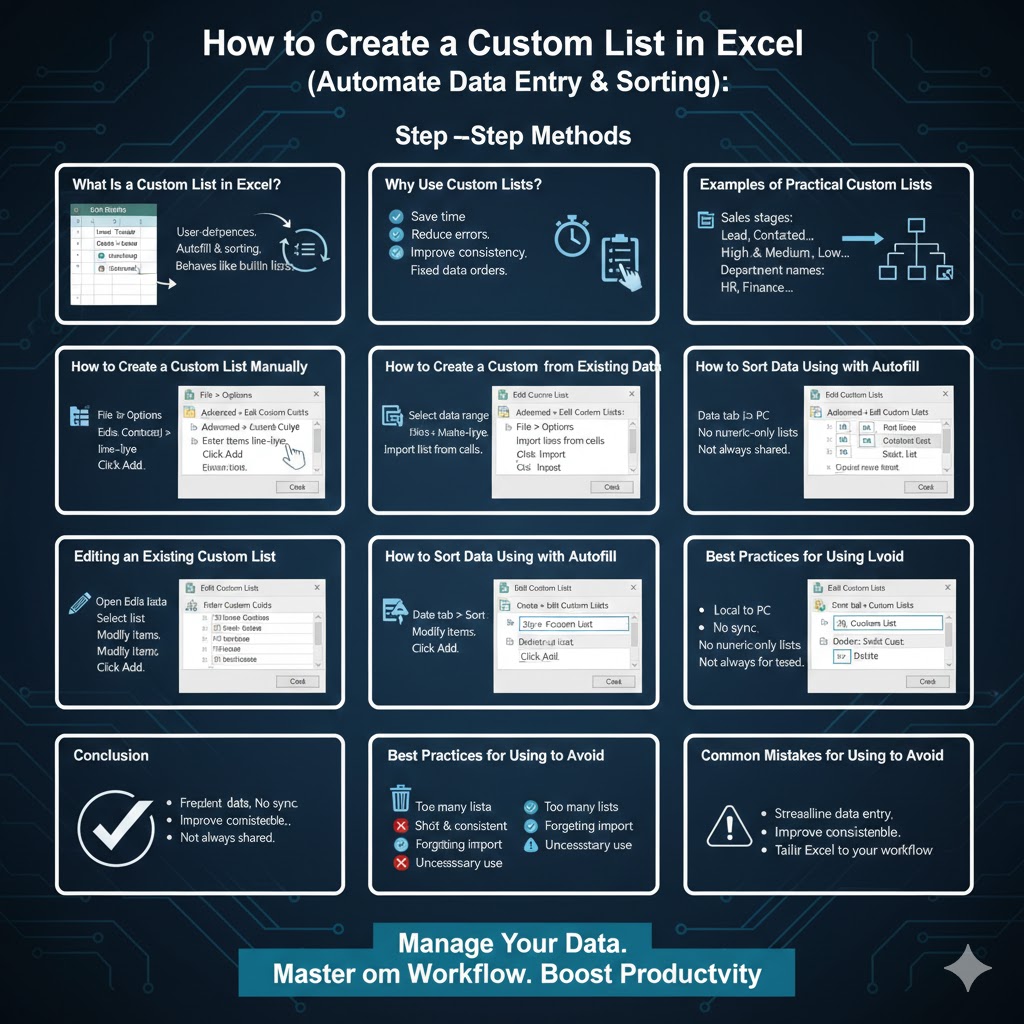
Microsoft Excel is widely known for its powerful data analysis and calculation features, but one of its most underrated productivity tools is Custom Lists. Custom Lists allow you to define your own sequences of values so Excel can recognize patterns and fill data automatically. This is especially useful for recurring data such as department names, project phases, priority levels, regions, or any list that you use repeatedly.
Instead of typing the same items over and over again, you can create a custom list once and let Excel handle the rest. In this step-by-step guide, you will learn what custom lists are, why they are useful, and how to create, edit, and use them effectively in Excel.
What Is a Custom List in Excel?
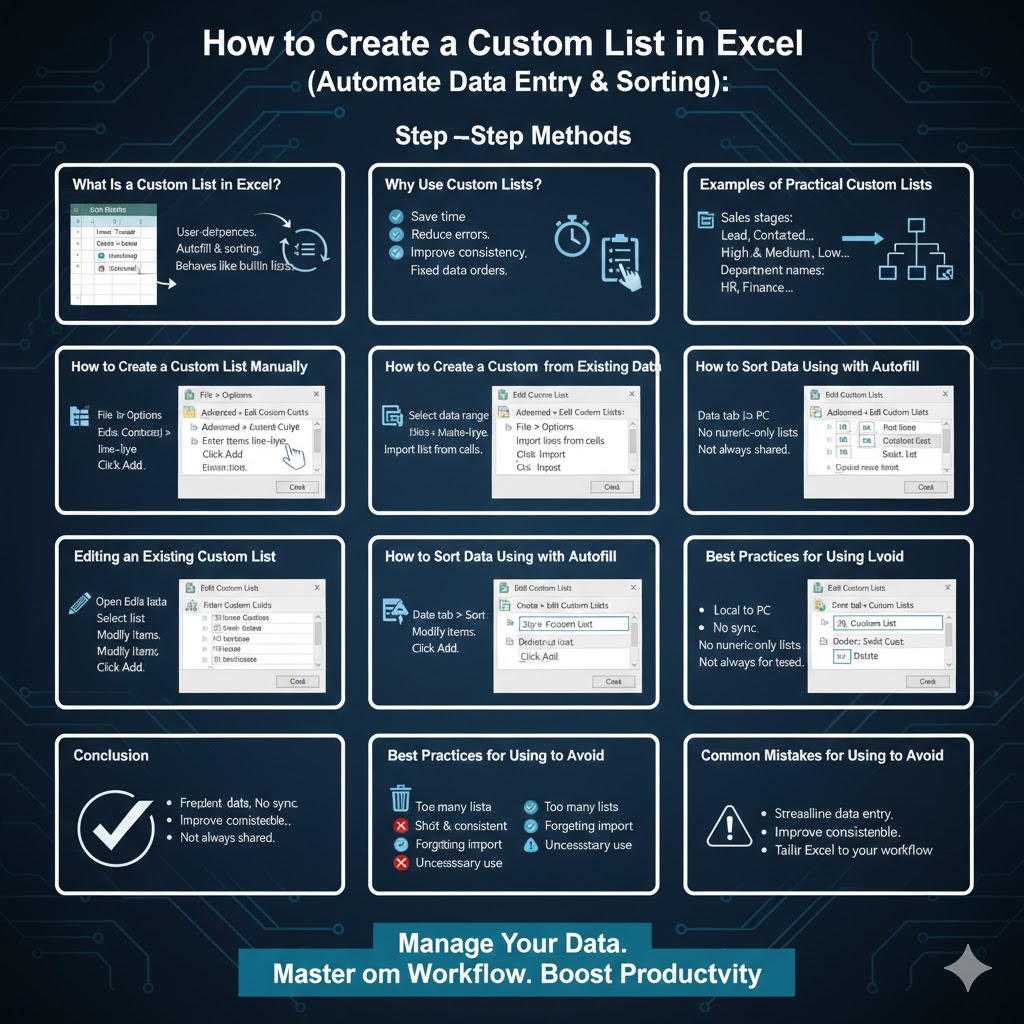
A Custom List in Excel is a user-defined sequence of text or values that Excel can use for autofill, sorting, and data entry. Excel already includes built-in lists such as days of the week and months of the year. When you type “Monday” and drag the fill handle, Excel automatically continues with “Tuesday,” “Wednesday,” and so on.
Custom Lists allow you to create your own sequences that behave the same way. Once created, Excel remembers these lists and applies them across all workbooks on the same computer.
Why Use Custom Lists?
Custom Lists save time, reduce typing errors, and improve consistency across spreadsheets.
They are especially useful when working with:
- Company-specific workflows
- Repeating business categories
- Fixed data orders that do not follow alphabetical sorting
- Reports that require consistent labeling
By using Custom Lists, you ensure that your data is entered and sorted exactly the way you want.
Examples of Practical Custom Lists
Custom Lists can be used in many real-world scenarios.
Some common examples include:
- Sales stages: Lead, Contacted, Qualified, Proposal, Closed
- Priority levels: High, Medium, Low
- Department names: HR, Finance, Marketing, IT, Operations
- Project phases: Planning, Design, Development, Testing, Deployment
These lists make Excel smarter and more tailored to your workflow.
How to Create a Custom List Manually
The most direct way to create a custom list is by entering items manually.
Step-by-Step Instructions
- Open Excel
- Click File and select Options
- Choose Advanced from the left menu
- Scroll down to the General section
- Click Edit Custom Lists
- Under Custom Lists, select New List
- Enter each item in the list on a new line
- Click Add
- Click OK to save
Your custom list is now available for use.
How to Create a Custom List from Existing Data
If you already have a list in a worksheet, Excel can create a custom list from it automatically.
Step-by-Step Instructions
- Select the range of cells containing your list
- Click File > Options
- Go to Advanced
- Click Edit Custom Lists
- Under Import list from cells, verify the selected range
- Click Import
- Click OK
This method is faster and avoids retyping long lists.
How to Use a Custom List with Autofill
Once your custom list is created, using it is simple.
Steps to Autofill Using a Custom List
- Type one item from your custom list into a cell
- Click the fill handle (small square in the bottom-right corner of the cell)
- Drag the handle down or across
Excel will automatically fill the remaining items in the defined order.
How to Sort Data Using a Custom List
Custom Lists also control how Excel sorts data.
Sorting with a Custom List
- Select your data range
- Go to the Data tab
- Click Sort
- Choose the column to sort
- Under Order, select Custom List
- Choose your custom list
- Click OK
This ensures your data follows logical or business-specific order rather than alphabetical order.
Editing an Existing Custom List
Over time, you may need to update your custom lists.
Steps to Edit a Custom List
- Open Excel Options
- Go to Advanced
- Click Edit Custom Lists
- Select the list you want to change
- Modify the items as needed
- Click Add to save changes
The updated list replaces the old version.
Deleting a Custom List
If a custom list is no longer needed, you can remove it.
Steps to Delete a Custom List
- Open Edit Custom Lists
- Select the list you want to delete
- Click Delete
- Confirm the action
Deleting unused lists helps keep Excel organized.
Limitations of Custom Lists
While Custom Lists are powerful, they do have some limitations.
Important points to note:
- Custom Lists are stored locally on your computer
- They do not automatically sync across different devices
- Numeric-only lists are not supported
- They may not be included when sharing workbooks
Understanding these limits helps avoid confusion when collaborating.
Best Practices for Using Custom Lists
To get the most value from Custom Lists:
- Use them for data that repeats frequently
- Keep list items short and consistent
- Avoid unnecessary duplication
- Document important lists for team members
These practices improve clarity and efficiency.
Common Mistakes to Avoid
Avoid the following mistakes:
- Creating too many similar lists
- Forgetting to import lists when switching computers
- Using custom lists when simple sorting would suffice
Using Custom Lists thoughtfully ensures better results.
Conclusion
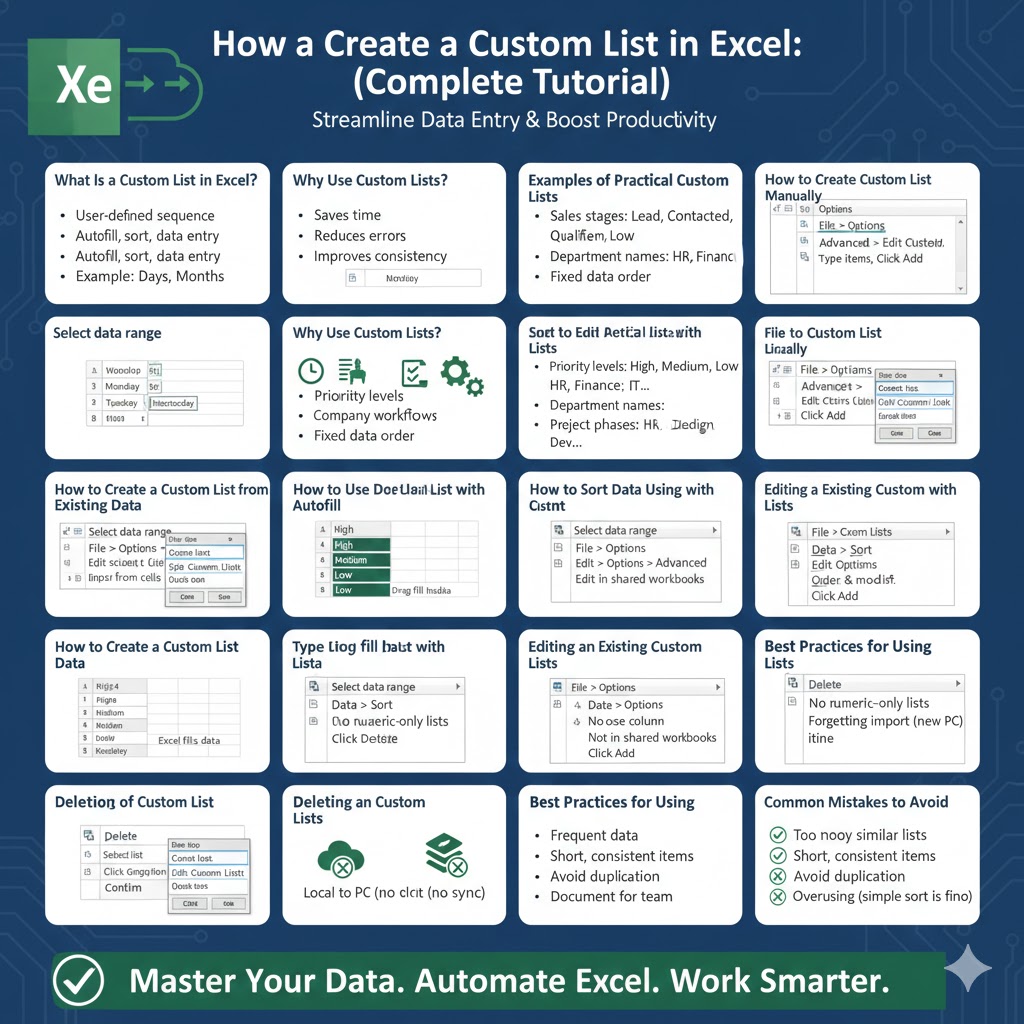
Creating a Custom List in Excel is a simple but powerful way to streamline data entry, maintain consistency, and improve productivity. Whether you manually create a list or import one from existing data, Custom Lists allow Excel to adapt to your specific workflow.
By following the step-by-step instructions in this guide, you can create, manage, and use Custom Lists effectively. Once you start using them, you will find that many repetitive Excel tasks become faster, easier, and more reliable.