


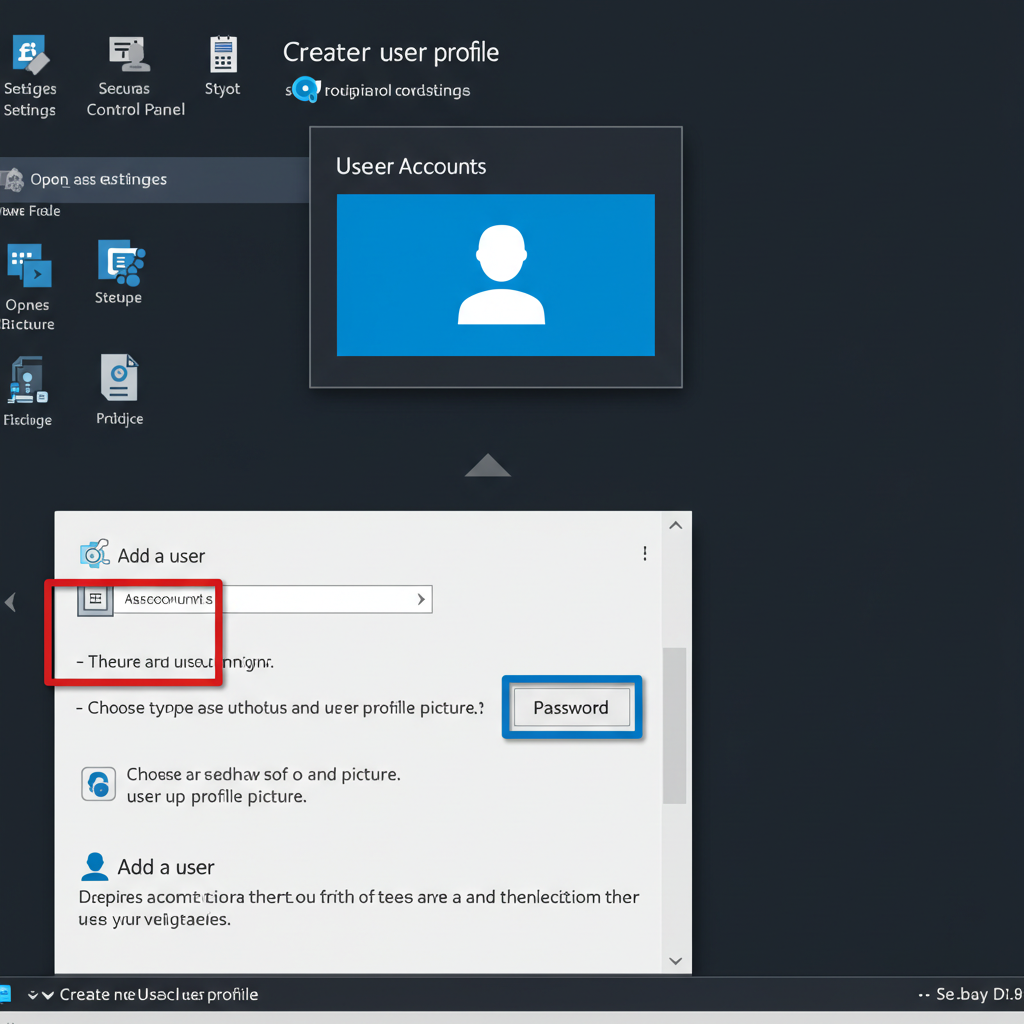
Troubleshooting Excel Startup Problems
Microsoft Excel is a powerful tool used by millions for data entry, analysis, and business reporting. However, it can be incredibly frustrating when Excel refuses to open, especially when you’re on a deadline or need quick access to your spreadsheets.
In this guide, we will walk you through the most common reasons Excel fails to open and the practical steps to fix it. Whether Excel opens with a blank screen, crashes on startup, or doesn’t respond at all, this troubleshooting guide has you covered.
Common Symptoms When Excel Won’t Open
Understanding the nature of the problem helps you choose the right solution. Below are typical symptoms:
-
Excel opens with a blank white screen.
-
Excel crashes immediately upon launch.
-
Double-clicking a file does nothing.
-
Error messages like “Excel has stopped working.”
-
Excel freezes or hangs indefinitely.
-
Excel opens but doesn’t load files.
Step-by-Step Solutions to Fix Excel Not Opening
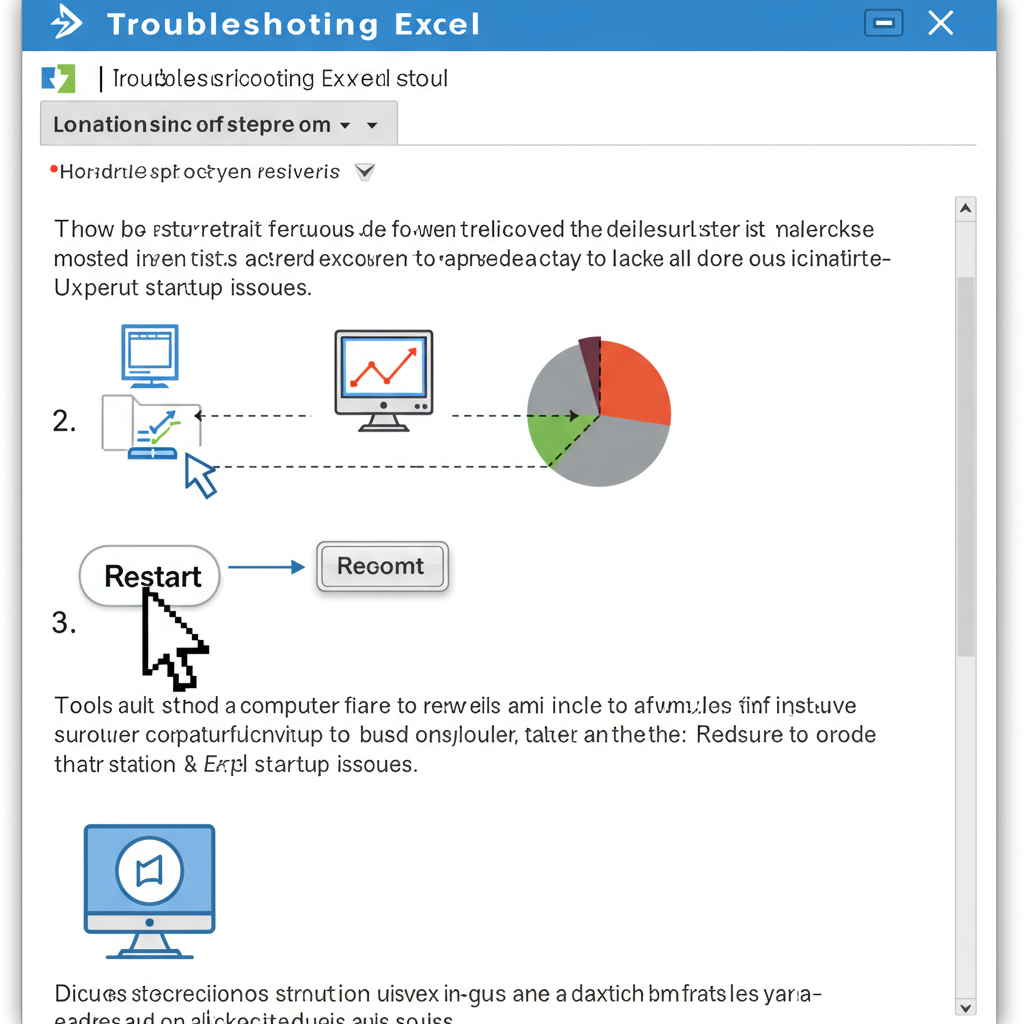
1. Restart Your Computer
Before diving into technical fixes, try the simplest solution: restarting your computer.
Why this helps:
Sometimes, background processes interfere with Excel. A reboot clears temporary issues and resets software conflicts.
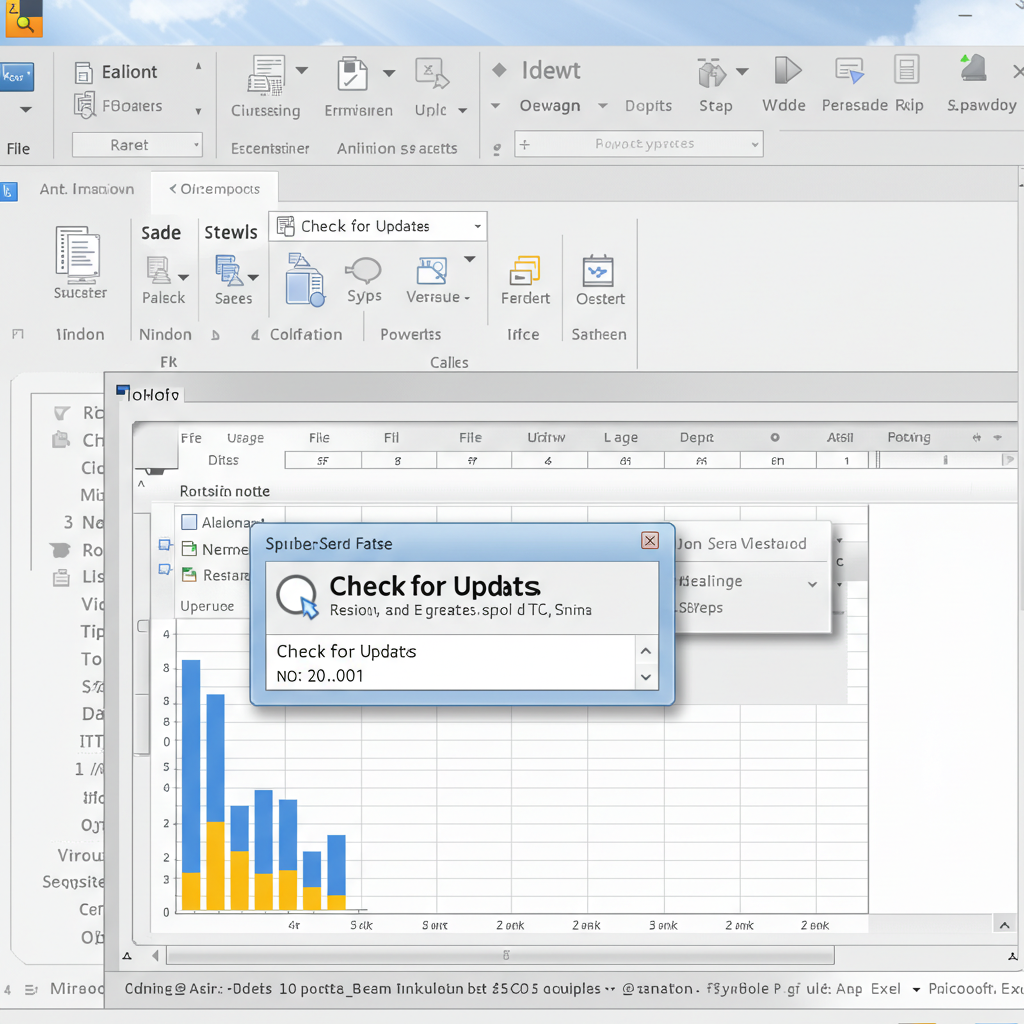
2. Check for Excel Updates
Outdated software may contain bugs or compatibility issues.
How to update Excel:
-
Open any Microsoft Office program (like Word).
-
Go to File > Account > Update Options > Update Now.
-
Wait for updates to complete.
-
Try reopening Excel.
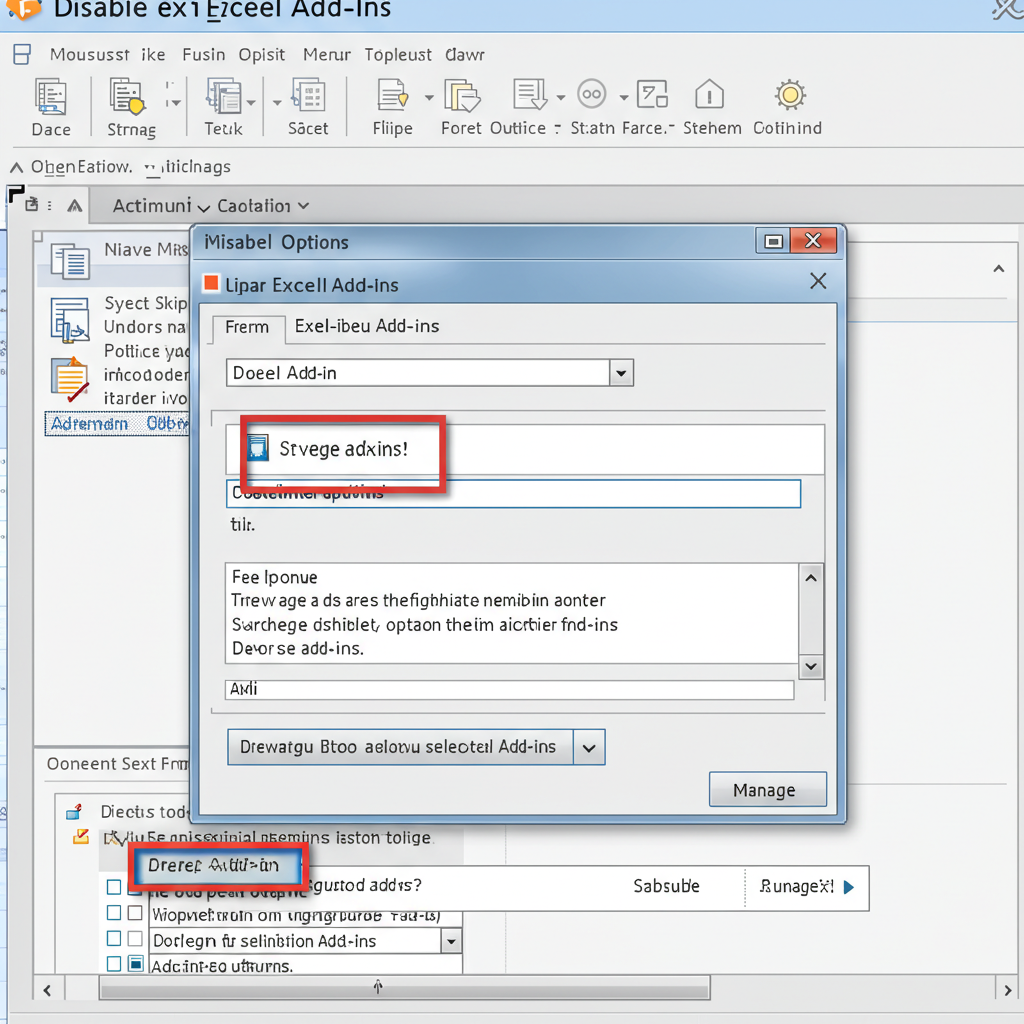
3. Disable Excel Add-ins
Problematic add-ins can prevent Excel from loading properly.
Steps:
-
Press Windows + R, type
excel /safe, and press Enter to open Excel in Safe Mode. -
If Excel opens, go to File > Options > Add-ins.
-
At the bottom, next to “Manage: COM Add-ins,” click Go.
-
Uncheck all add-ins, then click OK.
-
Restart Excel normally.
If Excel works after this, re-enable add-ins one at a time to find the culprit..
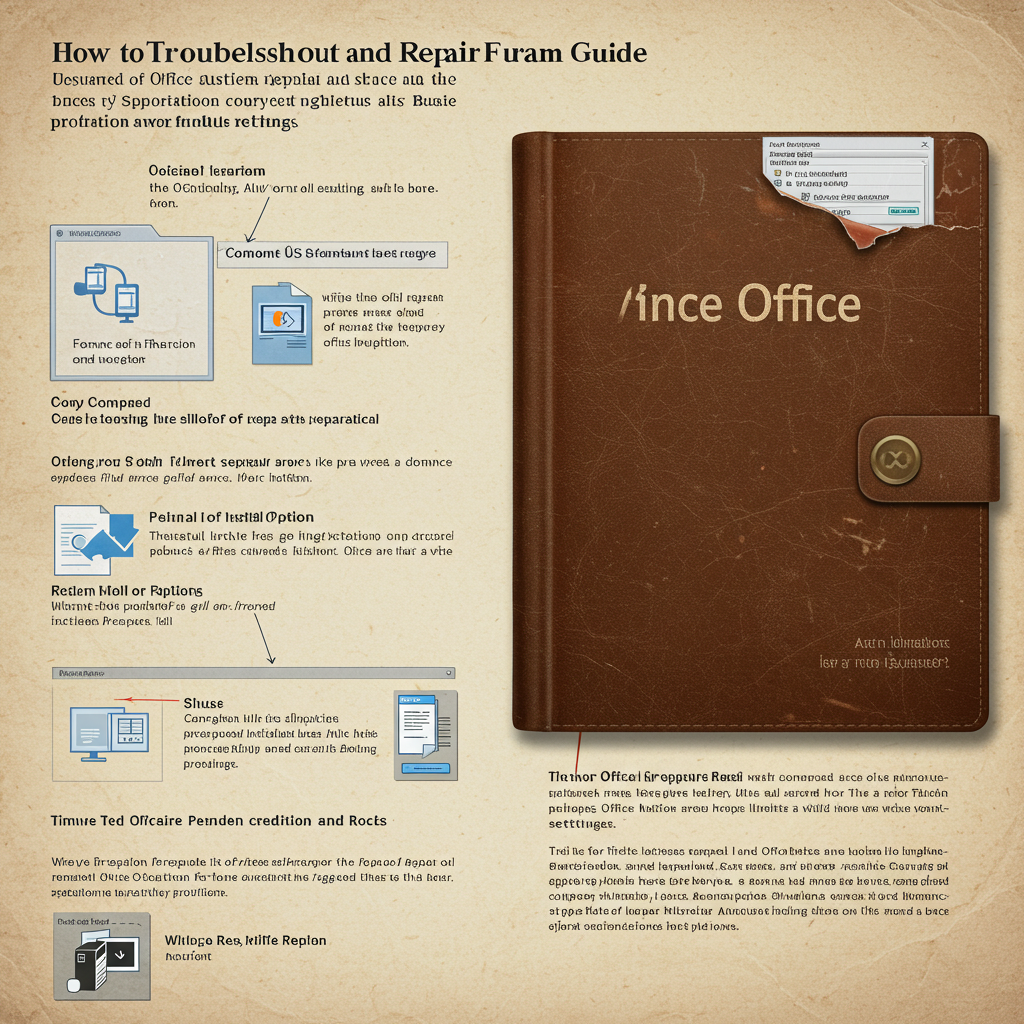
4. Repair Microsoft Office
If some Office components are corrupted, a repair can fix Excel without losing your data.
How to repair Office:
-
Open Control Panel > Programs > Programs and Features.
-
Select Microsoft Office, then click Change.
-
Choose Quick Repair first. If that doesn’t help, try Online Repair.
-
Reboot your PC after the repair.
5. Check File Associations
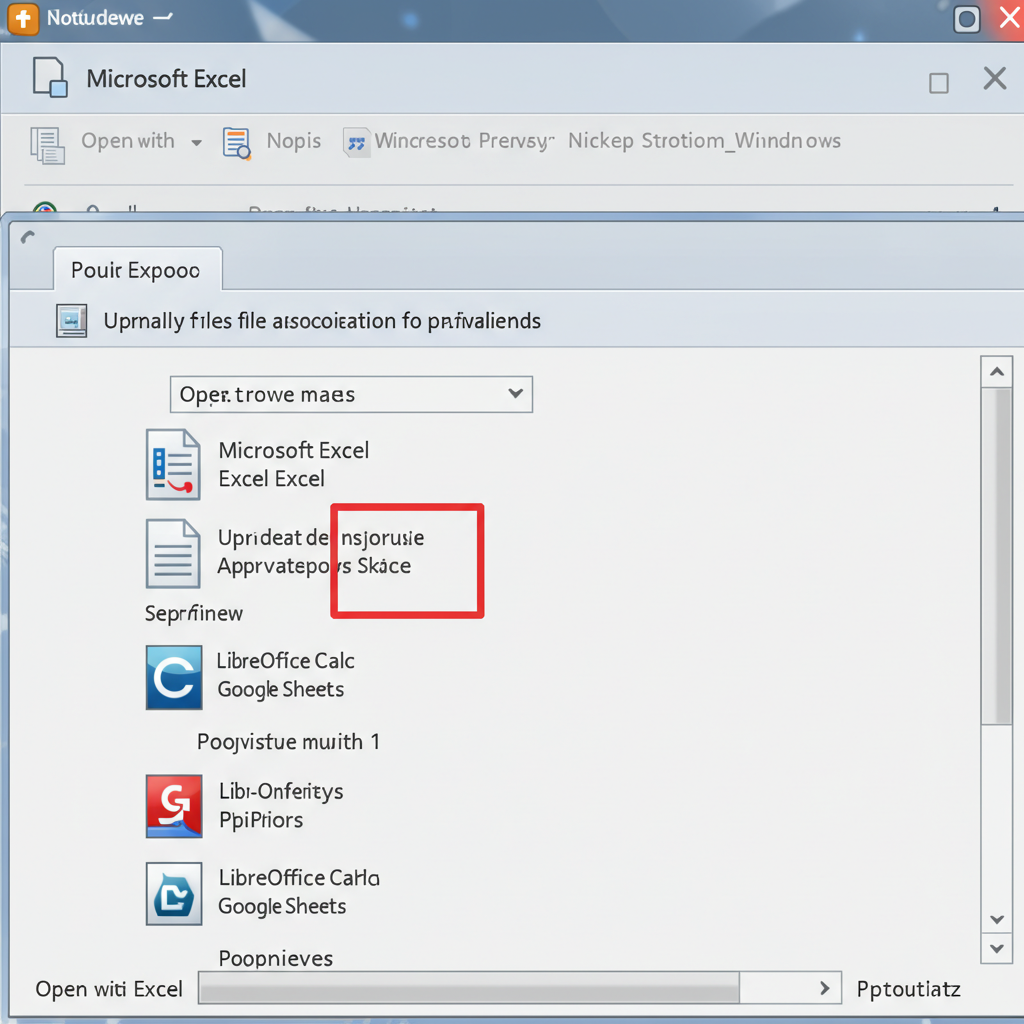
If Excel opens, but files won’t load when double-clicked, the file association may be broken.
How to fix:
-
Right-click any
.xlsxfile and choose Open with > Choose another app. -
Select Excel, check the box that says Always use this app to open .xlsx files, and click OK.
-
Repeat for other file types like
.xlsor.xlsmif needed.
6. Clear Conditional Formatting and Macros (Advanced)
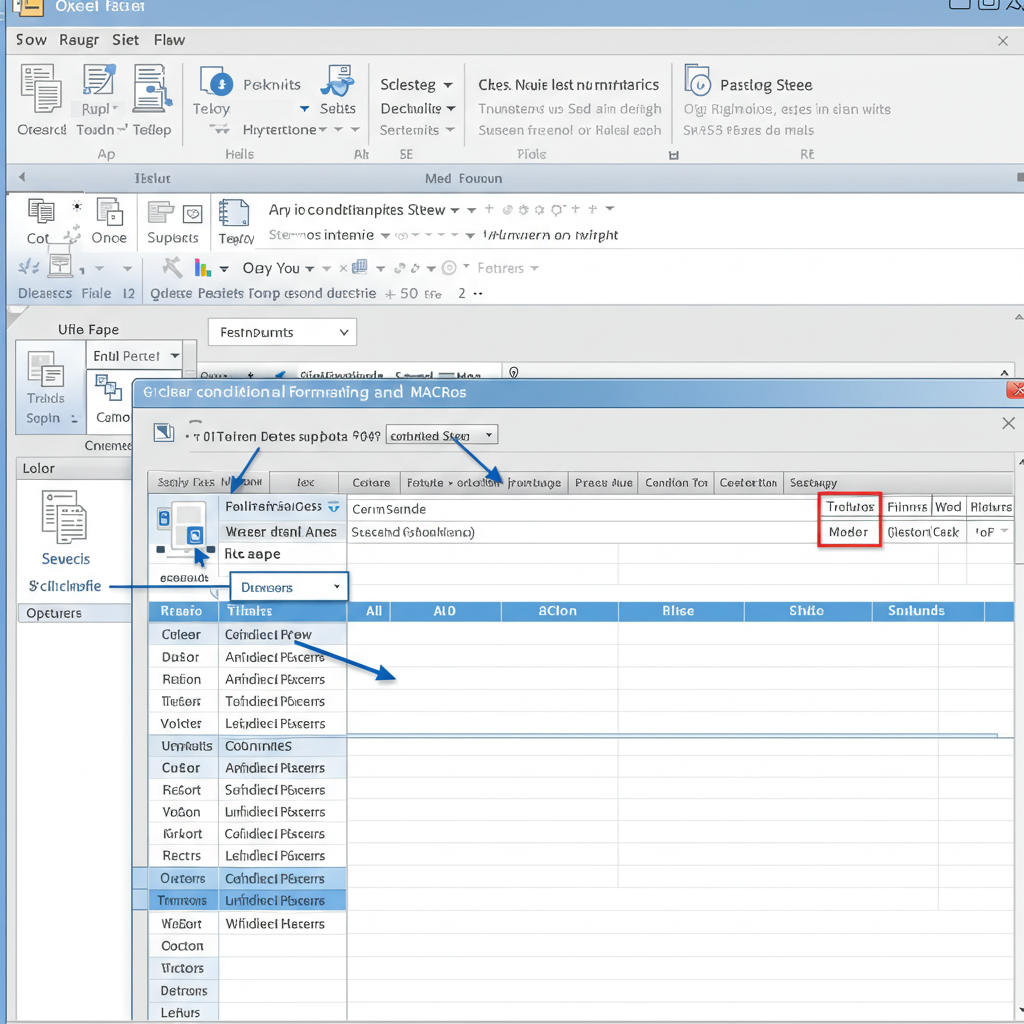
A specific Excel file may be corrupted due to complex macros or excessive formatting.
Try this:
-
Open Excel in Safe Mode (
excel /safe). -
Open the affected file manually from File > Open.
-
If the file opens, save it as a new file.
-
Remove macros via Developer > Macros > Delete.
-
Clear conditional formatting from Home > Conditional Formatting > Clear Rules.
7. Turn Off Hardware Graphics Acceleration
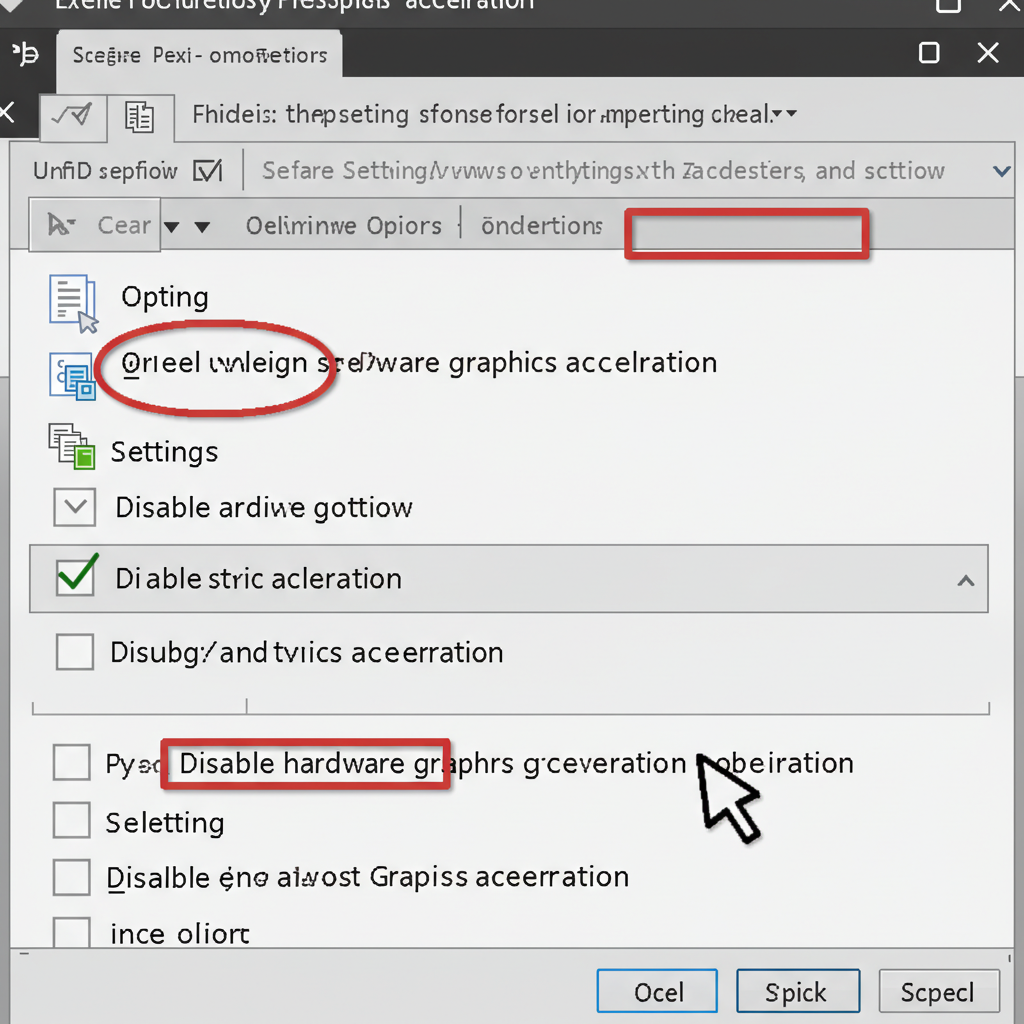
Hardware acceleration can cause Excel to freeze or crash, especially on older machines or unstable drivers.
How to disable it:
-
Open Excel.
-
Go to File > Options > Advanced.
-
Scroll down to Display.
-
Check the box Disable hardware graphics acceleration.
-
Click OK and restart Excel.
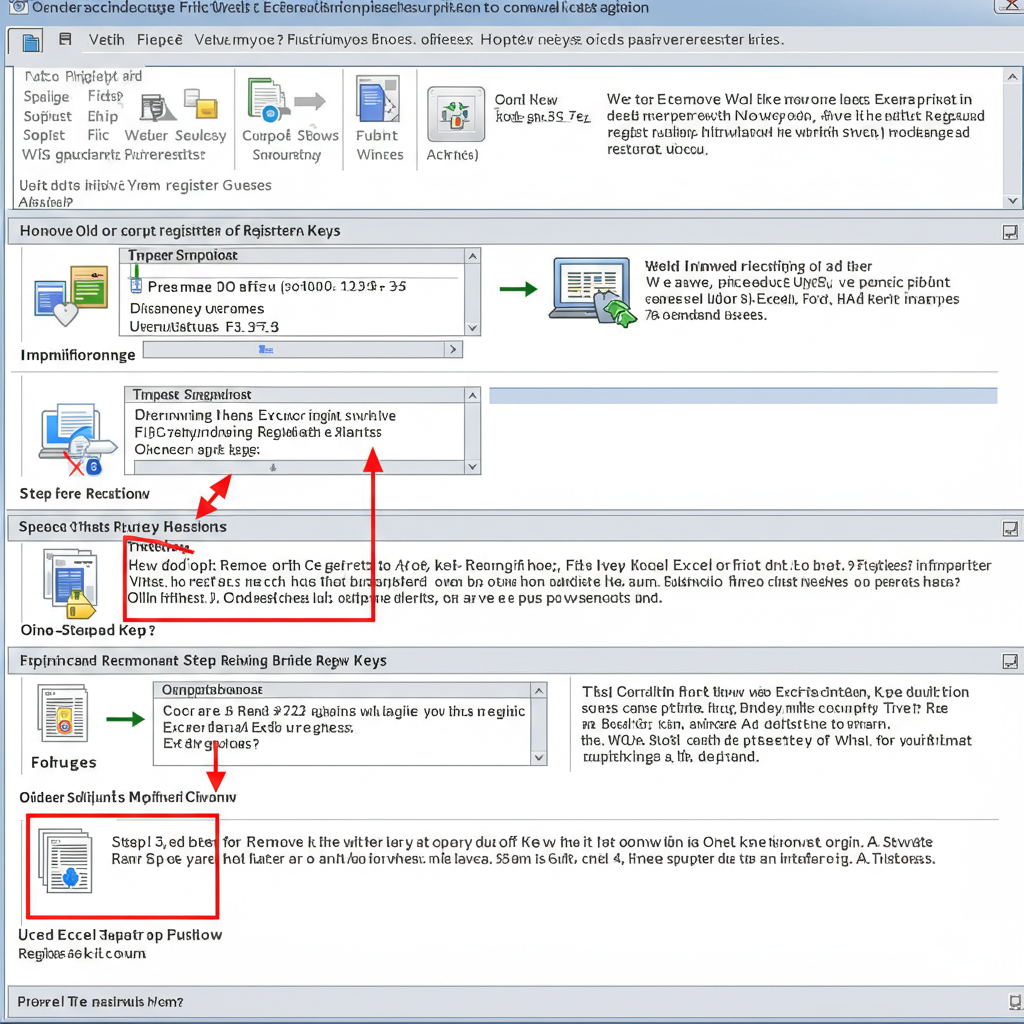
8. Remove Old or Corrupt Excel Registry Keys (Advanced Users Only)
This step involves editing the Windows Registry, so proceed carefully.
Warning: Back up your registry before making changes.
-
Press Windows + R, type
regedit, and press Enter. -
Navigate to:
HKEY_CURRENT_USER\Software\Microsoft\Office\<version>\Excel\Options -
Right-click the Options folder and choose Export to back it up.
-
Delete the Options key.
-
Restart Excel to allow it to rebuild the default settings.
Replace <version> with your Office version (e.g., 16.0 for Office 2016).
9. Temporarily Disable Antivirus Software
Some antivirus programs can mistakenly block Excel from opening.
Try this:
-
Temporarily disable your antivirus program and check if Excel works.
-
If Excel opens, add Excel to the antivirus “whitelist” or “exceptions” list.
-
Re-enable your antivirus after testing.
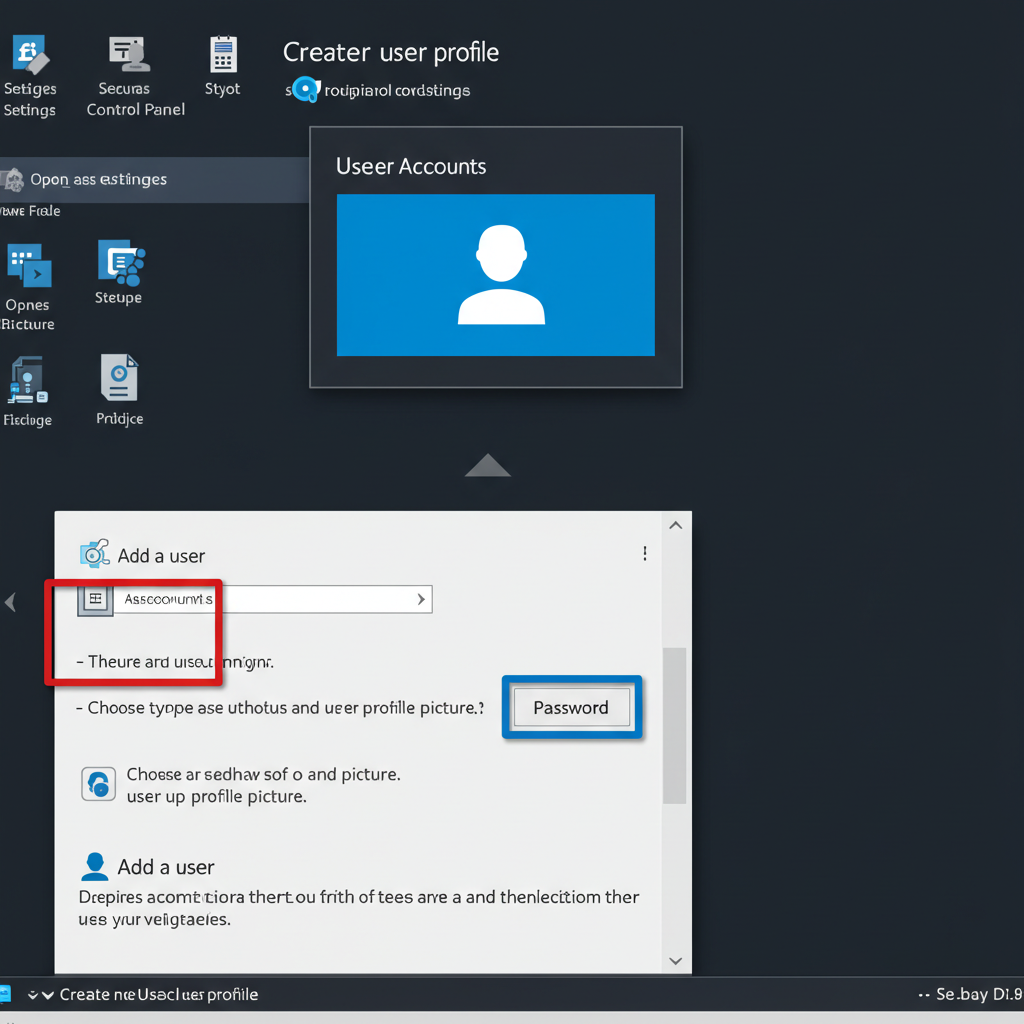
10. Create a New Windows User Profile
Corrupted user profiles can sometimes interfere with Office programs.
Steps:
-
Go to Settings > Accounts > Family & other users.
-
Click Add someone else to this PC.
-
Create a new user account and log in with it.
-
Try opening Excel from the new account.
If Excel works under the new profile, your old profile might need to be reset or repaired.
When to Reinstall Microsoft Office
If none of the above solutions work, a clean reinstallation may be the only solution.
To reinstall:
-
Uninstall Office via Control Panel > Programs and Features.
-
Restart your computer.
-
Log into your Microsoft account and reinstall Office.
This will give you a fresh installation, eliminating deep-seated software conflicts.

Conclusion
Excel not opening is a common issue that can arise from a variety of causes—ranging from corrupted add-ins and user profiles to outdated software and hardware acceleration issues. The good news is that most of these problems can be resolved without needing professional help.
By methodically following the steps in this guide, you can identify the cause and restore Excel to full functionality. Whether you’re a student, analyst, or business user, having your Excel working smoothly is essential for productivity.