


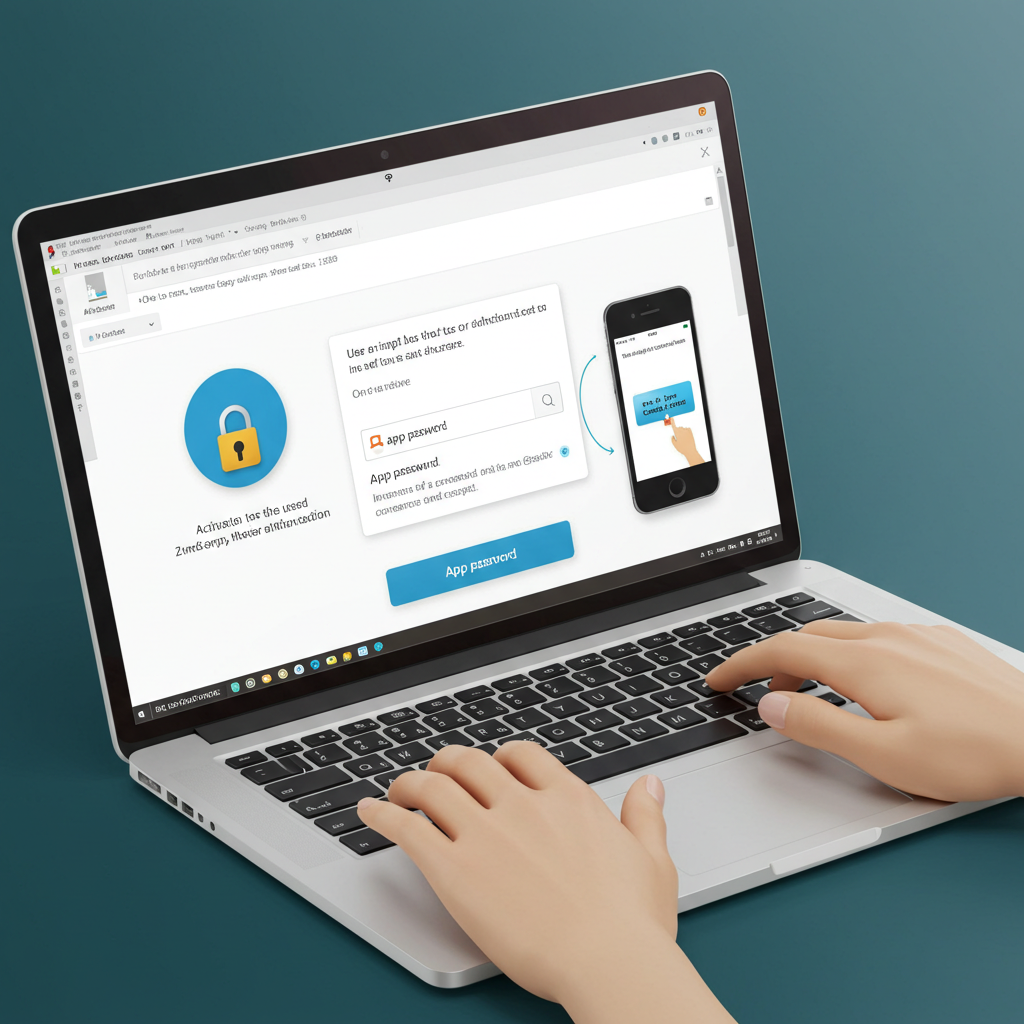
Why Does Outlook in Microsoft 365 Repeatedly Prompt for a Password?
One of the most frustrating issues many Microsoft Outlook users encounter is being repeatedly prompted to enter their password—often several times in a session. Even after inputting the correct credentials, the pop-up returns. This issue is not only annoying but can also hinder your productivity, especially when working in a corporate environment or managing multiple email accounts.
This article explores the common reasons why Outlook Office 365 keeps asking for a password and provides several detailed solutions to help you resolve the problem.
Common Reasons Outlook Keeps Asking for a Password
Before diving into solutions, it’s essential to understand why this issue occurs. There is no single cause, and the problem could be triggered by one or more of the following:
1. Corrupted Outlook Credentials
Outlook stores login information in Windows Credential Manager. If these saved credentials are outdated, corrupted, or conflicting with new credentials, Outlook may keep prompting for your password.
2. Office Activation Issues
If your Office 365 suite is not properly activated or has expired, Outlook may not be able to authenticate your account, leading to repeated password prompts.
3. Incorrect Email Account Settings
Improper configuration of your Outlook profile—such as wrong server addresses, ports, or authentication methods—can also cause login issues.
4. Outdated Outlook or Office Version
Older versions of Outlook might not support modern authentication methods or may contain bugs that lead to recurring password prompts.
5. Network or Proxy Issues
In some cases, network configurations, VPNs, or proxy servers may interfere with how Outlook communicates with Microsoft servers.
6. Two-Factor Authentication (2FA)
If your Microsoft or organizational account uses two-step verification and you’re not using an app password, Outlook may continuously request login information.
Fixes for Outlook Continually Asking for a Password
Now that we know the possible causes, let’s go through some effective solutions step by step.
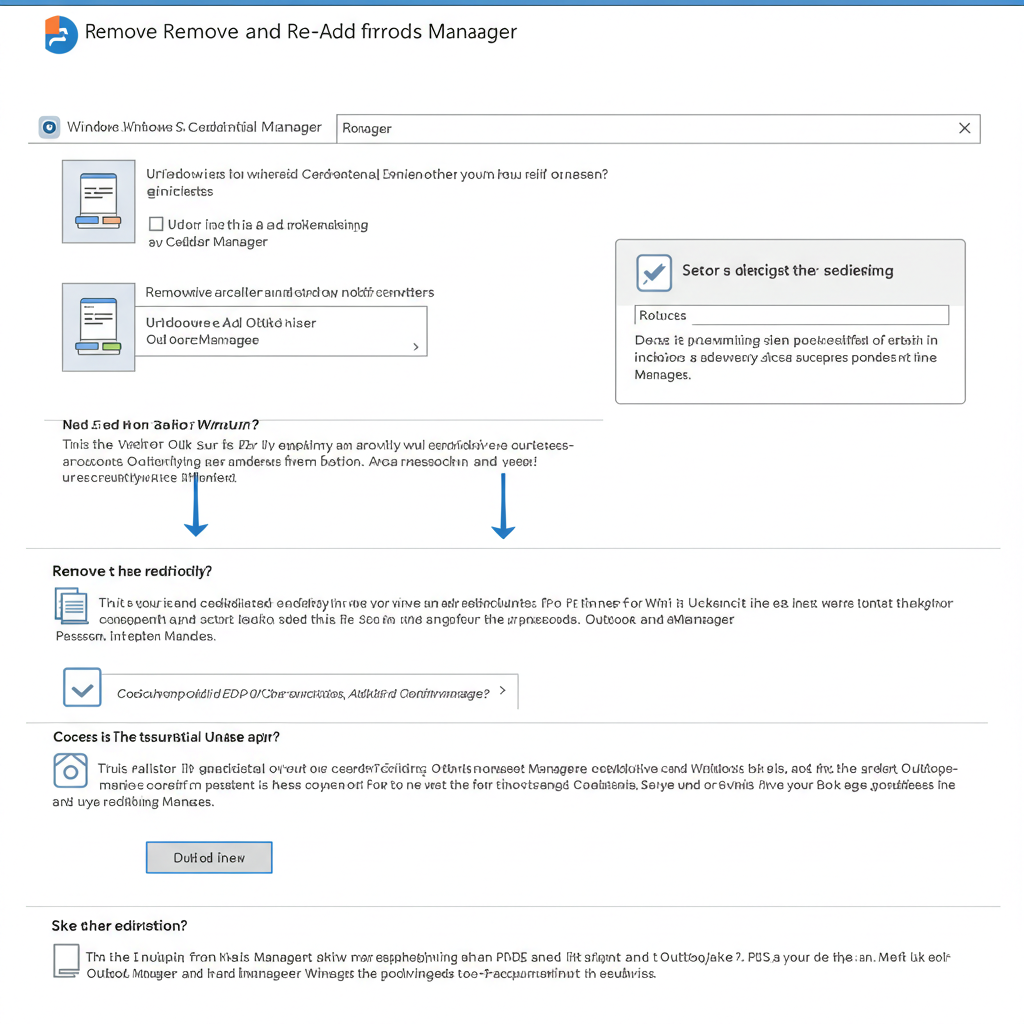
1. Remove and Re-add Outlook Credentials in Windows Credential Manager
Old or corrupted credentials are a major culprit.
Steps:
-
Close Outlook completely.
-
Open Control Panel > User Accounts > Credential Manager.
-
Click on Windows Credentials.
-
Look for any credentials that include Outlook, Microsoft Office, or your email address.
-
Click Remove for each of these entries.
-
Restart Outlook and re-enter your credentials when prompted.
This allows Outlook to start fresh and create new, correct login tokens.
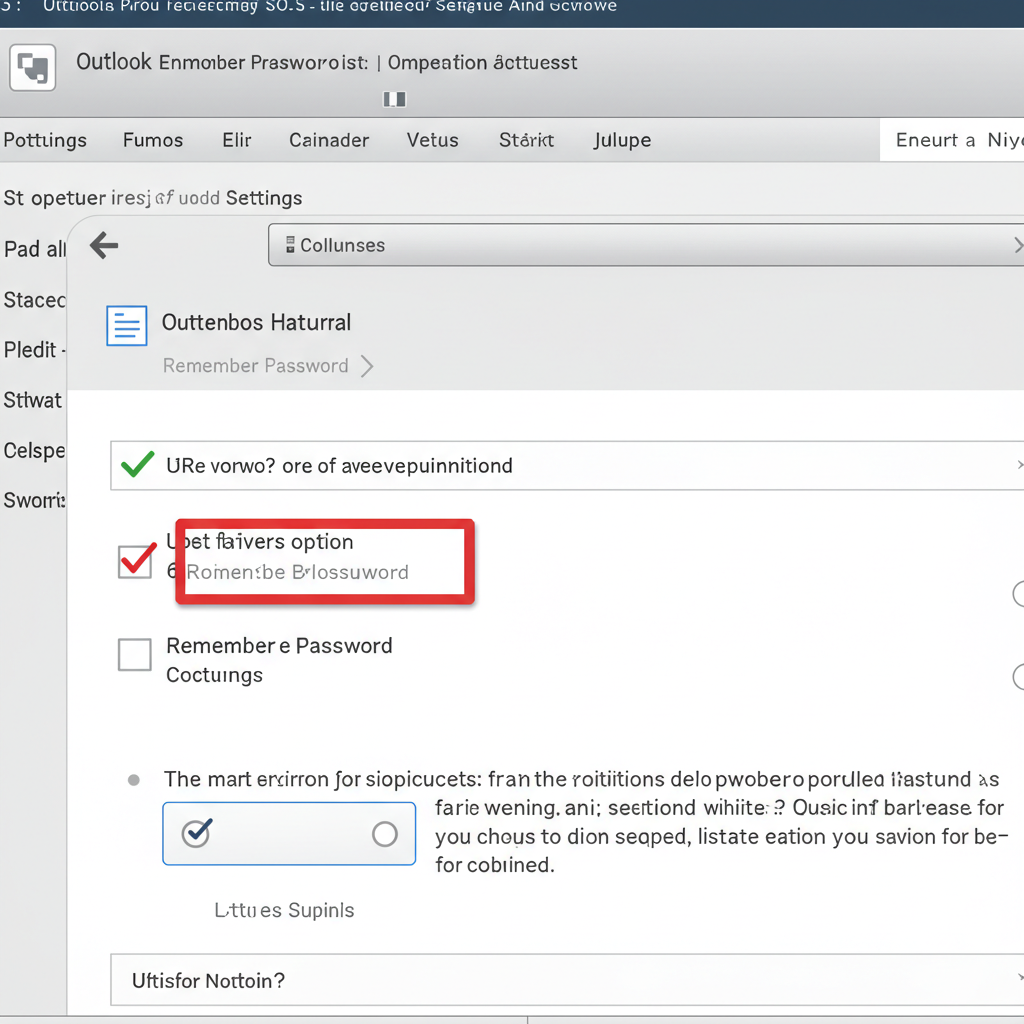
2. Enable “Remember Password” Option
Sometimes the simplest fix is to ensure the “Remember my credentials” checkbox is enabled.
To check:
-
When the password prompt appears, make sure “Remember my credentials” is ticked before clicking OK.
If this is disabled or unchecked, Outlook will forget your credentials every time.
3. Update Office to the Latest Version
Updating Office ensures you have the latest patches and authentication improvements.
How to update:
-
Open any Office app like Word or Excel.
-
Go to File > Account > Update Options > Update Now.
-
Restart Outlook after the update completes.
Older versions may not support modern login flows, especially with Microsoft 365 accounts.
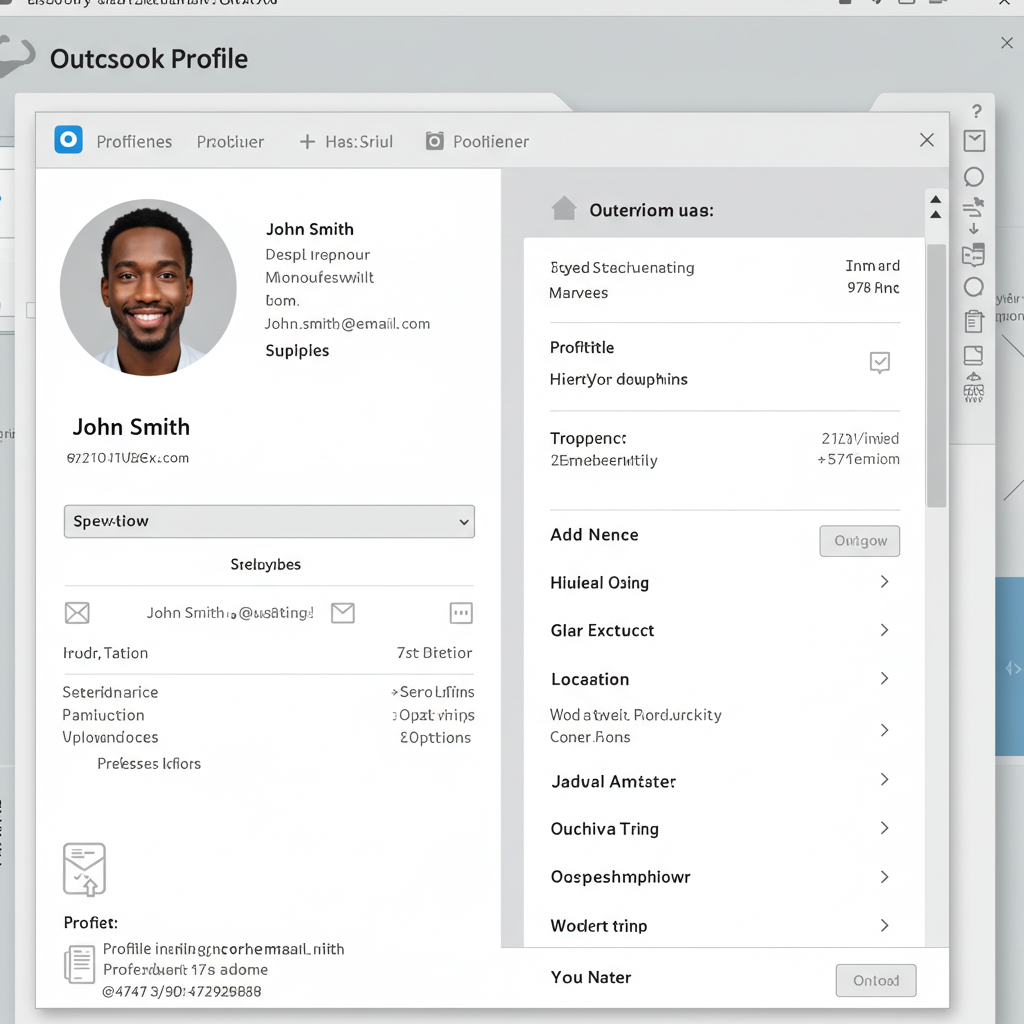
4. Recreate Your Outlook Profile
Creating a new Outlook profile can fix corrupt configurations.
Steps:
-
Open Control Panel > Mail > Show Profiles.
-
Click Add, give your new profile a name.
-
Enter your email account details.
-
Once the profile is created, choose Prompt for a profile to be used, and open Outlook with the new profile.
-
If the issue is resolved, you can delete the old profile later.
5. Check Your Network or Proxy Settings
If you’re working in a corporate environment, a proxy server may be interrupting Outlook’s connection.
Recommendations:
-
Temporarily disable any proxy settings or VPN connections.
-
Go to Internet Options > Connections > LAN Settings and uncheck “Use a proxy server for your LAN”.
-
Restart Outlook and check if the issue persists.
6. Use an App Password (If Using 2FA)
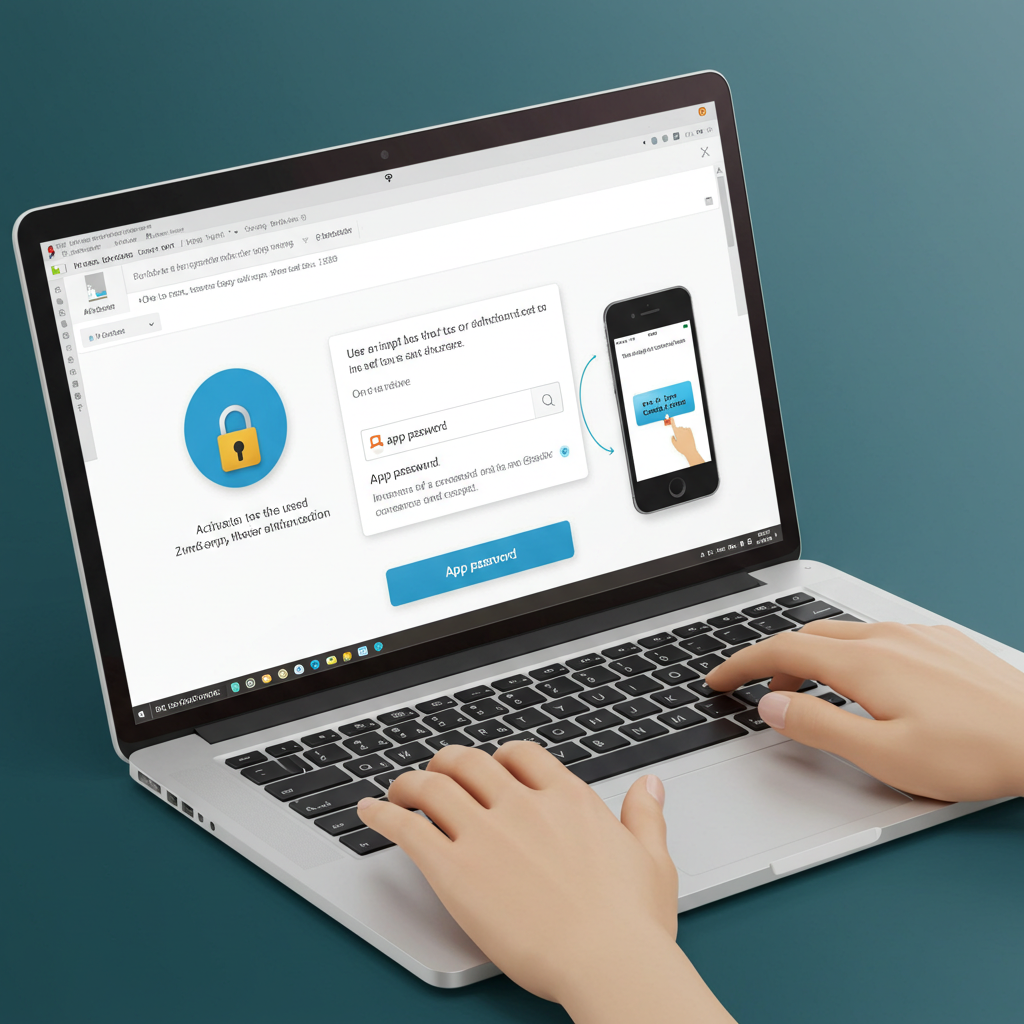
If your Microsoft account has two-factor authentication enabled, you must use an app password.
Steps:
-
Log in to your Microsoft account.
-
Go to Security > Advanced security options.
-
Under App passwords, generate a new app password.
-
Use this generated password when Outlook asks for login credentials.
App passwords bypass the 2FA process for apps that don’t support it natively.
7. Clear Cached Login Data in Outlook
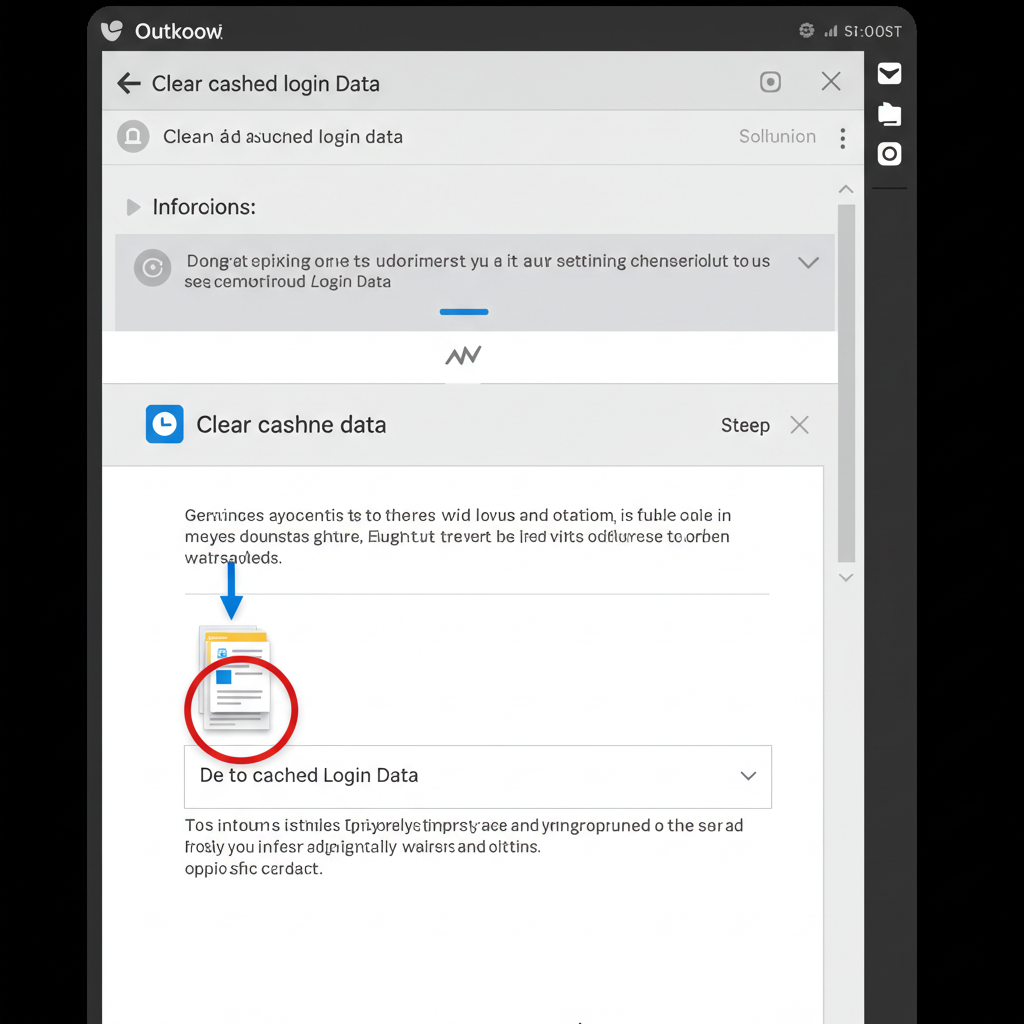
Cached credentials within the application can also cause repeated prompts.
Steps:
-
Close Outlook.
-
Go to this location:
C:\Users\<YourUsername>\AppData\Local\Microsoft\Outlook -
Delete the .ost or .dat files (don’t worry—these will be rebuilt).
-
Restart Outlook.
Note: You may need to enable hidden files in File Explorer to see this folder.
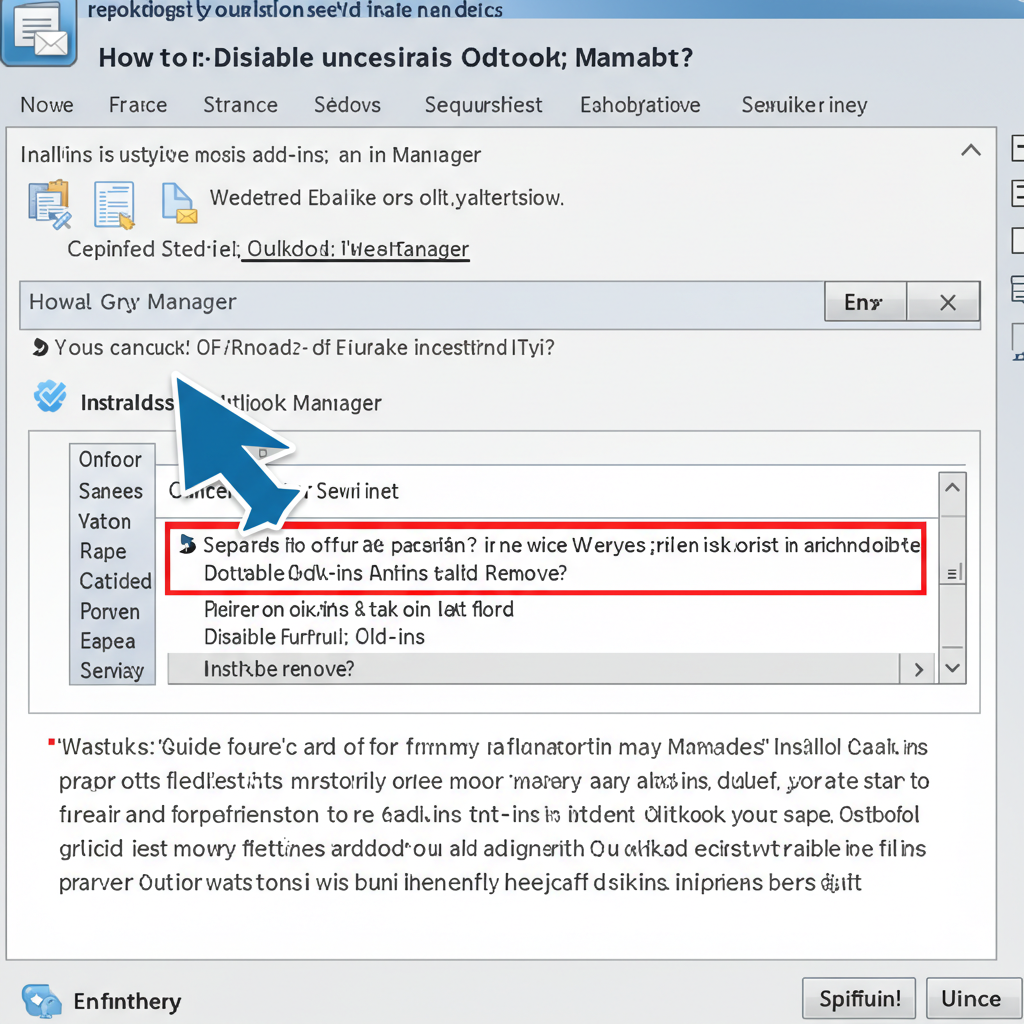
8. Disable Unnecessary Add-ins
Outlook add-ins can sometimes interfere with login sessions.
How to disable:
-
Go to File > Options > Add-ins.
-
Click Manage COM Add-ins > Go.
-
Uncheck all add-ins and click OK.
-
Restart Outlook and see if the password issue continues.
You can re-enable them one by one to find the culprit if this solves the issue.
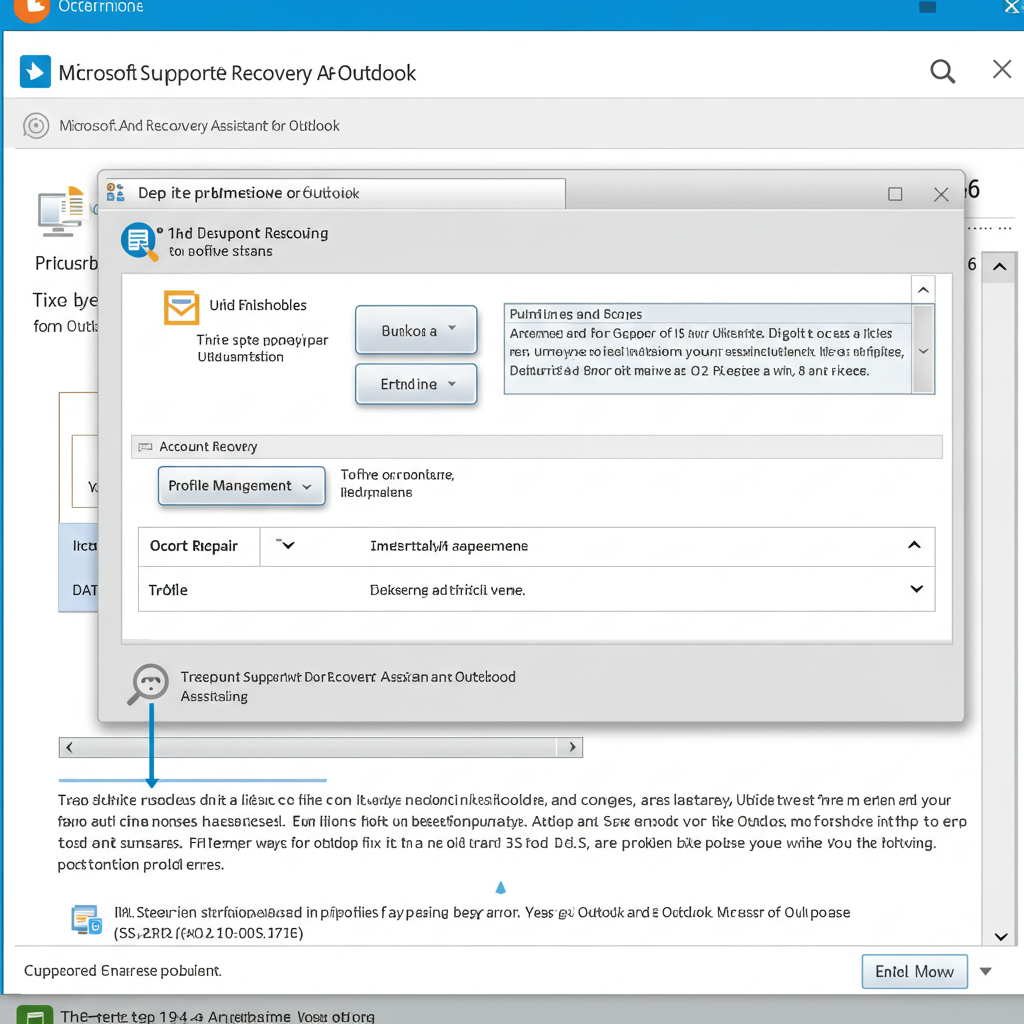
9. Use Microsoft Support and Recovery Assistant (SaRA)
Microsoft offers a tool called SaRA that can automatically diagnose and fix many Outlook problems.
How to use:
-
Download SaRA from the official Microsoft website.
-
Run the tool and select Outlook keeps asking for password.
-
Follow the steps to complete the diagnostic and apply fixes.
Conclusion
Outlook continually asking for a password can be caused by anything from saved credential corruption to network problems, outdated software, or security policies. While it’s frustrating, the issue is usually fixable by carefully working through the possible causes outlined above.
Whether you’re an individual user or an IT administrator, these steps should help you eliminate the problem and restore a stable Outlook experience.