


How to Resolve the Excel Error: “Array Value Not Found”
Excel is an incredibly powerful tool used by professionals and casual users alike. But despite its utility, users can occasionally run into frustrating error messages—like “An array value could not be found.” This message typically appears when using array formulas or functions such as LOOKUP, INDEX, MATCH, or FILTER, and it signals that Excel was unable to locate the value it expected in the array or range you provided.
This article will guide you through understanding what this error means, the most common causes, and multiple ways to fix it.
What Does “An Array Value Could Not Be Found” Mean?
This error means that Excel attempted to find a value in a range or array, but it couldn’t find a match that met the function’s criteria. It is often related to lookup or filter functions, particularly those that return multiple results or are intended to operate on arrays (dynamic or otherwise).
You will typically encounter this error when:
-
The value you’re trying to find doesn’t exist in the data.
-
The data has formatting mismatches (e.g., numbers stored as text).
-
An array formula is incomplete or improperly structured.
-
The formula references blank cells or ranges.
-
You’re using a newer function (like
FILTER) without correct logic.
Common Functions That Trigger This Error
Understanding where the error often appears can help you troubleshoot more effectively. Here are a few functions that frequently trigger the “array value could not be found” error:
1. FILTER()
If no value in B2:B10 equals “Completed,” this formula returns the error.
2. INDEX + MATCH
If “Project X” is not found in A2:A10, the formula fails.
3. LOOKUP or XLOOKUP
The older LOOKUP function and the newer XLOOKUP also throw this error when a match can’t be found.
Fixes for “An Array Value Could Not Be Found”
Let’s go step-by-step through several ways you can fix this issue depending on the cause.
1. Use IFERROR or IFNA to Handle the Missing Data Gracefully
Wrap your function with IFERROR or IFNA to catch the error and display a custom message or blank result instead.
Example:
This prevents Excel from displaying the error and instead shows a helpful message.
2. Check for Exact Matches in Your Data
A common reason Excel can’t find an array value is due to slight differences in formatting or data entry.
Things to Check:
-
Extra spaces (leading or trailing)
-
Capitalization differences (Excel is case-insensitive for lookups, but it’s still good practice to match styles)
-
Data stored as text vs. numbers
Fix:
Use TRIM, CLEAN, or VALUE to standardize your data.
=TRIM(A2)

=VALUE(B2)
3. Ensure Your Lookup Array or Range Is Correct
Sometimes users unintentionally reference the wrong range or mismatched ranges in functions like FILTER, INDEX, or MATCH.
Double-Check:
-
That your array sizes match
-
That your criteria range and result range are aligned
Incorrect Example:
Corrected Example:
=FILTER(A2:A10, B2:B10="Done")
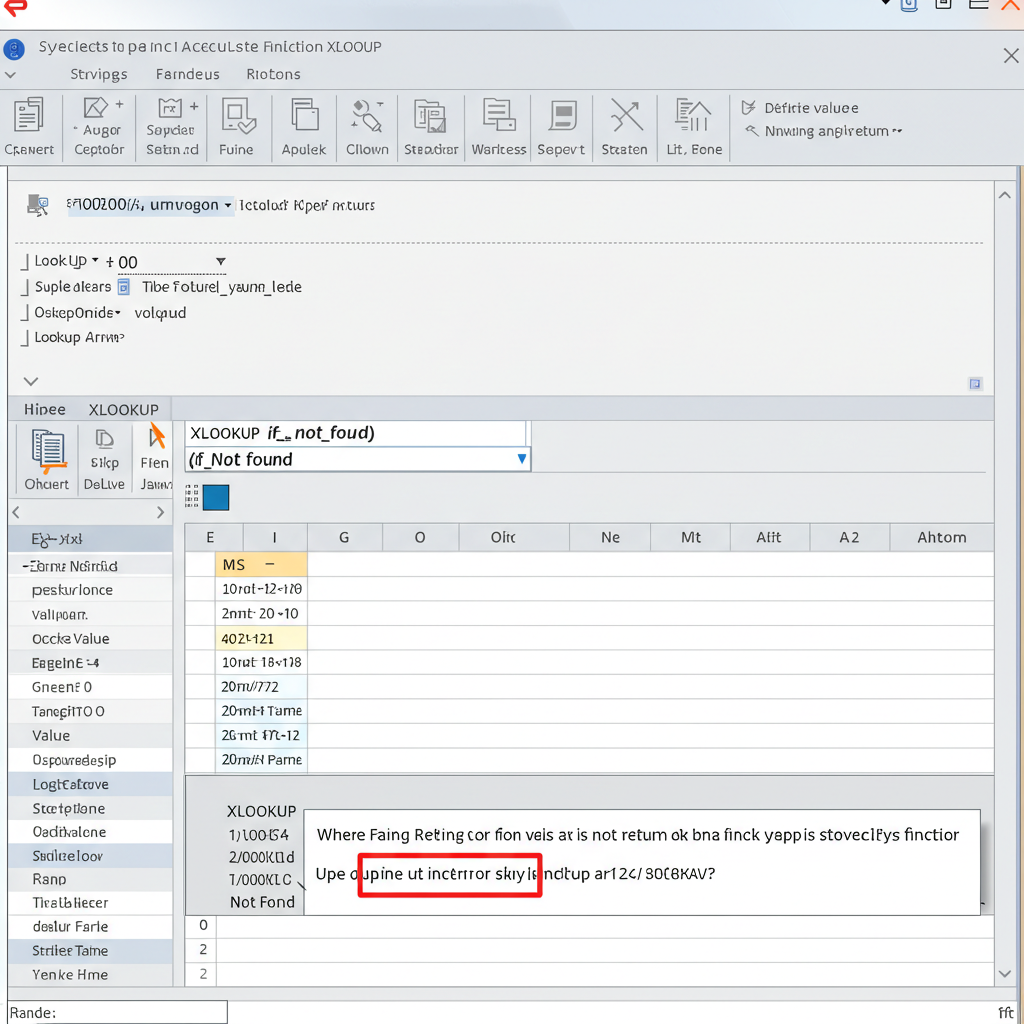
4. Add a Default Return in XLOOKUP
If you’re using XLOOKUP, you can specify a default return value when the match isn’t found.
Syntax:
This avoids the array error by giving Excel something to return when it fails to match.
5. Avoid Referencing Blank Cells
If your formula includes ranges that contain blank or empty cells, Excel may fail to process the array correctly.
Solution:
-
Use filters to exclude blank rows from the data set.
-
Use formulas like
=FILTER(A2:A10, (B2:B10<>"")*(B2:B10="Done"))to ensure blank rows are ignored.
6. Use LET or LAMBDA for More Complex Conditions
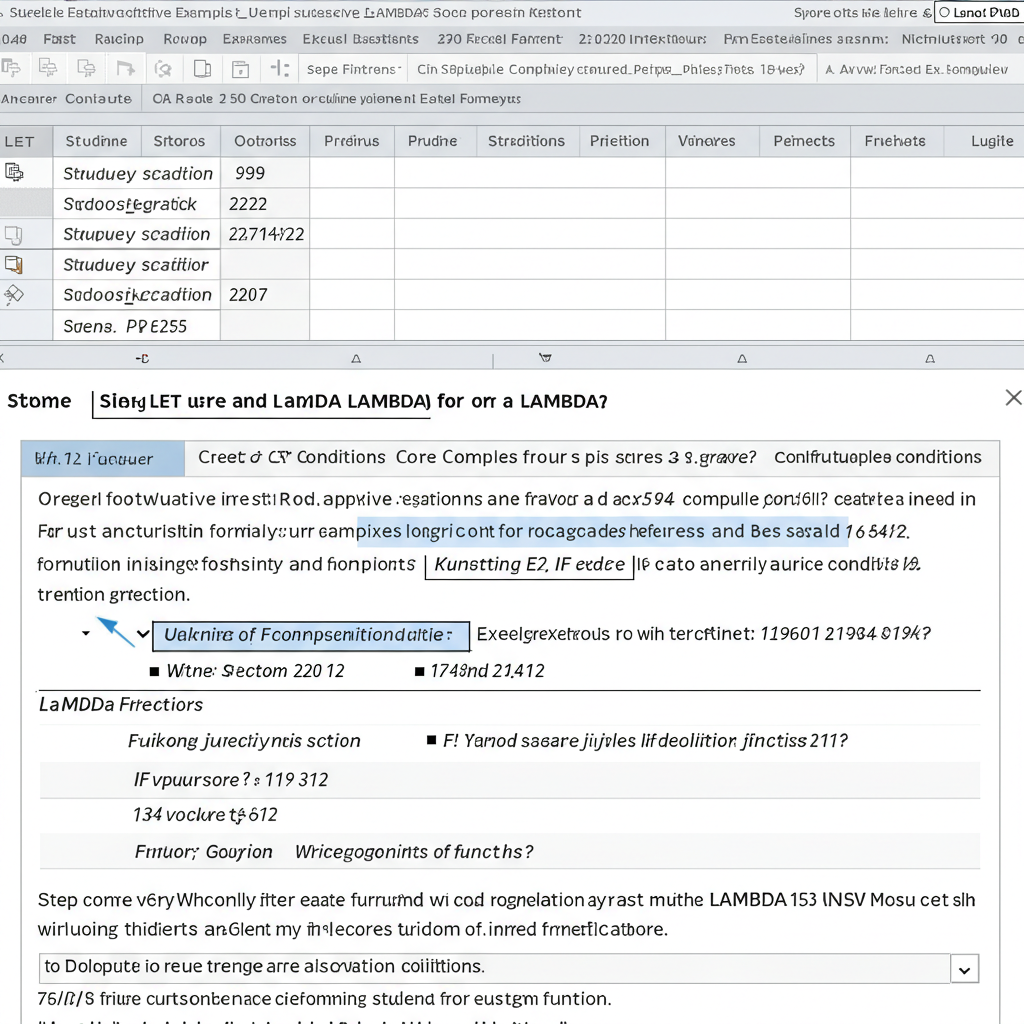
For advanced users, Excel’s LET or LAMBDA functions can help simplify and structure formulas for better readability and error control.
Example with LET:
This stores the filtered result in a named variable and manages the error more cleanly.
7. Sort or Clean Your Data Source
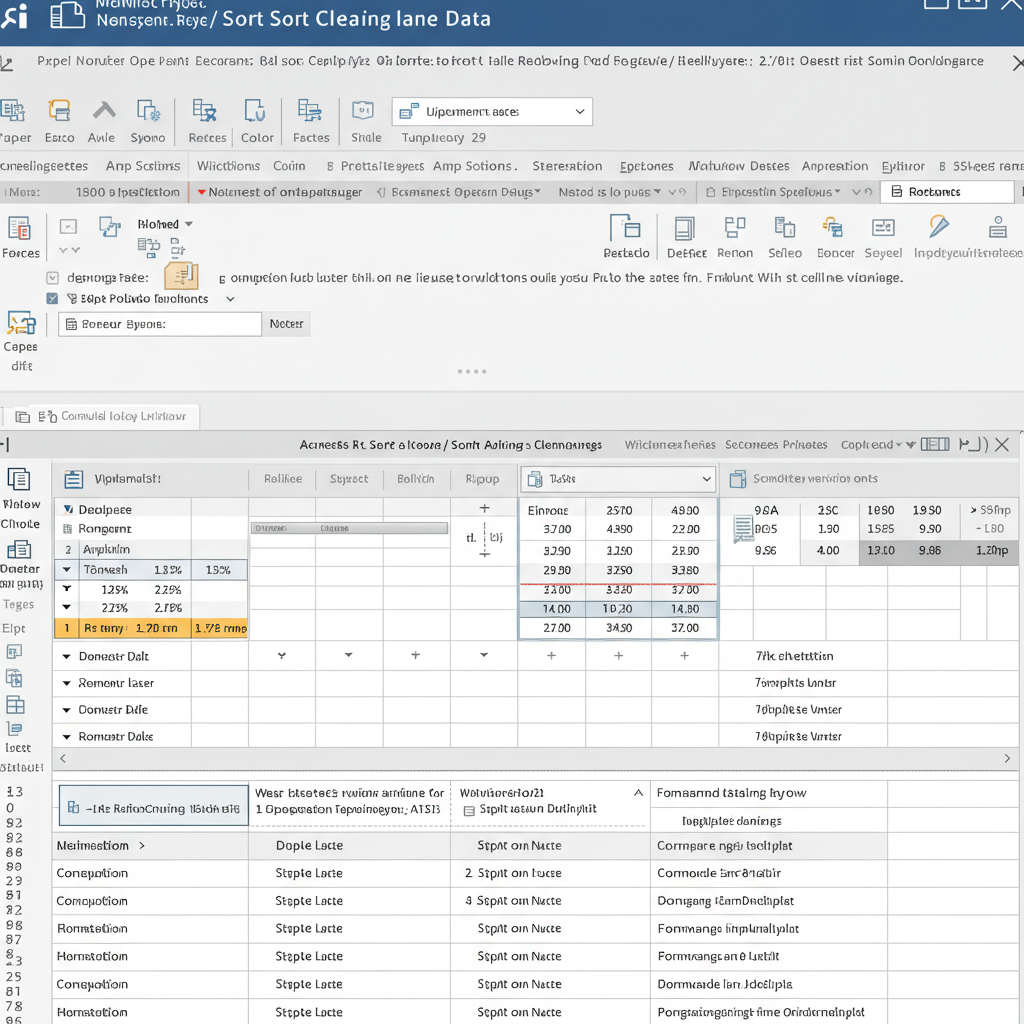
Especially with large or imported datasets, inconsistencies are common.
Recommendations:
-
Use Data > Remove Duplicates to ensure uniqueness.
-
Use Data > Text to Columns to fix misaligned formats.
-
Use Sort A-Z to ensure logical order for certain lookups like
LOOKUP()orMATCH().
8. Use Conditional Formatting to Spot Issues
You can visually identify blank or mismatched cells using conditional formatting.
Steps:
-
Select your range.
-
Go to Home > Conditional Formatting > New Rule.
-
Use a formula like
=ISBLANK(A2)or=ISTEXT(A2)depending on your needs.
This highlights cells that might be breaking your formula logic.
Conclusion
The “An array value could not be found” error in Excel is a common and fixable problem. By understanding the underlying cause—whether it’s a missing match, incorrect range, or formatting issue—you can apply the right solution and get your formulas working again.
Use functions like IFERROR, clean your data, and verify your ranges carefully. Once you identify the pattern causing the issue, you’ll find this error much easier to avoid in future spreadsheets.