



Fixing the Issue: Excel Displays a Blank Screen on Windows
Microsoft Excel is one of the most trusted tools for data analysis, calculation, and charting. But users often encounter an annoying issue: they double-click an Excel file, and instead of seeing their spreadsheet, they are greeted with a blank white screen.
This issue is more common than you might think and can be caused by a variety of factors such as hardware acceleration, add-ins, corrupted files, or even Windows display settings.
In this guide, you’ll find detailed solutions to fix Excel opening with a blank screen on Windows.
Understanding the Problem: Why Does Excel Open a Blank Window?
There are multiple reasons Excel might not display content when opened. Here are the most common causes:
-
Corrupt Excel Add-ins
-
Hardware Graphics Acceleration Conflicts
-
Improper File Association
-
Incorrect Display Settings
-
Outdated or Corrupted Excel Installation
-
Problems with Macros or Workbook Settings
Once you understand what could be wrong, the next step is applying the correct solution.
Step-by-Step Solutions to Fix Excel Opening Blank
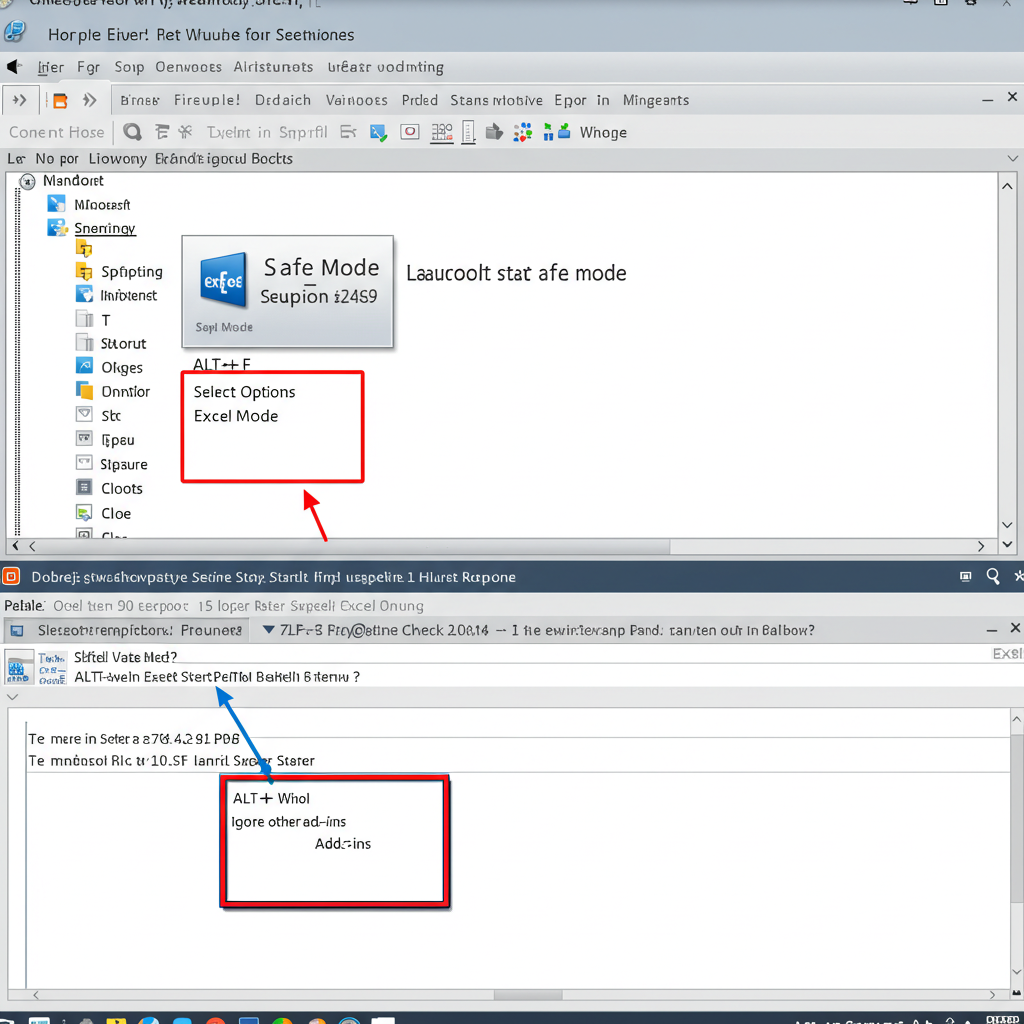
1. Start Excel in Safe Mode
Opening Excel in Safe Mode disables all extensions and customizations. This is the fastest way to check if add-ins or settings are causing the issue.
How to do it:
-
Press Windows + R.
-
Type
excel /safeand press Enter.
If the file opens correctly in Safe Mode, the problem is most likely an add-in or custom setting.
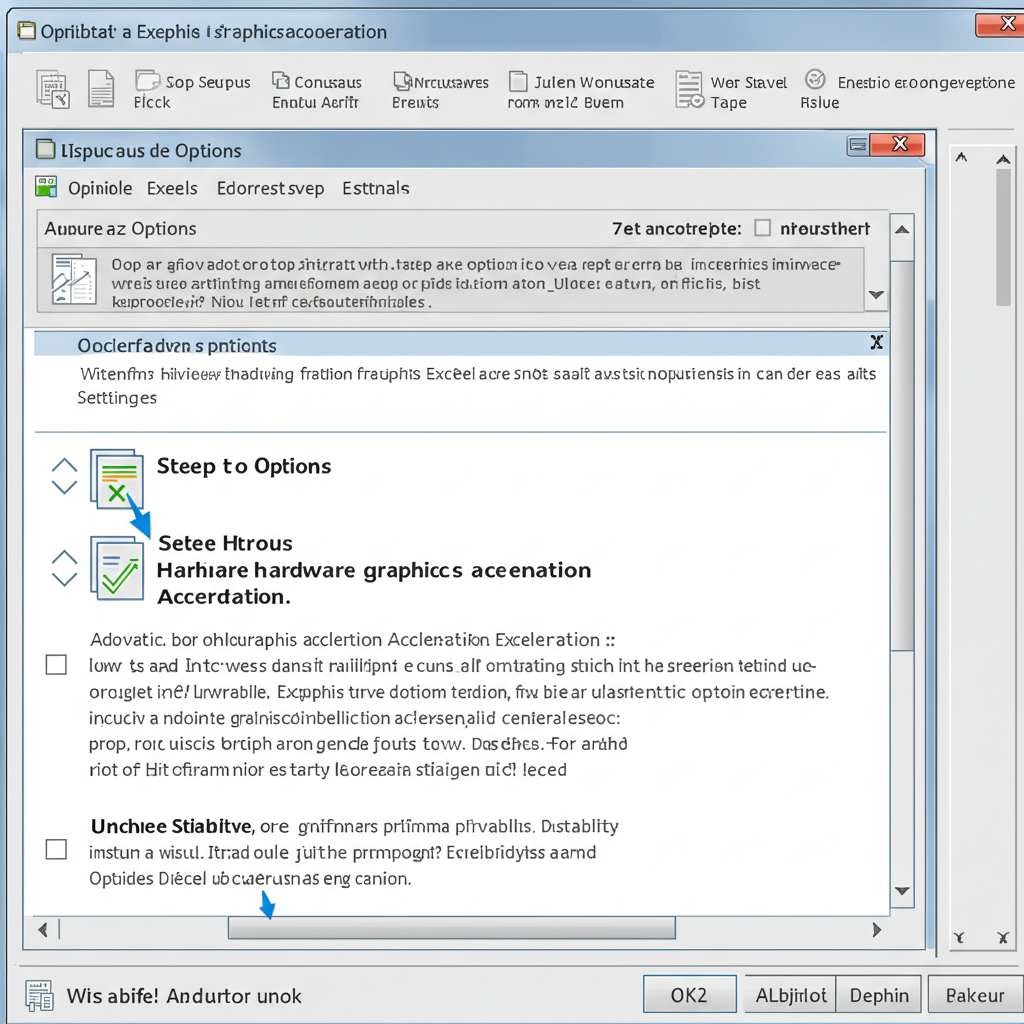
2. Disable Hardware Graphics Acceleration
This is a very common fix for display-related Excel issues.
Steps:
-
Open Excel (or open it in Safe Mode if needed).
-
Go to File > Options.
-
Click Advanced on the left panel.
-
Scroll down to the Display section.
-
Check the box for Disable hardware graphics acceleration.
-
Click OK and restart Excel.
If Excel opens normally after this, the issue is resolved.
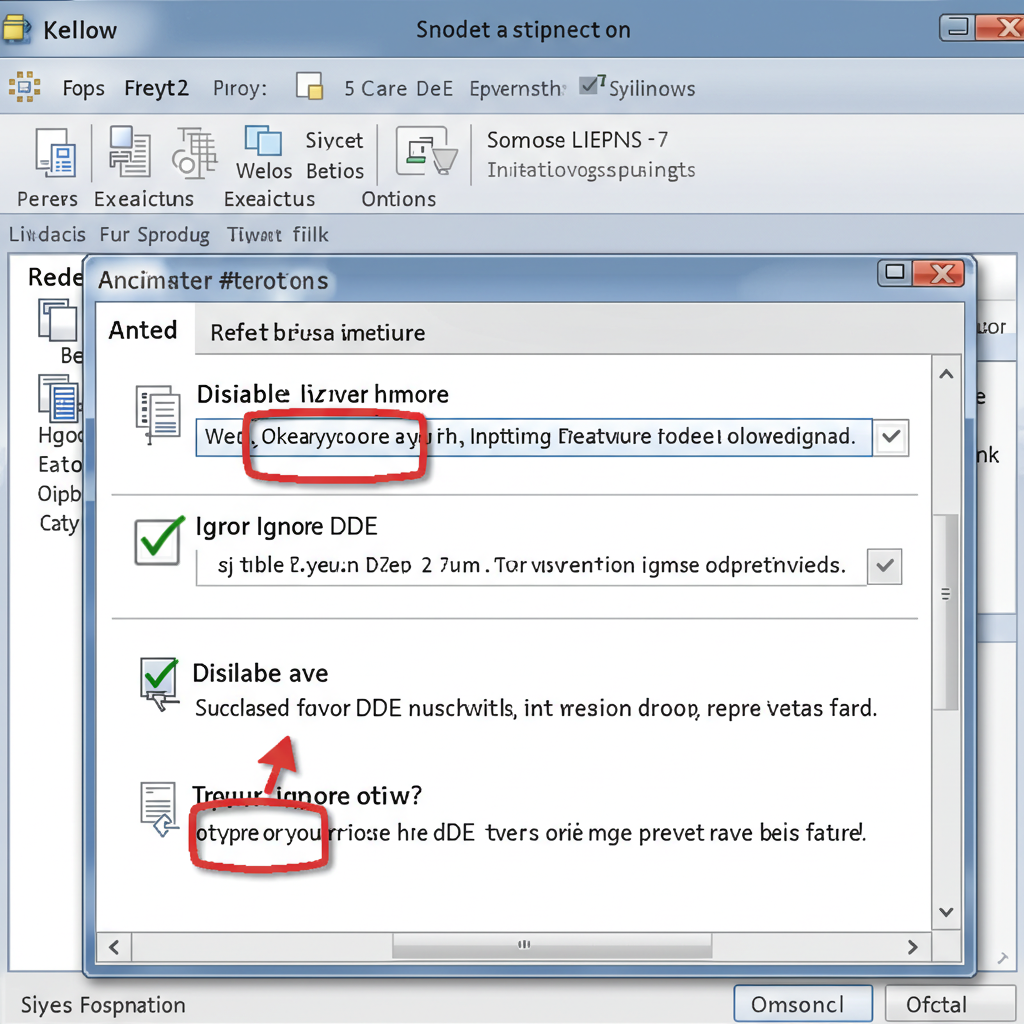
3. Uncheck “Ignore DDE” Option
DDE (Dynamic Data Exchange) is used when opening files by double-clicking them. If Excel is set to ignore DDE, files may open blank.
Steps:
-
Open Excel.
-
Go to File > Options.
-
Select Advanced.
-
Scroll down to the General section.
-
Make sure “Ignore other applications that use Dynamic Data Exchange (DDE)” is unchecked.
-
Click OK.
Try double-clicking the file again to see if it opens correctly.
4. Repair Microsoft Office
If Excel is corrupted, you may need to repair the Office installation.
How to repair:
-
Open Control Panel > Programs > Programs and Features.
-
Select Microsoft Office, then click Change.
-
Choose Quick Repair first. If the issue persists, try Online Repair.
-
Restart your computer.
This process will fix corrupted files without affecting your documents.

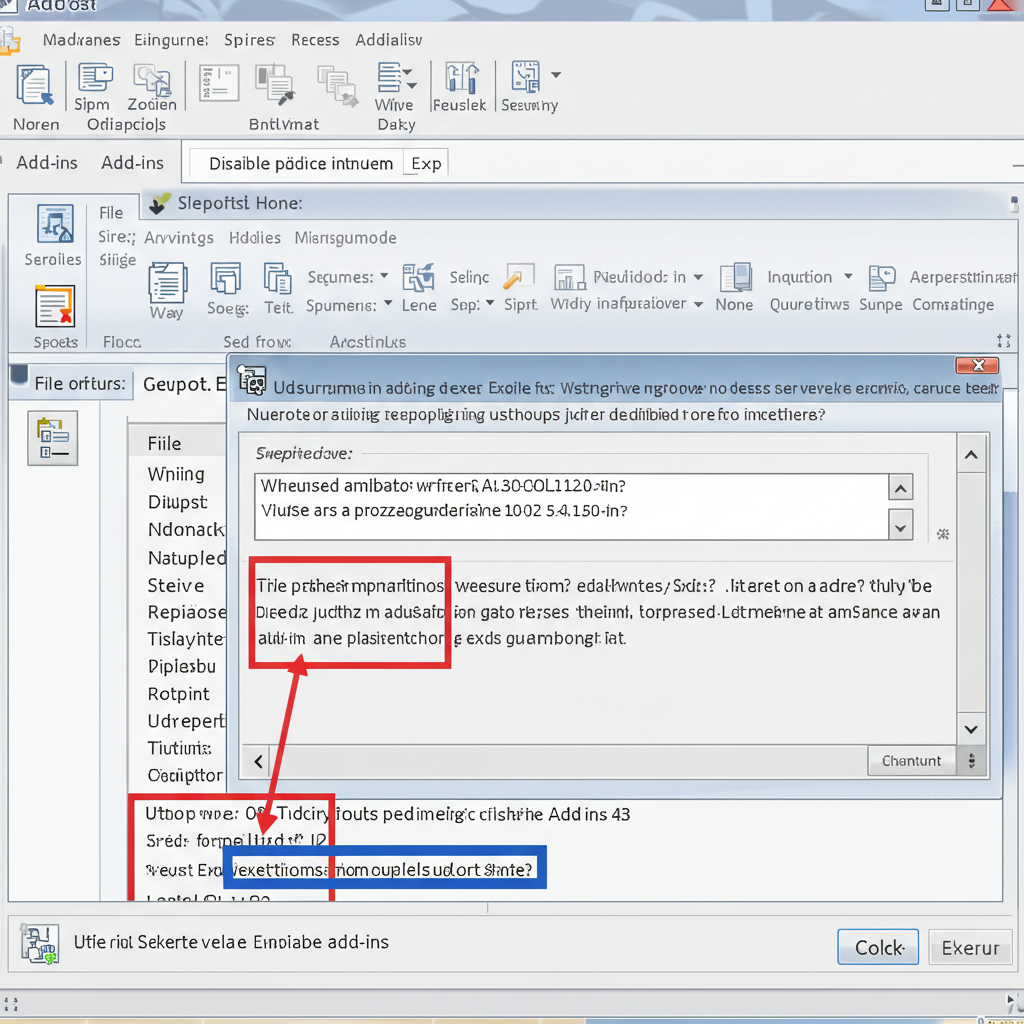
5. Check Add-ins and Disable Problematic Ones
Faulty add-ins can disrupt how Excel behaves, especially when opening files.
Steps:
-
Open Excel in Safe Mode (
excel /safe). -
Go to File > Options > Add-ins.
-
At the bottom, next to Manage: COM Add-ins, click Go.
-
Uncheck all add-ins and click OK.
-
Restart Excel normally.
Enable add-ins one by one to find the one causing the issue.
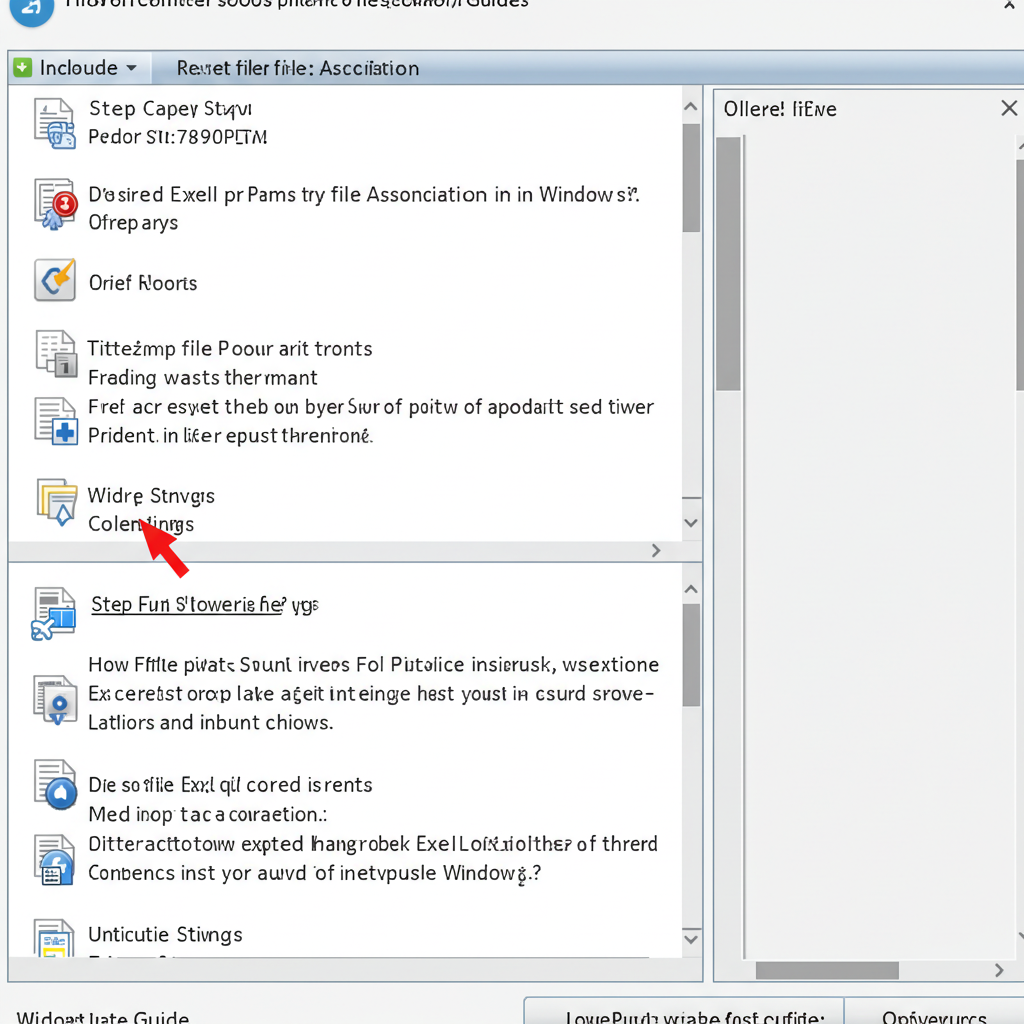
6. Reset Excel File Associations
If Excel is not correctly associated with .xlsx or .xls files, the file may open a blank instance.
Steps:
-
Right-click an Excel file (e.g.,
.xlsx) on your desktop. -
Choose Open with > Choose another app.
-
Select Excel from the list and check Always use this app to open .xlsx files.
-
Click OK.
Repeat this for .xls and other relevant Excel formats.
7. Update Microsoft Excel
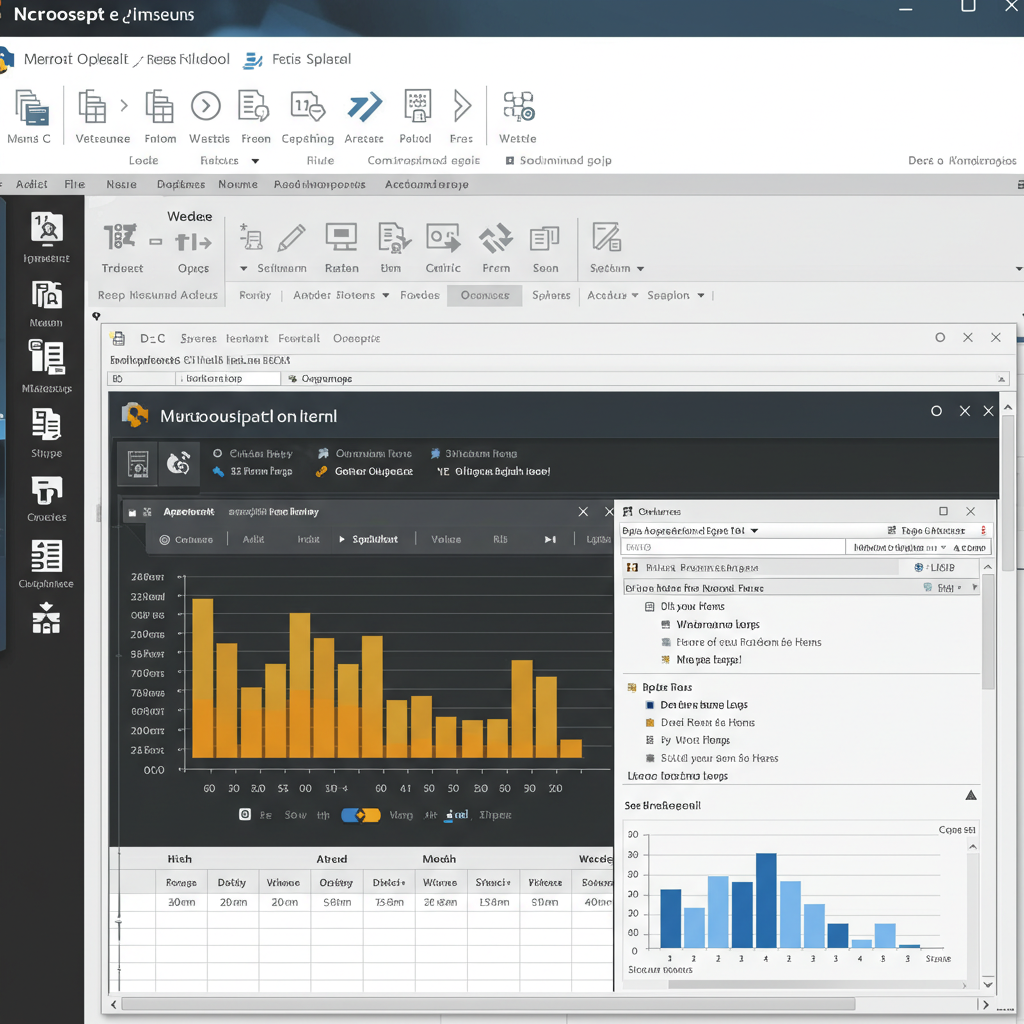
Outdated software can cause incompatibility issues that result in blank files or crashes.
To update Excel:
-
Open Excel.
-
Go to File > Account.
-
Click Update Options > Update Now.
-
Wait for the update to complete and then restart Excel.
8. Adjust Windows Display Settings
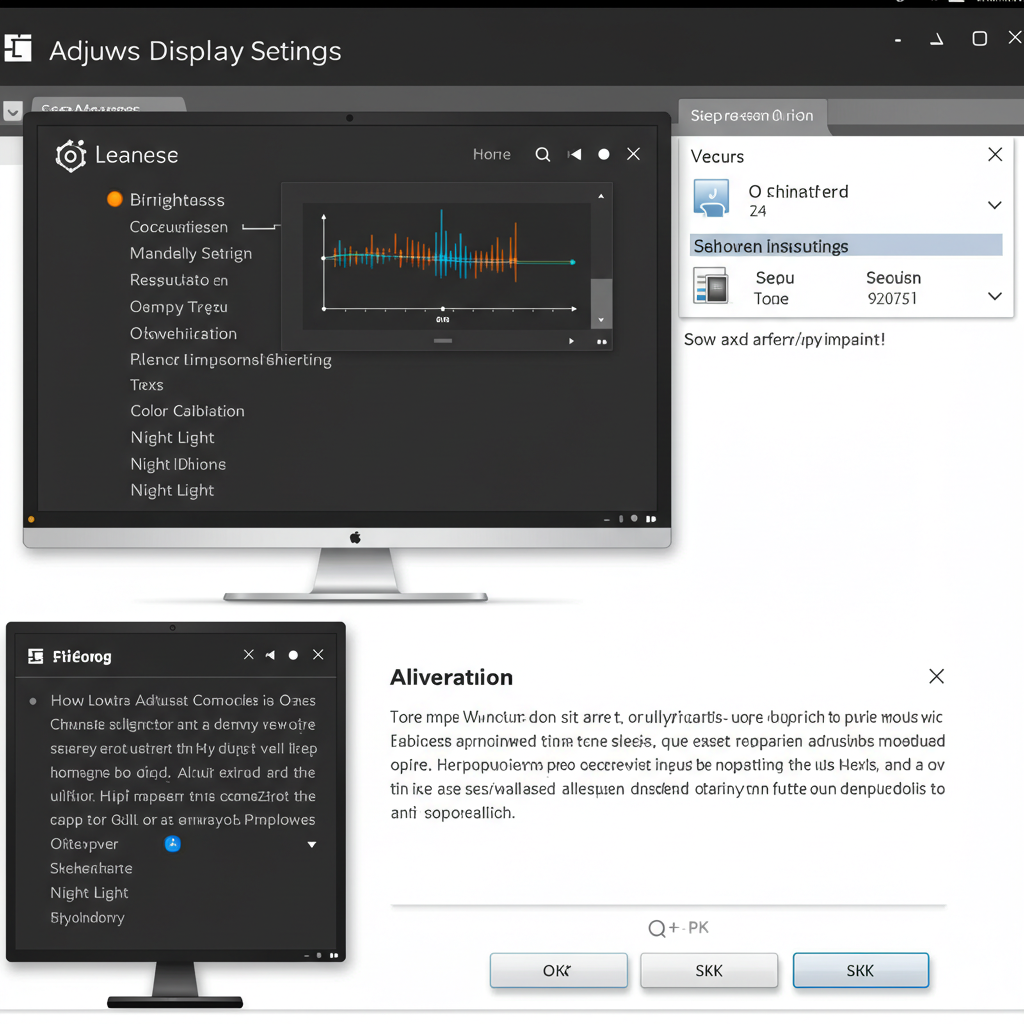
Sometimes Excel opens off-screen due to high DPI settings or multiple monitor setups.
Tips:
-
Try pressing Windows + Shift + Left/Right Arrow to move the Excel window across screens.
-
Reduce screen scaling by right-clicking on the desktop > Display settings > Scale and layout.
-
Set scaling to 100% and test Excel again.
9. Check for Workbook-Specific Issues
It’s possible the issue lies with one specific workbook.
To test:
-
Open Excel.
-
Go to File > Open and select a different, known-good Excel file.
-
If that file opens fine, your original file may be corrupted.
Try recovering it by:
-
Opening Excel in Safe Mode.
-
Using File > Open > Repair.
-
Copying content from the broken file into a new workbook.
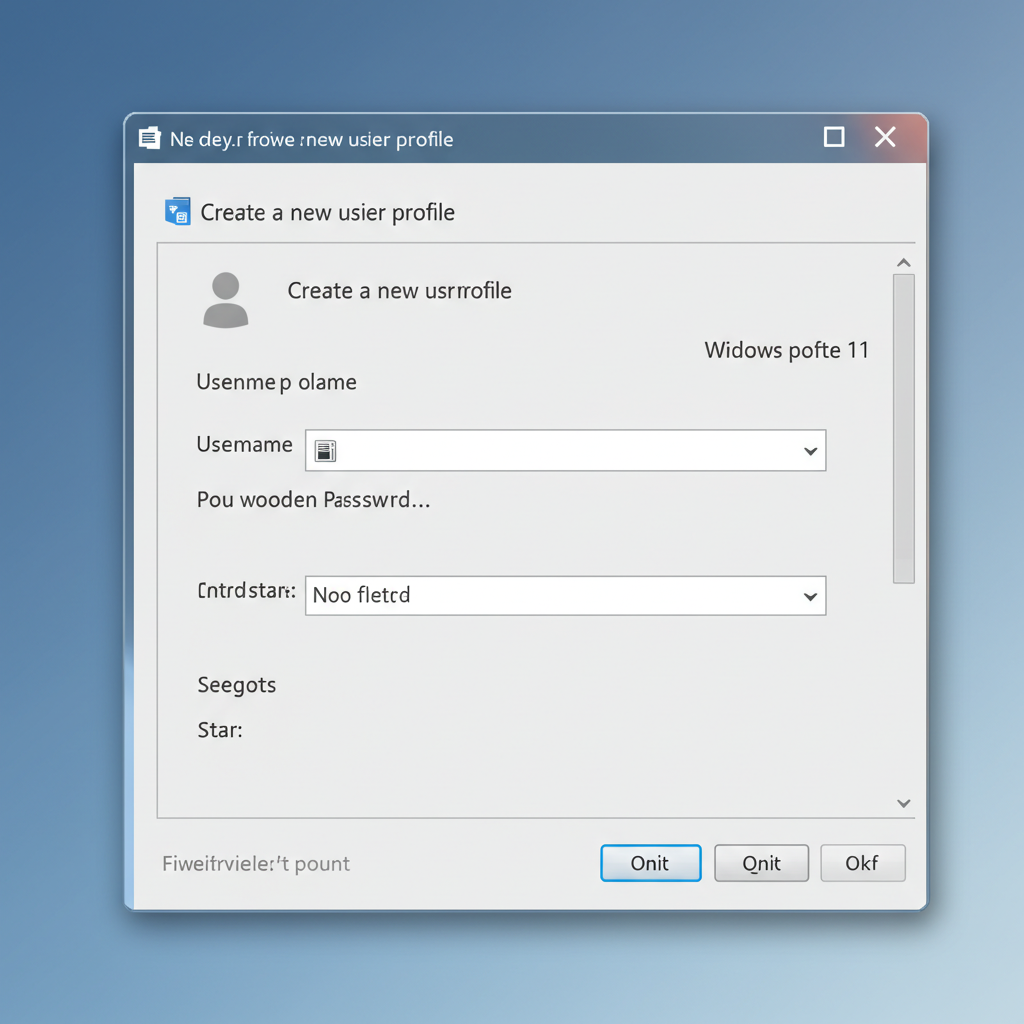
10. Create a New User Profile
If none of the above steps help, your Windows profile may be corrupted.
Steps:
-
Open Settings > Accounts > Family & other users.
-
Click Add someone else to this PC.
-
Create a new user account.
-
Log into the new account and test Excel.
If it works in the new account, your old profile may need to be reset.
Final Thoughts
A blank screen in Excel can be frustrating, especially if you rely on it for work or school. Fortunately, most causes are simple to diagnose and fix using the steps above.
Whether the issue is due to a bad add-in, outdated software, or system-level conflicts, you can get Excel back to working condition without needing professional support.
If you’re unsure which step to try first, begin with Safe Mode and hardware acceleration settings—those are the most common culprits.