


Troubleshooting Werfault.exe Causing High CPU Usage in Windows
Windows is a powerful operating system, but sometimes it encounters issues that can slow down performance. One common problem users face is high CPU usage caused by Werfault.exe. This process, while legitimate, can consume a large amount of system resources and make your computer sluggish.
In this guide, you’ll learn what Werfault.exe is, why it sometimes causes high CPU usage, and how to fix the problem effectively on Windows 10 and Windows 11.

What Is Werfault.exe?
Werfault.exe stands for Windows Error Reporting Fault. It is a system process responsible for handling application errors and sending error reports to Microsoft.
Whenever a program crashes or encounters a serious problem, Werfault.exe collects information about the error and gives you options such as checking for solutions online or closing the program.
Normally, this process uses very little CPU power, but when it gets stuck or when applications constantly crash, Werfault.exe can spike in CPU usage and affect system performance.
Common Causes of High CPU Usage by Werfault.exe
Several factors can lead to Werfault.exe consuming too many resources:
-
A program repeatedly crashing in the background.
-
Corrupted or outdated device drivers.
-
Malware disguising itself as Werfault.exe.
-
Windows Error Reporting service being stuck in a loop.
-
Corrupted system files.
Understanding the root cause is the first step in solving the problem.

Restart Your Computer
Before trying advanced fixes, restart your system. Sometimes a temporary glitch in the error reporting service can cause Werfault.exe to spike in CPU usage, and a simple reboot may resolve the issue.

Check for Malware
Although Werfault.exe is a legitimate Windows process, malware can sometimes disguise itself with the same name.
Steps to Run a Malware Scan:
-
Press Windows + I to open Settings.
-
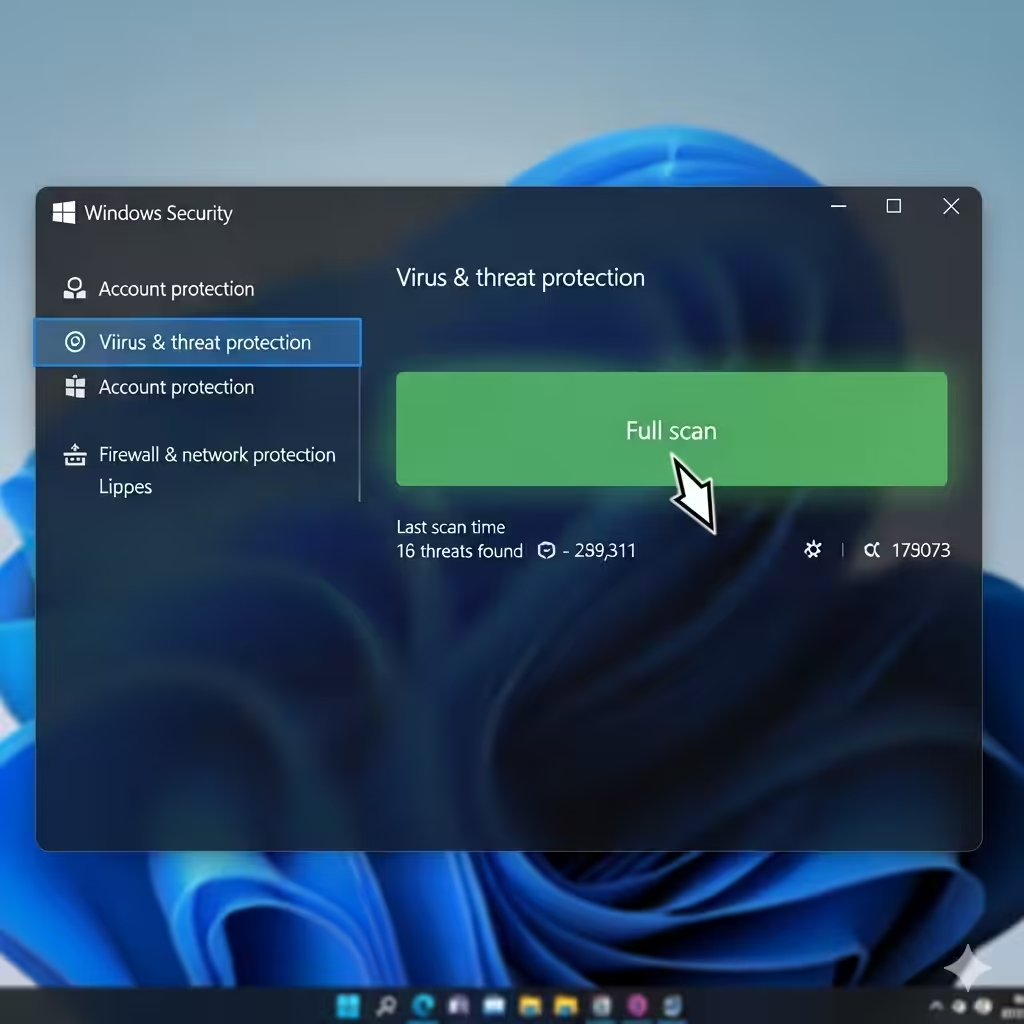
Navigate to Update & Security > Windows Security > Virus & threat protection.
-
Run a Full Scan to check for suspicious files.
-
If malware is detected, follow the recommended actions to remove it.
If no threats are found, you can proceed to other fixes.
Disable Windows Error Reporting Service (Temporary Fix)
If Werfault.exe continues to use high CPU, you can disable the Windows Error Reporting service. Keep in mind that this prevents error data from being sent to Microsoft, but it won’t harm your system.
Steps to Disable the Service:
-
Press Windows + R, type
services.msc, and press Enter. -
Locate Windows Error Reporting Service in the list.
-
Right-click it and select Properties.
-
Change the Startup type to Disabled.
-
Click Stop and then OK.
After this, Werfault.exe should no longer run in the background.

Update Device Drivers
Outdated or corrupted drivers often cause applications to crash, which in turn triggers Werfault.exe. Updating your drivers can help prevent this.
How to Update Drivers:
-
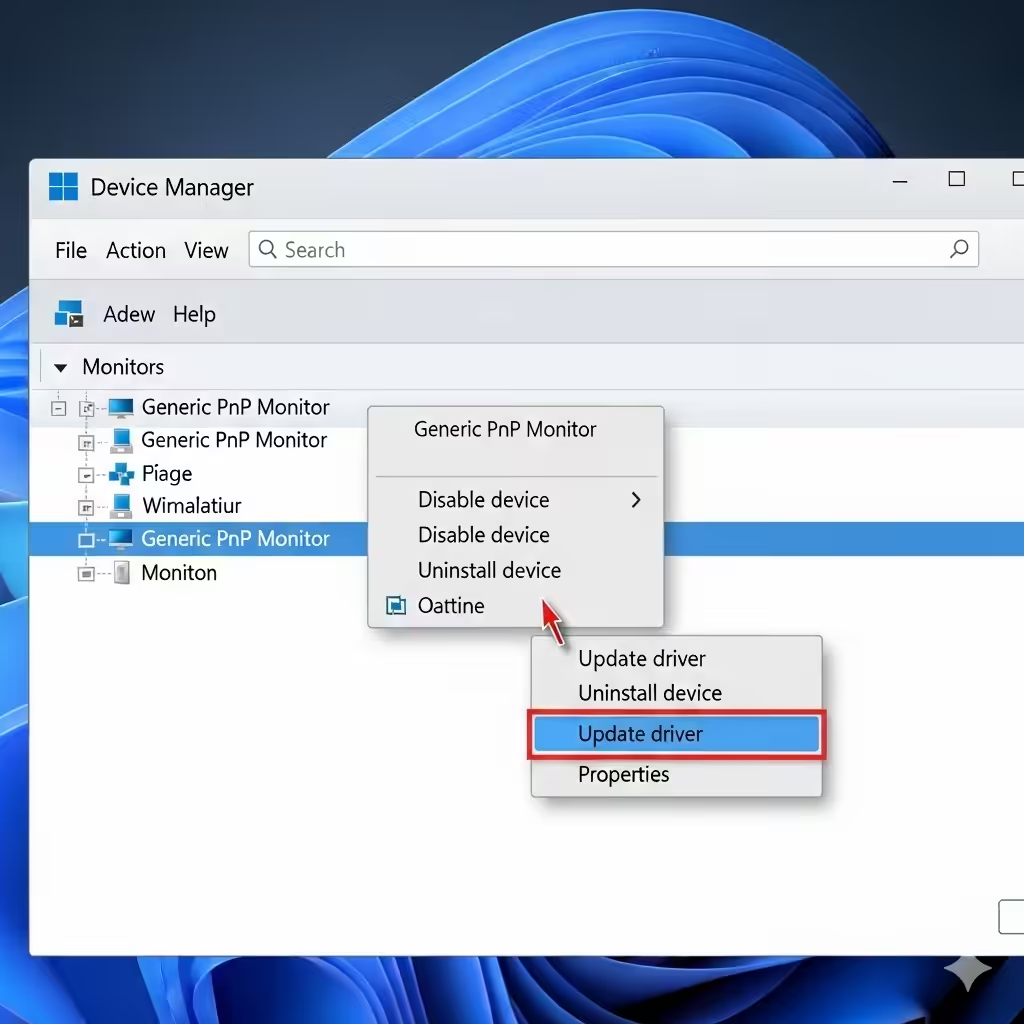
Press Windows + X and select Device Manager.
-
Expand categories such as Display adapters, Sound, video, and game controllers, and Network adapters.
-
Right-click each driver and choose Update driver.
-
Select Search automatically for drivers.
Alternatively, you can visit the hardware manufacturer’s website for the latest drivers.
Run System File Checker and DISM
Corrupted system files can trigger continuous application crashes, causing Werfault.exe to consume high CPU. Running repair tools can fix these issues.
Run System File Checker (SFC):
-
Open Command Prompt as Administrator.
-
Type:
-
Wait until the scan completes and repair any detected files.
Run DISM:
-
In Command Prompt, type:
-
Press Enter and wait for the process to finish.
Restart your computer after running these tools and check if CPU usage returns to normal.

Check Event Viewer for Application Crashes
If Werfault.exe is triggered by a specific program crashing repeatedly, you can identify it through Event Viewer.
Steps to Use Event Viewer:
-
Press Windows + X and select Event Viewer.
-
Go to Windows Logs > Application.
-
Look for repeated error entries around the time Werfault.exe spikes.
-
Identify the faulty application and update, repair, or uninstall it.

Adjust Error Reporting Settings
Instead of disabling Windows Error Reporting completely, you can adjust its behavior so it doesn’t overload your system.
Steps:
-
Press Windows + R, type
control, and hit Enter. -
Go to System and Security > Security and Maintenance.
-
In the left panel, click Change Action Center settings.
-
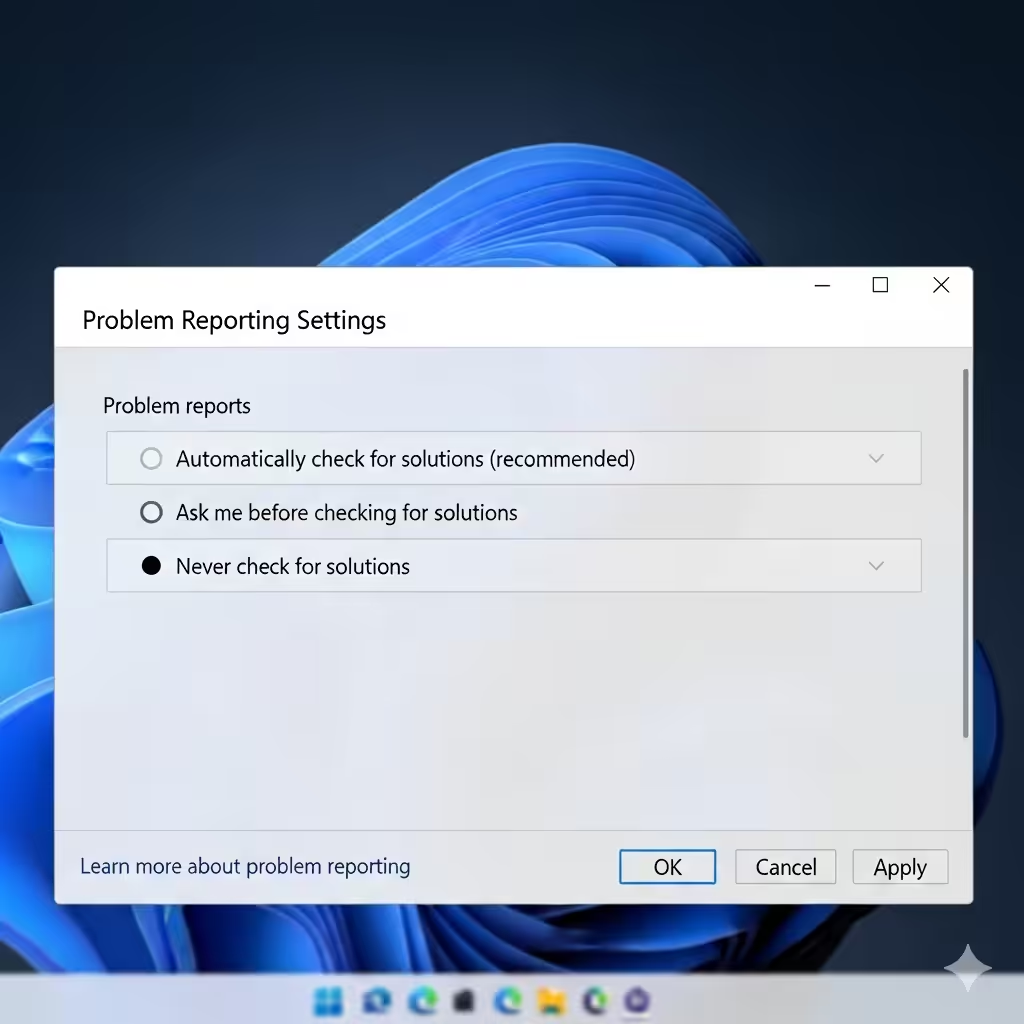
Select Problem reporting settings.
-
Choose Never check for solutions or Each time a problem occurs, ask me before checking for solutions.
This prevents Werfault.exe from running automatically without your permission.
Perform a Clean Boot
Third-party programs can sometimes conflict with Windows processes and cause Werfault.exe to behave abnormally. Running a clean boot helps you identify problematic software.
How to Perform a Clean Boot:
-
Press Windows + R, type
msconfig, and press Enter. -
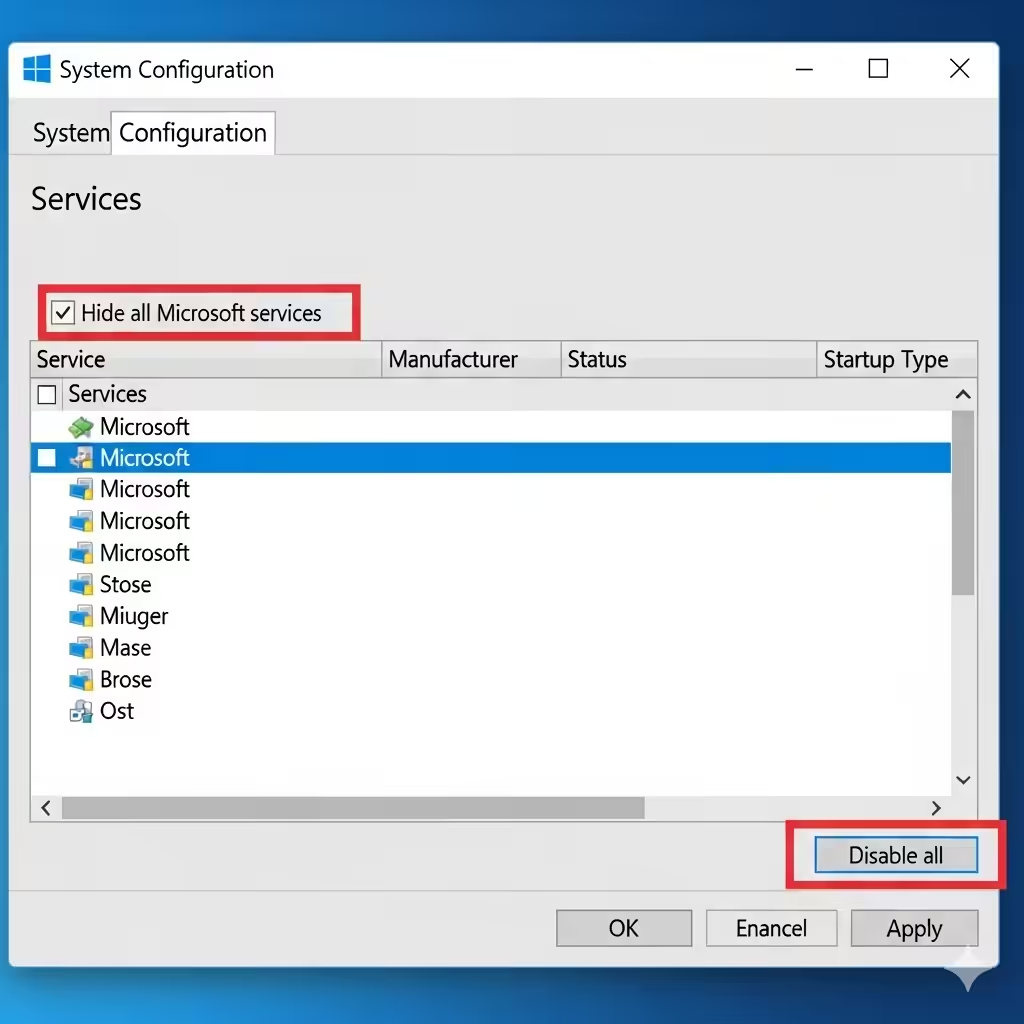
In the System Configuration window, go to the Services tab.
-
Check Hide all Microsoft services, then click Disable all.
-
Switch to the Startup tab and click Open Task Manager.
-
Disable all startup items.
-
Restart your PC.
If the high CPU usage issue disappears, enable services one by one until you find the culprit.
Reset or Reinstall Problematic Applications
If Event Viewer points to a specific app as the source of the crashes, resetting or reinstalling that app can solve the problem.
To Reset an App in Windows 10/11:
-
Open Settings with Windows + I.
-
Go to Apps > Installed apps (or Apps & Features).
-
Select the problematic app and click Advanced options.
-
Click Reset.
If that doesn’t help, uninstall and reinstall the application.

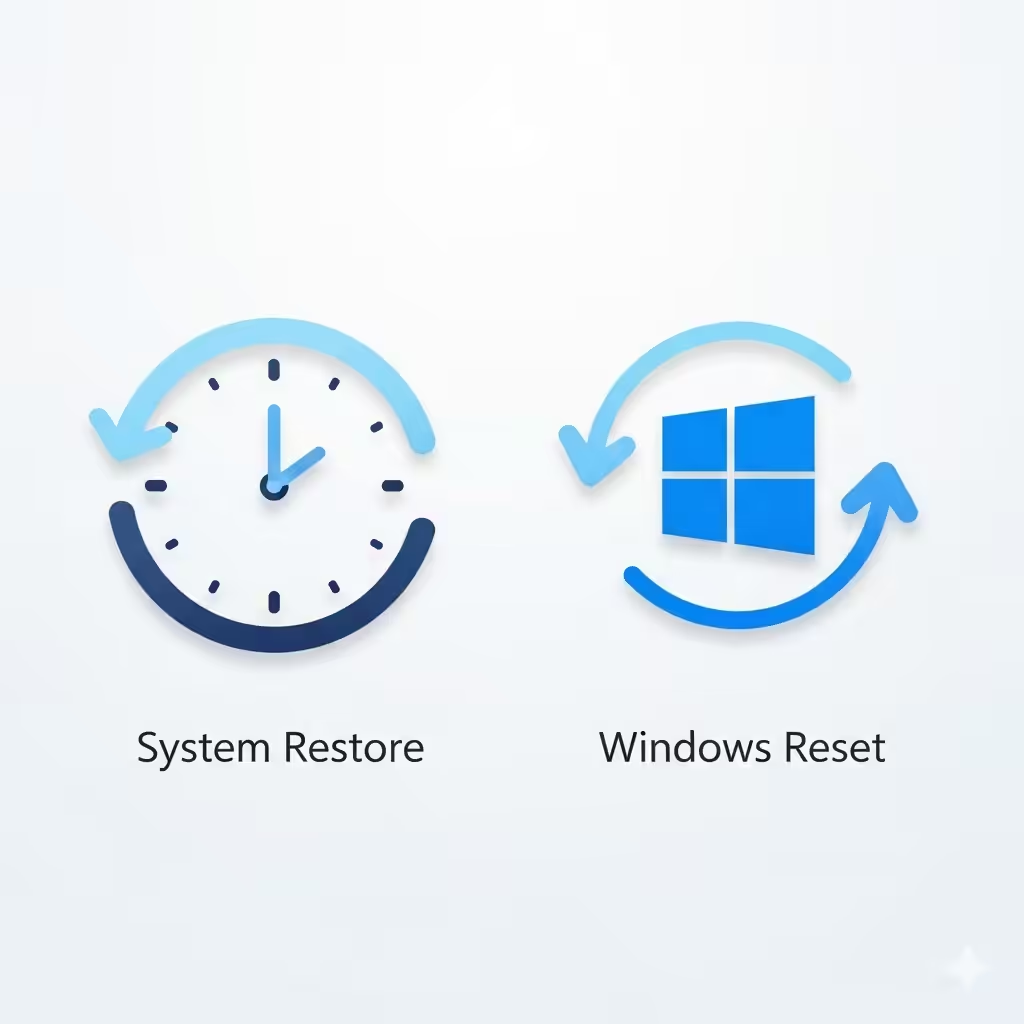
When to Consider a System Restore or Reset
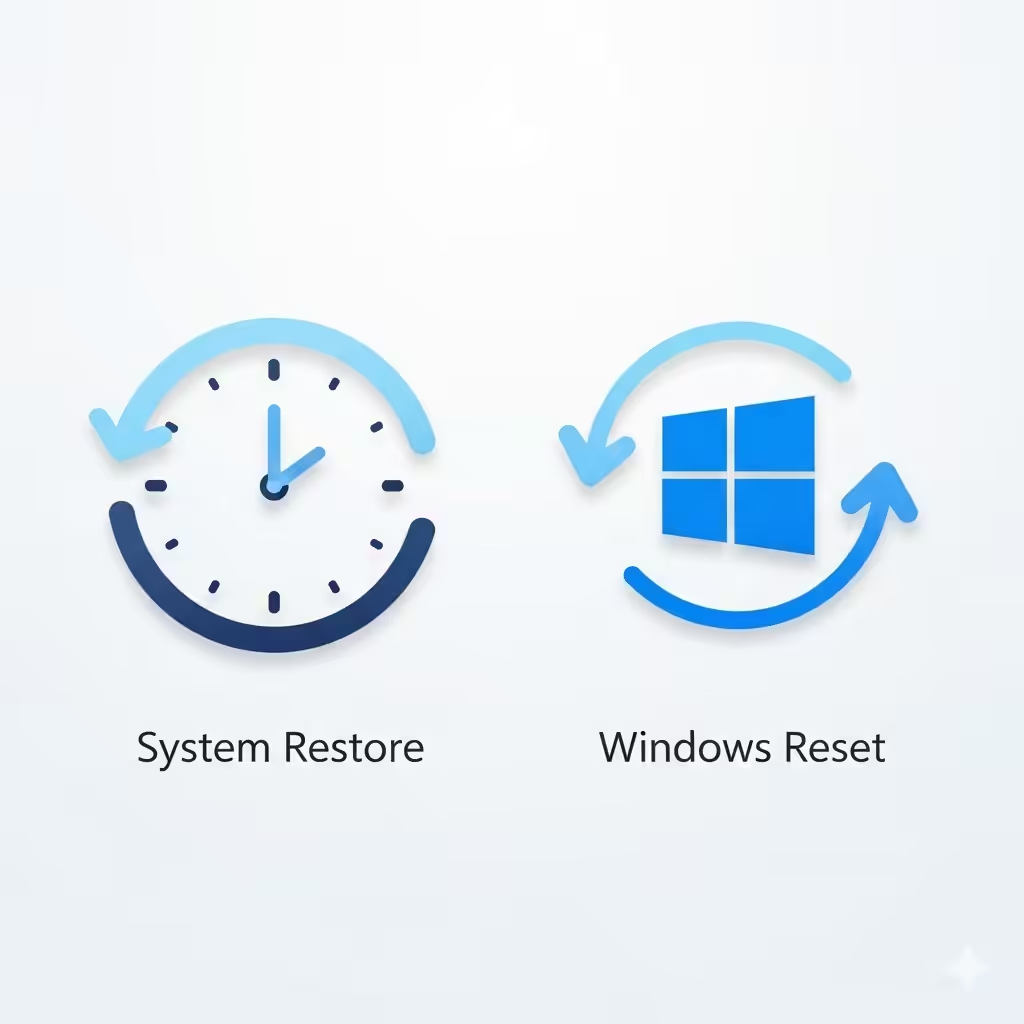
If none of the above solutions work and Werfault.exe continues to consume high CPU, you may need to use System Restore or perform a Windows Reset.
-
System Restore: Rolls back your computer to a previous state when it was working fine.
-
Windows Reset: Reinstalls Windows while giving you the option to keep your personal files.
These should be considered as last-resort options.
Conclusion

Werfault.exe is a legitimate Windows process that plays an important role in handling application errors. However, when it causes high CPU usage, it can significantly slow down your computer. By scanning for malware, updating drivers, disabling or adjusting Windows Error Reporting, repairing system files, and identifying problematic applications, you can resolve the issue and restore normal performance.
If the problem persists despite applying all fixes, a system restore or reset may be necessary. With the right troubleshooting steps, you can eliminate the frustration of high CPU usage and keep your Windows system running smoothly.