



Fixing the Windows Error: Cannot Locate a File in This Theme
Windows is known for its customization features, allowing users to change wallpapers, colors, sounds, and themes. However, sometimes personalization features cause unexpected problems. One common issue users face is the error message: “Windows can’t find one of the files in this theme. Do you still want to save the theme?”
This error may appear randomly, even when you are not actively changing your theme. It can become annoying because it keeps reappearing, disrupting your work or entertainment. Fortunately, there are several effective ways to fix this issue.
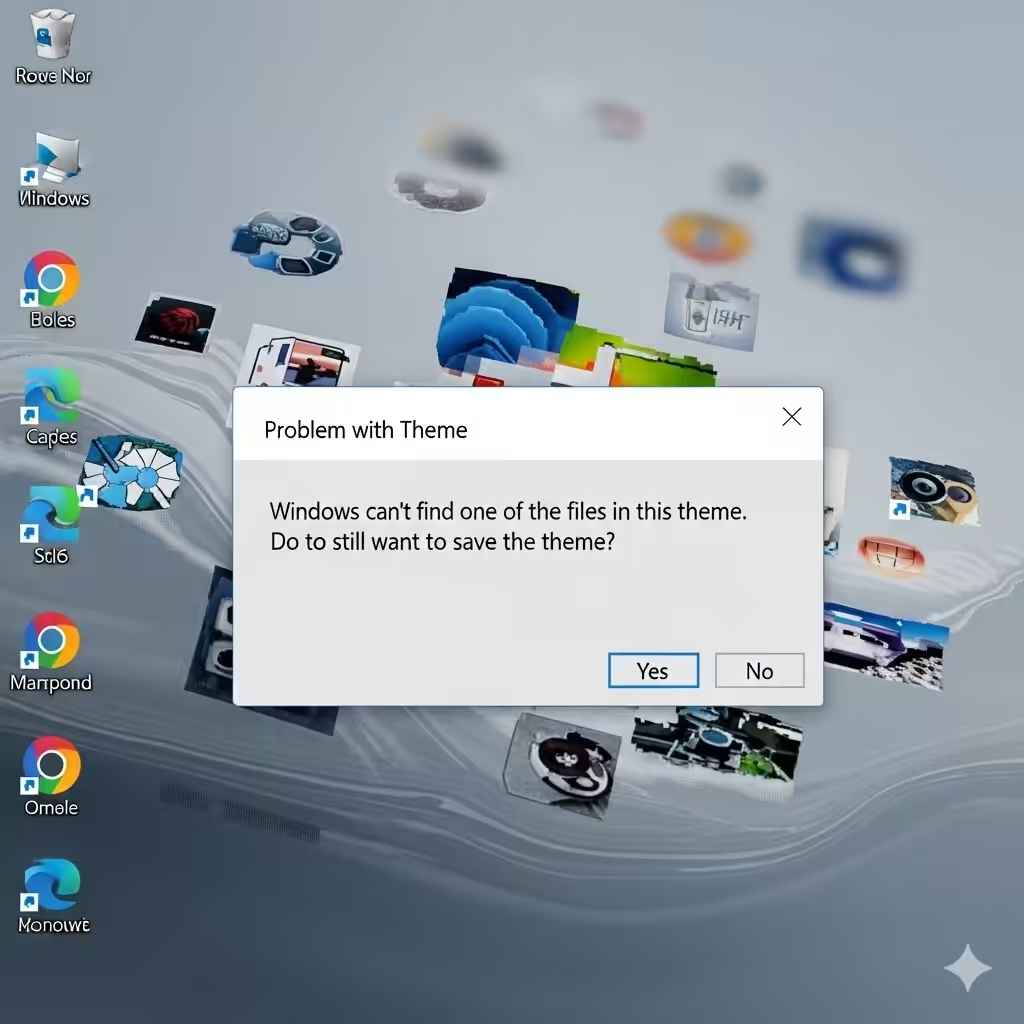
Why Does This Error Occur?
Before jumping into solutions, it’s helpful to understand what causes the problem. Common reasons include:
-
Corrupted or missing theme files.
-
A slideshow background pointing to an invalid or deleted image.
-
Sync issues when using a Microsoft account across devices.
-
Problems with Windows theme services.
-
Outdated or corrupted system files.
By identifying these causes, you’ll have a better idea of which fix will solve the problem for you.

Restart Your Computer
Sometimes, the error appears due to a temporary glitch. Restarting your computer can clear background processes and refresh theme services. If the error only appeared once, a simple reboot might be all you need.
Check Your Theme Settings
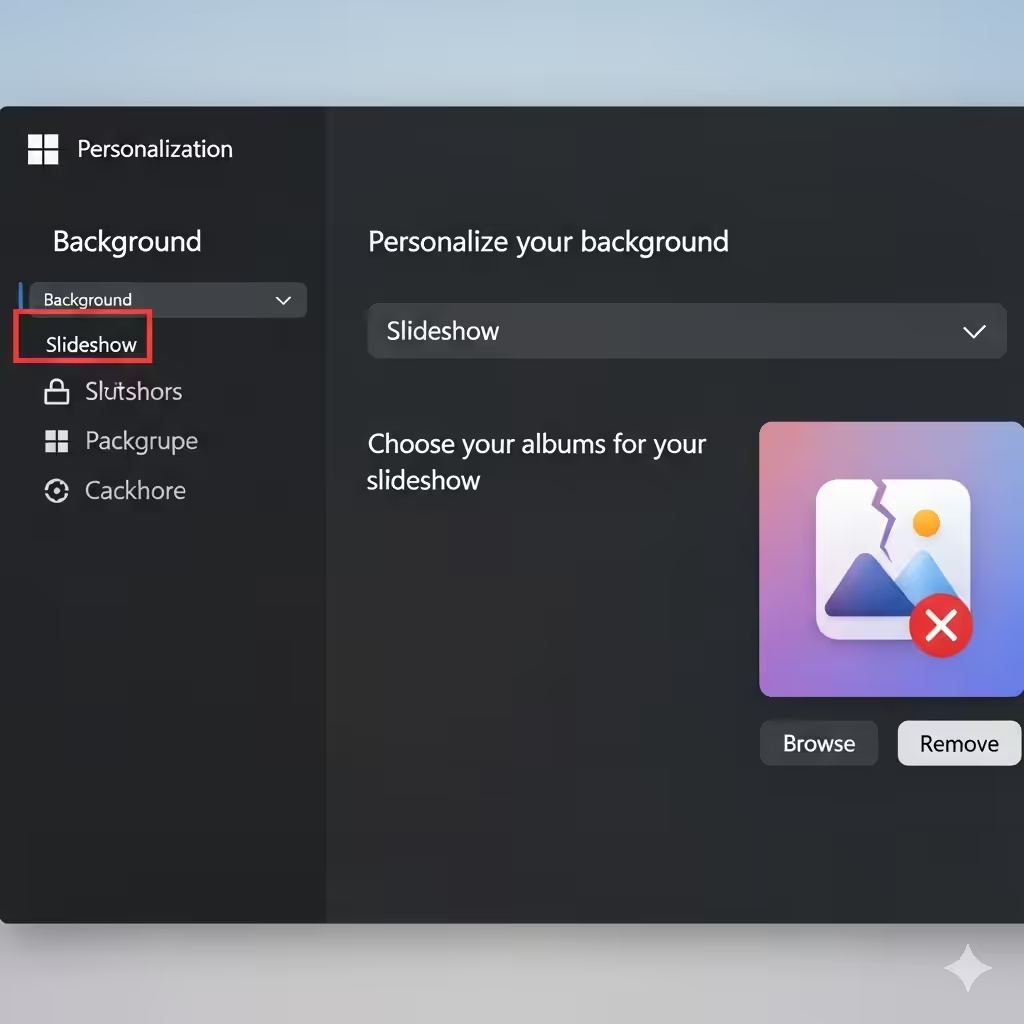
One of the most common triggers is a slideshow background that refers to a missing or deleted picture.
Steps to Check Background Settings:
-
Right-click on the desktop and select Personalize.
-
Go to the Background section.
-
If you have chosen Slideshow, make sure the folder path still exists.
-
Replace the folder with one that contains valid images.
If you only want a single wallpaper, switch the background option to Picture instead of Slideshow.
Save the Current Theme Again
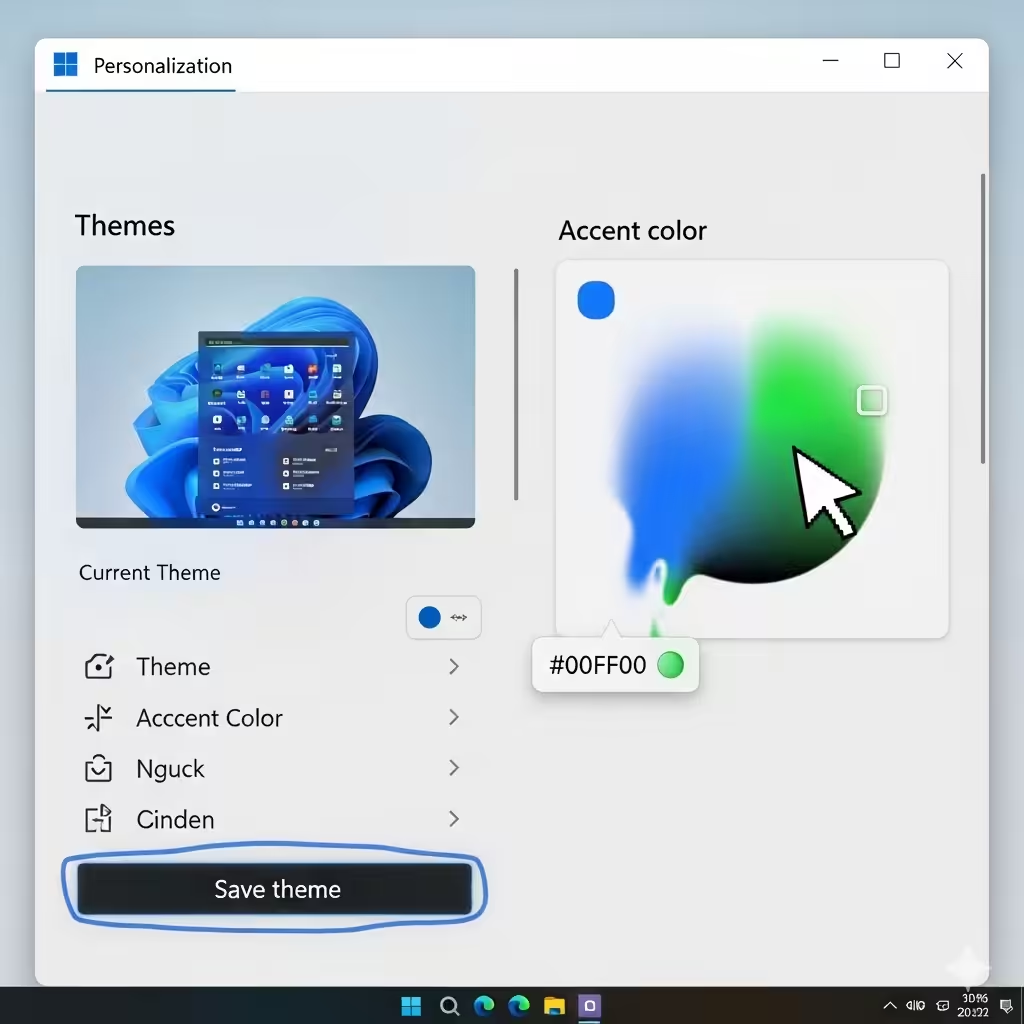
Sometimes, Windows themes become corrupted. Saving the theme as a new one can refresh the files and stop the error.
How to Save a Theme Again:
-
Right-click the desktop and select Personalize.
-
Make any small change, such as switching the accent color or background.
-
Scroll down and click Save theme.
-
Give it a new name and set it as your default theme.
This ensures that Windows uses the updated theme files instead of the corrupted ones.
Turn Off Theme Synchronization
If you use a Microsoft account, your settings and themes may sync across multiple devices. When one device has a missing or corrupted theme file, it can trigger the error everywhere.
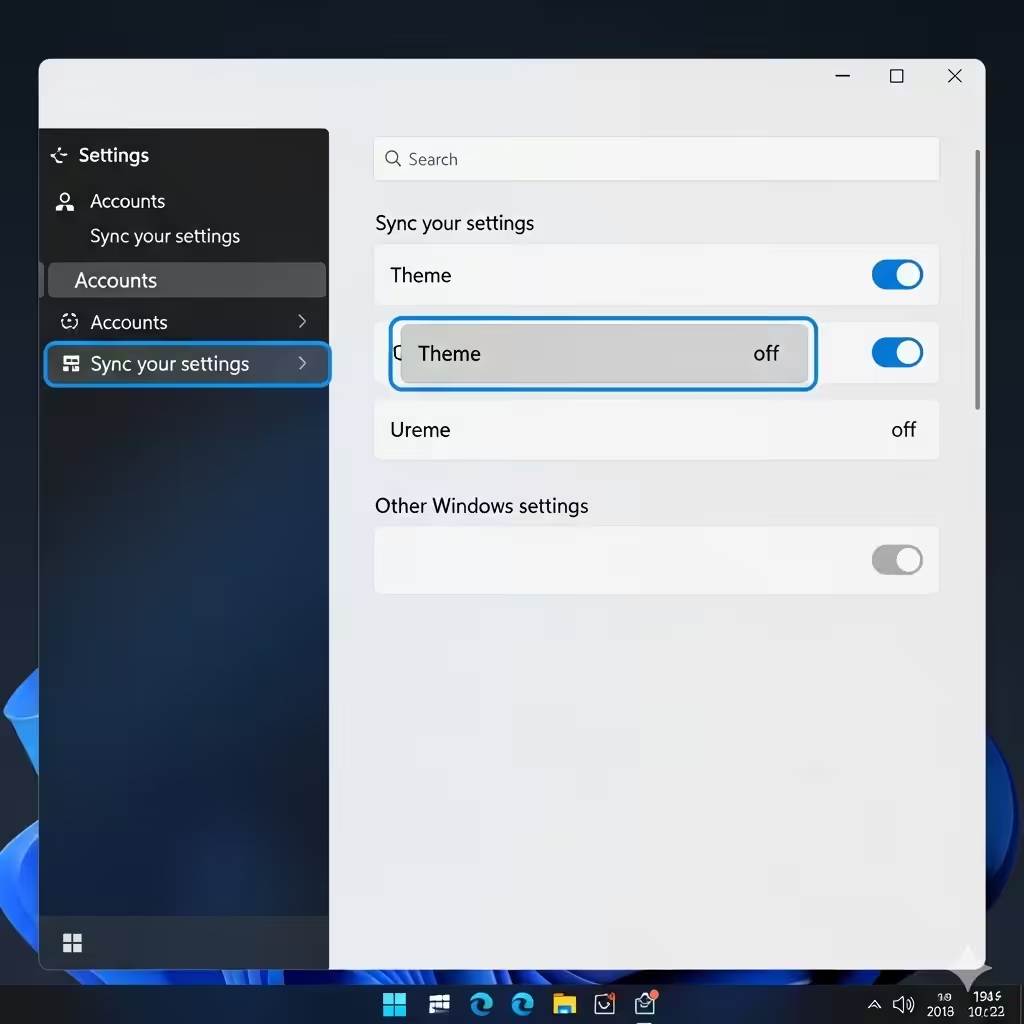
Steps to Disable Theme Sync:
-
Open Settings with Windows + I.
-
Navigate to Accounts > Sync your settings.
-
Locate Theme under Individual sync settings.
-
Turn it Off.
After disabling sync, reapply or save your theme again. This prevents errors caused by broken theme files syncing across devices.
Delete the Cached Theme Files
Windows stores cached versions of your themes. If these files become corrupted, the system may repeatedly throw the error.
How to Delete Cached Theme Files:
-
Press Windows + R, type
%localappdata%\Microsoft\Windows\Themes, and press Enter. -
Locate the theme files with extensions like .theme or temporary theme folders.
-
Delete corrupted or duplicate themes.
-
Reapply your main theme from Settings > Personalization.
This forces Windows to recreate fresh theme files.

Disable Windows Theme Services
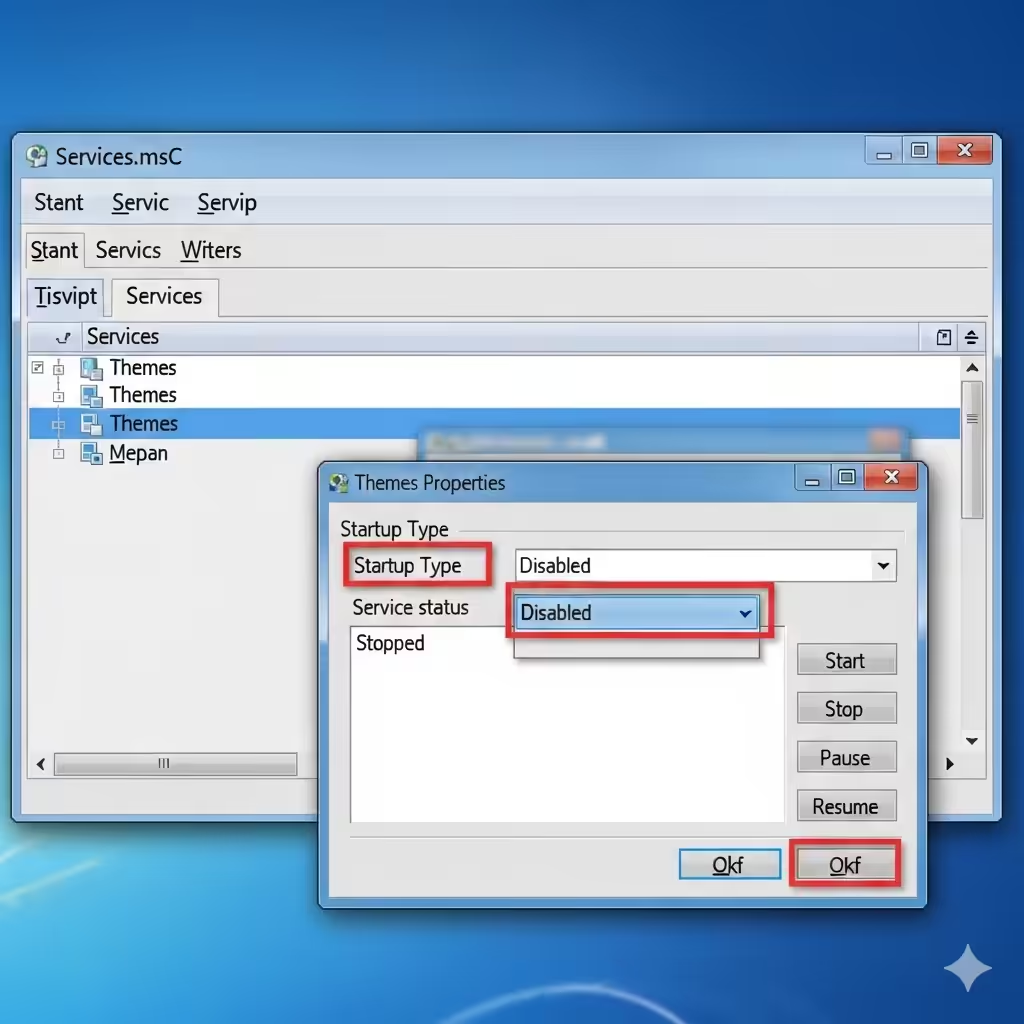
Another way to troubleshoot is by disabling the Windows theme services. While this will stop you from using themes temporarily, it can help determine if the service itself is the cause.
Steps:
-
Press Windows + R, type
services.msc, and hit Enter. -
Find Themes in the list.
-
Right-click it and select Properties.
-
Change Startup type to Disabled.
-
Click Stop and then OK.
Reboot your system and check if the error persists. If it disappears, you can choose to keep the service disabled or re-enable it after cleaning up corrupted themes.
Run System File Checker and DISM
If system files are corrupted, theme-related errors may occur. Running repair commands can fix missing or damaged files.
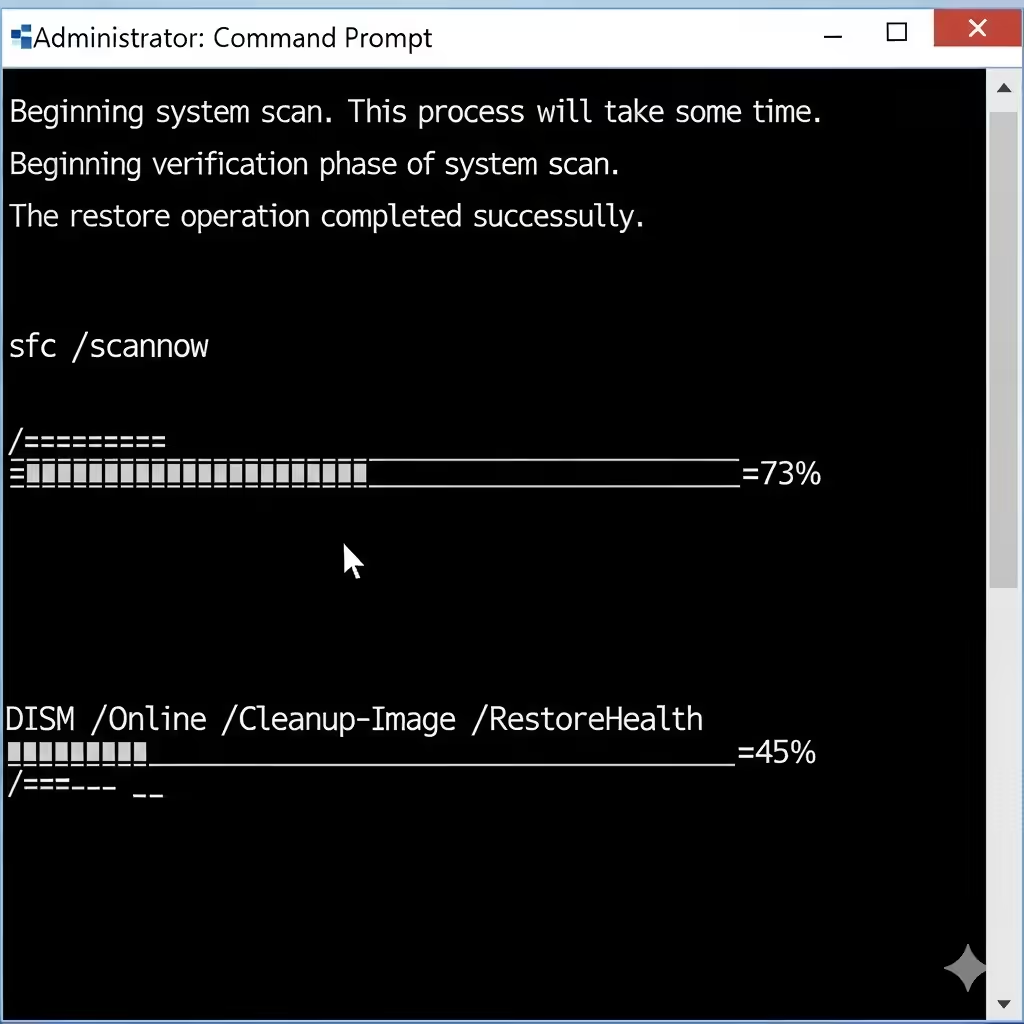
Run System File Checker (SFC):
-
Open Command Prompt as Administrator.
-
Type:
-
Press Enter and let Windows scan and repair system files.
Run DISM Tool:
-
In Command Prompt, type:
-
Press Enter and wait for the process to complete.
Restart your system once finished.
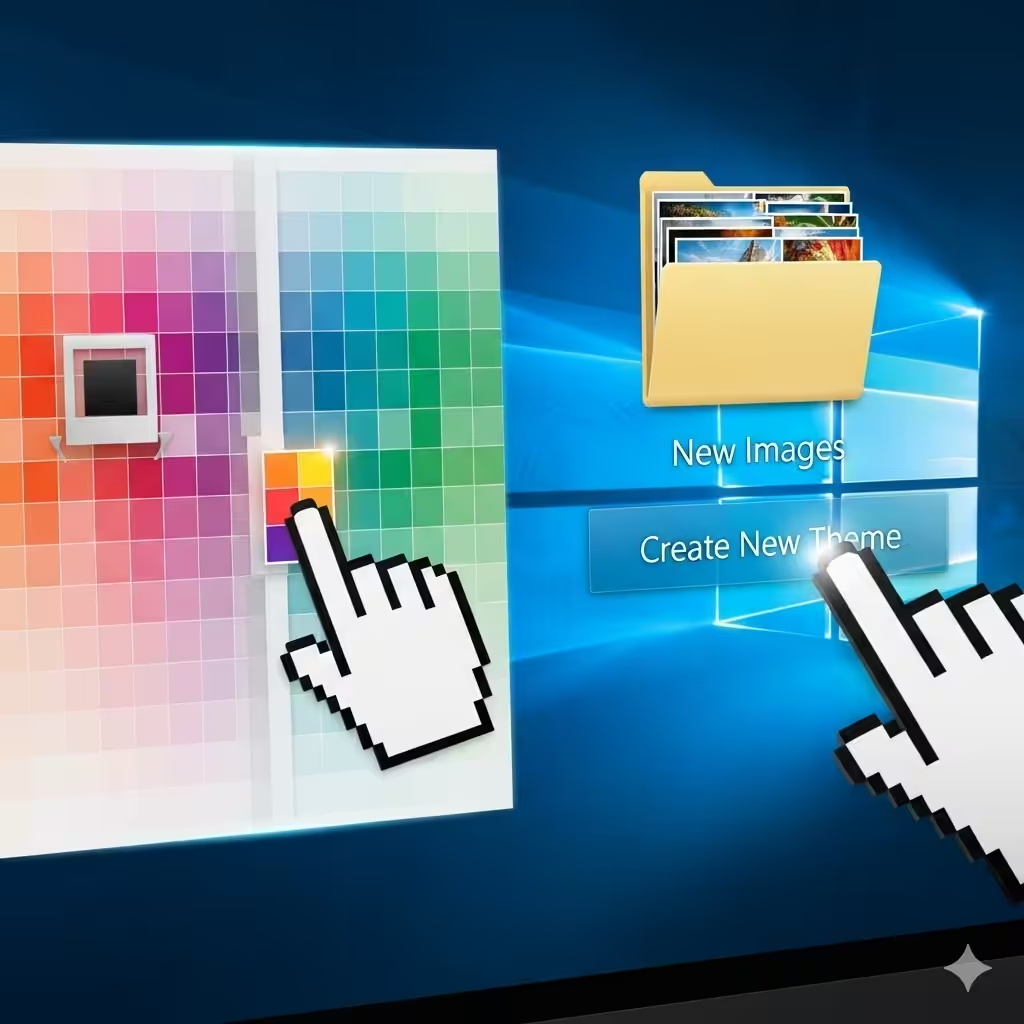
Reset or Recreate the Theme Manually
If none of the above solutions work, you can create a completely new theme from scratch.
Steps to Recreate a Theme:
-
Go to Settings > Personalization.
-
Change wallpaper, colors, sounds, and mouse cursor to your preference.
-
Save this as a new theme with a fresh name.
-
Delete the old corrupted theme from the list.
This ensures no corrupted files remain in use.
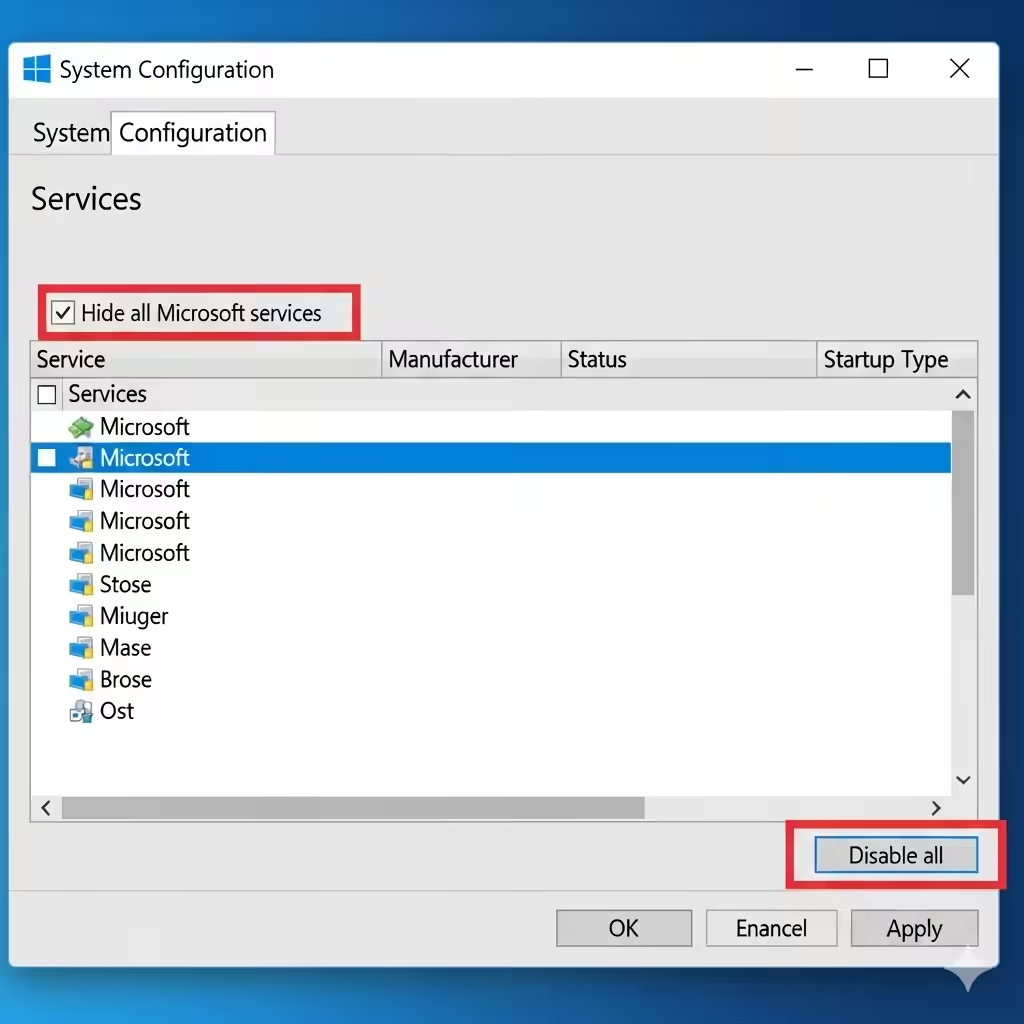
Perform a Clean Boot
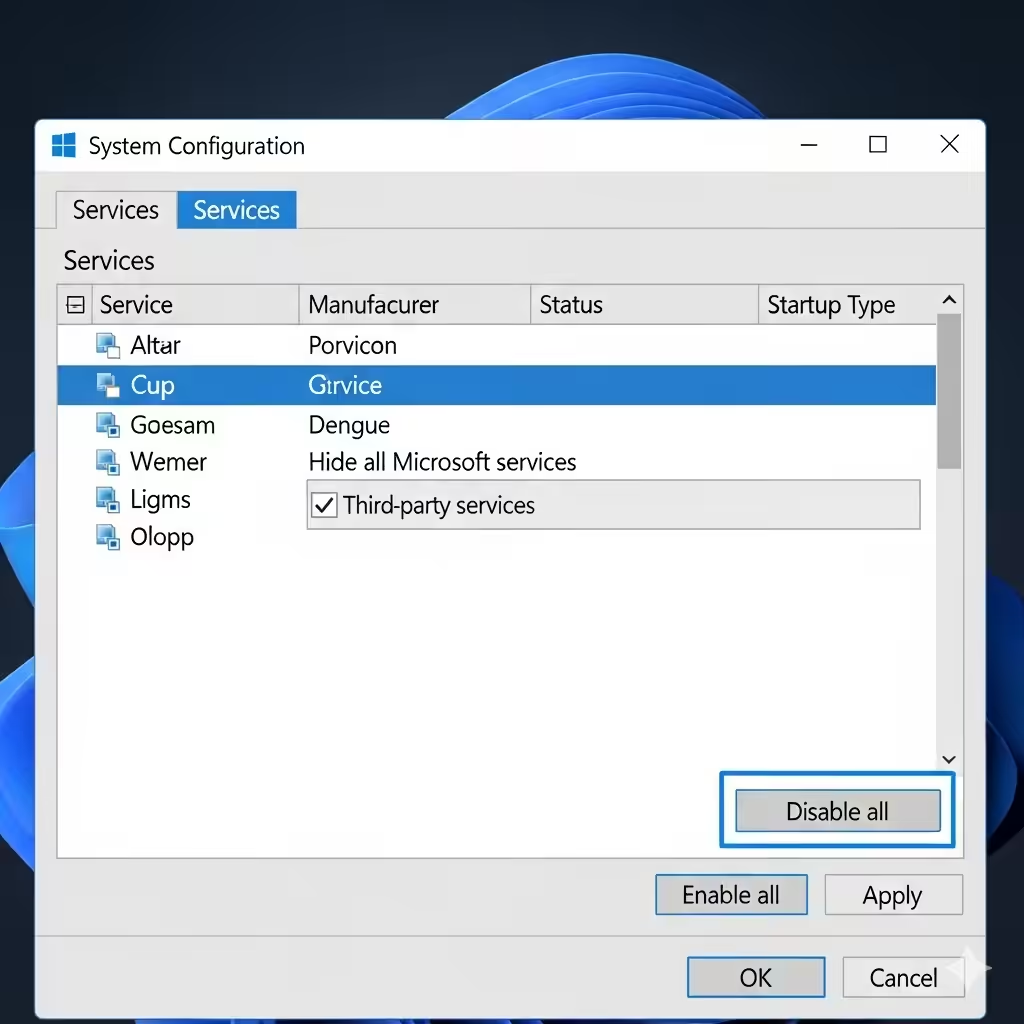
Third-party programs or customization software can interfere with Windows themes. Running a clean boot helps you check if another application is causing the error.
How to Perform a Clean Boot:
-
Press Windows + R, type
msconfig, and press Enter. -
Go to the Services tab and check Hide all Microsoft services.
-
Click Disable all.
-
Go to the Startup tab and click Open Task Manager.
-
Disable all startup apps.
-
Restart your PC.
If the error disappears in clean boot mode, re-enable services one by one to find the culprit.
Update Windows
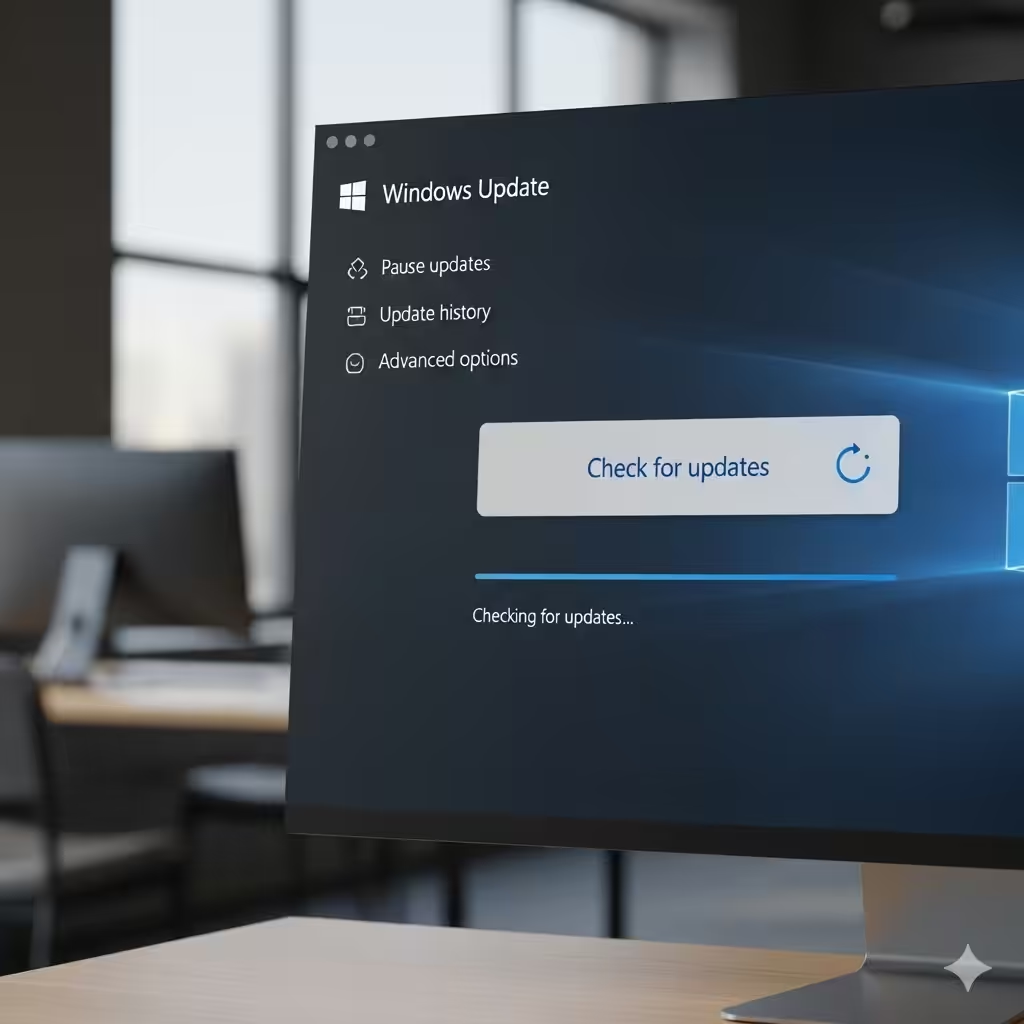
Microsoft frequently releases updates that fix system bugs. If this error is caused by a known issue, an update may already include a fix.
To Update Windows:
-
Press Windows + I to open Settings.
-
Go to Update & Security > Windows Update.
-
Click Check for updates.
-
Install available updates and restart your system.
When to Consider a System Restore
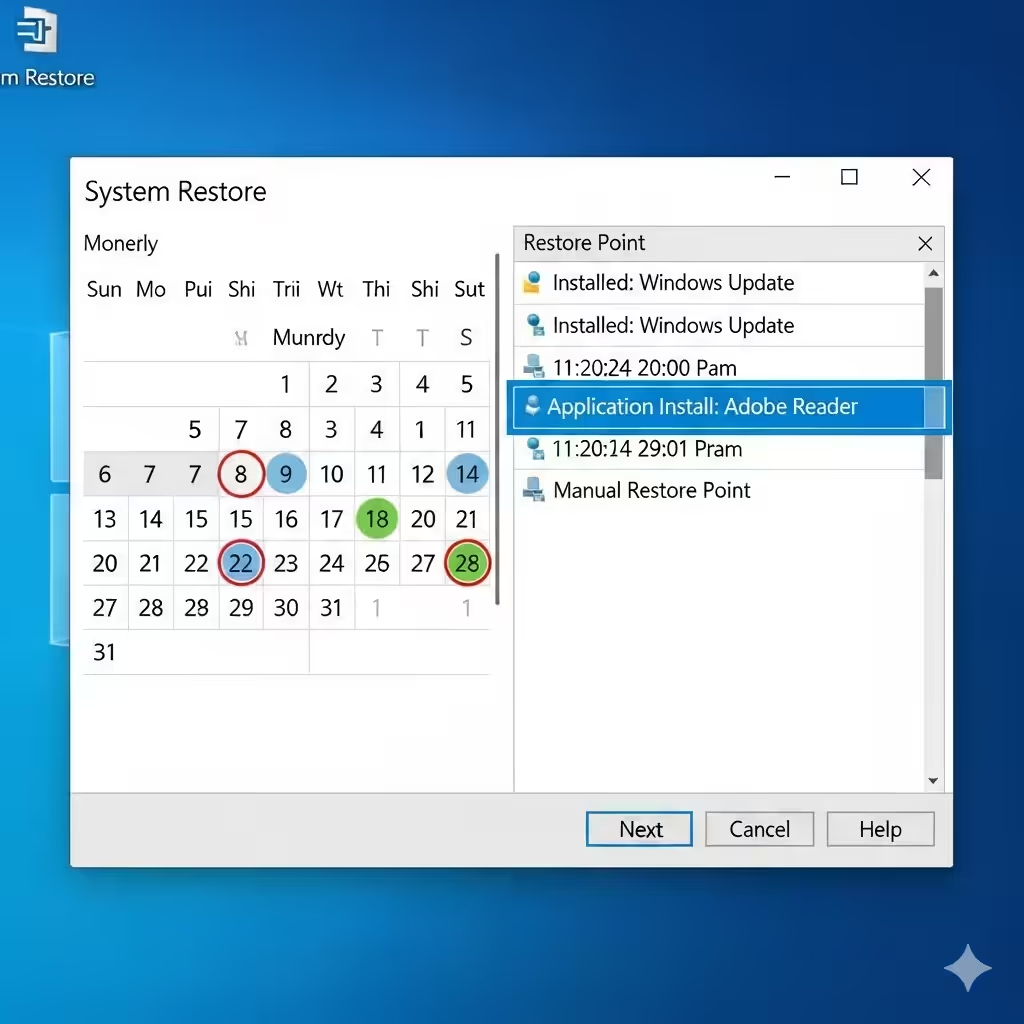
If the error appeared recently after changes to your system, performing a System Restore may help. This rolls your PC back to a previous state without affecting personal files.
Steps:
-
Search System Restore in the Start menu.
-
Open Create a restore point.
-
Click System Restore.
-
Select a restore point before the error began.
-
Follow on-screen instructions to complete the process.
Conclusion
The “Windows can’t find one of the files in this theme” error can be frustrating, but it’s usually caused by missing or corrupted theme files, background slideshows pointing to invalid locations, or sync conflicts. By checking your theme settings, saving the theme again, disabling sync, clearing cached files, and repairing system files, you can easily fix the problem.
If all else fails, recreating the theme from scratch or performing a clean boot can resolve the issue. With these steps, you’ll be able to enjoy a smooth and error-free Windows personalization experience.