


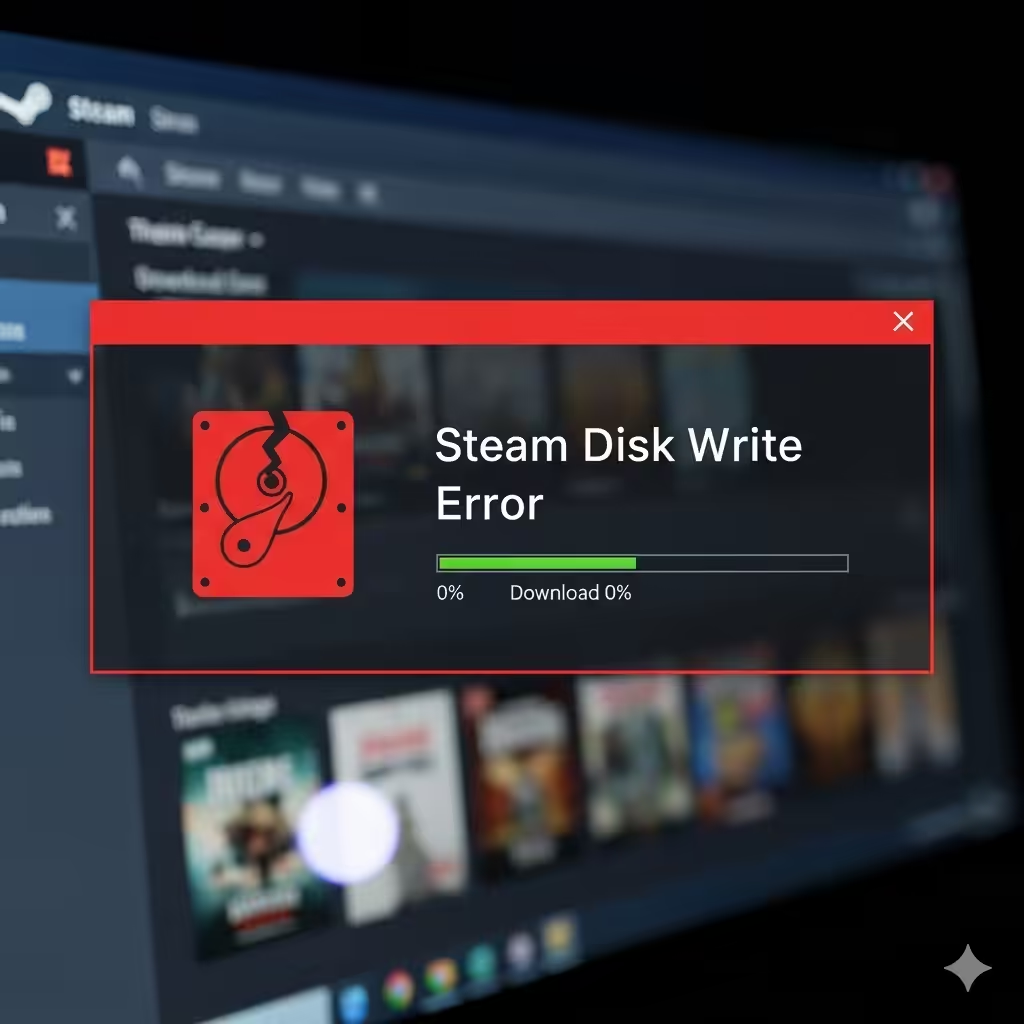
Easy Fixes for Steam Disk Write Error on Your PC
Steam is one of the most popular gaming platforms in the world, providing millions of users with easy access to games, updates, and community features. However, like any software, Steam can encounter problems. One of the most frustrating issues players face is the Steam Disk Write Error, which usually appears when trying to download, install, or update a game.
This error prevents Steam from writing data to your hard drive and can stop your gaming experience entirely. Thankfully, there are several effective solutions to resolve it.
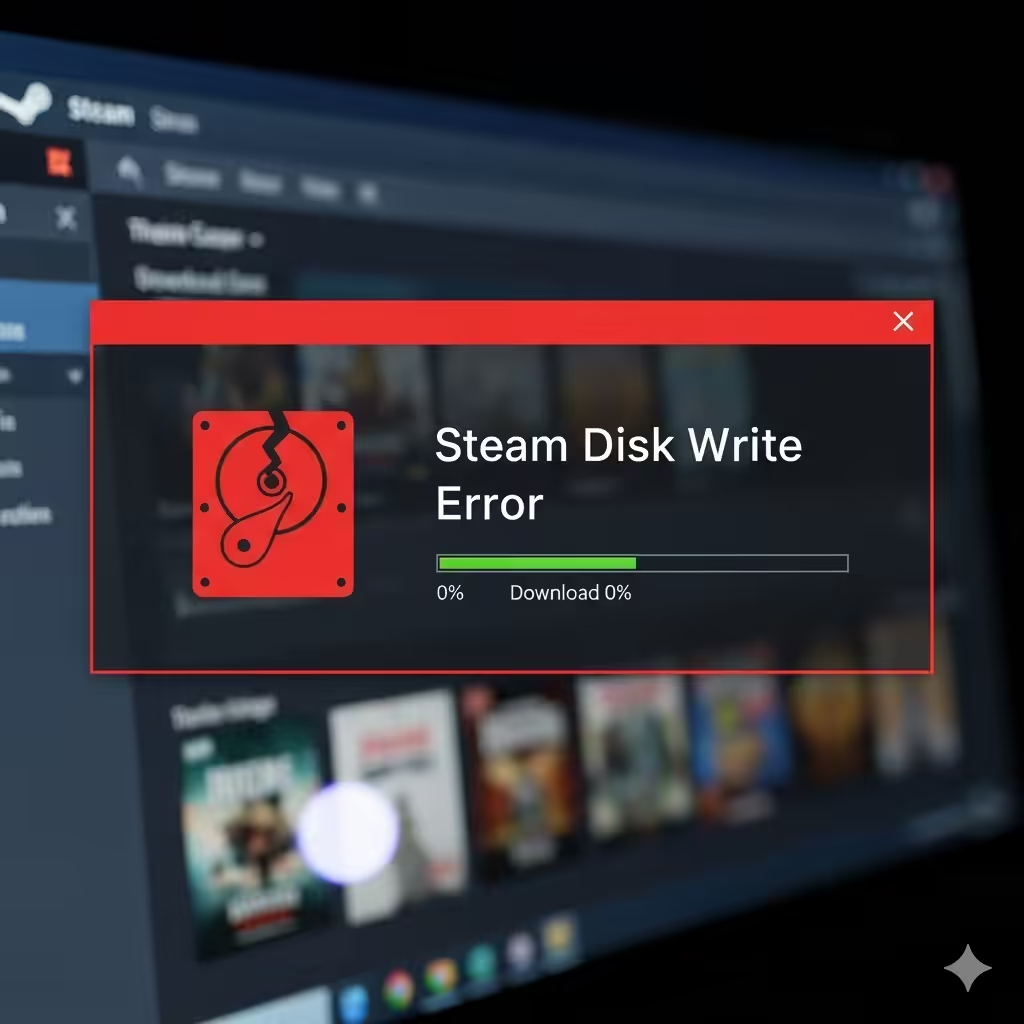
What Causes the Steam Disk Write Error?
The Disk Write Error can appear for a variety of reasons. Some of the most common causes include:
-
Corrupted or missing game files.
-
Insufficient disk space or storage drive errors.
-
Interference from antivirus or firewall software.
-
Corrupted Steam cache or temporary files.
-
Damaged hard drive sectors.
-
Permission issues preventing Steam from writing to a drive.
By identifying the root cause, you can apply the right fix and get back to gaming quickly.

Restart Your Computer and Steam
Before diving into advanced solutions, try the simplest one—restart your PC and Steam client. Sometimes, a temporary glitch or background process interferes with Steam. Restarting clears these issues and allows Steam to run smoothly again.

Check Disk Space
If your storage drive is nearly full, Steam may fail to download or update games.
How to Check:
-
Open File Explorer.
-
Go to This PC and check available space on the drive where Steam is installed.
-
If the drive is nearly full, delete unnecessary files or move games to another drive.
Steam typically requires not just enough space for the game itself but also extra room for updates and temporary files.

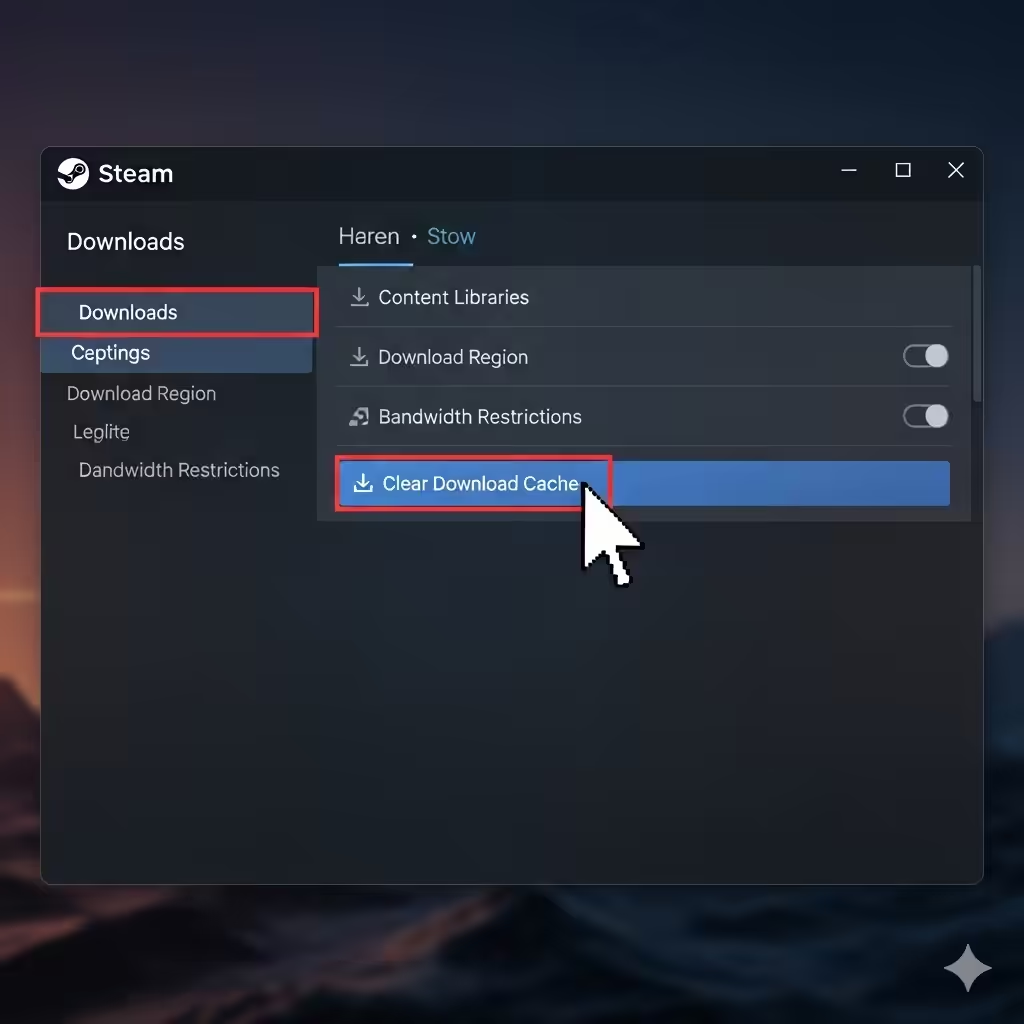
Clear the Steam Download Cache
Sometimes the problem lies in Steam’s download cache, which can become corrupted. Clearing it may resolve the Disk Write Error.
Steps to Clear Cache:
-
Open the Steam client.
-
Go to Steam > Settings > Downloads.
-
Click Clear Download Cache.
-
Restart Steam and log in again.
This refreshes the download process and can eliminate corrupted temporary files.
Verify Integrity of Game Files
If the error happens with a specific game, its files may be corrupted. Steam includes a built-in feature to scan and repair missing or damaged game files.
How to Verify Game Files:
-
Open Steam Library.
-
Right-click the problematic game and choose Properties.
-
Go to Installed Files.
-
Click Verify integrity of game files.
Steam will check the files and replace any that are missing or corrupted.
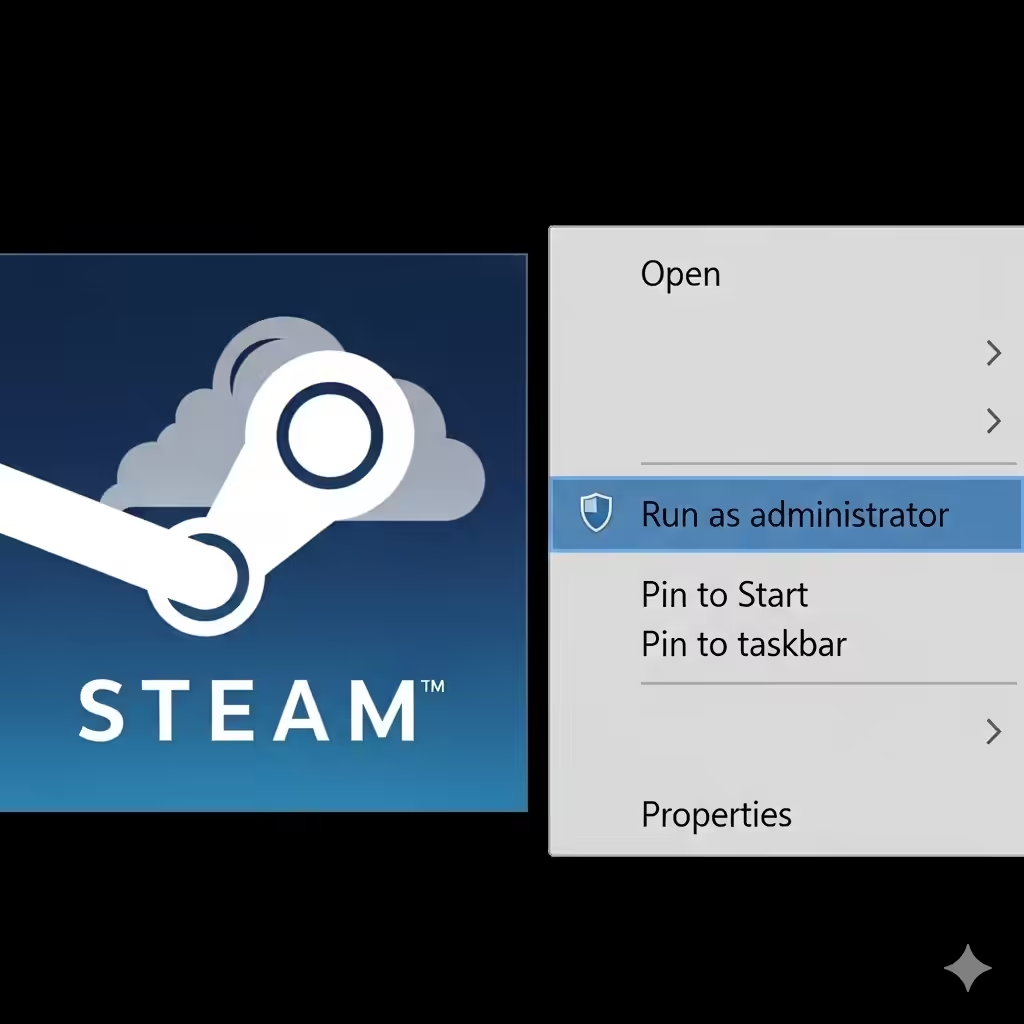
Run Steam as Administrator
Steam may not have the necessary permissions to write files to your hard drive. Running Steam as an administrator ensures it has full access.
Steps:
-
Close Steam completely.
-
Right-click on the Steam shortcut.
-
Select Run as administrator.
If this solves the problem, you can set Steam to always run as administrator by adjusting its shortcut properties.
Disable Antivirus or Firewall Temporarily
Security software can sometimes block Steam from downloading or updating files. If your antivirus or firewall incorrectly flags Steam as suspicious, the Disk Write Error may appear.
Fix:
-
Temporarily disable your antivirus or firewall.
-
Try downloading or updating the game again.
-
If the error disappears, add Steam to the antivirus or firewall’s exclusion list before re-enabling protection.

Remove Write Protection from the Drive
If your drive is set to write-protected, Steam cannot save files.
To Check and Remove Write Protection:
-
Press Windows + R, type
diskpart, and hit Enter. -
In the Command Prompt, type:
Then press Enter.
-
Find your drive number and type:
(Replace X with your disk number.)
This clears write protection and allows Steam to write files normally.

Delete Corrupted Files in the Steam Folder
If a download or update fails, Steam may leave behind corrupted files that trigger the error.
Steps:
-
Navigate to your Steam installation folder (default:
C:\Program Files (x86)\Steam). -
Open the steamapps\common folder.
-
Delete any corrupted or incomplete files for the game showing the error.
After deleting, restart Steam and try the download again.

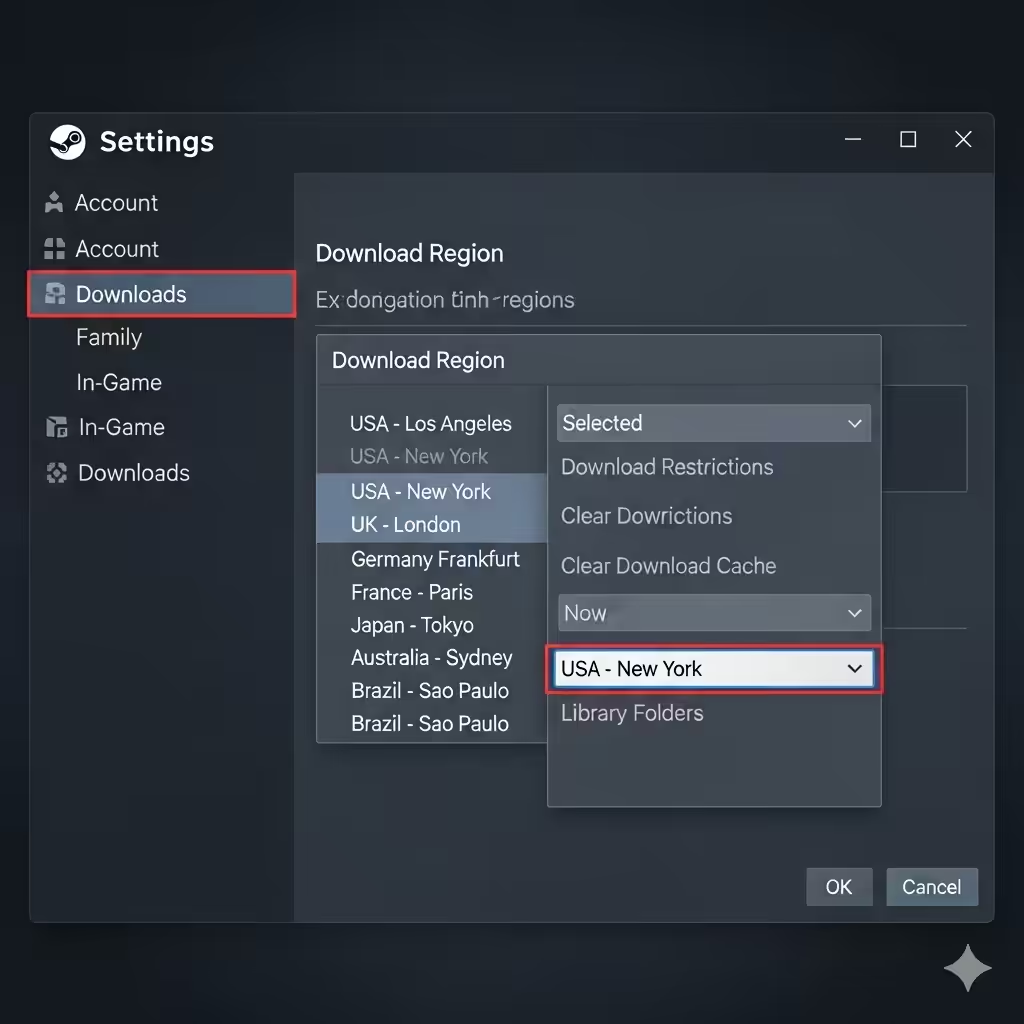
Change the Download Region
Sometimes, the issue comes from Steam servers in your region being overloaded or malfunctioning. Changing your download region can resolve the error.
How to Change Region:
-
Open Steam and go to Settings > Downloads.
-
Under Download Region, select a nearby location.
-
Restart Steam and test the download again.
Check Hard Drive Health
If your hard drive has bad sectors, Steam may not be able to write data properly. Running a disk check can help identify and fix errors.
Steps:
-
Press Windows + E to open File Explorer.
-
Right-click your Steam drive and select Properties.
-
Go to the Tools tab and under Error Checking, click Check.
-
Follow the prompts to scan and repair disk errors.
Reinstall Steam
If none of the above solutions work, reinstalling Steam may fix deeper corruption issues.
How to Reinstall:
-
Backup your games using Steam Library Backup or by copying the
steamappsfolder. -
Uninstall Steam from Control Panel > Programs and Features.
-
Download the latest Steam installer from the official website.
-
Reinstall Steam and restore your games.

Conclusion
The Steam Disk Write Error can be frustrating, but it is usually caused by corrupted files, lack of permissions, antivirus interference, or storage drive issues. By following the steps above—such as clearing the cache, verifying game files, running Steam as administrator, and checking your disk health—you can fix the problem and return to gaming quickly.
If all else fails, a full reinstall of Steam will usually resolve persistent errors. With these solutions, you’ll be back to enjoying your favorite games without interruption.