


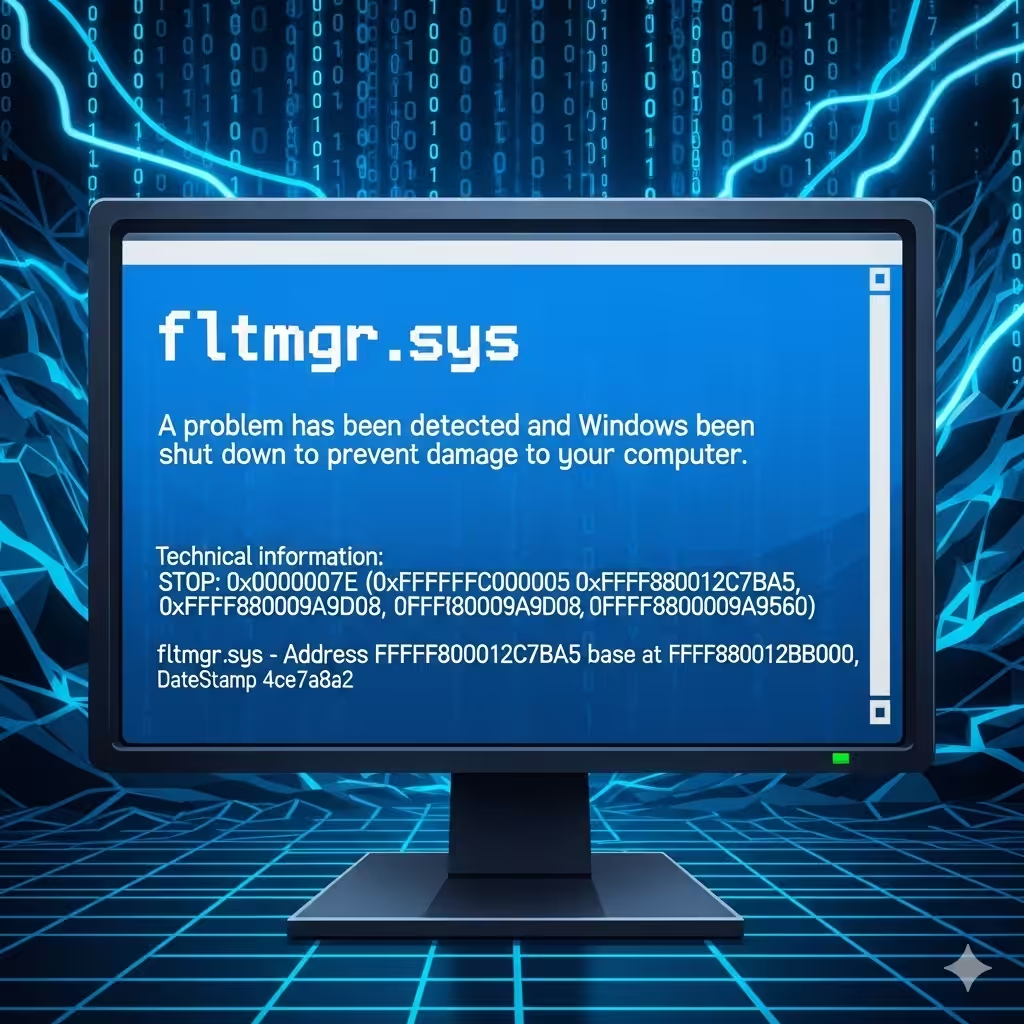
How to Resolve the “fltmgr.sys” Blue Screen Problem on Windows 10
Experiencing a Blue Screen of Death (BSOD) on Windows 10 can be alarming, especially when the error message mentions fltmgr.sys. This particular system file is crucial for managing file system operations, and any issues with it can cause your computer to crash unexpectedly.
Fortunately, there are several effective methods to resolve this error. This guide will explain what causes the fltmgr.sys BSOD, and then provide step-by-step solutions to fix it.
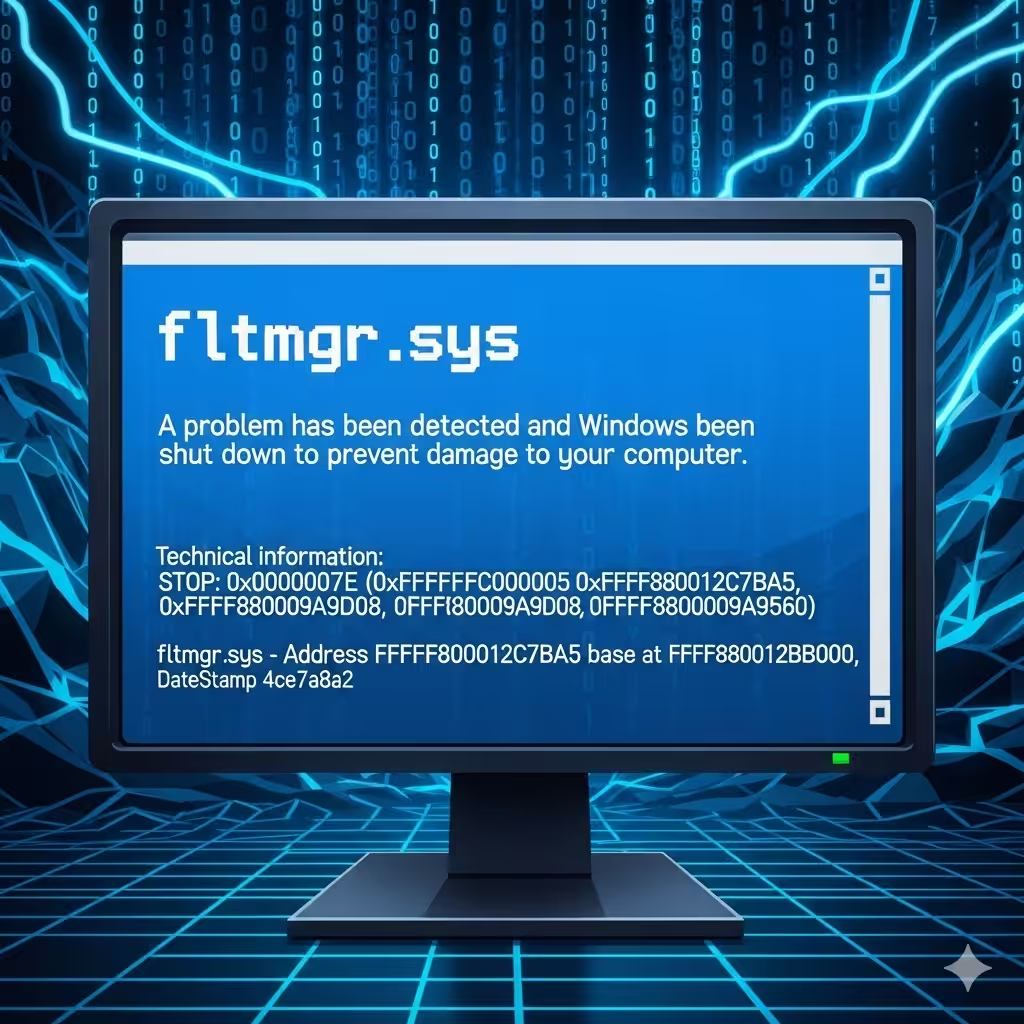
What Is the fltmgr.sys File?
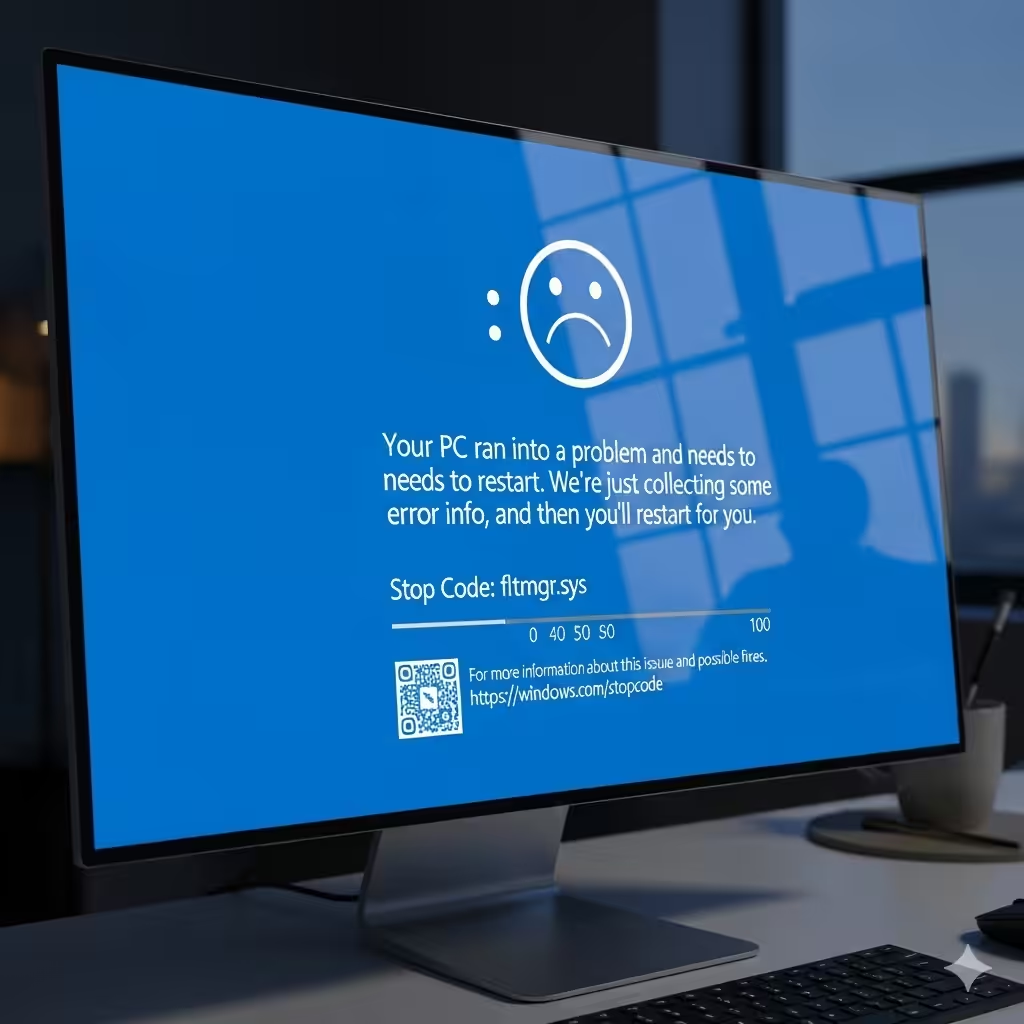
The fltmgr.sys file stands for Filter Manager System File. It is an essential part of Windows that manages file system filter drivers, allowing antivirus programs, backup software, and other tools to monitor and interact with file system activity.
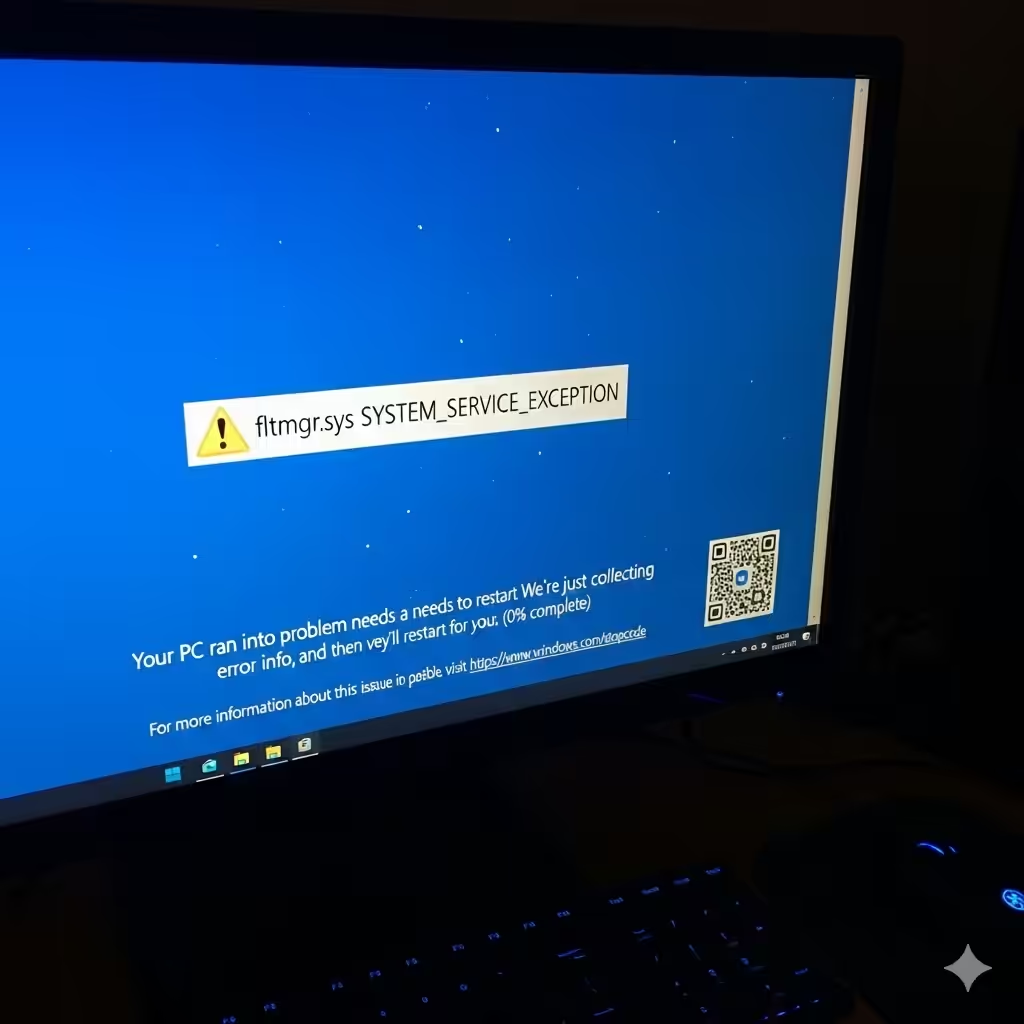
If this file becomes corrupted or conflicts with other drivers, Windows may crash and display a BSOD error with the message:
-
SYSTEM_SERVICE_EXCEPTION (fltmgr.sys)
-
PAGE_FAULT_IN_NONPAGED_AREA (fltmgr.sys)
-
DRIVER_IRQL_NOT_LESS_OR_EQUAL (fltmgr.sys)
These indicate different problems but share the same root cause—issues with the fltmgr.sys driver.
Common Causes of fltmgr.sys BSOD
Several factors may trigger this error, including:
-
Corrupted system files.
-
Outdated or faulty drivers.
-
Conflicts with third-party software (especially antivirus tools).
-
Memory (RAM) issues.
-
Hard drive errors or corruption.
-
Incompatible Windows updates.
Understanding these causes will help you choose the right solution.
Restart Your Computer in Safe Mode
Before applying fixes, it’s often best to restart Windows in Safe Mode. This loads only essential drivers and services, reducing the risk of further crashes.
Steps to Enter Safe Mode:
-
Restart your PC and hold Shift while selecting Restart.
-
Go to Troubleshoot > Advanced options > Startup Settings.
-
Choose Enable Safe Mode with Networking.
Once in Safe Mode, you can perform troubleshooting without constant interruptions.
Run Windows Memory Diagnostic Tool
Memory problems are a common cause of fltmgr.sys BSOD errors. Running the built-in diagnostic tool can identify faulty RAM.
How to Use It:
-
Press Windows + R, type
mdsched.exe, and press Enter. -
Select Restart now and check for problems.
-
The tool will scan your memory and report errors after reboot.
If errors are detected, you may need to replace your RAM.
Update Device Drivers
Outdated or corrupted drivers can cause system file conflicts, including with fltmgr.sys. Updating them may resolve the issue.
Steps:
-
Press Windows + X and select Device Manager.
-
Expand categories such as Display adapters, Disk drives, and Network adapters.
-
Right-click each device and select Update driver.
-
Choose Search automatically for updated driver software.
Alternatively, visit your hardware manufacturer’s website to download the latest drivers manually.
Run the System File Checker (SFC)
Corrupted or missing Windows system files can trigger the BSOD. The SFC tool scans and repairs these files.
Steps:
-
Open Command Prompt as administrator.
-
Type:
-
Press Enter and wait for the scan to complete.
If corrupted files are found, Windows will replace them automatically.
Use the DISM Tool
If the SFC tool fails to repair issues, try Deployment Imaging Service and Management Tool (DISM). It repairs the Windows system image.
Run DISM:
-
Open Command Prompt as administrator.
-
Type the following commands one at a time, pressing Enter after each:
-
Restart your computer once the process completes.
Check Your Hard Drive for Errors
A failing or corrupted hard drive can lead to fltmgr.sys crashes. Running CHKDSK can identify and fix disk errors.
Steps:
-
Open Command Prompt as administrator.
-
Type:
-
Press Enter. You may be asked to schedule the scan on the next reboot.
-
Restart your PC to allow CHKDSK to scan and repair errors.
Uninstall Recent Windows Updates
Sometimes, a new Windows update introduces compatibility problems that trigger the fltmgr.sys BSOD.
To Remove Updates:
-
Press Windows + I to open Settings.
-
Go to Update & Security > Windows Update > View update history.
-
Click Uninstall updates.
-
Select the most recent update and uninstall it.
Check if the BSOD error persists afterward.
Disable or Remove Third-Party Antivirus
Security software often installs file system filter drivers, which may conflict with fltmgr.sys. If you installed or updated antivirus software recently, it may be the culprit.
Fix:
-
Temporarily disable the antivirus and test your system.
-
If the error disappears, consider uninstalling the antivirus permanently and switching to Windows Defender, which is reliable and built-in.
Perform a System Restore
If the error started recently after software or driver changes, performing a System Restore may help.
Steps:
-
Press Windows + R, type
rstrui, and press Enter. -
Choose a restore point created before the error appeared.
-
Follow the on-screen instructions to restore your system.
This will revert your PC to an earlier working state without affecting personal files.
Reset or Reinstall Windows
If none of the above fixes work, the last resort is resetting or reinstalling Windows.
To Reset Windows 10:
-
Press Windows + I and open Update & Security.
-
Go to Recovery > Reset this PC.
-
Choose Keep my files (to preserve personal files) or Remove everything.
-
Follow the prompts to reinstall Windows.
This will eliminate any deep system corruption causing the fltmgr.sys BSOD.
Conclusion
The fltmgr.sys Blue Screen error in Windows 10 is usually caused by corrupted system files, outdated drivers, hardware issues, or software conflicts. By systematically applying the solutions—such as updating drivers, checking memory and disk health, running SFC/DISM, and uninstalling conflicting programs—you can resolve the issue and restore system stability.
If the problem persists despite all fixes, it may point to faulty hardware, requiring professional inspection or replacement of components such as RAM or the hard drive.
With patience and the right troubleshooting steps, you can eliminate the fltmgr.sys BSOD and get your Windows 10 computer running smoothly again.