


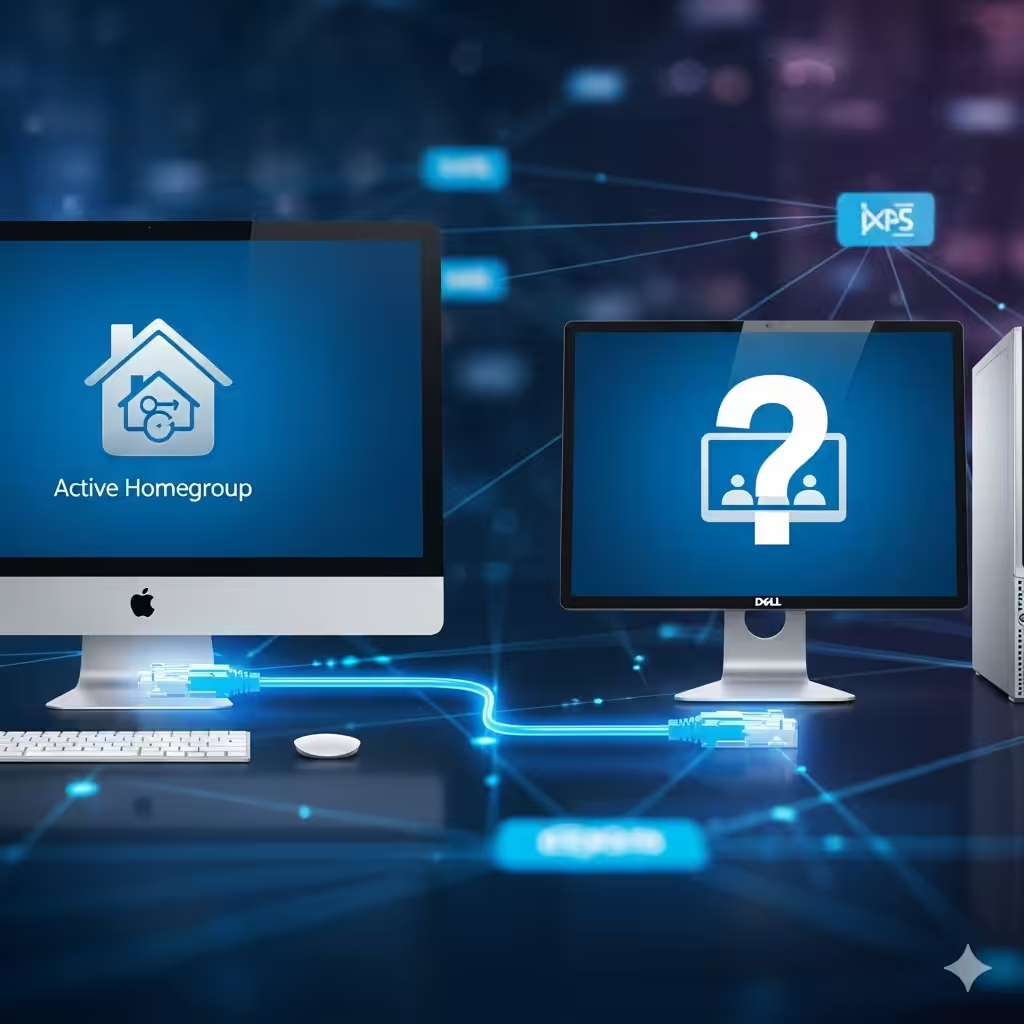
How to Solve the “Windows Cannot Create a Homegroup on This Computer” Problem
Homegroups were a popular feature in Windows 7 and Windows 8, designed to make sharing files, printers, and other resources between computers on the same network much easier. However, many Windows users encounter an error when attempting to set up a Homegroup that says: “Windows can’t set up a Homegroup on this computer.”
This issue can be frustrating, especially if you rely on local file sharing. Although Microsoft officially removed Homegroup in Windows 10 (starting from version 1803), the error is still relevant for users running older Windows versions or those trying to manage legacy systems. This guide will help you understand the causes of the problem and walk you through step-by-step solutions to fix it.
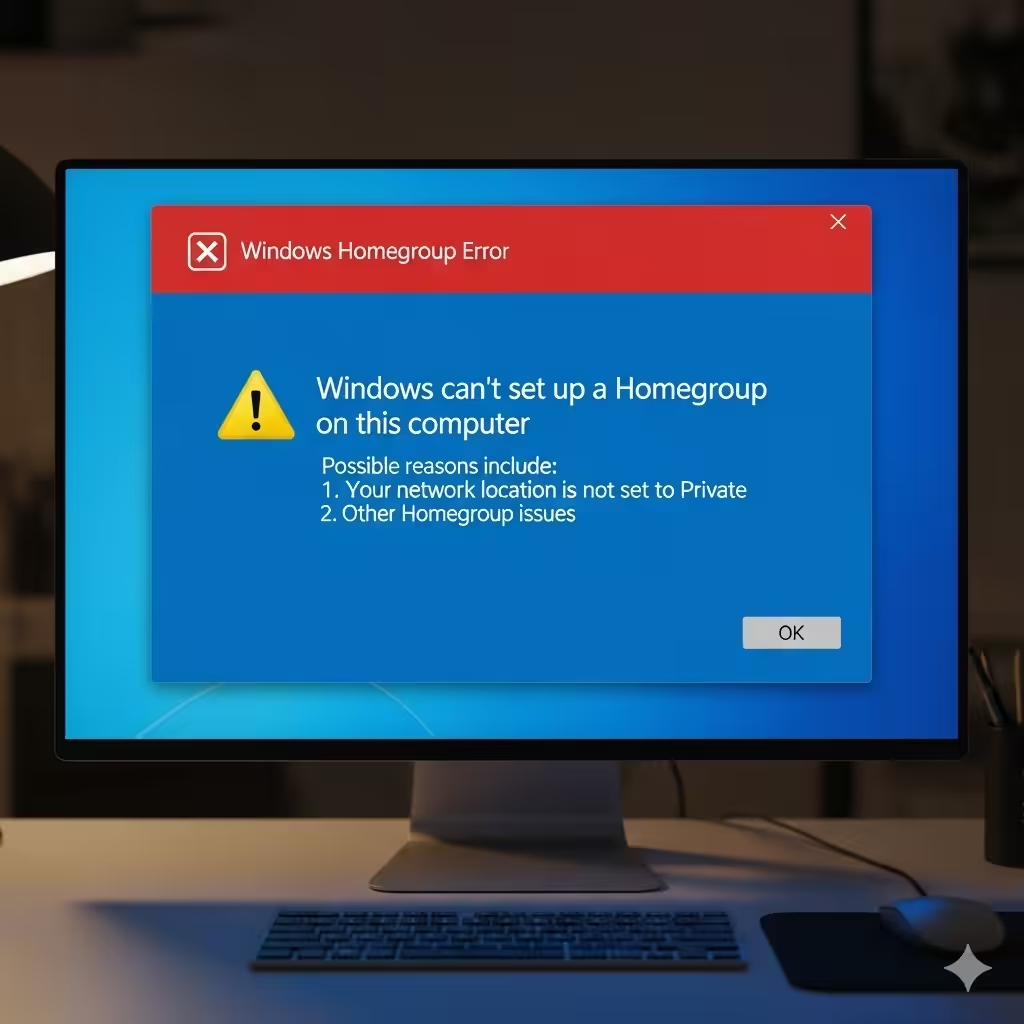
Why Does the Homegroup Error Occur?
The Homegroup error typically appears when Windows detects issues with networking services, permissions, or existing configurations. Common causes include:
-
Corrupted Homegroup settings or leftover configurations from another PC.
-
Disabled networking services required for Homegroup.
-
Incorrect system clock or date settings.
-
Corrupted system files affecting network functionality.
-
Conflicts with third-party firewalls or security software.
Understanding the cause will make it easier to apply the right fix.

Check for Existing Homegroup Connections
Before creating a new Homegroup, ensure no other computer on the network is already hosting one.
Steps:
-
On another computer connected to the same network, open Control Panel > Homegroup.
-
If a Homegroup exists, note the password and try joining instead of creating a new one.
-
If no Homegroup is found, proceed to create one from scratch.
Sometimes, leftover Homegroup profiles from a removed computer can prevent new ones from being set up. In that case, you may need to delete old configurations.
Delete Old Homegroup Files
If the Homegroup setup fails repeatedly, it could be due to corrupted or incomplete Homegroup configuration files stored on your PC.
How to Remove Them:
-
Open File Explorer and navigate to:
-
Delete all files inside this folder.
-
Restart your computer and try setting up the Homegroup again.
This resets the PeerNetworking database and often resolves the problem.

Ensure Required Services Are Running
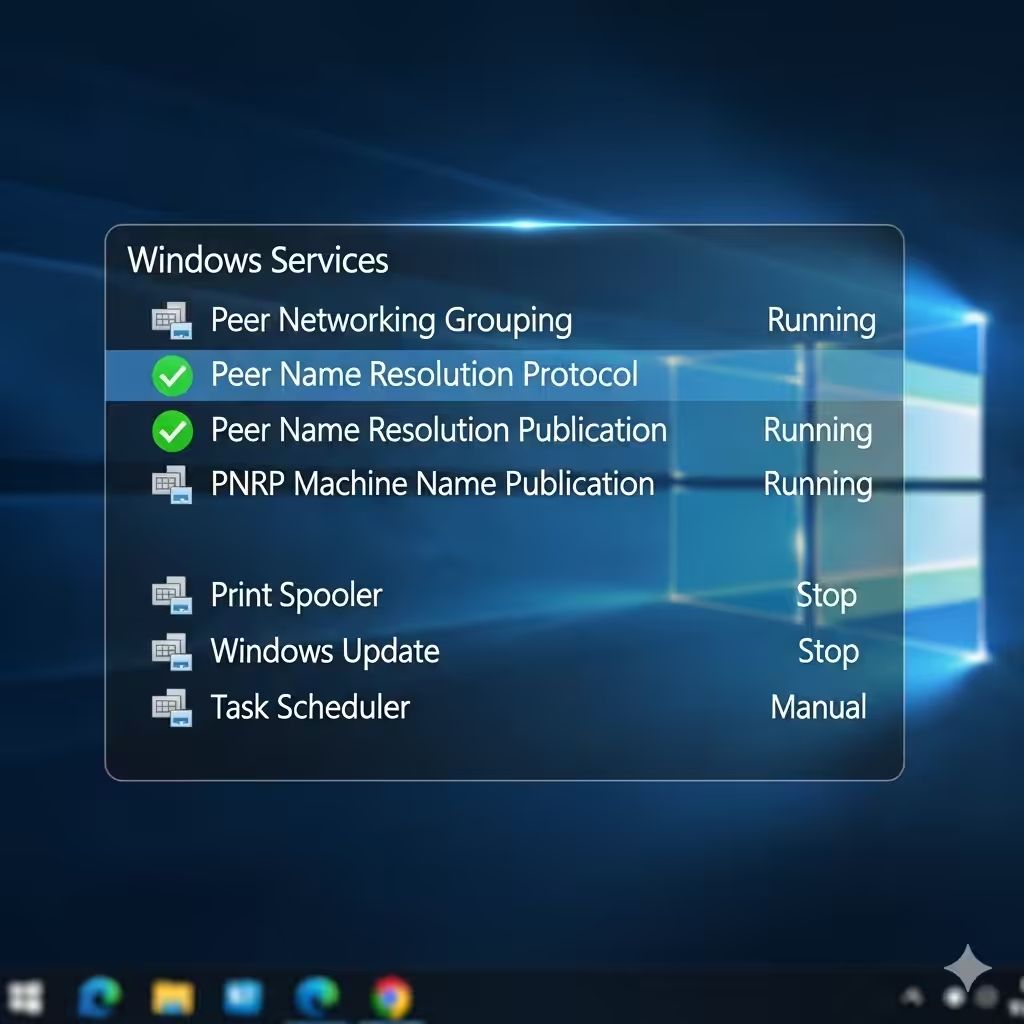
Homegroup depends on several Windows services. If any of these are disabled or not running properly, you will encounter errors.
Key Services to Check:
-
Peer Networking Grouping
-
Peer Name Resolution Protocol
-
Peer Networking Identity Manager
-
HomeGroup Provider
-
HomeGroup Listener
Steps to Enable Them:
-
Press Windows + R, type
services.msc, and press Enter. -
Locate the services listed above.
-
Right-click each service, select Properties, and set the Startup type to Automatic.
-
Click Start if the service is not already running.
After enabling these services, retry setting up the Homegroup.
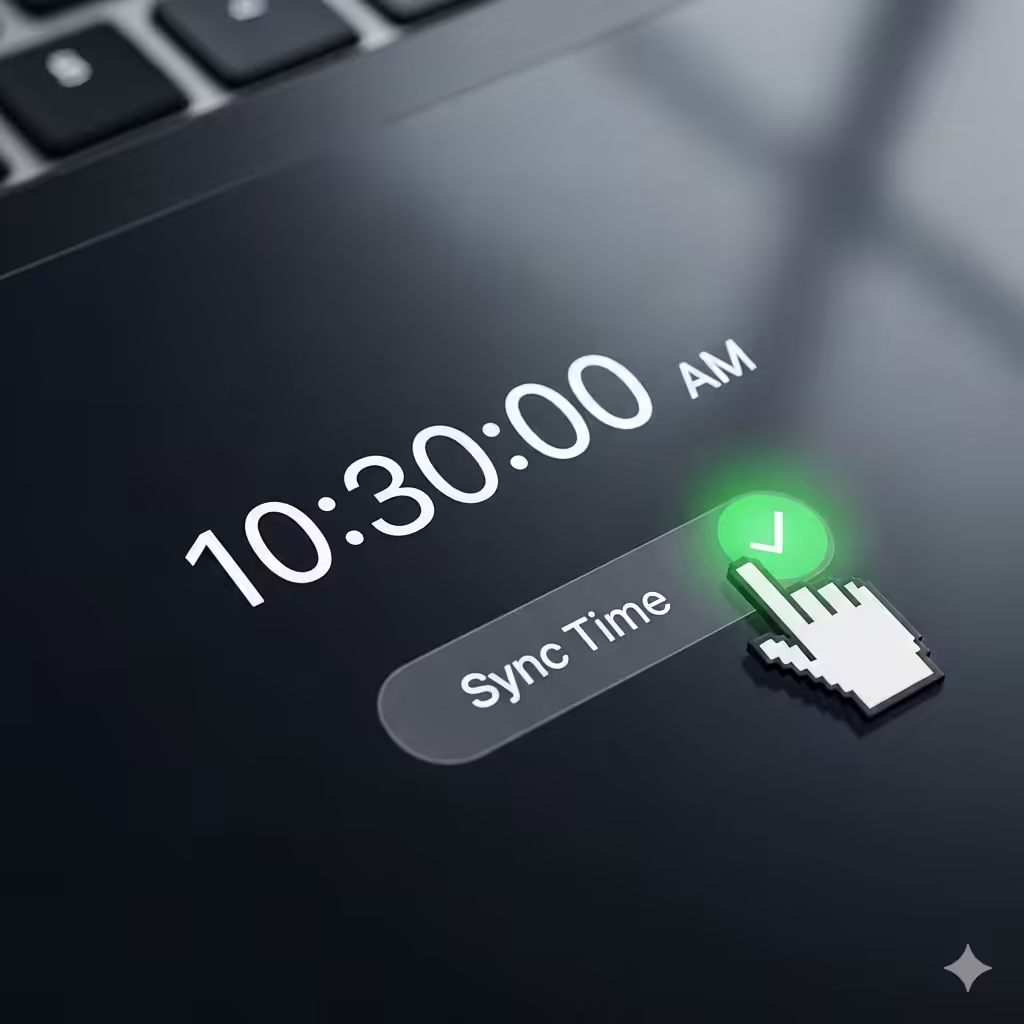
Sync Your Computer’s Date and Time
Homegroup requires all computers in the network to have synchronized system clocks. Incorrect time or date settings can block the setup process.
Fixing Time Settings:
-
Right-click the clock in the taskbar and choose Adjust date/time.
-
Enable Set time automatically and Set time zone automatically.
-
If necessary, click Sync now under Synchronize your clock.
Once your computer’s time is aligned, try creating or joining the Homegroup again.
Run the Network Troubleshooter
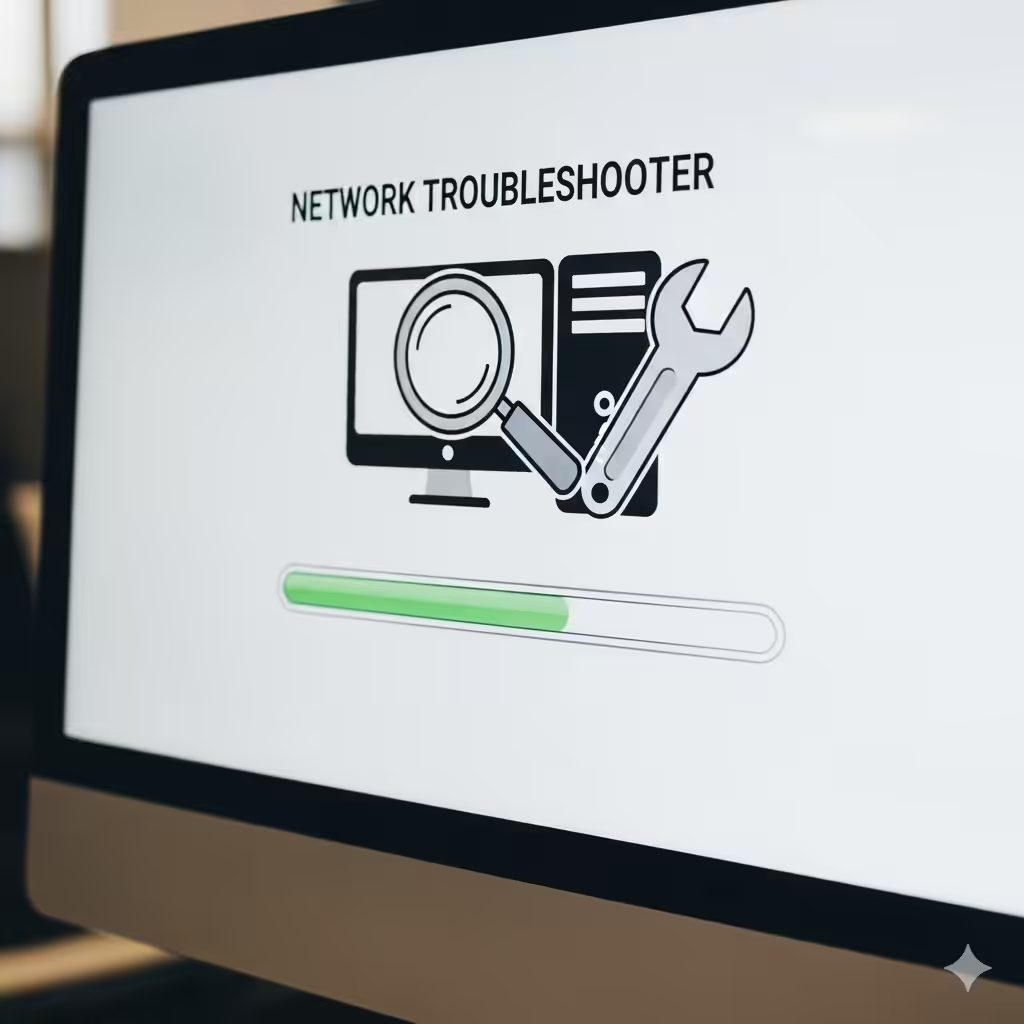
Windows includes built-in troubleshooters that can automatically detect and fix common network issues.
To Use the Troubleshooter:
-
Open Control Panel and go to Troubleshooting.
-
Under Network and Internet, select HomeGroup.
-
Follow the on-screen instructions to let Windows detect and repair issues.
Although not always perfect, the troubleshooter can resolve service conflicts or configuration problems quickly.
Reset TCP/IP Stack
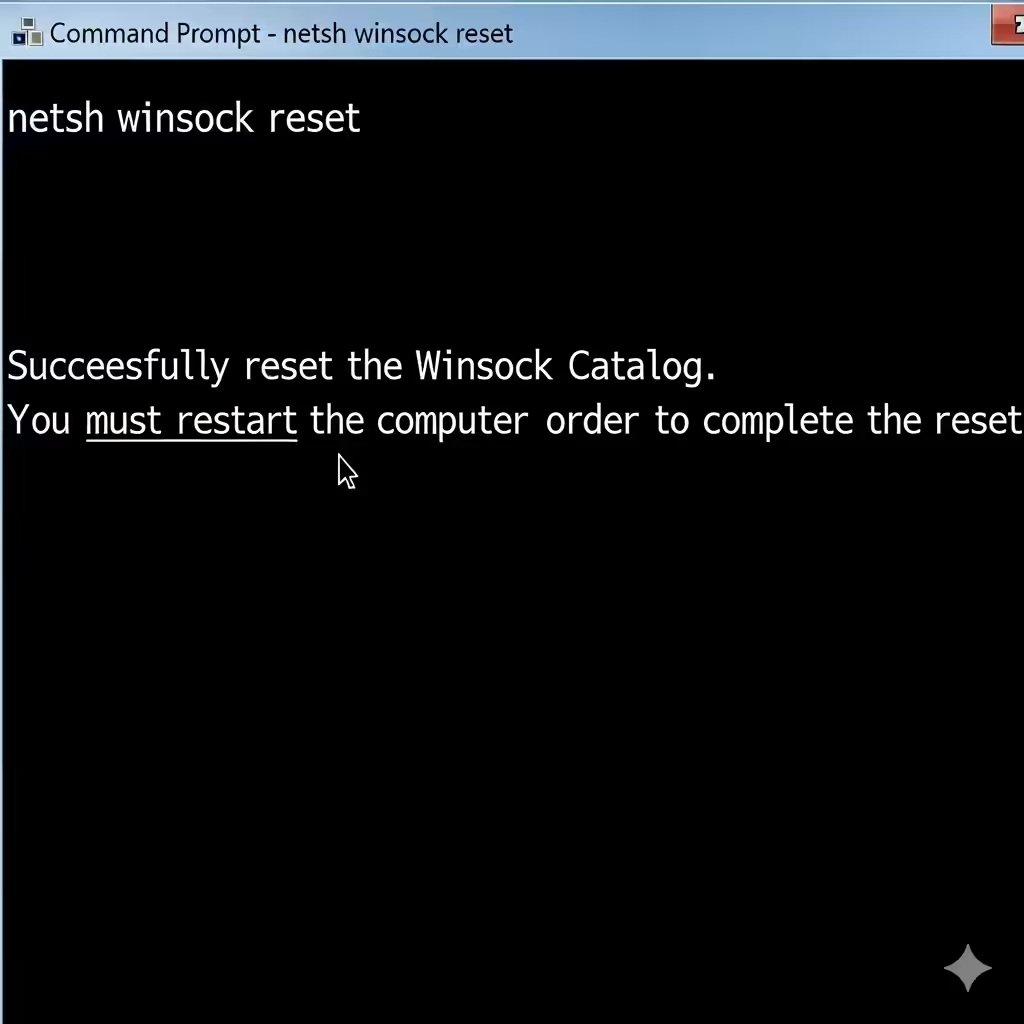
Network configuration issues may prevent Homegroup from working properly. Resetting the TCP/IP stack can restore connectivity.
Steps:
-
Open Command Prompt as administrator.
-
Type the following commands one at a time and press Enter:
-
Restart your computer.
This resets your networking components and may allow the Homegroup setup to proceed successfully.
Temporarily Disable Firewall and Antivirus
Third-party firewalls or antivirus software often block Homegroup connections by interfering with networking services.
How to Test:
-
Temporarily disable your antivirus program.
-
Open Control Panel > Windows Defender Firewall > Turn Windows Defender Firewall on or off.
-
Turn it off for private networks temporarily.
If Homegroup works after disabling these, adjust your firewall rules or security software settings to allow Homegroup services.

Run System File Checker
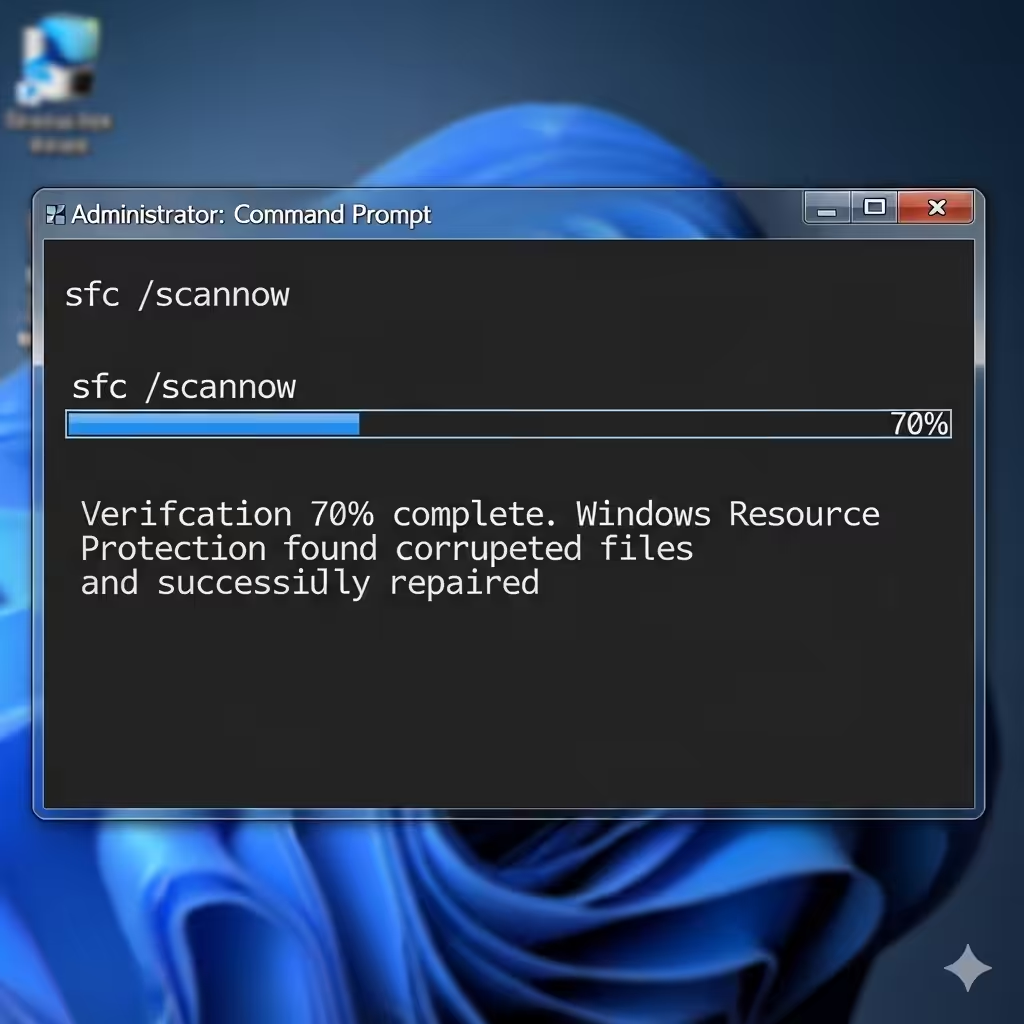
Corrupted system files may prevent Homegroup from initializing correctly. Running the System File Checker (SFC) can repair them.
Steps:
-
Open Command Prompt as administrator.
-
Type:
-
Wait for the scan to complete and follow the results.
If SFC finds corrupted files, it will attempt to repair them automatically.
Consider Alternatives to Homegroup
Since Microsoft removed Homegroup in later versions of Windows 10, it may be better to switch to modern sharing options.
Alternatives Include:
-
OneDrive for cloud-based sharing.
-
Nearby Sharing in Windows 10 and 11.
-
Traditional network sharing using shared folders and permissions.
-
Third-party tools like Google Drive or Dropbox.
These methods are more secure and actively supported compared to Homegroup.

Conclusion

The error “Windows can’t set up a Homegroup on this computer” usually happens due to disabled services, corrupted configuration files, or conflicts with networking settings. By deleting old Homegroup files, enabling required services, synchronizing system time, and running troubleshooting tools, you can fix the issue and set up Homegroup successfully.
However, since Microsoft has phased out Homegroup in Windows 10 and newer, you may want to consider switching to modern alternatives such as Nearby Sharing or cloud storage for a smoother and more reliable experience.