


How to Stop Excel from Crashing on Windows: Troubleshooting Guide
Microsoft Excel is one of the most powerful spreadsheet tools available, but it’s not immune to issues. One of the most frustrating problems users encounter is when Excel keeps crashing or freezing on Windows. Whether it happens when opening a file, saving data, or performing a simple calculation, these crashes can interrupt your work and even cause data loss.
If Excel keeps crashing on your Windows PC, don’t worry — this guide will walk you through all the possible causes and step-by-step solutions to fix the problem and prevent it from happening again.
Common Causes of Excel Crashes
Before we dive into the fixes, it’s helpful to understand why Excel might be crashing. The issue can stem from a variety of sources, including software conflicts, corrupted files, or outdated system components. Here are the most common causes:
-
Outdated Excel or Windows updates
-
Corrupted Excel add-ins
-
Faulty or damaged workbook files
-
Insufficient memory (RAM)
-
Third-party software conflicts
-
Corrupted Office installation
-
Hardware acceleration issues
-
Excessive conditional formatting or complex formulas
Once you identify the likely cause, it becomes easier to apply the right fix.
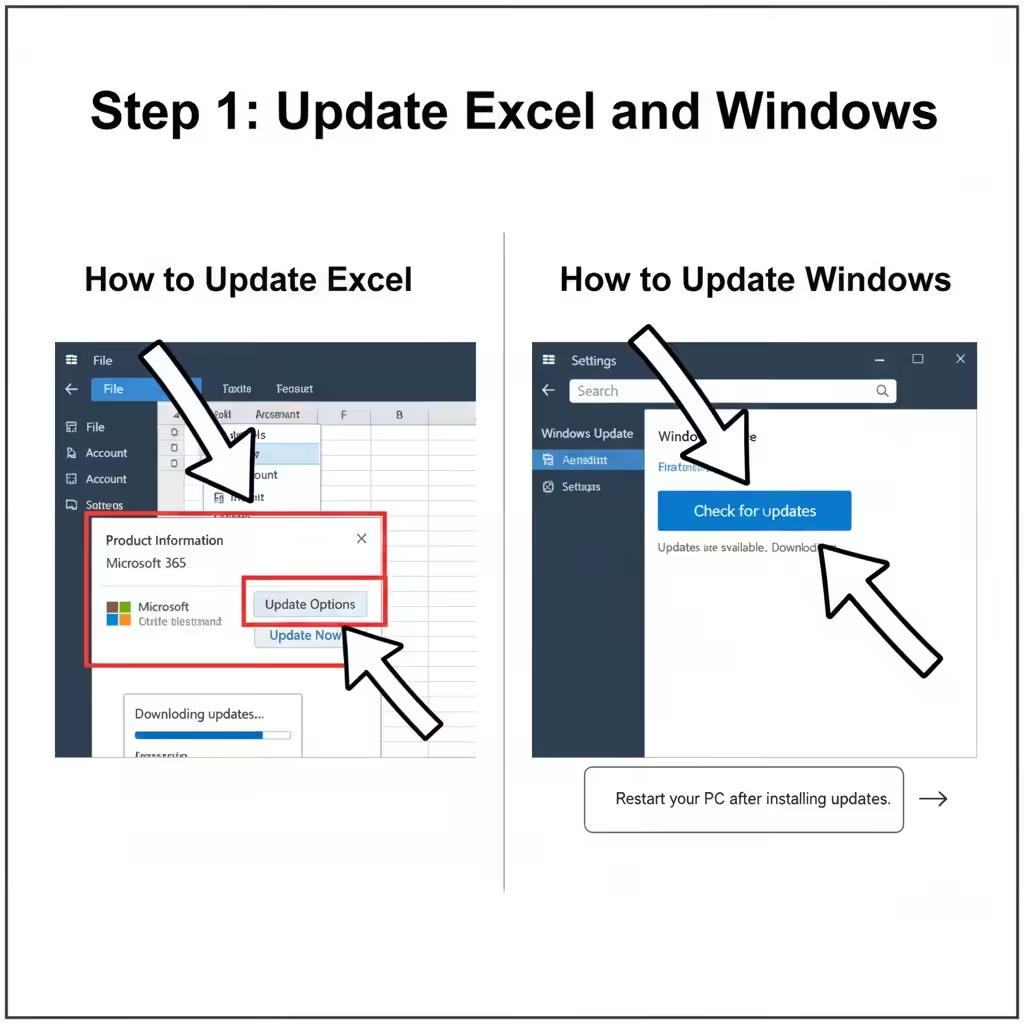
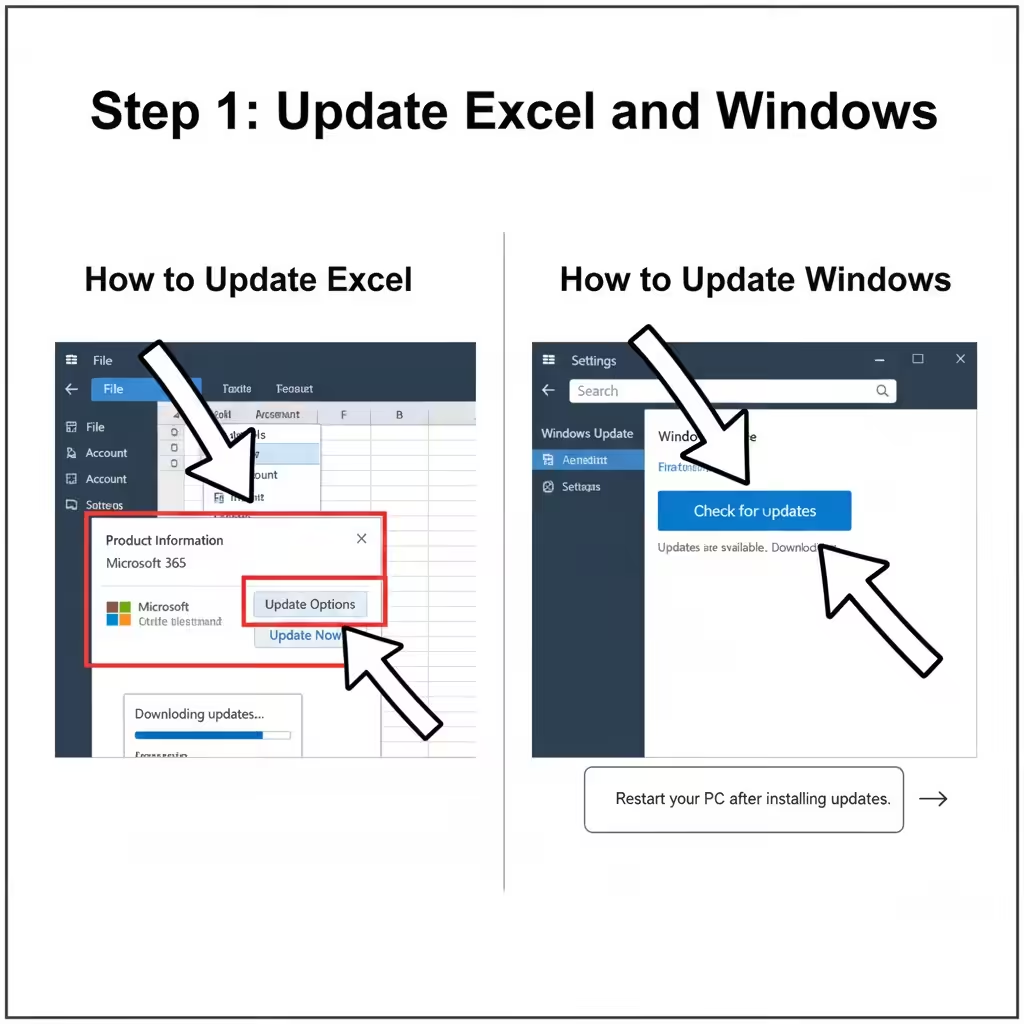
1. Update Excel and Windows
One of the simplest but most effective solutions is to ensure that both Excel and Windows are up to date. Microsoft regularly releases patches and updates that fix bugs and improve performance.
How to Update Excel
-
Open Excel.
-
Go to File → Account.
-
Under Product Information, click Update Options → Update Now.
This will check for any available updates and install them automatically.
How to Update Windows
-
Press Windows + I to open Settings.
-
Select Windows Update.
-
Click Check for updates.
Restart your PC after the updates are installed and try reopening Excel.
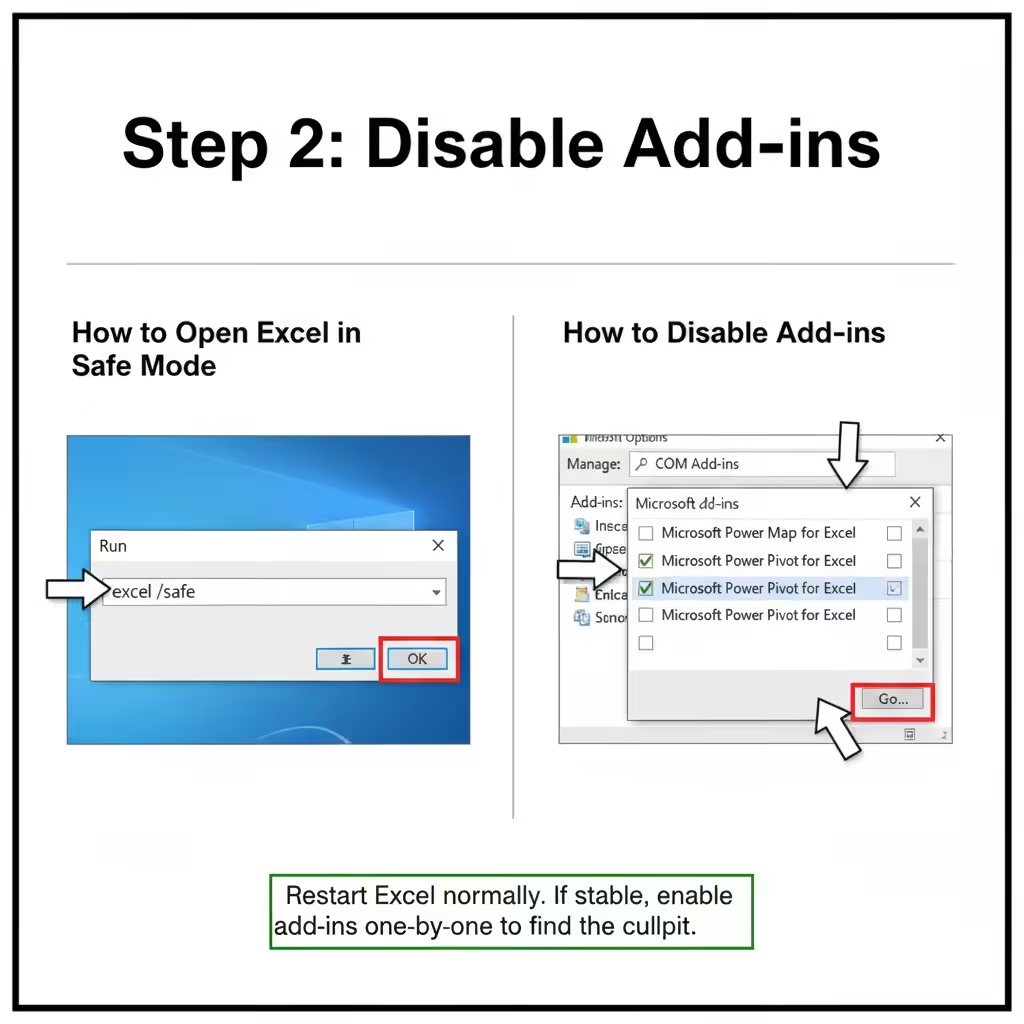
2. Disable Add-ins
Add-ins can enhance Excel’s functionality, but they’re also a common source of instability. A corrupted or incompatible add-in may cause Excel to crash repeatedly.
How to Disable Add-ins
-
Open Excel in Safe Mode by holding Ctrl while launching the program.
-
Go to File → Options → Add-ins.
-
At the bottom, select COM Add-ins in the “Manage” box and click Go.
-
Uncheck all the add-ins, then click OK.
-
Restart Excel normally.
If Excel runs smoothly after disabling add-ins, enable them one by one to find the problematic one.
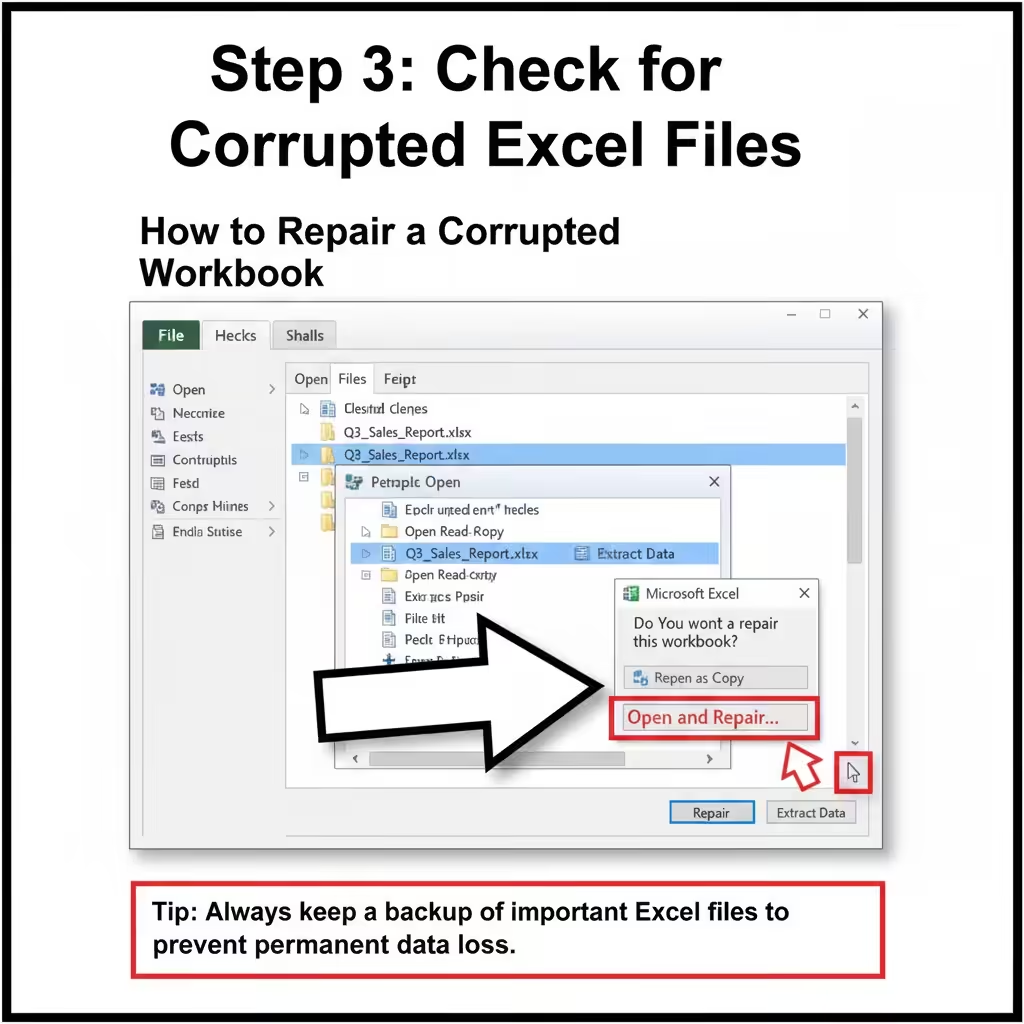
3. Check for Corrupted Excel Files
Sometimes, the issue isn’t with the program itself but with a specific Excel file. Corruption can occur due to unexpected shutdowns, virus infections, or storage errors.
How to Repair a Corrupted Workbook
-
Open Excel.
-
Go to File → Open.
-
Browse to the file you want to open.
-
Click the small arrow next to Open, and choose Open and Repair.
-
Select Repair to attempt automatic recovery.
If the repair fails, choose Extract Data to recover what’s possible.
Tip: Always keep a backup of important Excel files to prevent permanent data loss.
4. Turn Off Hardware Graphics Acceleration
Hardware acceleration helps Excel render graphics faster, but it can sometimes conflict with certain graphics drivers and cause crashes. Disabling it may resolve stability issues.
How to Disable Hardware Acceleration
-
Open Excel.
-
Go to File → Options → Advanced.
-
Scroll down to the Display section.
-
Check the box Disable hardware graphics acceleration.
-
Click OK and restart Excel.
If the crashes stop, the problem was likely related to your graphics driver or GPU settings.
5. Start Excel in Safe Mode
Running Excel in Safe Mode launches the program without any custom settings, extensions, or startup files. This is a great way to determine whether the issue is caused by an add-in or configuration setting.
How to Open Excel in Safe Mode
-
Press Windows + R to open the Run dialog.
-
Type
excel /safeand press Enter.
If Excel runs fine in Safe Mode, it means the problem is likely related to add-ins, startup programs, or settings.
6. Clear Conditional Formatting and Complex Formulas
Overly complex workbooks with thousands of formulas, conditional formatting rules, or links can cause Excel to slow down or crash.
How to Simplify Your Workbook
-
Delete unnecessary conditional formatting:
Go to Home → Conditional Formatting → Clear Rules. -
Use simpler formulas or helper columns instead of nested ones.
-
Remove unnecessary external links to other workbooks.
-
Save large workbooks in .XLSB (Binary Workbook) format to improve performance.
By optimizing your workbook, you reduce memory usage and make Excel run more smoothly.
7. Check for Conflicts with Antivirus or Third-Party Software
Some antivirus programs can interfere with Excel’s operation by scanning files as you open them. This can lead to freezing or unexpected crashes.
How to Check
-
Temporarily disable real-time protection in your antivirus program.
-
Open Excel and check if the issue persists.
-
If Excel stops crashing, add it to your antivirus exclusion list.
Note: Don’t leave your antivirus disabled for long; only do this for testing purposes.
8. Run Excel’s Built-in Repair Tool
Microsoft Office includes a built-in repair feature that can fix corrupted installation files or damaged components.
How to Use the Repair Tool
-
Press Windows + I to open Settings.
-
Go to Apps → Installed Apps.
-
Find Microsoft Office or Microsoft 365.
-
Click Modify.
-
Choose Quick Repair first. If that doesn’t work, choose Online Repair.
After the repair process finishes, restart your computer and test Excel again.
9. Update or Reinstall Graphics Drivers
Outdated or incompatible graphics drivers can cause rendering problems and instability in Excel, especially when hardware acceleration is enabled.
How to Update Graphics Drivers
-
Press Windows + X → select Device Manager.
-
Expand Display adapters.
-
Right-click your graphics card and select Update driver.
-
Choose Search automatically for drivers.
Alternatively, visit the manufacturer’s website (NVIDIA, AMD, or Intel) to download the latest version manually.
10. Reinstall Microsoft Office
If none of the above solutions work, a full reinstallation may be necessary. This ensures that all program files are replaced and any registry errors are resolved.
How to Reinstall Office
-
Open Control Panel → Programs and Features.
-
Select Microsoft Office → Uninstall.
-
Restart your computer.
-
Log in to your Microsoft account and reinstall Office from the official website.
After reinstalling, activate Office and check if Excel runs properly.
11. Increase System Memory or Virtual Memory
If you’re working with large Excel files, your computer might be running out of memory, leading to freezes or crashes.
To Increase Virtual Memory
-
Press Windows + R, type
sysdm.cpl, and press Enter. -
Under the Advanced tab, click Settings in the Performance section.
-
Go to the Advanced tab again and click Change under Virtual Memory.
-
Uncheck Automatically manage paging file size.
-
Set a custom size (e.g., 4096 MB for both initial and maximum size).
-
Click OK and restart your PC.
This gives Excel more memory to handle large workbooks and complex formulas.
12. Create a New Windows Profile
Sometimes user profiles become corrupted, causing issues with Excel and other programs. Creating a new profile can fix unexplained crashes.
How to Create a New Profile
-
Press Windows + I → Accounts → Other Users.
-
Click Add account.
-
Follow the prompts to create a new user.
-
Log into the new account and try running Excel.
If Excel works normally, the issue lies within your old profile’s settings or permissions.
Final Tips to Prevent Future Excel Crashes
-
Save your work frequently using AutoSave or AutoRecover.
-
Keep Excel and Windows updated at all times.
-
Avoid opening too many large workbooks simultaneously.
-
Back up important files regularly.
-
Regularly clear temporary files using Disk Cleanup or Storage Sense.
Conclusion
When Excel keeps crashing on Windows, it can disrupt your productivity and lead to data loss. However, most problems can be solved by following a few simple troubleshooting steps — updating Excel, disabling add-ins, repairing installation files, or adjusting system settings.
By applying the fixes outlined in this guide, you can restore Excel’s stability and prevent future crashes. Once everything runs smoothly again, you can get back to focusing on what matters most — analyzing data, creating reports, and getting work done efficiently without interruptions.