


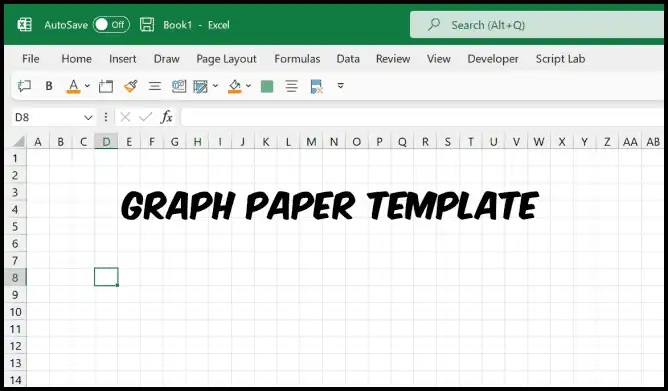
Create Custom Graph Paper in Excel and Print It Easily
Microsoft Excel is known for its data analysis and charting features, but did you know it can also be used to create and print graph paper? Whether you need it for math assignments, design projects, engineering drawings, or hand-drawn charts, Excel provides a simple and customizable way to generate precise grid layouts that function just like graph paper.
This comprehensive guide will show you how to make and print graph paper in Excel step-by-step, including how to set up perfect square cells, add gridlines, adjust scaling, and ensure your printed sheet looks exactly the way you want.
Why Use Excel to Create Graph Paper?
You might wonder why you should use Excel instead of downloading graph paper templates. The answer is flexibility. Excel allows you to:
-
Customize cell size and spacing exactly as you like.
-
Choose colors for gridlines and background.
-
Adjust the scale for metric or imperial measurements.
-
Print multiple sheets in different grid sizes.
-
Save digital versions for reuse later.
With Excel, you don’t need any third-party software — everything can be done directly within the program.
Step 1: Open a New Excel Workbook
Start by opening Microsoft Excel. You can use either a blank workbook or a new sheet in an existing file.
-
Launch Excel.
-
Select Blank Workbook.
-
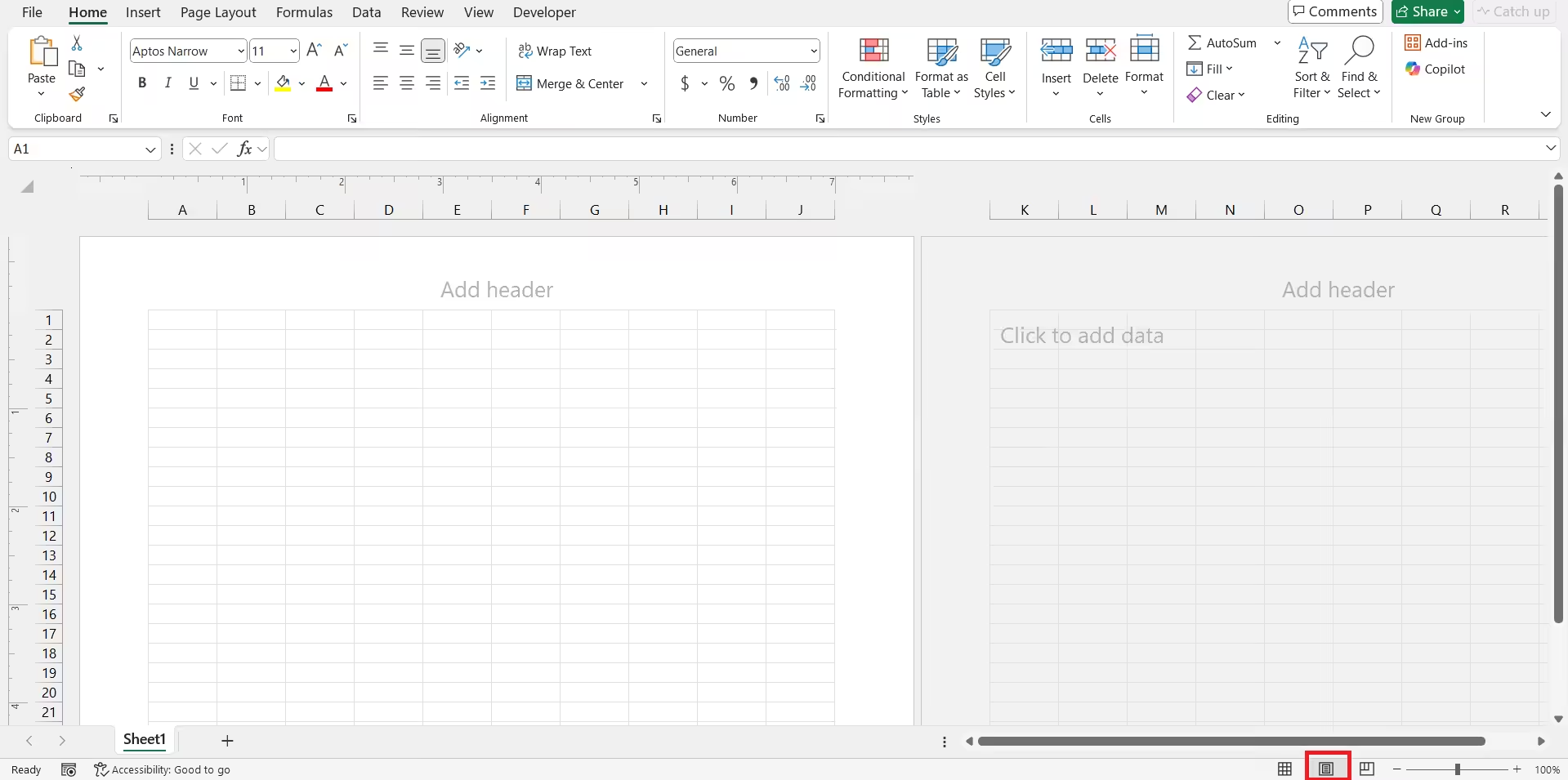
You should now see a fresh grid of cells — your starting point for creating graph paper.
The default layout isn’t perfectly square, but we’ll fix that in the next step.
Step 2: Adjust Row Height and Column Width
To make graph paper, each cell needs to be a perfect square. Excel’s default cells are rectangular, so you’ll need to adjust both the row height and column width.
How to Create Square Cells
-
Select the entire worksheet by clicking the small triangle icon in the top-left corner (between the A column and row 1).
-
Right-click any column header and choose Column Width.
-
Enter a width value — for example, 2.14 (this equals approximately 20 pixels). Click OK.
-
Next, right-click any row number and choose Row Height.
-
Enter 15.00 (or experiment until your cells appear square).
Tip: The exact values may vary depending on your screen resolution and printer. You can zoom in to check visually if the cells look like squares.
Step 3: Turn On Gridlines for Printing
By default, Excel displays gridlines on the screen, but they don’t automatically print. You need to enable them in the print settings.
To Show and Print Gridlines
-
Go to the Page Layout tab.
-
In the Sheet Options group, check the boxes for View and Print under Gridlines.
Now you’ll see the gridlines on-screen and in print preview mode.
If you want darker or custom-colored lines, use cell borders, which we’ll cover next.
Step 4: Add or Customize Borders
If you prefer stronger or colored gridlines instead of Excel’s light gray ones, you can manually add borders to your cells.
How to Add Borders
-
Select the range of cells you want to turn into graph paper (for example, A1 to Z50).
-
Go to the Home tab.
-
Click the Borders dropdown arrow.
-
Choose All Borders.
This will apply a solid line around each cell, making your gridlines darker and more visible.
Customize the Border Style
-
Click the Borders dropdown again and select More Borders.
-
You can now:
-
Change line color (e.g., light blue or gray).
-
Adjust line style (solid, dotted, dashed).
-
Apply borders to specific sides of cells.
-
This gives your graph paper a neat, professional appearance.
Step 5: Set Page Orientation and Margins
Before printing, you should adjust the layout so the graph paper fits well on your page.
How to Change Orientation
-
Go to the Page Layout tab.
-
Click Orientation.
-
Choose either Portrait or Landscape, depending on your needs.
Landscape is ideal for wide graphs, while portrait works better for standard designs or math grids.
Adjust Margins
-
Still under Page Layout, click Margins.
-
Choose Narrow or Custom Margins.
-
If you want full use of the page, reduce margins to 0.25 inches or even 0 (depending on your printer).
This helps maximize your printable grid area.
Step 6: Scale Your Worksheet to Fit the Page
If you’ve created a large grid but want it to fit on one sheet of paper, use Excel’s scaling options.
How to Scale the Worksheet
-
Click File → Print.
-
Under Settings, select No Scaling and change it to Fit Sheet on One Page.
Alternatively, go to:
-
Page Layout → Scale to Fit → adjust Width and Height to “1 page.”
This ensures your graph paper prints evenly on one page without cutting off any lines.
Step 7: Add Colors or Shading (Optional)
Want to make your graph paper stand out? You can add color to specific cells or alternate rows for a visual guide.
To Add Shading
-
Highlight the cells or rows you want to color.
-
Go to Home → Fill Color (paint bucket icon).
-
Choose a light color, such as light gray, blue, or green.
You can use this feature to create:
-
Engineering grid paper (gray gridlines)
-
Graph paper for drawing (white background)
-
Music or design grids with colored sections
Step 8: Preview and Print Your Graph Paper
Once your grid is ready, it’s time to print.
How to Preview and Print
-
Click File → Print.
-
Check the Print Preview window to make sure everything looks correct.
-
Adjust the scaling, orientation, and margins if needed.
-
Choose your printer and click Print.
You now have a perfectly printed sheet of graph paper made entirely in Excel!
Step 9: Save Your Template for Future Use
To avoid repeating the setup process every time, you can save your graph paper layout as a template.
To Save as Template
-
Click File → Save As.
-
Choose a folder location.
-
In the Save as type dropdown, select Excel Template (*.xltx).
-
Give it a name like GraphPaperTemplate.xltx and click Save.
Next time you need graph paper, simply open this template and print a new sheet.
Step 10: Create Different Grid Sizes
Depending on your needs, you might want smaller or larger squares. You can easily modify the cell size to achieve this.
Examples
-
Small squares (for detailed designs):
-
Column width: 1.5
-
Row height: 10.0
-
-
Medium squares (for general use):
-
Column width: 2.14
-
Row height: 15.0
-
-
Large squares (for drawings or sketches):
-
Column width: 3.0
-
Row height: 22.0
-
Experiment with different settings until you find your preferred grid layout.
Additional Tips
-
If you want bold lines every 5 squares, manually add thicker borders to create sections — useful for graphing or geometry work.
-
To print multiple pages of graph paper, drag your grid across several sheets and set scaling to Fit All Columns on One Page Wide.
-
Use header and footer options under the Insert tab to add titles, page numbers, or labels.
Conclusion
Creating and printing graph paper in Excel is surprisingly easy — and far more flexible than downloading pre-made templates. By adjusting cell sizes, turning on gridlines, and configuring print settings, you can design any type of graph paper you need, whether for school, engineering, or creative work.
Once you’ve saved your template, you can reuse it anytime and modify it to suit your specific project. With Excel, you have full control over your layout, spacing, and design — and the result is professional-quality graph paper that you can print in minutes.