


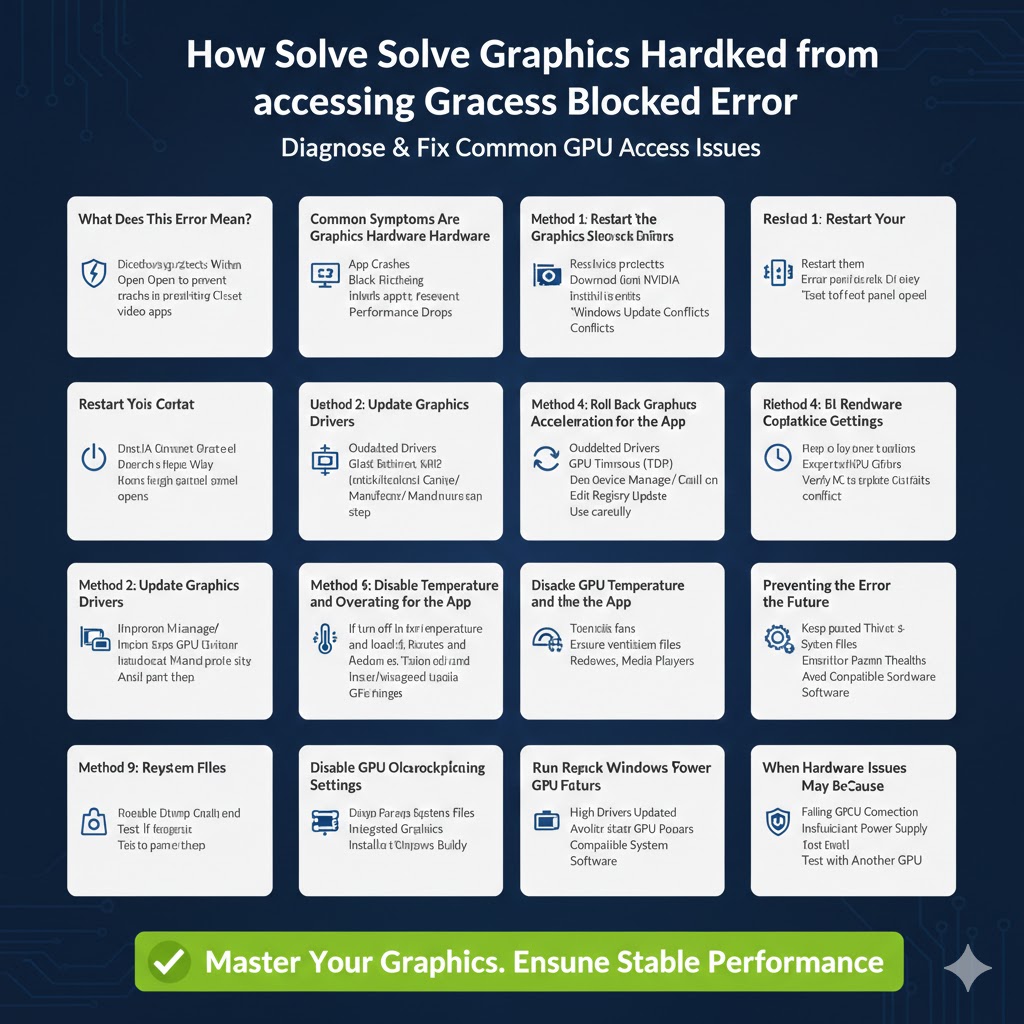
How to Solve the Graphics Hardware Access Blocked Error
The error message “Application has been blocked from accessing graphics hardware” is a common issue on Windows systems, especially when running games, graphic-intensive software, or video applications. This error usually appears suddenly and can cause the affected application to crash, freeze, or close unexpectedly. In some cases, Windows may display a notification saying that the application was blocked to prevent system instability.
This issue can occur on Windows 10 and Windows 11 and is often related to graphics driver problems, system resource conflicts, or incorrect GPU settings. Fortunately, the error can usually be resolved with proper troubleshooting. This guide explains why the error occurs and provides practical solutions to fix it.
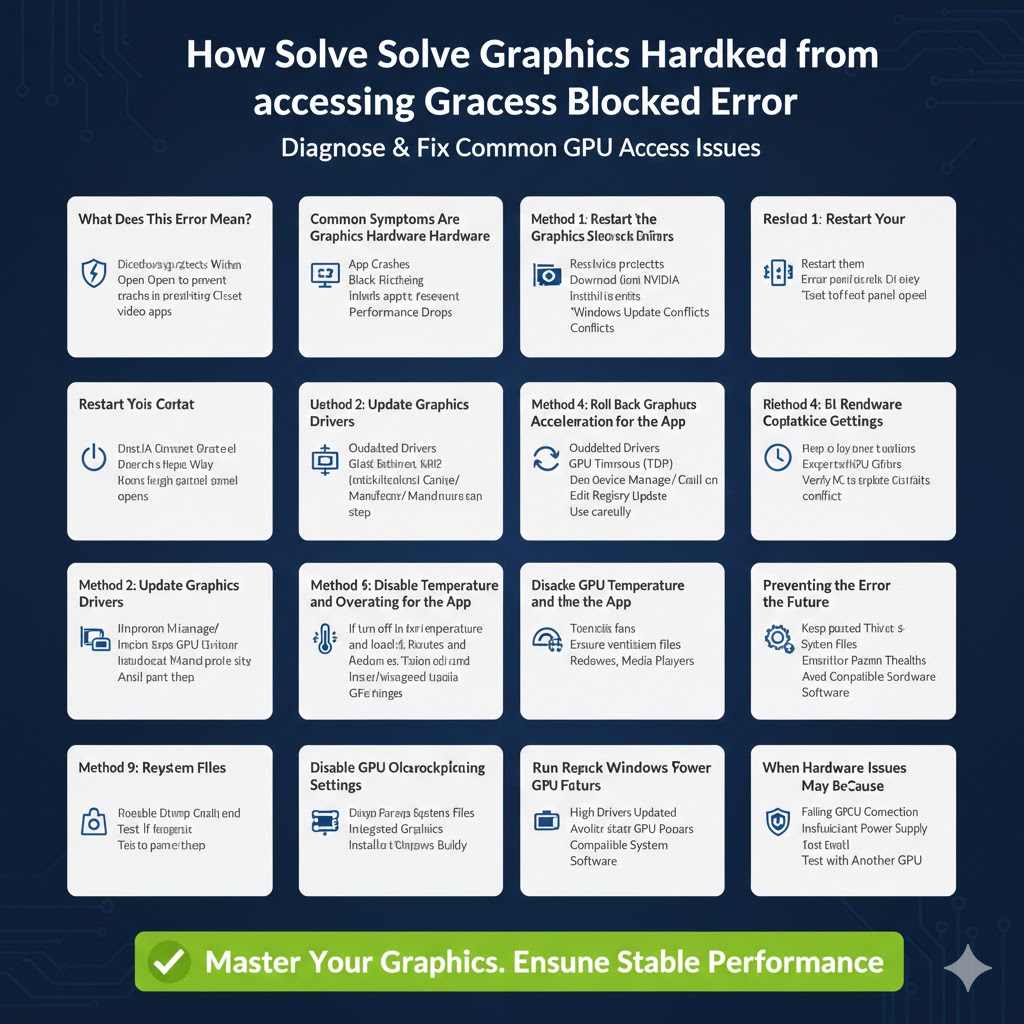
What Does This Error Mean?
To understand how to fix the issue, it is important to know what Windows is trying to do.
How Windows Protects Graphics Hardware
Windows includes safety mechanisms that monitor GPU behavior. If an application appears to overload or misuse the graphics hardware, Windows may temporarily block it to prevent crashes or system damage.
When the Error Appears
The error often appears during gaming, video editing, 3D rendering, or when launching applications that heavily rely on the GPU.
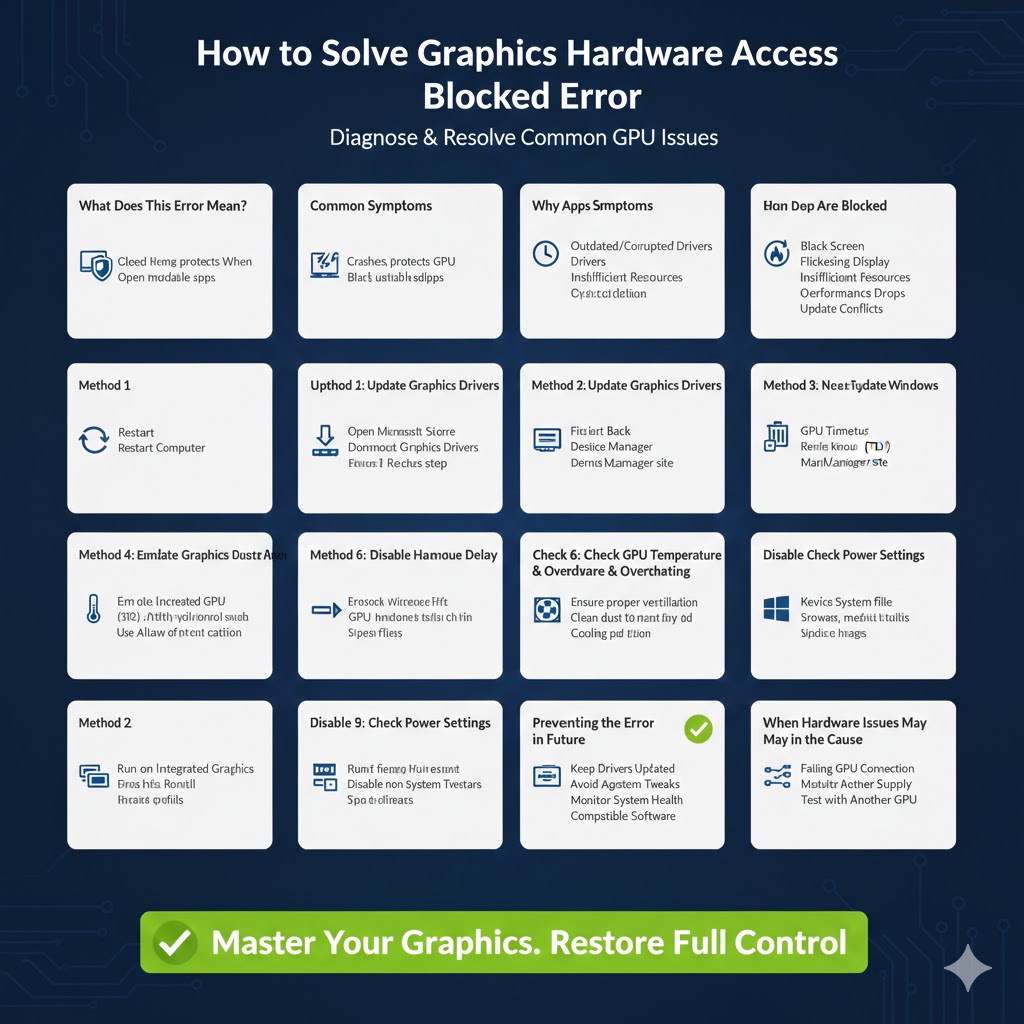
Common Symptoms of the Graphics Hardware Block Error
This issue can present itself in several ways.
Application Crashes or Freezes
The affected program may suddenly stop responding or close without warning.
Black Screen or Display Flickering
The screen may briefly go black before returning to the desktop.
Error Notification
Windows displays a message stating the application was blocked from accessing graphics hardware.
Performance Drops
GPU-dependent apps may run poorly before crashing.
Why Applications Are Blocked from Accessing Graphics Hardware
There are multiple causes behind this error.
Outdated or Corrupted Graphics Drivers
Drivers that are outdated or damaged are the most common cause.
GPU Timeout Detection and Recovery
Windows may reset the GPU if it takes too long to respond.
Insufficient System Resources
Limited RAM or high CPU usage can trigger the error.
Overclocking or Unstable GPU Settings
Unstable overclock settings may cause GPU timeouts.
Windows Update Conflicts
Recent updates may conflict with existing GPU drivers.
Method 1: Restart Your Computer
Why This Helps
A simple restart clears temporary glitches and resets GPU processes.
When to Try This
If the error appears for the first time, restarting may resolve it immediately.
Method 2: Update Graphics Drivers
Why Driver Updates Are Important
Updated drivers fix bugs, improve compatibility, and enhance performance.
How to Update Drivers
Open Device Manager, expand Display adapters, right-click your GPU, and choose Update driver. Alternatively, download the latest drivers from the GPU manufacturer.
Method 3: Roll Back Graphics Drivers
When to Use This Method
If the error started after a recent driver update.
How It Helps
Rolling back restores a previously stable driver version.
Steps
Open the GPU properties in Device Manager and select Roll Back Driver if available.
Method 4: Increase GPU Timeout Delay
Why This Works
Some applications need more time to respond, and Windows may block them too quickly.
What This Changes
Adjusting the timeout delay allows the GPU more processing time before Windows intervenes.
Important Note
This method should be used carefully, as incorrect changes can affect system stability.
Method 5: Disable Hardware Acceleration for the App
Why Hardware Acceleration Can Cause Issues
Some applications do not handle GPU acceleration well.
How to Disable It
Check the application’s settings and turn off hardware acceleration if available.
Best Use Case
This is effective for browsers, media players, and design tools.
Method 6: Check GPU Temperature and Overheating
Why Temperature Matters
Overheating can cause GPU instability and trigger Windows protection mechanisms.
How to Fix Overheating
Ensure proper ventilation, clean dust from fans, and avoid blocking airflow.
Laptop Users
Use a cooling pad and avoid running intensive apps on soft surfaces.
Method 7: Disable GPU Overclocking
Why Overclocking Can Trigger the Error
Overclocked GPUs may become unstable under load.
How to Fix It
Reset GPU settings to default values using your graphics control software.
Method 8: Run the Application on Integrated Graphics
Why This Helps
Using integrated graphics reduces GPU load.
How to Switch
Set the application to use integrated graphics in Windows graphics settings or GPU control panel.
When to Use This
This is useful for non-gaming or lightweight applications.
Method 9: Repair System Files
Why System Files Matter
Corrupted Windows files can interfere with graphics services.
How to Repair
Use built-in Windows tools to scan and restore damaged system files.
Method 10: Check Windows Power Settings
Why Power Settings Affect GPU Performance
Power-saving modes may limit GPU resources.
Recommended Setting
Use a balanced or high-performance power plan to ensure stable GPU operation.
Method 11: Update Windows
Why Windows Updates Help
Updates often include GPU-related fixes and compatibility improvements.
Steps
Install all pending Windows updates and restart your system.
Method 12: Perform a Clean Boot
Why Clean Boot Helps
It identifies conflicts caused by third-party software.
How It Works
Windows starts with minimal services, allowing you to isolate the issue.
Preventing the Error in the Future
Keep Drivers Updated
Always use official GPU drivers.
Avoid Aggressive Tweaks
Extreme overclocking or system modifications increase instability.
Monitor System Health
Keep an eye on GPU temperatures and system performance.
Use Compatible Software Versions
Ensure applications are updated and compatible with your Windows version.
When Hardware Issues May Be the Cause
If the error persists after all fixes, hardware problems may exist.
Failing Graphics Card
A damaged GPU can cause frequent errors.
Insufficient Power Supply
Low power output may cause GPU instability.
Testing Hardware
Testing with another GPU or system can help confirm hardware failure.
Conclusion
The “Application has been blocked from accessing graphics hardware” error is a protective measure built into Windows, but it can be disruptive when it occurs frequently. Most of the time, the issue is caused by driver problems, GPU timeouts, overheating, or unstable settings.
By following the solutions in this guide, you can identify the root cause, restore stable GPU access, and prevent future occurrences. Keeping your system updated, maintaining proper cooling, and avoiding unstable configurations will help ensure smooth performance for graphics-intensive applications on Windows.