


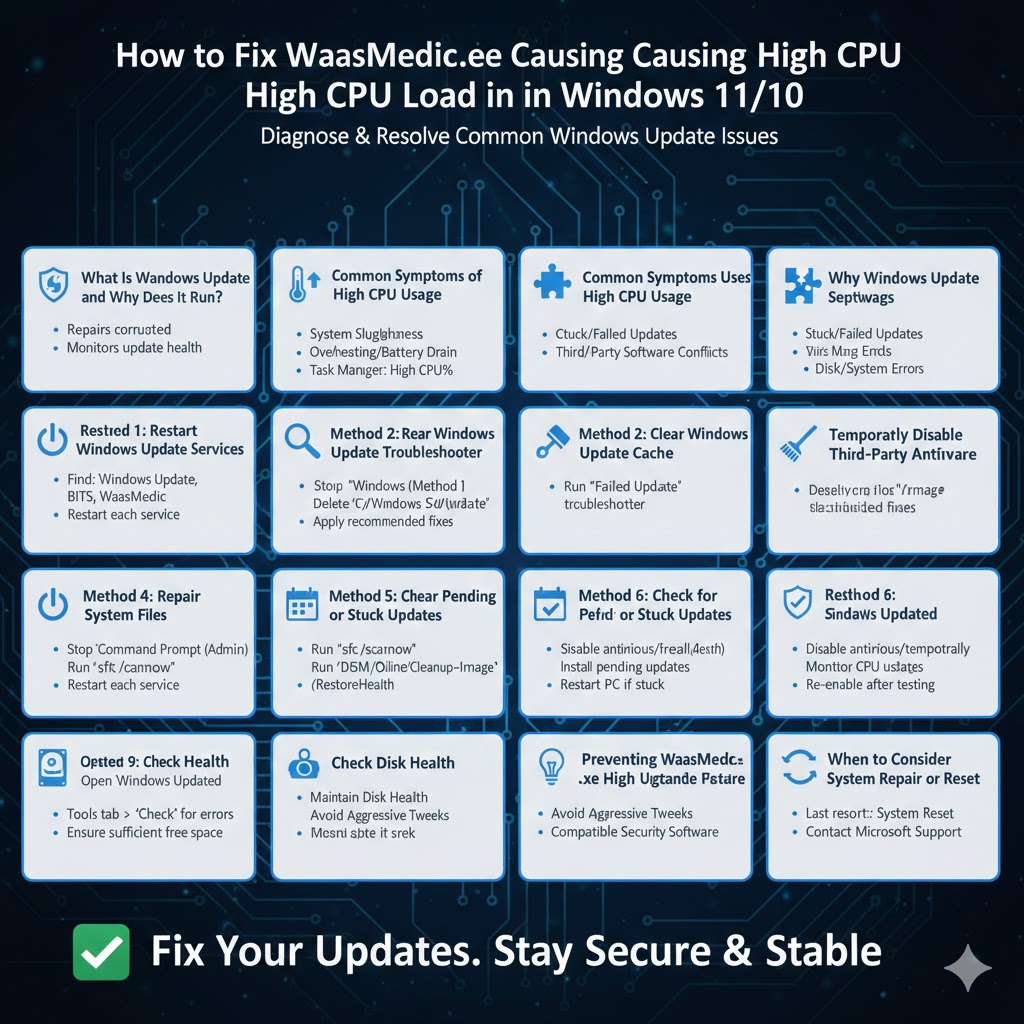
Fix WaasMedic.exe Causing High CPU Load in Windows 11/10
WaasMedic.exe, also known as the Windows Update Medic Service, is a built-in Windows component designed to repair and protect Windows Update services. Its main purpose is to ensure that Windows Update remains functional, even if certain components become corrupted or disabled. While this service is essential for keeping your system updated and secure, many users experience a frustrating issue where WaasMedic.exe consumes high CPU resources on Windows 11 or Windows 10.
When WaasMedic.exe runs at unusually high CPU usage, it can slow down your computer, cause overheating, reduce battery life, and make everyday tasks difficult. This guide explains why WaasMedic.exe uses excessive CPU and provides effective methods to fix the problem without compromising system stability.
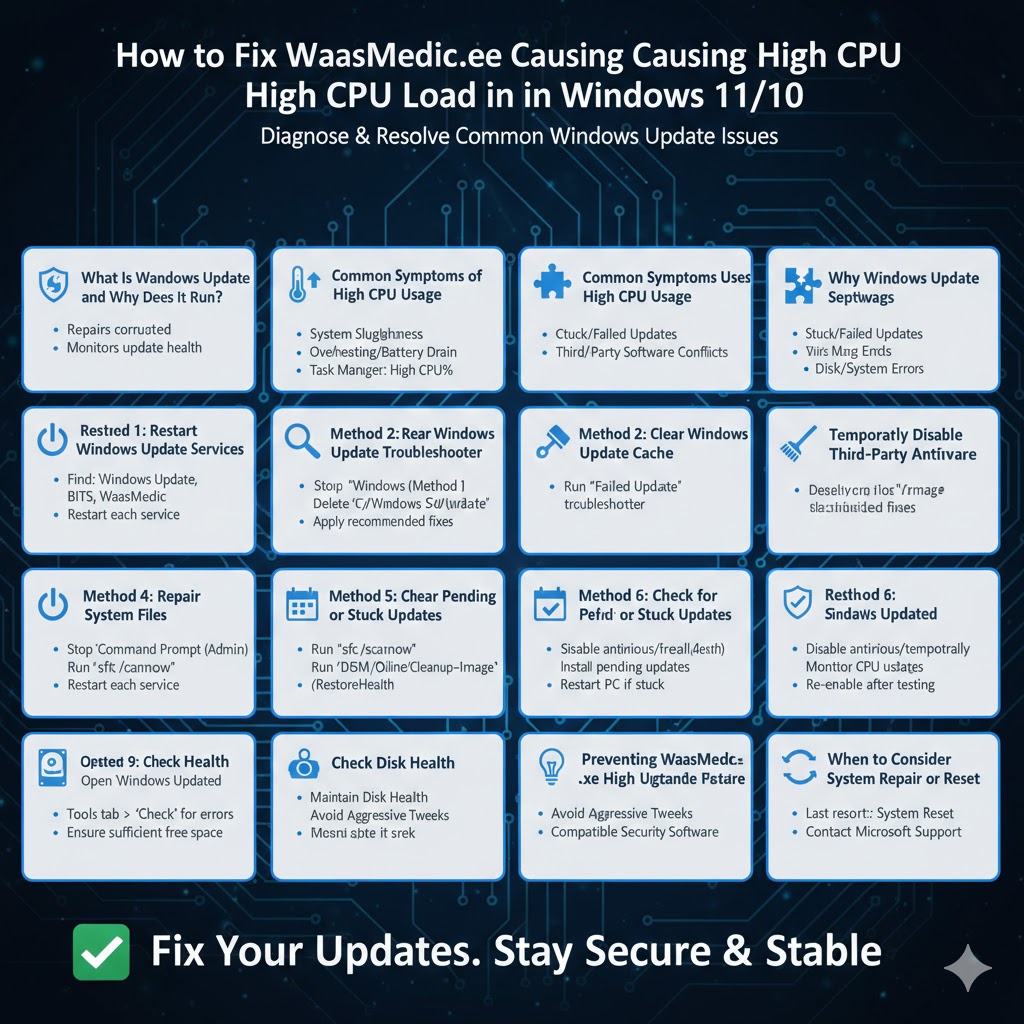
What Is WaasMedic.exe and Why Does It Run?
Before applying fixes, it is important to understand what WaasMedic.exe does.
Purpose of Windows Update Medic Service
WaasMedic.exe monitors Windows Update components and automatically repairs them if it detects issues. It can re-enable disabled services, fix corrupted update files, and ensure updates can be installed properly.
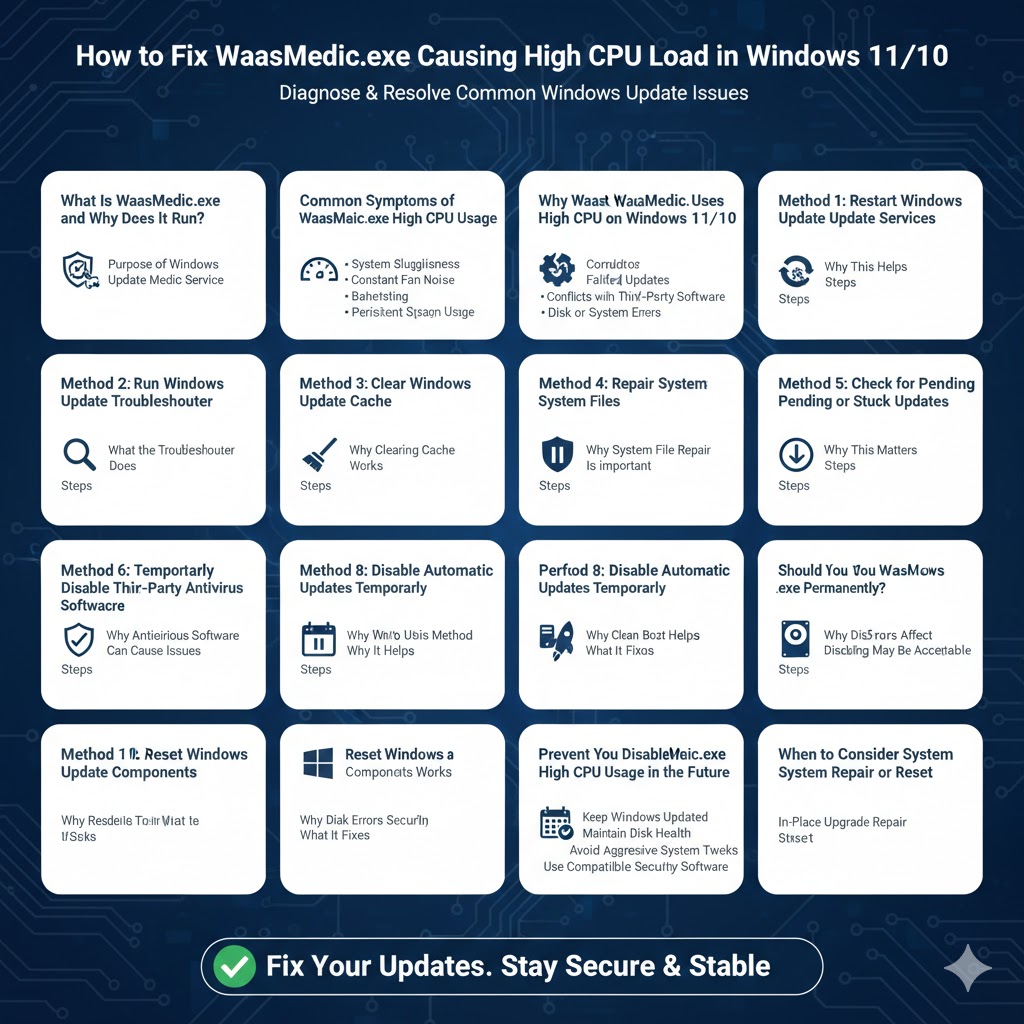
Why CPU Usage Spikes
High CPU usage typically occurs when WaasMedic.exe repeatedly attempts to repair update-related problems, scan corrupted files, or reinitialize Windows Update components.
Common Symptoms of WaasMedic.exe High CPU Usage
Identifying symptoms helps confirm that WaasMedic.exe is the root cause.
System Sluggishness
The system becomes slow or unresponsive, especially during background update checks.
Constant Fan Noise
High CPU usage causes fans to run loudly and continuously.
Overheating
Laptops may heat up quickly even during light usage.
Battery Drain
On portable devices, battery life decreases significantly.
Persistent CPU Usage
Task Manager shows WaasMedic.exe using a high percentage of CPU for extended periods.
Why WaasMedic.exe Uses High CPU on Windows 11/10
Several factors can trigger this behavior.
Corrupted Windows Update Components
Damaged update files cause WaasMedic.exe to repeatedly attempt repairs.
Stuck or Failed Updates
Incomplete updates can lead to endless background repair cycles.
Conflicts with Third-Party Software
Antivirus or system optimization tools may interfere with update services.
Outdated System Files
Older system components may not work well with newer updates.
Disk or System Errors
File system issues can force Windows Update Medic Service to run continuously.
Method 1: Restart Windows Update Services
Why This Helps
Restarting services clears temporary glitches and resets update-related processes.
Steps
Open Services, locate Windows Update, Background Intelligent Transfer Service, and Windows Update Medic Service, then restart them one by one.
Method 2: Run Windows Update Troubleshooter
What the Troubleshooter Does
It automatically detects and fixes common Windows Update issues.
Steps
Open Settings, go to Update & Security, select Troubleshoot, and run the Windows Update troubleshooter. Apply recommended fixes and restart your PC.
Method 3: Clear Windows Update Cache
Why Clearing Cache Works
Corrupted update cache files often cause repeated repair attempts.
How to Do It
Stop Windows Update services, delete the contents of the SoftwareDistribution folder, then restart the services. This forces Windows to rebuild update files from scratch.
Method 4: Repair System Files
Why System File Repair Is Important
Corrupted system files can trigger continuous repair attempts by WaasMedic.exe.
Steps
Use built-in Windows tools to scan and repair system files. This process restores damaged components and stabilizes update behavior.
Method 5: Check for Pending or Stuck Updates
Why This Matters
Pending updates may repeatedly fail and trigger WaasMedic.exe activity.
Steps
Open Windows Update settings and install any pending updates. If updates are stuck, restart your PC and try again.
Method 6: Temporarily Disable Third-Party Antivirus Software
Why Antivirus Software Can Cause Issues
Security software may block update-related processes.
Steps
Temporarily disable antivirus protection and monitor CPU usage. If the issue improves, consider updating or replacing the antivirus software.
Method 7: Disable Automatic Updates Temporarily
When to Use This Method
If WaasMedic.exe continues consuming high CPU during update scans.
Why It Helps
Pausing updates prevents constant repair attempts.
Important Note
This should be a temporary solution. Updates should be re-enabled once the issue is resolved.
Method 8: Perform a Clean Boot
Why Clean Boot Helps
It starts Windows with minimal services, helping identify software conflicts.
Steps
Disable non-essential startup services and reboot. If CPU usage drops, re-enable services gradually to find the cause.
Method 9: Check Disk Health
Why Disk Errors Affect WaasMedic.exe
Disk errors prevent update files from being read or written correctly.
Steps
Scan your system drive for errors and ensure there is sufficient free space available.
Method 10: Reset Windows Update Components
Why Resetting Components Works
It fully restores update services to their default state.
What It Fixes
This method resolves deep-rooted update corruption issues that cause persistent CPU usage.
Should You Disable WaasMedic.exe Permanently?
Why Disabling Is Not Recommended
WaasMedic.exe protects Windows Update from being damaged or disabled. Permanently disabling it can cause update failures and security risks.
When Disabling May Be Acceptable
Temporary disabling for troubleshooting is acceptable, but it should be re-enabled afterward.
Preventing WaasMedic.exe High CPU Usage in the Future
Keep Windows Updated
Install updates regularly to avoid large, problematic updates later.
Maintain Disk Health
Keep sufficient free space and scan disks periodically.
Avoid Aggressive System Tweaks
System optimization tools that disable services can cause update issues.
Use Compatible Security Software
Ensure antivirus programs are fully compatible with your Windows version.
When to Consider System Repair or Reset
If WaasMedic.exe continues to consume high CPU despite all fixes, deeper system issues may exist.
In-Place Upgrade Repair
This repairs Windows without deleting personal files.
System Reset
As a last resort, resetting Windows can restore stability.
Conclusion
WaasMedic.exe high CPU usage on Windows 11 or Windows 10 is usually caused by corrupted update components, stuck updates, or software conflicts. Although the Windows Update Medic Service is essential for system health, excessive CPU usage can significantly affect performance.
By following the solutions in this guide, you can reduce CPU usage, stabilize Windows Update behavior, and restore smooth system performance. With proper maintenance and regular updates, WaasMedic.exe will continue doing its job quietly in the background without impacting your daily work.