


How to Divide Your Screen into Multiple Windows on Windows 10
Multitasking has become an essential part of everyday computer use, whether you are working, studying, or managing personal tasks. Windows 10 includes powerful built-in features that allow you to split your screen and use multiple applications at the same time. By using split screen functionality, you can compare documents, browse the web while taking notes, or monitor multiple tasks without constantly switching between windows.
This guide explains how to split your screen in Windows 10 using different methods, from simple keyboard shortcuts to advanced window management techniques. By the end of this article, you will be able to organize your workspace efficiently and boost productivity.
What Is Split Screen in Windows 10?
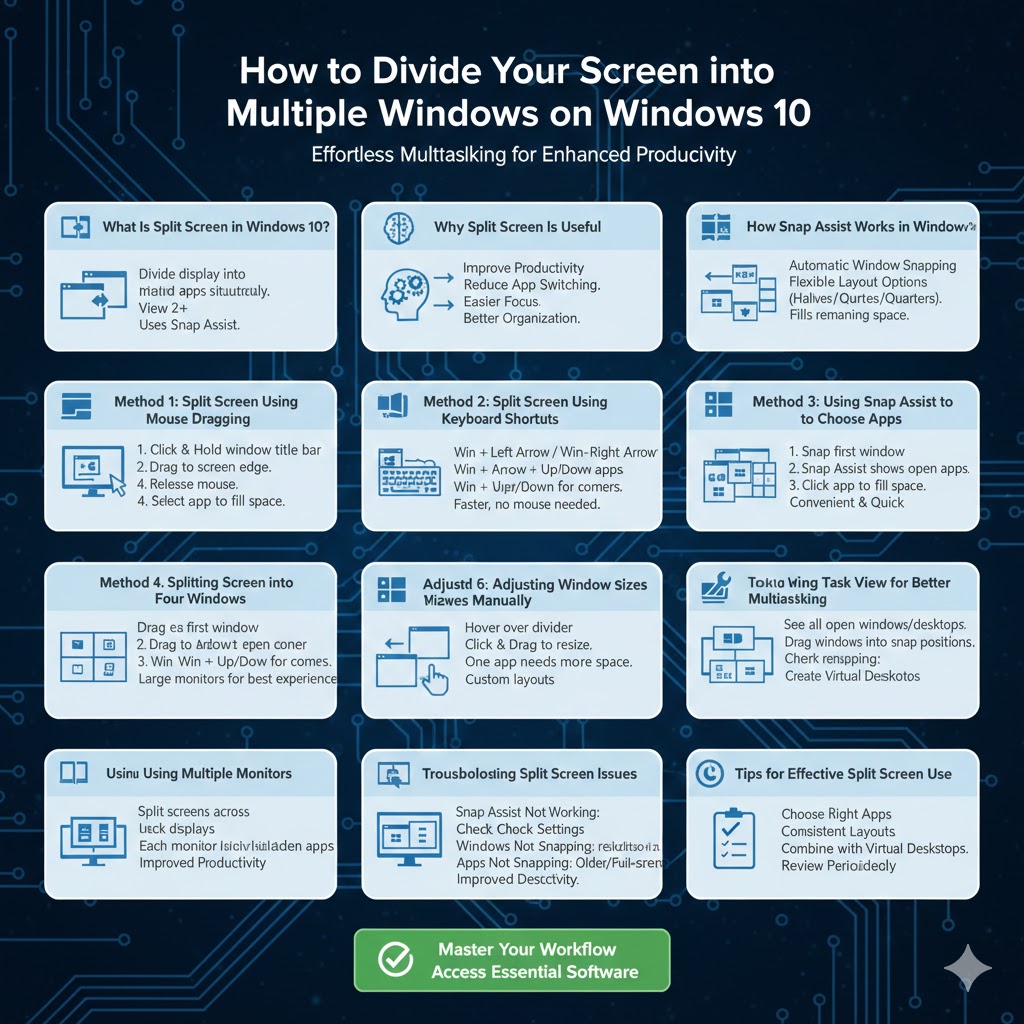
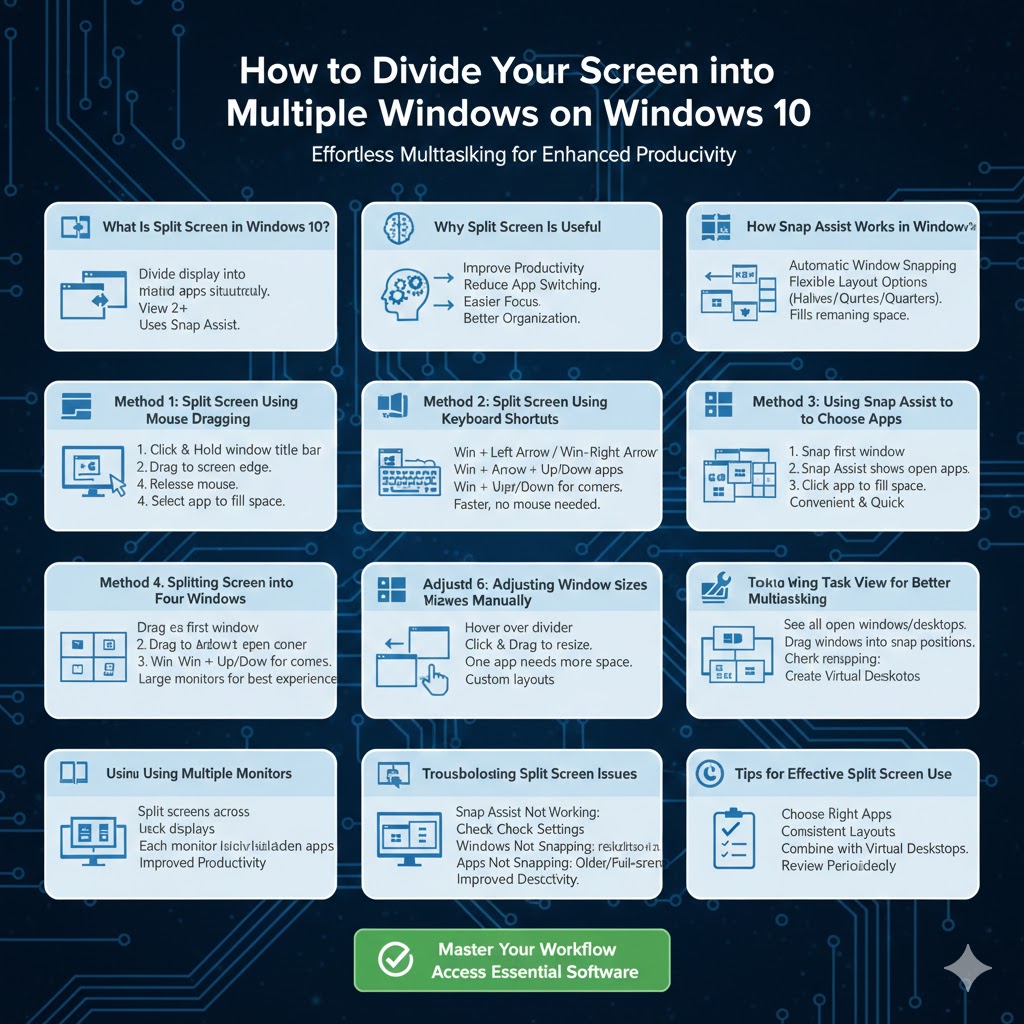
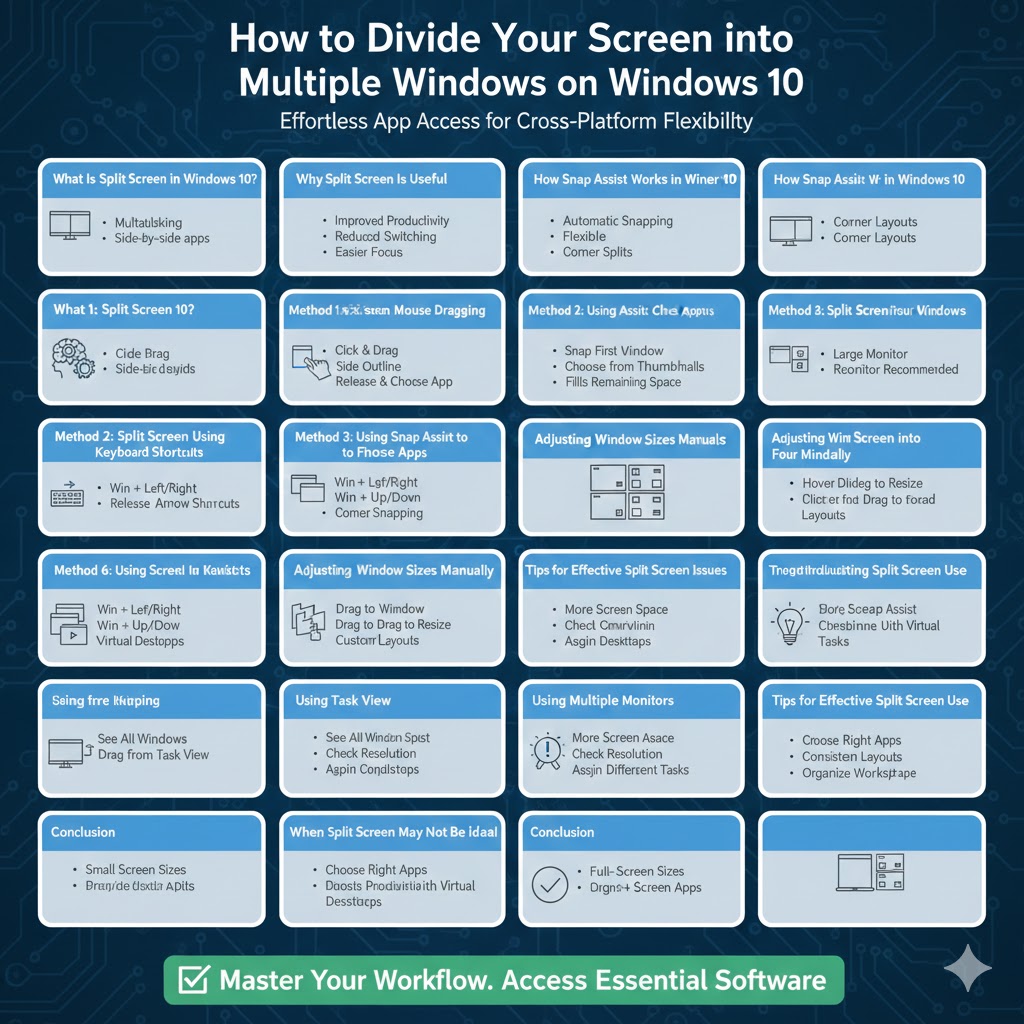
Split screen is a feature that allows you to divide your display into multiple sections so that two or more applications can be viewed simultaneously. Windows 10 offers built-in tools such as Snap Assist that make it easy to arrange windows side by side or into corners.
Why Split Screen Is Useful
Split screen improves productivity by reducing the need to switch between apps, making it easier to focus on multiple tasks at once.
Who Benefits from Split Screen
Students, professionals, designers, programmers, and everyday users can all benefit from better screen organization.
How Snap Assist Works in Windows 10
Snap Assist is the main feature responsible for split screen functionality.
Automatic Window Snapping
When you snap a window to one side of the screen, Snap Assist automatically suggests other open windows to fill the remaining space.
Flexible Layout Options
You can split your screen into two equal halves, or divide it into four quarters using screen corners.
Method 1: Split Screen Using Mouse Dragging
How This Method Works
Dragging a window to the edge of the screen automatically resizes it to fit half of the display.
Steps
Click and hold the title bar of a window, drag it to the left or right edge of the screen until an outline appears, then release the mouse. Select another open window to fill the remaining space.
Best Use Case
This method is ideal for beginners who prefer using a mouse instead of keyboard shortcuts.
Method 2: Split Screen Using Keyboard Shortcuts
Why Keyboard Shortcuts Are Faster
Keyboard shortcuts allow you to split screens quickly without using a mouse.
Important Shortcuts
Press the Windows key and the Left Arrow to snap a window to the left. Press the Windows key and the Right Arrow to snap it to the right.
Using Corners with Shortcuts
Combine the Windows key with Left or Right Arrow, then press Up or Down Arrow to place windows in screen corners.
Method 3: Using Snap Assist to Choose Apps
How Snap Assist Helps
After snapping one window, Snap Assist shows thumbnails of other open apps.
Steps
Snap the first window to one side, then click on another app from the Snap Assist menu to fill the other half of the screen.
Why This Is Convenient
It eliminates the need to manually resize or drag additional windows.
Method 4: Splitting Screen into Four Windows
Why Use a Four-Way Split
A four-way split is useful when working with multiple documents or monitoring several apps.
How to Do It
Drag each window into a different corner of the screen or use keyboard shortcuts to position them in the top-left, top-right, bottom-left, and bottom-right corners.
Screen Size Considerations
Larger monitors provide a better experience when using four windows at once.
Method 5: Adjusting Window Sizes Manually
Why Manual Adjustment Matters
Not all tasks require equal screen space.
How to Resize
Hover over the divider between snapped windows, then click and drag to adjust the size.
When to Use This
This is useful when one app needs more space than the other.
Method 6: Using Task View for Better Multitasking
What Task View Does
Task View allows you to see all open windows and virtual desktops.
How It Helps Split Screen
You can drag windows from Task View into specific positions on your screen.
Bonus Tip
Create multiple virtual desktops to keep split screen layouts organized.
Method 7: Using Multiple Monitors
Why Multiple Monitors Improve Productivity
Using more than one display allows you to split screens across monitors.
How Windows 10 Handles Multiple Screens
Each monitor supports independent split screen layouts.
Best Practices
Assign different tasks to each monitor for better focus.
Troubleshooting Split Screen Issues
Snap Assist Not Working
Ensure Snap Assist is enabled in Settings under Multitasking options.
Windows Not Snapping Properly
Check display resolution and scaling settings.
Apps That Do Not Support Snapping
Some older or full-screen apps may not support split screen.
Tips for Effective Split Screen Use
Choose the Right Apps
Not all apps benefit equally from split screen.
Use Consistent Layouts
Keeping similar layouts helps improve workflow efficiency.
Combine with Virtual Desktops
Use virtual desktops to separate work and personal tasks.
When Split Screen May Not Be Ideal
Small Screen Sizes
On smaller laptops, split screen may feel cramped.
High-Resolution Tasks
Design or video editing tasks may require full-screen mode.
Conclusion
Splitting your screen in Windows 10 is an easy and powerful way to multitask more effectively. With features like Snap Assist, keyboard shortcuts, and multi-monitor support, Windows 10 provides flexible options for organizing your workspace. Whether you prefer using your mouse or keyboard, there is a split screen method that fits your workflow.
By mastering split screen techniques, you can save time, reduce distractions, and make better use of your screen space. Once you get comfortable with these tools, multitasking on Windows 10 becomes faster, smoother, and more enjoyable.