


How to Import and Edit PDF Data in Microsoft Excel
If you’ve ever received a report or dataset in PDF format and needed to analyze or edit it in Excel, you know how frustrating it can be to manually retype the information. Fortunately, Excel now includes built-in tools that make it much easier to import data from a PDF directly into your spreadsheet.
In this comprehensive guide, we’ll walk you through how to import data from PDF to Excel step-by-step, explore common issues, and offer some helpful tips to make your workflow faster and more accurate.
Why Import Data from PDF to Excel
PDFs are a common format for reports, invoices, and statements because they preserve layout and structure. However, PDFs aren’t ideal for data manipulation or analysis. Excel, on the other hand, excels at organizing, sorting, and analyzing data.
Importing data from a PDF into Excel allows you to:
-
Save time by avoiding manual data entry
-
Edit and format information easily
-
Analyze and visualize data using charts, pivot tables, and formulas
-
Combine multiple sources of data into one spreadsheet
Whether you’re managing business reports, financial statements, or tables from academic papers, Excel makes the conversion process smooth and efficient.
Supported Excel Versions
The ability to import PDF data directly into Excel is available in the following versions:
-
Microsoft 365 (Office 365)
-
Excel 2019
-
Excel 2021
If you’re using Excel 2016 or earlier, you’ll need to use Power Query add-ins or third-party tools (explained later in this guide).
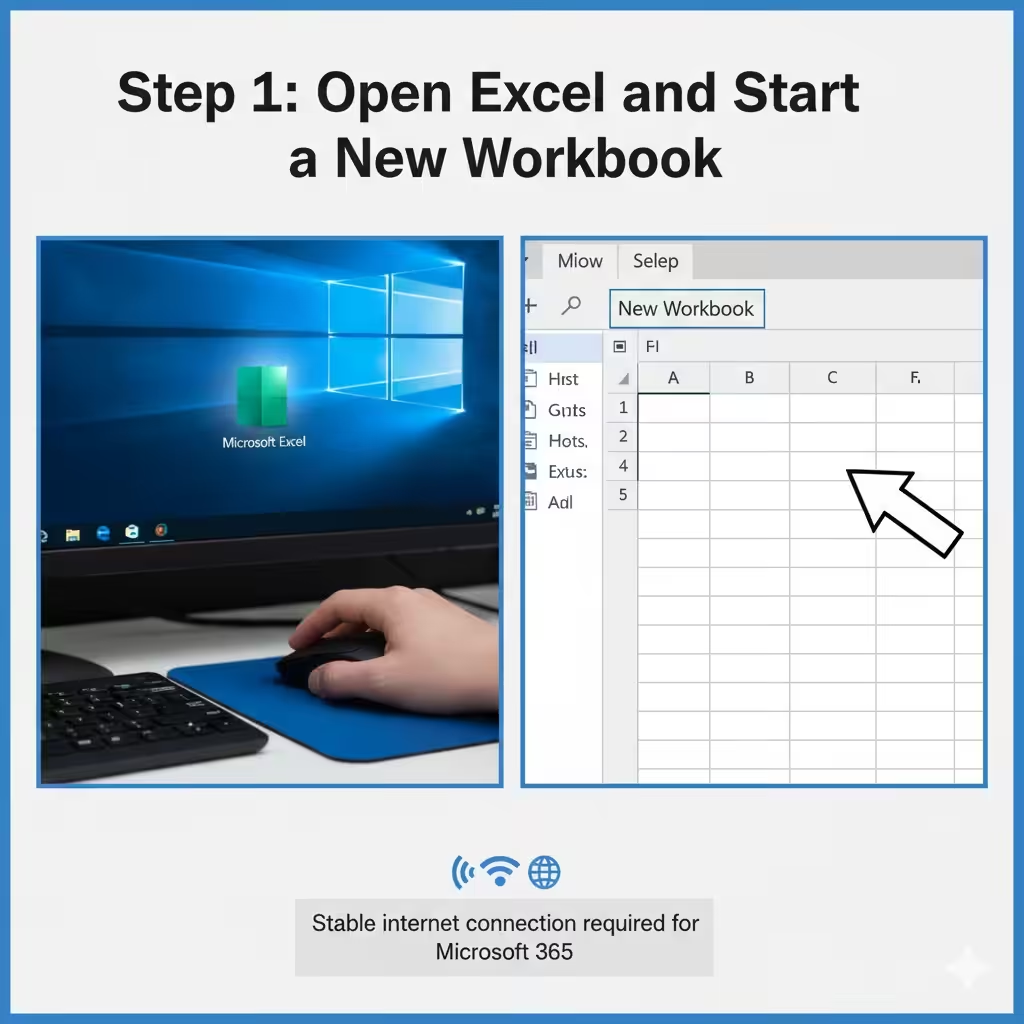
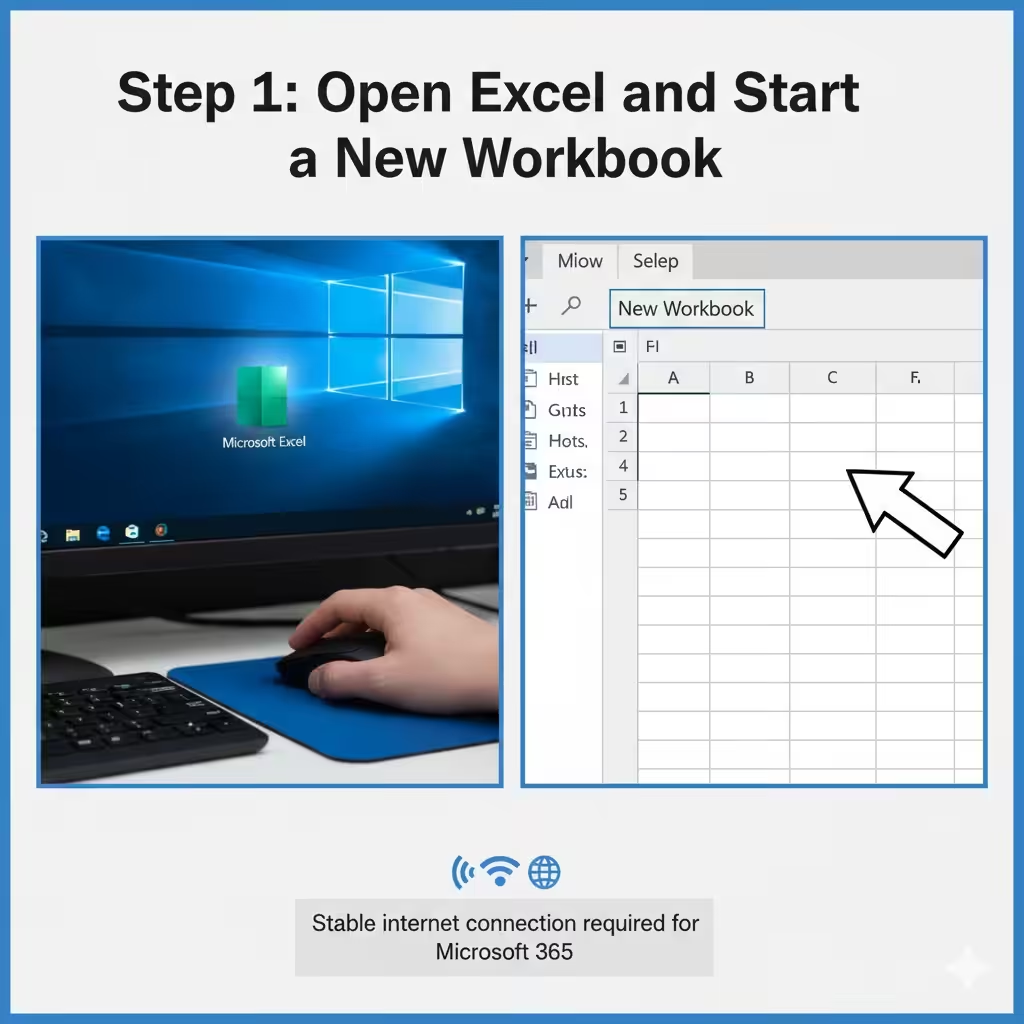
Step 1: Open Excel and Start a New Workbook
-
Launch Microsoft Excel on your computer.
-
Open a new workbook or an existing file where you want to import your PDF data.
-
Make sure you have a stable internet connection if you’re using Microsoft 365, as the PDF import feature uses Power Query online services.
Step 2: Use the “Get Data” Feature
-
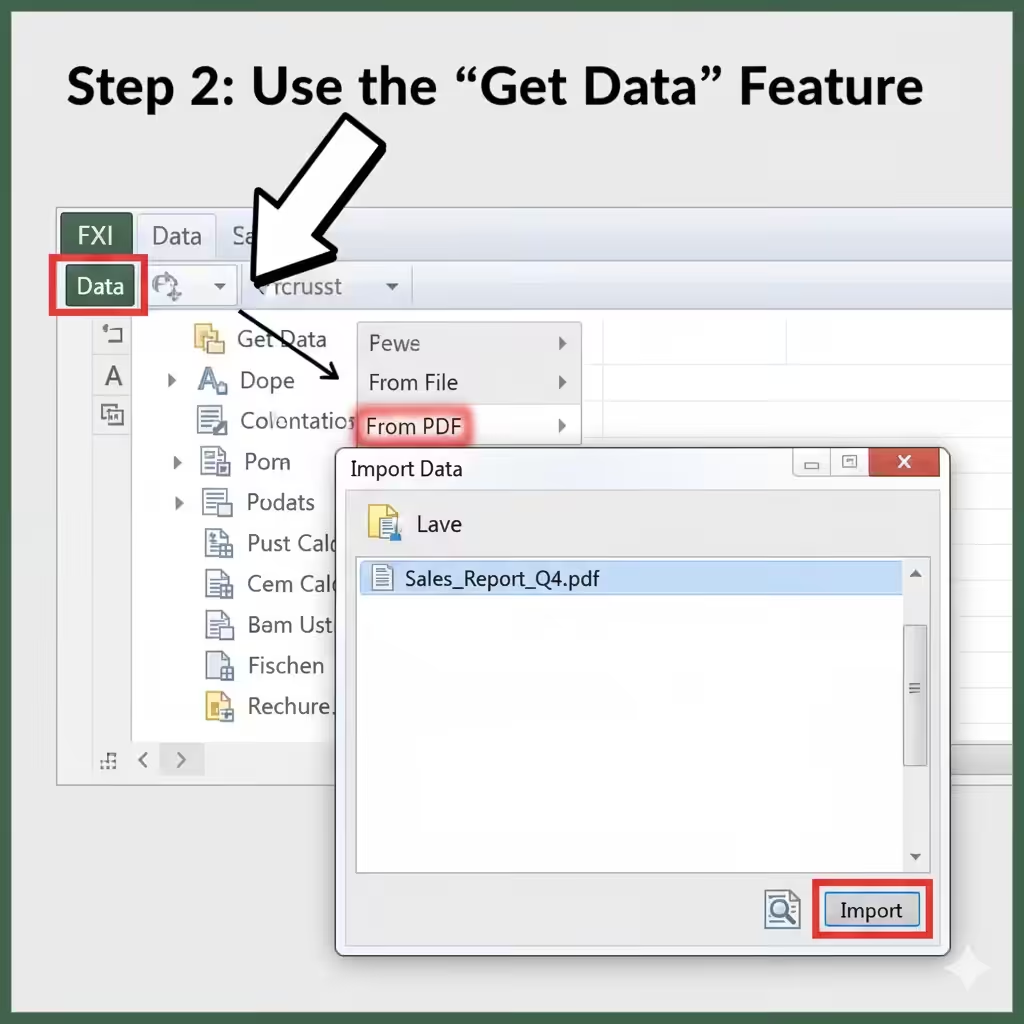
Click the Data tab on the Excel ribbon.
-
Select Get Data → From File → From PDF.
-
A file explorer window will appear. Browse your computer and select the PDF file you want to import.
-
Click Import.
Excel will begin analyzing your PDF and will extract all tables, pages, and text blocks it can detect.
Step 3: Choose the Tables or Pages to Import
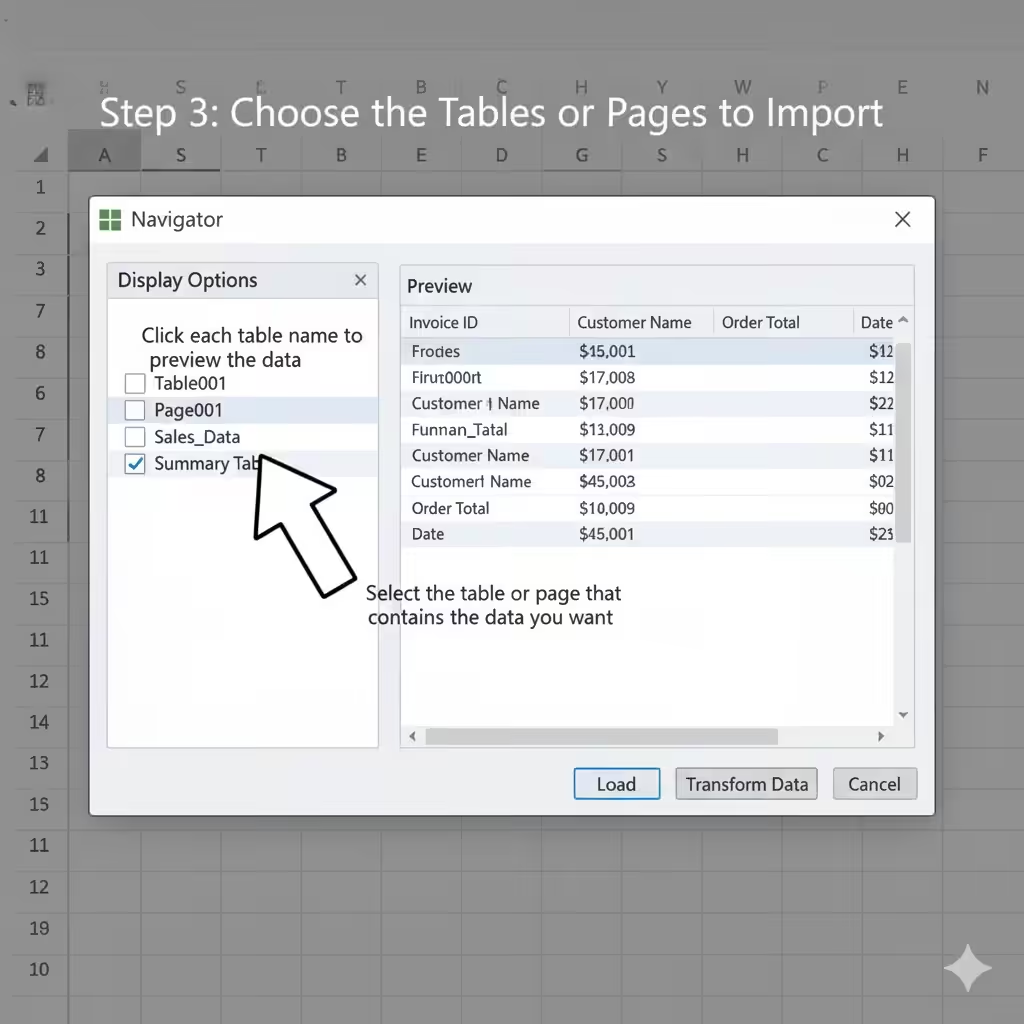
Once Excel reads your PDF, a Navigator window will open.
You’ll see a list of all available tables and pages detected in the PDF.
-
Tables usually represent structured data (e.g., invoices, lists, reports).
-
Pages represent the full page layout, including both text and tables.
-
Click each table name to preview the data on the right-hand side.
-
Select the table or page that contains the data you want.
-
If needed, select multiple tables to combine them later.
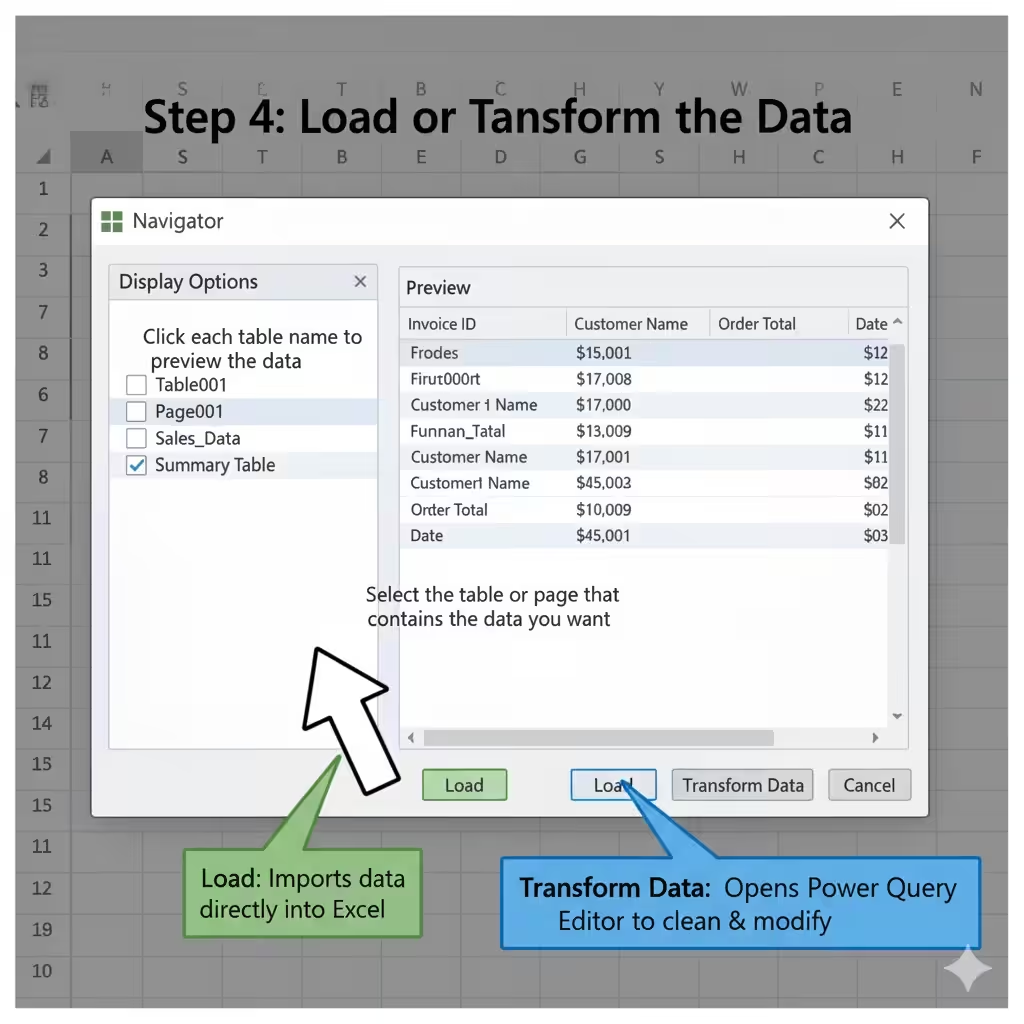
Step 4: Load or Transform the Data
You’ll have two options after selecting the data:
-
Load: Imports the data directly into Excel as it appears.
-
Transform Data: Opens the Power Query Editor, where you can clean or modify the data before loading it.
If your PDF data is well-structured, you can click Load immediately.
If not, choose Transform Data to fix formatting issues or combine data from multiple tables.
Step 5: Clean and Format Your Data (Using Power Query)
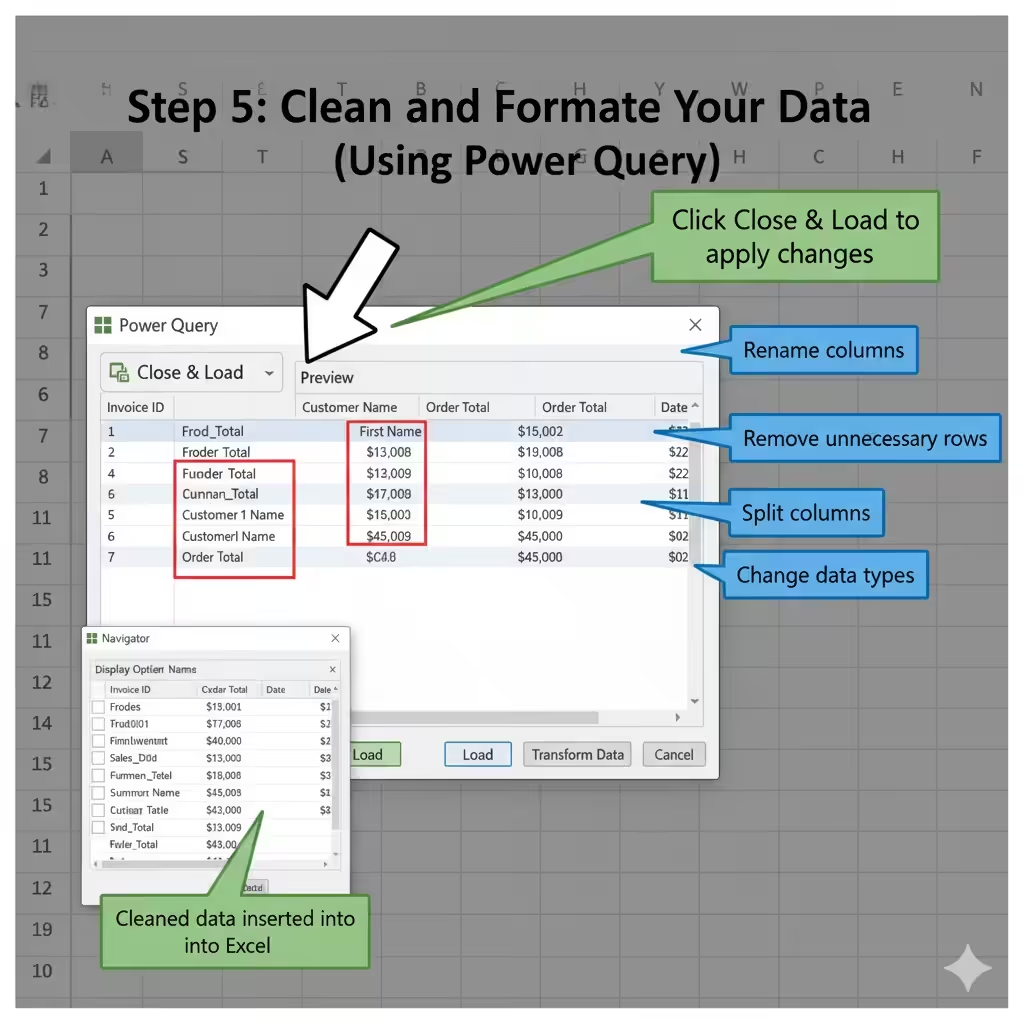
When importing from PDFs, some data might not appear perfectly organized due to differences in layout or font spacing. Power Query lets you correct this before finalizing your import.
In the Power Query Editor, you can:
-
Rename columns for clarity
-
Remove unnecessary rows or columns
-
Split columns using delimiters (like commas or spaces)
-
Combine multiple tables into one dataset
-
Change data types (text, numbers, dates, etc.)
After cleaning up your data:
-
Click Close & Load in the top-left corner.
-
Excel will insert the cleaned data into your worksheet.
Step 6: Review and Adjust Imported Data
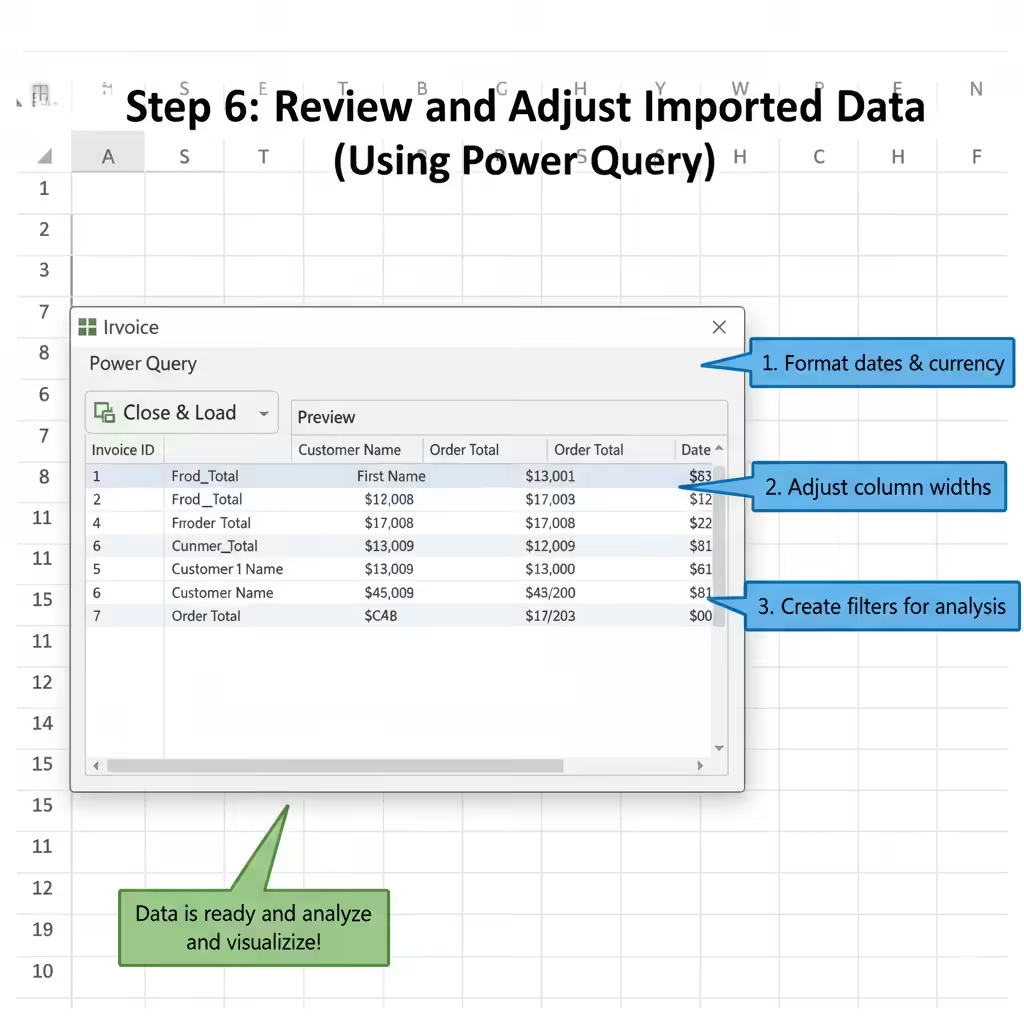
Once your data appears in Excel:
-
Check if the column headers are aligned properly.
-
Adjust column widths for readability.
-
Format numbers, dates, and currency using Excel’s formatting options.
-
If needed, create filters or pivot tables to analyze the imported information.
You can now work with your data as if it were originally created in Excel.
Step 7: Refresh PDF Data Automatically
If your source PDF is updated regularly (for example, a weekly report), Excel allows you to refresh the imported data automatically without re-importing the file manually.
To do this:
-
Go to the Data tab.
-
Click Refresh All.
Excel will re-read the source PDF and update your spreadsheet with the latest information.
This feature is extremely useful for recurring reports or ongoing projects.
Alternative Methods for Older Excel Versions
If you’re using Excel 2016 or earlier, the “Get Data from PDF” option might not be available. In that case, here are some reliable alternatives:
1. Use Adobe Acrobat Reader
If you have Adobe Acrobat Pro, you can:
-
Open the PDF file in Acrobat.
-
Go to File → Export To → Spreadsheet → Microsoft Excel Workbook.
-
Save the exported file, then open it in Excel.
This method works well for structured PDFs with tables.
2. Copy and Paste Data Manually
For simple or small datasets:
-
Open your PDF in a viewer like Adobe Reader.
-
Highlight the table you need and copy (Ctrl + C).
-
Go to Excel and paste (Ctrl + V).
You may need to clean up the formatting afterward, but it’s quick for small jobs.
3. Use Online PDF to Excel Converters
Websites such as Smallpdf, iLovePDF, or PDFTables let you upload your file and convert it to Excel format.
Be cautious when uploading sensitive data online. For confidential files, stick with Excel’s built-in tools or Adobe Acrobat.
Tips for Better PDF Imports
Here are some tips to make your imports smoother and more accurate:
-
Use text-based PDFs, not image scans. Scanned PDFs require OCR (Optical Character Recognition), which can introduce errors.
-
Check column alignment after import; sometimes merged cells or uneven spacing in the PDF can shift data.
-
Clean up your PDF beforehand (if possible) by removing unnecessary text or headers.
-
If your PDF contains multiple tables, import them one at a time to ensure proper structure.
-
Save your Excel workbook frequently during the import process.
Common Problems and Fixes
1. Data Not Detected Properly
If Excel can’t detect tables correctly, try using Power Query’s Transform Data option to manually reshape the information.
2. Text Overlaps or Merged Cells
Some PDFs use irregular spacing that confuses Excel. After import, use Text to Columns (under the Data tab) to fix misaligned data.
3. Missing or Extra Columns
Check the PDF’s structure. If the table spans multiple pages, Excel may split it. Combine them using Power Query or by copying and pasting.
4. File Too Large
For large PDFs, Excel might take longer to load or freeze temporarily. Try splitting the PDF into smaller files before importing.
Benefits of Using Excel’s PDF Import Feature
-
No need for third-party tools — it’s built right into Excel.
-
Quick and efficient for repetitive workflows.
-
Accurate data recognition for most structured PDFs.
-
Seamless integration with Power Query for cleaning and transformation.
With a few clicks, you can convert hours of manual data entry into an automated, precise process.
Final Thoughts
Importing data from a PDF to Excel used to be a tedious, error-prone task — but with Excel’s built-in Get Data from PDF feature, it’s now fast, accurate, and efficient.
Whether you’re working with financial reports, sales summaries, or research data, this method saves time and enhances productivity.