


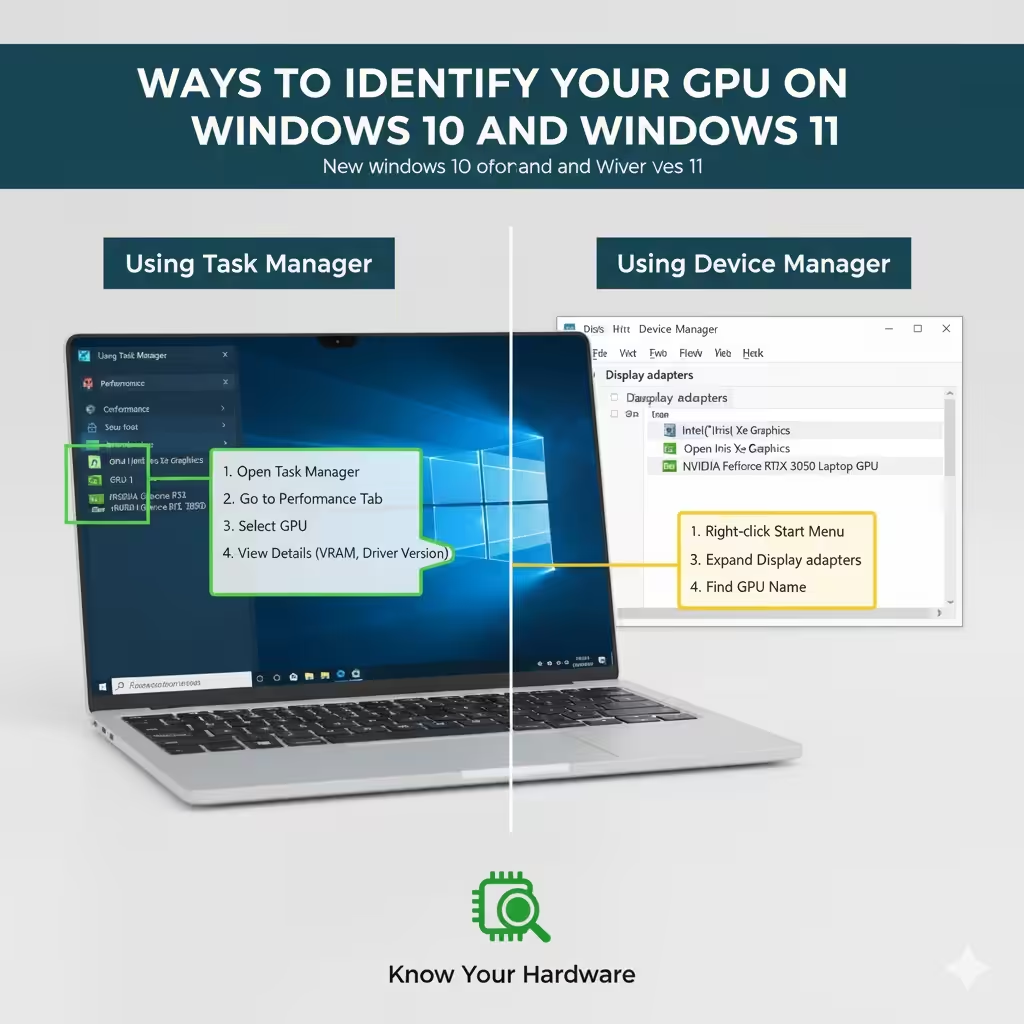
Ways to Identify Your GPU on Windows 10 and Windows 11
Knowing which graphics card (GPU) your computer has is essential for troubleshooting, gaming, video editing, and system upgrades. Whether you want to verify if your system meets a game’s requirements, check compatibility for new software, or simply understand your PC’s hardware, Windows 11 and Windows 10 make it easy to find out which GPU you have.
In this detailed guide, you’ll learn how to check your graphics card in Windows 11 and Windows 10 using multiple methods — from built-in tools to third-party software — and how to understand GPU specifications for better performance insights.
What Is a Graphics Card (GPU)?
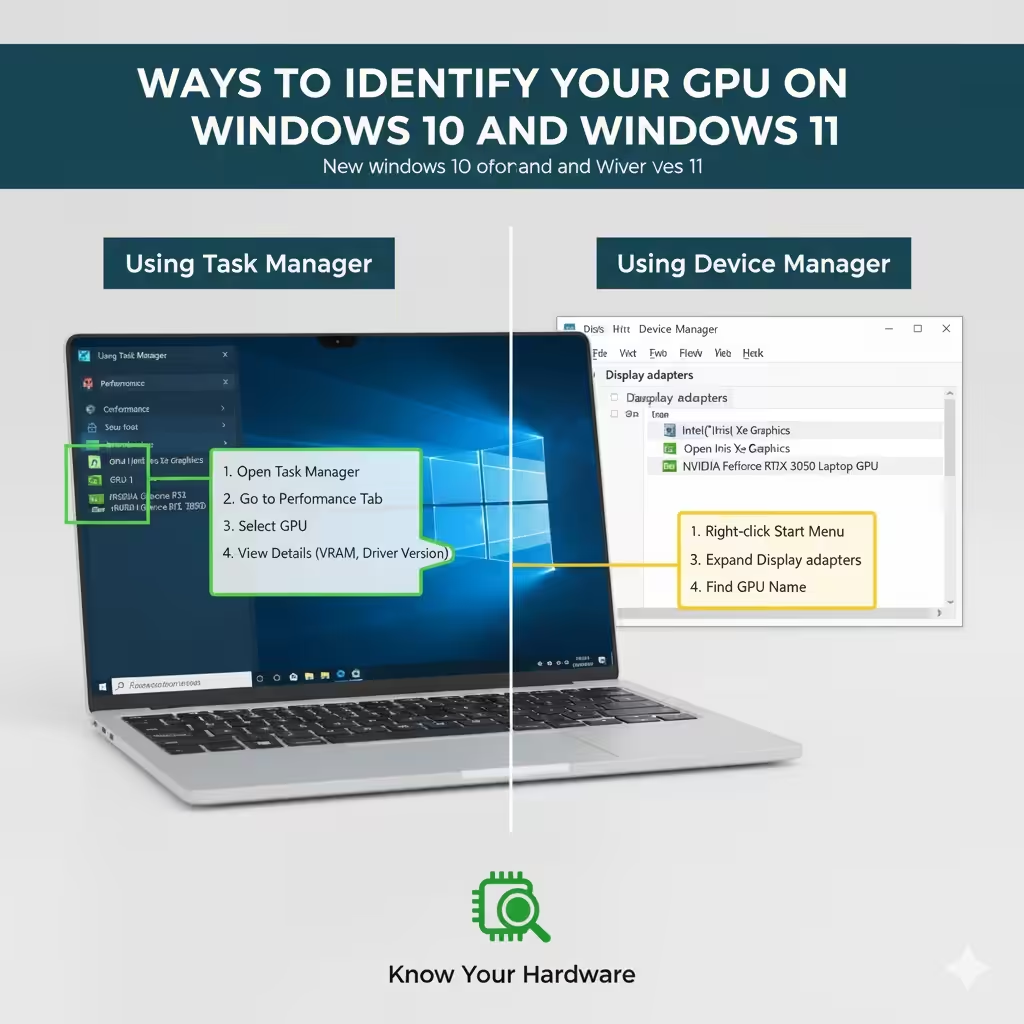
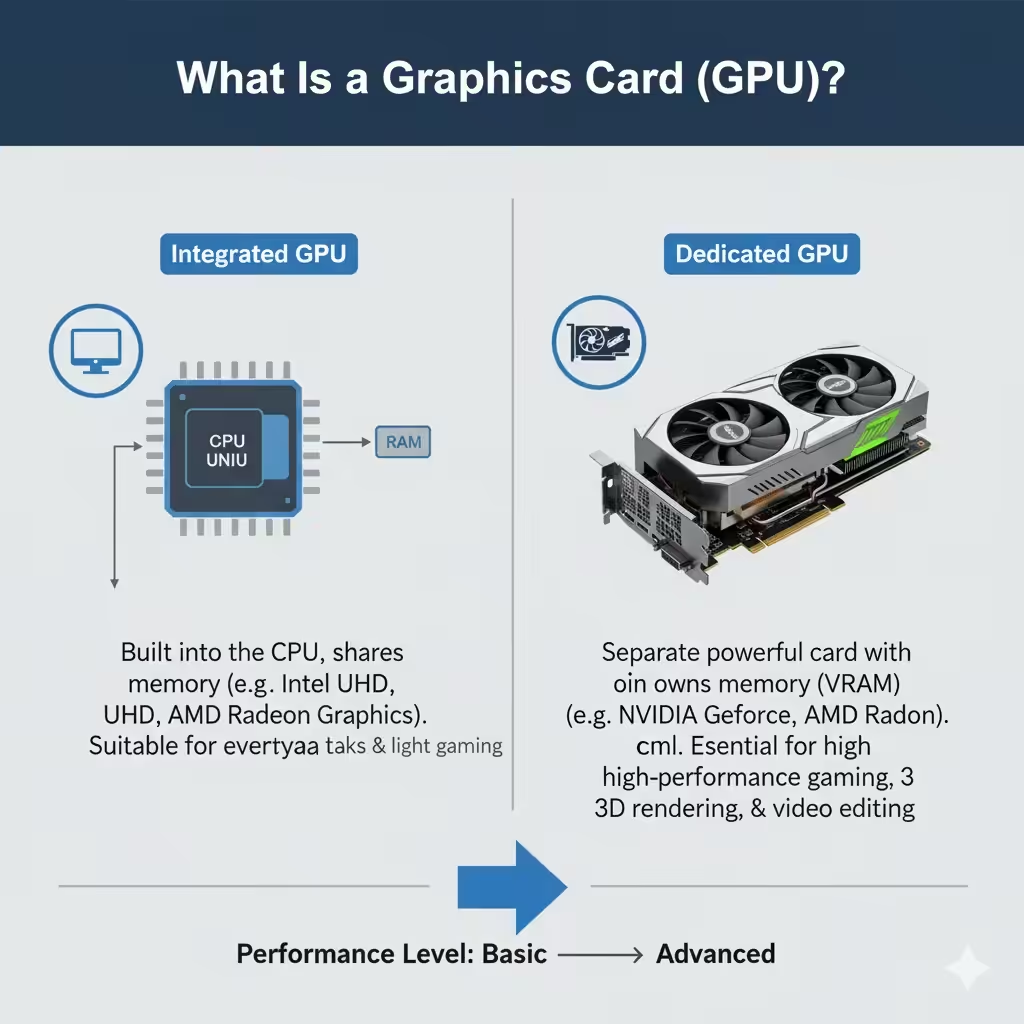
A graphics card, or GPU (Graphics Processing Unit), is a crucial component in your computer that handles rendering images, videos, and animations. It’s especially important for gaming, 3D design, video editing, and AI processing.
There are two main types of GPUs:
-
Integrated GPU: Built into the CPU (e.g., Intel UHD, AMD Radeon Vega). These are designed for everyday tasks and light graphics work.
-
Dedicated GPU: A separate card installed in your PC (e.g., NVIDIA GeForce, AMD Radeon). These are powerful and optimized for heavy workloads like gaming or video editing.
Understanding which one your system uses helps you manage performance, install the right drivers, and troubleshoot issues effectively.
Why You Might Need to Check Your GPU
Here are a few common reasons why you may want to check your GPU:
-
To confirm your computer meets minimum game or software requirements
-
To update drivers for better performance or compatibility
-
To identify hardware issues like overheating or poor performance
-
To plan for a GPU upgrade
-
To monitor your GPU’s real-time performance during demanding tasks
Method 1: Check GPU via Task Manager
Task Manager offers the quickest way to view your graphics card details in Windows 10 or 11.
Step-by-Step Instructions
-
Open Task Manager
-
Press Ctrl + Shift + Esc, or right-click the taskbar and select Task Manager.
-
-
Click the Performance Tab
-
If Task Manager opens in compact mode, click More details first.
-
Select the Performance tab at the top.
-
-
Select GPU
-
In the left panel, look for GPU 0, GPU 1, etc.
-
Each GPU entry represents a graphics processor installed on your system.
-
-
View Details
-
You’ll see information such as:
-
GPU name (e.g., NVIDIA GeForce RTX 3060, Intel UHD Graphics 630)
-
Current usage percentage
-
GPU memory (VRAM)
-
Driver version
-
Temperature (if supported)
-
-
Task Manager also displays a real-time performance graph, showing how much your GPU is being used during tasks like gaming or video playback.
Tip: If your PC has both integrated and dedicated GPUs, both will appear under the Performance tab as separate entries (GPU 0 and GPU 1).
Method 2: Use the DirectX Diagnostic Tool (DxDiag)
The DirectX Diagnostic Tool is another built-in Windows feature that provides detailed system information, including your GPU.
Steps to Use DxDiag
-
Press Windows + R to open the Run dialog box.
-
Type dxdiag and press Enter.
-
Wait a few seconds for the tool to load.
-
Click the Display tab.
Under the Display section, you’ll find:
-
GPU name and manufacturer
-
Approximate total memory (VRAM)
-
Driver version and date
-
Current display mode (resolution, refresh rate)
If your system has multiple GPUs, you’ll also see a Render or Display 2 tab listing your second graphics card.
DxDiag is especially useful for diagnosing issues related to graphics drivers or DirectX components.
Method 3: Check GPU Information from Display Settings
Another simple method to view your graphics card is through Windows display settings.
Steps
-
Right-click on the Desktop and select Display settings.
-
Scroll down and click Advanced display settings.
-
Under Display information, look for the Display adapter properties link.
-
A new window will open showing your GPU’s name, type, and memory information.
This method is straightforward and doesn’t require administrative privileges, making it perfect for quick checks.
Method 4: Use Device Manager
Device Manager provides detailed hardware information and lets you manage drivers for all components, including GPUs.
How to Access GPU Details
-
Right-click the Start button and select Device Manager.
-
Expand the Display adapters section.
-
You’ll see the name(s) of your graphics card(s).
To get more information:
-
Right-click the GPU and select Properties.
-
Go to the Driver tab to check version details, update drivers, or roll back to previous versions.
Tip: If you see “Microsoft Basic Display Adapter,” it means your GPU drivers aren’t installed or recognized properly.
Method 5: Use System Information Tool
The System Information app also provides detailed hardware data.
Steps
-
Press Windows + S, type System Information, and open the app.
-
In the left panel, expand Components → Display.
-
You’ll find a complete list of display adapters, including:
-
GPU model
-
Driver version
-
Resolution
-
Color depth
-
Refresh rate
-
This method provides more in-depth details compared to basic settings and is great for troubleshooting driver or display issues.
Method 6: Use Third-Party Tools for Advanced GPU Details
If you need deeper insights into your graphics card — such as temperature, clock speed, or power usage — third-party tools offer more advanced analytics.
Popular Tools
-
GPU-Z
-
A lightweight tool that displays detailed GPU specs like core speed, VRAM type, temperature, and driver version.
-
-
Speccy
-
Shows an overview of your system, including GPU, CPU, RAM, and motherboard details.
-
-
HWMonitor
-
Ideal for monitoring GPU temperature, fan speed, and voltage in real time.
-
-
MSI Afterburner
-
Widely used by gamers to monitor GPU performance and overclock safely.
-
These applications are free, safe, and widely trusted among PC enthusiasts.
Understanding GPU Specifications
When you check your graphics card, you’ll encounter several technical terms. Here’s what they mean:
-
VRAM (Video RAM): Memory dedicated to graphics processing. More VRAM allows smoother performance in high-resolution games or editing software.
-
Clock Speed: Determines how fast the GPU can process data. Higher clock speeds usually mean better performance.
-
CUDA Cores / Stream Processors: The parallel processors that handle calculations; more cores mean greater performance.
-
Driver Version: Software that lets Windows communicate with your GPU. Keeping it updated ensures stability and compatibility.
-
Temperature: Indicates GPU health. Ideal operating temperatures are usually between 60°C and 80°C during heavy tasks.
Understanding these specs helps you evaluate whether your GPU is performing optimally or needs an upgrade.
How to Check Which GPU Is Being Used
If your system has both integrated and dedicated GPUs (common in laptops), Windows automatically switches between them based on performance needs.
To see which one is active:
-
Open Task Manager → Performance → GPU.
-
Run an application or game.
-
Observe which GPU shows activity — that’s the one currently in use.
You can also set default GPU preferences for specific apps:
-
Go to Settings → System → Display → Graphics.
-
Choose an app → Options → select Power saving (integrated) or High performance (dedicated) GPU.
Updating or Replacing Your GPU Drivers
After identifying your GPU, make sure it’s running the latest drivers for peak performance.
How to Update GPU Drivers
-
NVIDIA users: Visit NVIDIA Drivers or use GeForce Experience.
-
AMD users: Visit AMD Drivers or use AMD Radeon Software.
-
Intel users: Use the Intel Driver & Support Assistant.
Regular updates fix bugs, improve performance, and enhance compatibility with new games and applications.
Frequently Asked Questions
1. Can I check GPU details without third-party software?
Yes. Use Task Manager, Device Manager, or Display settings in Windows.
2. How do I know if my laptop has a dedicated GPU?
In Device Manager, if you see both “Intel UHD Graphics” and “NVIDIA” or “AMD Radeon,” your laptop has both integrated and dedicated GPUs.
3. Can I upgrade my GPU on a laptop?
Generally, no. Most laptop GPUs are soldered to the motherboard. However, desktops can easily be upgraded.
4. Why is my GPU not showing in Device Manager?
The driver may be missing or corrupted. Try reinstalling or updating your GPU driver.
5. What’s the best way to monitor GPU performance?
Use Task Manager, MSI Afterburner, or HWMonitor for real-time monitoring.
Final Thoughts
Knowing how to check your graphics card in Windows 11 or Windows 10 is essential for optimizing your PC’s performance, maintaining compatibility, and troubleshooting issues.
From the built-in Task Manager and Device Manager to advanced tools like GPU-Z, Windows provides several ways to inspect GPU details easily.