


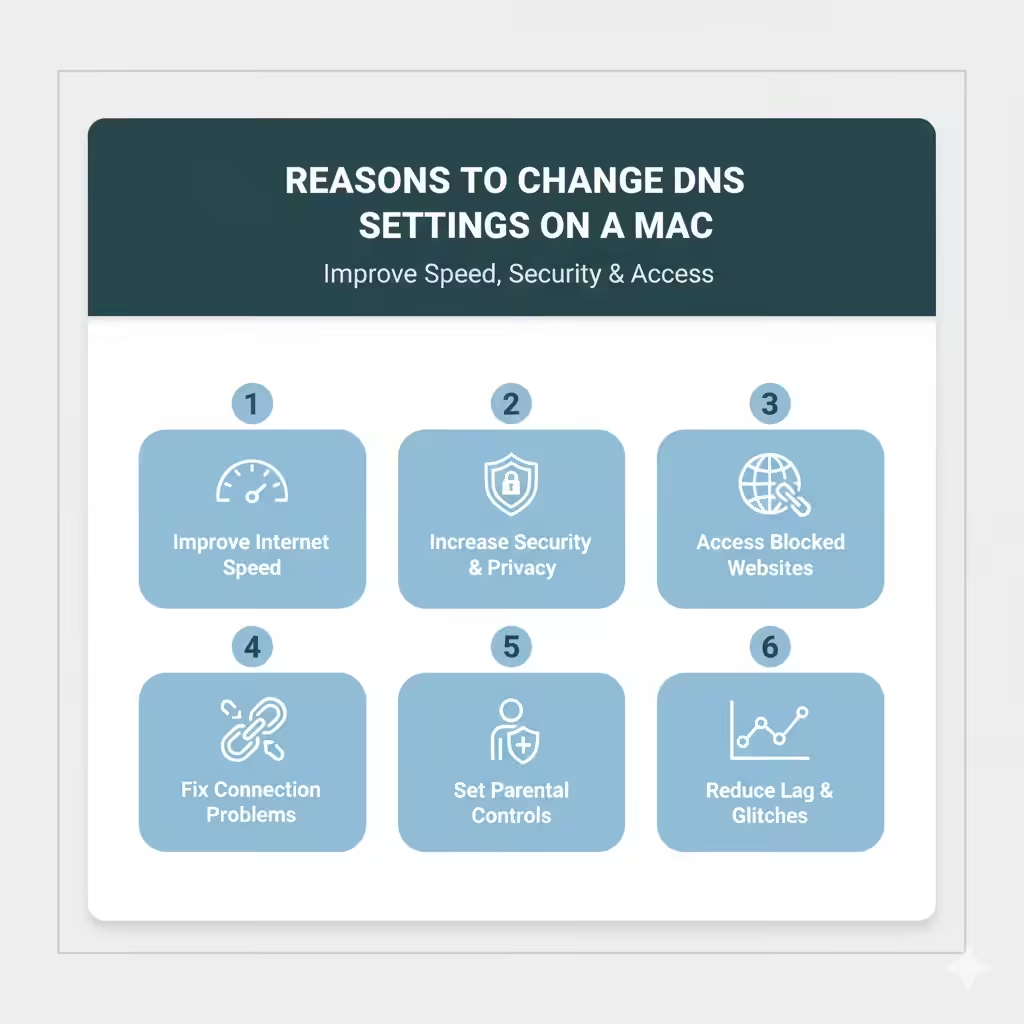
How to Adjust DNS Servers on a Mac Computer
Changing DNS (Domain Name System) settings on your Mac can significantly improve your internet speed, enhance security, and even help bypass regional restrictions. Whether you’re troubleshooting slow internet, experiencing connection issues, or simply want better privacy, learning how to change DNS settings on your Mac is a valuable skill.
In this comprehensive guide, we’ll walk you through what DNS is, why you might want to change it, and how to configure DNS servers on your Mac — step by step.
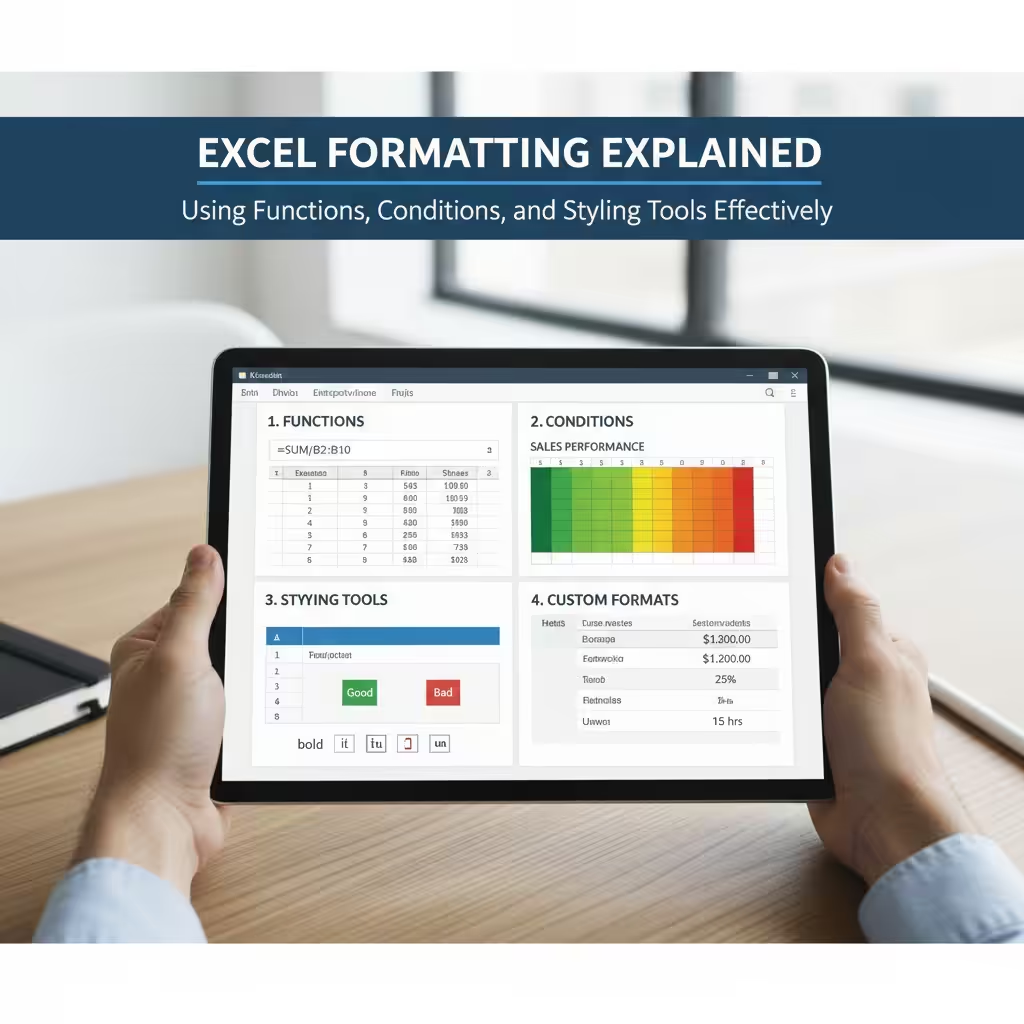
What Is DNS and Why Is It Important?
Before we jump into the steps, let’s briefly understand what DNS does.
DNS stands for Domain Name System, and it functions as the internet’s “phone book.” When you type a website address like www.apple.com into your browser, the DNS server translates that human-readable domain into an IP address — a string of numbers that computers use to locate servers on the internet.
If your DNS server is slow, unreliable, or blocked, you may face issues such as:
-
Slow website loading times
-
“Server not found” or “DNS lookup failed” errors
-
Inability to access specific websites
Changing your DNS server can resolve these problems, improve browsing performance, and even provide better privacy or parental controls.
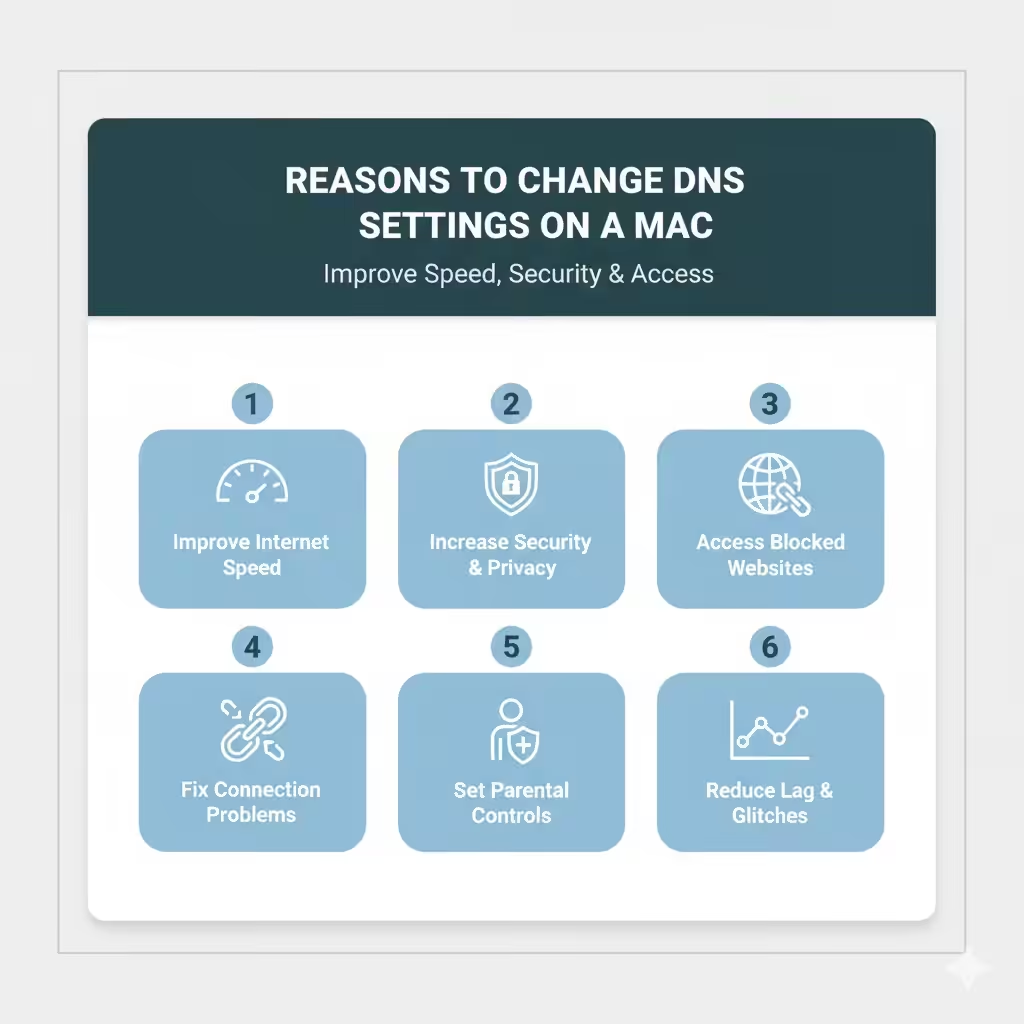
Reasons to Change DNS Settings on a Mac
Here are some common reasons users choose to modify their DNS settings:
1. Improve Internet Speed
Public DNS servers like Google DNS or Cloudflare DNS are often faster than your Internet Service Provider’s (ISP) default DNS.
2. Increase Security and Privacy
Some DNS services block malicious websites or phishing domains automatically, protecting your data and identity online.
3. Access Blocked or Restricted Websites
Changing DNS can sometimes help you access websites blocked in your region or network.
4. Fix Connection Problems
DNS-related issues can cause sites not to load properly. Switching to a reliable DNS server often resolves these problems quickly.
5. Set Custom Filters or Parental Controls
Some DNS providers (like OpenDNS) allow you to block specific categories of websites, ideal for family or educational environments.
Best Public DNS Servers for macOS
Before changing your DNS settings, it’s helpful to know which DNS servers are trusted and reliable. Here are some popular options:
| DNS Provider | Primary DNS | Secondary DNS | Features |
|---|---|---|---|
| Google DNS | 8.8.8.8 | 8.8.4.4 | Fast and reliable |
| Cloudflare DNS | 1.1.1.1 | 1.0.0.1 | Privacy-focused, very fast |
| OpenDNS | 208.67.222.222 | 208.67.220.220 | Parental control options |
| Quad9 | 9.9.9.9 | 149.112.112.112 | Security and malware blocking |
| CleanBrowsing | 185.228.168.9 | 185.228.169.9 | Family-safe filtering |
Choose one that best fits your needs — for speed, security, or filtering.
How to Change DNS Settings on a Mac (macOS Ventura, Monterey, Big Sur, and Earlier)
Changing your DNS on a Mac is simple and doesn’t require any technical expertise. You can do it within a few minutes.
Step 1: Open System Settings (or System Preferences)
Depending on your macOS version:
-
On macOS Ventura and later, click the Apple Menu () → System Settings → Network.
-
On macOS Monterey or Big Sur, click Apple Menu () → System Preferences → Network.
Step 2: Choose Your Network Connection
From the list of available connections, select the one you’re using:
-
Wi-Fi: If you’re connected wirelessly.
-
Ethernet: If you’re using a cable connection.
Click Details (Ventura) or Advanced (older versions).
Step 3: Access DNS Settings
Once inside your network settings:
-
Click the DNS tab.
-
You’ll see a list of DNS servers currently being used (likely assigned automatically by your ISP).
Step 4: Add New DNS Servers
Click the + (plus) button to add new DNS addresses.
For example, if you want to use Google DNS, type:
Or if you prefer Cloudflare DNS, type:
You can mix and match DNS servers, but usually, it’s best to use both addresses from the same provider.
Step 5: Remove Old DNS Servers (Optional)
If you want to prevent conflicts, select any old DNS entries and click the – (minus) button to delete them.
Step 6: Save and Apply Changes
-
Click OK to confirm your new DNS settings.
-
Then click Apply on the main Network screen to save your changes.
That’s it! You’ve successfully changed your DNS settings on your Mac.
How to Change DNS for a Specific Wi-Fi Network
If you use multiple Wi-Fi networks (e.g., home, office, coffee shop), you can set DNS individually for each network.
-
Go to System Settings → Network → Wi-Fi.
-
Click the Details (or Advanced) button next to your Wi-Fi name.
-
Open the DNS tab.
-
Add or modify DNS servers for that specific network only.
-
Click OK, then Apply.
Your Mac will use the custom DNS servers whenever you connect to that Wi-Fi network.
How to Verify That DNS Changes Worked
After updating DNS settings, it’s a good idea to confirm that your Mac is actually using the new servers.
Method 1: Using Terminal
-
Open Terminal (Applications → Utilities → Terminal).
-
Type the following command and press Enter:
-
Look for “nameserver” entries — they should match the DNS servers you added.
Method 2: Use an Online Tool
You can also check online by visiting https://www.dnsleaktest.com.
Run a test to confirm your DNS requests are going through the new server (e.g., Google, Cloudflare, etc.).
How to Flush DNS Cache on a Mac
If websites still load slowly or incorrectly after changing DNS, you may need to flush the DNS cache. This clears old DNS records stored on your Mac.
Steps to Flush DNS Cache
-
Open Terminal.
-
Depending on your macOS version, type one of the following commands:
For macOS Ventura or Monterey:
For older macOS versions (like Sierra or High Sierra):
-
Press Enter, and when prompted, enter your administrator password.
-
Restart your browser or your Mac to apply changes.
This will clear outdated DNS information and help your system connect faster using the new servers.
Troubleshooting Common DNS Issues on Mac
Even after changing DNS settings, you might encounter some issues. Here’s how to fix them:
1. Internet Still Not Working
-
Ensure your DNS servers are entered correctly.
-
Try restarting your Mac and router.
-
Test with another DNS provider (for example, switch from Google to Cloudflare).
2. Slow Speeds After DNS Change
-
Some DNS servers may be geographically distant.
-
Use the one with the lowest latency for your region.
3. DNS Keeps Resetting Automatically
-
macOS might revert to automatic DNS if you use VPNs or dynamic IPs.
-
Lock DNS manually or configure it in your router settings for network-wide use.
4. Certain Websites Still Blocked
-
Changing DNS doesn’t bypass all regional or IP-based restrictions.
-
You may need a VPN for full access in some cases.
Tips for Managing DNS Settings on macOS
-
Backup your DNS configuration before changing, especially if you’re managing multiple networks.
-
Use Cloudflare or Quad9 if you prioritize privacy and security.
-
Restart your router after DNS changes for optimal results.
-
Avoid mixing multiple DNS providers — it may cause inconsistency.
-
Regularly test your DNS performance using tools like DNS Benchmark.
Final Thoughts
Changing DNS settings on a Mac is one of the easiest ways to enhance your browsing experience. Whether you’re trying to speed up your connection, protect your privacy, or fix connectivity issues, switching to a reliable DNS provider can make a noticeable difference.
In just a few minutes, you can configure fast, secure DNS servers like Google DNS (8.8.8.8) or Cloudflare DNS (1.1.1.1) and enjoy smoother internet performance.