


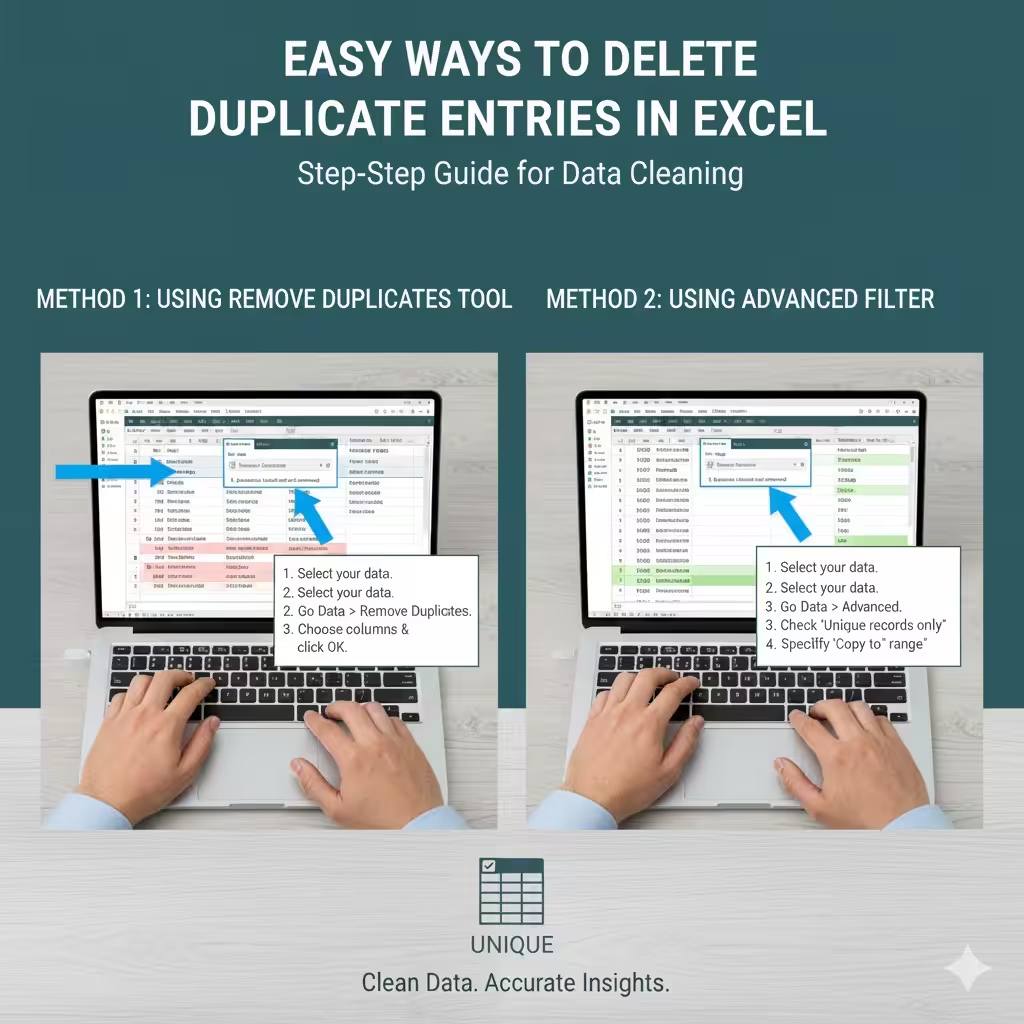
Easy Ways to Delete Duplicate Entries in Excel
Duplicate data is one of the most common problems faced by Excel users. Whether you’re managing a customer list, sales data, or product inventory, having duplicates can lead to confusion, inaccurate reports, and even wrong business decisions. Thankfully, Excel provides several ways to remove duplicates quickly and efficiently.
In this complete guide, you’ll learn how to find, highlight, and remove duplicate values in Excel, using both built-in features and formulas — step by step.
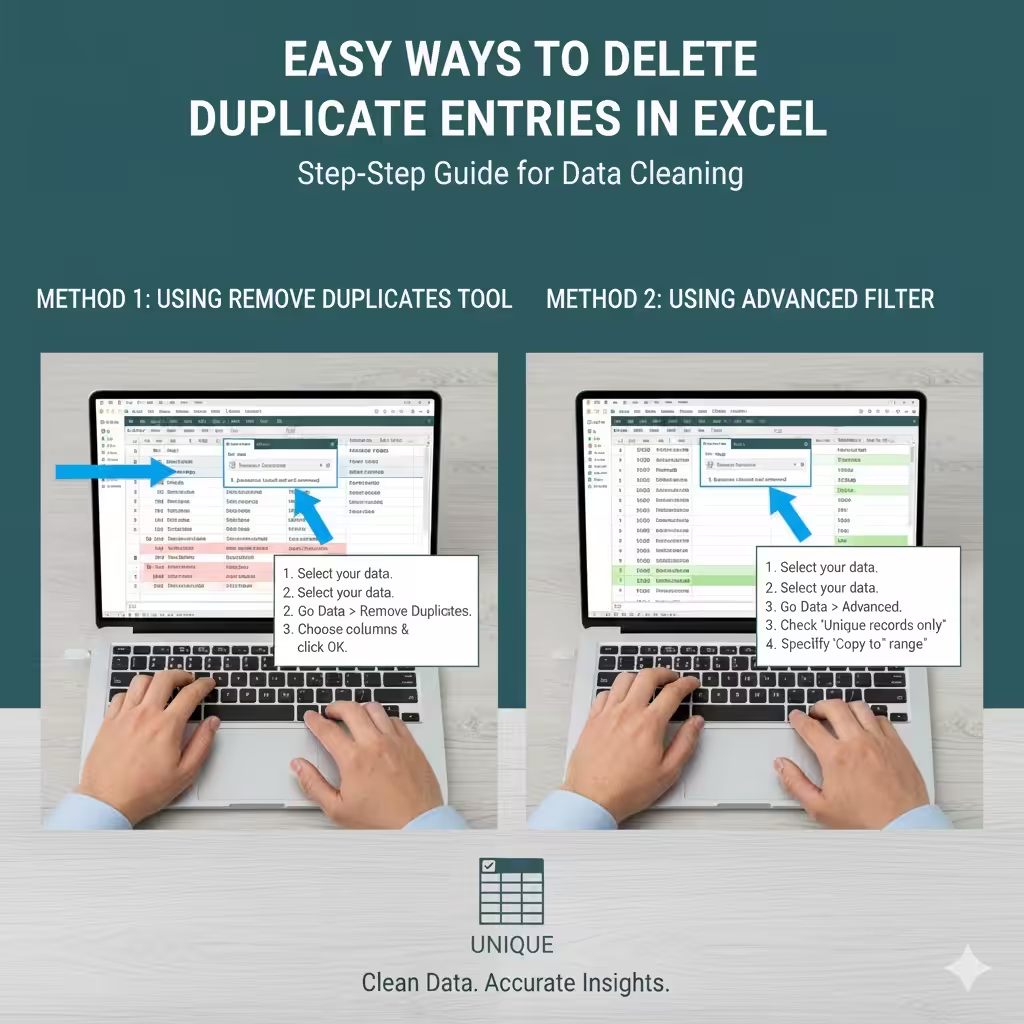
Why It’s Important to Remove Duplicates in Excel
Duplicate data can appear for many reasons, such as importing files multiple times, merging datasets, or human error during manual entry. Removing duplicates helps you:
-
Ensure data accuracy and integrity.
-
Prevent double counting in reports or calculations.
-
Save time and reduce confusion when analyzing data.
-
Keep your database clean and organized.
Before removing duplicates, it’s always a good idea to create a backup copy of your spreadsheet in case you need to restore deleted data.
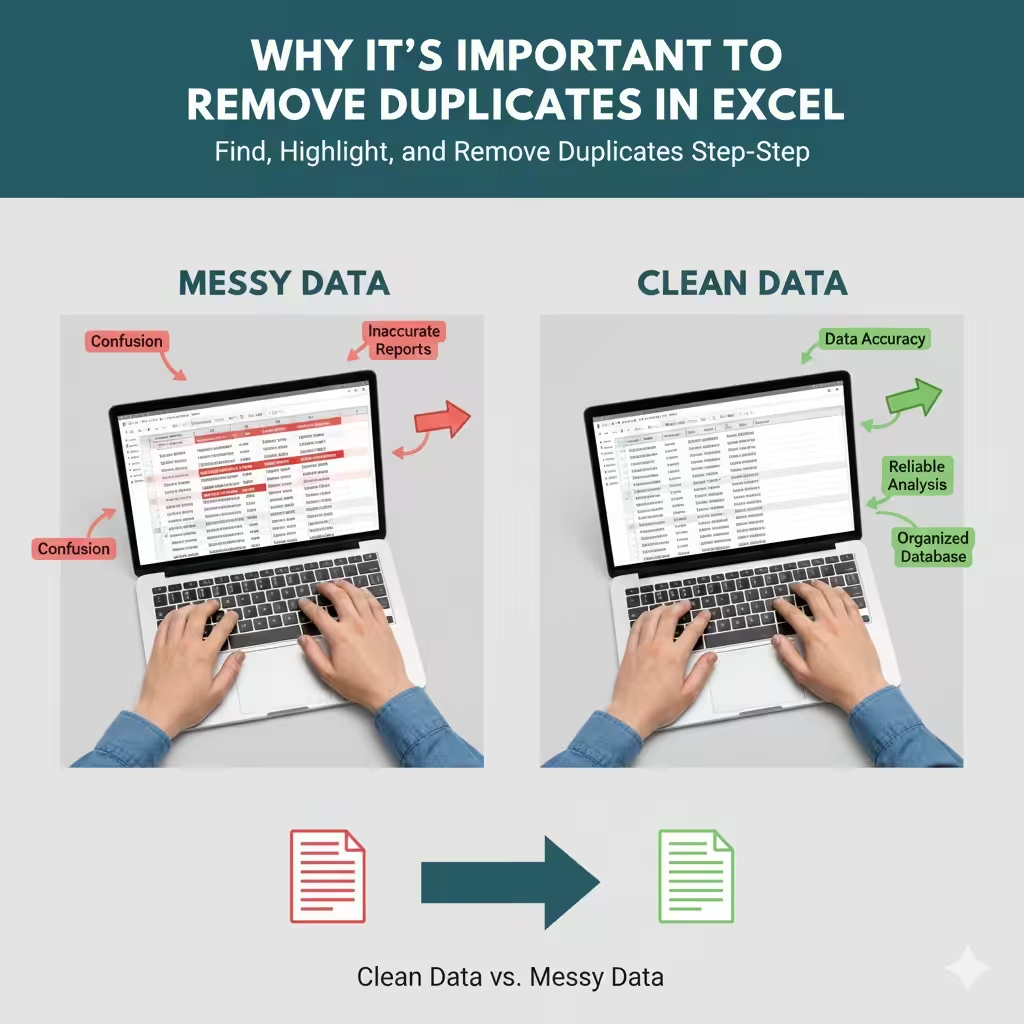
How to Identify Duplicates in Excel
Before deleting anything, you might want to first find or highlight duplicate values. This way, you can review them visually.
Using Conditional Formatting
Conditional Formatting is the easiest way to spot duplicates in your data.
Steps:
-
Select the range of cells you want to check for duplicates.
-
Go to the Home tab on the ribbon.
-
Click Conditional Formatting > Highlight Cells Rules > Duplicate Values.
-
Choose a color format to highlight duplicate values (for example, Light Red Fill with Dark Red Text).
-
Click OK.
Excel will instantly highlight all duplicate entries within the selected range.
Tip: You can also use Conditional Formatting across multiple columns if you want to check for duplicates in combined data (for example, Name + Email).
How to Remove Duplicates in Excel Using the Built-In Tool
Excel has a dedicated feature called Remove Duplicates that automatically detects and deletes duplicate rows from your dataset.
Step-by-Step Guide
-
Select your data range
-
Click and drag to highlight the cells, or press Ctrl + A to select the entire table.
-
-
Go to the Data tab
-
On the ribbon, click the Data tab.
-
-
Click Remove Duplicates
-
In the Data Tools group, click Remove Duplicates.
-
-
Choose columns to check
-
A dialog box will appear showing all column names.
-
Select the columns you want Excel to compare for duplicates.
-
For example:
-
If you want to remove duplicates based on a single column (like “Email”), check only that column.
-
If you want Excel to remove rows that have identical values across multiple columns (like “First Name” and “Last Name”), select both.
-
-
-
Click OK
-
Excel will show a message telling you how many duplicate values were removed and how many unique ones remain.
-
Example:
If you have a customer list with repeating email addresses, selecting only the Email column ensures each email appears once.
Result Message Example:
“15 duplicate values found and removed; 85 unique values remain.”
Pros and Cons of the Built-In Tool
Pros:
-
Fast and simple to use.
-
No formulas required.
-
Works for both small and large datasets.
Cons:
-
Removes duplicates permanently.
-
Doesn’t highlight duplicates — it deletes them immediately.
-
Not suitable for partial duplicates unless properly filtered.
How to Remove Duplicates Using Advanced Filters
If you want more control over what Excel removes or keeps, you can use Advanced Filters.
Steps to Use Advanced Filter
-
Select the data range or click anywhere inside the dataset.
-
Go to the Data tab.
-
Click Advanced in the Sort & Filter group.
-
In the Advanced Filter dialog box:
-
Choose Copy to another location.
-
Set the List range (your data).
-
Leave Criteria range empty.
-
Check the box that says Unique records only.
-
In Copy to, select where you want the unique records to appear.
-
-
Click OK.
Excel will copy only unique records to the new location, keeping your original dataset unchanged.
Advantages:
-
Keeps your original data safe.
-
Creates a list of unique values separately.
-
Perfect for creating summary reports.
How to Remove Duplicates Using Excel Formulas
If you prefer a formula-based approach — especially when working with dynamic data — you can use functions like COUNTIF, UNIQUE, or IF to identify or filter duplicates.
Method 1: Using COUNTIF to Mark Duplicates
The COUNTIF function helps identify whether a value appears more than once.
Formula Example:
How It Works:
-
The formula counts how many times the value in cell A2 appears in column A.
-
If the count is greater than 1, it marks the entry as “Duplicate.”
Steps:
-
Insert the formula in an empty column next to your data.
-
Drag it down to apply it to all rows.
-
Use filters to view only “Duplicate” entries, then delete them manually if desired.
Method 2: Using the UNIQUE Function (Excel 365 / 2021)
If you’re using a newer version of Excel, you can use the UNIQUE function to generate a list of distinct values automatically.
Formula Example:
Explanation:
-
The function creates a new list that includes only unique entries from the selected range.
-
It does not modify the original data.
Pros:
-
Non-destructive (doesn’t delete original data).
-
Automatically updates when the source data changes.
Cons:
-
Only available in Excel 365 or Excel 2021 and newer.
How to Remove Partial Duplicates
Sometimes, duplicates aren’t exact — for example, “John Smith” vs. “John Smith ” (extra spaces), or “J. Smith” vs. “John Smith.”
Here’s how you can clean these up before removing duplicates:
-
Trim extra spaces
-
Use the TRIM function:
-
This removes unnecessary spaces before and after text.
-
-
Convert text case
-
Use UPPER, LOWER, or PROPER to standardize text capitalization.
-
-
Use Find and Replace
-
Replace common spelling variations or formatting inconsistencies before applying Remove Duplicates.
-
After cleaning your data, use the Remove Duplicates tool again to ensure accuracy.
How to Remove Duplicates Across Multiple Sheets
If your data is spread across multiple sheets, follow these steps:
-
Combine all data into a single sheet.
-
Copy and paste or use Power Query to consolidate data.
-
-
Once all entries are combined, use Remove Duplicates on the new sheet.
Power Query is especially useful for combining and cleaning data across multiple worksheets efficiently.
Best Practices for Managing Duplicates in Excel
-
Backup first: Always save a copy of your workbook before removing duplicates.
-
Sort your data: Sorting by key columns (like names or emails) helps visually detect duplicates.
-
Use filters: Filter your data to isolate potential duplicates before deleting.
-
Combine formulas: Use TRIM, LOWER, and COUNTIF together for more accurate identification.
-
Document your process: Keep track of which fields you compared to ensure consistency.
Troubleshooting Common Problems
Problem 1: Remove Duplicates not working
-
Ensure your range includes all relevant columns.
-
Make sure there are no hidden characters or spaces (use TRIM).
Problem 2: Duplicate values not detected
-
Excel treats “Apple” and “apple” as different if case sensitivity is enabled.
-
Check that formatting is consistent.
Problem 3: You accidentally deleted unique data
-
Press Ctrl + Z immediately to undo.
-
Or restore from your backup file.
Frequently Asked Questions
Can I remove duplicates without losing original data?
Yes. Use Advanced Filter or the UNIQUE function to extract unique values without modifying your main data.
Does Excel remove the first or last duplicate?
Excel’s Remove Duplicates feature keeps the first occurrence and deletes the rest.
Can I remove duplicates in a specific column only?
Yes. When using the Remove Duplicates dialog box, select only the column you want to check.
How do I highlight duplicates without deleting them?
Use Conditional Formatting → Highlight Cells Rules → Duplicate Values.
Final Thoughts
Knowing how to remove duplicates in Excel is essential for anyone working with large datasets. Clean, accurate data ensures reliable analysis, saves time, and prevents costly mistakes.
For quick cleanup, use the Remove Duplicates feature. For safer, more controlled results, try Advanced Filters or formula-based methods like COUNTIF and UNIQUE.