


Steps to Disable Windows Ink Workspace in Windows 10
Windows Ink Workspace is a feature in Windows 10 that allows users to take notes, sketch, or draw directly on a touchscreen device. While it is helpful for tablets and touch-enabled laptops, many users who primarily use a mouse and keyboard find it unnecessary. Some even report that Windows Ink Workspace can consume system resources or interfere with certain applications. If you are among those who want a cleaner taskbar or no Ink-related pop-ups, this guide will show you how to disable Windows Ink Workspace completely.
This article provides several methods, including using the taskbar, registry edits, and Group Policy, to ensure the workspace no longer appears on your system.
What is Windows Ink Workspace?
Before disabling, it’s important to understand what Windows Ink Workspace does. Introduced in Windows 10, this feature allows:
-
Sticky Notes: Quickly jot down notes that sync across devices.
-
Sketchpad: A blank canvas for drawing or freehand sketches.
-
Screen Sketch: Annotate screenshots using a pen or stylus.
While useful for tablet users, Windows Ink Workspace is redundant for most desktop users. It automatically appears as an icon on the taskbar, which some people find cluttered.
Method 1: Disable Windows Ink Workspace via Taskbar Settings
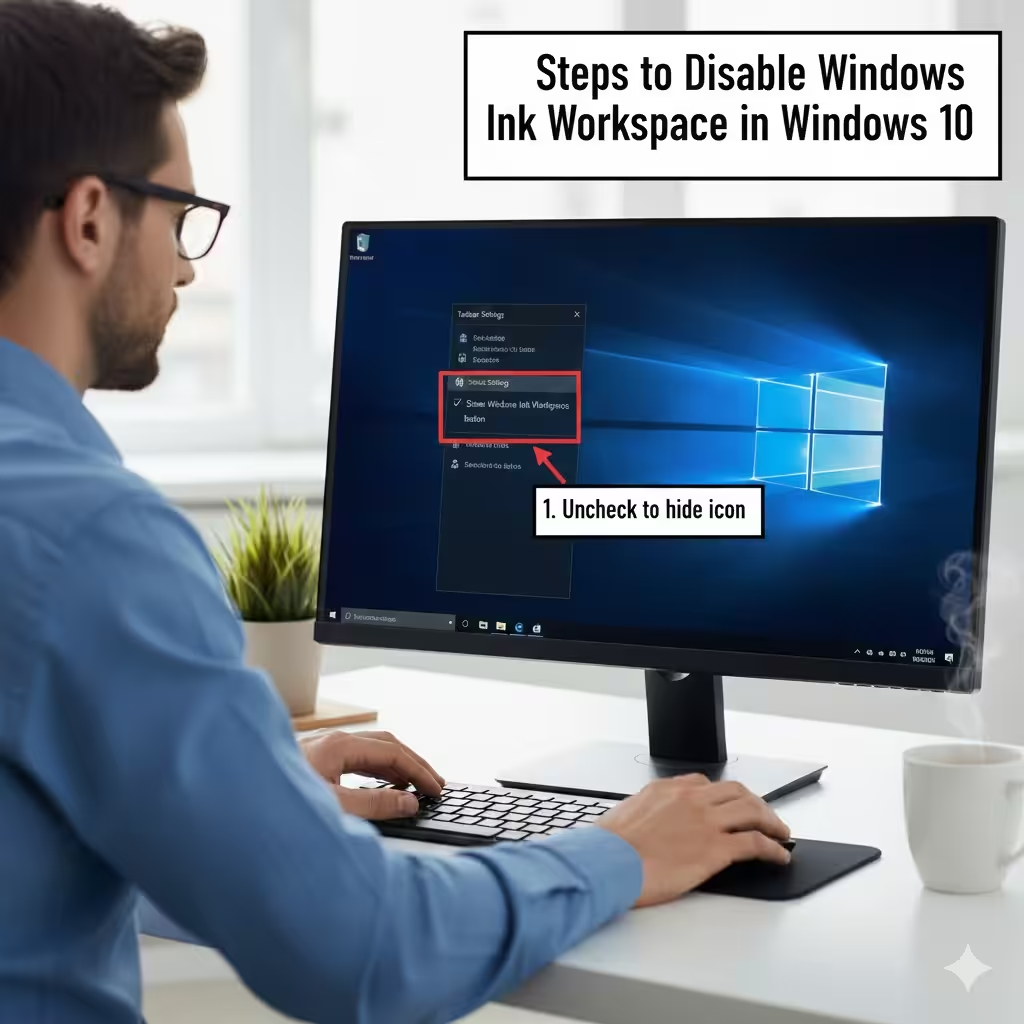
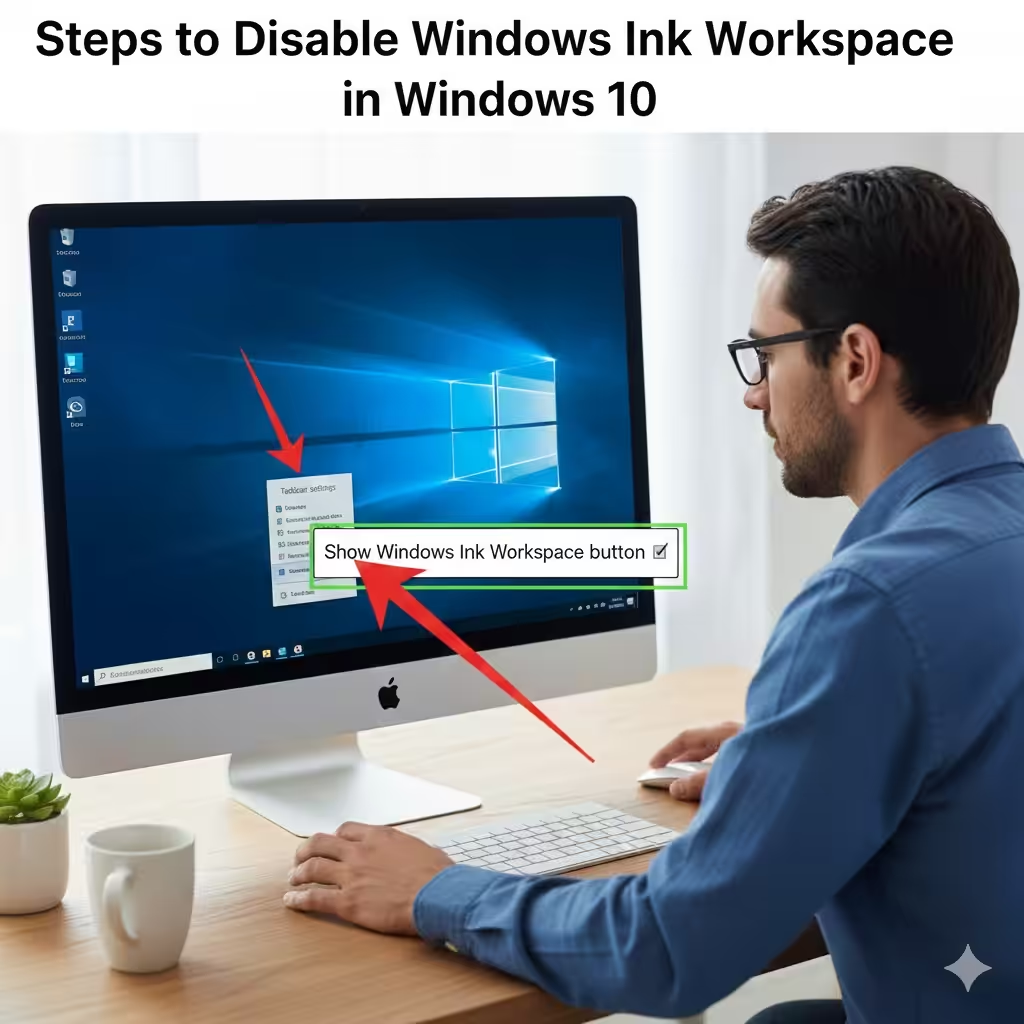
The easiest way to remove the Windows Ink Workspace icon is through taskbar settings.
Steps to Hide the Icon
-
Right-click an empty area on the taskbar.
-
Select Show Windows Ink Workspace button to uncheck it.
-
The icon will immediately disappear from the taskbar.
This method is simple and does not require administrative privileges. However, it only hides the icon; it does not completely disable the feature.
Method 2: Disable Windows Ink Workspace via Group Policy
For a more permanent solution, especially on systems running Windows 10 Pro or Enterprise, you can use the Group Policy Editor.
Steps Using Group Policy
-
Press Windows + R to open the Run dialog.
-
Type
gpedit.mscand press Enter. -
Navigate to:
-
In the right pane, double-click Allow Windows Ink Workspace.
-
Select Disabled.
-
Click Apply and then OK.
-
Restart your computer to apply the changes.
This completely disables the workspace and prevents it from launching, even if a pen or stylus is connected.
Method 3: Disable Windows Ink Workspace Using the Registry
If you are using Windows 10 Home, which does not include the Group Policy Editor, you can disable Windows Ink Workspace via the Registry Editor.
Steps to Modify the Registry
-
Press Windows + R, type
regedit, and press Enter. -
Navigate to:
If the WindowsInkWorkspace key does not exist, you can create it by right-clicking Microsoft → New → Key → name it WindowsInkWorkspace.
-
Inside the key, right-click → New → DWORD (32-bit) Value.
-
Name the value:
AllowWindowsInkWorkspace. -
Double-click it and set the Value data to
0. -
Click OK and close the Registry Editor.
-
Restart your computer.
Editing the registry disables the workspace and prevents it from running in the background. Always create a backup of your registry before making changes to avoid system issues.
Method 4: Disable Windows Ink Workspace Services
Some services run in the background to support Windows Ink features. Disabling them can prevent Ink Workspace from consuming resources.
Steps to Disable Ink Services
-
Press Windows + R, type
services.msc, and press Enter. -
Locate services such as:
-
Windows Ink Workspace Service (if present)
-
TabletInputService
-
-
Right-click the service → Properties.
-
Set Startup type to Disabled.
-
Click Stop to terminate the service immediately.
-
Click Apply and OK.
After restarting your PC, the services will no longer run, and Windows Ink Workspace will be fully disabled.
Additional Tips for Windows Ink Workspace
Even after disabling, here are some additional tips to ensure a clean system experience:
-
Remove Sticky Notes from Startup: Some users may have Sticky Notes launch automatically. Press Ctrl + Shift + Esc → Startup tab → Disable Sticky Notes.
-
Check Pen Settings: Go to Settings → Devices → Pen & Windows Ink and disable features like “Show recommended app suggestions” to reduce pop-ups.
-
Update Windows: Some Windows updates may reinstall or re-enable Windows Ink Workspace features. Always check after updates.
Why Disable Windows Ink Workspace?
Disabling Windows Ink Workspace can benefit users who:
-
Do not use a touchscreen or stylus.
-
Prefer a clutter-free taskbar.
-
Want to reduce background services for better system performance.
-
Experience application conflicts with Ink features.
By turning it off, you gain a streamlined Windows environment without losing functionality that you actually use.
Conclusion
Disabling Windows Ink Workspace in Windows 10 can be accomplished using multiple methods, ranging from the simple taskbar toggle to advanced Group Policy or Registry Editor changes. Taskbar settings offer a quick solution for most users, while Group Policy and registry modifications provide a more permanent removal, preventing the workspace from consuming system resources.
For users on Windows 10 Home, the registry method is effective, while Pro and Enterprise users benefit from Group Policy. Additionally, disabling background services ensures that no residual Ink features interfere with your workflow. Following these steps will help you maintain a clean, efficient Windows 10 environment, free from unnecessary stylus-related clutter.