


How to Use OneDrive Files On-Demand to Sync Your Files
OneDrive is Microsoft’s cloud storage solution that makes storing, accessing, and sharing files easy across multiple devices. One of the most useful features it offers is Files On-Demand, a smart syncing technology that lets you access all your files from File Explorer without having to download everything to your device. This feature helps save disk space, improves performance, and allows you to choose which files are available offline.
In this guide, you’ll learn exactly how Files On-Demand works, how to enable it, how to manage your files efficiently, and how to troubleshoot common syncing issues. Whether you use Windows 10, Windows 11, or OneDrive for Business, this guide covers everything you need to know.
What Is OneDrive Files On-Demand?
Before learning how to sync with Files On-Demand, it’s important to understand how the feature works. Introduced in Windows 10 and improved in later updates, Files On-Demand gives you a full view of your cloud-stored files directly in File Explorer without downloading them to your computer.
Key Benefits
-
Saves local storage space
-
Gives instant access to cloud files
-
Syncs files only when you need them
-
Allows selective offline access
-
Works with both personal and business accounts
Files On-Demand uses simple icons to make file status easy to understand.
File Status Icons
-
Cloud icon: File is online-only and not stored locally.
-
Green checkmark outline: File is locally cached temporarily but can revert to cloud-only.
-
Solid green checkmark: File is always available offline.
Understanding these icons makes the OneDrive experience more intuitive.
How To Enable OneDrive Files On-Demand
Enabling Files On-Demand is simple. Most new Windows versions have it turned on by default, but it’s always good to check.
Steps to Turn On Files On-Demand
-
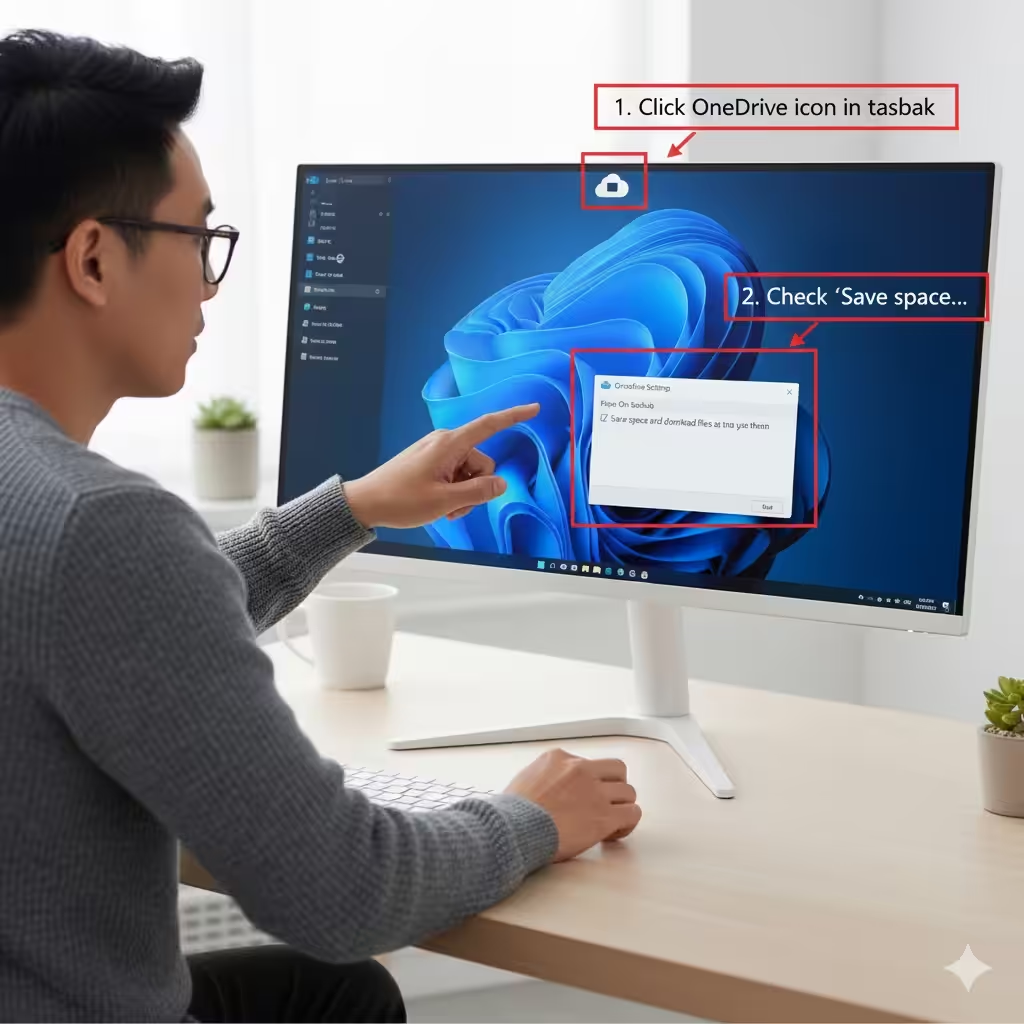
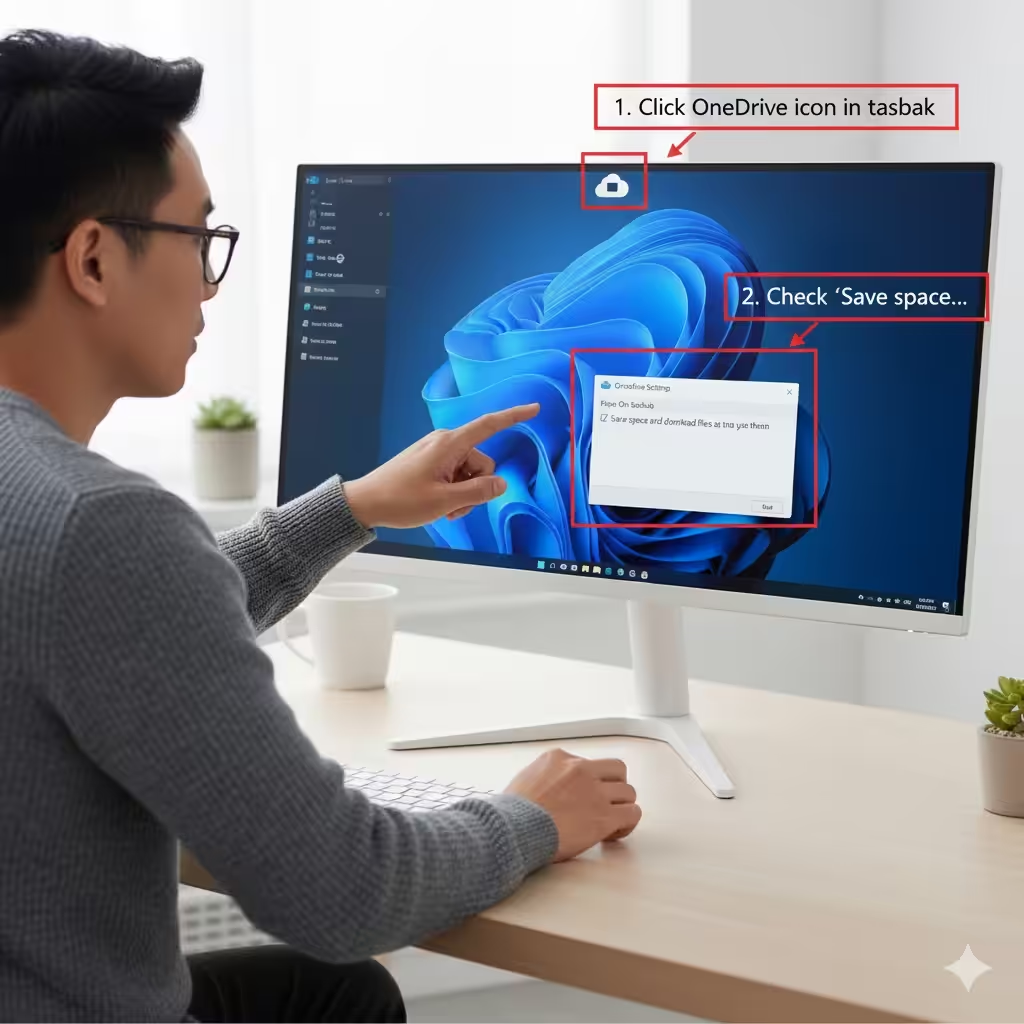
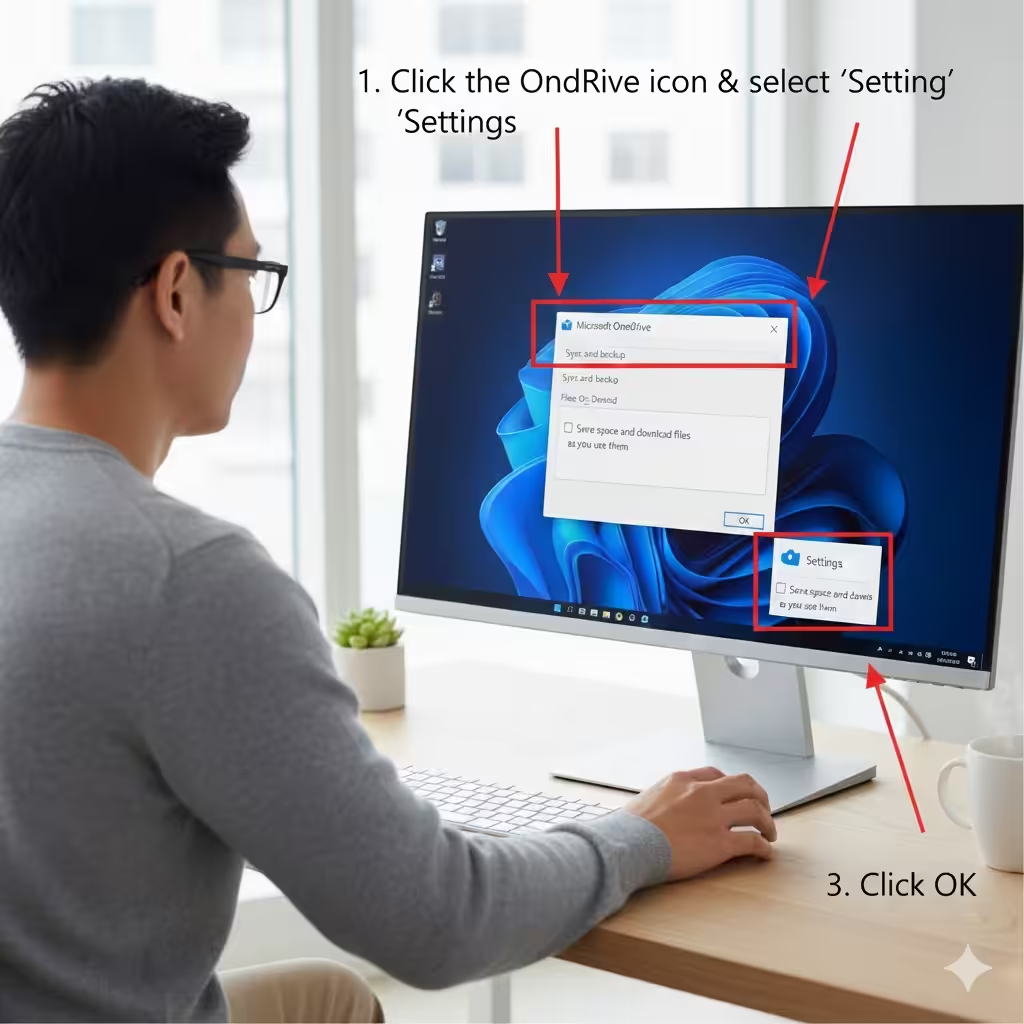
Click the OneDrive icon in the taskbar system tray.
-
Select Settings.
-
Go to the Sync and backup or Settings tab (depending on your version).
-
Scroll to find Files On-Demand.
-
Check the option Save space and download files as you use them.
Once enabled, OneDrive will immediately begin showing placeholder files without downloading everything.
How To Choose Which Files Sync to Your Device
With Files On-Demand active, you can decide which folders or files should stay online-only and which ones should be available offline.
Making a File Online-Only
-
Right-click the file or folder.
-
Select Free up space.
-
OneDrive removes the local copy but keeps the file accessible in the cloud.
Making a File Always Available Offline
-
Right-click a file or folder.
-
Choose Always keep on this device.
-
OneDrive downloads the file and keeps it permanently stored on your computer.
Using Selective Sync
If you want to exclude entire folders from appearing on your PC:
-
Right-click the OneDrive icon.
-
Go to Settings → Account → Choose folders.
-
Uncheck any folders you do not want to appear in File Explorer.
Selective Sync is useful if you store large archives on OneDrive but rarely use them.
How Files On-Demand Works With Storage Sense
Windows 10 and Windows 11 include a feature called Storage Sense, which automatically frees space by removing temporary files. It can also convert unused OneDrive files to online-only.
If you want Windows to help manage OneDrive storage:
-
Open Settings.
-
Go to System → Storage.
-
Enable Storage Sense.
-
Adjust how often it should remove unused cloud files.
This automation ensures your hard drive stays clean and optimized.
How To Sync Files Across All Devices
Files On-Demand works seamlessly with other OneDrive-enabled devices, including Windows PCs, macOS, Android, and iOS.
Syncing Files on Windows
Simply sign into OneDrive using your Microsoft account. Files will appear instantly in File Explorer.
Syncing on Mobile Devices
Using the OneDrive app on iPhone or Android:
-
Install the OneDrive app.
-
Sign in.
-
Access all files, download specific ones, or upload photos automatically.
Syncing on macOS
macOS also supports Files On-Demand:
-
Install OneDrive for Mac.
-
Enable Files On-Demand in Preferences.
Syncing happens in Finder instead of File Explorer.
Managing OneDrive Storage Space
Cloud storage may fill up quickly, especially if you store photos, videos, or large work documents. Files On-Demand helps manage local storage, but cloud storage still has limits.
Tips for Better Storage Management
-
Delete duplicate files or old backups
-
Move large files to external drives
-
Compress files when possible
-
Use OneDrive’s “Storage Metrics” page to analyze usage
If you need more cloud storage, consider upgrading to a Microsoft 365 plan.
Common Problems and How To Fix Them
Even though OneDrive Files On-Demand works well, occasional syncing problems can occur. Here are some common issues and solutions.
OneDrive Icon Missing
-
Restart Windows
-
Reinstall OneDrive using the latest installer
-
Check if OneDrive is disabled in Startup settings
Files Not Syncing
-
Ensure you are connected to the internet
-
Check if you are signed into the correct account
-
Confirm that the folder isn’t blocked by selective sync
-
Make sure you have enough cloud storage
Files Stuck on “Sync Pending”
-
Restart OneDrive
-
Rename the file (special characters can cause issues)
-
Ensure the file isn’t open in another application
Offline Files Not Opening
-
Verify you selected Always keep on this device
-
Check storage space on your PC
-
Confirm that OneDrive has permission in Windows Security settings
Why Use Files On-Demand?
Files On-Demand brings several advantages for both personal and business use:
-
Reduces disk usage significantly
-
Ensures instant file visibility
-
Keeps files available across multiple devices
-
Improves system performance
-
Prevents accidental data loss by keeping files in the cloud
Whether you use OneDrive at home or at work, this feature is essential for efficient file management.
Conclusion
OneDrive Files On-Demand is one of the most powerful features in Windows for managing files efficiently while saving storage space. By enabling it, you have full visibility of all your cloud files without needing to download everything. You can select which files stay offline, automate storage using Windows tools, and sync across devices with ease.
With the methods and explanations provided in this guide, you can now fully control how OneDrive syncs, how space is managed, and how to troubleshoot common issues. This ensures a smooth cloud experience that keeps your system fast and organized.