


A Guide to Using Calendar Categories and Reminder Tools
Managing your schedule effectively is essential for staying organized, productive, and punctual—whether you’re handling work deadlines, school projects, personal commitments, or family events. Microsoft Outlook’s Calendar offers two powerful tools to help you stay on top of everything: Reminders and Categories. When used correctly, they simplify your schedule, keep your tasks visible, and ensure you never miss important meetings or deadlines.
This guide provides a detailed, step-by-step explanation of how to use reminders and categories, how to customize them, and how they can streamline your daily workflow. By the end, you will know how to make Outlook Calendar work smarter for you.
Understanding Reminders and Categories in Outlook
Before diving into the steps, it helps to understand what these features are designed to do.
What Are Calendar Reminders?
A reminder is an alert that notifies you before an event or meeting. It appears as a pop-up on your screen or as a notification banner, depending on your device settings. Reminders are essential for:
-
Keeping track of meetings
-
Remembering deadlines
-
Avoiding missed appointments
-
Managing tasks more efficiently
You can set reminders to go off minutes, hours, days, or even weeks before an event.
What Are Categories?
Categories let you color-code and label your appointments or meetings. They help you:
-
Group similar events
-
Visually organize your calendar
-
Filter your schedule by type
-
Keep work and personal life separated
Common uses include separating business meetings, personal appointments, family events, health-related tasks, or project-specific tasks.
How to Set Calendar Reminders
Outlook allows you to set reminders for almost any event.
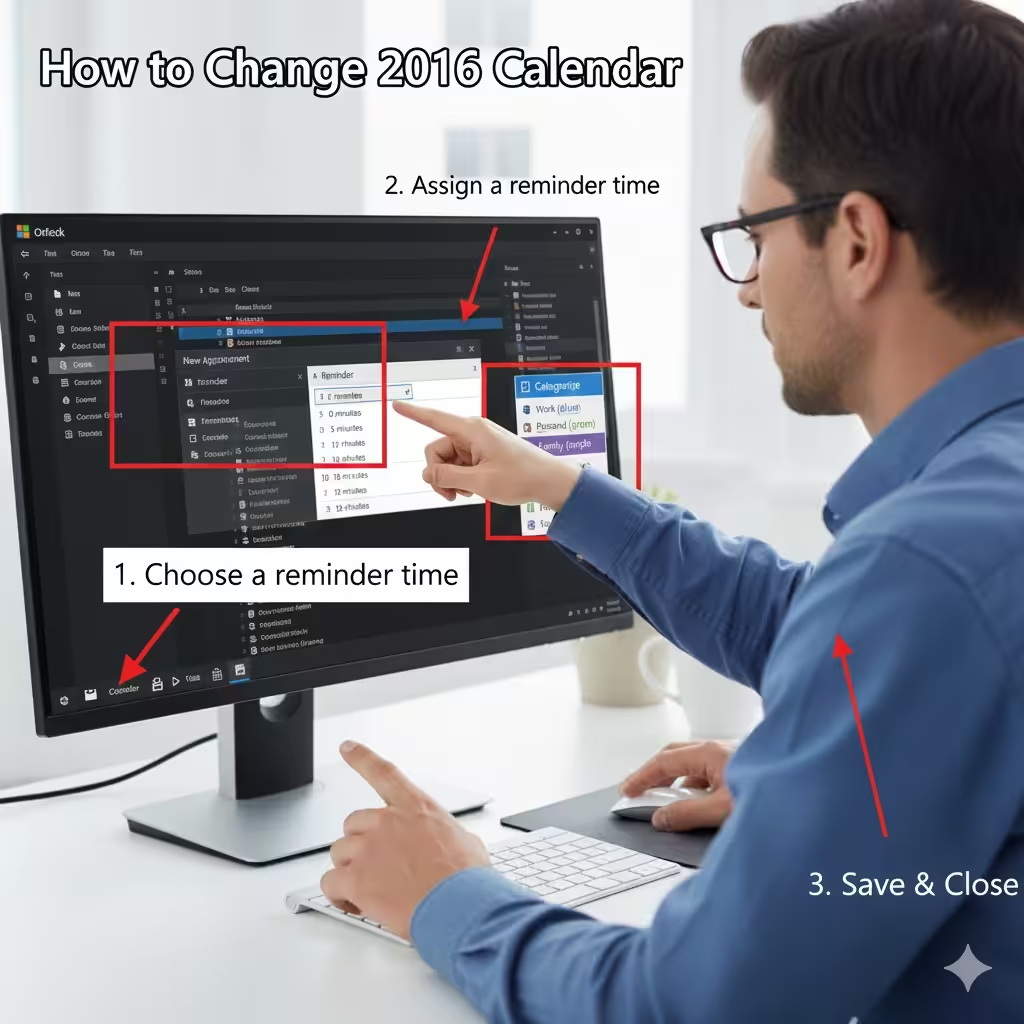
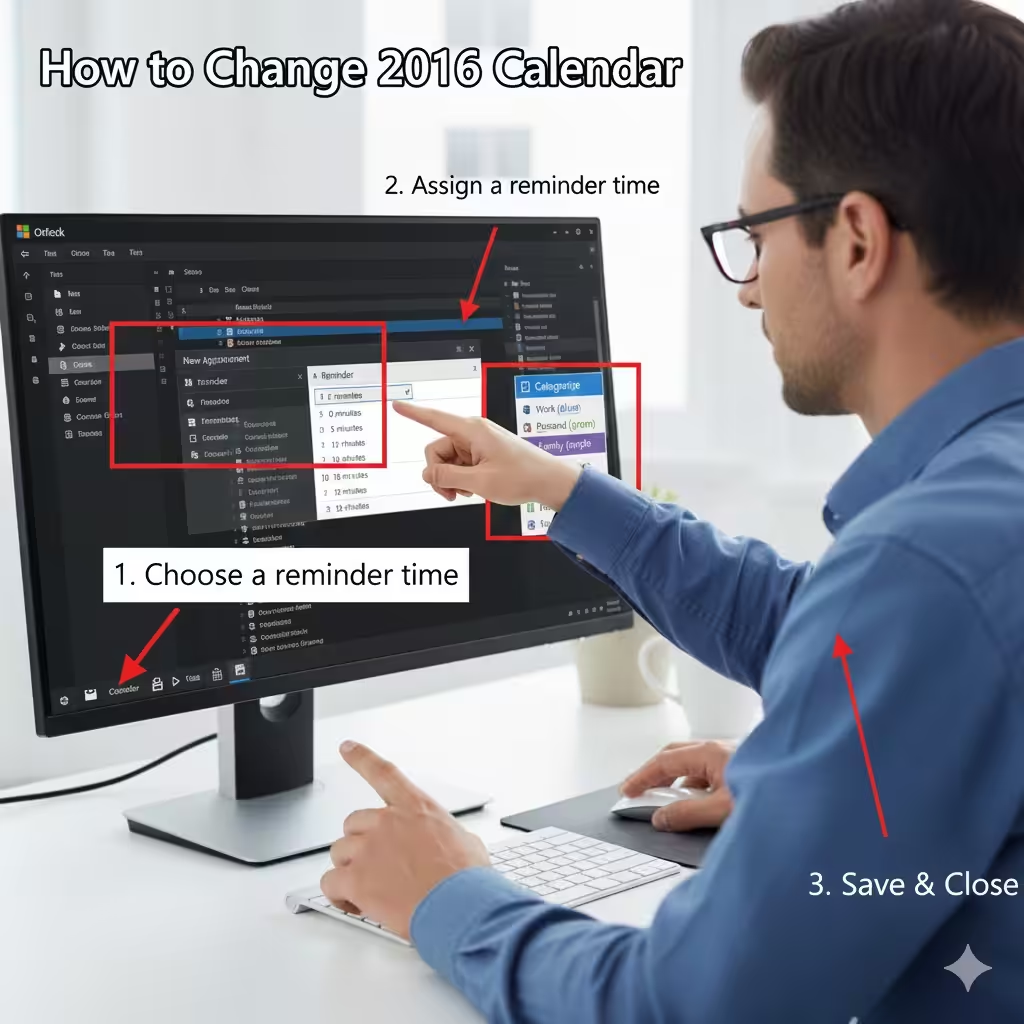
Setting a Reminder for a New Event
-
Open Outlook Calendar.
-
Click New Appointment or New Meeting.
-
Fill in the event details (title, time, location, notes).
-
Look for the Reminder dropdown.
-
Choose when you want the reminder to appear.
-
Click Save & Close.
Adding a Reminder to an Existing Event
-
Double-click the event.
-
Locate the Reminder field.
-
Select a reminder time (for example, 15 minutes, 1 hour, 1 day).
-
Save your changes.
Removing a Reminder
If you don’t want notifications:
-
Open the event.
-
Set Reminder to None.
-
Save the event.
Setting Default Reminder Times
If you want Outlook to automatically choose a reminder for all new events:
-
Go to File → Options.
-
Select Calendar.
-
Under Calendar options, find Default reminders.
-
Check the box and choose your preferred time.
-
Click OK.
This helps maintain consistency across all your events.
Advanced Reminder Features
Outlook includes additional tools that enhance how reminders work.
Snoozing a Reminder
When a reminder pops up, you can snooze it:
-
Choose the Snooze dropdown
-
Select the delay time
-
The reminder will alert you again later
This is helpful for busy schedules where you may need more time before taking action.
Multiple Reminders for One Event
Outlook does not offer multiple reminders by default, but you can:
-
Create a task with its own reminder
-
Use third-party add-ins
-
Duplicate the event and set different reminders
Many users create a “warning event” the day before to act as an extra reminder.
Using Sound Alerts
You can assign custom sounds:
-
Open File → Options → Advanced.
-
Look under Reminders.
-
Select Browse to choose a sound file.
This helps you distinguish Outlook reminders from other notifications.
How to Use Categories in Outlook Calendar
Categories make it easier to visualize and sort your events, especially when your calendar is busy.
Assigning a Category to a New Event
-
Create a new meeting or appointment.
-
Click Categorize in the toolbar.
-
Select your preferred color category.
-
Save the event.
Assigning Categories to Existing Events
-
Double-click the event.
-
Choose Categorize.
-
Select a color or label.
-
Save the changes.
Creating Custom Categories
If the default colors don’t meet your needs, you can create new ones:
-
Go to Home → Categorize → All Categories.
-
Click New.
-
Choose a name, such as “Finance,” “Personal,” or “Health.”
-
Assign a color.
-
Click OK.
Renaming Categories
-
Open the All Categories dialog.
-
Select the category you want to rename.
-
Click Rename.
-
Enter the new label.
Removing or Deleting Categories
-
Navigate to All Categories.
-
Select the category.
-
Click Delete.
This removes it from your list but does not change existing events already tagged with that category.
How Categories Improve Calendar Organization
Color-coding your calendar has multiple benefits.
Visual Clarity
You can quickly scan your day or week and view:
-
How many meetings you have
-
Which events are work-related
-
Time spent on personal activities
Easier Filtering
Outlook allows you to filter events by category:
-
Go to View.
-
Choose View Settings.
-
Apply a category filter.
This makes it easy to focus only on what matters at a specific moment.
Better Time Management
By grouping events visually, you can instantly see:
-
Busy days
-
Available time slots
-
Overlapping commitments
This helps you plan more realistically.
Using Reminders and Categories Together
For maximum efficiency, combine both tools:
-
Use reminders for high-priority tasks or events.
-
Apply categories to organize your schedule visually.
-
Set custom colors for urgent tasks.
-
Snooze reminders to manage time flexibility.
-
Filter categories to focus on specific project timelines.
Together, they create a structured, easy-to-navigate calendar system.
Tips for Maximizing Productivity with Outlook Calendar
Keep Categories Simple
Too many categories can become confusing. Try sticking to 5–8 major ones.
Review Your Calendar Weekly
Set time every week to check:
-
Upcoming deadlines
-
Category distribution
-
Overlapping meetings
Use Category Groups for Projects
If you’re working on multiple projects, this helps separate timelines.
Use Reminders Sparingly
Setting too many reminders can become distracting. Only use them for truly important items.
Conclusion
Outlook Calendar’s reminders and categories are powerful tools that help you stay organized, efficient, and aware of upcoming responsibilities. Reminders ensure you never miss important events, while categories bring clarity and structure to your schedule. When used together, they transform your calendar into a fully personalized productivity system.
Whether you use Outlook for work, school, or personal planning, mastering these features will help you manage your time more effectively and maintain control over your day. If you want, I can also create a WordPress-ready HTML version or help you format this into a PDF or Word file.