


How to Modify the Default Document Font in Microsoft Office
Microsoft Office applications like Word, Excel, and PowerPoint allow you to customize your documents in many ways, and one of the most common personal preferences is setting a default font. Whether you prefer Calibri, Times New Roman, Arial, or another typeface, changing the default font helps maintain consistency across your work and saves time when creating new documents.
This guide explains how to change the default document font in Office applications—primarily Microsoft Word, with additional steps for Excel and PowerPoint. You will learn how to adjust styles, save templates, apply personalization features, and troubleshoot issues if your changes don’t take effect.
Why Change the Default Font in Office?
Changing the default font is helpful for various reasons depending on your needs.
Improved Readability
Some fonts are easier on the eyes, especially for long documents or reports.
Professional Requirements
Organizations may require employees to use a specific font for branding consistency.
Personal Preference
Your writing experience may feel more comfortable when using a familiar or aesthetically pleasing font.
Time Savings
By modifying the default style, you no longer need to manually switch fonts every time you begin a new document.
Understanding these advantages can help you decide the best font settings for your workflow.

How to Change the Default Font in Microsoft Word
Microsoft Word offers the most flexibility for adjusting default fonts, and the process is straightforward.
Change the Default Font Using the Font Dialog Box
-
Open Microsoft Word.
-
Create a new blank document.
-
Go to the Home tab.
-
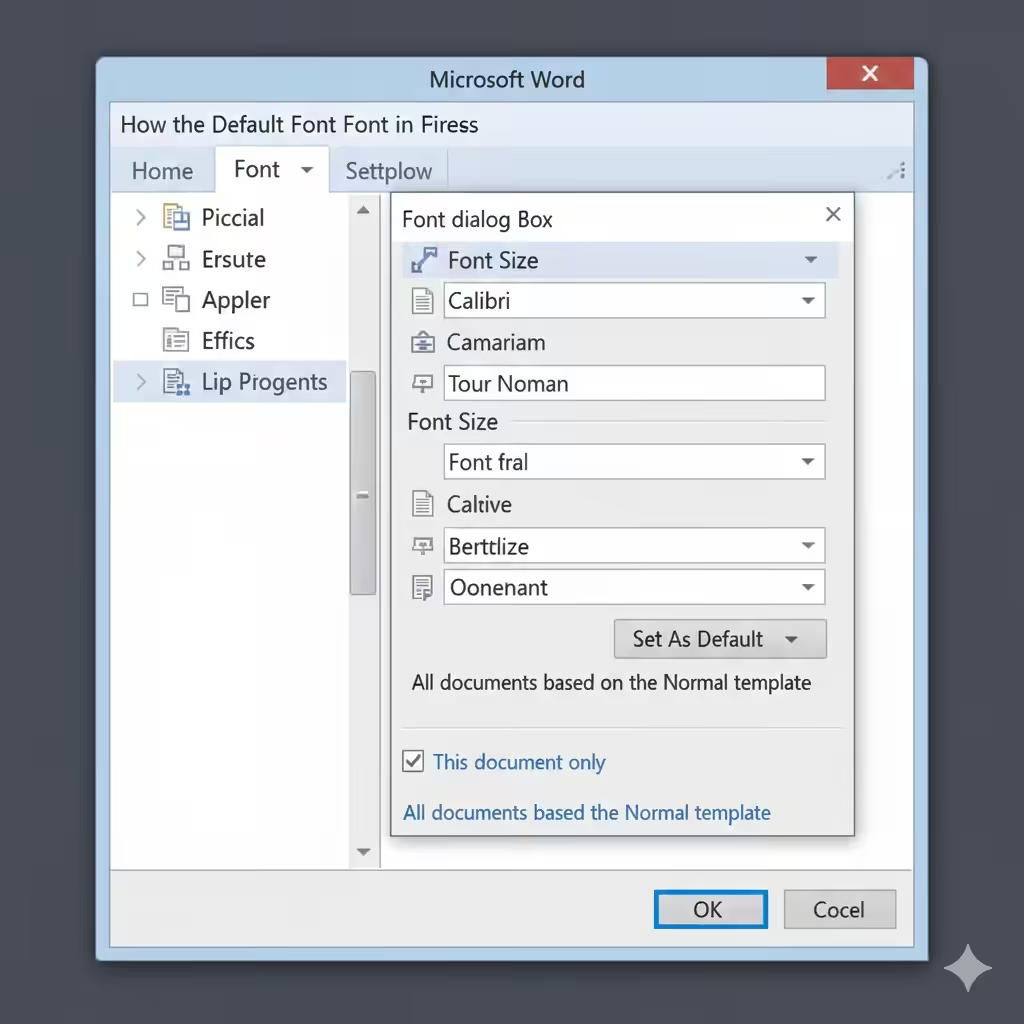
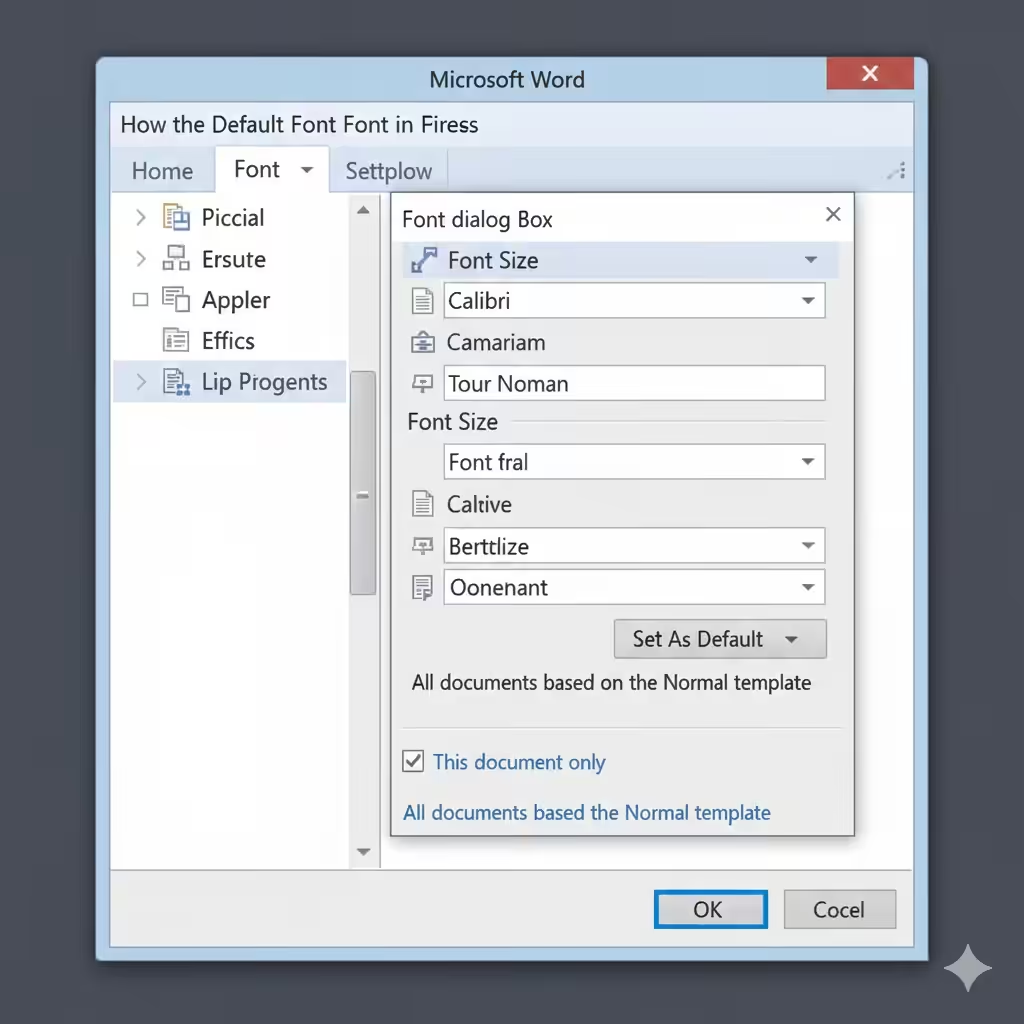
In the Font group, click the small arrow in the bottom right corner (the Font dialog box launcher).
-
Choose your preferred font, font size, and any additional settings (style, spacing, effects).
-
Click Set As Default at the bottom of the dialog box.
-
Choose one of these options:
-
This document only
-
All documents based on the Normal template
-
-
Select the second option if you want the default to apply to every new document.
-
Click OK to confirm.
Word will now use your selected font as the default every time you create a new file.
Change the Default Font Through Styles
Word uses a built-in template called the Normal template, which controls default formatting.
To modify the default font through Styles:
-
Go to the Home tab.
-
Right-click the Normal style.
-
Choose Modify.
-
Select your preferred font and size.
-
Check the option New documents based on this template.
-
Click OK.
This ensures all new files created from the Normal template use your updated settings.
Using a Custom Template
If you create specialized documents (reports, academic papers, business letters), you might prefer creating a custom template:
-
Set up your document with the desired font and formatting.
-
Go to File → Save As.
-
Select Word Template (.dotx).
-
Save it in the default Templates folder.
Whenever you want to start a new document, choose New → Personal to access your template.
How to Change the Default Font in Microsoft Excel
Excel works differently from Word, but you can still set a default font.
Change Excel’s Default Font
-
Open Excel.
-
Go to File → Options.
-
Under the General category, find the section titled When creating new workbooks.
-
Choose your preferred default font and font size.
-
Click OK.
-
Restart Excel.
The new font settings apply to all future workbooks you create.
Using a Custom Workbook Template
You can also create a default workbook template that uses your preferred font:
-
Open a blank workbook.
-
Apply your preferred font to all cells.
-
Save the file as Book.xltx in Excel’s startup folder.
This ensures every new workbook inherits your formatting.
How to Change the Default Font in Microsoft PowerPoint
PowerPoint relies heavily on slide masters for formatting, including fonts.
Change Default Font Using Slide Master
-
Open PowerPoint.
-
Go to View → Slide Master.
-
Select the top slide in the hierarchy (the master slide).
-
Highlight text areas and set your preferred font styles.
-
Close the Slide Master view.
-
Save your changes.
All new slides added to your presentation will inherit these settings.
Save a Custom Template
If you want PowerPoint to always open with your preferred font:
-
Open the Slide Master.
-
Customize the fonts.
-
Save the file as a PowerPoint Template (.potx).
Choose this template whenever starting a new presentation.
Troubleshooting: Default Font Not Changing
Sometimes your changes may not apply. Here are common causes and solutions.
Normal Template Is Corrupted (Word)
If Word ignores your changes, delete or rename the Normal template:
-
Close Word.
-
Navigate to:
C:\Users\<username>\AppData\Roaming\Microsoft\Templates -
Rename Normal.dotm to Normal_old.dotm.
-
Restart Word.
A fresh Normal template will generate automatically.
Administrator Restrictions
If you’re using Office at work, the IT department may enforce templates. You may need permissions to modify settings.
Add-ins Overriding Settings
Some add-ins change font settings. Try disabling them:
-
Go to File → Options → Add-ins.
-
Disable unnecessary add-ins.
-
Restart Office applications.
Template Not Saved Properly
Ensure you click New documents based on this template in Word’s Modify Style dialog.
Tips for Choosing a Default Font
Consider Readability
Fonts like Calibri, Cambria, Georgia, or Arial are easy to read for long periods.
Match Brand Guidelines
If your company has defined typography rules, use approved fonts for consistency.
Use a Professional Style
Sans-serif fonts are common in business documents, while serif fonts are ideal for more formal or academic writing.
Test Print Quality
Some fonts look better on screen than on paper.
Taking time to choose a good font ensures your documents are always clean and professional.
Conclusion
Changing the default document font in Microsoft Office is a simple but powerful customization that improves your workflow and ensures consistency across all your documents. Whether you’re using Word, Excel, or PowerPoint, adjusting templates and styles allows you to create a work environment that matches your preferences and needs.
With the steps detailed above, you can now fully personalize your Office applications and save time every time you create a new document. If you want, I can also provide a WordPress/HTML version or help you create templates for each Office app.