


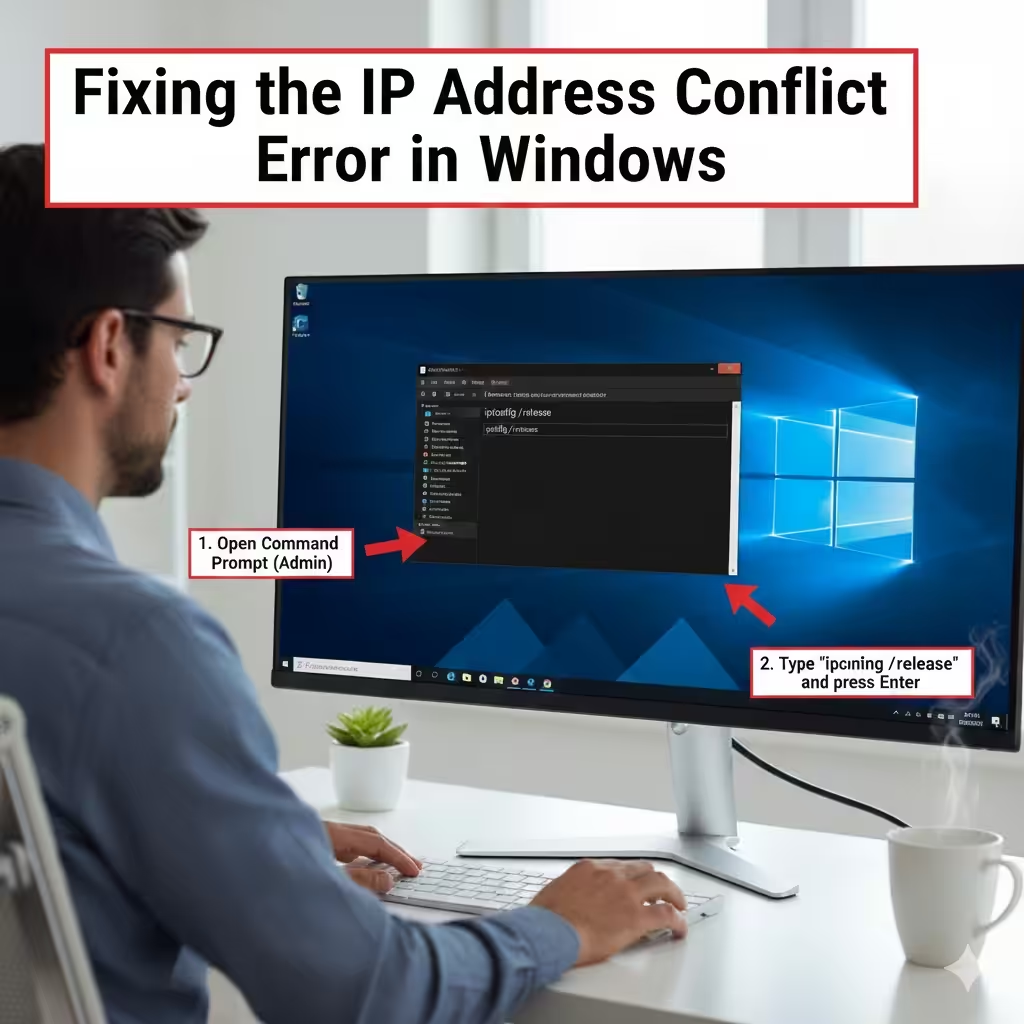
Fixing the IP Address Conflict Error in Windows
The error message “Windows has detected an IP address conflict” appears when two devices on the same network share the same IP address. Because IP addresses must be unique on a local network, Windows blocks the connection to prevent routing errors. This problem is common on home networks, offices, and public Wi-Fi where multiple devices connect simultaneously.
This guide explains what causes the error and provides detailed steps to fix it quickly in Windows 10, Windows 11, and older versions.
Why the IP Address Conflict Happens
An IP conflict occurs when two or more devices attempt to use the same network address. Common causes include:
-
Your router mistakenly assigning duplicate IP addresses
-
A manually assigned static IP matching another device
-
Devices waking from sleep with outdated IP leases
-
DHCP server malfunction
-
Network adapter or driver issues
-
VPN or virtual machine interference
-
Device reconnecting too quickly after restart
Understanding the source of the problem helps you choose the best troubleshooting method.
Method 1: Restart Your Router and Computer
A simple restart often resolves IP conflicts caused by temporary DHCP miscommunication.
Restart Your Router
-
Unplug the router and modem.
-
Wait 10–15 seconds.
-
Plug them back in.
-
Wait for the internet connection to fully restore.
Restart Your PC
Sometimes your computer keeps an outdated IP lease. Restarting forces it to request a new address.
This quick step often resolves one-time conflicts.
Method 2: Release and Renew Your IP Address
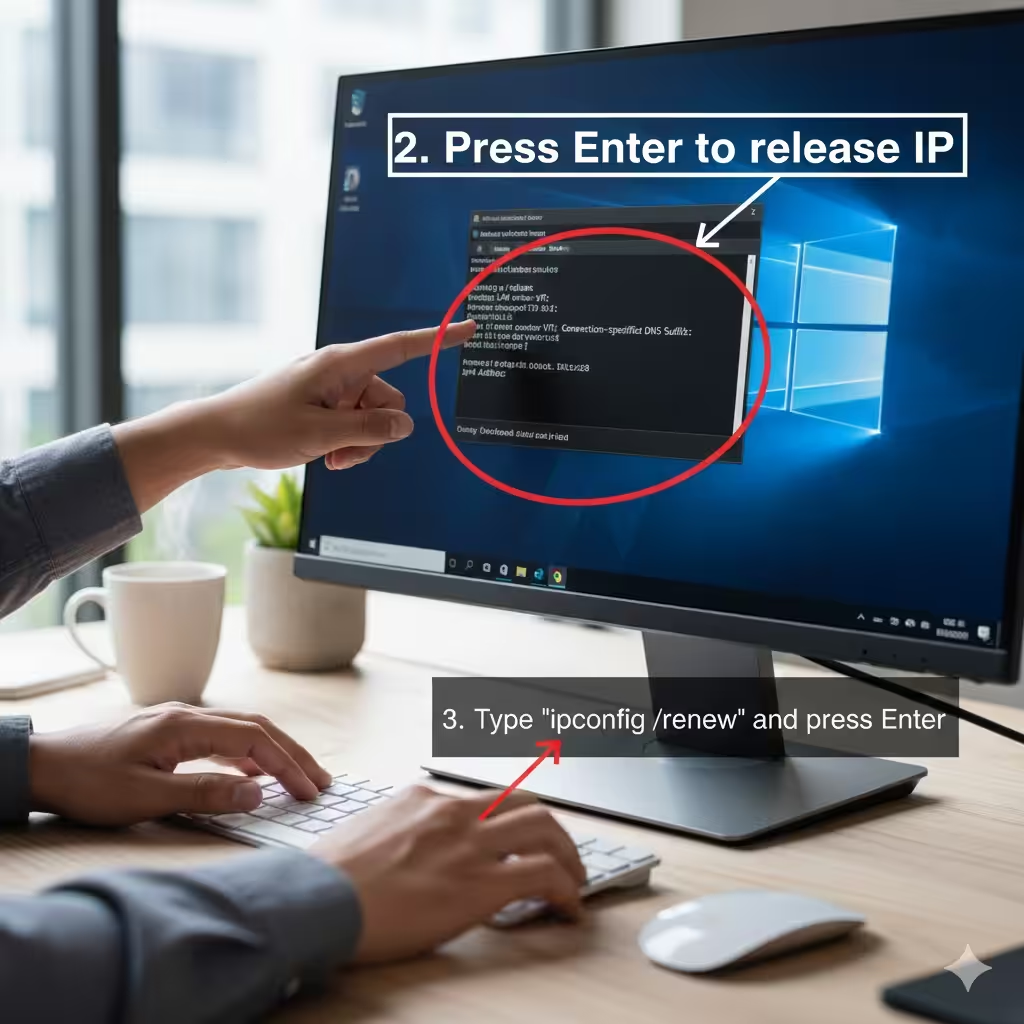
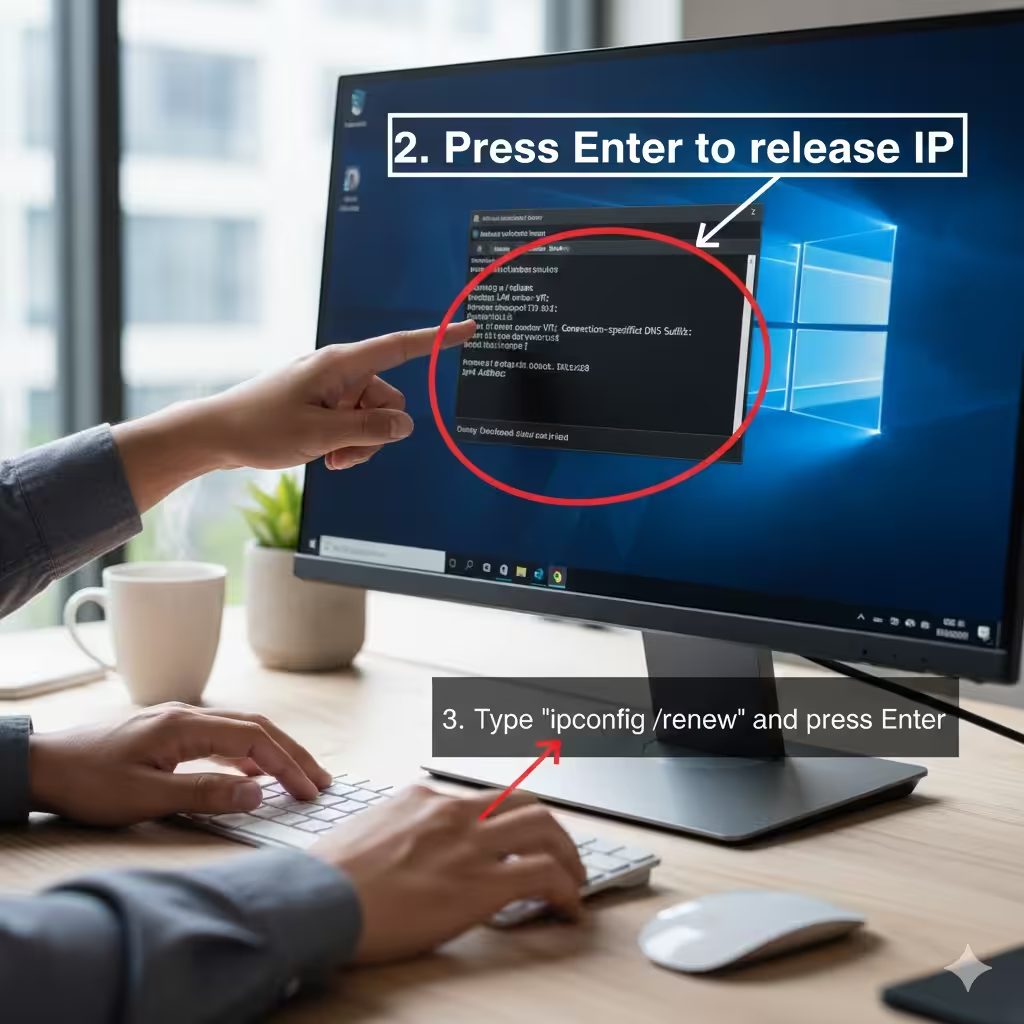
Windows allows you to refresh its network configuration directly using the Command Prompt.
Steps to Release and Renew IP
-
Open Command Prompt as Administrator.
-
Type:
Press Enter.
-
Then type:
-
Press Enter again.
This forces your PC to drop the old IP and obtain a fresh one from the router.
Method 3: Reset TCP/IP Stack
Network settings can become corrupted, leading to IP conflicts or connectivity issues.
Reset TCP/IP
In Command Prompt (Admin), type:
Restart your PC afterward.
This resets core network components to default settings.
Method 4: Set Your IP Address to Automatic (DHCP)
If you have previously configured a static IP address, it may conflict with another device using the same IP. Switching back to automatic IP assignment usually resolves the problem.
How to enable automatic IP assignment
-
Open Control Panel.
-
Click Network and Sharing Center.
-
Select Change adapter settings.
-
Right-click your Wi-Fi or Ethernet adapter.
-
Choose Properties.
-
Select Internet Protocol Version 4 (IPv4).
-
Click Properties.
-
Enable:
-
Obtain an IP address automatically
-
Obtain DNS server address automatically
-
-
Click OK.
If IPv6 is enabled, repeat the steps for IPv6.
This ensures your router manages IP assignments without conflict.
Method 5: Assign a New Static IP Address
If you prefer using a static IP (for printers, servers, or port forwarding), you can assign a unique address to avoid conflicts.
How to set a manual static IP
-
Open Control Panel → Network and Sharing Center.
-
Choose Change adapter settings.
-
Right-click your network adapter → Properties.
-
Select Internet Protocol Version 4 (IPv4) → Properties.
-
Enable Use the following IP address.
-
Choose an IP within your router’s network range, for example:
-
Router IP: 192.168.1.1
-
Set your IP to: 192.168.1.50 (or any unused number)
-
-
Fill in:
-
Subnet Mask: 255.255.255.0
-
Default Gateway: your router’s IP
-
-
Set DNS (Google DNS example):
-
8.8.8.8
-
8.8.4.4
-
-
Click OK.
This ensures the device uses a unique address that does not conflict with others.
Method 6: Remove and Reinstall Your Network Driver
A corrupted or outdated network driver can cause IP assignment errors.
Update or reinstall the driver
-
Press Windows + X and select Device Manager.
-
Expand Network adapters.
-
Right-click your network device.
-
Select Update driver → Search automatically for drivers.
If updating does not fix the conflict:
-
Right-click the adapter → Uninstall device.
-
Restart your computer.
-
Windows will reinstall the correct driver automatically.
Method 7: Disable Virtual Network Adapters
Virtual machines, VPN clients, and virtual switches (e.g., VMware, Hyper-V, VirtualBox) may generate conflicting IPs.
Disable unnecessary virtual adapters
-
Open Device Manager.
-
Expand Network adapters.
-
Look for adapters labeled:
-
VirtualBox
-
VMware
-
Hyper-V
-
TAP adapter (used by VPNs)
-
-
Right-click → Disable (do not uninstall unless you know you no longer need it).
Then restart your computer.
Method 8: Restart DHCP Client Service
If Windows cannot communicate properly with the DHCP server, IP conflicts may occur.
Restart the DHCP Client service
-
Press Windows + R, type services.msc, press Enter.
-
Find DHCP Client.
-
Right-click → Restart.
This refreshes Windows’ ability to request IP addresses correctly.
Method 9: Reset Your Router to Factory Defaults
If your router consistently assigns duplicate IPs, it may be misconfigured or malfunctioning.
Factory reset steps
-
Find the reset hole on the back of the router.
-
Press and hold the button for 10–15 seconds.
-
The router will reboot and restore default settings.
-
Reconnect and reconfigure your Wi-Fi.
This resolves long-term DHCP problems.
Method 10: Check for Duplicate IPs on the Network
If someone manually assigns an IP to a device—like a printer, server, or smart TV—your computer may conflict with it.
Checklist
-
Printers with manually assigned IPs
-
Smart home devices
-
Gaming consoles
-
Network storage (NAS)
-
Security cameras
-
Other PCs using static IPs
If one of these devices uses the same IP as your computer, update the IP settings on one of them.
Method 11: Disable IPv6 (Optional)
Some routers struggle with IPv6, causing communication issues.
To disable IPv6
-
Open Network Connections.
-
Right-click your adapter → Properties.
-
Uncheck Internet Protocol Version 6 (IPv6).
-
Click OK.
Restart your PC after disabling it.
Method 12: Scan for Malware
Malware that modifies network settings can also cause IP conflicts.
Perform a full scan using:
-
Windows Security
-
Malwarebytes
-
A trusted antivirus
Remove any detected threats.
When to Contact Your ISP
If multiple devices on your network experience IP conflicts, the issue may be outside your control. Your ISP may need to:
-
Reset your public IP
-
Fix DHCP issues
-
Replace malfunctioning equipment
-
Update router firmware
Contact them if all troubleshooting methods fail.
Conclusion
The “Windows has detected an IP address conflict” error can disrupt your internet connection, but it is usually easy to fix. From releasing and renewing your IP, adjusting DHCP settings, and updating drivers to checking for duplicate static IPs, this guide provides every solution you need.
By following the appropriate steps for your situation, you can restore network stability and prevent IP conflicts from recurring.