


How to Enable Flash Player in Chrome, Edge, and Firefox
Adobe Flash Player was once an essential technology for playing videos, animations, and interactive content on the web. Many educational platforms, games, and business tools depended on it for years. However, due to serious security concerns and the rise of modern web standards like HTML5, Adobe officially discontinued Flash Player at the end of 2020. As a result, modern browsers such as Google Chrome, Microsoft Edge, and Mozilla Firefox now block Flash content by default.
Despite this, some users still need to access legacy Flash-based content, especially in corporate environments, internal systems, or archived learning materials. This guide explains how Flash Player blocking works, what options are still available in Chrome, Edge, and Firefox, and the safest alternatives to consider today.
Important Notes About Flash Player
Before attempting to unblock Flash Player, it is important to understand the risks and limitations.
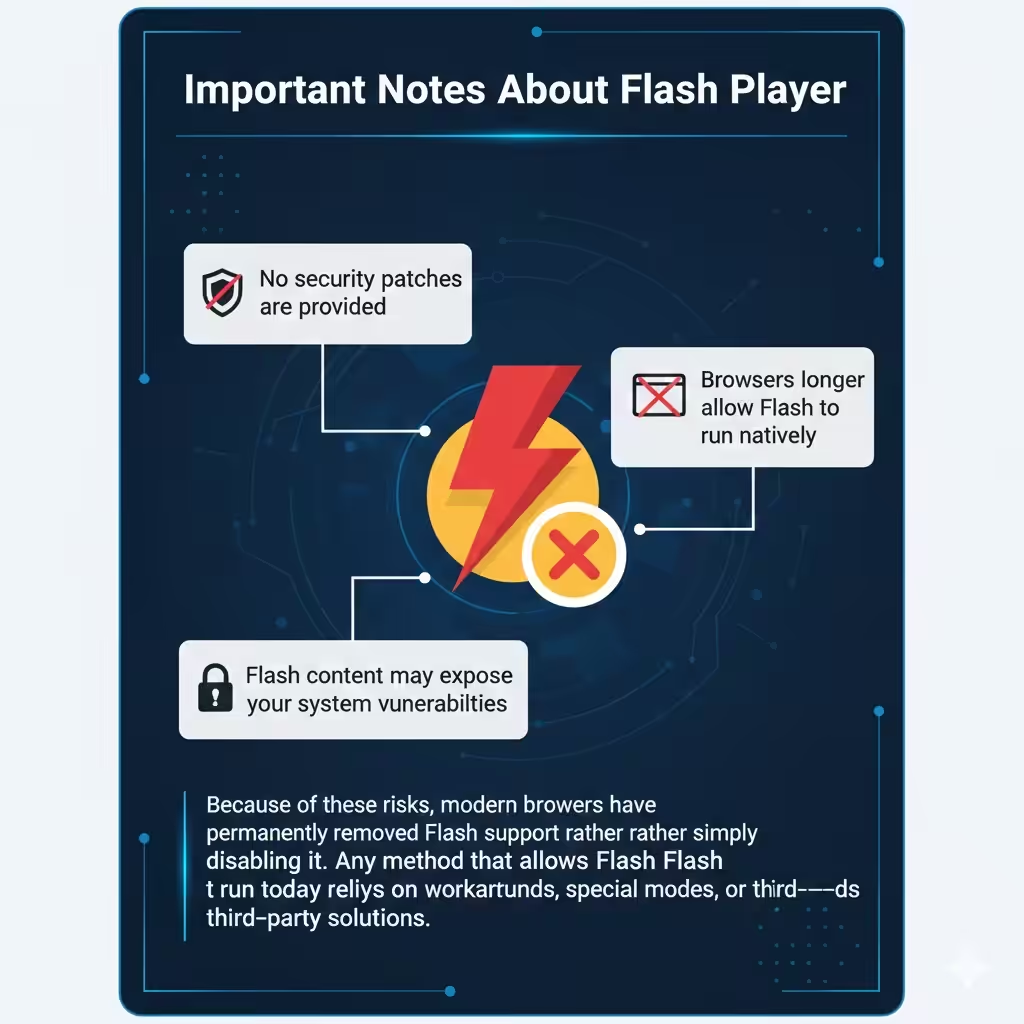
Flash Player is no longer supported or updated by Adobe. This means:
- No security patches are provided
- Browsers no longer allow Flash to run natively
- Flash content may expose your system to vulnerabilities
Because of these risks, modern browsers have permanently removed Flash support rather than simply disabling it. Any method that allows Flash to run today relies on workarounds, special modes, or third‑party solutions.
How Flash Blocking Works in Modern Browsers
All major browsers have taken a similar approach to Flash Player:
- Flash is disabled by default
- Built‑in Flash components have been removed
- Flash content is blocked even if a plugin file exists
This means you cannot simply “enable” Flash from browser settings as in the past. Instead, you must rely on alternative methods depending on the browser you use.
How To Unblock Flash Player in Google Chrome
Google Chrome removed Flash Player completely starting from version 88. There is no native way to unblock Flash directly inside Chrome. However, there are still a few practical options.
Use Chrome with Flash‑Based Emulation Tools
Some legacy systems use Flash emulators such as Ruffle. These tools emulate Flash content using modern technologies and work inside Chrome without installing Flash Player.
Steps usually include:
- Installing a trusted Flash emulator extension
- Opening the Flash‑based webpage
- Allowing the emulator to load the content
This approach works well for simple animations and games but may not support complex enterprise applications.
Use Internet Explorer Mode via Edge Instead
If your Flash content is part of a business or internal system, Chrome may not be the right browser. Microsoft Edge offers an alternative through Internet Explorer Mode, which supports legacy technologies.
How To Unblock Flash Player in Microsoft Edge
Microsoft Edge (Chromium‑based) does not support Flash directly, but it provides a powerful workaround using Internet Explorer Mode.
Enable Internet Explorer Mode in Edge
Internet Explorer Mode allows Edge to load websites using the old Internet Explorer engine, which can still run Flash in controlled environments.
Basic steps include:
- Opening Edge settings
- Enabling Internet Explorer Mode
- Restarting the browser
- Opening the Flash‑based website using IE Mode
This method is commonly used by organizations that rely on legacy web applications.
Use Enterprise‑Approved Flash Solutions
In some corporate environments, IT administrators deploy secured Flash solutions bundled with Internet Explorer and controlled access policies. This ensures Flash only runs on trusted internal sites.
How To Unblock Flash Player in Mozilla Firefox
Mozilla Firefox removed Flash support entirely starting with version 85. Like Chrome, it does not offer a built‑in option to re‑enable Flash.
Use an Older Firefox Version (Not Recommended)
Some users attempt to install older versions of Firefox that still support Flash Player. While technically possible, this approach is strongly discouraged due to security risks.
If used at all, it should only be done:
- On an offline system
- For temporary access to legacy content
- With no personal or sensitive data involved
Use Flash Emulation Tools in Firefox
Similar to Chrome, Firefox can run Flash emulators that translate Flash content into modern web formats. Compatibility varies depending on the complexity of the original Flash application.
Recommended Safe Alternatives to Flash Player
Rather than trying to unblock Flash Player directly, the safest approach is to migrate or replace Flash‑based content.
Convert Flash Content to HTML5
HTML5 is the modern standard for web multimedia. Many tools and services can convert Flash animations and videos into HTML5 formats that work across all browsers.
Use Dedicated Flash Players
Some third‑party desktop applications are designed to run Flash files in isolated environments. These tools reduce risk by preventing Flash from interacting directly with your browser.
Request Updated Content From Providers
If the Flash content comes from an educational platform or service provider, check whether an updated version is available. Most organizations have already migrated away from Flash.
Security Best Practices When Accessing Flash Content
If you must access Flash‑based content, follow these safety guidelines:
- Use a dedicated device or virtual machine
- Avoid logging into personal accounts
- Do not enable Flash on public or unknown websites
- Disable Flash access immediately after use
These precautions help minimize exposure to potential security threats.
Common Problems and Limitations
Even with workarounds, Flash content may not function correctly.
Common issues include:
- Broken animations
- Audio not playing
- Login failures in old systems
- Browser crashes or freezes
These problems occur because Flash was designed for an older web environment that no longer exists.
Conclusion
Unblocking Flash Player in Chrome, Edge, and Firefox is no longer a straightforward process because native Flash support has been permanently removed. While Chrome and Firefox rely mainly on emulation tools or outdated versions, Microsoft Edge provides Internet Explorer Mode as the most reliable solution for legacy systems.
Whenever possible, using modern alternatives such as HTML5 or updated platforms is the safest and most future‑proof approach. Flash Player belongs to an earlier era of the web, and accessing it today should always be done cautiously, temporarily, and only when absolutely necessary.