


Essential Microsoft Office Shortcuts and Tricks Every User Should Know
Microsoft Office remains one of the most widely used productivity suites in the world. Whether you are working with Word, Excel, PowerPoint, Outlook, or Teams, learning advanced tips and shortcuts can dramatically improve productivity and make daily tasks easier.
Many users only scratch the surface of what Microsoft Office can do. Hidden features, keyboard shortcuts, automation tools, and workflow tricks can help save time, reduce repetitive tasks, and improve overall efficiency.
Whether you are a student, office worker, business professional, or remote employee, mastering Microsoft Office can help you work faster and smarter.
In this guide, you’ll discover expert Microsoft Office tips, useful tricks, and practical shortcuts that can help you navigate Office applications more effectively.
Why Learn Microsoft Office Shortcuts and Tricks?
Using Office efficiently offers several advantages.
Benefits Include
- Faster workflow
- Improved productivity
- Reduced mouse usage
- Better document management
- Easier multitasking
- More professional presentations and spreadsheets
Even small shortcuts can save significant time over the course of a workday.
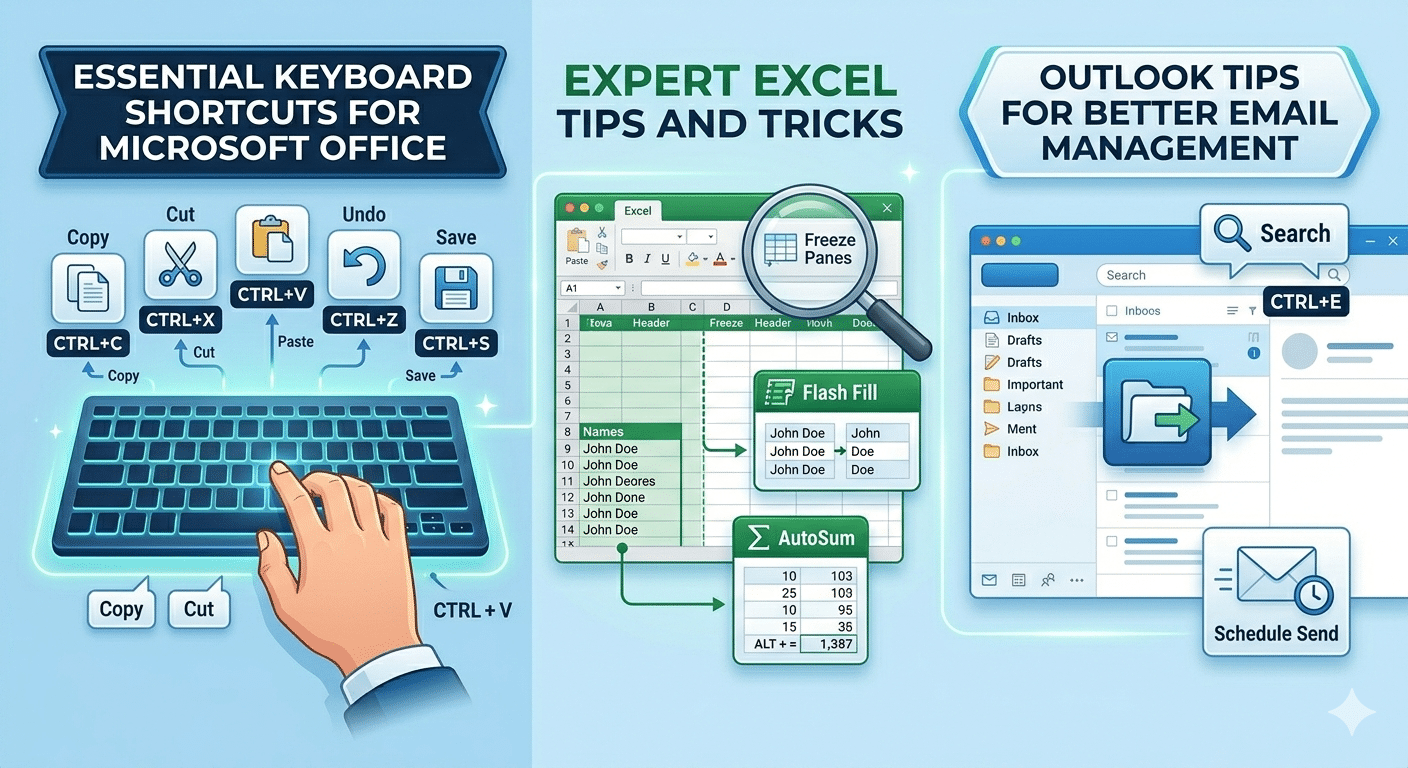
Essential Keyboard Shortcuts for Microsoft Office
Many shortcuts work across most Office applications.
General Office Shortcuts
Copy, Cut, and Paste
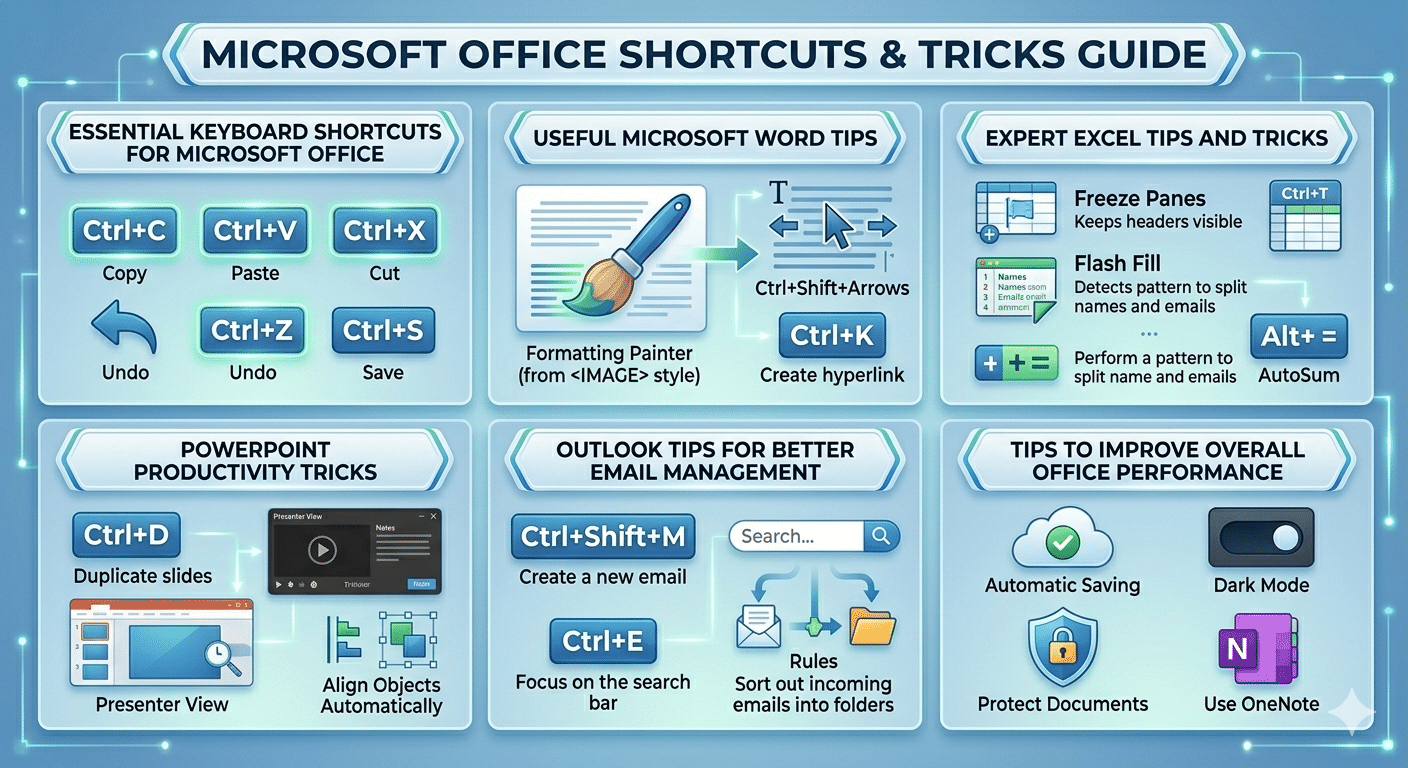
Ctrl + CCopy selected content.
Ctrl + XCut selected content.
Ctrl + VPaste copied content.
Undo and Redo
Ctrl + ZUndo the previous action.
Ctrl + YRedo an action.
Save Documents Quickly
Ctrl + SSave changes instantly.
Open and Create Files
Ctrl + OOpen files.
Ctrl + NCreate a new document or workbook.
Useful Microsoft Word Tips
Microsoft Word contains many features that improve document creation and editing.
Use Format Painter
Format Painter copies formatting from one section to another.
How It Helps
- Quickly duplicate fonts and styles
- Maintain consistent formatting
- Save editing time
Quickly Select Text
Shortcuts
Ctrl + Shift + Arrow KeysSelect words or paragraphs rapidly.
Insert Hyperlinks Faster
Ctrl + KOpen the hyperlink dialog instantly.
Use Navigation Pane
The Navigation Pane makes large documents easier to manage.
Benefits
- Jump between headings
- Search quickly
- Reorganize sections easily
Compare Two Documents
Word can compare document versions automatically.
Useful For
- Revisions
- Contracts
- Collaborative editing
Expert Excel Tips and Tricks
Excel is one of the most powerful Office applications for data analysis and organization.
Freeze Panes
Freeze Panes keeps headers visible while scrolling.
Best Use Cases
- Large spreadsheets
- Financial reports
- Data tables
Use Flash Fill
Flash Fill automatically detects patterns.
Examples
- Splitting names
- Formatting phone numbers
- Extracting data
Quick AutoSum Shortcut
Alt + =Automatically insert SUM formulas.
Navigate Large Worksheets Faster
Useful Shortcuts
Ctrl + Arrow KeysMove quickly through data ranges.
Convert Data Into Tables
Excel tables offer:
- Automatic filtering
- Better formatting
- Easier formula management
Shortcut
Ctrl + TPowerPoint Productivity Tricks
PowerPoint includes many tools for building professional presentations quickly.
Duplicate Slides Instantly
Ctrl + DDuplicate selected slides.
Start Presentation Quickly
F5Start slideshow from the beginning.
Shift + F5Start from the current slide.
Use Presenter View
Presenter View provides:
- Speaker notes
- Timers
- Slide previews
Ideal for presentations and meetings.
Align Objects Automatically
PowerPoint alignment tools help create cleaner designs.
Benefits
- Better slide symmetry
- Professional layouts
- Faster editing
Outlook Tips for Better Email Management
Outlook can become much easier to manage with the right shortcuts.
Quickly Create New Emails
Ctrl + Shift + MOpen a new email window.
Search Emails Faster
Ctrl + EJump directly to the search bar.
Use Rules for Automation
Rules automatically organize incoming emails.
Examples
- Move messages into folders
- Filter newsletters
- Flag important emails
Schedule Emails
Outlook allows delayed sending.
Useful For
- Business communication
- Different time zones
- Planned announcements
Microsoft Teams Productivity Tricks
Teams has become essential for remote collaboration.
Use Keyboard Commands
Mute or Unmute
Ctrl + Shift + MMute or unmute during meetings.
Search Commands Quickly
Ctrl + EAccess Teams search instantly.
Pin Important Channels
Pinned channels improve navigation and organization.
Use Office Cloud Integration
Microsoft 365 integrates closely with OneDrive and SharePoint.
Advantages
- Automatic saving
- Real-time collaboration
- File version history
- Remote access
Enable AutoSave
AutoSave reduces the risk of losing work.
Best For
- Long documents
- Shared projects
- Frequent editing sessions
Learn Ribbon Shortcuts
Office Ribbon menus support keyboard navigation.
Press
AltThis displays shortcut letters for Ribbon commands.
Use Templates To Save Time
Office templates help create:
- Reports
- Budgets
- Presentations
- Calendars
- Invoices
Templates reduce repetitive formatting work.
Use Dark Mode
Dark Mode may reduce eye strain during long work sessions.
Enable Through
- File → Account → Office Theme
Protect Important Documents
Office allows document protection features.
Options Include
- Password protection
- Restrict editing
- Read-only mode
Recover Unsaved Documents
Office can often restore unsaved files automatically.
Where To Check
- File → Info → Manage Document
Use Dictation Features
Microsoft Office supports voice typing.
Benefits
- Faster text entry
- Accessibility support
- Hands-free workflow
Master Clipboard History
Windows clipboard history works well with Office.
Shortcut
Windows + VAccess multiple copied items.
Customize Quick Access Toolbar
Adding frequently used commands improves efficiency.
Good Choices
- Save As
- Print Preview
- Undo
- Email attachment commands
Track Changes in Word
Track Changes is essential for collaboration.
Useful For
- Editing
- Proofreading
- Team projects
Use Excel Conditional Formatting
Conditional formatting helps visualize data instantly.
Examples
- Highlight duplicates
- Color-code values
- Identify trends
Learn Basic Excel Formulas
Understanding formulas improves productivity significantly.
Important Functions
- SUM
- IF
- VLOOKUP
- XLOOKUP
- COUNTIF
Use OneNote for Organization
OneNote integrates well with Office applications.
Best Uses
- Meeting notes
- Research
- Task organization
- Project planning
Tips To Improve Overall Office Performance
To keep Microsoft Office running smoothly:
- Keep Office updated
- Disable unnecessary add-ins
- Use SSD storage when possible
- Maintain free disk space
- Restart Office apps occasionally
Final Thoughts
Microsoft Office includes countless features that many users never fully explore. Learning expert tips, shortcuts, and productivity tricks can significantly improve workflow efficiency and reduce repetitive tasks.
Whether you use Word for writing, Excel for data analysis, PowerPoint for presentations, Outlook for communication, or Teams for collaboration, mastering shortcuts and hidden tools can help you navigate Microsoft Office more effectively.