


Excel COUNTIF Function Explained: Tips, Syntax, and Examples
Microsoft Excel offers hundreds of powerful functions that help users organize, analyze, and manage data efficiently. Among the most useful and beginner-friendly functions is COUNTIF, a formula designed to count cells that meet a specific condition.
Whether you are working with sales reports, attendance sheets, inventory lists, survey results, or financial data, the COUNTIF function can save time and simplify calculations dramatically.
Many Excel users rely on COUNTIF daily because it helps analyze large datasets quickly without manually counting entries. Once you understand how it works, you can use it in countless practical scenarios.
In this guide, you’ll learn what the COUNTIF function is, how it works, its syntax, common examples, advanced techniques, and troubleshooting tips.
What Is the COUNTIF Function in Excel?
The COUNTIF function counts the number of cells within a range that meet a specified condition or criteria.
For example, COUNTIF can count:
- Cells containing a certain word
- Numbers greater than a value
- Blank or non-blank cells
- Duplicate entries
- Dates matching conditions
It is one of Excel’s most popular statistical functions.

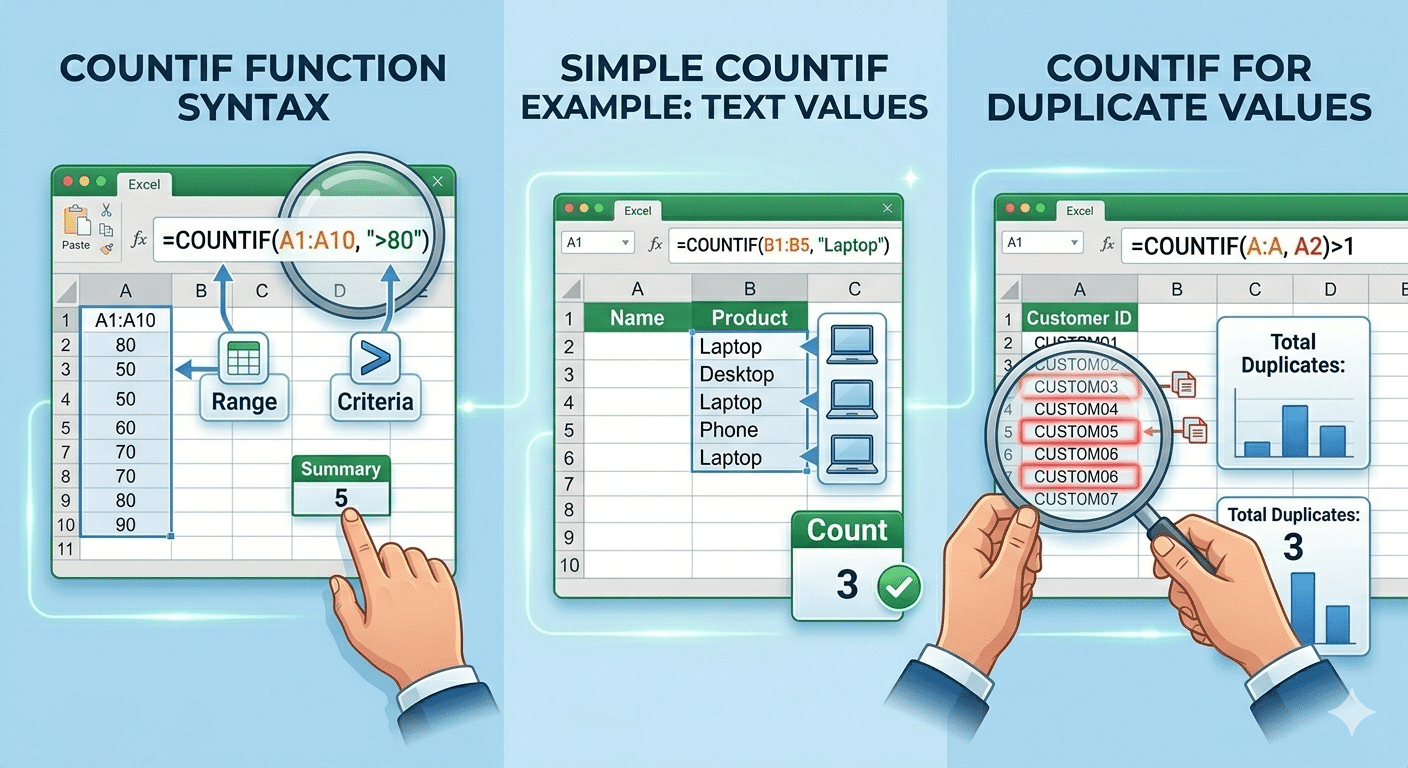
COUNTIF Function Syntax
The basic syntax is:
=COUNTIF(range, criteria)Explanation of Arguments
Range
The group of cells Excel should evaluate.
Criteria
The condition used for counting.
The criteria may include:
- Numbers
- Text
- Logical expressions
- Cell references
- Wildcards
Simple COUNTIF Example
Suppose you have student grades in cells A1 through A10.
To count how many students scored above 80:
=COUNTIF(A1:A10,">80")Excel counts all cells containing values greater than 80.
COUNTIF With Text Values
You can also count text entries.
Example
If cells B1:B10 contain product names:
=COUNTIF(B1:B10,"Laptop")This counts how many times “Laptop” appears.
COUNTIF With Cell References
Instead of typing criteria directly, you can reference another cell.
Example
=COUNTIF(A1:A10,C1)Excel counts cells matching the value in C1.
Using COUNTIF With Dates
COUNTIF works well with dates too.
Example
To count dates after January 1, 2026:
=COUNTIF(A1:A20,">1/1/2026")COUNTIF With Blank Cells
To count empty cells:
=COUNTIF(A1:A20,"")COUNTIF With Non-Blank Cells
To count cells containing data:
=COUNTIF(A1:A20,"<>")The <> operator means “not equal to blank.”
Using Wildcards in COUNTIF
Wildcards help match partial text.
Asterisk (*) Wildcard
The asterisk represents any number of characters.
Example
=COUNTIF(A1:A20,"*apple*")Counts cells containing the word “apple” anywhere in the text.
Question Mark (?) Wildcard
The question mark represents a single character.
Example
=COUNTIF(A1:A20,"cat?")Matches:
- cats
- cate
but not:
- cat
- catalog
COUNTIF With Logical Operators
COUNTIF supports several logical operators.
Greater Than
=COUNTIF(A1:A20,">50")Less Than
=COUNTIF(A1:A20,"<100")Equal To
=COUNTIF(A1:A20,"=75")Not Equal To
=COUNTIF(A1:A20,"<>0")COUNTIF for Duplicate Values
COUNTIF is commonly used to identify duplicates.
Example
=COUNTIF(A:A,A2)If the result is greater than 1, the value appears multiple times.
COUNTIF With Multiple Criteria
COUNTIF itself handles only one condition.
For multiple conditions, use:
COUNTIFSinstead.
COUNTIFS Example
=COUNTIFS(A1:A20,"Laptop",B1:B20,">1000")This counts laptops priced above 1000.
Practical Uses of COUNTIF
COUNTIF is useful in many real-world situations.
Attendance Tracking
Count how many employees were present.
Sales Analysis
Count products sold above certain targets.
Inventory Management
Track stock quantities and duplicates.
Survey Results
Analyze responses automatically.
Project Management
Monitor completed tasks.
Combining COUNTIF With Conditional Formatting
COUNTIF works well with conditional formatting to highlight duplicates.
Example
Highlight duplicate values automatically using:
=COUNTIF(A:A,A1)>1Common COUNTIF Errors
Sometimes COUNTIF may not work as expected.
Incorrect Criteria Formatting
Logical expressions must be inside quotation marks.
Correct
">50"Incorrect
>50Hidden Spaces in Text
Extra spaces can prevent matches.
Solution
Use:
TRIM()to remove unnecessary spaces.
Numbers Stored as Text
Excel may treat numeric values as text.
Fix
Convert cells to proper numeric format.
COUNTIF Performance Tips
Large spreadsheets with many COUNTIF formulas may slow Excel.
Tips
- Avoid entire-column references when possible
- Use smaller ranges
- Remove unnecessary formulas
Difference Between COUNT and COUNTIF
COUNT
Counts numeric cells only.
Example
=COUNT(A1:A20)COUNTIF
Counts cells matching specific conditions.
Example
=COUNTIF(A1:A20,">50")Difference Between COUNTIF and COUNTA
COUNTA
Counts non-empty cells.
COUNTIF
Counts cells matching a chosen condition.
Advanced COUNTIF Techniques
Experienced Excel users often combine COUNTIF with other functions.
COUNTIF With IF Function
Example
=IF(COUNTIF(A:A,"Apple")>0,"Found","Not Found")COUNTIF With SUMPRODUCT
Useful for more advanced counting logic.
How To Learn COUNTIF Faster
The best way to master COUNTIF is through practice.
Try Working With
- Budgets
- Student lists
- Sales tables
- Task trackers
- Inventory sheets
Why COUNTIF Is Important in Excel
COUNTIF simplifies data analysis dramatically.
Advantages
- Saves time
- Reduces manual counting
- Improves accuracy
- Works with large datasets
- Easy for beginners to learn
Final Thoughts
The COUNTIF function is one of the most practical and versatile tools in Microsoft Excel. It allows users to count cells based on specific conditions quickly and efficiently, making it essential for data analysis, reporting, and spreadsheet management.
Whether you are counting text entries, analyzing numbers, tracking attendance, identifying duplicates, or working with dates, COUNTIF provides a fast and reliable solution.